
Getting Started#
Basic Concept#
When running AI models in an edge environment, model files trained or prepared on a central server must be deployed to multiple edge devices.
For example, you can deploy a new image analysis model to factory camera devices or replace models on edge servers installed in stores and logistics centers with a new version.
The deployment target may include more than a single model file. Inference settings, class information, runtime configuration files, and other files may need to be deployed to the same device together with the model.
                    Model Repository
                           │
              Model + Config + Metadata
                           │
                           ▼
                    Distribution Flow
                           │
          ┌────────────────┼────────────────┐
          ▼                ▼                ▼
      Edge Device 01   Edge Device 02   Edge Device 03
          │                │                │
          ▼                ▼                ▼
       Model Ready      Model Ready      Check Required
If files are copied directly to multiple devices, you must check each device individually to determine which model version was applied and whether all required configuration files were delivered.
With a Flow, you can configure prepare model files → select deployment targets → transfer to multiple edge devices in parallel → verify results by device as a single workflow.
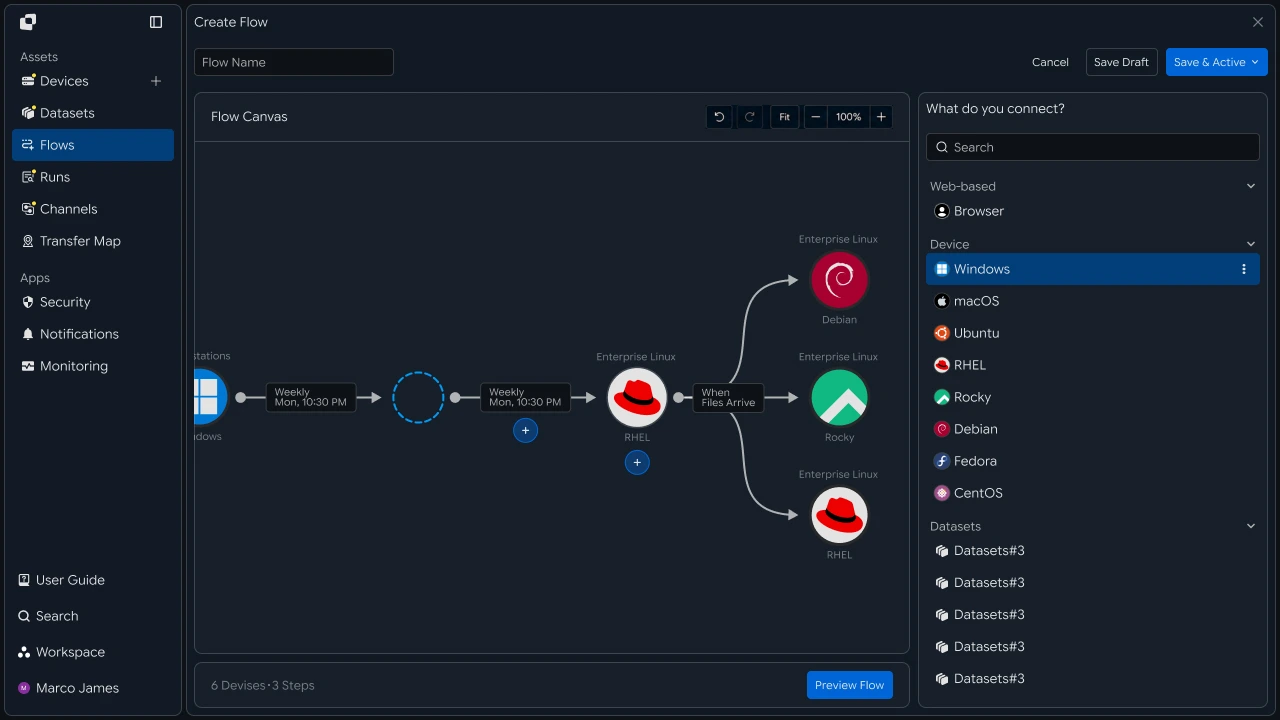
This recipe configures a process for deploying centrally prepared AI models and configuration files to multiple edge devices and checking file-processing results and success for each device.
Deployment Configuration#
Model deployment to edge devices can be configured not only to deliver the same model to every device, but also to deliver different models and configurations based on device type or installation location.
For example, the same model can be deployed to multiple factories using identical camera devices, while separate models and configuration files can be delivered to devices in different environments.
                  AI Model Package
                         │
             ┌───────────┴───────────┐
             │                       │
             ▼                       ▼
       Standard Model           Specialized Model
             │                       │
       ┌─────┼─────┐           ┌─────┴─────┐
       ▼     ▼     ▼           ▼           ▼
Edge A Edge B Edge C Edge D Edge E| Deployment Method | Usage |
|---|---|
| Same deployment | Deliver the same model and configuration to multiple devices |
| Group deployment | Deploy to groups by device type or region |
| Version-based deployment | Apply the specified model version to each device |
| Phased deployment | Deploy to some devices first, then expand the targets |
| Parallel deployment | Deliver files to multiple edge devices simultaneously |
As the number of devices increases, it becomes more important to configure deployment criteria and target devices together rather than managing files individually for each device.
File Structure#
When deploying an AI model, configuration and supporting files required for inference may be used together with the actual model file.
For example, a model package can use the following file structure.
model-release/
│
├── model/
│   └── inference-model.bin
│
├── config/
│   └── inference.yaml
│
├── labels/
│   └── classes.json
│
└── metadata/
    └── version.json
Each file serves a different purpose on the edge device.
| File Type | Usage |
|---|---|
| Model file | Used for actual AI inference |
| Configuration file | Configures model execution conditions |
| Class information | Used to classify analysis results |
| Metadata | Used to verify model version and deployment information |
| Temporary file | Excluded from deployment targets |
By organizing the model package as a single deployment unit, you can deliver the complete set of files required by the actual device instead of transferring multiple files separately.
IT Engineer#
Device Connection#
First, connect the system containing the prepared AI model as the Source and configure each edge device that will run the model as a Target.
Edge devices may include not only devices on the same network, but also servers installed at branches, factories, or remote environments.
                   Model Source
                 /release/model-v2
                         │
                         ▼
                    Deployment
                         │
          ┌──────────────┼──────────────┐
          ▼              ▼              ▼
       Edge-01         Edge-02        Edge-03
     /opt/model       /opt/model     /opt/model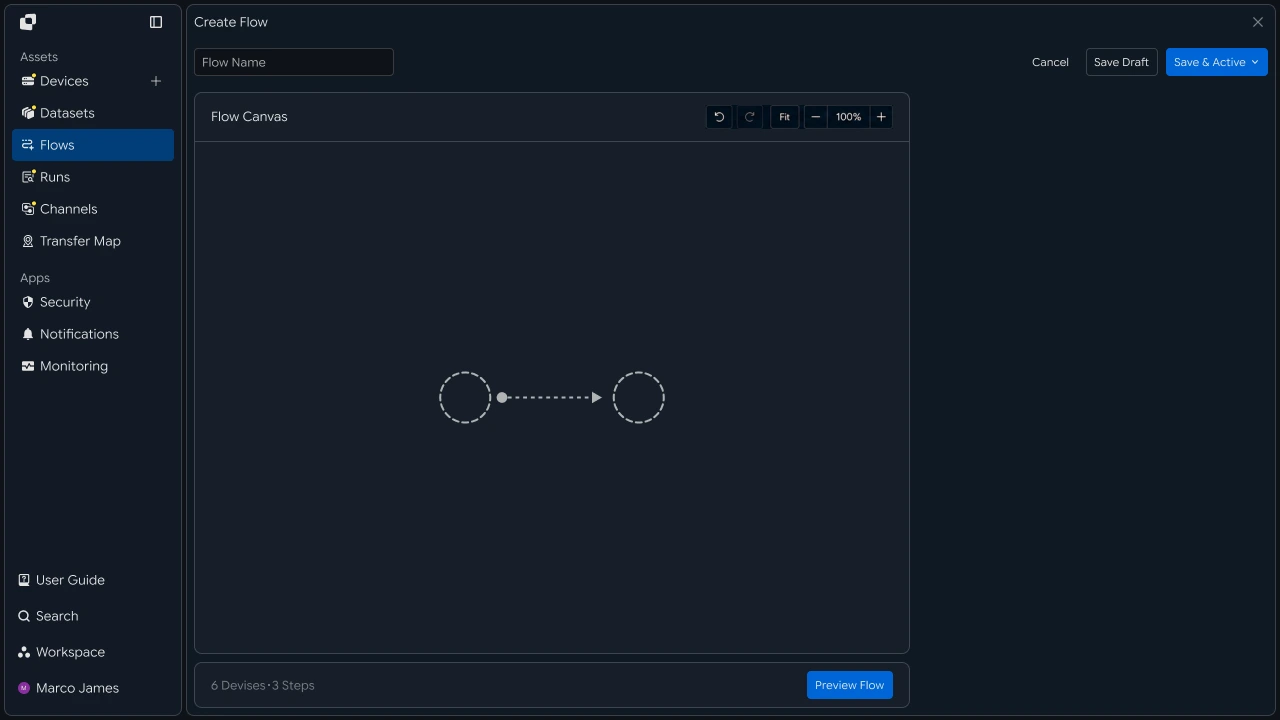
Specify where the model files will be stored on each Target.
If every device uses the same directory structure, a common path can be applied. If operating environments differ, storage locations can be configured separately for each device.
| Configuration Item | Setting |
|---|---|
| Source | System where the model files are stored |
| Source Path | Path of the model package to deploy |
| Target | Edge device that will run the model |
| Target Path | Model storage location for each device |
| Device Group | Targets that will receive the same model |
| Access Scope | Permissions required to read and store files |
This clearly defines which model will be deployed to which device.
Target Segmentation#
If not all edge devices perform the same role, devices can be segmented for deployment based on their role or installation environment.
For example, if inspection devices inside a factory and analysis devices at external stores use different models, separate deployment targets can be configured for each.
                    Deployment Flow
                           │
             ┌─────────────┼─────────────┐
             ▼             ▼             ▼
        Factory Group   Store Group   Test Group
             │             │             │
             ▼             ▼             ▼
        Model-A v2      Model-B v4   Model-A v3
In this case, instead of deploying one model to every device at once, the target scope can be divided by device group and model version.
| Segmentation Criteria | Usage |
|---|---|
| Installation location | Deploy by factory, store, or logistics center |
| Device type | Group devices with the same hardware environment |
| Model type | Deliver different models based on analysis purpose |
| Model version | Separate target devices by version |
| Operation stage | Separate test and production devices |
With this configuration, when deploying a new model, you can select only the actual deployment targets and deliver it to the required devices.
Run Deployment#
After configuring the model files and target devices, deploy the files to multiple Targets in parallel.
With parallel deployment, deployment can proceed to multiple edge devices simultaneously instead of waiting for the file transfer to one device to finish before moving to the next.
                     Model Package
                           │
                           ▼
                     Deployment Flow
                           │
           ┌───────────────┼───────────────┐
           │               │               │
           ▼               ▼               ▼
        Edge-01          Edge-02          Edge-03
           │               │               │
           ▼               ▼               ▼
       Transferring    Completed        Transferring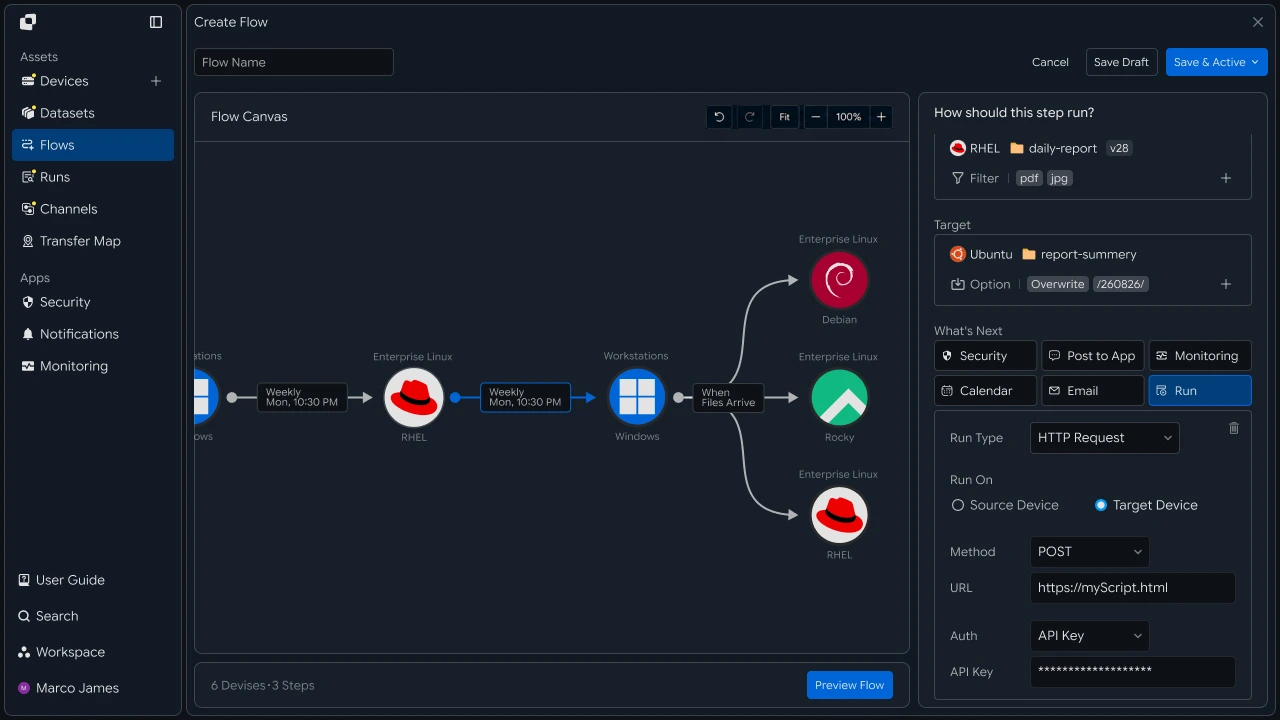
Because deployment to each device proceeds independently, the connection status of a specific device can be checked separately from other targets.
For example, if model deployment has completed on some devices but a specific device requires an additional connection check, the result for that Target can be reviewed separately.
Execution Conditions#
Model deployment can run as soon as new files are ready, or it can be configured to run at a specified time after an operator reviews the model.
In particular, when replacing models running on multiple edge devices, both the deployment time and the completion status of previous operations can be considered.
Model Update
     │
     ▼
┌───────────────┐
│ Release Check │
└───────┬───────┘
        │
   ┌────┼─────────┐
   ▼    ▼         ▼
Manual  Schedule  Previous
Run              Job Complete
   │    │         │
   └────┴────┬────┘
             ▼
Deployment| Execution Condition | Usage |
|---|---|
| Manual Run | Deploy manually after reviewing the model |
| Date/Time | Deploy at a specified time |
| File Ready | Run after new model files are ready |
| After Transfer | Run after the previous file preparation operation completes |
| URL Request | Run in response to an external deployment request |
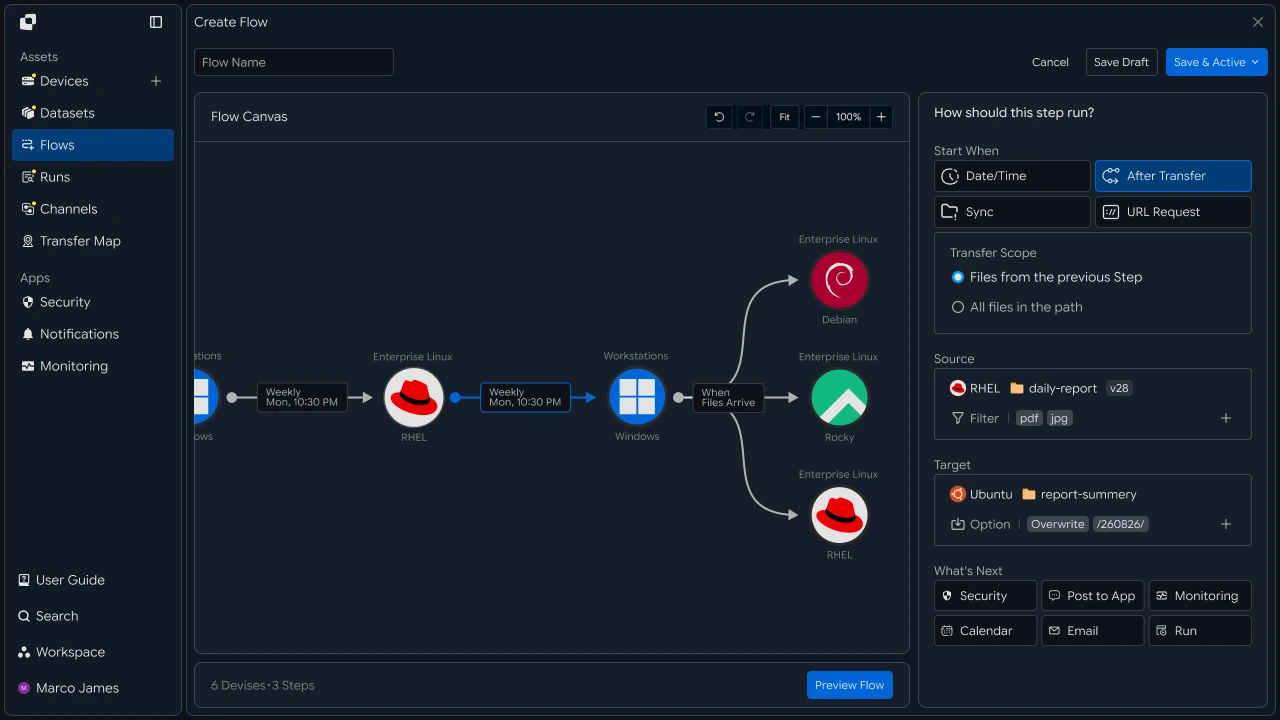
This reduces the chance of deployment starting before model files are ready or before a previous operation has completed.
Deployment Flow#
Model deployment to edge devices does not have to end with a simple file transfer. It can also include verification that all files required by the actual device were applied.
Model Package Ready
        │
        ▼
Target Selection
        │
        ▼
Parallel Distribution
        │
        ├──── Edge-01 ────┐
        ├──── Edge-02 ────┤
        └──── Edge-03 ────┘
                           │
                           ▼
                    Result Review
                           │
             ┌─────────────┴─────────────┐
             ▼                           ▼
        All Completed              Check Required
             │                           │
             ▼                           ▼
       Next Operation                Retry Target
If necessary, separate verification or operational checks can be connected after model deployment completes.
For example, if model files are successfully applied to all target devices, the next operation can run. If a specific device requires additional verification, the workflow can be configured to check that device's status.
Verify Results#
When the deployment runs, check the overall deployment status and processing results for each device in Runs.
Even when the same model is deployed to multiple edge devices, each Target result can be viewed separately to determine which devices received the files successfully.
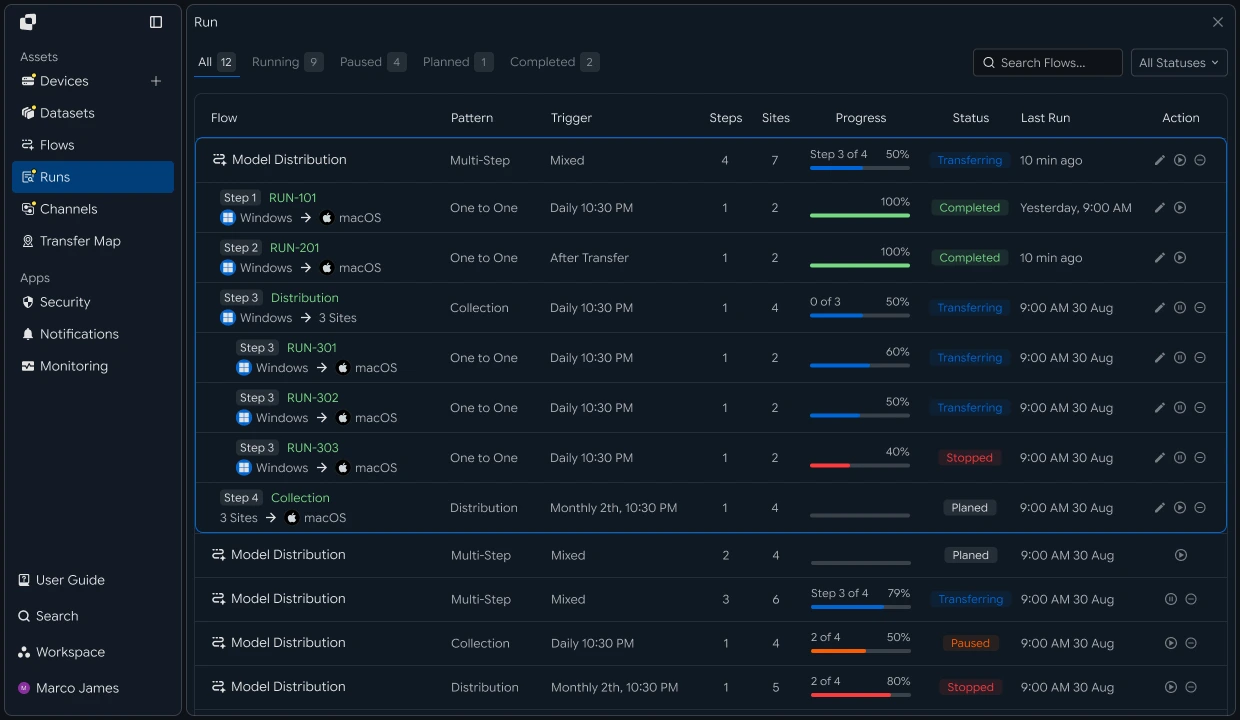
The following items can be checked in the execution results.
| Item | Details |
|---|---|
| Source | Deployed model and source path |
| Target | Edge device that received the model |
| Model Files | Model and configuration files included in the deployment |
| Total Size | Total size of deployment files |
| Progress | Current progress for each device |
| Status | Deployment success and progress status |
| Started | Operation start time |
| Completed | Operation completion time |
This allows file deployment results for multiple devices to be compared on a single execution screen instead of checking each device individually.
Handle Failures#
If model files are not applied successfully to some edge devices, review the Run details to identify the affected devices and file-processing status.
For example, if a remote device loses its connection or cannot store files at the specified model path, check the Target connection, path, and access permissions.
Deployment Run
       │
       ▼
Device Status
       │
 ┌─────┼─────────────┐
 ▼     ▼             ▼
Edge-01 Edge-02    Edge-03
  ✓       ✓           !
                      │
                      ▼
                 View Details
                      │
           ┌──────────┼──────────┐
           ▼          ▼          ▼
       Connection    Path    Permission
           │          │          │
           └──────────┼──────────┘
                      ▼
                    Adjust
                      │
                      ▼
                     Retry
                      │
                      ▼
                  New Result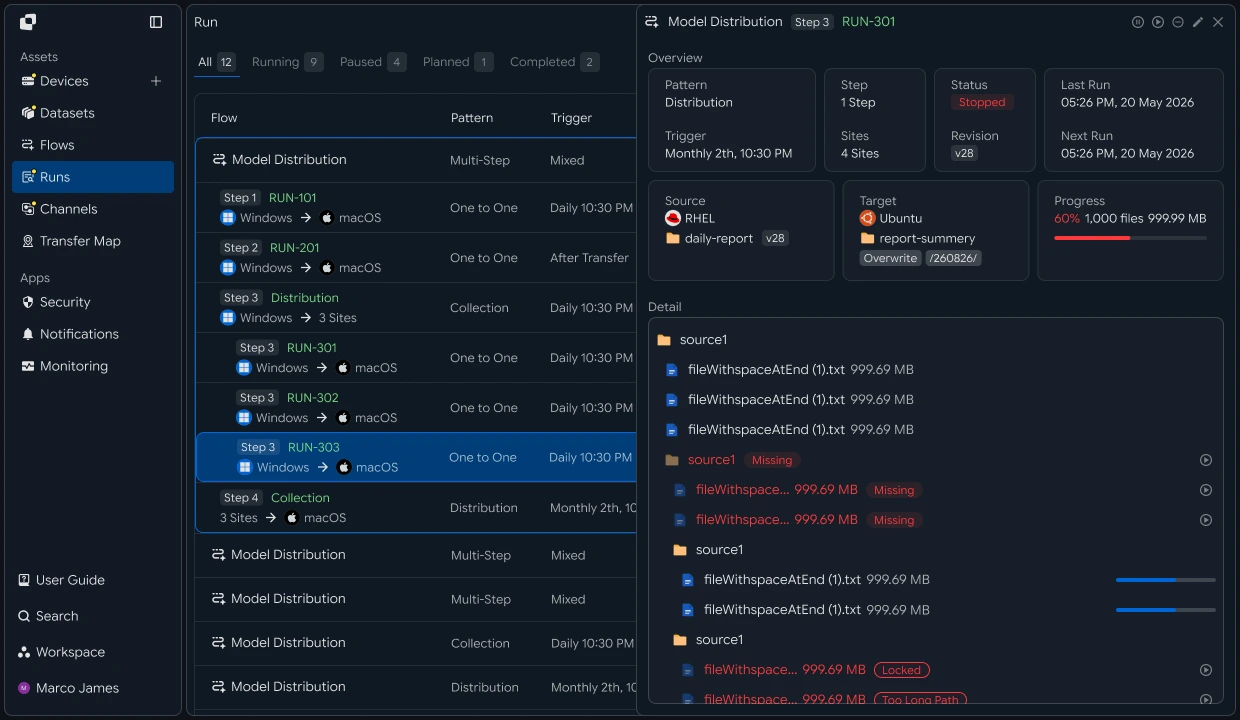
When a failure occurs, check the following items together.
| Item | Details | Follow-up Action |
|---|---|---|
| Device connection | Edge device connection status | Check Target connection |
| Storage path | Location where model files are applied | Adjust path |
| Access permissions | Whether files can be stored | Check permission settings |
| File status | Processing results for model and configuration files | Check status by file |
| Execution record | Run details and execution history | Rerun required targets |
After resolving the issue, you can rerun the required operations for Targets that need additional verification instead of reconfiguring deployment for every device.
After rerunning, use the new Run to verify that the model and configuration files were successfully applied to the edge device.
This process creates an AI model deployment flow covering prepare model files → configure deployment targets → segment device groups → parallel deployment → apply files by device → verify results → handle failed targets.
By deploying model and configuration files to multiple edge devices and managing success by device, the process of applying a new model to a production environment can be operated as a single managed Flow rather than as separate device-level tasks.
Developer#
Deploy model and configuration files to multiple edge devices and verify success for each device
After registering the source and target edge devices as Devices, create a transfer for each device, wait for them together, and aggregate the results. Prepare the following before starting.
| Prerequisite | Details |
|---|---|
| INNORIX authentication | INNORIX_ACCESS_TOKEN (Authorization: Bearer) |
| Source device | Device ID and path of the original model (e.g. /registry/model/v3) |
| Target edge devices | Device ID and storage path for each edge device (e.g. /opt/models) |
| Runtime | Python 3 + requests, Java 17+, Node.js 18+, .NET 8+ |
Python and Node.js reuse the minimal
api()helper for direct REST calls and the status constants (STATUS_COMPLETEandTERMINAL) from the API Call Recipe. Java and C# use the bundledInnorixClient(including constants) andJsonhelper (Jfor C#). Replace device identifiers and paths with actual values.
Deploy a Model to Multiple Edge Devices#
Create a transfer for each target and collect the monitorId values first, then wait for all transfers. Enable checkIntegrity to verify that the delivered model files match the originals. Devices where transfer creation itself fails (for example, because they are offline) are collected separately from failures that occur during transfer.
import time


def deploy_model(source, source_path, targets, target_path, action="overwrite"):
    monitors, start_failed = {}, []
    for device in targets:
        try:
            transfer = api("POST", "/api/transfers/manual", {
                "sourceDevice": source,
                "targetDevice": device,
                "targetPath": target_path,
                "sourcePaths": [source_path],
                "sendAllFolder": True,
                "checkIntegrity": True,   # verify model file integrity after transfer
                "transferOptions": {"target-action": action},
            })
            monitors[device] = transfer["monitorId"]
        except Exception:
            start_failed.append(device)   # device whose transfer creation itself failed (e.g. offline)

    results = {}
    for device, monitor_id in monitors.items():
        detail = wait_transfer(monitor_id)
        results[device] = detail.get("status") == STATUS_COMPLETE
    # report devices that never started separately from in-transfer failures
    return {"results": results, "start_failed": start_failed}


def wait_transfer(monitor_id, timeout=14400, interval=5):
    deadline = time.time() + timeout
    while time.time() < deadline:
        detail = api("GET", f"/api/transfers/{monitor_id}") or {}
        if detail.get("status") in TERMINAL:
            return detail
        time.sleep(interval)
    raise TimeoutError(monitor_id)


out = deploy_model("model-src", "/registry/model/v3",
                   ["edge-01", "edge-02", "edge-03"], "/opt/models")
results, start_failed = out["results"], out["start_failed"]
ok = [d for d, c in results.items() if c]
print(f"ok {len(ok)} / started {len(results)} / start-failed {len(start_failed)}")
for device, complete in results.items():
    if not complete:
        print("  transfer failed:", device)
for device in start_failed:
    print("  start failed (check connection):", device)
// returns: results (success after the transfer started) + startFailed (devices whose transfer creation failed)
static Map<String, Object> deployModel(InnorixClient client, String source, String sourcePath,
List<String> targets, String targetPath, String action) throws InterruptedException {
Map<String, String> monitors = new LinkedHashMap<>();
List<String> startFailed = new ArrayList<>();
for (String device : targets) {
try {
Map<String, Object> transfer = client.apiObj("POST", "/api/transfers/manual", Json.newObj(
"sourceDevice", source,
"targetDevice", device,
"targetPath", targetPath,
"sourcePaths", List.of(sourcePath),
"sendAllFolder", true,
"checkIntegrity", true, // verify model file integrity after transfer
"transferOptions", Json.newObj("target-action", action)), null);
monitors.put(device, Json.str(transfer, "monitorId"));
} catch (Exception ex) {
startFailed.add(device); // transfer creation failed (e.g. offline)
}
}
Map<String, Boolean> results = new LinkedHashMap<>();
for (Map.Entry<String, String> e : monitors.entrySet()) {
Map<String, Object> detail = waitTransfer(client, e.getValue(), 14400, 5);
Integer status = Json.intOrNull(detail, "status");
results.put(e.getKey(), status != null && status == InnorixClient.STATUS_COMPLETE);
}
return Json.newObj("results", results, "startFailed", startFailed);
}
static Map<String, Object> waitTransfer(InnorixClient client, String monitorId,
long timeoutSec, long intervalSec) throws InterruptedException {
long deadline = System.currentTimeMillis() + timeoutSec * 1000;
while (System.currentTimeMillis() < deadline) {
Map<String, Object> detail = client.apiObj("GET", "/api/transfers/" + monitorId, null, null);
Integer status = Json.intOrNull(detail, "status");
if (status != null && InnorixClient.TERMINAL.contains(status))
return detail;
Thread.sleep(intervalSec * 1000);
}
throw new RuntimeException("timeout: " + monitorId);
}async function deployModel(source, sourcePath, targets, targetPath, action = "overwrite") {
const monitors = {};
const startFailed = [];
for (const device of targets) {
try {
const transfer = await api("POST", "/api/transfers/manual", {
sourceDevice: source,
targetDevice: device,
targetPath,
sourcePaths: [sourcePath],
sendAllFolder: true,
checkIntegrity: true, // verify model file integrity after transfer
transferOptions: { "target-action": action },
});
monitors[device] = transfer.monitorId;
} catch {
startFailed.push(device); // transfer creation failed (e.g. offline)
}
}
const results = {};
for (const [device, monitorId] of Object.entries(monitors)) {
const detail = await waitTransfer(monitorId);
results[device] = detail.status === STATUS_COMPLETE;
}
return { results, startFailed };
}
async function waitTransfer(monitorId, { timeout = 14400, interval = 5 } = {}) {
const deadline = Date.now() + timeout * 1000;
while (Date.now() < deadline) {
const detail = (await api("GET", `/api/transfers/${monitorId}`)) || {};
if (TERMINAL.has(detail.status)) return detail;
await new Promise((r) => setTimeout(r, interval * 1000));
}
throw new Error(`timeout: ${monitorId}`);
}
const { results, startFailed } = await deployModel("model-src", "/registry/model/v3",
["edge-01", "edge-02", "edge-03"], "/opt/models");
const ok = Object.values(results).filter(Boolean).length;
console.log(`ok ${ok} / started ${Object.keys(results).length} / start-failed ${startFailed.length}`);
for (const [device, complete] of Object.entries(results))
if (!complete) console.log(" transfer failed:", device);
for (const device of startFailed) console.log(" start failed (check connection):", device);// returns: results (success after the transfer started) + startFailed (devices whose transfer creation failed)
static async Task<(Dictionary<string, bool> results, List<string> startFailed)> DeployModelAsync(
InnorixClient client, string source, string sourcePath, IEnumerable<string> targets,
string targetPath, string action = "overwrite")
{
var monitors = new Dictionary<string, string>();
var startFailed = new List<string>();
foreach (string device in targets)
{
try
{
var transfer = await client.ApiObjAsync("POST", "/api/transfers/manual", new JsonObject
{
["sourceDevice"] = source,
["targetDevice"] = device,
["targetPath"] = targetPath,
["sourcePaths"] = J.ArrOfStrings(new[] { sourcePath }),
["sendAllFolder"] = true,
["checkIntegrity"] = true, // verify model file integrity after transfer
["transferOptions"] = new JsonObject { ["target-action"] = action },
});
monitors[device] = J.Str(transfer, "monitorId");
}
catch
{
startFailed.Add(device); // transfer creation failed (e.g. offline)
}
}
var results = new Dictionary<string, bool>();
foreach (var kv in monitors)
{
JsonObject detail = await WaitTransferAsync(client, kv.Value);
int? status = J.IntOrNull(detail, "status");
results[kv.Key] = status != null && status == InnorixClient.StatusComplete;
}
return (results, startFailed);
}
static async Task<JsonObject> WaitTransferAsync(InnorixClient client, string monitorId,
int timeoutSec = 14400, int intervalSec = 5)
{
DateTime deadline = DateTime.UtcNow.AddSeconds(timeoutSec);
while (DateTime.UtcNow < deadline)
{
JsonObject detail = await client.ApiObjAsync("GET", quot;/api/transfers/{monitorId}", null, null);
int? status = J.IntOrNull(detail, "status");
if (status != null && InnorixClient.Terminal.Contains(status.Value))
return detail;
await Task.Delay(intervalSec * 1000);
}
throw new TimeoutException(monitorId);
}Integrity verification For transfers targeting servers or devices,
checkIntegrity: truecan compare checksums of the source and destination files. See the Integrity Verification Recipe for detailed verification methods.
Identify offline devices Devices where the transfer could not start may have an empty failed-file list. In this case, check the device connection status before retrying, then deploy again after the connection is restored.
For failed devices, use retry_failed from the Pause and Resume Recipe to retransmit only the failed files.
Implementation Result#
With this recipe, you can deploy a model to multiple edge devices using the following flow.
Model Registry (model-src)
   ↓  Create transfer per device (checkIntegrity) → collect monitorId
Deploy to edge-01, edge-02, edge-03
   ↓  Wait for all → aggregate success by device
Redeploy failed devices only
You can deploy model and configuration files to multiple edge devices, verify integrity, aggregate success by device, and redeploy only failed devices.