
INNORIX EX
As file transfers grow, you need to manage their status and results.
In an environment where only a few files are exchanged, it may be enough for users to check their own Progress Bar.
But when multiple users simultaneously upload and download large files, and files continue moving from the web to Storage and other servers or systems, individual user screens are no longer enough to understand the overall situation.
You need to know which Transfers are in progress, what has completed, where interruptions occurred and recovery took place, and whether a specific user's file actually reached its intended destination.
In large-scale and expanded operational environments, the status, results, and history of Transfers can be configured for visibility and tracking from a unified operational perspective.

FROM PROGRESS TO OPERATIONS
A Progress Bar is not enough to operate an entire file transfer environment.
Users and operators need different information.
A user wants to know how much of their file has been transferred.
An operator needs to know how many Transfers are currently active across the system, whether any jobs have failed, how far a specific user's transfer has progressed, and whether problems are recurring at a particular Source or Target.
| User Perspective | Operations Perspective |
|---|---|
| Is my file being transferred? | How many Transfers are currently active? |
| What percentage is complete? | Which Transfers are delayed? |
| Has the transfer completed? | Are any jobs failed or recovering? |
| Do I need to send it again? | Which Source / Target is experiencing problems? |
| Can I receive the result file? | Can I review previous Transfer results and history? |
As file transfer becomes part of business infrastructure, the perspective expands from showing individual Progress to operating the entire Transfer environment.
OPERATION VIEW
See active transfers at a glance.
In large-scale environments, Uploads and Downloads can run simultaneously across different users and systems.
Each Transfer may involve different file sizes and network conditions, and may be in a different state such as normal transfer, delay, recovery, or completion.
An operations view can be configured to show the key status of active Transfers in one place.
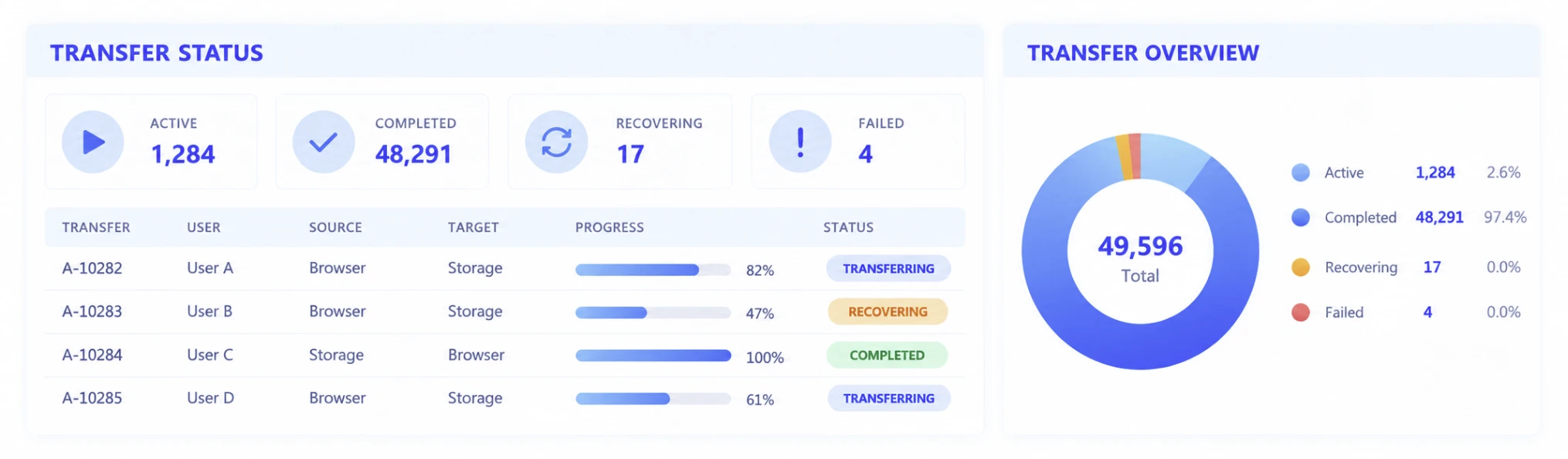
TRANSFER STATUS
See the current state of each transfer.
A file Transfer does not have only two states: transferring / complete.
In long-running large-file transfers, start, progress, temporary interruption, recovery, and completion may all occur within the same Transfer.
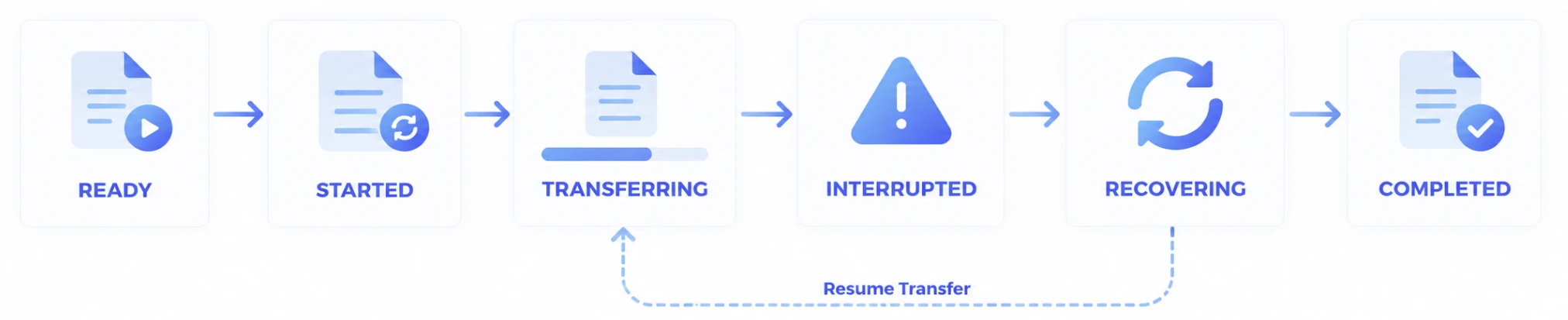
The current state helps operators distinguish between a Transfer that is progressing normally, one recovering from a user's network issue, and one that may require further investigation.
Actual state names and stages should reflect the deployed system and product configuration.
TRANSFER DETAILS
When a problem occurs, inspect the details of that Transfer.
When an anomaly appears in the overall view, operators need to be able to drill down into the individual Transfer and investigate the cause.
Depending on the operational environment, information such as the following can be reviewed together:
- Transfer ID
- User or initiating entity
- File / Dataset
- File Size / File Count
- Source
- Target
- Start Time
- End Time
- Elapsed Time
- Progress
- Transfer Rate
- Current Status
- Completion Result
- Failure / Recovery information
TRANSFER / A-10283

Status          RECOVERING
User            User B
Source          Browser
Target          Object Storage
Files           18,294
Total Size      284.7 GB
Progress        47%
Started         14:21:08
Last Event      Connection interrupted
Current Event   Recovery in progress
This information is not intended to make the operations screen more complex. Its purpose is to quickly narrow down where to begin investigating when a problem occurs.
RESULTS
Confirm the actual completion result, not merely whether the transfer started.
In file transfer, the user clicked Upload and the file actually reached its destination do not mean the same thing.
Large and mass file Transfers can remain active for long periods, and individual files or network conditions may encounter problems along the way.
From an operations perspective, the final result matters more than the transfer request itself.

The environment can be configured to distinguish completed from incomplete Transfers and allow downstream business decisions to be based on the actual file delivery result.
FAILURE
Find failed Transfers within the complete transfer list.
As the number of users grows, it becomes difficult to check every Transfer individually to determine whether it completed successfully.
Operators need to be able to isolate Transfers with problems and review the associated Source, Target, user, files, and time of occurrence.
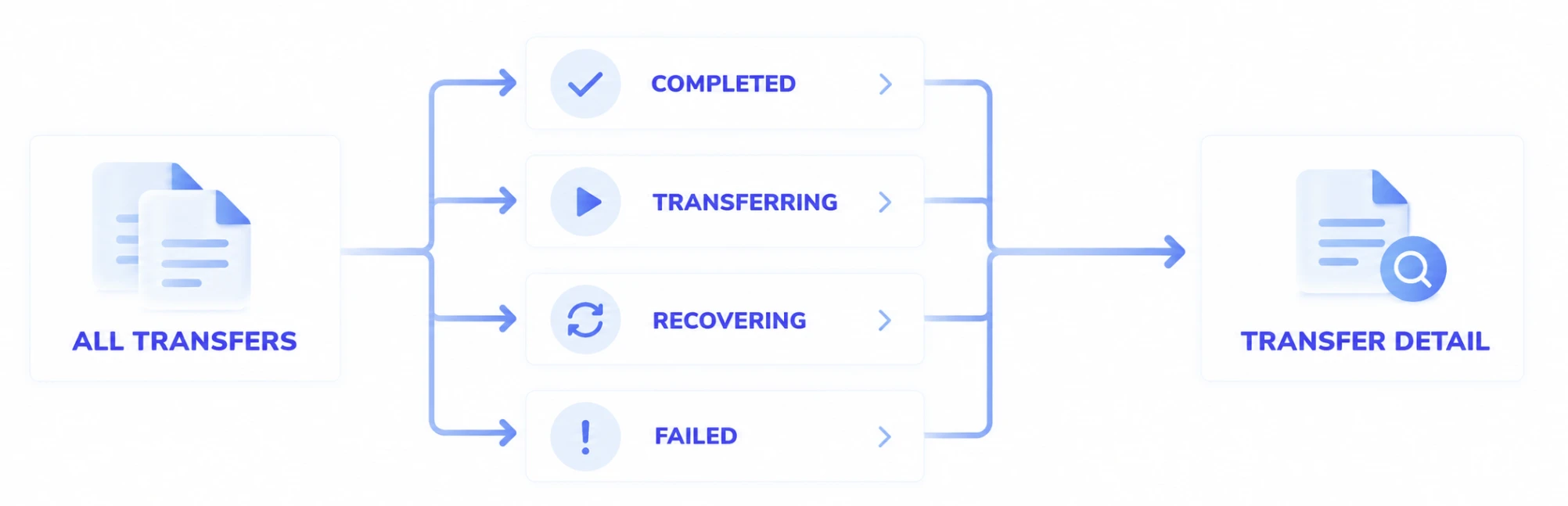
Operators can quickly narrow the full Transfer set to jobs that require attention and investigate the cause using the individual Transfer details and history.
RECOVERY
View failure and recovery as part of the same Transfer flow.
In long-running large-file transfer, a temporary network problem does not always mean the final Transfer has failed.
After a connection interruption, the Transfer may resume and eventually complete normally.
For operations, it is therefore important to see not only whether an error occurred, but what happened to the Transfer afterward.
14:21:08   TRANSFERRING
14:43:51   CONNECTION INTERRUPTED
14:44:03   RECOVERING
14:44:12   TRANSFERRING
15:28:37   COMPLETED
When interruption and recovery are connected within the history of the same Transfer, operators can more easily distinguish temporary issues from jobs that ultimately remained incomplete.
HISTORY
Review the results and history of previous Transfers.
A file Transfer does not necessarily disappear as a one-time event the moment it completes.
For customer inquiries, incident analysis, business verification, or operational reviews, you may need to look back at which Transfers occurred and what their actual results were.
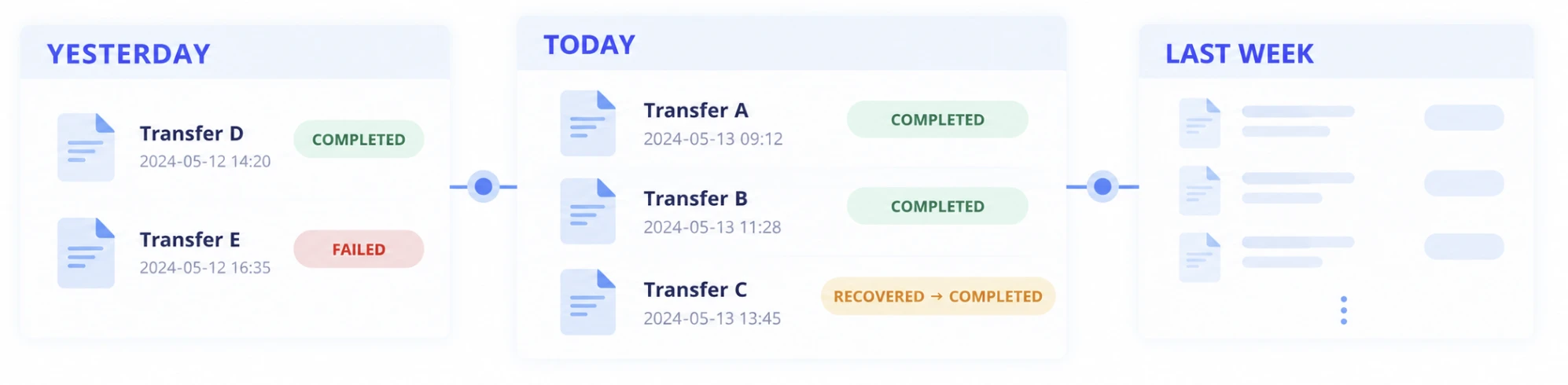
Operational environments can be configured to retain Transfer history,including completed jobs, and make it available for later retrieval using relevant conditions.
SEARCH & FILTER
Find the Transfer you need quickly.
Once thousands or more Transfers accumulate, finding a specific job by scanning a chronological list becomes difficult.
Depending on operational needs, Transfers can be searched or filtered using conditions such as:
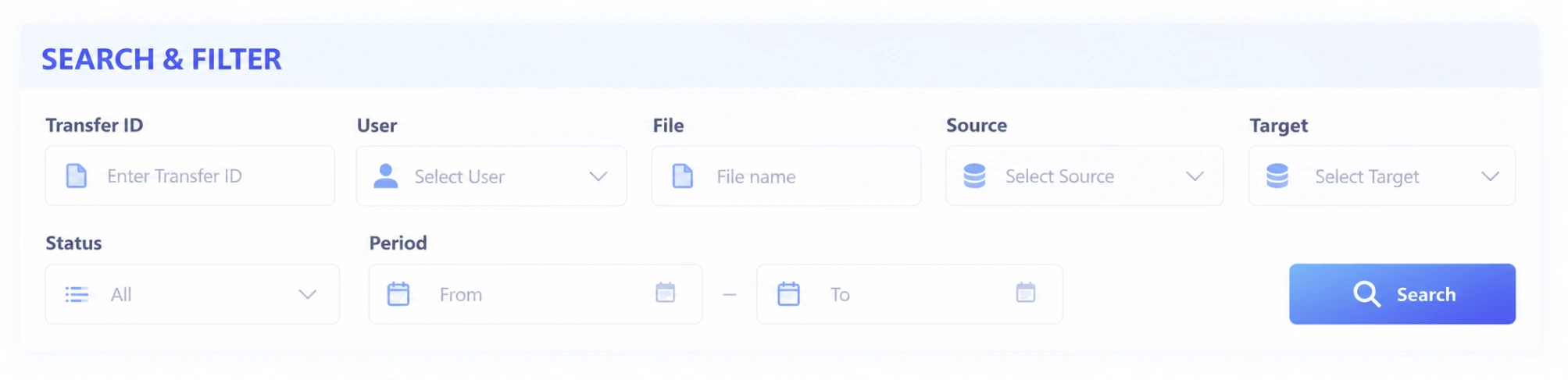
For example, operators can narrow records according to real operational questions: files transferred by a specific user yesterday, failed jobs delivered to a particular Target, or Transfers that entered recovery during a specific period.
Actual search conditions should reflect the deployed operational environment and product UI.
TRACE A TRANSFER
Trace how far a file has moved.
When a web Upload does not end at Storage but continues to other systems, looking at only one Transfer may not be enough to understand the complete file flow.
For example, if a Dataset uploaded by a user reaches Object Storage, then passes through a Processing Server before being delivered to an AI system, operators may need to confirm that each stage completed successfully.
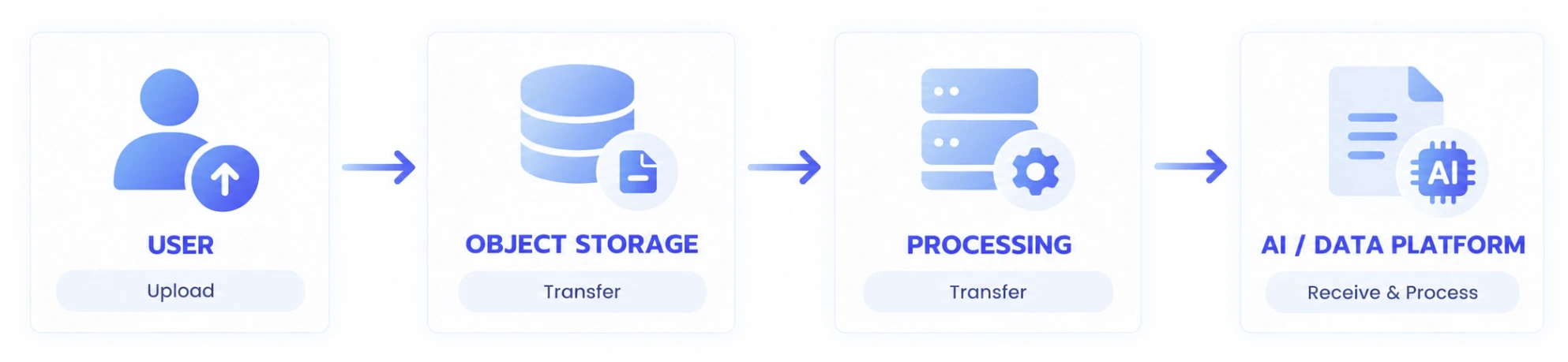
In an expanded operational environment, the status and results of these multiple Transfer stages can be reviewed together so operators can trace how a file that started on the web moved all the way to its required destination.
SOURCE & TARGET
See where each Transfer starts and where it goes.
In a large-scale operational environment, Source and Target matter as much as Transfer Status.
The same file transfer issue may require a different investigation depending on whether it repeatedly occurs on a particular user's network, at a specific Storage system, or on a particular server.
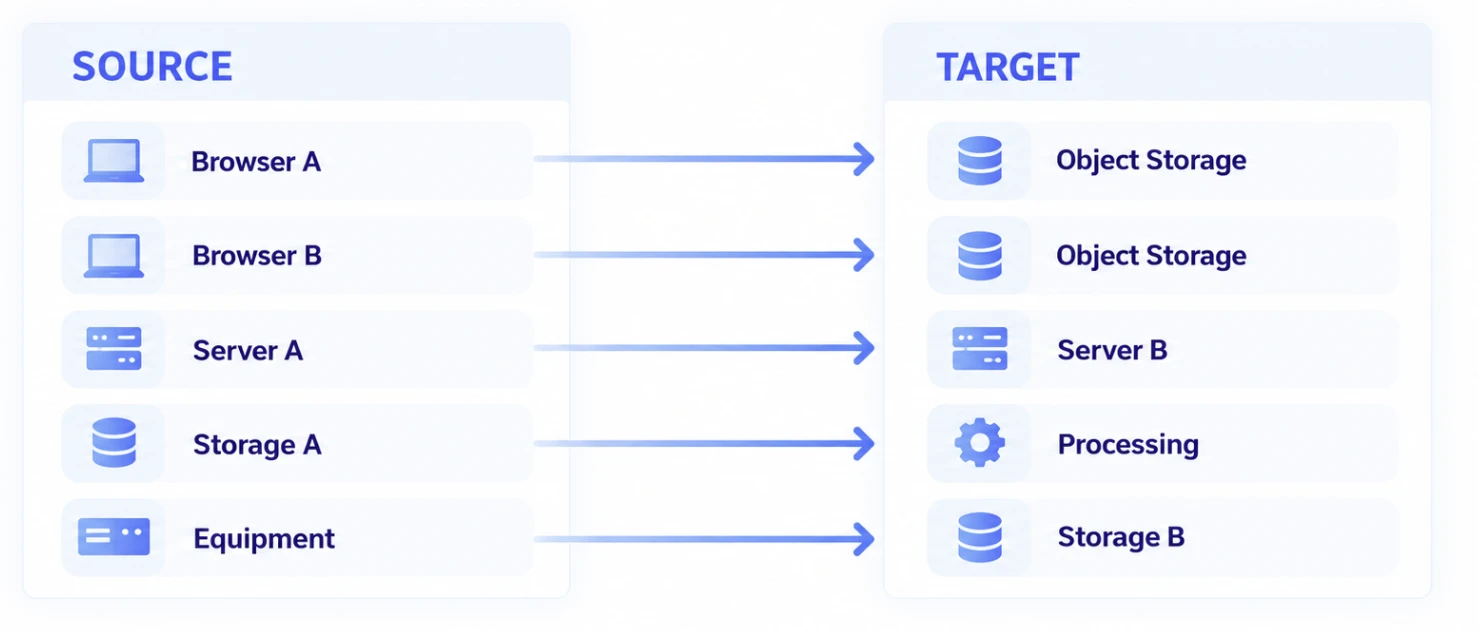
Viewing Source and Target together with Transfer results helps narrow down where recurring problems occur and makes the overall file flow easier to understand.
USERS & SYSTEMS
See both user-initiated and system-initiated Transfers.
The entity that starts a file Transfer is not always a web user.
A user may initiate an Upload / Download, while an application request or Workflow condition may cause a system to start a Transfer automatically.
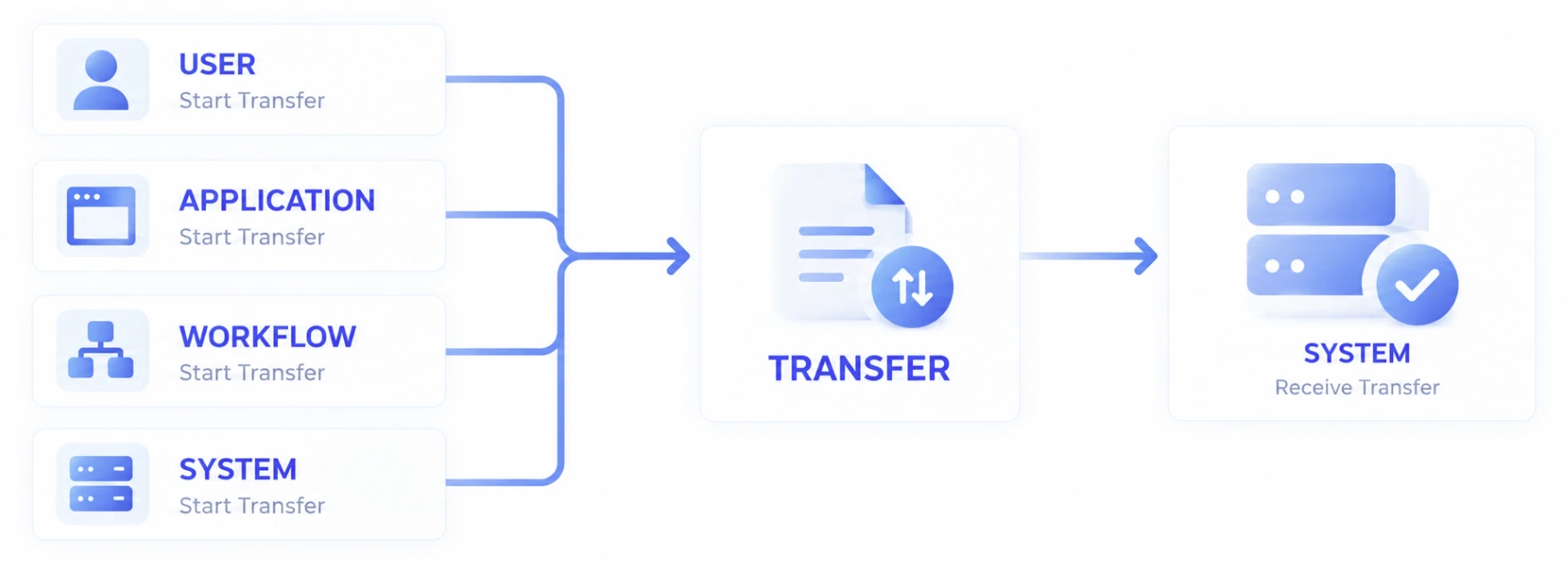
In an expanded file transfer environment, knowing who or what initiated each Transfer makes the complete data flow easier to operate.
WEB & DATA WORKFLOW
Operate the data flow that continues after web file transfer.
If a web Upload ends when the file reaches Storage, monitoring the user's Upload state may be sufficient.
But when the uploaded file continues to Processing, AI, Archive, or another system, viewing the web service and downstream data Transfers separately makes it harder to understand the overall business state.
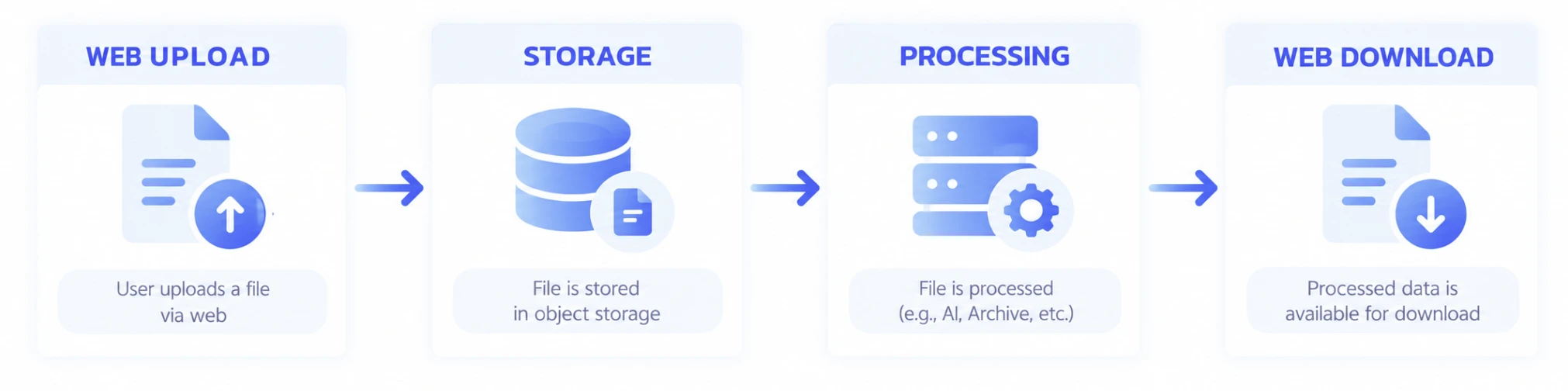
In large-scale and expanded operational environments, multiple stages of file movement can be presented from one operational perspective, allowing the data Workflow from user Upload through downstream processing and result delivery to be managed as a connected flow.
OPERATIONS BY SCALE
The level of operations should grow with the scale of transfer.
Not every web file transfer service needs a complex operations screen.
The required level of operational visibility changes as user count, Transfer volume, and data flows increase.
Simple Web Upload / Download

It may be sufficient for the user to see their own progress and completion result.
Many Concurrent Transfers

The environment may need visibility into overall Active Transfers, failures, recoveries, and completion results.
Data Flows Across Multiple Systems
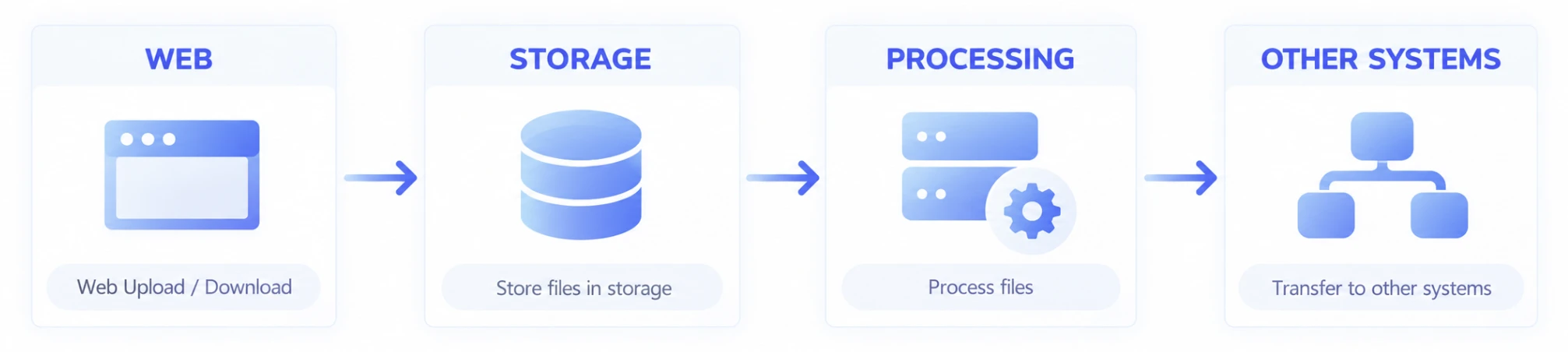
Operators may need to review not only individual Transfers but also Source / Target and the result of each stage.
The purpose of operations capabilities is therefore not to make the interface more complex, but to provide the level of visibility required by the current scale of the data flow.
TROUBLESHOOTING
Narrow the scope quickly when a problem occurs.
When investigating a file transfer issue, the first requirement is to turn a vague symptom such as it's slow or it doesn't work into a specific Transfer.
Operational information can be used to investigate the issue in the following sequence:
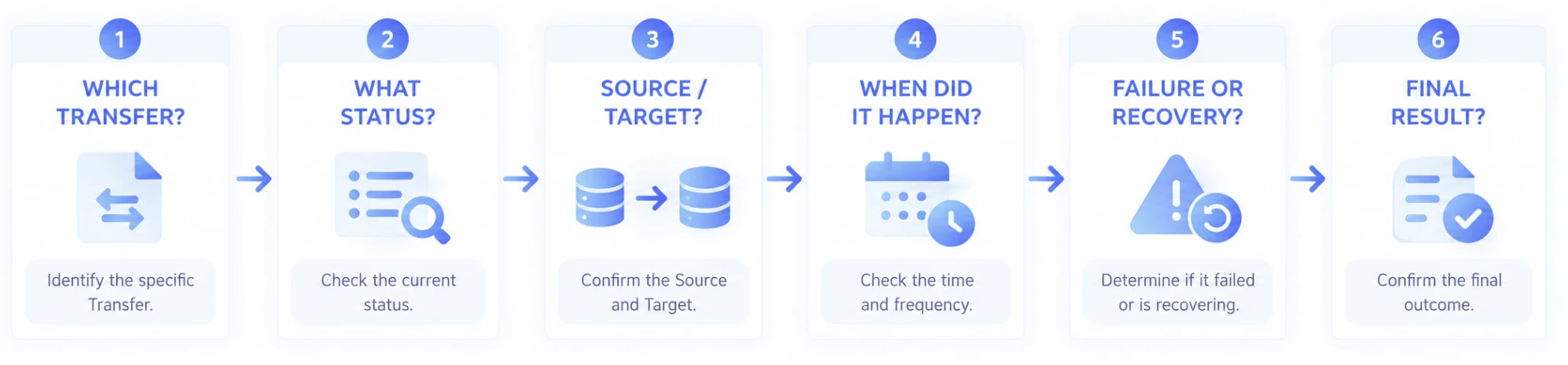
Once the specific Transfer is identified, reviewing its status, Source / Target, time, Events, and final result can narrow the investigation much faster than examining the entire system without a clear starting point.
OPERATIONAL QUESTIONS
An operations view should answer real operational questions.
A good operations screen is not a Dashboard that simply displays a large number of metrics. It should answer the questions operators actually ask.
| Operational Question | Information Required |
|---|---|
| How many Transfers are active right now? | Active Transfers |
| Are there any failed jobs? | Status / Result |
| Did an interrupted job resume? | Recovery History |
| Did a specific user's file complete? | User / Transfer / Result |
| Which server received the file? | Source / Target |
| When did the problem occur? | Event Time / History |
| Can I find the Transfers that failed yesterday? | Search / Filter |
| Did the file reach the downstream system? | Transfer Flow / Results |
What matters is not the amount of operational information, but how quickly it can answer the questions that matter.
DATA FOR OPERATIONS
Retain only the information needed for operations.
The data required for operations can vary according to the service and security policies.
In general, information such as the following may be useful for Transfer operations.
Identity
- Transfer ID
- User or initiating entity
- Identifying information associated with the business process
File
- File Name
- File Size
- File Count
- Dataset information
Route
- Source
- Target
- Transfer Path
Time
- Start
- End
- Duration
- Key Event times
Result
- Status
- Progress
- Completion
- Failure
- Recovery
What information is retained and for how long should be determined according to actual operational requirements and system policies.
OPERATIONS WITHOUT CHANGING THE USER EXPERIENCE
More sophisticated operations do not need to make the user's web experience more complex.
Users continue to select files and Upload them, or Download the results they need, through the existing web service.
Behind that experience, operators can review the status and results of multiple Transfers.
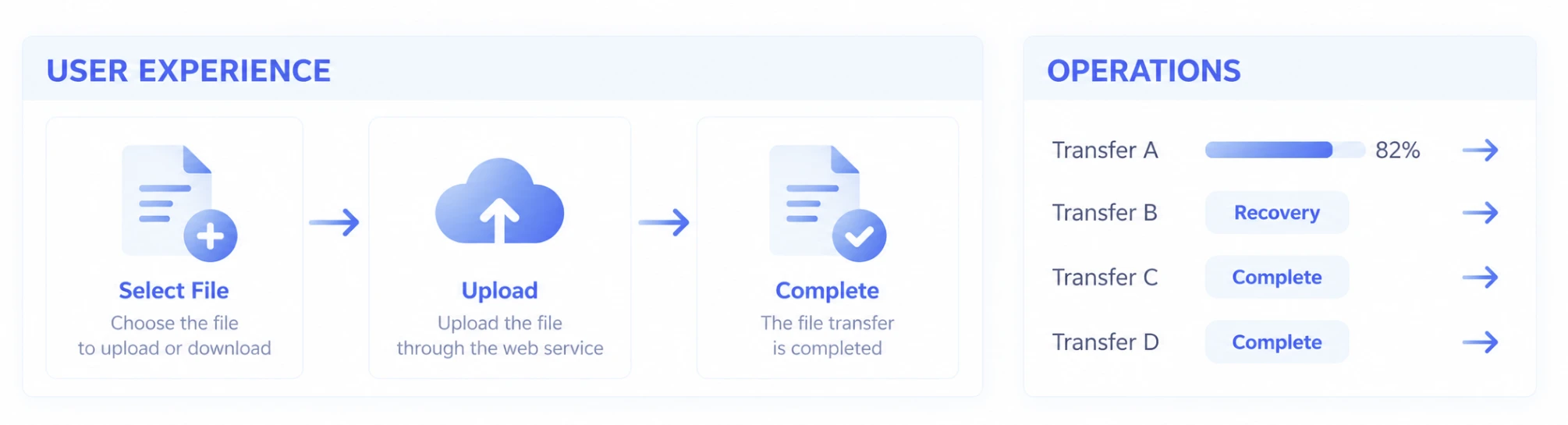
Because the user interface and operations interface serve different purposes, each can be designed with the appropriate level of information.
Users transfer files simply. Operators investigate as deeply as needed.
USE CASES
Operate file transfer where it becomes part of the business workflow.
Customer & Partner File Services
Review the status and results of external users' Uploads / Downloads and locate a specific Transfer when an inquiry occurs.
Public & Enterprise Business Systems
Confirm that submission files from many users actually completed and trace failure or recovery history.
Media Services
Review Upload / Download status for large source and result files and manage completion of long-running Transfers.
Research & AI
Trace the file flow from Dataset Upload through Storage, Processing, and AI systems.
Manufacturing
Track Source / Target and Transfer results for data moving among web users, servers, Storage, and equipment.
Large-Scale Web Services
Review Active / Completed / Failed / Recovering states across large numbers of concurrent Transfers from a service-level perspective.
RELATED
Understand the file and data-flow architecture before operating it.
Large & Mass File Transfer
See how Transfer State is maintained for large files, massive file sets, and folders.
WeiterlesenHigh-Speed & Reliable Transfer
Learn how network interruptions and Resume / Recovery behave during long-running Transfers.
WeiterlesenWeb Service at Scale
See how Transfers and File Traffic can scale across large numbers of concurrent users.
WeiterlesenArchitecture & Integration
Learn how to design file paths that continue from web Upload to Storage, Processing, AI, and other systems.
WeiterlesenFrequently Asked Questions
Can operators monitor the status of large-file Transfers?
In large-scale and expanded operational environments, multiple Transfers can be configured for operational visibility into current status, Progress, completion results, failures, and recovery information. The actual information and screens available depend on the deployed product configuration and operational environment.
How can I confirm that a user's file Transfer actually completed?
File delivery can be verified using the final Transfer state and result rather than simply whether the Transfer started. Connecting the user, file, Source / Target, and Transfer result can help trace whether a file associated with a specific business process actually reached its intended destination.
Can I view only failed file Transfers?
In operational environments with many Transfers, jobs requiring attention can be narrowed down by status and result. After locating a failed Transfer, its details and Event history can be used to review when the problem occurred and which Source / Target was involved.
Can I see the history of a network interruption and subsequent recovery?
Depending on the operational environment, Transfer interruption, Recovery, resumed transfer, and final completion can be configured to appear as Events within the history of the same job. This helps distinguish temporary connection issues from Transfers that ultimately remained incomplete.
Can I search historical file transfer records?
In operational environments that retain Transfer history, previous jobs can be configured for retrieval using conditions such as user, Transfer ID, file, Source / Target, status, and time period. Actual search fields and history retention policies depend on the system configuration and operational policies.
Can I verify whether a file uploaded through the web was later delivered to another system?
When files continue beyond Storage to a Processing Server, AI environment, or another system, the operational structure can be expanded so the results of each Transfer stage can be reviewed together. This makes it possible to trace the data flow that follows the initial web Upload.
Does every INNORIX EX environment need an integrated operations view?
No. For a simple web Upload / Download environment, user-facing progress and completion results may be sufficient. As the number of concurrent Transfers and connected systems grows, the need to review overall status, history, and results together also increases. The appropriate level of operations should therefore match the scale of the actual environment.
What information should be recorded for file transfer operations?
Transfer ID, initiating entity, file information, Source / Target, start and end times, status, completion result, and key Events are generally useful for operations. However, what information is stored and how long it is retained should be determined according to business requirements and security and operational policies.
Denken Sie darüber nach, wie Sie Ihre Dateiübertragungen betreiben?
Wir helfen Ihnen, ein Betriebs-Setup zur Prüfung und Nachverfolgung von Übertragungsstatus und -ergebnissen zu prüfen.
- Prüfung der benötigten Transparenz für laufende, abgeschlossene und fehlgeschlagene Übertragungen
- Vorschlag für ein Setup, das Fehler- und Wiederherstellungsverläufe nachverfolgt
- Beratung zum Betriebsniveau, das Ihr Übertragungsumfang erfordert