
Integrate New Relic Monitoring
Overview
You can configure a New Relic integration to monitor file transfer activities and device status changes.
Once configured, whenever a selected event occurs—such as Transfer Started, Transfer Completed, Device Connected, or Device Disconnected—the event is automatically sent to New Relic for monitoring.
The overall process consists of the following steps:
① Obtain an Ingest License Key and Verify the Data Region → ② Configure the Integration in the Product
Prerequisites
Before you begin, verify the following requirements.
| Item | Description |
|---|---|
| New Relic Account | A New Relic account with permission to view or generate an Ingest License Key is required. |
| Data Region | Verify your account's Data Region (US or EU). |
| Network | The environment where the product is installed must allow outbound HTTPS communication to the New Relic Ingest endpoint for the selected Data Region (port 443). |
Obtain an Ingest License Key and Verify the Data Region
To send data to New Relic, you need an Ingest License Key and must verify your account's Data Region.
Step 1. Obtain the Ingest License Key
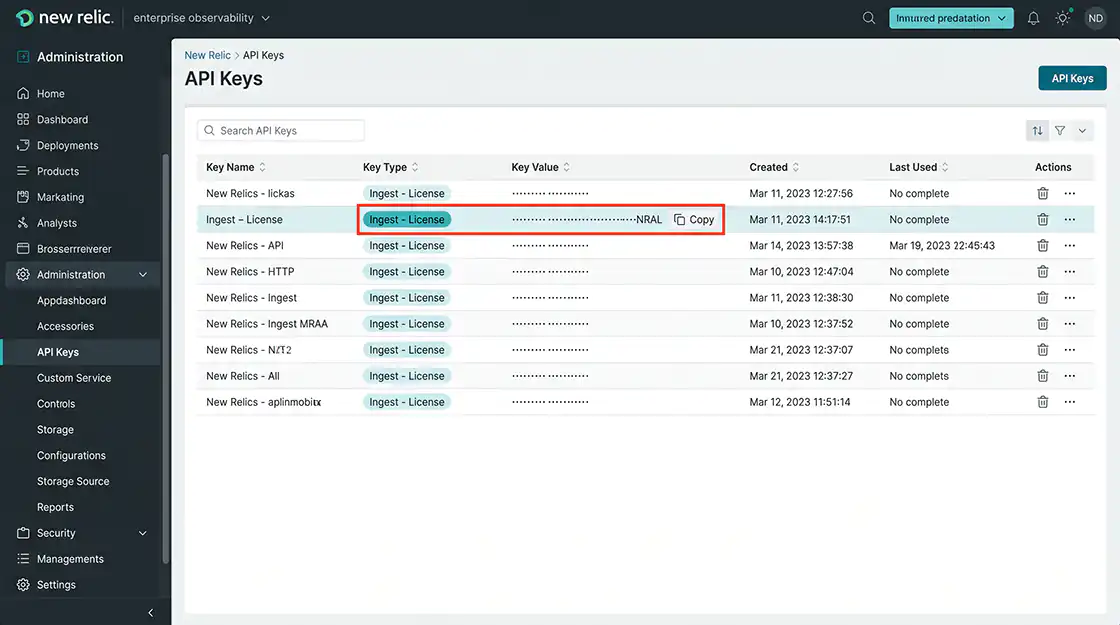
In New Relic, click your user menu in the lower-left corner and navigate to API Keys (or Administration → API Keys).
Locate an API key with the type Ingest - License and copy it.
If a new key is required, select Create a Key → Ingest - License to generate one.
An Ingest License Key typically ends with NRAL.
Treat this key like a password because it allows data to be ingested into your account. Do not expose it in public repositories or external documentation.
If the key is compromised, rotate the existing key or generate a new one.
Step 2. Verify the Data Region
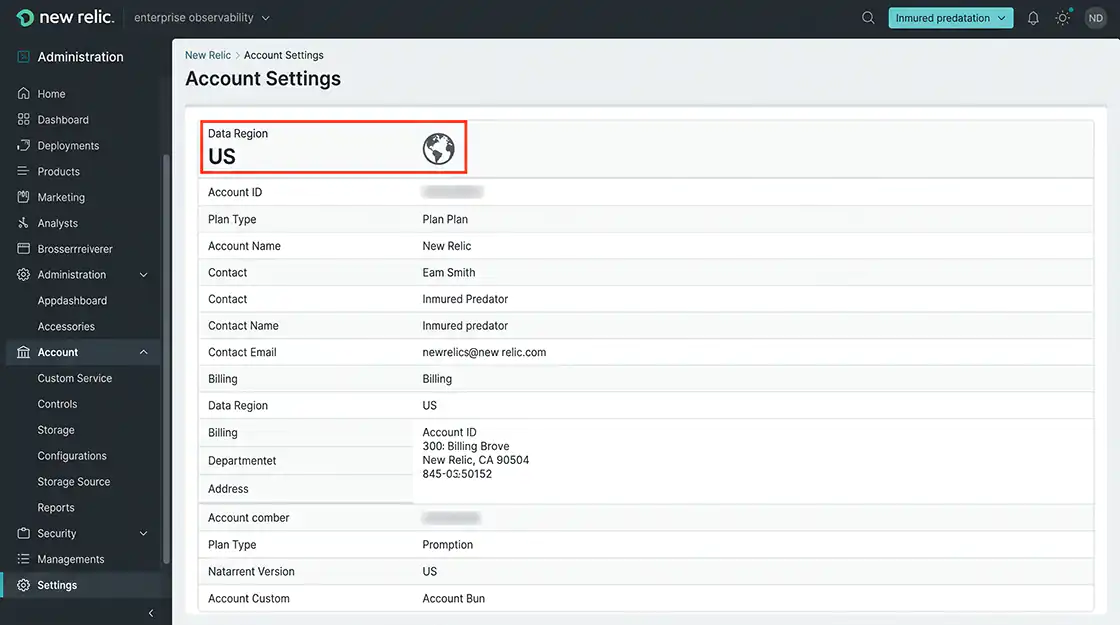
Verify whether your account belongs to the US or EU Data Region.
The Data Region is selected when the account is created and must match the value configured in the product.
If the configured region does not match your account's region, data ingestion will fail.
Verification
✔ The Ingest License Key has been obtained.
✔ The Data Region has been verified.
Configure the New Relic Integration
Enter the License Key and Data Region into the product configuration.
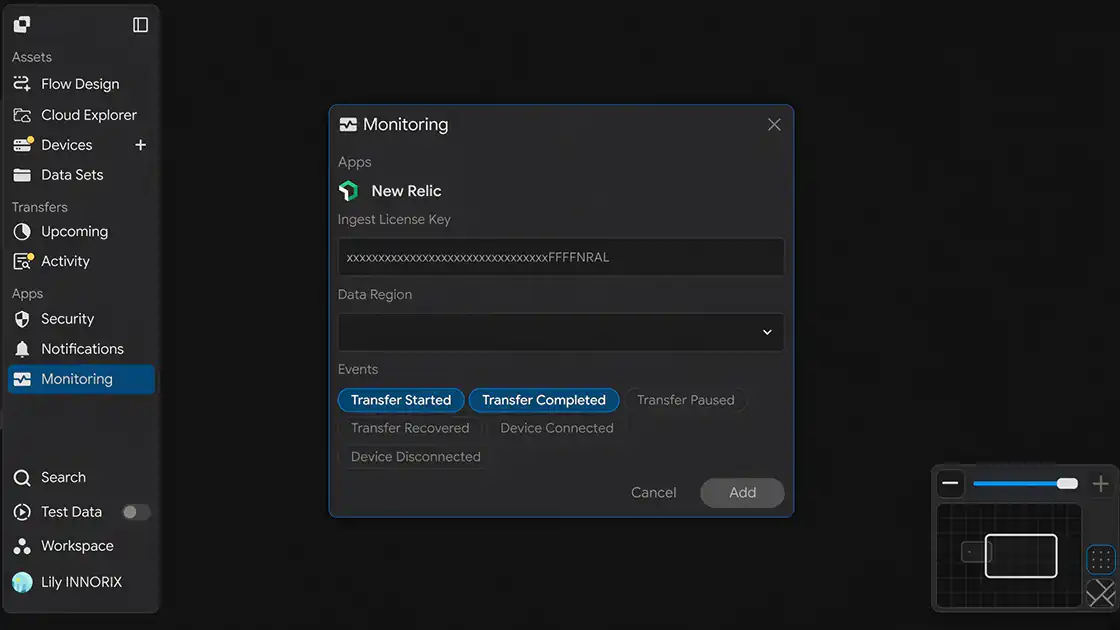
When you open the Monitoring configuration page, the following screen is displayed.
Step 1. Enter the Ingest License Key
Enter the License Key into the Ingest License Key field.
Step 2. Select the Data Region
Select your account's Data Region from the Data Region drop-down list.
The selected region must match the region associated with the License Key.
Step 3. Select Events
Select the events to monitor.
Multiple events can be selected. Only the selected events will be sent to New Relic.
| Event | Trigger |
|---|---|
| Transfer Started | When a Transfer begins. |
| Transfer Completed | When a Transfer completes successfully. |
| Transfer Paused | When a Transfer is paused. |
| Transfer Recovered | When a Transfer automatically resumes after an interruption or failure. |
| Device Connected | When a device connects. |
| Device Disconnected | When a device disconnects. |
Step 4. Save the Configuration
After completing the configuration, click Add to save the integration.
Verification
✔ The Ingest License Key has been entered.
✔ The Data Region has been selected.
✔ The monitoring events have been selected.
Verify the Integration
Verify that the integration is operating correctly.
Step 1. Generate a Test Event
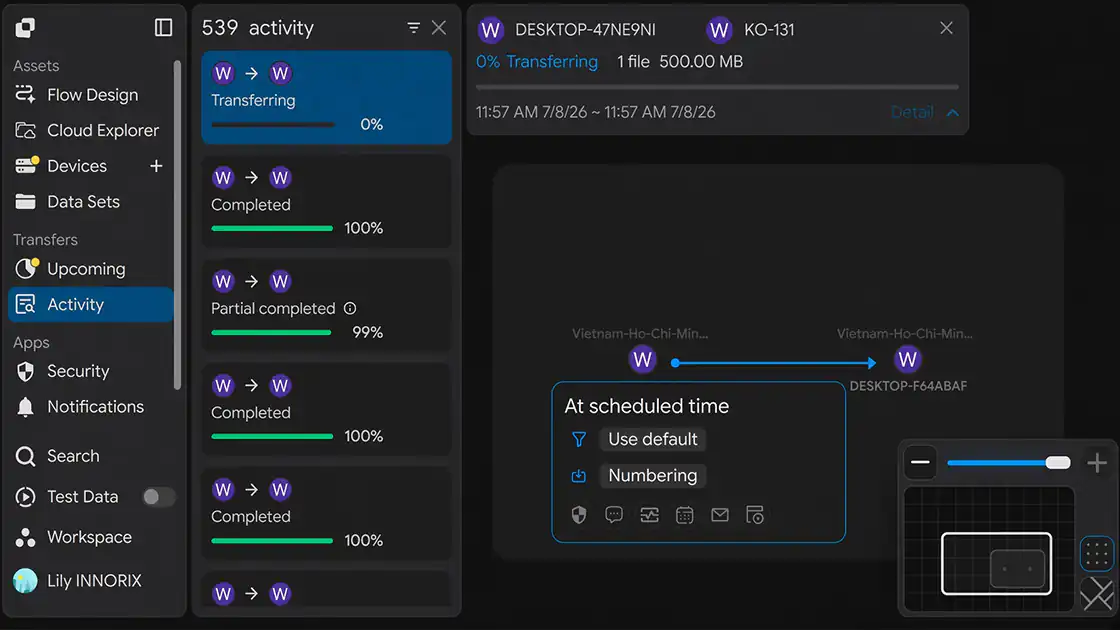
Start a Transfer or trigger one of the selected monitoring events.
Step 2. Verify in New Relic
Verify that the event has been received in New Relic.
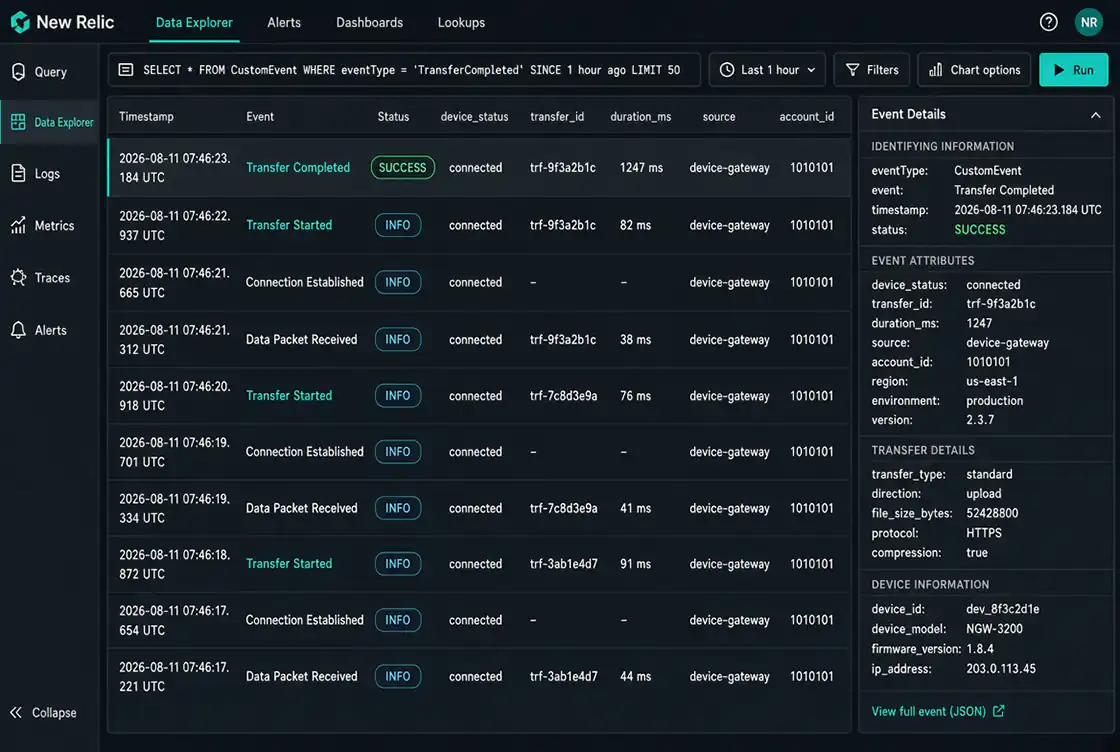
Verification
✔ The event has been received by New Relic.
✔ The generated event has been delivered successfully.
Configuration Complete
After the configuration is saved, the integration becomes active.
From this point forward, whenever one of the selected events occurs, the corresponding event is automatically sent to New Relic.
Troubleshooting
| Issue | Verification |
|---|---|
| Events do not appear | Verify that the Ingest License Key and Data Region are correct and contain no leading or trailing spaces. |
| Authentication error | Verify that the License Key is valid (typically ending with NRAL) and has not been rotated or regenerated. |
| Region mismatch | Verify that the account's Data Region matches the configured Data Region. (For example, a US account key cannot be used with the EU endpoint.) |
| Incorrect key type | Verify that the API key is an Ingest - License key. Other key types, such as User API Keys, are not supported. |
| Integration fails in a restricted network | Verify that outbound HTTPS communication to the New Relic Ingest endpoint for the selected Data Region (port 443) is allowed through the firewall or proxy. |