
Integrate Telegram Notifications
Overview
You can integrate Telegram notifications to receive real-time updates on file transfer status changes.
Once the integration is complete, a notification message is automatically sent to the designated Telegram channel or group whenever selected events occur, such as Started, Completed, or Failed.
The setup process consists of three steps: ① Generate a Bot Token → ② Obtain the target Chat ID → ③ Configure notification settings in the product.
Prerequisites
Before you begin, make sure you have the following:
| Item | Description |
|---|---|
| Telegram Account | A Telegram account is required to create a bot and add it to the target channel or group. |
| Target Channel/Group | Prepare the channel or group that will receive notifications, then add the created bot. (Administrator permission is required for channels.) |
| Network | The environment where the product is installed must allow outbound HTTPS communication to api.telegram.org (443). |
Generate a Telegram Bot Token
To receive Telegram notifications, create a bot using BotFather and generate a Bot Token.
Step 1. Open BotFather
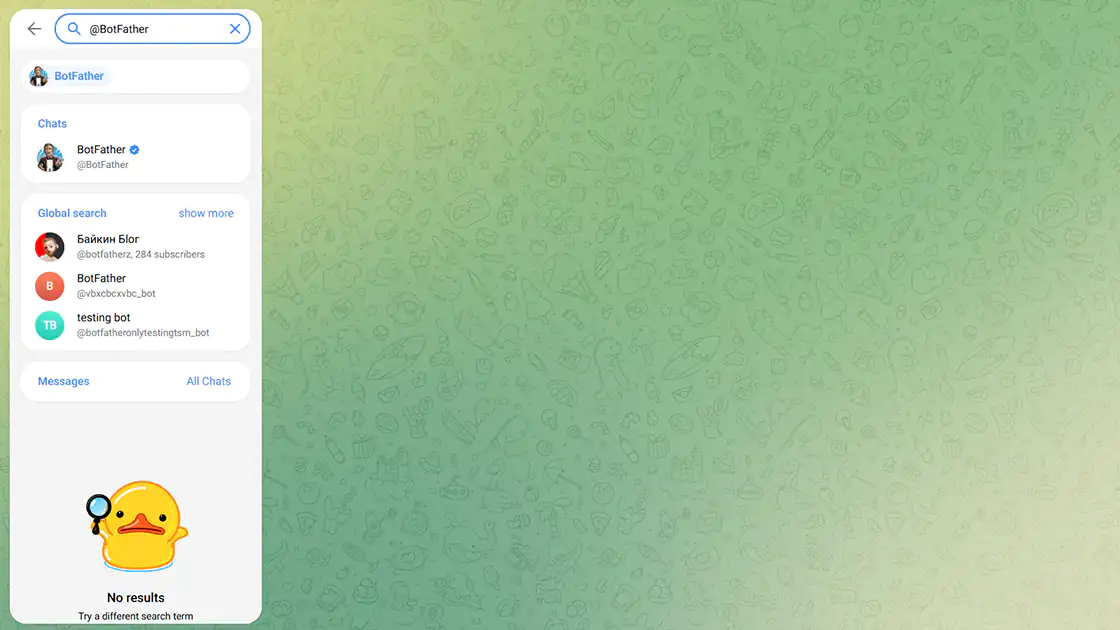
In Telegram, search for @BotFather (the official verified account), or open the following URL, then click Start.
Step 2. Create a Bot
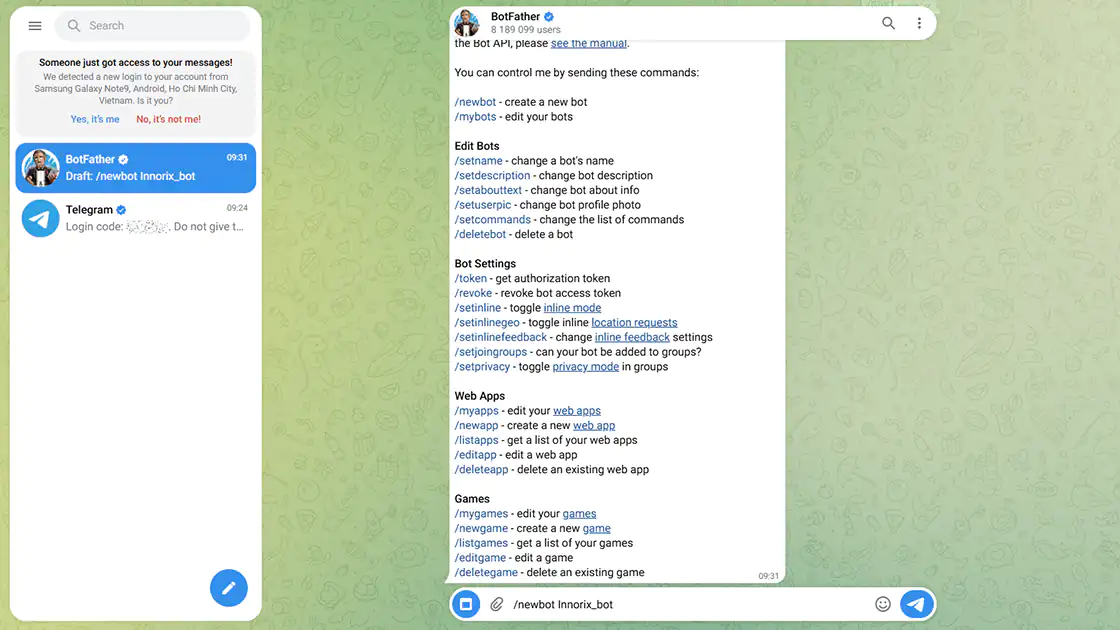
Enter the /newbot command, then enter the bot's Display Name and Username in order.
The Username must end with bot.
Example:
Step 3. Copy the Bot Token
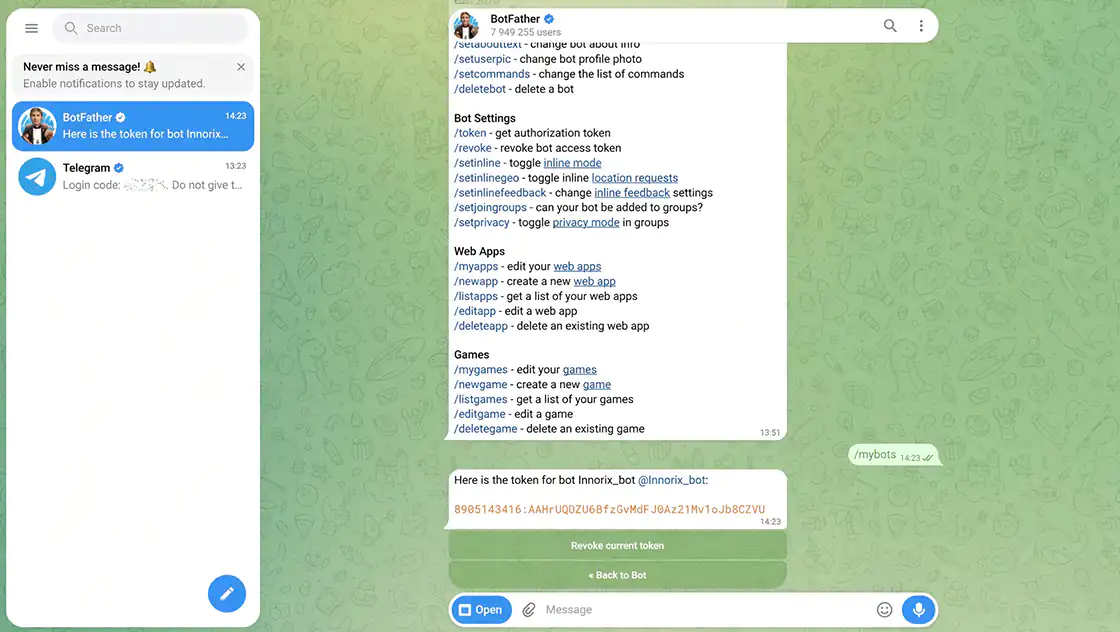
Copy the Bot Token issued by BotFather.
Example:
The Bot Token is sensitive information equivalent to a password.
Anyone who knows this value can control the bot, so do not expose it in public repositories, chats, or screenshots.
If the Bot Token is compromised, revoke it and generate a new one through BotFather.
Verification
- ✔ Created a bot using BotFather.
- ✔ Copied and securely stored the Bot Token.
Find the Target Chat ID
Identify the Chat ID of the destination that will receive notifications.
The bot must be added to the target channel or group before it can send messages.
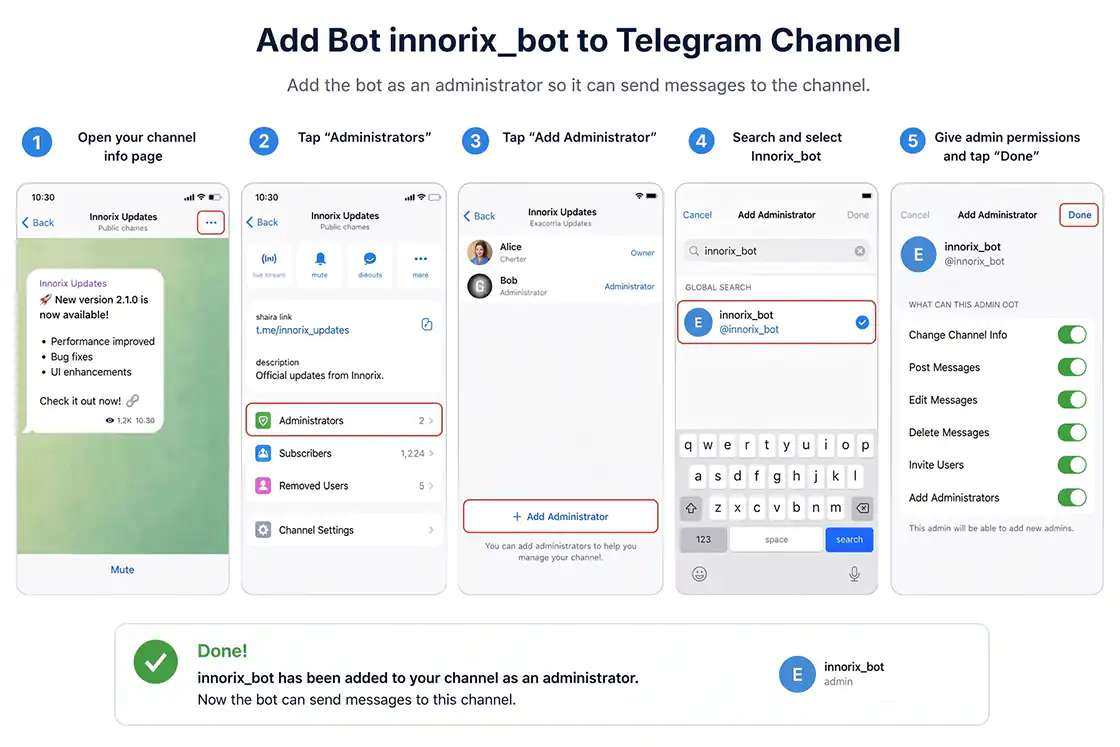
Step 1. Add the Bot
- Channel: Add the bot as an Administrator.
- Group: Add the bot as a group member.
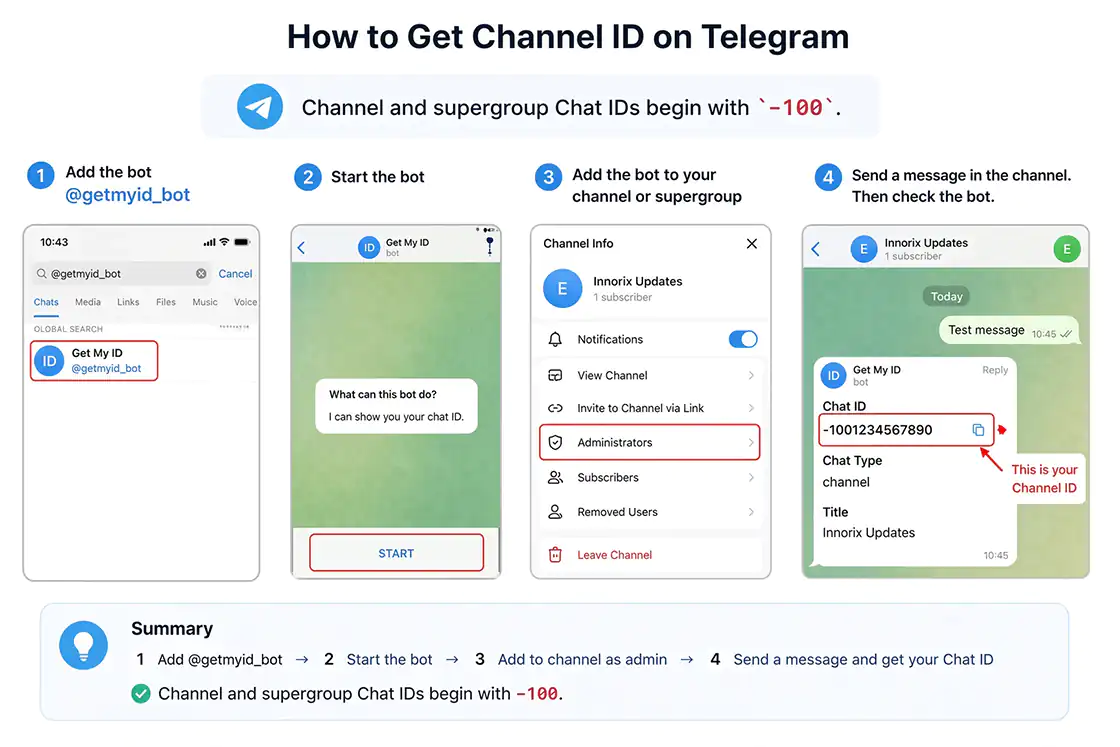
Step 2. Find the Chat ID
Send one message to the target channel or group, then open the following URL in your browser.
The chat.id value in the response is the Chat ID.
Channel and supergroup Chat IDs begin with -100.
Example:
Alternatively, you can use a Telegram bot such as @getidsbot to find the Chat ID.
Verification
- ✔ Added the bot to the target channel or group.
- ✔ Verified the Chat ID.
Configure Telegram Notifications
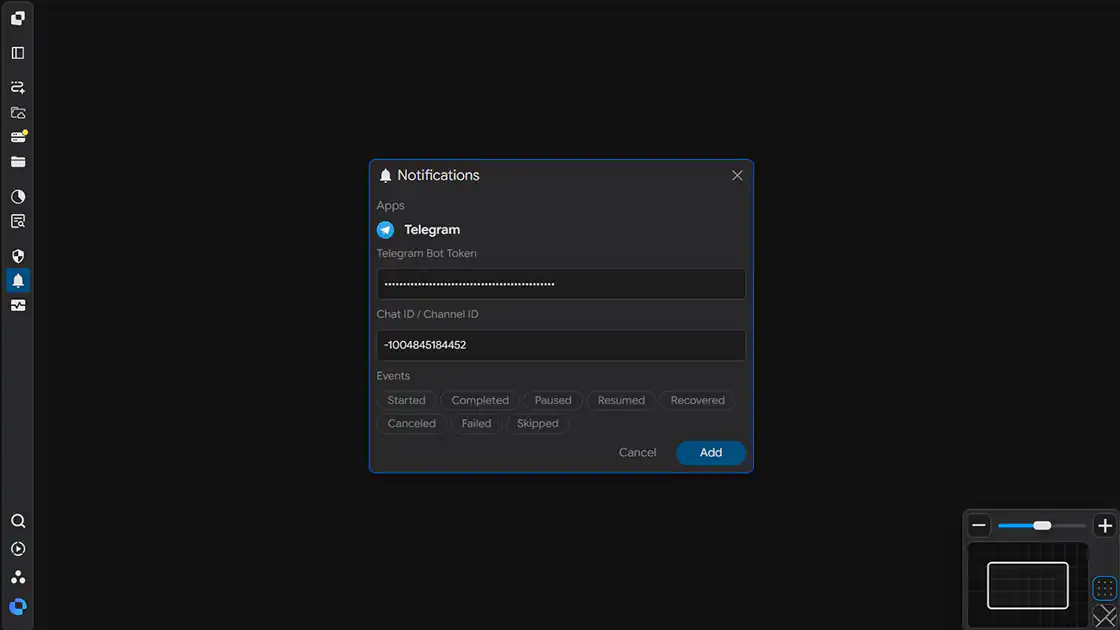
Enter the generated Bot Token and Chat ID in the product's notification settings.
Open the Notifications settings window.
Step 1. Enter the Telegram Bot Token
Enter the Bot Token copied in the "Generate a Telegram Bot Token" section into the Telegram Bot Token field.
Step 2. Enter the Chat ID / Channel ID
Enter the Chat ID verified in the "Find the Target Chat ID" section into the Chat ID / Channel ID field.
Step 3. Select Notification Events
Under Events, select the events for which you want to receive notifications.
You can select multiple events, and messages are sent only when the selected events occur.
| Event | Trigger |
|---|---|
| Started | When a transfer starts |
| Completed | When a transfer completes successfully |
| Paused | When a transfer is paused |
| Resumed | When a paused transfer resumes |
| Recovered | When a transfer automatically resumes after an interruption or error |
| Canceled | When a transfer is canceled by the user |
| Failed | When a transfer fails |
| Skipped | When a file is skipped (for example, because it already exists or matches a filter condition) |
Step 4. Save the Settings
After completing the configuration, click Add to save the integration.
Verification
- ✔ Telegram Bot Token has been entered.
- ✔ Chat ID / Channel ID has been entered.
- ✔ Notification events have been selected.
Verify the Integration
Verify that the integration is working correctly.
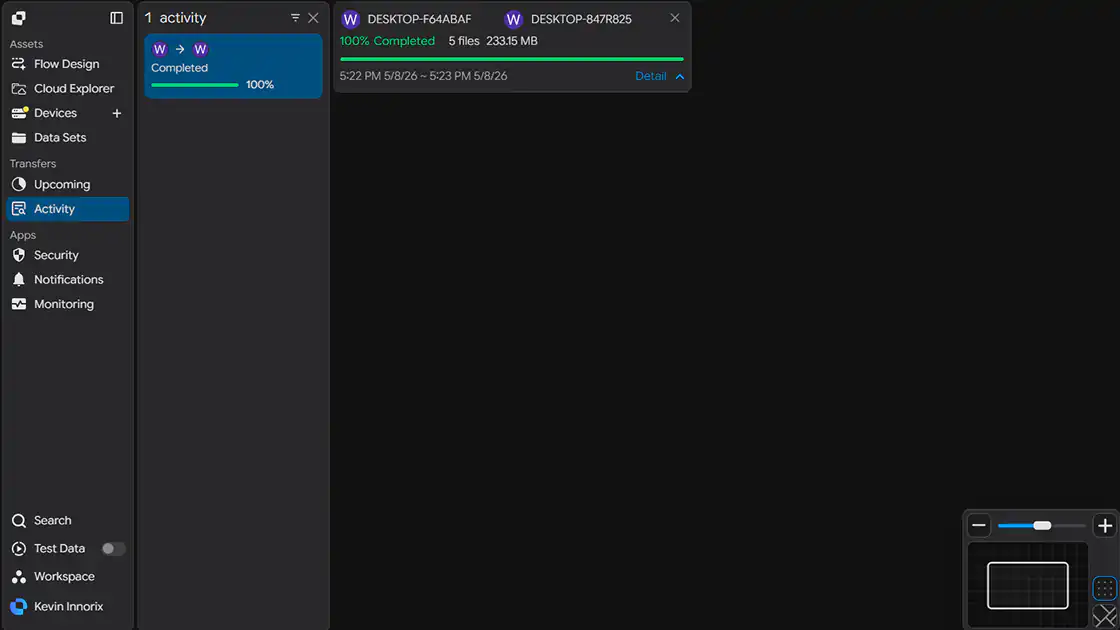
Step 1. Trigger a Test Event
Run an actual transfer task or trigger one of the selected events.
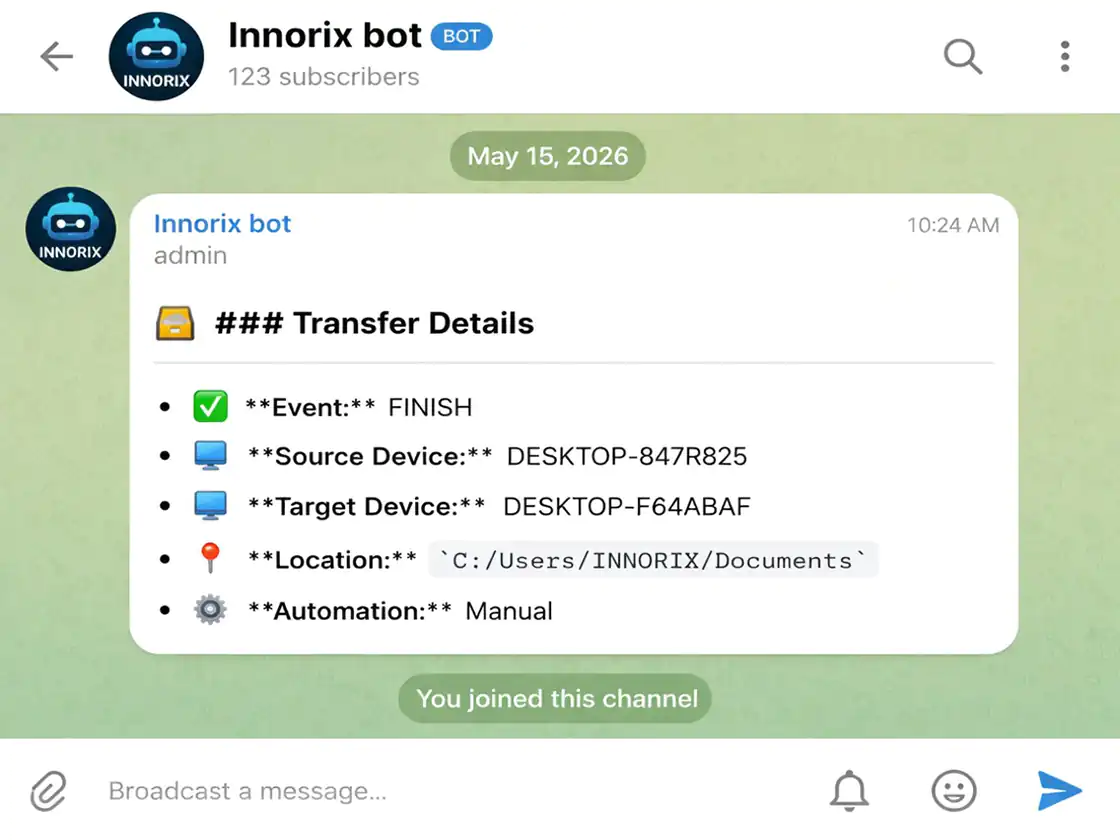
Step 2. Check the Telegram Channel or Group
Verify that the notification message has been delivered to the designated Telegram channel or group.
Verification
- ✔ Notification was delivered to the Telegram channel or group.
- ✔ The event was reported correctly.
Setup Complete
The integration is applied after the settings are saved.
From this point on, whenever one of the selected events occurs, a notification message is automatically sent to the designated Telegram channel or group.
Troubleshooting
If messages are not delivered, check the following:
| Issue | Check |
|---|---|
| Messages are not delivered | Verify that the Bot Token and Chat ID have been entered correctly. |
| The bot cannot send messages | Verify that the bot has been added to the target. (Administrator for channels, member for groups.) |
Chat ID cannot be found (getUpdates is empty) | Verify that the bot was added to the target and that at least one message was sent. Channel and supergroup IDs begin with -100. |
| Messages are not posted to the channel | Verify that the bot has permission to post messages (Administrator). |
| Integration fails in a restricted network | Verify that outbound HTTPS communication to api.telegram.org (443) is allowed by the firewall or proxy. |