
Integrate Atlassian Trello Notifications
Overview
You can integrate Atlassian Trello notifications to automatically create Trello cards for file transfer events.
Once the integration is complete, a new card is automatically created in the specified Trello list whenever selected events occur, such as Started, Completed, or Failed.
The setup consists of three steps:
① Generate an API Key and Token → ② Obtain the target List ID → ③ Configure notification settings in the product
Prerequisites
Before you begin, verify the following requirements.
| Item | Description |
|---|---|
| Trello Account | A Trello account with permission to create Power-Ups (Apps) is required. |
| Target Board / List | Prepare the Trello board and list where cards will be created. |
| Network | The environment where the product is installed must allow outbound HTTPS (443) access to api.trello.com. |
Generate a Trello API Key and Token
A Trello API Key is associated with a Power-Up (App).
First, create a Power-Up, then generate an API Key and Token.
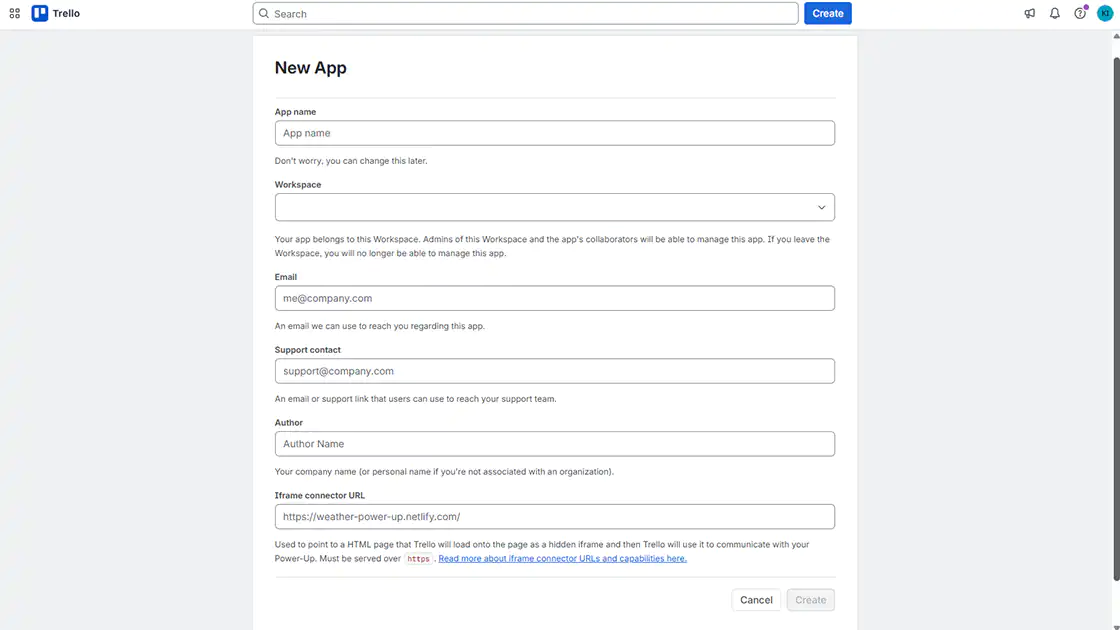
Step 1. Create a Power-Up
Go to:
https://trello.com/power-ups/admin
Click New.
Enter the required information, such as the Power-Up name, and click Create.
Step 2. Generate an API Key
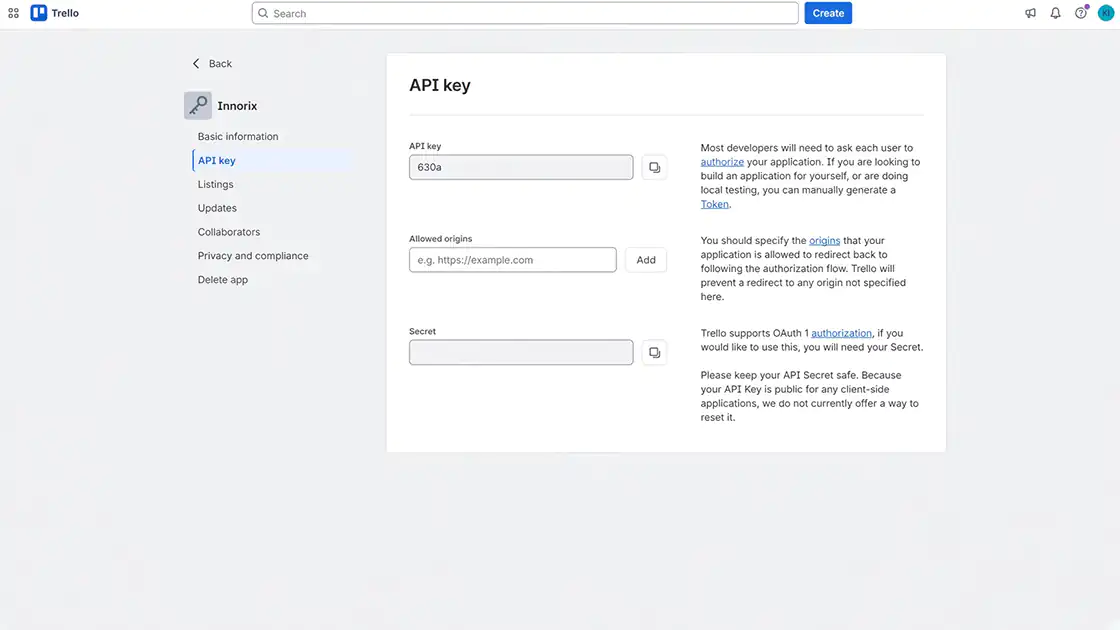
Open the API Key tab for the Power-Up you created.
Select Generate a new API Key.
Copy the generated API Key.
The Secret displayed on the same page is used only for OAuth 1.0 authentication and is not required for this integration.
Step 3. Generate a Token
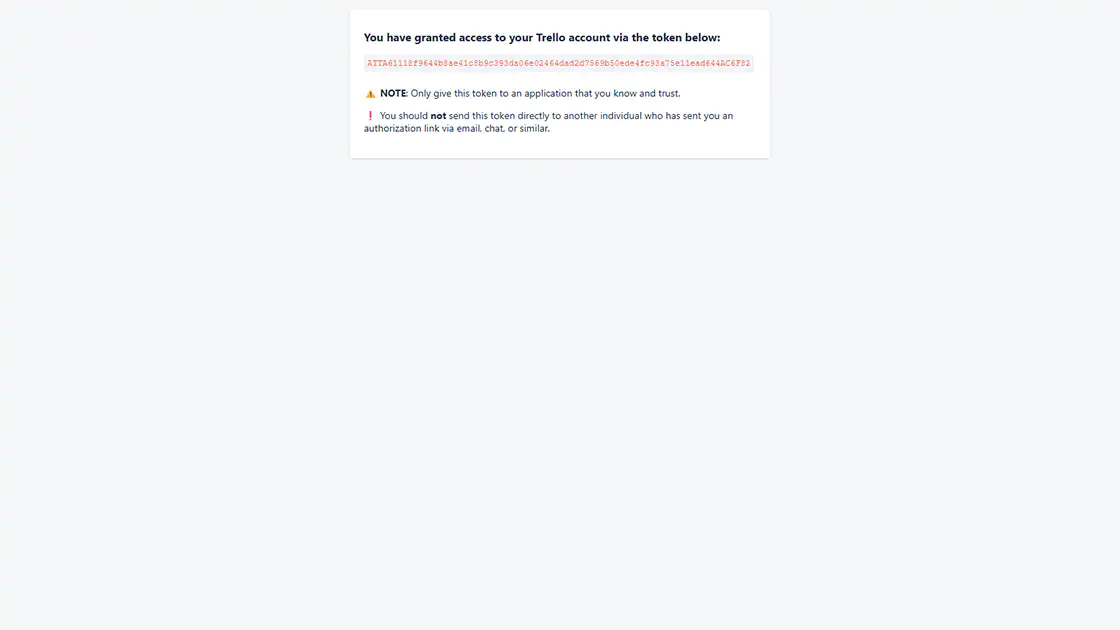
Click the Token link next to the API Key.
When the authorization page appears, click Allow, then copy the generated Token.
The API Key identifies your application, while the Token grants access to your Trello account. Treat the Token like a password and store it securely.
If the Token is compromised, it can be revoked at any time from your Trello account settings.
Verification
- ✔ A Power-Up has been created.
- ✔ The API Key has been copied.
- ✔ The Token has been copied.
Obtain the Target List ID
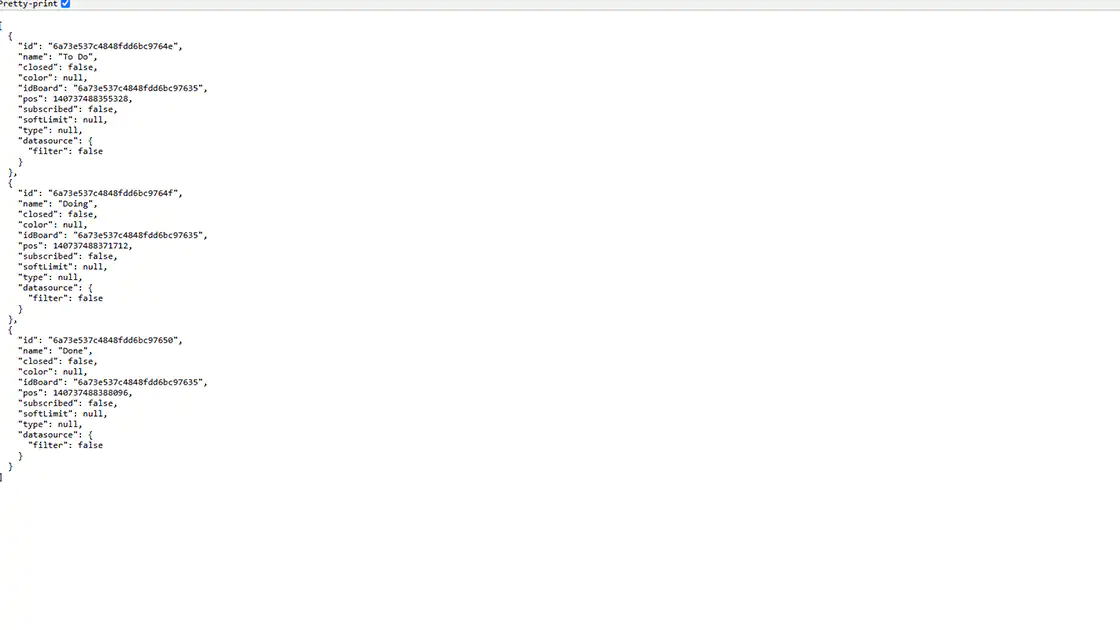
Find the ID of the Trello list where cards will be created.
Step 1. Find the List ID from the Board JSON
Open the target board in your browser.
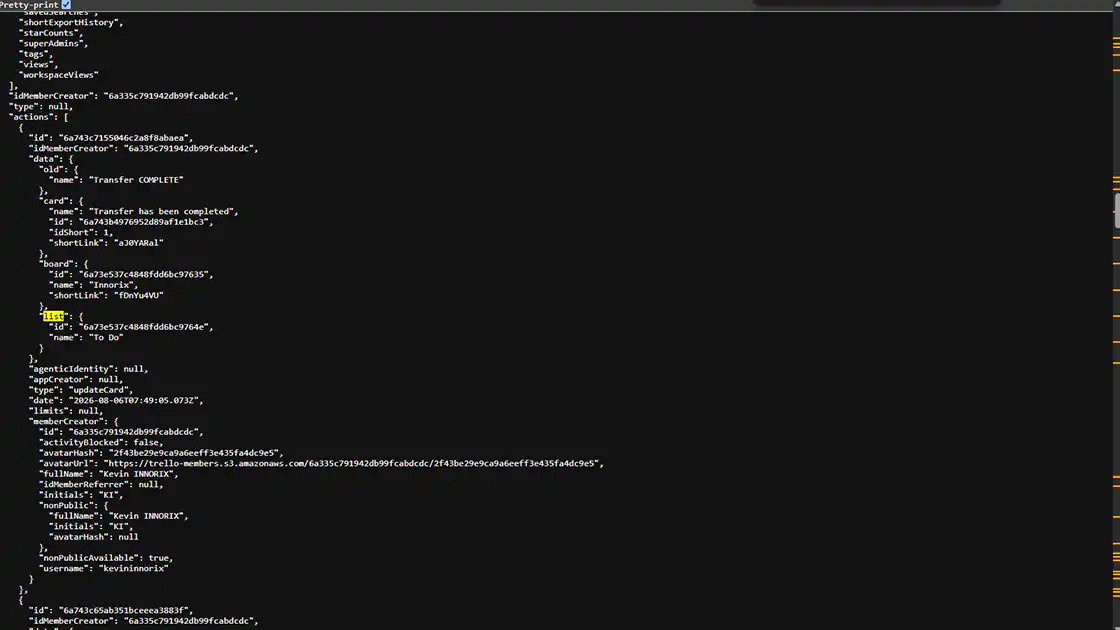
Append .json to the end of the board URL.
Locate the target list in the JSON data and note its id value.
Step 2. Find the List ID Using the API (Optional)
You can also retrieve list information using the API with the API Key and Token generated in the "Generate a Trello API Key and Token" section.
Locate the target list in the response and copy its id.
Verification
- ✔ The target List ID has been identified.
Configure Trello Notifications
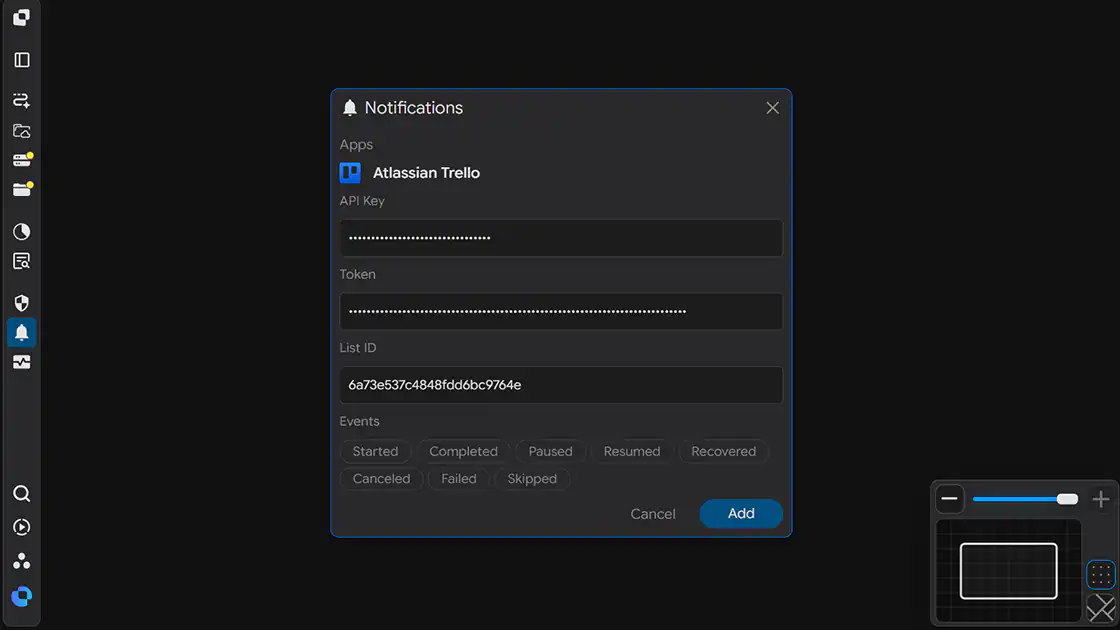
Enter the API Key, Token, and List ID into the product notification settings.
Open the Notifications settings page.
Step 1. Enter the API Key
Enter the API Key copied in the "Generate a Trello API Key and Token" section into the API Key field.
Step 2. Enter the Token
Enter the Token copied in the "Generate a Trello API Key and Token" section into the Token field.
Step 3. Enter the List ID
Enter the List ID identified in the "Obtain the Target List ID" section into the List ID field.
Step 4. Select Notification Events
Select the events that should trigger Trello card creation.
You can select multiple events. A card is created only when one of the selected events occurs.
| Event | Trigger |
|---|---|
| Started | When a file transfer starts |
| Completed | When a file transfer completes successfully |
| Paused | When a transfer is paused |
| Resumed | When a paused transfer resumes |
| Recovered | When a transfer automatically recovers after an interruption or error |
| Canceled | When a transfer is canceled by the user |
| Failed | When a transfer fails |
| Skipped | When a file is skipped (for example, because it already exists or matches a filter rule) |
Step 5. Save the Configuration
Click Add to save the integration.
Verification
- ✔ The API Key and Token have been entered.
- ✔ The List ID has been entered.
- ✔ The notification events have been selected.
Verify the Integration
Verify that the integration is working correctly.
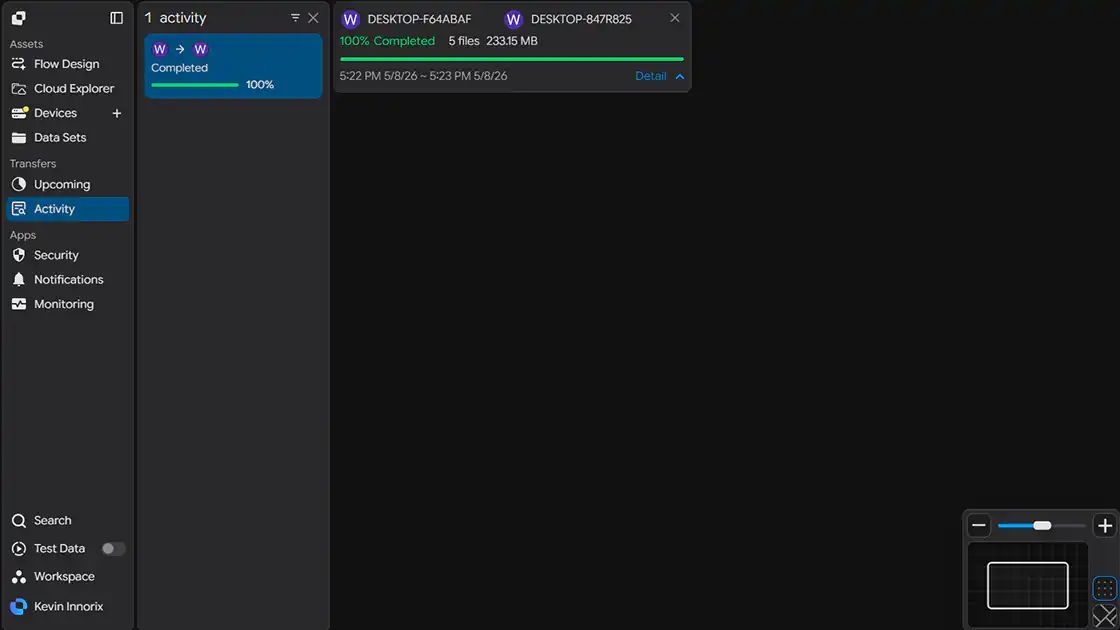
Step 1. Trigger a Test Event
Start an actual file transfer or trigger one of the selected notification events.
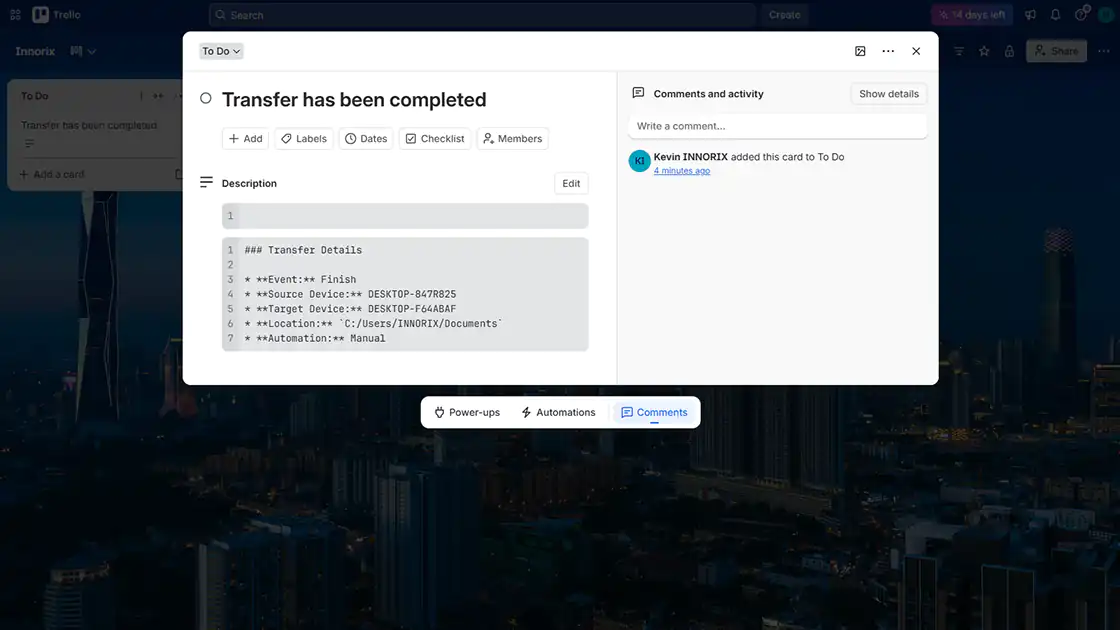
Step 2. Check the Trello List
Confirm that a new card has been created in the specified Trello list.
Verification
- ✔ A new card has been created in the Trello list.
- ✔ The event information has been recorded correctly.
Configuration Complete
Once the configuration is saved, the integration becomes active.
From this point forward, a new Trello card is automatically created in the specified list whenever one of the selected events occurs.
Troubleshooting
If cards are not created, verify the following items.
| Issue | Check |
|---|---|
| Card is not created | Verify that the API Key, Token, and List ID have been entered correctly. |
| Permission error | Verify that the Token was generated from an account with access to the target board and permission to create cards. |
| List not found | Verify that the List ID belongs to the target list, not a board ID or card ID. |
| Token does not work | Verify that the Token has not been revoked or expired. Generate a new Token if necessary. |
| Notification delivery fails in a restricted network | Ensure that outbound HTTPS (443) access to api.trello.com is allowed through the firewall or proxy. |