
Getting Started#
Basic Concept#
Organize distributed FTP batch jobs into a single Flow
Existing automated FTP transfers are often not handled by a single program.
The server providing the files, the script that connects to FTP, and the scheduler that runs the script at a specified time are connected to form a single transfer operation.
Existing FTP Environment

┌──────────────┐
│ Source Files │
│              │
│ /data/report │
└──────┬───────┘
       │
       ▼
┌──────────────┐
│ Batch Script │
│              │
│ FTP Command  │
└──────┬───────┘
       │
       ▼
┌──────────────┐
│ Scheduler    │
│              │
│ Daily 02:00  │
└──────┬───────┘
       │
       ▼
┌──────────────┐
│ FTP Server   │
│              │
│ /incoming    │
└──────────────┘
By converting to a Flow, distributed components can be organized into a single transfer flow.
                  INNORIX Flow
                         │
       ┌─────────────────┼─────────────────┐
       ▼                 ▼                 ▼
    Source            Rules            Schedule
       │                 │                 │
       └─────────────────┼─────────────────┘
                         ▼
                     FTP Target
                         │
                         ▼
                    Runs / History
This allows operations previously managed across multiple environments to be organized around a single Flow, from file check → apply transfer conditions → FTP transfer → verify execution results.
Configuration Comparison#
Move the roles of existing scripts and schedulers into Flow settings
During migration, rather than simply replacing the existing batch file, identify the information the current operation uses and review each part separately.
| Existing FTP Environment | INNORIX Flow |
|---|---|
| Source server | Source connection |
| Source folder | Source Path |
| FTP server address | Target connection |
| User account | Connection authentication information |
| Target directory | Target Path |
| File name, extension conditions | File rules |
| Batch script | Flow |
| Job scheduler | Execution condition |
| Log file | Runs and execution history |
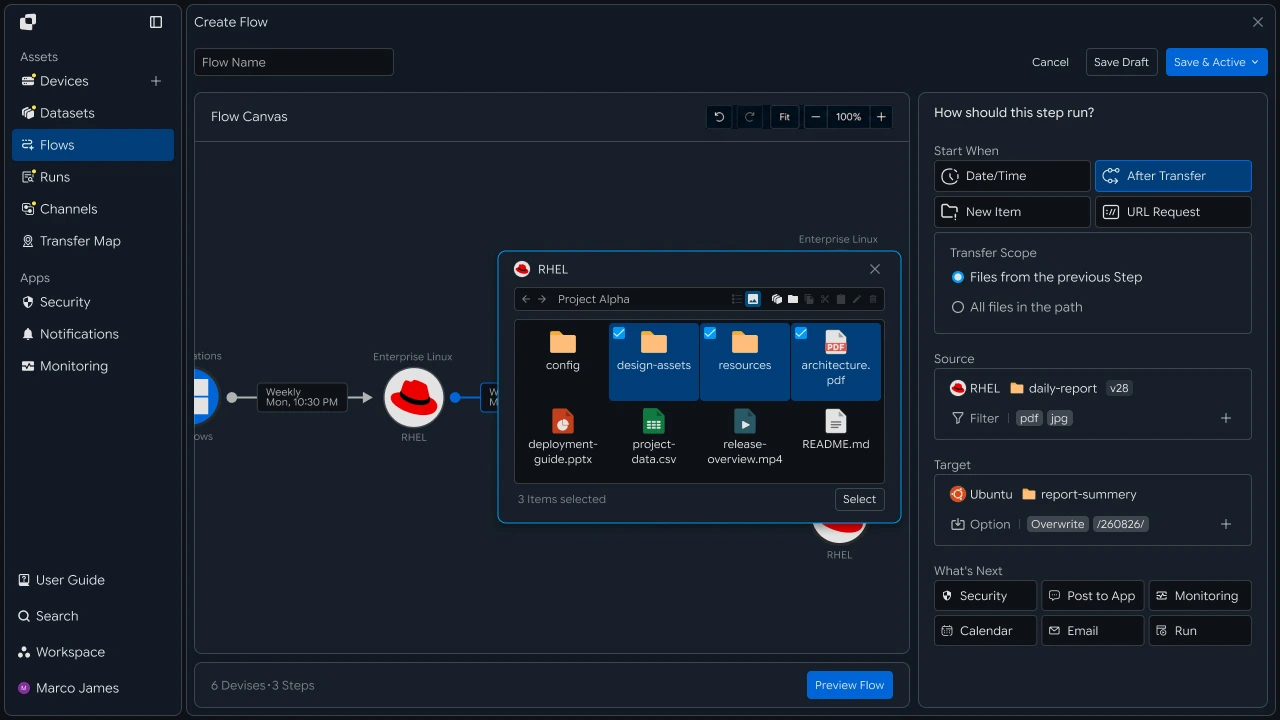
For example, if an existing batch file performed the following operations,
Check Files
   ↓
Select *.csv
   ↓
Connect to FTP
   ↓
Save to /partner/incoming
   ↓
Record Completion Log
In a Flow, Source, Target, file conditions, and execution results can be managed as separate components.
This organizes the management structure while preserving the purpose and transfer method of the existing operation.
Migration Flow#
Review existing FTP jobs and migrate them to a Flow through testing
Migrating an FTP batch job requires more than moving connection information.
You must identify which files are transferred, when they are transferred, and to which path, apply the same conditions to the Flow, and then verify the results.
The migration process can proceed as follows.
Review Existing FTP Job
        │
        ▼
Organize Transfer Information
        │
        ▼
Configure Source / Target
        │
        ▼
Set File Conditions
        │
        ▼
Migrate Execution Schedule
        │
        ▼
Test Run
        │
        ▼
Compare Transfer Results
        │
        ▼
Migrate Existing Batch Job
Initially, instead of immediately stopping the existing FTP batch job, you can first run the Flow using a test path or a limited set of files.
This lets you confirm that the same files as the existing job are transferred to the same target path before migrating the production operation.
IT Engineer#
Job Review#
Organize transfer information distributed across existing FTP batch jobs based on Flow configuration
First, review the transfer information actually used by the existing batch job.
Even among FTP jobs, some simply transfer an entire specified folder, while others select only certain extensions or start the next transfer after a previous job completes.
Therefore, organize the following information from the existing environment.
| Item | Details |
|---|---|
| Source | Server and folder where files are created |
| FTP Target | FTP server to connect to |
| Authentication information | Existing connection account and access method |
| Source Path | Path of files to transfer |
| Target Path | Storage location on the FTP server |
| File conditions | Name, extension, and path criteria |
| Execution conditions | Time, schedule, or previous job result |
| Follow-up processing | Whether to run another operation after completion |
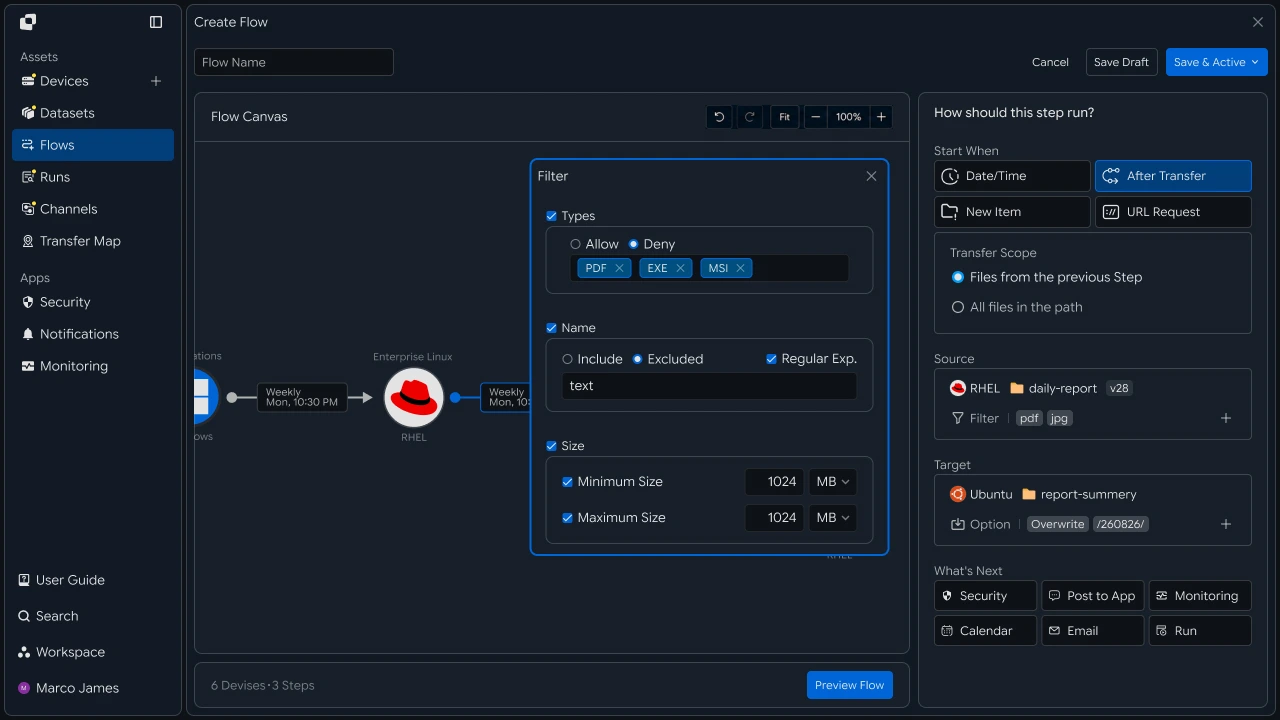
If similar FTP batch jobs run on multiple servers, they can be organized together at this stage.
For example, when files from multiple departments are transferred to one FTP server, the shared FTP connection can be managed once while department-specific Source and Target paths are configured in separate Flows.
Transfer Configuration#
Connect the Source and FTP Target and apply existing file-processing criteria
After organizing the job information, configure the system providing the files as the Source and the FTP server as the Target.
At this stage, apply not only the connection between the two systems but also the file-selection criteria used by the existing batch job.
┌─────────────────────┐
│ Source Server       │
│                     │
│ /data/export        │
└──────────┬──────────┘
           │
           ▼
┌─────────────────────┐
│ File Rules          │
│                     │
│ *.csv               │
│ /daily/*            │
└──────────┬──────────┘
           │
           ▼
┌─────────────────────┐
│ INNORIX Flow        │
└──────────┬──────────┘
           │
           ▼
┌─────────────────────┐
│ FTP Target          │
│                     │
│ /partner/incoming   │
└─────────────────────┘
Review the following items in the transfer configuration.
| Configuration Area | Setting |
|---|---|
| Source connection | Specify the system from which files are read |
| Source Path | Apply the source path from the existing batch job |
| File rules | Set conditions for files to transfer |
| FTP connection | Configure server and authentication information |
| Target Path | Specify the target path where files are stored |
| Access scope | Verify file-read and target-write permissions |
For example, if the existing job transferred only .csv files from /data/report/daily to /incoming/report on the FTP server, the same conditions can be configured within a single Flow.
This makes it possible to see within the Flow which files are selected from where and to which FTP path they are transferred.
Schedule Migration#
Automate with Flow execution conditions instead of per-server schedulers
Existing FTP batch jobs are often run through Windows Task Scheduler or Linux cron.
When migrating to a Flow, review the existing execution time and recurrence conditions, then move that schedule into the execution conditions.
Existing Scheduler
       │
       │ Daily / Weekly
       ▼
┌─────────────────────┐
│  Execution Rule     │
│                     │
│ Date / Time         │
└──────────┬──────────┘
           │
           ▼
       INNORIX Flow
           │
           ▼
        New Run
           │
           ▼
      FTP Transfer
The migration can be configured as follows depending on the existing execution method.
| Existing Method | Flow Configuration |
|---|---|
| Run daily at a specified time | Date/Time |
| Run on a specific day each week | Recurring schedule |
| Run after file creation | File detection or Sync |
| Run after previous job completes | After Transfer |
| Run manually when needed | Manual Run |
This allows not only transfer paths but also the conditions determining when the job runs to be managed together with the Flow.
Result Verification#
Compare transfer results with the existing FTP job using a test Run
After the Flow configuration is complete, run a test Run before migrating the production operation.
During verification, confirm that the same files as the existing FTP batch job were selected and saved to the correct target path.
Test Files
     │
     ▼
┌───────────────┐
│ INNORIX Flow  │
└───────┬───────┘
        ▼
     Test Run
        │
        ├── File Count
        ├── Total Size
        ├── Source Path
        ├── Target Path
        └── Status
                │
                ▼
          Result Check
                │
        ┌───────┴────────┐
        ▼                ▼
     Matched         Adjustment
        │                │
        ▼                └──▶ Modify Flow
   Production
   Transition
Verify the following items.
| Item | Details |
|---|---|
| File count | Whether all expected files were processed |
| File names | Whether files were selected using the same existing conditions |
| Total size | Whether the transfer data was processed correctly |
| Source Path | Whether files were retrieved from the correct source path |
| Target Path | Whether files were stored in the specified location on the FTP server |
| Execution result | Whether the status is Completed or requires additional review |
If files are missing or unexpected files are included, adjust the Source path or file rules and test again.
After verification is complete, migrate the existing FTP batch job to Flow-based execution.
Centralized Management#
Manage execution status and results of multiple FTP transfer jobs in Runs
After migration is complete, transfer status can be checked through Flow and Runs instead of reviewing each existing server's log files and scheduler separately.
                    INNORIX
                       │
          ┌────────────┼────────────┐
          ▼            ▼            ▼
       Flow A        Flow B        Flow C
          │            │            │
          ▼            ▼            ▼
       FTP A        FTP B        FTP C
          │            │            │
          └────────────┼────────────┘
                       ▼
                      Runs
                       │
             ┌─────────┼─────────┐
             ▼         ▼         ▼
         Completed   Failed   Retrying
The following information can be checked for each Run.
| Item | Details |
|---|---|
| Flow | Identify the FTP transfer job |
| Source | System and path files were retrieved from |
| Target | Connected FTP server and storage location |
| Total Files | Total number of processed files |
| Total Size | Total transfer volume |
| Status | Completed, failed, retrying status |
| Started | Job start time |
| Completed | Job completion time |
If an issue occurs, the Run details can be used to check the connection status of the Source and FTP Target, file paths, and per-file processing results.
After completing the required action, rerun the job and review the transfer results in a new Run.
Production Migration#
Migrate the management structure to Flow while preserving the existing automated FTP transfer method
Migrating FTP batch jobs to INNORIX Flow does not require redesigning the entire existing transfer method.
Existing FTP servers, file paths, transfer conditions, and execution schedules can be preserved while distributed configuration information is organized around Flow.
The final operating structure changes as follows.
| Existing Operation | After Flow Migration |
|---|---|
| Manage batch files by server | Manage transfer configuration by Flow |
| Check individual schedulers | Centrally manage execution conditions |
| Check FTP information in configuration files | Manage connection information in the connected environment |
| Check server logs | Check execution results in Runs |
| Rerun directly on the server | Rerun based on Flow or Run |
With this recipe, you can configure a single migration flow covering analyze existing FTP jobs → organize transfer information → configure Source, Target and file rules → migrate execution schedule → test Run → verify results → migrate existing batch job → centralized operation based on Runs.
This allows you to preserve the existing FTP batch job's transfer paths, file conditions, and recurring execution method while consolidating management elements previously distributed across servers, scripts, and schedulers around INNORIX Flow.