
Getting Started#
Basic Concept#
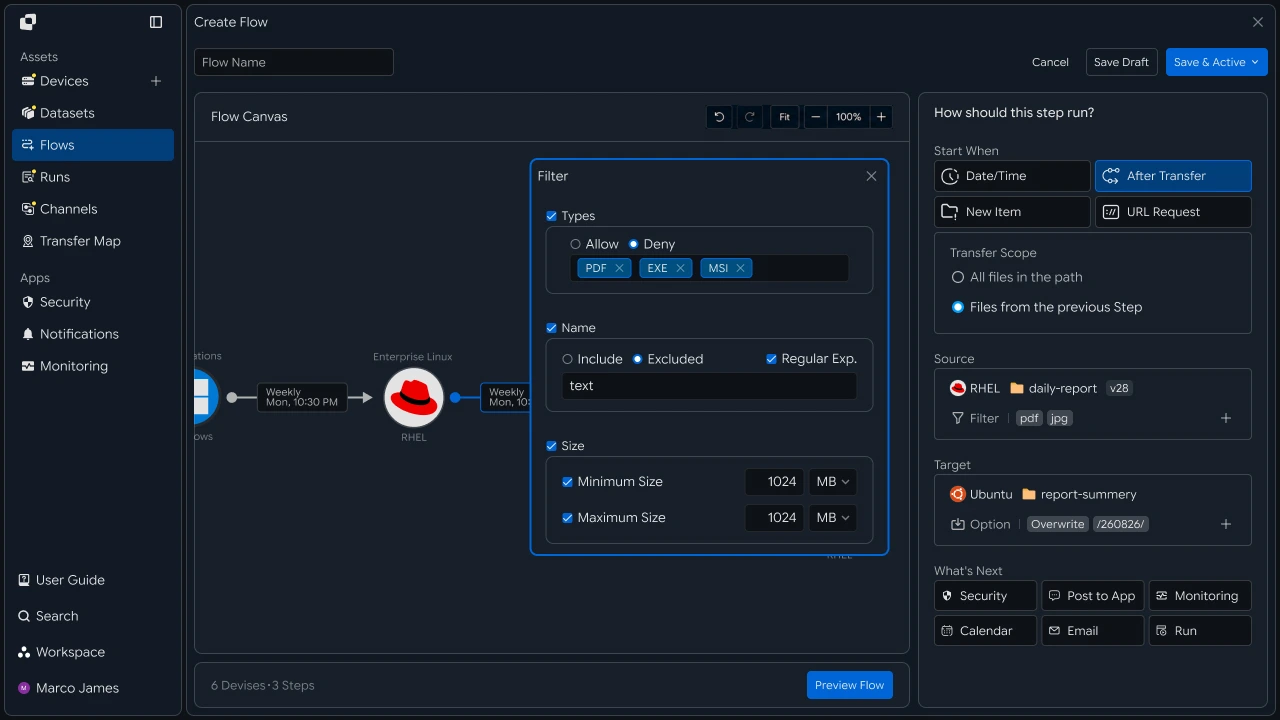
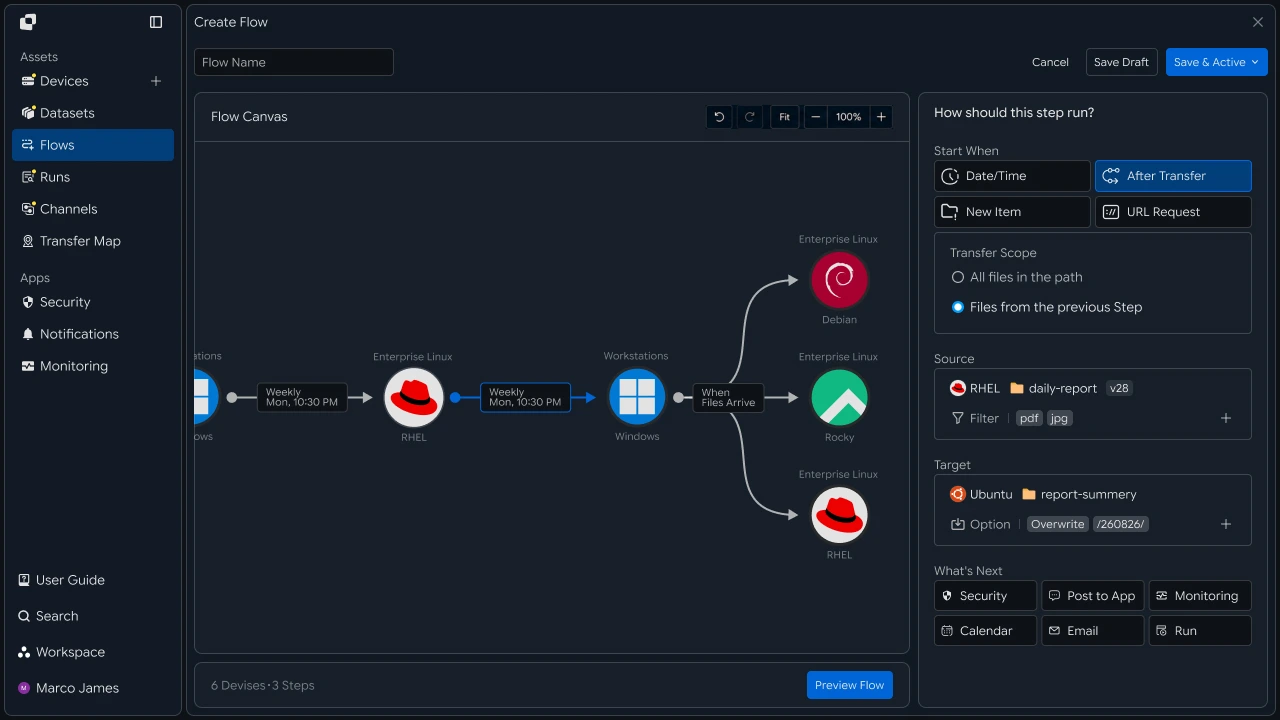
Use transfer completion to automatically continue with validation, processing, and the next task
After a file is transferred to another system, the workflow may not end with the transfer itself. You may still need to validate the delivered file, extract an archive, run a security scan, convert the file, or start another processing task.
For example, after receiving data.zip from an external system, you can verify that the file arrived correctly, extract it, run a processing program, and then transfer the generated result to the next system.
If file transfer and follow-up tasks are run separately, however, you must first confirm that the file was actually transferred before starting the next task, and when multiple stages are connected, you must manage each stage's execution order and result separately.
With INNORIX Flow, you can connect the next task to the successful delivery of a file to the designated Target.
Instead of starting the next task only at a scheduled time or under an unrelated condition, you can use the previous stage's processing result as the trigger for the next automation stage, for example file transfer complete → review result → run next task.
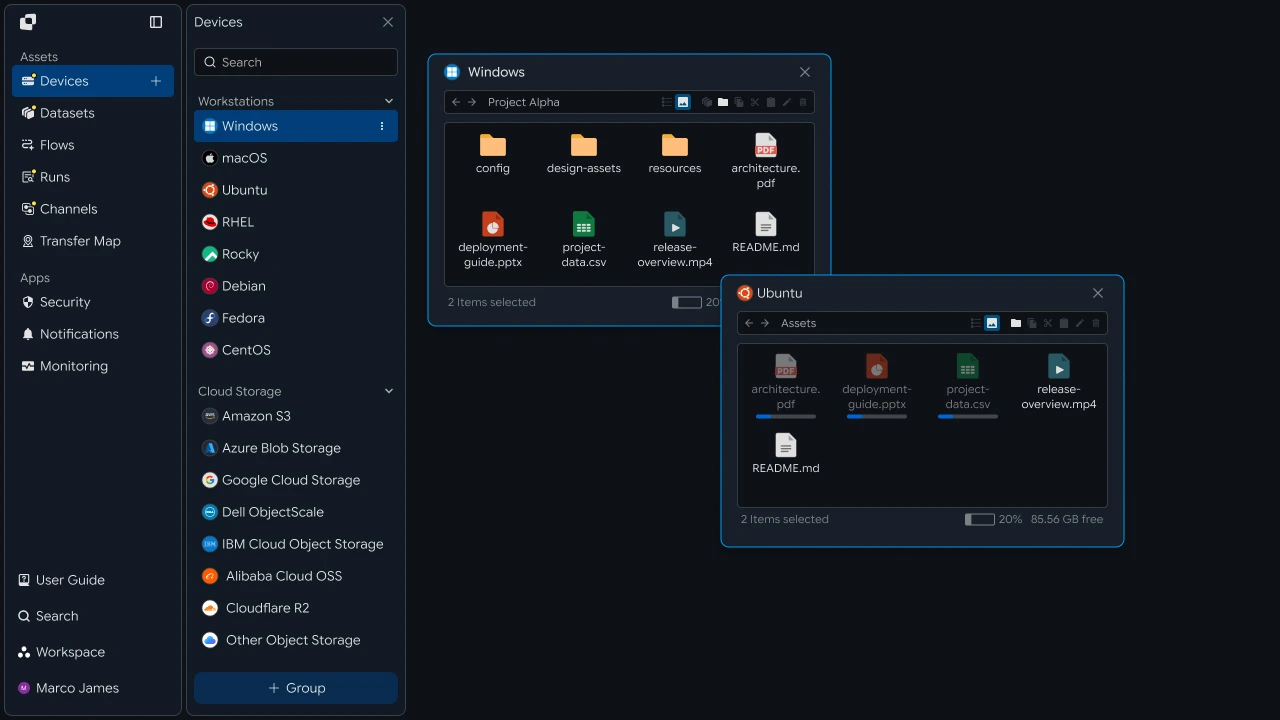
After a file arrives, different tasks can be connected depending on the processing objective.
| Follow-Up Task | Use |
|---|---|
| File Validation | Check file state and processing conditions |
| Extraction | Extract ZIP and other archive files to a designated path |
| File Conversion | Convert data, image, or video files to the required format |
| Security Scan | Check the security state of received files |
| Processing Program | Run a designated program or script |
| Next Transfer | Transfer processing results to the next system or storage location |
For example, you can run extraction immediately after a file reaches the Target, then transfer the generated result to the next system after processing completes.
- File Transfer
- Transfer Complete
- Extract File
- Run Processing
- Result Created
- Next Transfer
This creates an automated flow from file transfer → completion result verification → follow-up task execution → result generation → connection to the next stage, without requiring an operator to start each task manually.
Processing Flow#
Connect multiple tasks in sequence from file arrival through result generation
When a file arrives, not every task needs to run at once. The next task can start based on the result of the previous stage.
For example, after receiving an archive file, extraction must complete before the internal files can be validated and the next processing program can run.
Connecting stages based on file-arrival state and previous processing results lets you organize multiple programs into one file-processing flow.
Automation Benefits#
Connect file transfer and follow-up program execution in one flow
Traditionally, after a file arrives, an operator or separate system may need to confirm the file and start the next task.
With automatic execution, the required tasks can continue in sequence from the point when the file is applied successfully.
| Category | Separate Execution | Automatic Execution After File Arrival |
|---|---|---|
| File Review | Operator checks whether the file arrived | Verify automatically from the transfer result |
| Follow-Up Task | Run the program manually | Start automatically after completion |
| Execution Order | Manage each stage separately | Connect stages according to previous results |
| Processing Result | Review each program separately | Review within the overall flow |
| Next Stage | Run separately | Continue automatically based on conditions |
For example, after receiving one file, you can configure a processing flow like the following.
- File Receive
- ValidationPassed
- Convert
- Result Save
This lets you manage file arrival → status verification → program execution → result generation → next-task connection as one automated flow.
IT Engineers#
Connect Execution#
Configure processing tasks to start after file transfer completes
IT engineers connect the transfer job to follow-up tasks so that the next program or processing operation starts after the transfer completes.
You can start the next stage only when the transfer completes successfully, or arrange multiple tasks in sequence based on the processing objective.
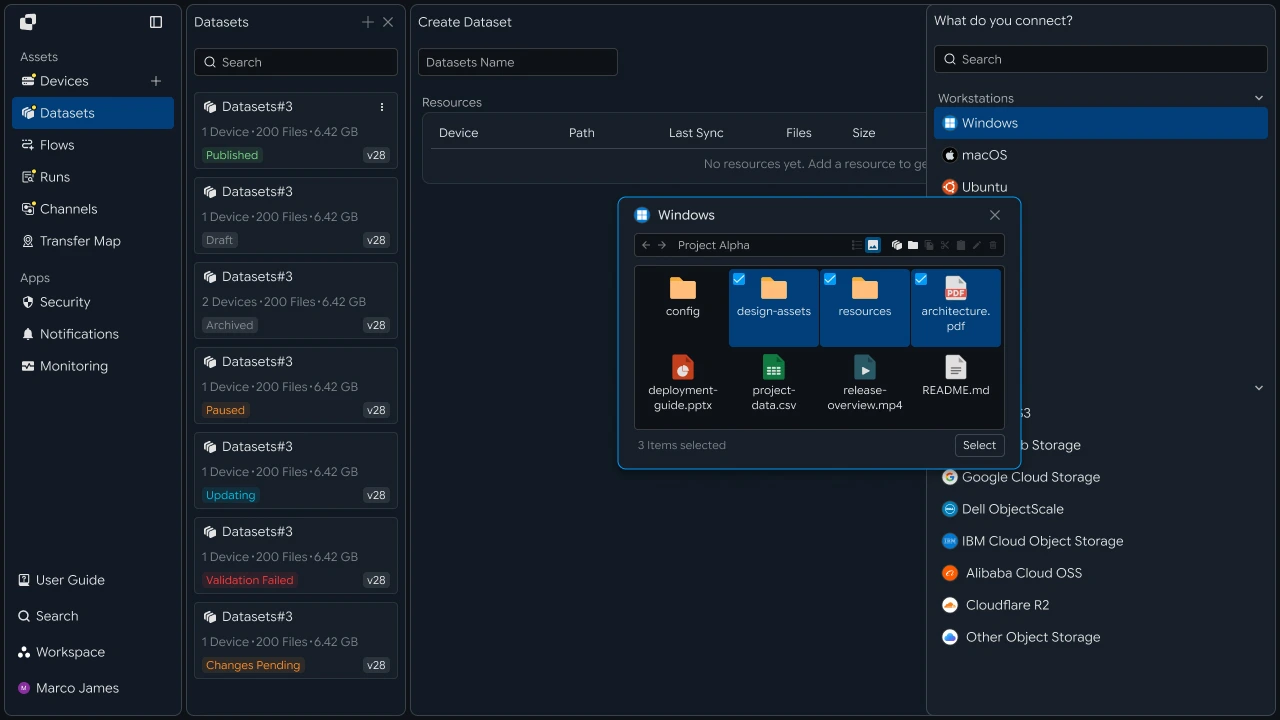
For example, the following tasks can be connected after file receipt.
Run an archive extraction program
Start a file-format conversion job
Run a data-validation program
Run a custom script
Transfer the processed result file to the next system
Connecting follow-up tasks lets you manage transfer jobs and processing programs within a single Flow instead of running them separately.
Job Order#
Run the next program based on the result of the previous stage
When there are multiple follow-up tasks, configure their execution order so the result of the previous task becomes the start condition for the next one.
For example, validate the file first, extract it only if validation succeeds, then run the conversion program.
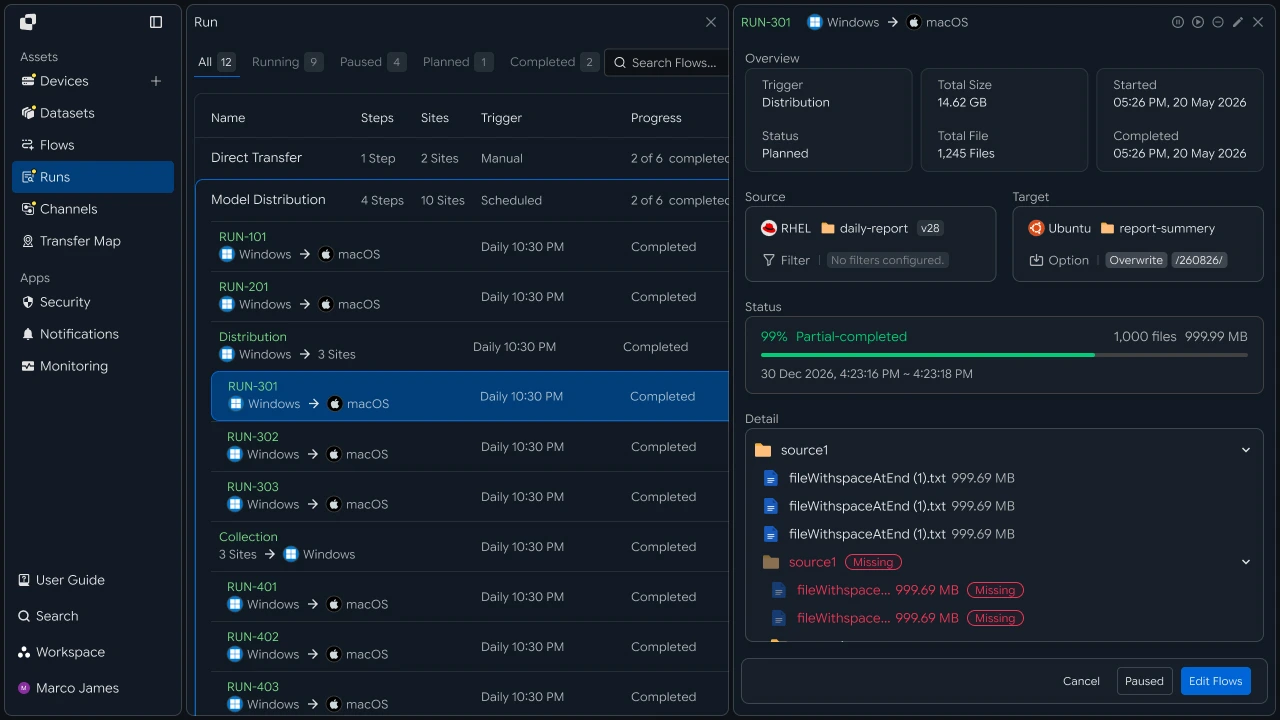
When configuring job order, you can apply criteria like the following.
| Criteria | Use |
|---|---|
| Transfer Complete | Start after the file arrives successfully |
| Validation Success | Run the next stage when the file passes validation |
| Previous Task Complete | Run the next program after the prior stage finishes |
| Failure Occurs | Stop subsequent tasks and record a needs-review state |
| Result Created | Connect the next transfer after processing generates a result |
This lets you define the overall execution order based on file state and processing results.
Processing Commands#
Run required programs and scripts in the server environment
When actual processing is required after file arrival, connect the workflow to run a program or script in the designated server environment.
For example, you can run an extraction command on a Linux server or pass the received file path to a conversion program for processing.
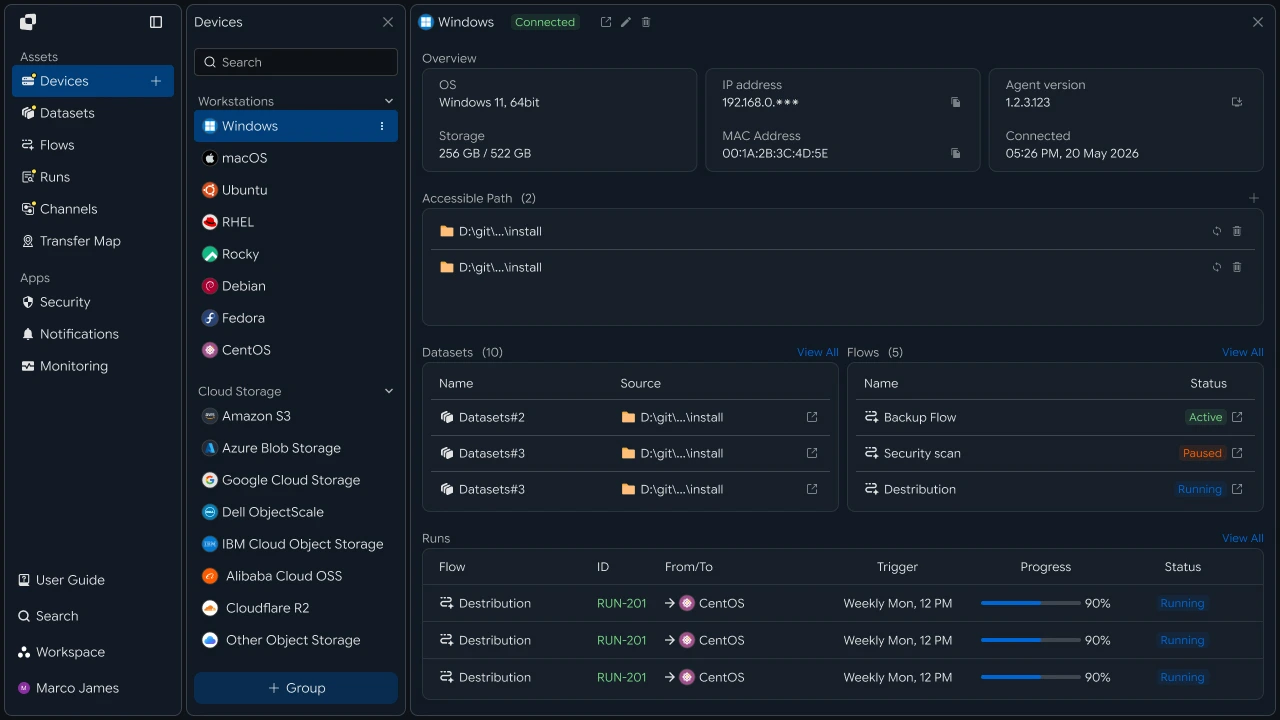
Processing tasks can be connected according to the file flow as follows.
| Input Type | Example Follow-Up Task |
|---|---|
| Archive File | Extract and process contained files |
| CSV, Data File | Run data validation or conversion |
| Image File | Resize or convert format |
| Video File | Encode and generate output files |
| Business Output | Run a custom program or script |
Connecting the file location to the program's input and output paths lets the next processing task use the delivered file immediately.
Connect Results#
Connect processed files to the next storage location and workflow
After a follow-up program runs, it may generate a result file in a new location.
The generated result can be stored on a designated server or storage system, or automatically sent to another system through the next transfer job.
For example, you can build a file-processing chain like the following.
| Processing Stage | Next Task |
|---|---|
| File Received | Validate the source file |
| Validation Complete | Extract or convert the file |
| Processing Complete | Save the result file |
| Result Generated | Transfer to the next server or storage system |
| Overall Complete | Record the execution result or send a notification |
This automatically connects the result generated after a file arrives to the next flow.
Run Management#
Review transfer and follow-up task status in one flow
When multiple tasks run automatically after file arrival, review each stage to determine how far the workflow completed successfully.
In Runs, you can review not only the transfer job but also the execution status of connected processing stages.
Run Details
- File Transfer✓ Completed
- Validation✓ Completed
- Conversion◌ Running
- Result Transfer- Waiting
Review processing status using the following items.
| Item | Details |
|---|---|
| Starting Task | Source and Target involved in receiving or transferring the file |
| Execution Stage | Connected validation, conversion, and processing tasks |
| Status | Completed, running, or failed state for each stage |
| Started | Start time for each task |
| Completed | Processing completion time |
| Output | Result generated by the program |
| Run History | Execution history for the entire automation flow |
Managing file transfer and follow-up programs in one Run flow makes it possible to identify where processing stopped within the overall workflow.
Exception Handling#
Review and rerun a failed processing stage after file arrival
File transfer may complete successfully while a later validation, conversion, or program-execution stage fails.
In these cases, review the file state, execution environment, processing command, and result path separately.
When a problem occurs, review the following items together.
| Item | Details | Response |
|---|---|---|
| Input File | Confirm that the file arrived successfully | Review file state and path |
| Execution Condition | Confirm whether the previous task completed | Review Flow connection conditions |
| Processing Command | Review program or script execution information | Adjust execution settings |
| Access Permissions | Confirm read and result-write permissions | Review permission settings |
| Result Path | Confirm where the output file was created | Adjust the Target path |
| Execution History | Review stage-level Run results and error location | Rerun the required stage |
This extends automation beyond file transfer into a complete file-based workflow covering file arrival → validation → program execution → result generation → next-task connection → execution-status management.