
Getting Started#
Basic Concept#
Transfer files from GCS directly to Amazon S3 without intermediate storage
In environments that use both Google Cloud Storage and Amazon S3, the cloud where data is generated may differ from the cloud where the data is actually used or stored.
For example, analytics data generated in a GCP environment can be delivered to an AWS data-processing environment, or backup files stored in GCS can be moved to a separate storage location in Amazon S3.
Traditionally, files can be moved through an intermediate environment as follows.
With direct transfer configured, the two clouds can be connected in a single file flow without an intermediate storage location.

This creates a single operation covering select files in GCS → transfer directly to Amazon S3 → verify files in the target bucket.
File Scope#
Transfer only the required files and paths instead of the entire Bucket
A single GCS Bucket can contain files used by multiple services and business operations.
Instead of moving every file to Amazon S3, you can define the transfer scope to include only the data actually needed in the AWS environment.
For example, assume GCS has the following file structure.
gcs-data-bucketexport/daily/report-01.csvCSVreport-02.csvCSVmonthly/logs/backup/temporary/
Only files generated under export/daily/ can be transferred to Amazon S3.
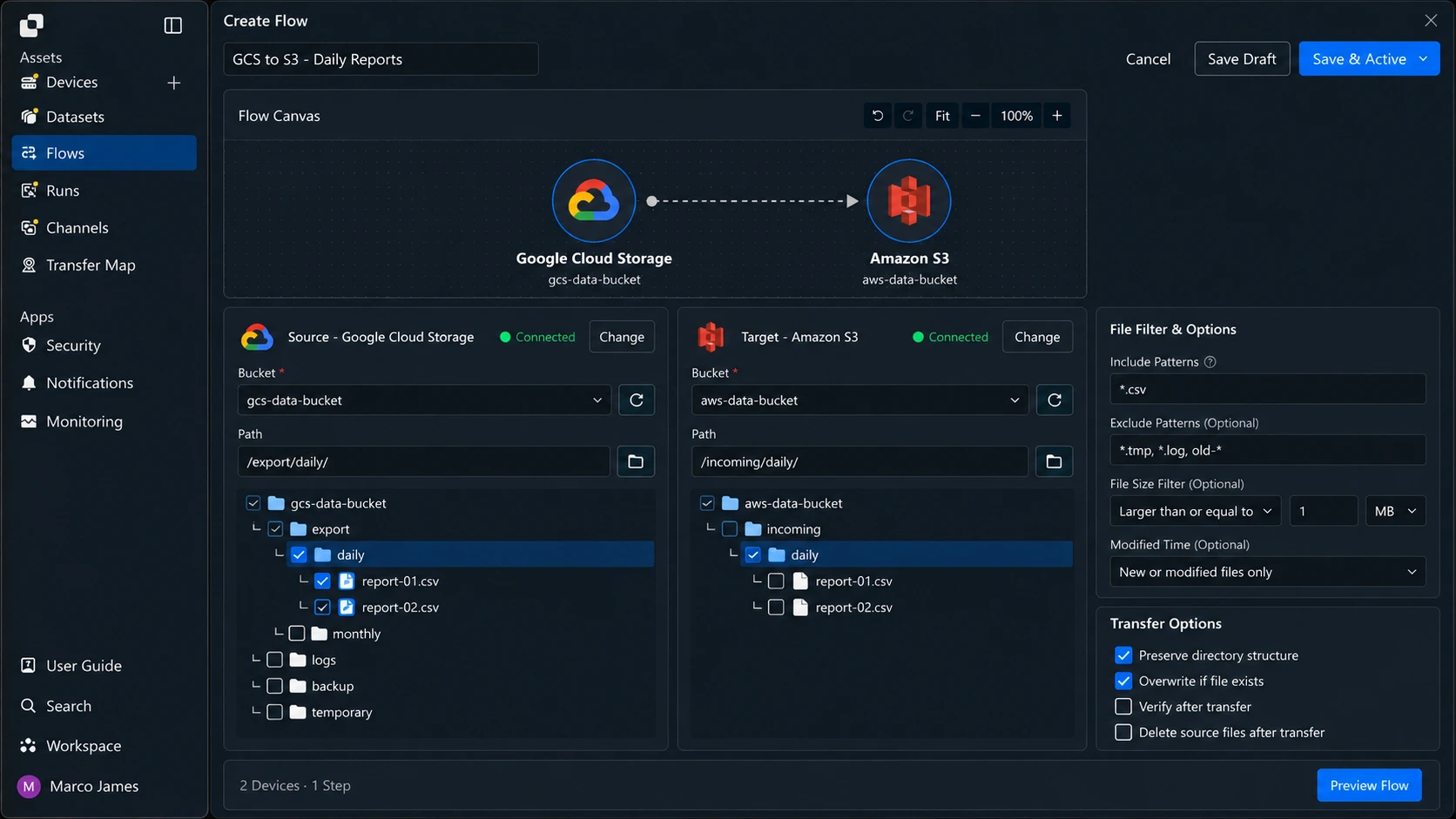
The transfer scope can be defined according to the file structure and business purpose.
| Configuration Criteria | Usage |
|---|---|
| Source path | Specify the GCS path containing files to transfer |
| Target path | Specify the S3 Bucket and Prefix where files will be stored |
| File name | Select only files matching specific naming rules |
| Extension | Transfer only required types such as CSV, JSON, or ZIP |
| Exclusion conditions | Exclude temporary files or specific paths |
| Change status | Process only newly created or changed files |
This allows you to selectively transfer only the files actually needed in the AWS environment instead of repeatedly moving all data in the cloud.
Usage Methods#
Migrate once or continue transferring based on new and changed files
Moving files from GCS to S3 does not need to be limited to a one-time transfer.
Existing data can be moved first, after which only newly created or changed files can be applied to S3.
For example, the transfer method can be selected based on how files are generated and when the data is used in the AWS environment.
| Transfer Purpose | Configuration Method |
|---|---|
| Existing data migration | Transfer files in the specified path at once |
| Scheduled data delivery | Run repeatedly at specified dates and times |
| Apply new files | Transfer when new files are created |
| Synchronize changed files | Identify and apply only changed files |
| Connect next operation | Run a follow-up transfer after the previous operation completes |
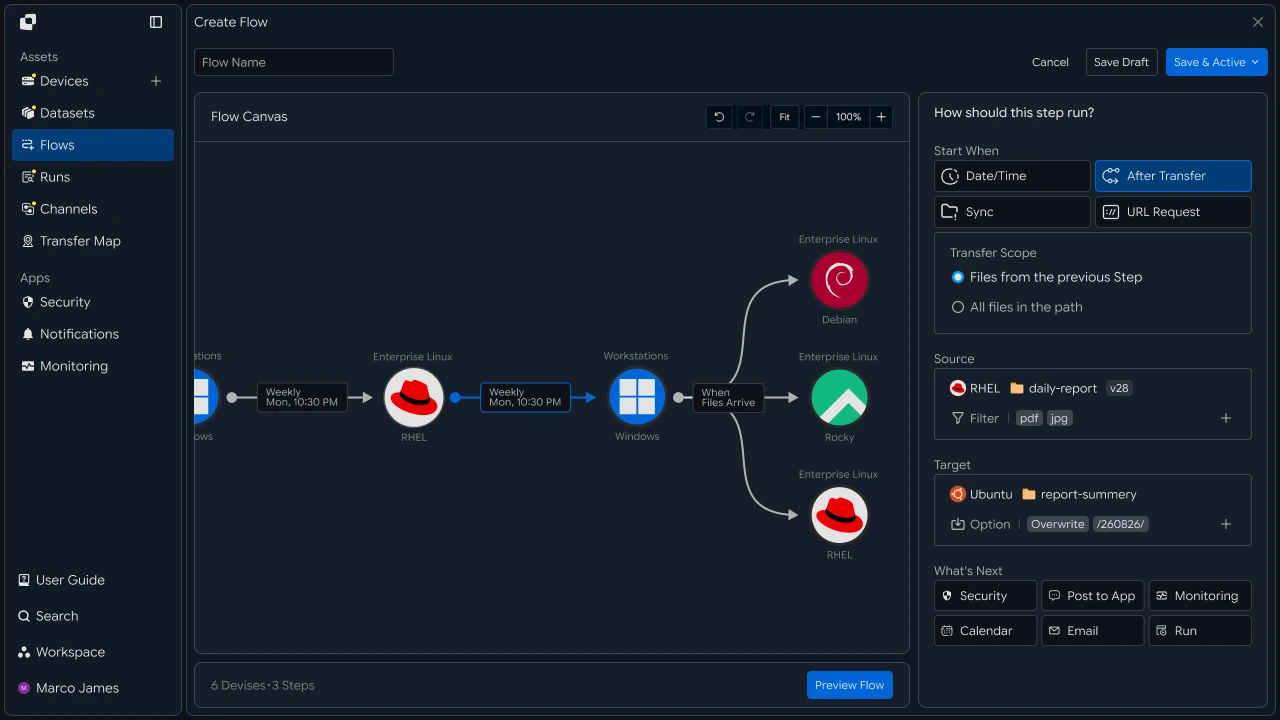
For example, if data generated in GCS during the day is used daily in an AWS analytics environment, the specified path can be checked at a set time and only new files transferred to S3.
Alternatively, existing data can first be moved in bulk and then only subsequent changes continuously applied.
IT Engineer#
Environment Connection#
Connect Google Cloud Storage and Amazon S3 to the transfer environment
First, connect the Google Cloud Storage source and the Amazon S3 destination.
Because the two clouds are separate environments, manage the required access scope independently for the Source and Target.
GCS must be able to read the specified Bucket and file path, while Amazon S3 must be able to store files in the target Bucket and path.
Cloud Connections
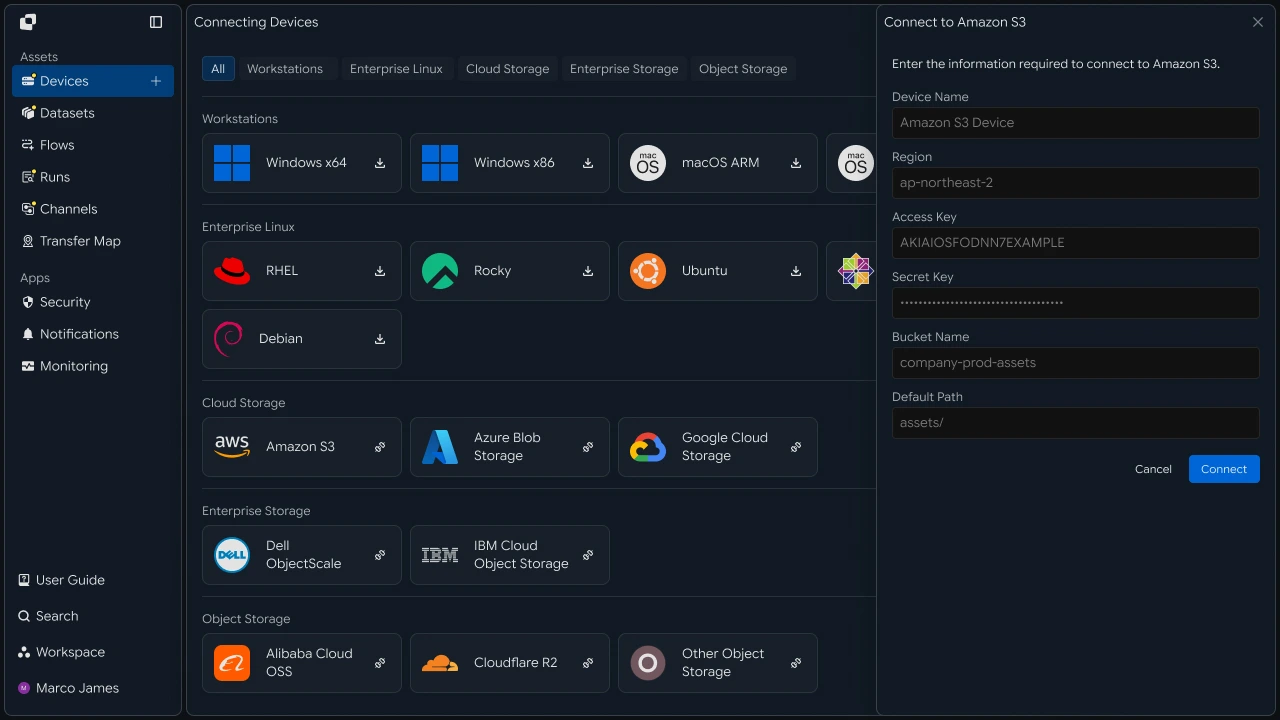
Check the following items before configuring the transfer.
| Category | Details |
|---|---|
| GCS connection | Whether the Source Bucket is accessible |
| Source scope | Whether the files and paths to transfer can be read |
| S3 connection | Connection status of the target AWS environment |
| Target scope | Verify the specified Bucket and Prefix |
| Write permission | Verify that files can be created and stored in S3 |
| File paths | Verify Source and Target transfer paths |
Connecting each cloud environment separately keeps access scopes isolated while allowing both Storage environments to be connected directly in one Flow.
Path Mapping#
Map the GCS file structure to the S3 storage structure
After the Storage connections are complete, specify the Source path to retrieve files from and the Target location where files will be stored.
For example, the following GCS path can be selected as the Source.
gs://gcs-data-bucket/export/daily/In Amazon S3, specify the following location as the Target.
s3://aws-data-bucket/incoming/gcp/When the two paths are connected, files move as follows.
Depending on the use case, you can preserve the Source folder structure or store files under a different Prefix to match the data structure used in the AWS environment.
For example, files from multiple GCS paths can be collected into one S3 Bucket while being stored under different Prefixes by data type.
Flow Configuration#
Connect Storage across different clouds in a single transfer operation
After setting the Source and Target paths, connect Google Cloud Storage directly to Amazon S3 in the Flow.
The Source checks files stored in GCS and selects transfer targets according to the configured conditions. The Target then applies the files to the specified S3 Bucket and Prefix.
The basic transfer structure is as follows.
If needed, one Source can branch to multiple S3 storage locations, or files from multiple GCS Buckets can be collected into one S3 environment.
For example, separating Targets by data type enables the following configuration.
GCS Source
- S3 / analytics/
- S3 / archive/
- S3 / processing/
Starting with a simple inter-cloud file transfer, the configuration can be expanded to multiple AWS storage paths according to file type and downstream usage.
Transfer Chaining#
Automatically continue with operations after files are applied to S3
After transferring files from GCS to Amazon S3, the next operation can be connected based on successful application of the files to S3.
For example, after data files are stored in S3, a subsequent data-processing operation can run or the files can be transferred again to another system.
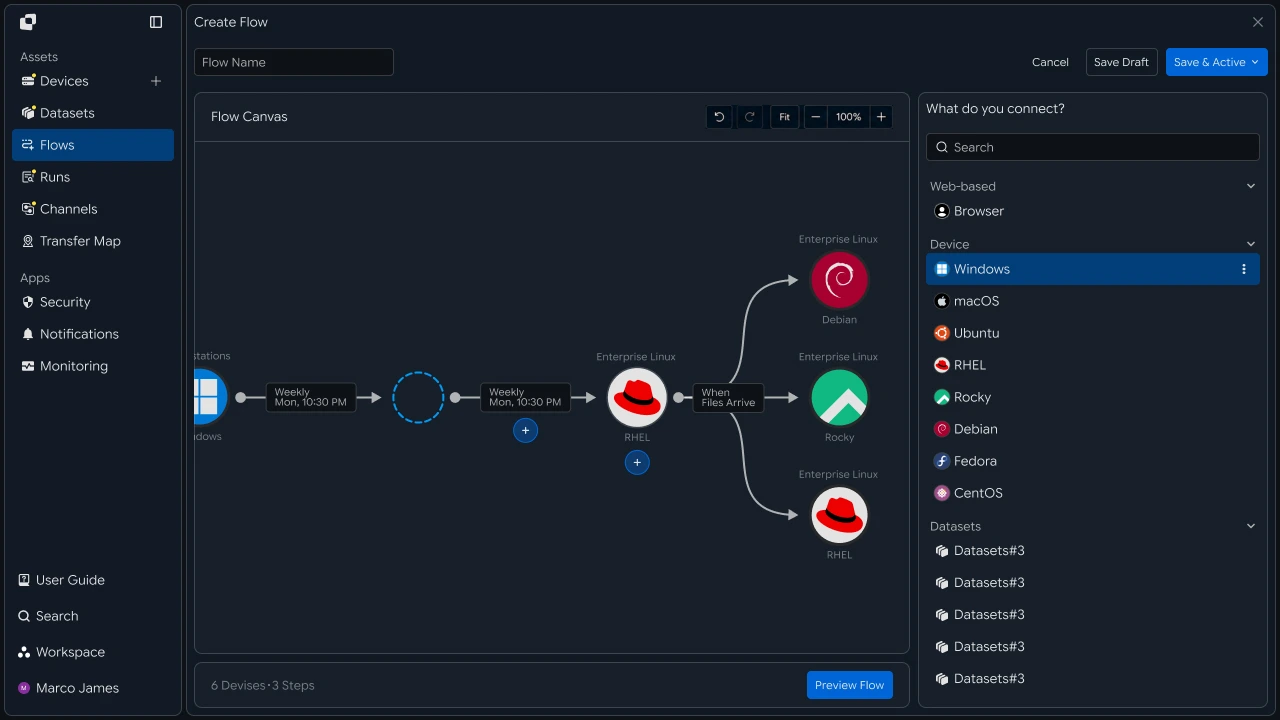
Because follow-up operations can be connected based on transfer results, the next stage can be configured to run only after the files are processed successfully.
| Connected Area | Usage |
|---|---|
| Data processing | Use files stored in S3 in analytics, processing environments |
| Next Flow | Transfer files to another Storage or system |
| Operational notification | Send transfer completion and failure results |
| Operating environment | Check execution status and processing results |
This creates a file workflow extending beyond simply moving files from GCS to S3, covering inter-cloud transfer → apply files → next processing operation.
Result Verification#
Verify transferred files together with the results applied to Amazon S3
When the transfer runs, you can check overall progress and transfer results in Runs.
Selecting a specific Run shows the Source, Target, total file count, transfer volume, and, when needed, per-file processing results.
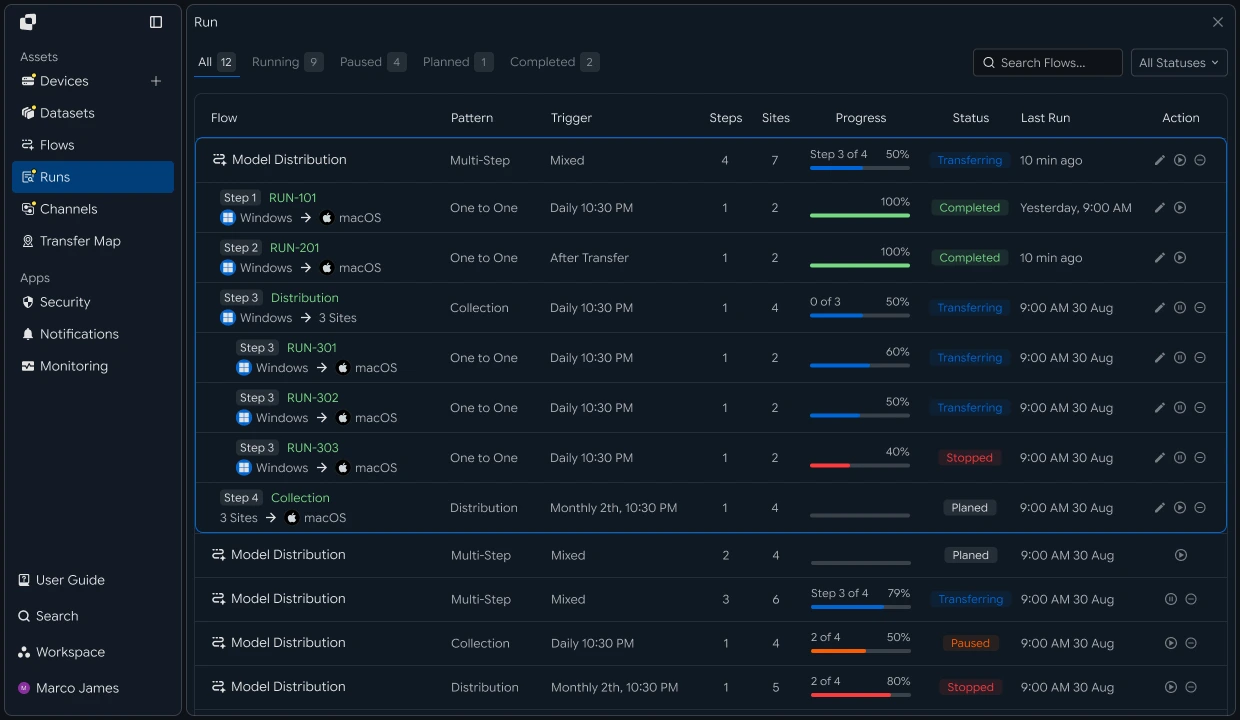
The following information can be checked in the transfer results.
| Item | Details |
|---|---|
| Source | Google Cloud Storage Bucket and source path |
| Target | Amazon S3 Bucket and target Prefix |
| Total Files | Total number of transferred files |
| Total Size | Total transfer size |
| Progress | Current or final transfer progress |
| Status | Completed, in-progress, failed status |
| Started | Transfer start time |
| Completed | Transfer completion time |
For example, after a Run completes, you can verify both the overall operation status and whether the required files were actually applied successfully to the specified S3 path.
This lets you verify from a single execution record how many files were retrieved from GCS and how they were stored in S3.
Troubleshooting#
Check Source and Target separately and rerun only the required operation
If an issue occurs during an inter-cloud transfer, first determine whether GCS or Amazon S3 requires additional investigation.
If Source files cannot be read, check the GCS connection status, file path, and access scope. If files cannot be stored on the Target, check the S3 Bucket, Prefix, and write permissions.
| Location | Primary Check | Action |
|---|---|---|
| GCS Source | Bucket connection status | Check connection environment |
| Source path | File location and selection conditions | Adjust path or filter |
| Source permissions | Whether files can be read | Check access scope |
| S3 Target | Bucket and Prefix | Check target path |
| Target permissions | Whether files can be stored | Check write permission |
| Run | Failed files and processing history | Retry the required operation |
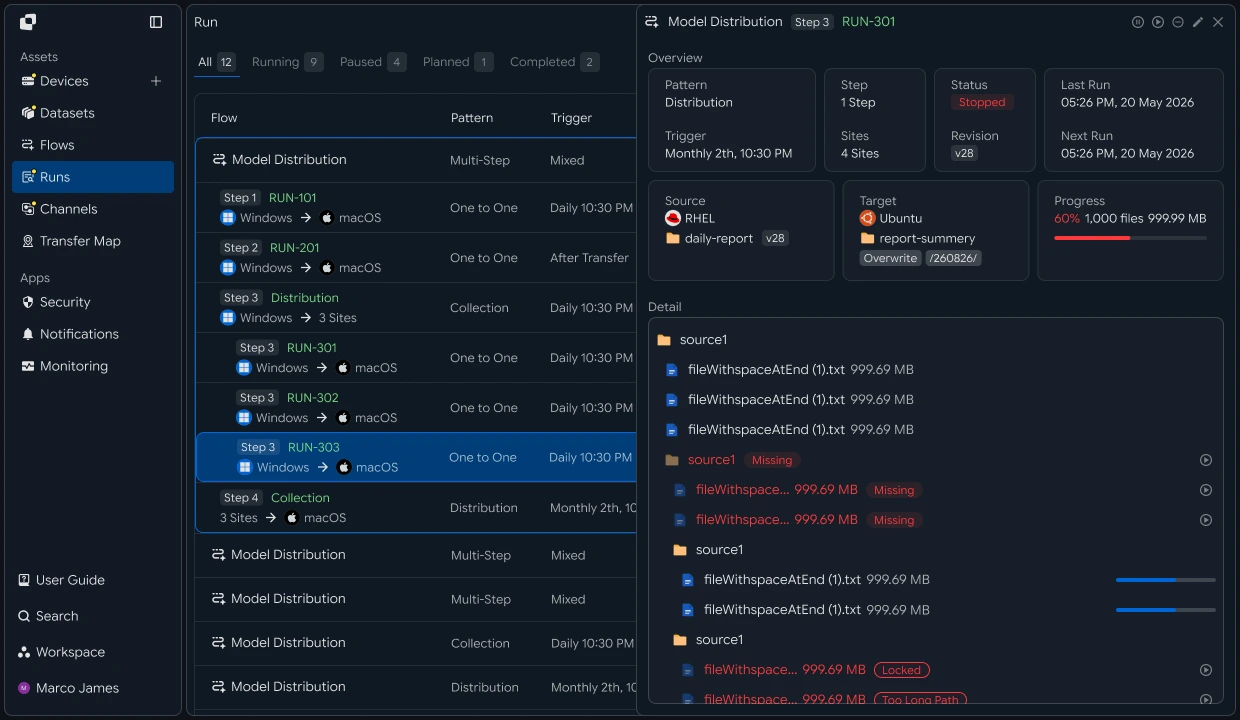
After identifying the issue and adjusting the required environment, rerun the operation and check the results instead of rebuilding the entire transfer from the beginning.
With this recipe, you can configure a single flow covering connect Google Cloud Storage → select Source files and paths → configure Amazon S3 Target → set file conditions and execution criteria → direct inter-cloud transfer → connect the next operation after applying to S3 → check Run results → verify target files.
This creates an inter-cloud file transfer environment that, without using a local PC or intermediate storage server, moves files generated or stored in GCS directly to a specified Amazon S3 Bucket and path and connects subsequent processing and operational verification.
Developer#
Transfer GCS objects to S3 and verify the results
Register the source and target storage as Devices, specify the prefixes, create the transfer, and check the terminal status. Prepare the following before starting.
| Prerequisite | Details |
|---|---|
| INNORIX authentication | INNORIX_ACCESS_TOKEN (Authorization: Bearer) |
| Source GCS device | Device ID of the GCS bucket and source prefix (e.g. logs/2026/09) |
| Target S3 device | Device ID of the S3 bucket and target prefix (e.g. imported/2026/09) |
| Runtime | Python 3 + requests, Java 17+, Node.js 18+, .NET 8+ |
Python and Node.js reuse the minimal
api()helper for direct REST calls and the status constants (STATUS_COMPLETE,TERMINAL) from the API Call Recipe. Java and C# use the bundledInnorixClient(including constants) andJsonhelper (Jfor C#). Replace the device identifiers (gcs-src,s3-dst) and prefixes with actual values.
Create GCS → S3 Transfer#
Create the transfer by using the prefix as the folder root (sourcePaths + sendAllFolder). Set target-action to overwrite so an object with the same name in the target prefix is overwritten. After creating the transfer, check the terminal status using monitorId.
import time


def transfer_objects(source, target, prefixes, target_prefix, action="overwrite"):
    transfer = api("POST", "/api/transfers/manual", {
        "sourceDevice": source,
        "targetDevice": target,
        "targetPath": target_prefix,
        "sourcePaths": prefixes,
        "sendAllFolder": True,
        "transferOptions": {"target-action": action},
    })
    return transfer["monitorId"]


def wait_transfer(monitor_id, timeout=14400, interval=5):
    deadline = time.time() + timeout
    while time.time() < deadline:
        detail = api("GET", f"/api/transfers/{monitor_id}") or {}
        if detail.get("status") in TERMINAL:
            return detail
        time.sleep(interval)
    raise TimeoutError(monitor_id)


monitor_id = transfer_objects("gcs-src", "s3-dst", ["logs/2026/09"], "imported/2026/09")
detail = wait_transfer(monitor_id)
print("completed:", detail.get("status") == STATUS_COMPLETE)
static String transferObjects(InnorixClient client, String source, String target,
List<String> prefixes, String targetPrefix, String action) {
Map<String, Object> transfer = client.apiObj("POST", "/api/transfers/manual", Json.newObj(
"sourceDevice", source,
"targetDevice", target,
"targetPath", targetPrefix,
"sourcePaths", prefixes,
"sendAllFolder", true,
"transferOptions", Json.newObj("target-action", action)), null);
return Json.str(transfer, "monitorId");
}
static Map<String, Object> waitTransfer(InnorixClient client, String monitorId,
long timeoutSec, long intervalSec) throws InterruptedException {
long deadline = System.currentTimeMillis() + timeoutSec * 1000;
while (System.currentTimeMillis() < deadline) {
Map<String, Object> detail = client.apiObj("GET", "/api/transfers/" + monitorId, null, null);
Integer status = Json.intOrNull(detail, "status");
if (status != null && InnorixClient.TERMINAL.contains(status))
return detail;
Thread.sleep(intervalSec * 1000);
}
throw new RuntimeException("timeout: " + monitorId);
}async function transferObjects(source, target, prefixes, targetPrefix, action = "overwrite") {
const transfer = await api("POST", "/api/transfers/manual", {
sourceDevice: source,
targetDevice: target,
targetPath: targetPrefix,
sourcePaths: prefixes,
sendAllFolder: true,
transferOptions: { "target-action": action },
});
return transfer.monitorId;
}
async function waitTransfer(monitorId, { timeout = 14400, interval = 5 } = {}) {
const deadline = Date.now() + timeout * 1000;
while (Date.now() < deadline) {
const detail = (await api("GET", `/api/transfers/${monitorId}`)) || {};
if (TERMINAL.has(detail.status)) return detail;
await new Promise((r) => setTimeout(r, interval * 1000));
}
throw new Error(`timeout: ${monitorId}`);
}
const monitorId = await transferObjects("gcs-src", "s3-dst", ["logs/2026/09"], "imported/2026/09");
const detail = await waitTransfer(monitorId);
console.log("completed:", detail.status === STATUS_COMPLETE);static async Task<string> TransferObjectsAsync(InnorixClient client, string source, string target,
IEnumerable<string> prefixes, string targetPrefix, string action = "overwrite")
{
var transfer = await client.ApiObjAsync("POST", "/api/transfers/manual", new JsonObject
{
["sourceDevice"] = source,
["targetDevice"] = target,
["targetPath"] = targetPrefix,
["sourcePaths"] = J.ArrOfStrings(prefixes),
["sendAllFolder"] = true,
["transferOptions"] = new JsonObject { ["target-action"] = action },
});
return J.Str(transfer, "monitorId");
}
static async Task<JsonObject> WaitTransferAsync(InnorixClient client, string monitorId,
int timeoutSec = 14400, int intervalSec = 5)
{
DateTime deadline = DateTime.UtcNow.AddSeconds(timeoutSec);
while (DateTime.UtcNow < deadline)
{
JsonObject detail = await client.ApiObjAsync("GET", quot;/api/transfers/{monitorId}", null, null);
int? status = J.IntOrNull(detail, "status");
if (status != null && InnorixClient.Terminal.Contains(status.Value))
return detail;
await Task.Delay(intervalSec * 1000);
}
throw new TimeoutException(monitorId);
}Overwrite behavior When
numberingis used, an object may be renamed if an object with the same name already exists on the target. Useoverwriteto update the target object while preserving the original name.
Splitting large object sets For buckets containing many objects, processing them in a single transfer can make source enumeration take a long time. Splitting the work into multiple transfers by prefix makes the scope of each transfer clear and narrows down failure points.
If failed objects remain, use retry_failed from the Pause and Resume Recipe (GET /api/transfers/{id}/files → POST /api/transfers/{id}/retry) to retransmit only the failed objects.
Implementation Result#
With this recipe, GCS objects can be delivered to S3 using the following flow.
- Google Cloud Storage (gcs-src)specify prefix
- Create transfer (overwrite)wait for terminal status
- Amazon S3 (s3-dst)apply objects to target prefix
- Retry failed objects only
Run GCS → S3 transfers using only device IDs without handling cloud credentials in code, and selectively resend only the remaining failed objects.