
Getting Started#
Basic Concept#
Send container workload results directly to an external storage environment
Applications or batch jobs running in Kubernetes can generate various files.
For example, a data-processing Job may generate result files, a media-conversion workload may store processed video, and an analytics job may generate CSV or JSON files.
Traditionally, job results may be moved externally through a separate management process.
By configuring a transfer Flow, files generated in Kubernetes can be connected directly to an external storage environment.
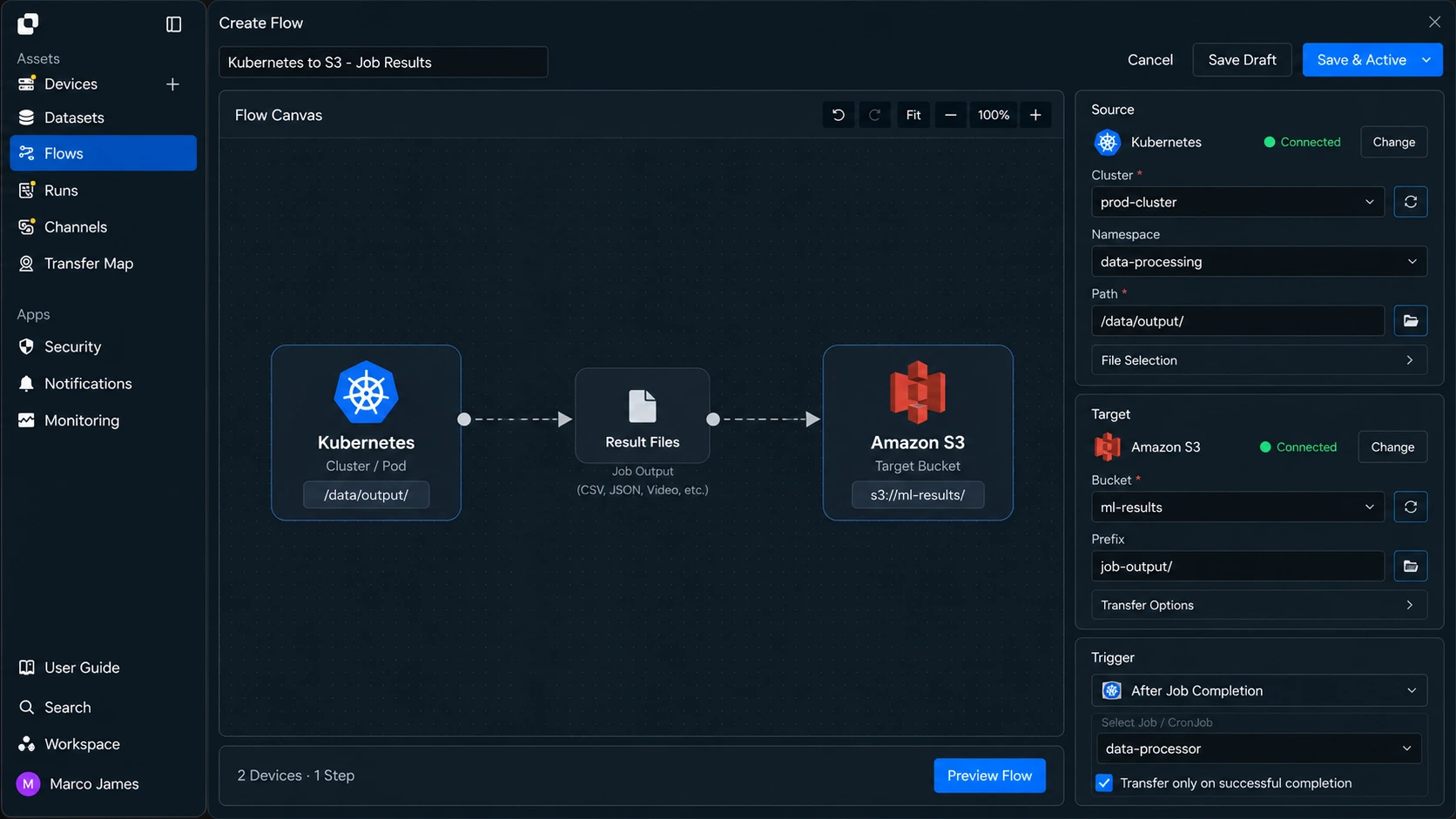
This creates a single file flow covering workload execution → result file creation → external storage transfer → storage result verification.
File Location#
Select result file paths by workload and send only the required data
Multiple applications and jobs can run simultaneously in a single Kubernetes environment.
Instead of transferring every file externally, the transfer scope can be configured based on where result files that need to be stored or used by subsequent operations are generated.
For example, assume a processing job generates the following file structure.
/data/job/input/source-data.csvCSVprocessing/temporary.jsonJSONoutput/result-01.csvCSVresult-02.csvCSVsummary.jsonJSONlogs/job.logLOG
In this case, only the output/ path containing the actual processing results can be sent to external storage.
[Product UI_Screen for specifying the file path of the Kubernetes Source and setting the Target path of the external storage where result files will be stored]
Clearly defining the transfer scope allows you to configure external storage and downstream usage around final result files instead of moving every temporary file generated during processing.
Transfer Timing#
Transfer when result files are ready after job completion
In a container environment, workload execution status and file creation timing can be considered together so that a transfer does not start before files are generated.
For example, result files can be transferred after a batch job completes, or automatically applied to external storage when a new file is created in a specified path.
| Execution Criteria | Usage |
|---|---|
| After job completion | Transfer after the workload generates result files |
| New file detection | Automatically transfer when a new file is created in the specified path |
| Scheduled execution | Collect result files according to a schedule |
| Previous job completion | Start the next transfer after the preceding Flow completes |
| Changed file check | Apply only modified or newly created files |
For example, the next Flow can be configured to run after a data-processing job completes.
- Data Processing Job
- Result File Created
- Transfer Condition
- External Storage
- Result Verification
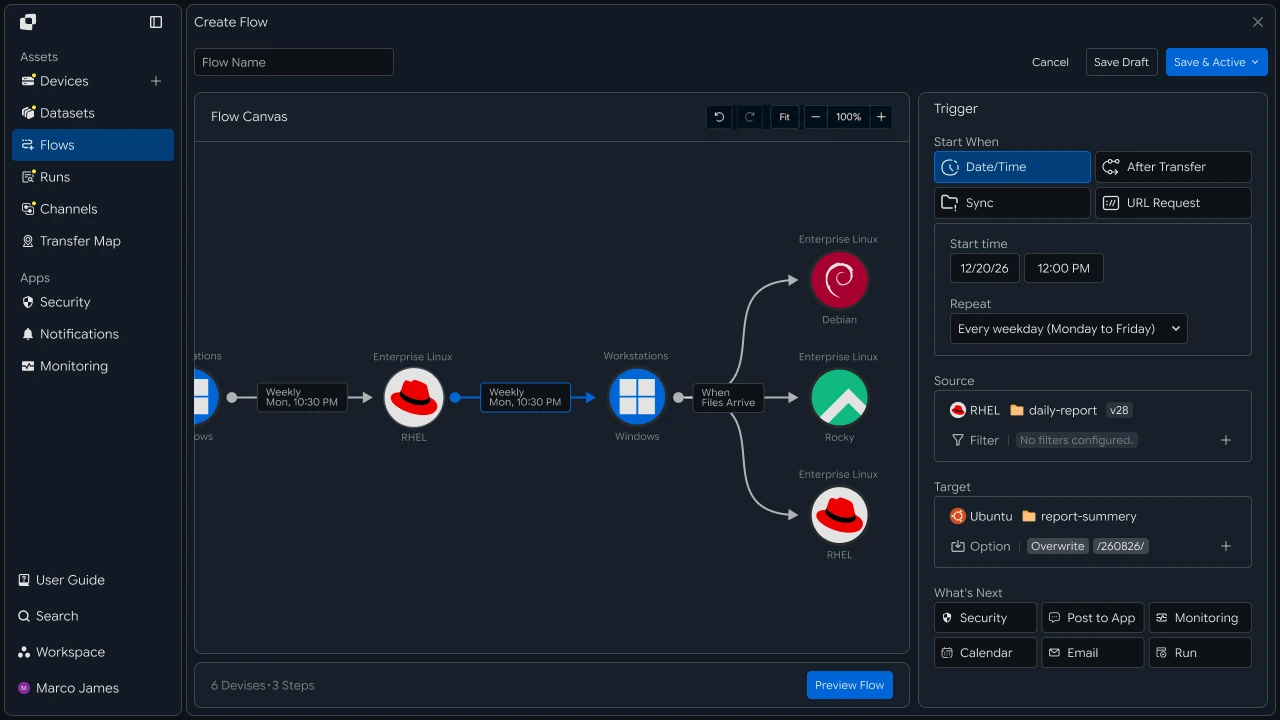
This allows you to connect external storage operations based on when result files are ready instead of moving files while a job is still processing them.
IT Engineer#
Environment Connection#
Connect the Kubernetes file-generation environment and external storage as a transfer path
First, connect the Kubernetes environment where result files are generated and the external storage where the files will be stored.
The Source must be able to access and read files generated by the workload, and the Target must be able to store transferred files in the specified location.
Transfer Environment
Check the following items before configuring the transfer.
| Connected Environment | Details |
|---|---|
| Kubernetes | File-generation environment and connection status |
| Source path | Location where result files are generated |
| Workload | File-generation job and execution status |
| External storage | Target connection status |
| Storage path | Location where result files will be stored |
| Access scope | Source read and Target write permissions |
Connecting each environment separately allows the Kubernetes file-generation location and external storage location to be connected in one Flow while managing each access scope independently.
Target Configuration#
Separate S3 storage and file-server delivery according to business purpose
Result files generated in Kubernetes can be sent to different external environments according to their intended use.
Files intended for long-term storage or use by multiple services can be transferred to Amazon S3, while files needed immediately by internal applications can be delivered to an internal file server.
Kubernetes Result Files
- Amazon S3Backup / Archive
- File ServerProcessing Path
Usage can be divided by Target as follows.
| Target | Usage |
|---|---|
| Amazon S3 | Store processing results and large files |
| External file server | Downstream processing by internal applications |
| Analytics server | Use result files in analytics systems |
| Backup storage | Store files for long-term retention and recovery |
A single result file can be delivered to multiple environments, or files can branch to different Targets according to file type.
File Selection#
Separate result files from temporary files when defining the transfer scope
Container jobs may generate temporary files, intermediate processing files, and logs in addition to final results.
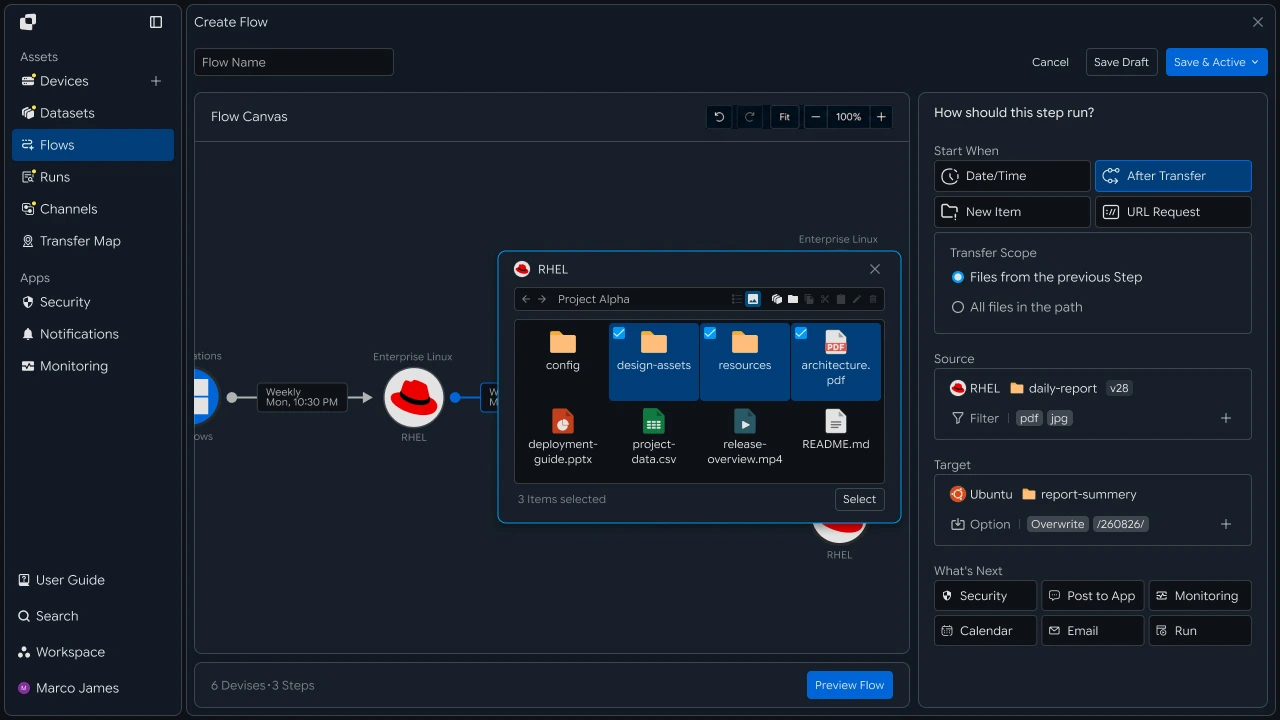
Files to be delivered externally can therefore be selected based on path, name, or extension.
For example, it can be configured as follows.
| File Condition | Processing Method |
|---|---|
output/*.csv |
Transfer to S3 |
output/*.json |
Send to analytics server |
archive/*.zip |
Transfer to long-term storage |
tmp/* |
Exclude from transfer |
logs/* |
Connect to a separate log-collection Flow |

This allows you to separate storage locations and downstream environments according to file role instead of moving every file in the same way.
Flow Chaining#
Configure container jobs, file transfers, and downstream processing in one Flow
After result files are sent to external storage, subsequent processing operations can also be connected.
For example, when a data-processing job completes in Kubernetes, result files can be transferred to S3 and an analytics Flow or notification operation can run after storage is complete.
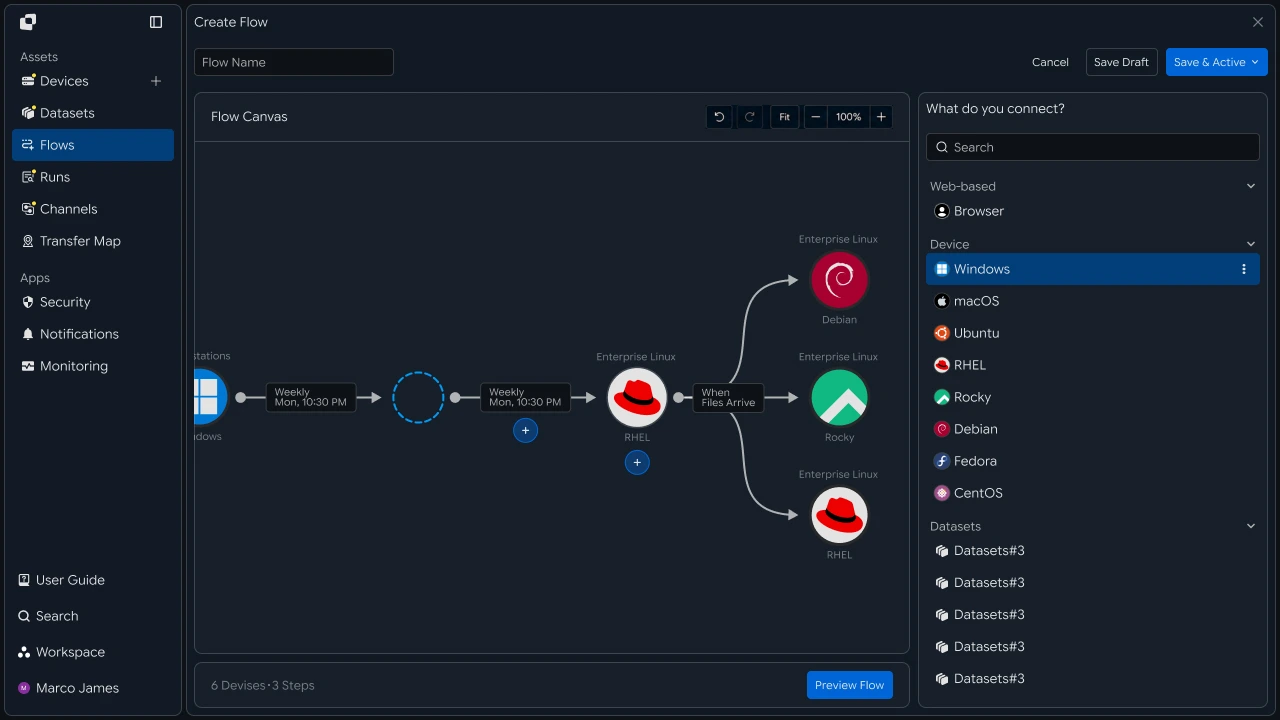
This structure creates an automated flow extending beyond simply copying container-generated files externally, covering workload results → external storage → analytics, downstream processing → result verification.
Execution Management#
Review file transfer results and external storage status by workload
When a transfer runs, its current status and processing results can be checked in Runs.
Selecting a specific Run shows the Kubernetes Source, external Target, number and total size of transferred files, progress status, and completion result.
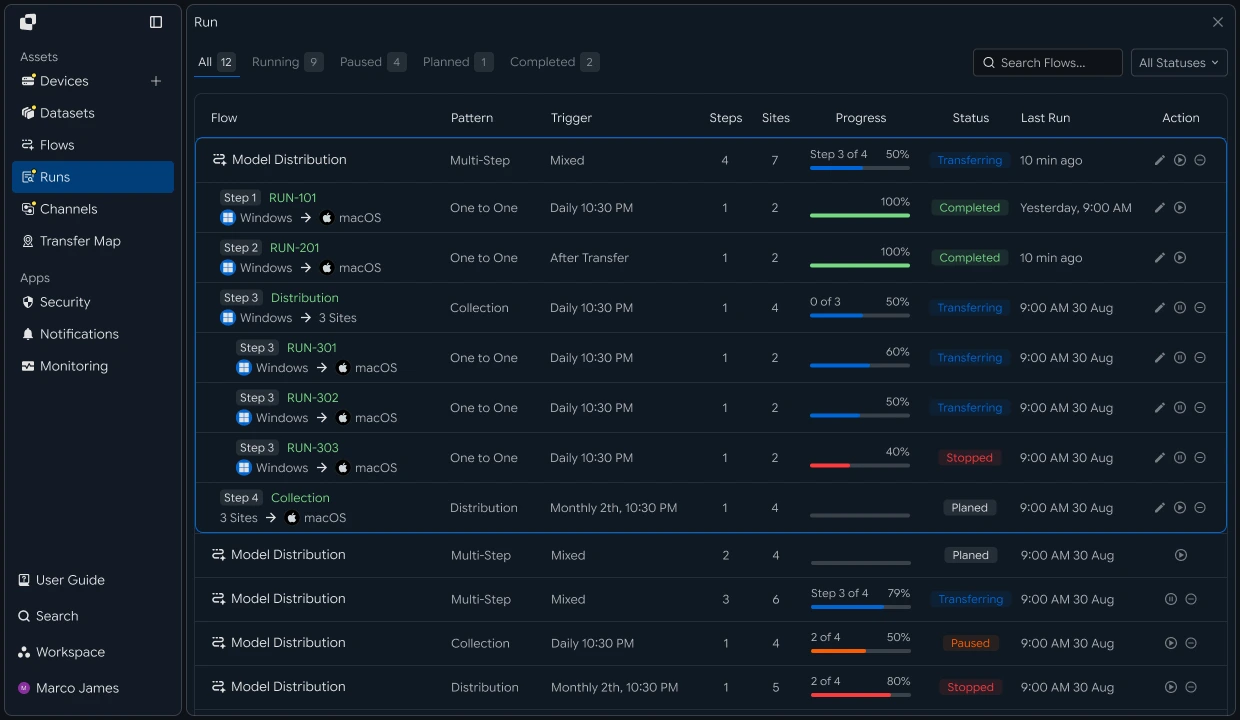
The following information can be checked for each Run.
| Item | Details |
|---|---|
| Source | Kubernetes file-generation environment and path |
| Target | Storage location on S3 or an external file server |
| Total Files | Number of files to process |
| Total Size | Total transfer size |
| Progress | Current transfer progress |
| Status | Completed, in-progress, failed status |
| Started | Job start time |
| Completed | Job completion time |
After the transfer completes, verify that the result files selected from the Source were successfully applied to the specified Target location.
This allows you to manage which workload results were delivered to which external storage and the actual processing results based on execution records.
Operational Response#
Separate the file-generation environment and external Target when investigating issues
If additional investigation is required during a transfer, first determine whether the issue occurred in the Kubernetes file-generation environment or the external storage.
If files cannot be found on the Source, check the workload's result-file generation status and Source path. If files cannot be stored on the Target, check the external storage connection, storage path, and access permissions.
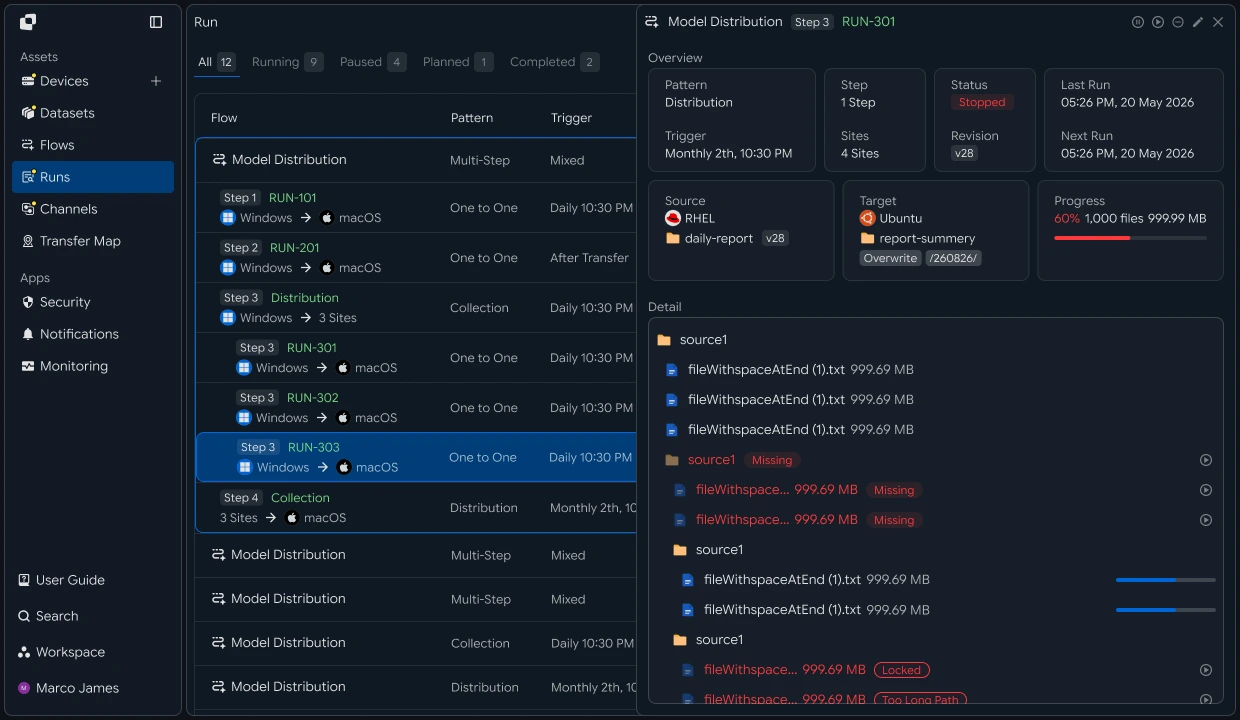
After adjusting the required path or connection environment, the operation can be rerun.
After rerunning, use the new Run to verify that files generated by the Kubernetes workload were successfully applied to the specified location in Amazon S3 or the external file server.
With this recipe, you can configure a single flow covering connect the Kubernetes file-generation environment → select result file paths → configure an S3 or external file-server Target → automate transfers according to file-generation timing → branch by file type → connect downstream operations → check execution results → reprocess by issue area.
Instead of separately collecting result files after container workloads finish, this creates a file transfer automation environment that directly connects Kubernetes processing results to external storage and continues through retention, analytics, downstream operations.
Developer#
Transfer cluster workload result files to external storage
Register the in-cluster agent and external target as Devices, then call the transfer API when the job completes. Prepare the following before starting.
| Prerequisite | Details |
|---|---|
| INNORIX authentication | INNORIX_ACCESS_TOKEN (Authorization: Bearer) |
| Source Device | Device ID of the in-cluster agent and result path (e.g. /data/out) |
| Target Device | Device ID of the S3, file server and storage path (e.g. results/2026) |
| Runtime | Python 3 + requests, Java 17+, Node.js 18+, .NET 8+ |
Python and Node.js reuse the minimal
api()helper for direct REST calls and the status constants (STATUS_COMPLETE,TERMINAL) from the API Call Recipe. Java and C# use the bundledInnorixClient(including constants) andJsonhelper (Jfor C#). Replace Device identifiers and paths with actual values.
Transfer Results After Job Completion#
After the job finishes writing the result files (post-processing step, completion hook), create the transfer and check its terminal status.
import time


def transfer_results(source, source_path, target, target_path, action="overwrite"):
    transfer = api("POST", "/api/transfers/manual", {
        "sourceDevice": source,
        "targetDevice": target,
        "targetPath": target_path,
        "sourcePaths": [source_path],
        "sendAllFolder": True,
        "transferOptions": {"target-action": action},
    })
    detail = wait_transfer(transfer["monitorId"])
    return transfer["monitorId"], detail.get("status") == STATUS_COMPLETE


def wait_transfer(monitor_id, timeout=7200, interval=5):
    deadline = time.time() + timeout
    while time.time() < deadline:
        detail = api("GET", f"/api/transfers/{monitor_id}") or {}
        if detail.get("status") in TERMINAL:
            return detail
        time.sleep(interval)
    raise TimeoutError(monitor_id)


monitor_id, ok = transfer_results("k8s-agent", "/data/out", "s3-dst", "results/2026")
print("transfer ok" if ok else "needs check", monitor_id)
static Object[] transferResults(InnorixClient client, String source, String sourcePath,
String target, String targetPath, String action) throws InterruptedException {
Map<String, Object> transfer = client.apiObj("POST", "/api/transfers/manual", Json.newObj(
"sourceDevice", source,
"targetDevice", target,
"targetPath", targetPath,
"sourcePaths", List.of(sourcePath),
"sendAllFolder", true,
"transferOptions", Json.newObj("target-action", action)), null);
String monitorId = Json.str(transfer, "monitorId");
Map<String, Object> detail = waitTransfer(client, monitorId, 7200, 5);
Integer status = Json.intOrNull(detail, "status");
return new Object[]{monitorId, status != null && status == InnorixClient.STATUS_COMPLETE};
}
static Map<String, Object> waitTransfer(InnorixClient client, String monitorId,
long timeoutSec, long intervalSec) throws InterruptedException {
long deadline = System.currentTimeMillis() + timeoutSec * 1000;
while (System.currentTimeMillis() < deadline) {
Map<String, Object> detail = client.apiObj("GET", "/api/transfers/" + monitorId, null, null);
Integer status = Json.intOrNull(detail, "status");
if (status != null && InnorixClient.TERMINAL.contains(status))
return detail;
Thread.sleep(intervalSec * 1000);
}
throw new RuntimeException("timeout: " + monitorId);
}async function transferResults(source, sourcePath, target, targetPath, action = "overwrite") {
const transfer = await api("POST", "/api/transfers/manual", {
sourceDevice: source,
targetDevice: target,
targetPath,
sourcePaths: [sourcePath],
sendAllFolder: true,
transferOptions: { "target-action": action },
});
const detail = await waitTransfer(transfer.monitorId);
return { monitorId: transfer.monitorId, ok: detail.status === STATUS_COMPLETE };
}
async function waitTransfer(monitorId, { timeout = 7200, interval = 5 } = {}) {
const deadline = Date.now() + timeout * 1000;
while (Date.now() < deadline) {
const detail = (await api("GET", `/api/transfers/${monitorId}`)) || {};
if (TERMINAL.has(detail.status)) return detail;
await new Promise((r) => setTimeout(r, interval * 1000));
}
throw new Error(`timeout: ${monitorId}`);
}
const { monitorId, ok } = await transferResults("k8s-agent", "/data/out", "s3-dst", "results/2026");
console.log(ok ? "transfer ok" : "needs check", monitorId);static async Task<(string monitorId, bool ok)> TransferResultsAsync(InnorixClient client, string source,
string sourcePath, string target, string targetPath, string action = "overwrite")
{
var transfer = await client.ApiObjAsync("POST", "/api/transfers/manual", new JsonObject
{
["sourceDevice"] = source,
["targetDevice"] = target,
["targetPath"] = targetPath,
["sourcePaths"] = J.ArrOfStrings(new[] { sourcePath }),
["sendAllFolder"] = true,
["transferOptions"] = new JsonObject { ["target-action"] = action },
});
string monitorId = J.Str(transfer, "monitorId");
JsonObject detail = await WaitTransferAsync(client, monitorId);
int? status = J.IntOrNull(detail, "status");
return (monitorId, status != null && status == InnorixClient.StatusComplete);
}
static async Task<JsonObject> WaitTransferAsync(InnorixClient client, string monitorId,
int timeoutSec = 7200, int intervalSec = 5)
{
DateTime deadline = DateTime.UtcNow.AddSeconds(timeoutSec);
while (DateTime.UtcNow < deadline)
{
JsonObject detail = await client.ApiObjAsync("GET", quot;/api/transfers/{monitorId}", null, null);
int? status = J.IntOrNull(detail, "status");
if (status != null && InnorixClient.Terminal.Contains(status.Value))
return detail;
await Task.Delay(intervalSec * 1000);
}
throw new TimeoutException(monitorId);
}Agent deployment and access At transfer time, the INNORIX agent must be able to access the volume path containing the result files. Follow the product's Kubernetes support method (cluster configuration area) for whether the agent is deployed as a Pod, DaemonSet, separate node process and how it accesses the result volume (PVC, hostPath, etc.). Transfer code references only the registered device ID.
Call timing Call the API after the job has finished writing result files to avoid omissions. Call the transfer API from a job completion hook, post-processing step, or consider the Hot Folder method if automatic transfer is required when files are created.
For failed files, use retry_failed from the Pause and Resume Recipe to retransmit only the failures.
Implementation Result#
With this recipe, cluster result files can be transferred externally using the following flow.
Transfer container workload result files to S3 or a file server outside the cluster, and selectively resend only failed files.