
Getting Started#
Core Concept#
Automatically Run Recurring File Tasks Based on Schedules and Conditions
In the workplace, tasks that are processed in the same way continue to occur, such as reports generated daily, data collected regularly, and files distributed repeatedly.
Recurring task automation configures the files to process, target locations, and execution conditions so that file operations proceed automatically according to a defined flow.
For example, you can transfer files at a specified time every day or automatically start the next file-processing task when a new file is ready in a specific folder.
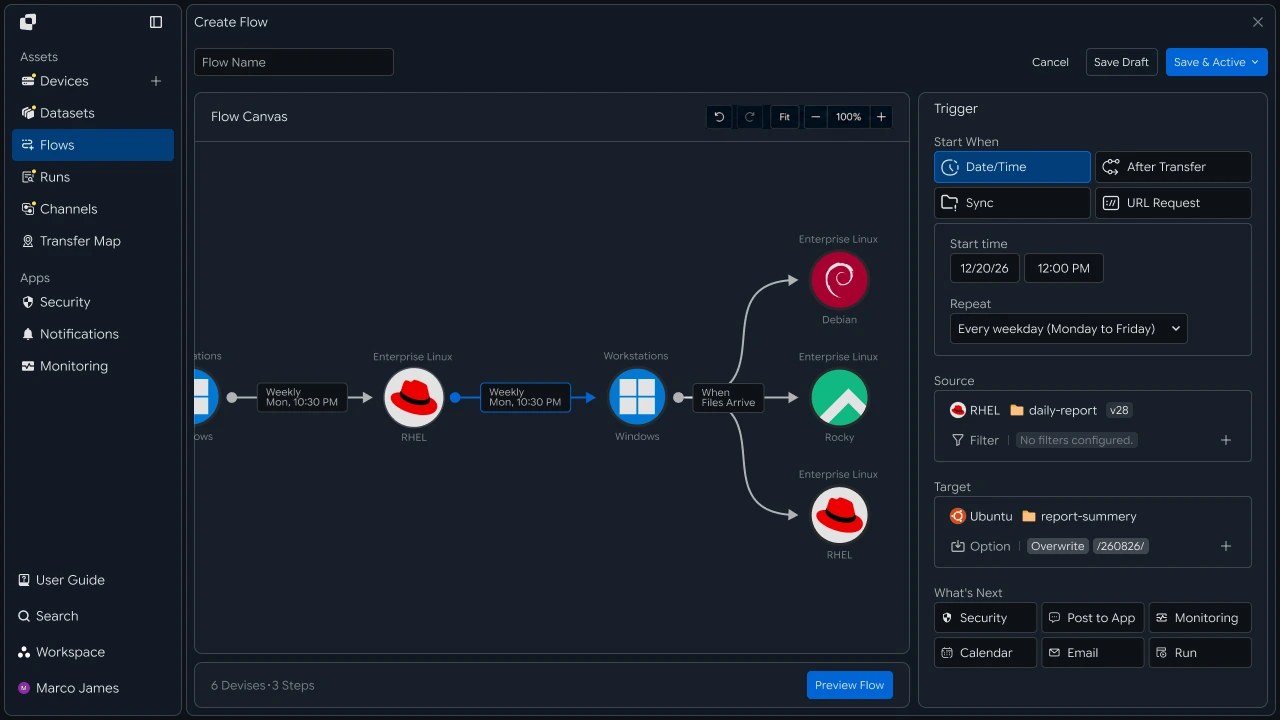
By configuring an automation flow, recurring file tasks in the workplace can continue to run according to the configured criteria.
Automation Flow#
Automatically Connect Everything from Execution Conditions to File Processing and Result Checks
Recurring task automation determines when to start a task, checks files that meet the conditions, and executes tasks in the configured order.
- Check Execution Conditions
- Check Target Files
- Execute File Task
- Run Next Task
- Check Result
For example, a task that runs every morning starts at the specified time and processes the configured files. A task triggered by file creation or modification automatically continues from the point when the target file is ready through the next task.
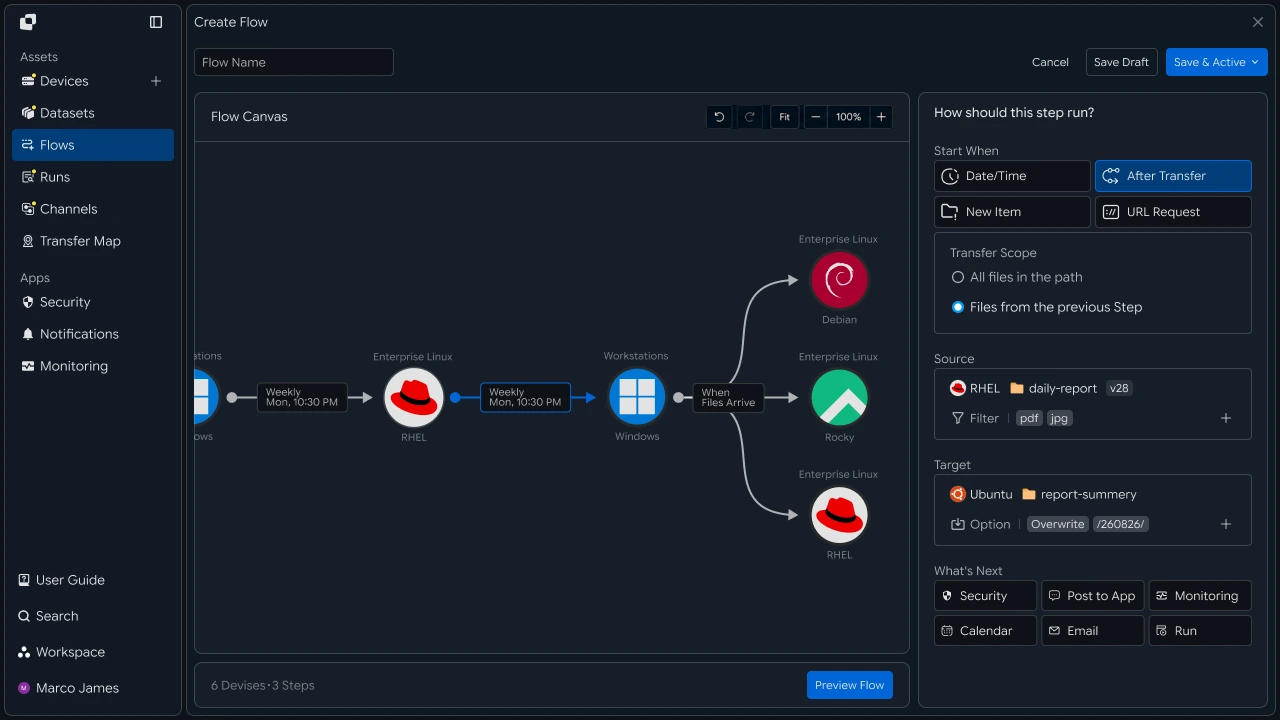
By connecting execution conditions and task order in this way, recurring file work can be managed as a single automation flow.
Workflow Changes#
Reduce Repetitive File Management and Focus Work on Results
In recurring file work, the process of checking the same files, transferring them to a defined location, and running the next task continues repeatedly.
With automation, file processing proceeds according to predefined conditions and task order. Instead of repeating the execution process, the person responsible can review the processed results and use them for the next task.
| Category | Manual Processing | Recurring Task Automation |
|---|---|---|
| Task Start | Started manually by the person responsible when needed | Started automatically according to schedules and conditions |
| File Processing | Check files and targets for each task | Processed automatically according to configured criteria |
| Task Order | Perform required tasks manually in sequence | Execute step by step according to the configured flow |
| Result Usage | Prepare for the next task after processing | Use completed files immediately for the next task |
| Work Management | Check execution details for each task | Check work status based on execution results |
Automation organizes recurring file-processing steps into a workflow and enables the person responsible to move on to the next task by focusing on the required results.
Teams#
Check recurring task results and use completed files for work
Automation Usage#
Prepare Work Files and Use Automatically Processed Results
Teams prepare the files used by automation in the designated work location.
For example, when daily reports or regularly generated result files are saved in a designated folder, the automation task runs according to the configured schedule or file state.
File transfers and follow-up processing proceed according to the configured flow, and teams can review processed files and use them for the next task.
| Work | Automation Use |
|---|---|
| Daily Report | Automatically transfer after saving the report |
| Recurring Materials | Automatically collect at the specified time |
| Result Files | Automatically reflect in the work location after processing is complete |
Teams can use automated file flows while managing files that are used repeatedly in their designated locations.
Job Status#
Check Current Automation Tasks and Processing Status
Teams can check the current status of automatically executed file tasks.
They can review running and recently completed tasks and, when necessary, check processed files together with current progress.
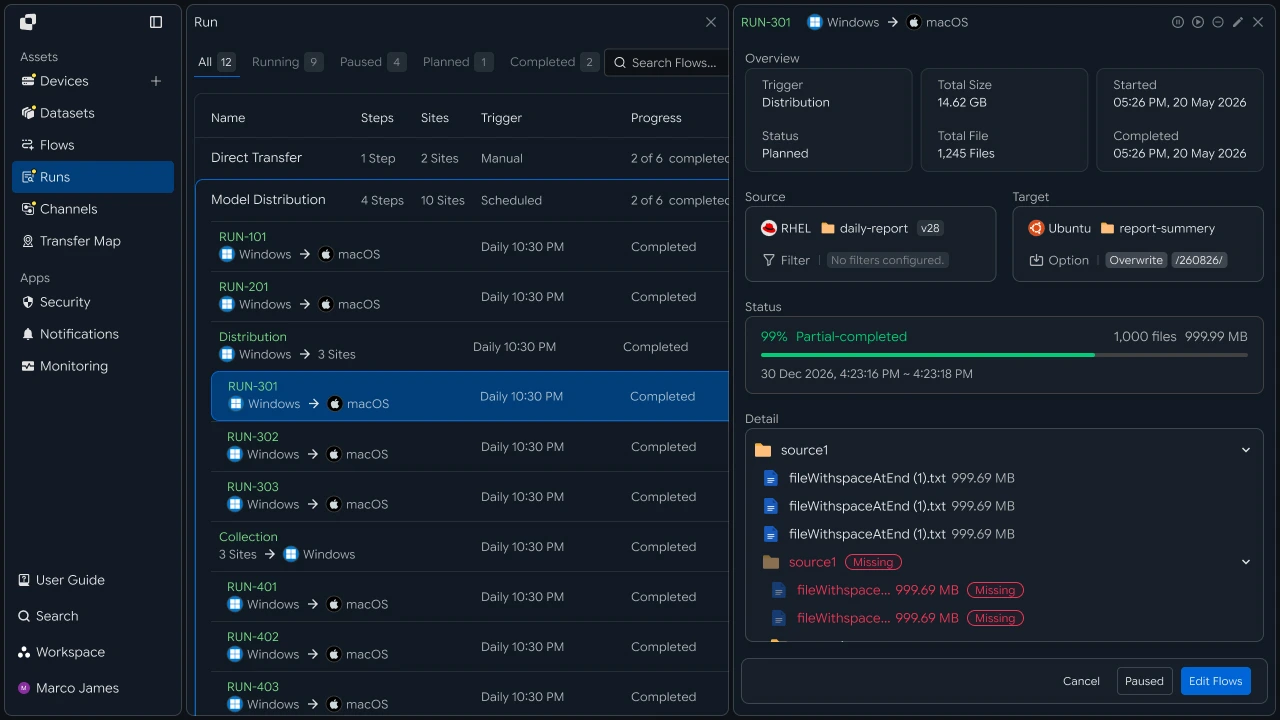
The screen provides the following information.
| Check Item | Use |
|---|---|
| Job Name | Check which work is currently being processed |
| Progress Status | Check task progress |
| Progress | Check the current processing scope |
| Processed Files | Check files processed by automation |
| Execution Time | Check when the task was executed |
Teams can prepare for the next task by checking the processing status of the work and files currently required.
Completed Files#
Use Automatically Prepared Files Immediately for the Next Task
When an automation task is complete, the processed files are reflected in the designated work location.
Teams can check completed files and use them for the next task, such as review, approval, sharing, or analysis.
For example, when a daily work report is automatically reflected in a designated workspace, the person responsible can check the file and continue with the review task.
- Automatic File Processing
- Completed Result Check
- Check Files
- Review, Share, Approve
- Next Task
Automated file processing prepares the files needed for the next task in a designated location, naturally connecting the workflow.
Work Management#
Manage Repeatedly Executed Work Results at a Glance
When automation tasks run repeatedly, teams can check work status based on accumulated execution results.
For example, by reviewing the results of a report-processing task that runs every day, you can determine when files were prepared and which result files are currently available for use.
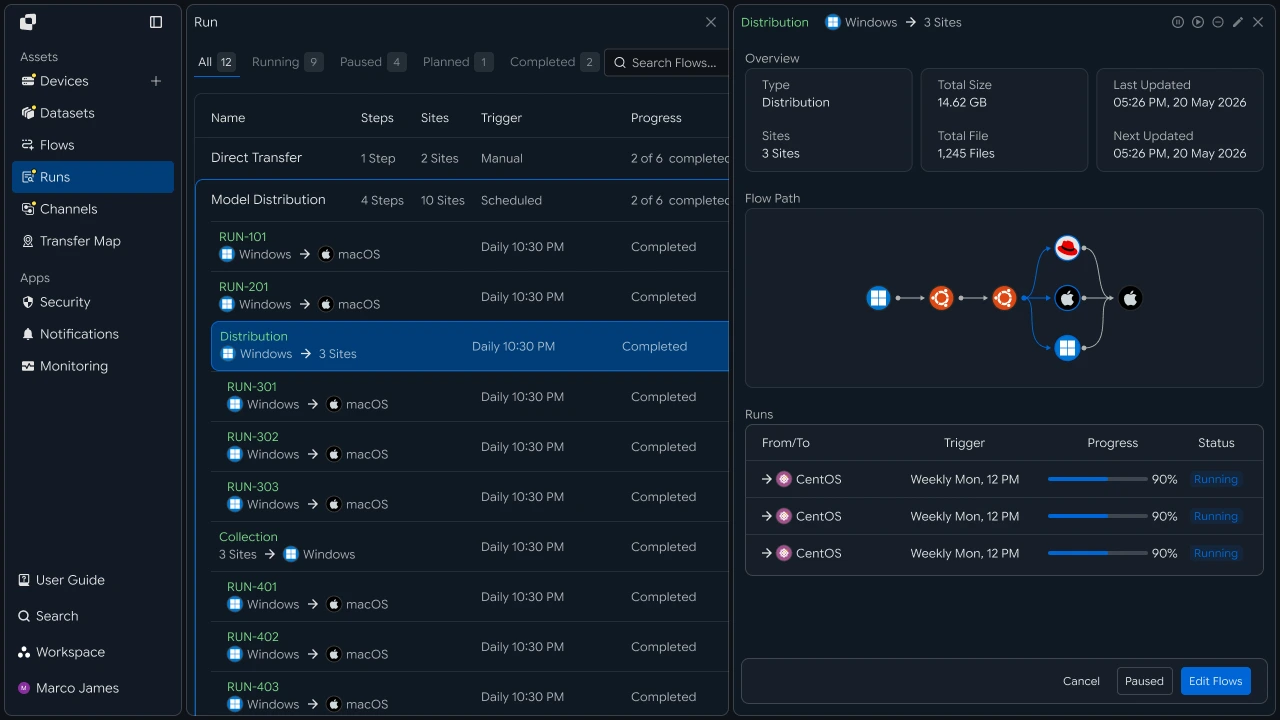
| Check Item | Use for Work |
|---|---|
| Recent Execution Results | Check the latest work results |
| Completed Files | Check the files currently available for use |
| Execution Time | Check when the work was processed |
| Accumulated Execution Records | Manage the status of recurring work |
Teams can check and use the status of recurring work based on execution results and completed files instead of changing the automation environment settings.
IT Engineer#
Configure and operate execution conditions and processing flows for recurring tasks
Environment Connection#
Configure Systems and File Locations for Recurring Tasks
IT engineers connect the servers, PCs, storage, and file paths used by automation tasks.
Specify the Source where files are prepared and the Target where processing results are reflected. If necessary, multiple systems can be connected in a single Flow.
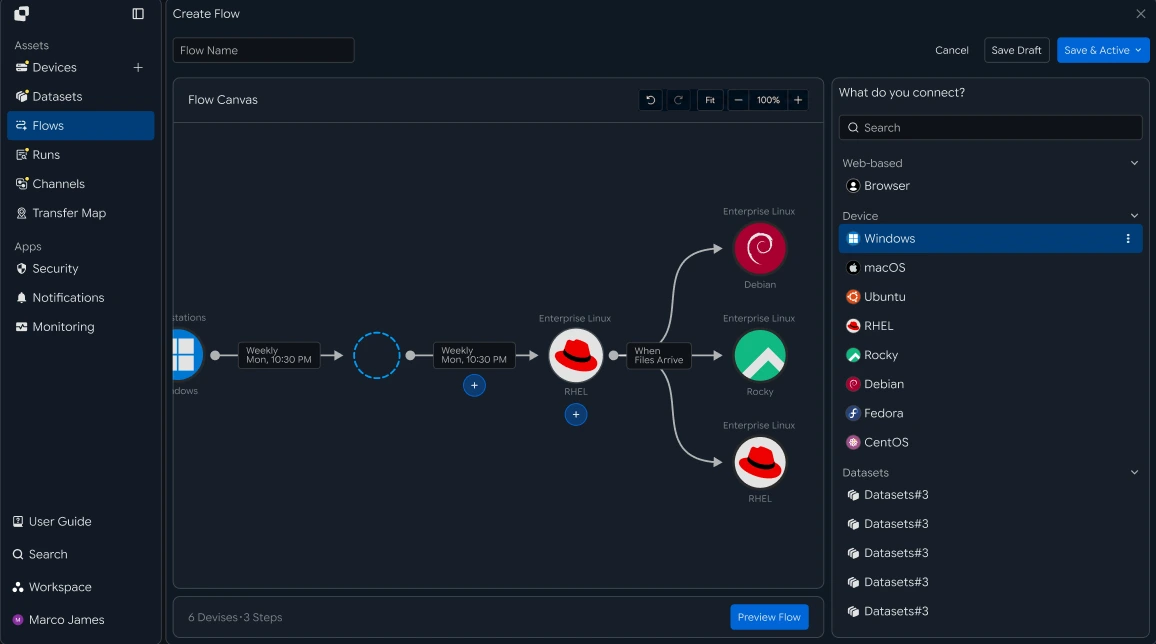
| Role | Configuration |
|---|---|
| Source | System and path from which files are retrieved |
| Processing | File-processing task |
| Target | System and path where processing results are reflected |
This environment provides the foundation for configuring the file flow and processing order of automation tasks.
Execution Conditions#
Configure How Tasks Start Based on Schedules and File States
Once the automation environment is ready, IT engineers configure the conditions that start the task.
You can use execution criteria suited to the work environment, such as a specified date and time, file creation or modification, completion of the previous task, or an external service request.
| Execution Criterion | Purpose |
|---|---|
| Date/Time | Run the task on the specified schedule |
| File Change | Run based on a change in file state |
| After Transfer | Run the next step after the previous task is complete |
| URL Request | Run according to a request from an external system |
Target files can be configured using conditions such as file path, name, and extension to define the processing scope of the automation task.
Flow Configuration#
Connect File Transfers and Follow-up Tasks in Execution Order
After configuring execution conditions, connect tasks such as file transfer, processing, and result storage in Flow Canvas.
Each task can be connected to the next task based on the execution result of the previous step, allowing file-processing processes across multiple systems to be configured as a single flow.
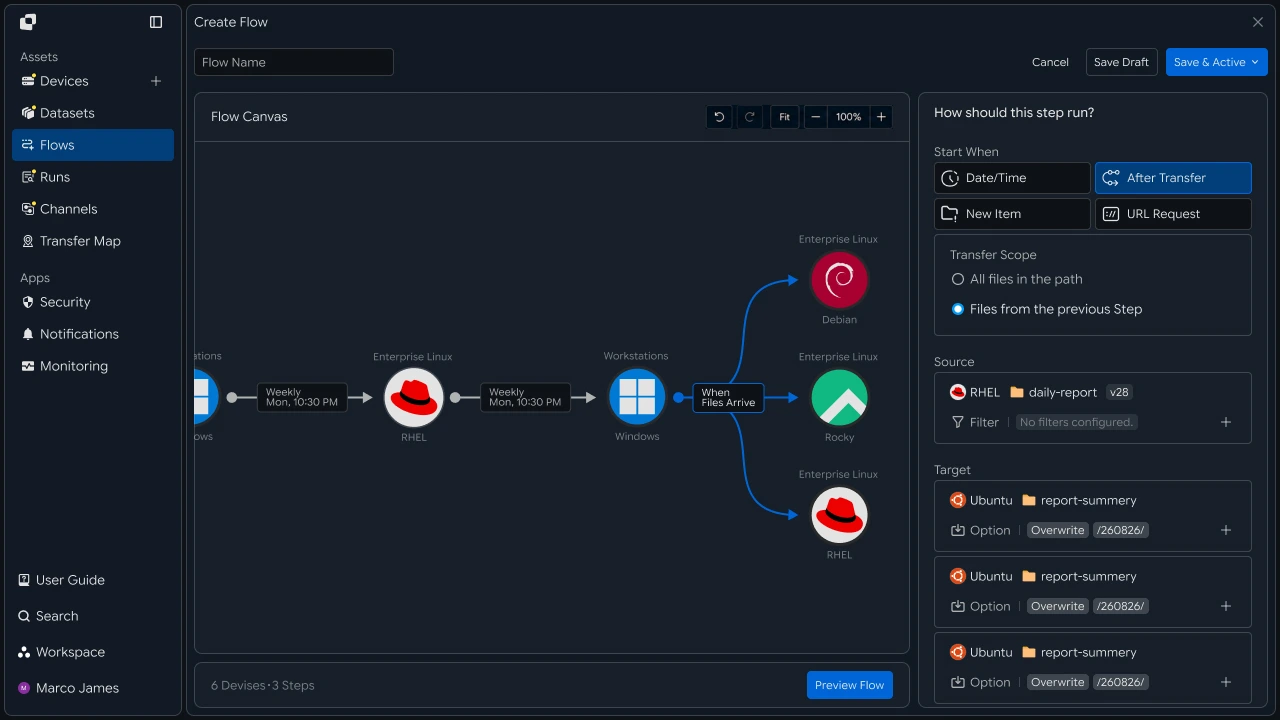
- Trigger
- File Transfer
- Processing
- Result Storage
- Next Flow
IT engineers can connect task steps according to the processing order for each type of work and configure the entire recurring file flow.
Result Analysis#
Analyze the Status and Processing Results of Repeatedly Executed Tasks
Automatically executed tasks can be reviewed in Runs, including execution records and detailed processing results.
Each Run provides the trigger that started the task, Source, Target, number of processed files, total processing volume, execution time, and status.

| Check Item | Details |
|---|---|
| Trigger | Task start condition |
| Source | Location where files were prepared |
| Target | Location where results were reflected |
| Files | Number of files processed |
| Size | Total processing volume |
| Time | Execution time |
| Status | Task status |
By reviewing accumulated execution records, you can analyze and manage recurring task execution patterns and file-processing results according to the work environment.
Exception Handling#
Check Task Status and Reprocess Based on Execution Records
When a task requiring additional review occurs, IT engineers can use Runs and Audit Log to check the task's execution process and processing status.
You can inspect the current work environment based on execution conditions, device connections, file paths, access scope, target files, and task order.
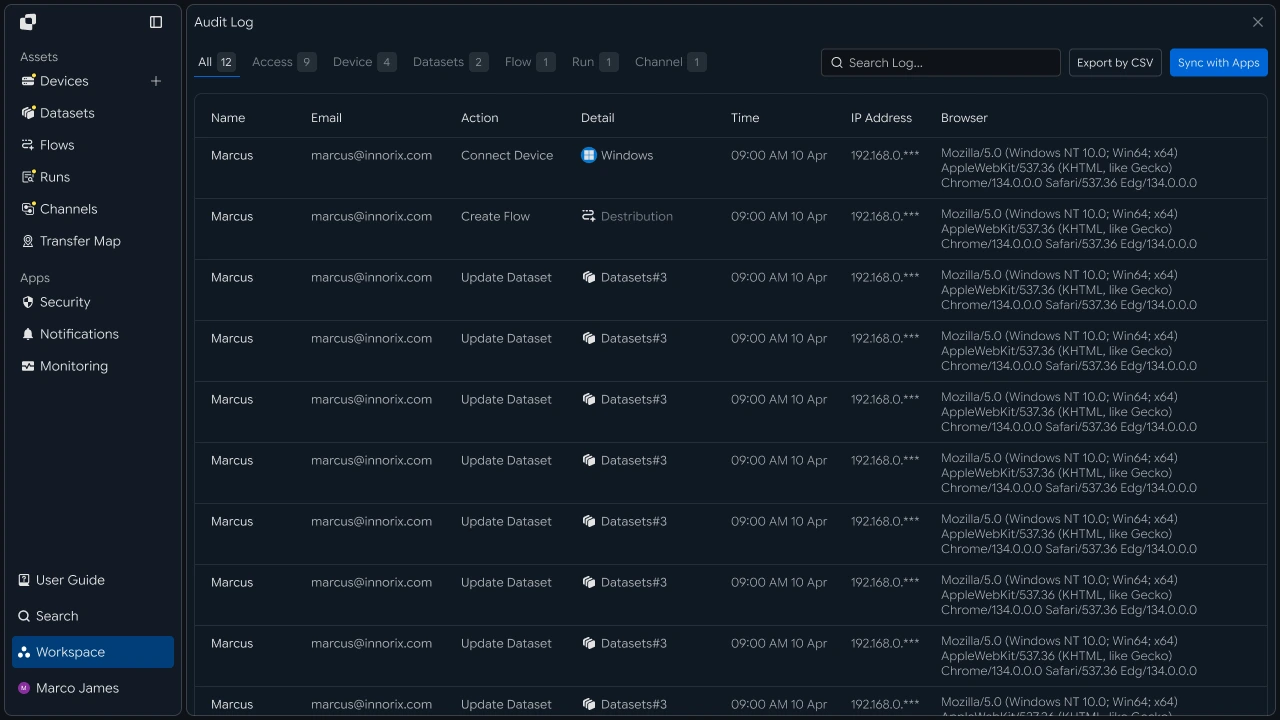
| Check Item | Details |
|---|---|
| Execution Conditions | Schedule and Trigger settings |
| System Connection | Source and Target connection status |
| File Path | Target location for processing |
| Access Scope | File-processing permissions |
| Execution Records | Run and Audit Log |
This allows teams to organize work from the business perspective of using automated results and files, while IT engineers can divide their role from the operational perspective of designing the automation environment and managing execution conditions and flows.