
Getting Started#
Basic Concept#
Process only the remaining files from the point where the transfer stopped
When a network connection is interrupted during a file transfer, not every file is necessarily in the same state.
For example, if the connection is lost while multiple files are being transferred, some files may already have been applied successfully to the target system, one file may have stopped partway through, and later files may not have started yet.
A resume operation should therefore not simply rerun the entire job. Instead, determine what needs to be processed again based on the current state of each file.
| File State | State at Interruption | After Connection Recovery |
|---|---|---|
| Completed File | Successfully applied to the target | Do not transfer again |
| File in Transfer | Connection lost partway through | Resume from the interruption point |
| Pending File | Transfer not yet started | Start transfer in sequence |
| Failed File | Transfer or connection error | Apply retry policy |
For example, if the connection is lost while transferring the seventh of 10 files, files 1 through 6 remain completed, while processing resumes with the interrupted file and the files that follow.

This structure avoids restarting the entire job after a connection interruption and instead continues only the files and transfer segments that actually require recovery.
Resume Criteria#
Handle interruptions differently for one large file and for multiple files
The resume method can vary depending on the file set being transferred.
For a single large file, it is important to continue from the interruption point rather than retransmitting the entire file.
For multiple files, it is more important to distinguish between files that are already complete and those that have not yet been processed.
| Transfer Environment | State at Interruption | Resume Method |
|---|---|---|
| Single Large File | Part of the file already transferred | Resume from the interruption point |
| Multiple Files | Some files completed | Keep completed files and continue with the next files |
| Concurrent Transfers to Multiple Targets | Different progress by target | Resume primarily for interrupted targets |
| Scheduled Automatic Transfer | A future run is scheduled | Check previous run state and duplication before continuing |
For example, transferring one backup file of tens of gigabytes to remote storage and collecting thousands of log files from multiple servers do not require the same resume policy.
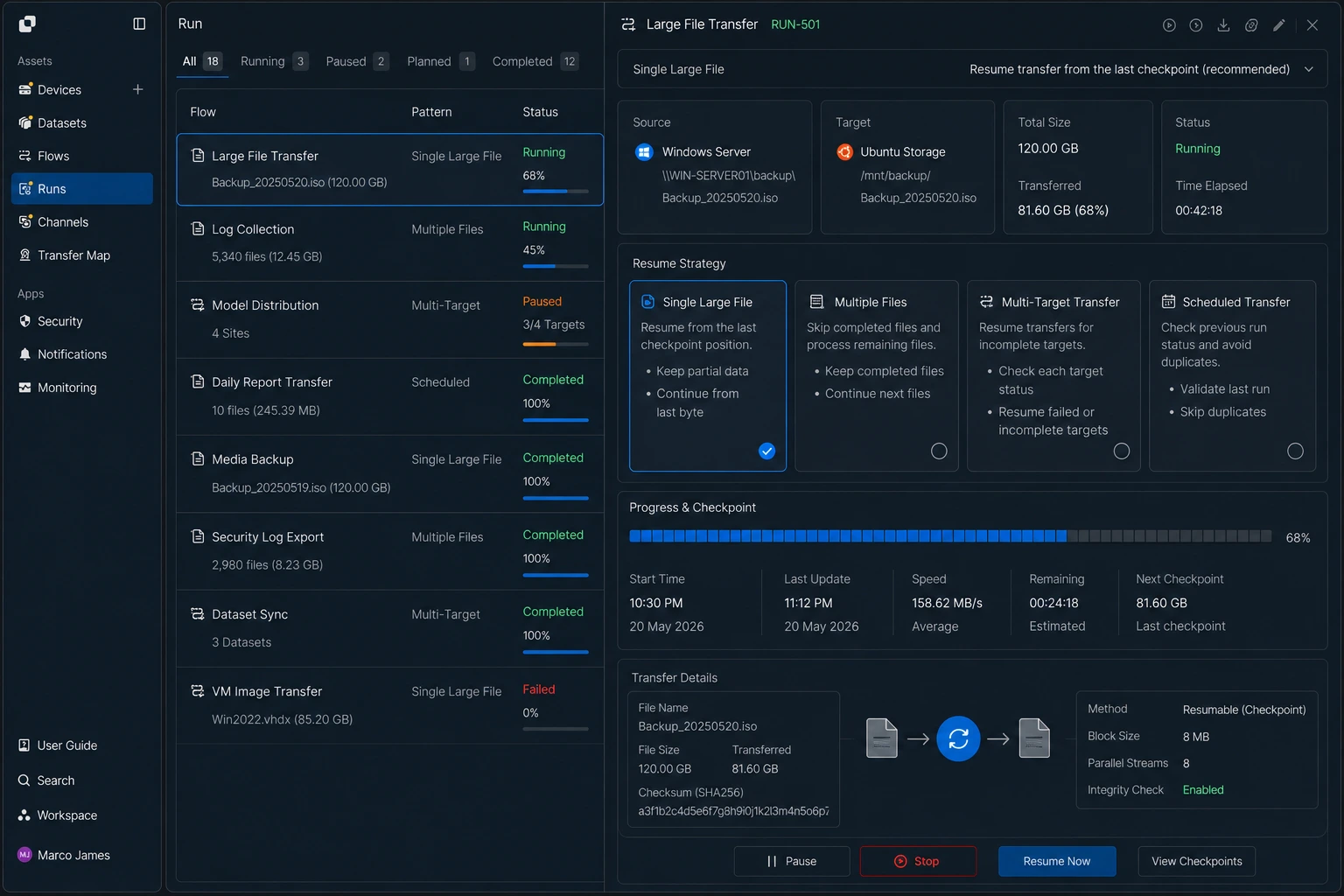
When configuring the transfer environment, consider both how long each file is expected to transfer and what unit of work should be retried after an interruption.
Recovery Flow#
Wait for the connection to recover, then resume the transfer automatically
A temporary network interruption does not necessarily require creating a new transfer job immediately.
Check the connection state first. When the target system or network becomes available again, resume the transfer based on the processing state of the existing job.
The key distinction in this process is whether to create a new transfer request or resume the existing job.
For a temporary network issue, keep the existing Run state and continue the transfer. Only unrecoverable problems require separate review and rerun.
IT Engineers#
Recovery Policy#
Define how far automatic recovery should go and how many retries to allow after a network interruption
Instead of retrying indefinitely whenever the connection is lost, define the limits of automatic recovery in the transfer environment.
For example, short connection interruptions can trigger automatic recovery attempts, while jobs that remain disconnected for a specified period or fail repeatedly can be moved to a state that requires review.
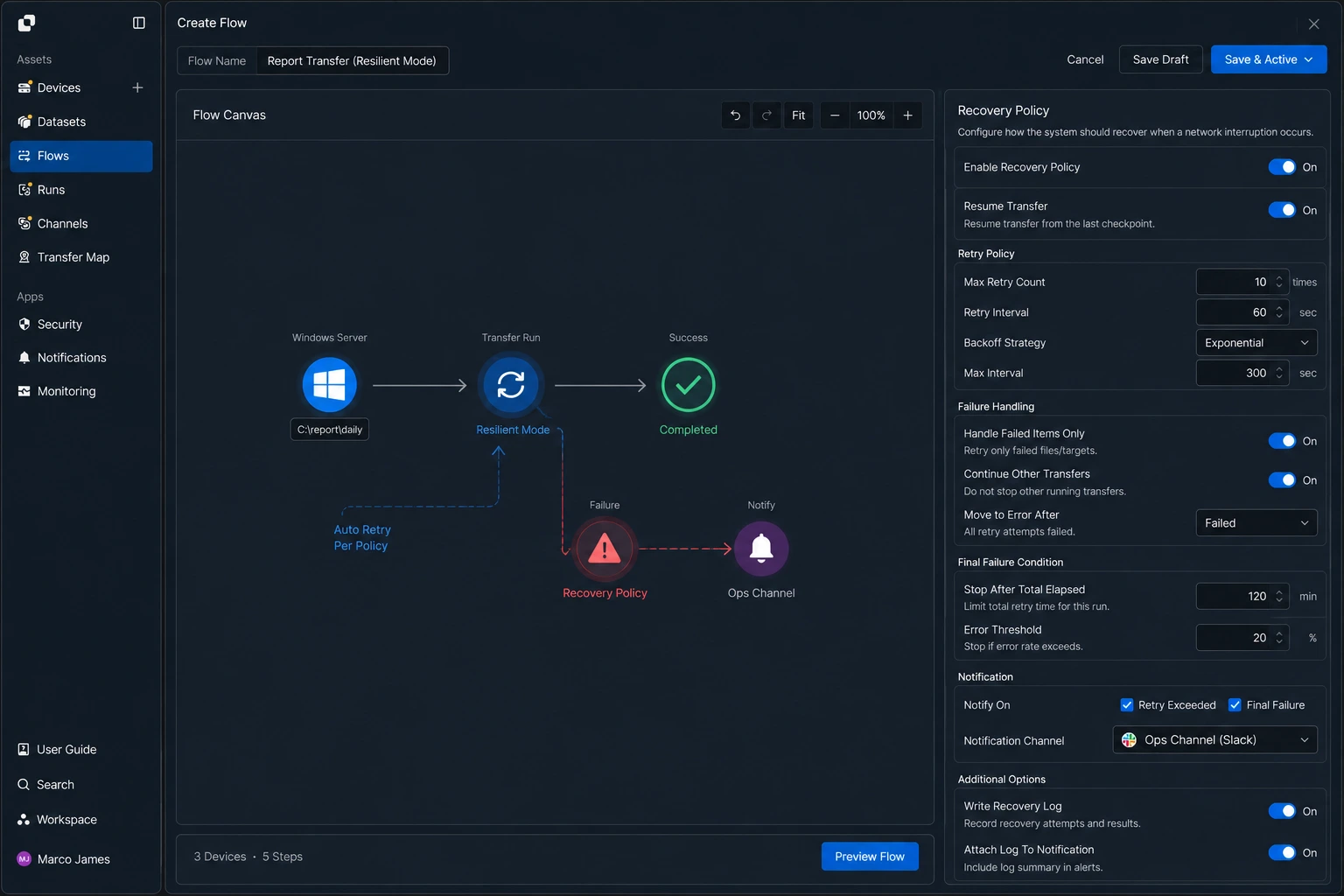
Depending on the transfer environment, you can configure policies like the following.
| Setting | Use |
|---|---|
| Resume | Continue the existing job after the connection is restored |
| Retry Count | Automatically retry temporary errors |
| Wait Time | Allow time for the connection to recover before retrying |
| Failed File Handling | Reprocess failed items instead of rerunning the entire job |
| Final Failure Condition | Stop automatic recovery and require operational review |
| Notification Condition | Notify on repeated or final failure |
For example, in an environment where the connection between headquarters and branch offices is intermittent, you can allow more retries. For time-limited batch jobs, you can instead require operator review after a smaller number of attempts.
Check Status#
Review the interruption cause and per-file processing state in the Run
Even in an environment that supports automatic resume, repeated disconnections or recurring failures on specific files require inspection of the actual run state.
In Runs, you can review the overall transfer status, while the detail view shows per-file processing results and where the interruption occurred.
Run: Nightly Backup Transfer

Status
Resumed

Connection Events
22:14  Transfer Started
22:47  Connection Interrupted
22:52  Connection Restored
22:52  Transfer Resumed
23:18  Completed

Files
────────────────────────────
backup_01.tar   Completed
backup_02.tar   Completed
backup_03.tar   Resumed
backup_04.tar   Completed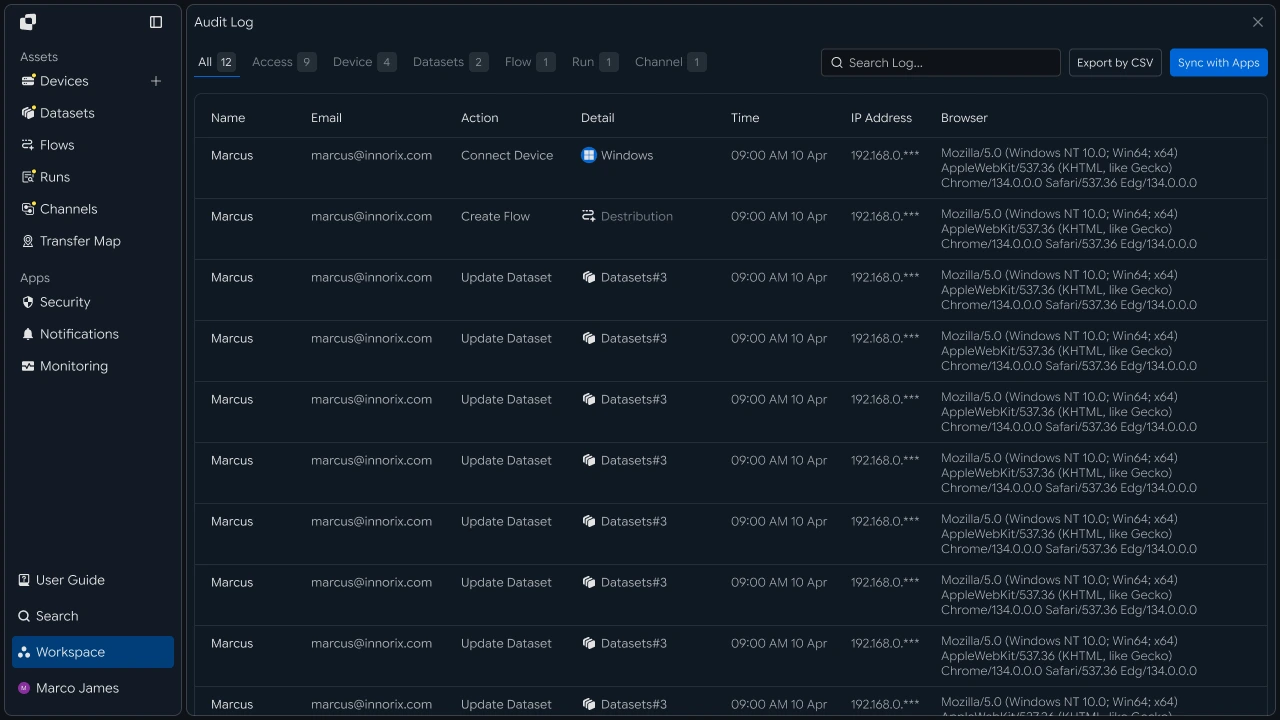
Do not review only the final state. Check the following details as well.
Time the connection was lost
File or transfer segment where processing stopped
Time automatic resume started
Files that were retried
Number of retry attempts
Final transfer result
This lets you verify both whether automatic recovery worked correctly and which files were actually affected.
Retry Failures#
Retry only files that were not recovered automatically
Even after the connection is restored, some files may still fail to process successfully.
For example, if a Source file changed or the Target has a storage-capacity or access problem, reconnecting the network alone will not complete the job.
In these cases, distinguish between failures that can be retried automatically and failures that require operator review.
| Situation | Automatic Handling | Additional Review |
|---|---|---|
| Temporary Network Disconnection | Resume automatically after connection recovery | None required |
| Target Server Response Delay | Retry up to the configured limit | Check target status if repeated |
| Specific File Transfer Failure | Retry that file | Inspect the file if it keeps failing |
| Path Changed | Stop automatic resume | Update the Source or Target path |
| Permission Issue | Cannot recover automatically | Adjust access permissions |
| Retry Limit Exceeded | Mark as final failure | Review Run details, then Retry |
This avoids repeatedly retrying every error and lets you distinguish between recoverable network issues and problems that require configuration changes.
Final Verification#
Verify that the resumed job completed successfully on the target system
Restarting the transfer does not mean the job is complete.
After connection recovery and file reprocessing are finished, verify that all required files were applied successfully to the target system.
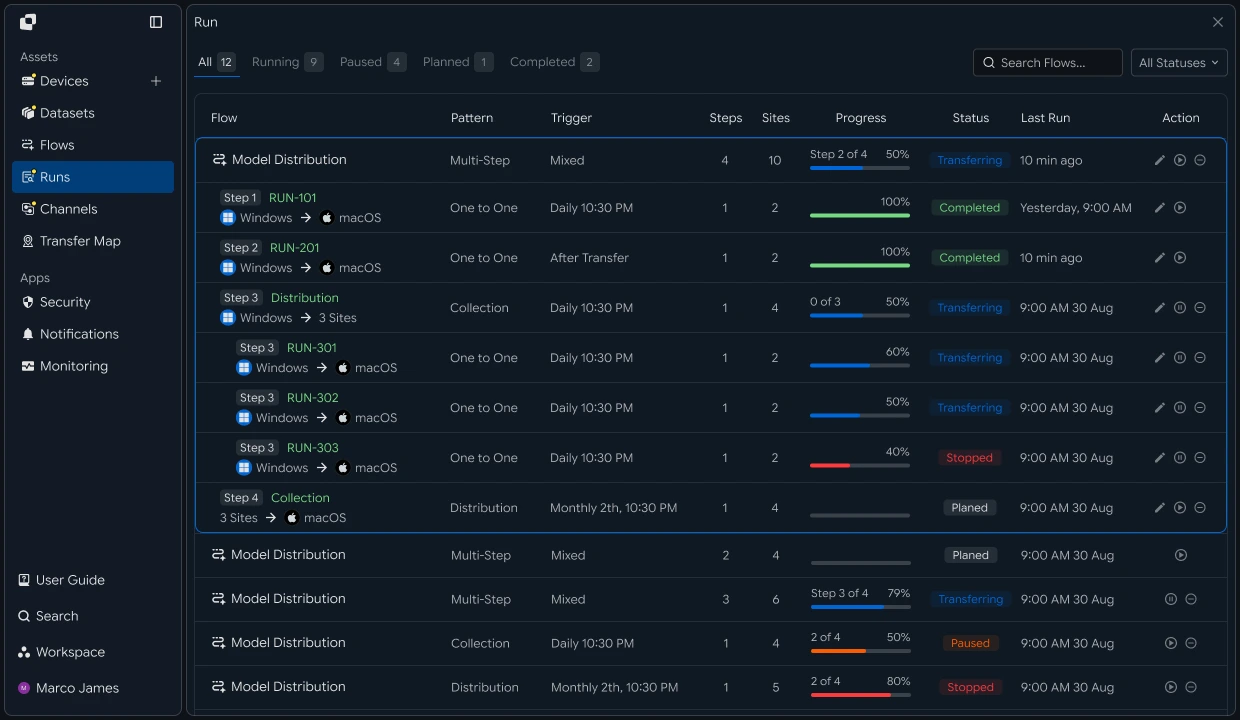
In the final result, review both whether the transfer completed and how the recovery process was handled.
| Result | Meaning |
|---|---|
| Completed | All files processed successfully after the interruption |
| Completed after Resume | Transfer completed after the connection was restored and processing resumed |
| Completed after Retry | Transfer completed after failed files were retried |
| Failed | Automatic recovery limits were exceeded or an environment issue occurred |
| Action Required | An operator must review the Source, Target, or permissions |
With this recipe, you can build a single flow covering transfer start → network interruption detection → preserve current processing state → confirm connection recovery → resume interrupted files and remaining work → retry repeatedly failed files → review the recovery process in the Run → verify files on the target.
This lets you operate transfers in temporarily unstable network environments without restarting all files from the beginning, preserving completed work and continuing only the portions that actually require recovery.