
Getting Started#
Basic Concept#
Centralize SFTP transfer information distributed across servers and scripts
Existing SFTP automated transfer environments may use separate accounts and scripts for each server.
For example, each business server may connect to a different SFTP server, or even when using one SFTP server, the accessible paths may differ by account.
In this structure, SFTP accounts, connection information, file paths, and execution methods may each be tied to individual servers and scripts.
When converting to centrally managed Flows, existing components can be separated into connection environments and transfer tasks for management.
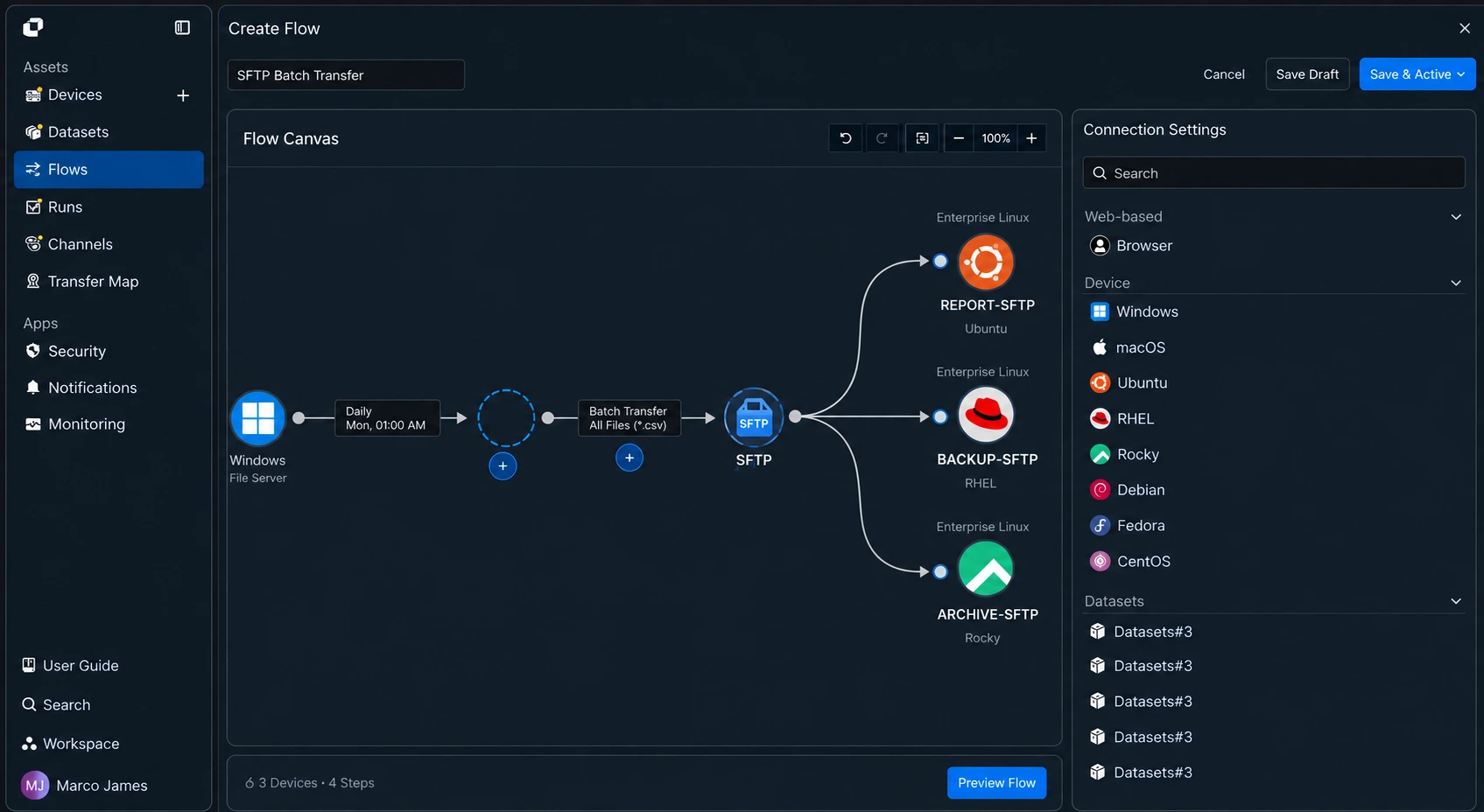
This allows you to separate SFTP connection information from actual file transfer tasks.
Manage SFTP accounts and server connections through Connections, while configuring which files are transferred to which paths in each Flow.
Management Structure#
Separate the roles of SFTP accounts, transfer paths, and execution tasks
In existing batch tasks, multiple pieces of information may be included together in a single script.
For example, the SFTP server address, account information, source path, target path, and filename conditions may all be defined in one script.
When converting to a centralized management environment, separate these by role.
| Existing Configuration | Centralized Management Conversion |
|---|---|
| SFTP Server Address | SFTP Connection |
| Account Information | Connection authentication information |
| Accessible Path | Connection and target path settings |
| Source Server | Source |
| Transfer File Path | Source Path |
| SFTP Storage Location | Target Path |
| Transfer Script | Flow |
| Batch Scheduler | Execution conditions |
| Server-specific Logs | Runs and execution history |
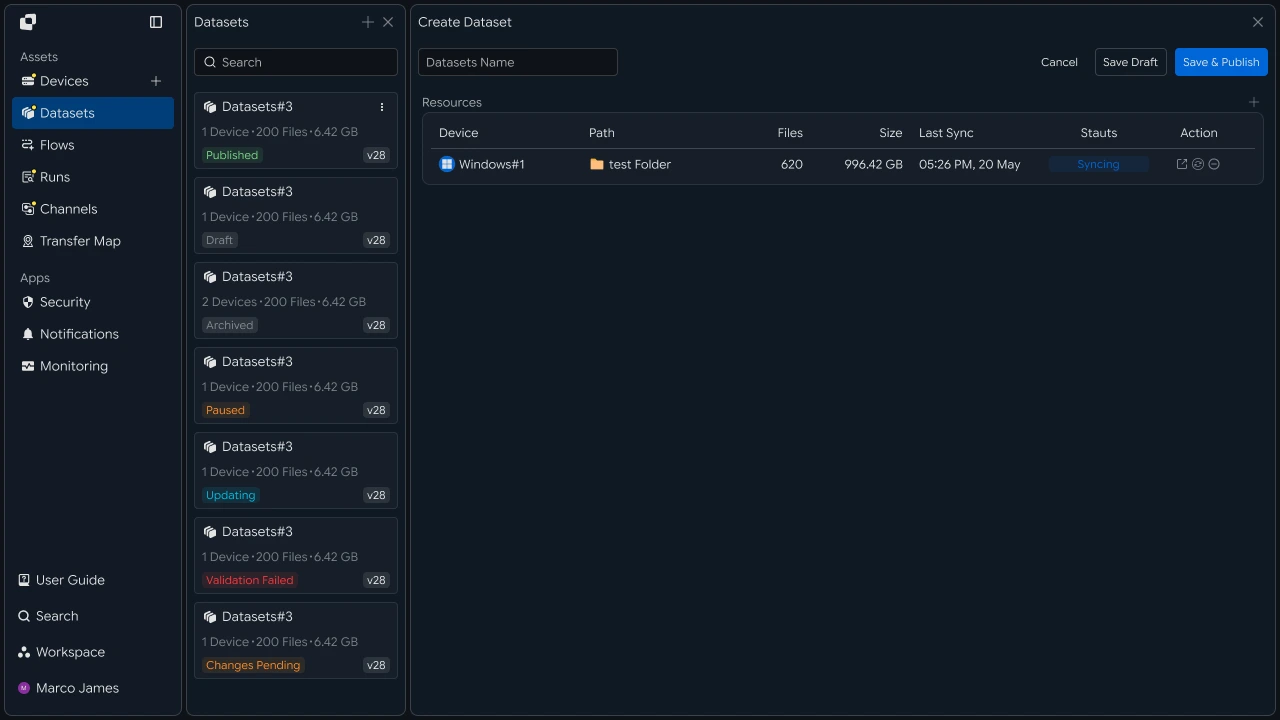 |
For example, even when multiple business servers transfer files to one SFTP server, the SFTP connection itself can be separated from the actual file transfer tasks.
Using this structure, instead of repeatedly managing connection information across multiple tasks that use the same SFTP connection, you can manage the connection environment centrally and configure file transfer paths and execution conditions separately for each Flow.
Conversion Flow#
Organize existing accounts and batch tasks, then move them to a centralized management environment
Converting SFTP transfers to centralized management does not end with simply registering existing accounts.
You must also check which servers currently connect using which accounts, which paths each account uses, and under what conditions the scripts run.
The conversion process can be configured as follows.
Initially, instead of stopping all server batch tasks at once, you can first convert one server or a specific business path to a Flow and verify the results.
This allows you to verify that the same files as the existing SFTP batch task are stored in the expected target path before expanding the conversion scope.
IT Engineer#
Account Review#
First check server-specific SFTP accounts and the paths they actually use
Before converting to centralized management, organize the relationship between currently operating SFTP accounts and servers.
The same account may be used by multiple servers, or separate accounts may be used for each server or business task.
Therefore, instead of checking only the account list, also check which servers and transfer tasks each account is actually used for.
| Item | Details |
|---|---|
| SFTP Server | Target server for connection |
| SFTP Account | Currently used account |
| Using Server | System connecting with the account |
| Source Path | Location where files are retrieved |
| Target Path | Storage location on the SFTP server |
| File Conditions | Filename, extension, and path criteria |
| Execution Method | Manual, schedule, or file condition |
| Existing Script | Actual transfer command and processing method |
[Product UI_Screen for reviewing server-specific SFTP accounts and Source, Target paths and identifying Connection conversion targets]
At this stage, you can also identify accounts that are no longer used or duplicate transfer tasks.
For example, if two batch tasks use the same Source and Target but only differ in execution time, you can review the actual business flow and consolidate them into one Flow or configure only the execution conditions separately.
Connection Conversion#
Configure the SFTP server and authentication information as a Connection
After organizing the relationship between accounts and servers, configure the SFTP connection information used in the existing scripts as a Connection.
In Connection, manage which SFTP server to connect to and how to connect to it, separately from the actual file transfer task.
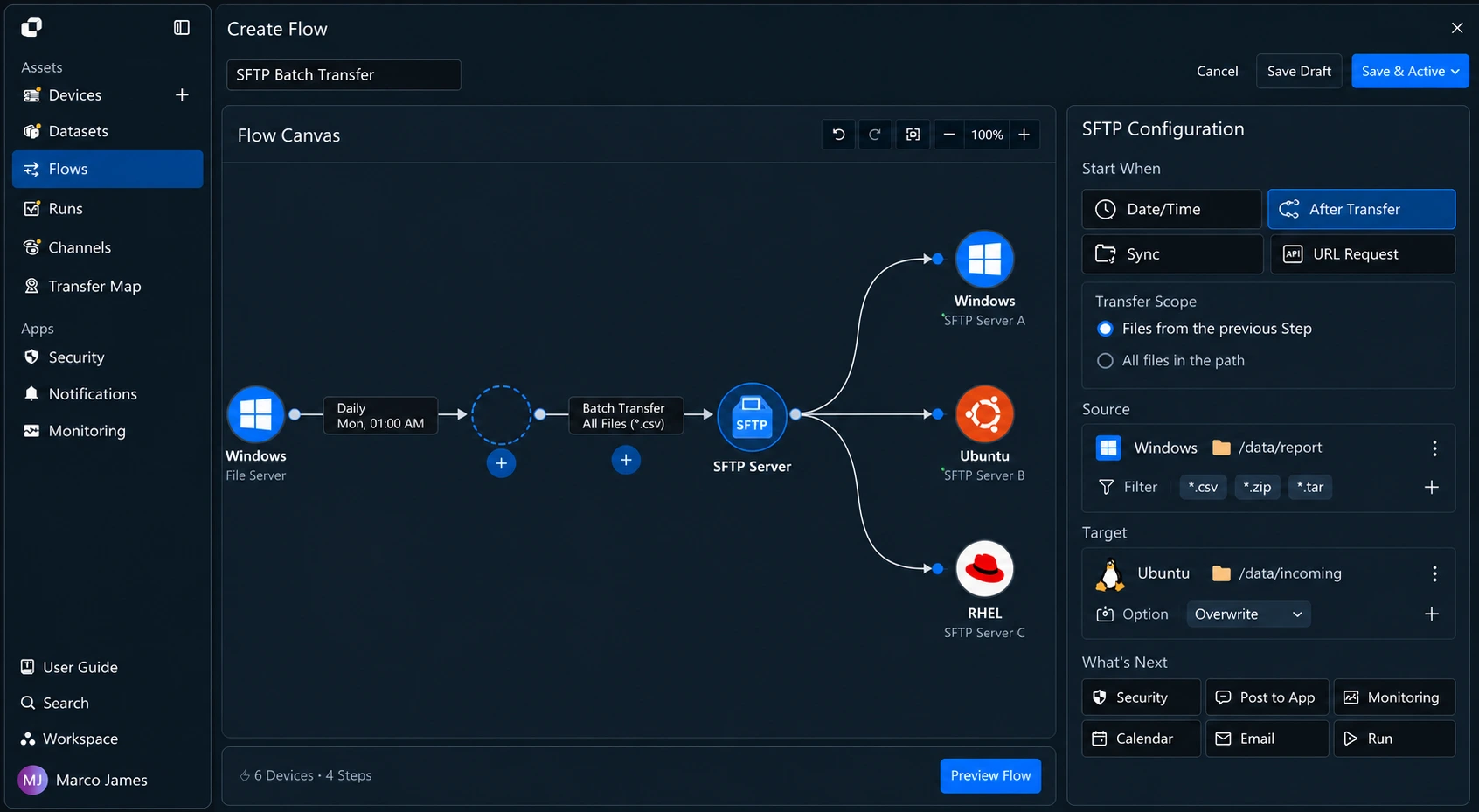
After configuring the connection, you can manage it using the following criteria.
| Configuration Area | Management Details |
|---|---|
| Server Connection | Manage SFTP connection targets |
| Authentication Information | Manage authentication methods by account |
| Connection Status | Check whether the server is accessible |
| Access Scope | Check paths available to each account |
| Shared Connection | Manage connections used by multiple Flows |
This separates account information from transfer tasks, reducing the need to include connection information separately in scripts for multiple Flows using the same SFTP server.
Path Configuration#
Move the existing script's file selection criteria and SFTP storage location into a Flow
After the Connection configuration is complete, configure the actual transfer task as a Flow.
In Source, specify the file path checked by the existing script. In Target, configure the storage location on the SFTP server.
Also migrate the file selection criteria included in the existing script.
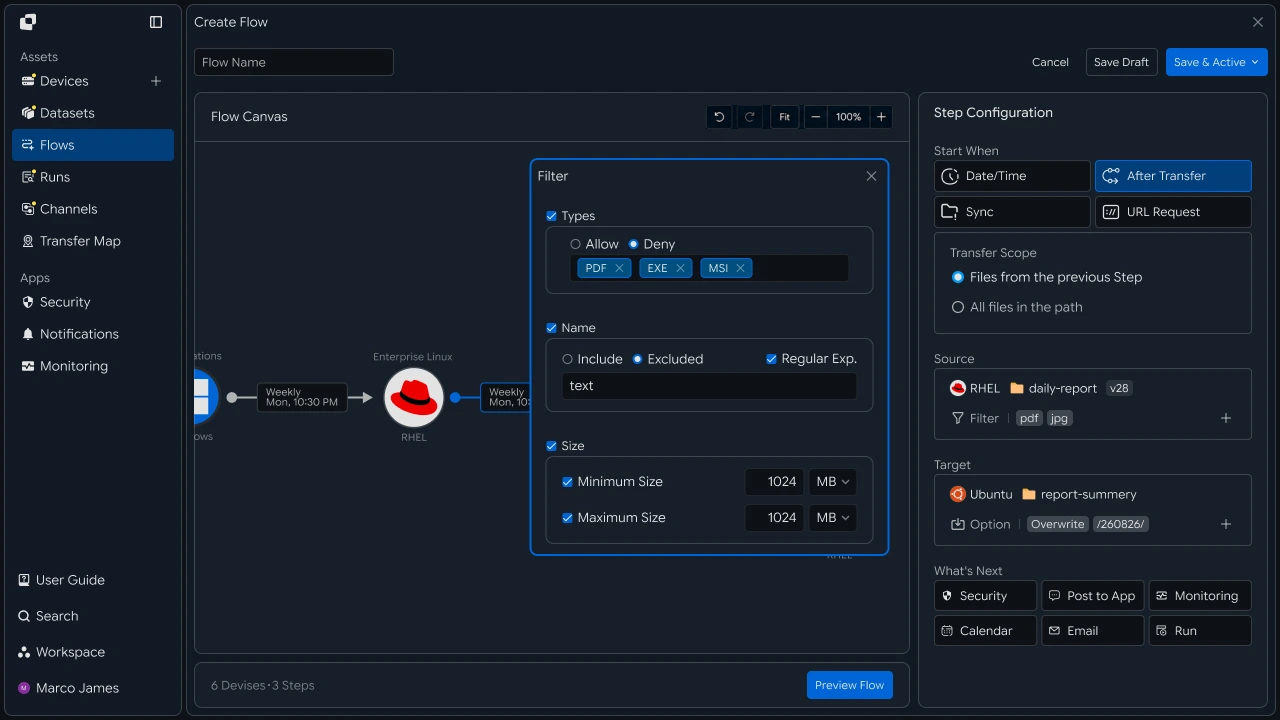
For example, if the existing script selected only .csv files from /data/export and transferred them to /partner/incoming on the SFTP server, you can configure the same conditions in the Flow.
At this point, clearly separate the following two types of information in the transfer task.
| Category | Configuration Details |
|---|---|
| Connection | Which SFTP server and account to connect with |
| Flow | Which files to transfer and to which path |
This separation allows you to check the Connection when the connection environment changes and adjust the relevant Flow when the file path or transfer conditions for a specific task change.
Execution Migration#
Move server-specific script execution into Flow execution conditions
If the existing SFTP transfer task runs regularly, check the execution conditions configured in the server's task scheduler or cron.
Then apply the same execution criteria to the Flow.

Execution conditions can be configured differently depending on the existing task method.
| Existing Task | Flow Execution Method |
|---|---|
| Daily at a Specified Time | Date/Time |
| Weekly Recurring Execution | Recurring Schedule |
| New File Created | File Detection or Sync |
| Run After Previous Transfer Completes | After Transfer |
| Operator Executes Directly | Manual Run |
For example, by moving SFTP scripts that previously ran separately in cron on multiple servers into Flow execution conditions, you can check the actual file transfer tasks and execution criteria in the same management environment.
Conversion Verification#
Use a Test Run to verify that it works the same as the existing SFTP batch
After configuring the Connection and Flow, instead of immediately stopping the existing script, check the results through a Test Run.
During the test, verify that the actual files were selected from the correct Source, connected using the specified SFTP account, and stored correctly in the target path.

Before conversion, check the following items.
| Item | Details |
|---|---|
| Connection | Whether it connected to the correct SFTP server and account |
| Source | Whether the existing server and file path are correct |
| File Count | Whether only the expected files were selected |
| Total Size | Whether the total transfer volume matches the expected range |
| Target Path | Whether files were stored in the specified SFTP path |
| Status | Whether the task completed successfully |
If file conditions or target paths are processed differently from the existing task, adjust the relevant Flow and test again.
After verification is complete, sequentially convert the existing server's script-based tasks into centrally managed Flows.
Integrated Operations#
Manage multiple SFTP accounts and transfer tasks together through Connections and Runs
After conversion is complete, instead of checking scripts and logs separately on each server, you can manage the transfer environment based on centralized Connections, Flows, and Runs.

In Runs, you can check the following information.
| Item | Details |
|---|---|
| Flow | Which SFTP transfer task it is |
| Connection | Which connection environment it uses |
| Source | System and path where files were retrieved |
| Target | SFTP server and storage location |
| Total Files | Number of files processed |
| Total Size | Total transfer volume |
| Status | Completed, Failed, or Retrying status |
| Started | Task start time |
| Completed | Task completion time |
If an issue occurs, use the details of the relevant Run to check the Connection, Source, and Target paths, adjust the required settings, and rerun the task.
Conversion Complete#
Change from server-specific SFTP script operations to a centrally managed transfer structure
Converting SFTP accounts and batch transfers to centralized management allows you to organize the management structure while preserving the purpose and file flow of the existing server-specific transfer method.
The overall conversion process is as follows.
Applying this recipe creates a single conversion process covering Review Server-specific SFTP Accounts → Configure Connection → Migrate Source, Target Paths → Configure File Processing Conditions → Convert Execution Method → Test Run → Verify Results → Centralized Operations.
This allows you to separate SFTP connection information from actual file transfer tasks that were previously included together in existing scripts, and centrally manage SFTP batch tasks that ran across multiple servers and accounts through Connections, Flows, and Runs.