
Getting Started#
Basic Concept#
Run the required file transfer Flow based on requests from collaboration tools and check the results
File transfer tasks do not always need to be started directly from the transfer management screen. For repeatedly used transfer tasks, you can send a request from the collaboration tool used for work and connect that request to a preconfigured Flow.
For example, when a specific file transfer is requested in Slack or Teams, the connected Flow can run and start the file transfer according to the configured Source, Target, and transfer conditions.
However, if users must access the transfer environment and select the Source and Target and configure the file transfer conditions again each time a transfer is needed, the same task may need to be configured repeatedly.
With INNORIX Flow, you can connect Slack or Teams to a file transfer Flow and use requests generated in the collaboration tool as the starting condition for transfer tasks.
Instead of checking a transfer request in the collaboration tool and then separately running the file transfer task, you can start the transfer and continue checking its results in the collaboration environment through Slack, Teams Request → Run Flow → File Transfer → Check Progress and Completion Results.
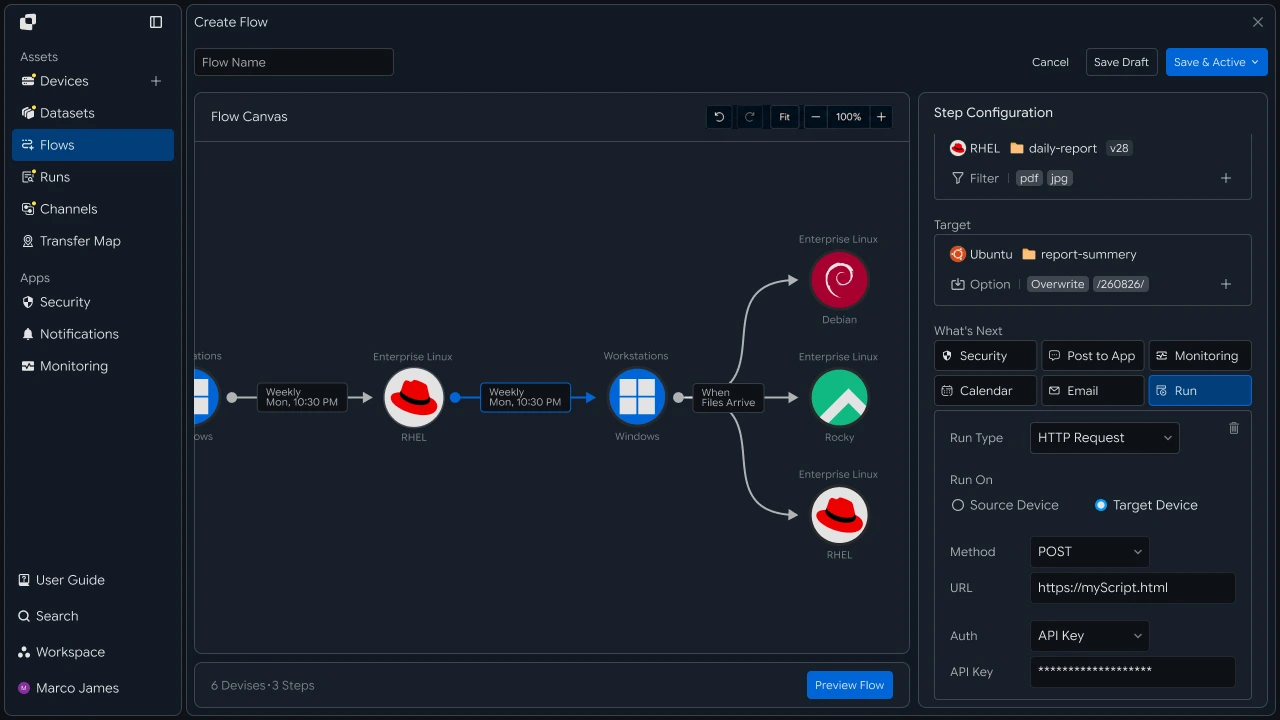
With this method, instead of configuring the entire transfer environment directly each time a transfer is needed, users can run a preconfigured Flow from the collaboration tool.
By connecting completion or review-required results back to Slack or Teams, you can configure a flow where not only the transfer start process but also execution results and completion status are checked in the collaboration environment being used.
For example, prepare frequently used transfer tasks as separate Flows, select and run the required task from Slack or Teams, and configure completion or failure results to appear in the relevant channel or conversation.
This configuration lets you handle Transfer Request → Run Flow → File Transfer → Check Execution Results from the collaboration environment where the work is performed, rather than splitting the process between a separate transfer management screen and collaboration tool.
Notification Flow#
Check transfer status directly in the collaboration channel
When a Flow runs, major execution results can be sent to the collaboration tool without manually checking every status.
For example, notify users when a transfer starts, deliver the transfer result when it completes, and notify the responsible person when a problem requires review.
Notifications can be configured to the level required for the work.
| Transfer Status | Information Checked in Collaboration Tool |
|---|---|
| Started | Check which Flow was run |
| In Progress | Check whether file transfer is currently in progress |
| Completed | Check transfer completion and processing results |
| Failed | Check the task with an issue and status requiring review |
| Rerun | Check the result of the rerun task |
This allows major transfer results to be checked together in the channel used for work, even when the file transfer system and collaboration tool are separate.
Usage#
Connect transfer requests and result checks into one work conversation flow
When connected to a collaboration tool, the start and results of file transfers are not distributed across different screens.
For example, you can request a file transfer in a specific channel and configure the results to be checked in the same channel.
Slack / Teams
- "Run Daily Report Transfer"
- Flow Started
- 24 files transferredStatus: Completed
This allows the file transfer itself to be processed in the file transfer environment while work requests and result checks continue within the existing collaboration flow.
IT Engineer#
Service Connection#
Connect Slack, Teams to the file transfer environment
First, configure the integration between the file transfer environment and the collaboration tool.
Connect requests or events generated in the collaboration tool to the execution conditions of a file transfer Flow, and configure the Flow execution results to be sent back to the collaboration tool.

In this structure, you can separately configure the flow that receives requests and the flow that reports results.
Collaboration tool request → Run file transfer Flow
File transfer completed → Send completion message
File transfer failed → Send review-required notification
Specific condition met → Share status with responsible channel
Execution Connection#
Connect requests from the collaboration tool to specific Flows
After integration, configure which requests will run which file transfer tasks.
Instead of allowing every user to run arbitrary transfer tasks, you can connect requests and Flows according to business purpose.
With this configuration, the collaboration tool can be used not as a screen for managing the transfer environment itself, but as a work entry point for running predefined Flows.
If necessary, you can also separate which Flows can be run and their scope of use.
| Setting Item | Configuration Details |
|---|---|
| Request Criteria | Message, button, or external event |
| Execution Flow | File transfer task connected to the request |
| Execution Target | Source and Target applied according to the request |
| User Scope | Users or channels allowed to run the task |
| Result Location | Channel or responsible person receiving execution results |
Notification Configuration#
Send only the required status to the collaboration tool based on transfer results
If every file transfer event is sent as a message, the volume of notifications can make important information difficult to identify.
Therefore, it is useful to separate which statuses are sent as notifications according to operational needs.
For example, you can configure the following.
| Event | Notification Target | Usage |
|---|---|---|
| Flow Started | Request Channel | Confirm task start |
| Large Transfer Progress | Operations Channel | Check status of long-running task |
| Transfer Completed | Responsible Person or Work Channel | Start next task |
| Transfer Failed | Operations Manager | Identify cause and respond |
| Rerun Completed | Requester | Confirm successful processing result |
This allows only results required for actual work and operations to be sent to the collaboration channel.
Execution Tracking#
Connect collaboration notifications to Run information to check actual processing results
Even when a completion or failure message is received in Slack or Teams, detailed processing information can be checked in Runs.
When you select a specific execution result, you can check the task's Source, Target, file count, transfer volume, and processing status for each file.

You can divide the roles so that the collaboration tool provides quick status checks, while Runs provides actual file transfer results and detailed execution history.
| Check Location | Primary Purpose |
|---|---|
| Slack, Teams | Check execution requests and major results |
| Notification Message | Quickly check completion, failure status |
| Runs | Check full execution history and detailed status |
| Run Details | Check per-file processing results and issue location |
Exception Handling#
After receiving a failure notification, check the relevant Run and rerun the required task
When a transfer fails or a status requiring additional review occurs, you can use the notification in the collaboration tool as the starting point to check the task.
Then check the failed stage and Source, Target status in Runs and take the required action.

Applying this guide connects File Transfer Request in Slack, Teams → Run Specified Flow → Receive Progress and Result Notifications → Check Run Details if Needed → Rerun When an Issue Occurs → Final Result Notification into a single workflow.
Business teams can run required tasks and check results from the collaboration tool without directly accessing a separate transfer management environment, while IT engineers can configure Flow and external service integrations, notification conditions, and execution records to naturally connect file transfer tasks into the existing collaboration environment.
Developer#
Notify Slack, Teams of transfer results and run transfers through chat commands
After registering the notification integration once, events are automatically sent to the channel, and the transfer API is called from the chat command handler to start a transfer. Prepare the following items before starting.
| Requirement | Details |
|---|---|
| INNORIX Authentication | INNORIX_ACCESS_TOKEN (Authorization: Bearer) |
| Channel Webhook URL | Incoming Webhook URL for Slack, Teams |
| Transfer Source, Target | Source and target devices and paths for transfers run by command |
| Runtime | Python 3 + requests, Java 17+, Node.js 18+, .NET 8+ |
Python, Node.js define and use a minimal
api()helper that directly calls REST (see API Call Recipe). Java, C# use the bundled-sourceInnorixClientandJsonhelper (Jfor C#). Replace device identifiers, paths, and URLs with actual values.
Transfer Event Notification Integration#
When a notification integration is registered, events enabled in notificationConfig.events are automatically sent to the channel for all transfers and automations in the workspace. Do not connect the integration separately to each transfer, and do not pass integrationId to /api/transfers/manual.
def create_notification(name, webhook_url, channel, kind="slack",
                        events=("started", "completed", "error")):
    result = api("POST", "/api/integrations", {
        "name": name,
        "type": kind,                 # channel type such as slack or teams
        "mode": "webhook",
        "webhookUrl": webhook_url,
        "config": {"name": name, "webhookUrl": webhook_url, "channel": channel},
        # enabled events are notified automatically for every transfer in the workspace
        "notificationConfig": {"events": {e: True for e in events}},
    }) or {}

    return result.get("integrationId")


integration_id = create_notification(
    "transfer-alerts", "https://hooks.slack.com/services/...", "#file-ops")
static String createNotification(InnorixClient client, String name, String webhookUrl,
String channel, String kind, List<String> events) {
Map<String, Object> eventMap = Json.newObj();
for (String e : events) eventMap.put(e, true); // enabled events are notified automatically across the workspace
Map<String, Object> result = client.apiObj("POST", "/api/integrations", Json.newObj(
"name", name,
"type", kind, // channel type such as slack or teams
"mode", "webhook",
"webhookUrl", webhookUrl,
"config", Json.newObj("name", name, "webhookUrl", webhookUrl, "channel", channel),
"notificationConfig", Json.newObj("events", eventMap)), null);
return Json.str(result, "integrationId");
}async function createNotification(name, webhookUrl, channel,
kind = "slack", events = ["started", "completed", "error"]) {
const eventMap = {};
for (const e of events) eventMap[e] = true; // enabled events are notified automatically across the workspace
const result = (await api("POST", "/api/integrations", {
name,
type: kind, // channel type such as slack or teams
mode: "webhook",
webhookUrl,
config: { name, webhookUrl, channel },
notificationConfig: { events: eventMap },
})) || {};
return result.integrationId;
}
const integrationId = await createNotification(
"transfer-alerts", "https://hooks.slack.com/services/...", "#file-ops");static async Task<string> CreateNotificationAsync(InnorixClient client, string name, string webhookUrl,
string channel, string kind = "slack", IEnumerable<string> events = null)
{
var eventMap = new JsonObject();
foreach (var e in events ?? new[] { "started", "completed", "error" })
eventMap[e] = true; // enabled events are notified automatically across the workspace
var result = await client.ApiObjAsync("POST", "/api/integrations", new JsonObject
{
["name"] = name,
["type"] = kind, // channel type such as slack or teams
["mode"] = "webhook",
["webhookUrl"] = webhookUrl,
["config"] = new JsonObject { ["name"] = name, ["webhookUrl"] = webhookUrl, ["channel"] = channel },
["notificationConfig"] = new JsonObject { ["events"] = eventMap },
});
return J.Str(result, "integrationId");
}Only events enabled in notificationConfig.events are notified. Valid events are as follows.
| Event | Meaning |
|---|---|
started |
Transfer started |
completed |
Transfer completed |
paused |
Paused |
resumed |
Resumed |
recovered |
Recovered |
canceled |
Canceled |
error |
Failed |
skipped |
Skipped |
Workspace-Level Notifications Notification integrations automatically fire for all transfers and automations in the registered workspace. They are not connected to specific transfers, so do not pass
integrationIdto/api/transfers/manual(it will be ignored even if passed). The generatedintegrationIdis used to retrieve, modify, or delete the integration.
Channel Type and Configuration
typeis the channel type, includingslackandteams. Check the required settings for each type, includingwebhookUrlandchannel, throughGET /api/integrations/rules/{type}. If required settings are missing, notifications may not be sent even if the integration is created.
Webhook URL Security Treat Slack, Teams Webhook URLs like authentication information. Do not place them directly in code; load them from environment variables or a secret store.
Run Transfers with Chat Commands#
When a slash command or bot in the chat tool calls an application endpoint, call the transfer API from that handler to start the transfer. Use the returned monitorId to check subsequent status, while start, completion, and failure events are sent to the channel by the notification integration above. Because the method for receiving requests from the chat tool differs depending on Slack, Teams app configuration, the examples below cover only the part that starts the INNORIX transfer after the command is received.
def start_transfer_from_command(source, target, source_paths, target_path,
                                action="numbering"):
    transfer = api("POST", "/api/transfers/manual", {
        "sourceDevice": source,
        "targetDevice": target,
        "targetPath": target_path,
        "sourcePaths": source_paths,
        "sendAllFolder": True,
        "transferOptions": {"target-action": action},
    })

    return transfer["monitorId"]


# call from the slash-command handler
monitor_id = start_transfer_from_command(
    "device-source-01", "device-target-01",
    ["/data/out"], "/work/incoming")
static String startTransferFromCommand(InnorixClient client, String source, String target,
List<String> sourcePaths, String targetPath, String action) {
Map<String, Object> transfer = client.apiObj("POST", "/api/transfers/manual", Json.newObj(
"sourceDevice", source,
"targetDevice", target,
"targetPath", targetPath,
"sourcePaths", sourcePaths,
"sendAllFolder", true,
"transferOptions", Json.newObj("target-action", action)), null);
return Json.str(transfer, "monitorId");
}async function startTransferFromCommand(source, target, sourcePaths, targetPath,
action = "numbering") {
const transfer = await api("POST", "/api/transfers/manual", {
sourceDevice: source,
targetDevice: target,
targetPath,
sourcePaths,
sendAllFolder: true,
transferOptions: { "target-action": action },
});
return transfer.monitorId;
}
// call from the slash-command handler
const monitorId = await startTransferFromCommand(
"device-source-01", "device-target-01",
["/data/out"], "/work/incoming");static async Task<string> StartTransferFromCommandAsync(InnorixClient client, string source, string target,
IEnumerable<string> sourcePaths, string targetPath, string action = "numbering")
{
var transfer = await client.ApiObjAsync("POST", "/api/transfers/manual", new JsonObject
{
["sourceDevice"] = source,
["targetDevice"] = target,
["targetPath"] = targetPath,
["sourcePaths"] = J.ArrOfStrings(sourcePaths),
["sendAllFolder"] = true,
["transferOptions"] = new JsonObject { ["target-action"] = action },
});
return J.Str(transfer, "monitorId");
}Creating the transfer itself is the same as transfer creation in the API Call Recipe. Map the chat command arguments to the source, target, and paths when making the call.
Alternative: Command Automation Instead of calling
/api/transfers/manualfrom the application, you can register command automation (transferType: "command") in INNORIX and have the chat tool trigger it. In this case, set anapiKeyon the command automation and authenticate the trigger call with thex-api-keyheader.
Implementation Result#
Applying this recipe allows you to run transfers from collaboration tools and receive results through the following flow.
- Register Notification Integration (Once)
- Chat Command
- Start Transfer (monitorId)
- Transfer Event Occurs (started, completed, error)
- Automatically Notify Slack, Teams Channel
By handling transfer execution and result checks within the collaboration tool, the responsible person can start transfers and check start, completion, and failure status in a familiar channel without moving back and forth to the management screen.