
Getting Started#
Basic Concept#
View files across multiple devices in one place
Unified File Explorer connects multiple devices so you can browse the files and folders on each device from a single interface.
Users can select a connected device, browse its folders, locate the files they need, and work with files across multiple devices from one workspace.
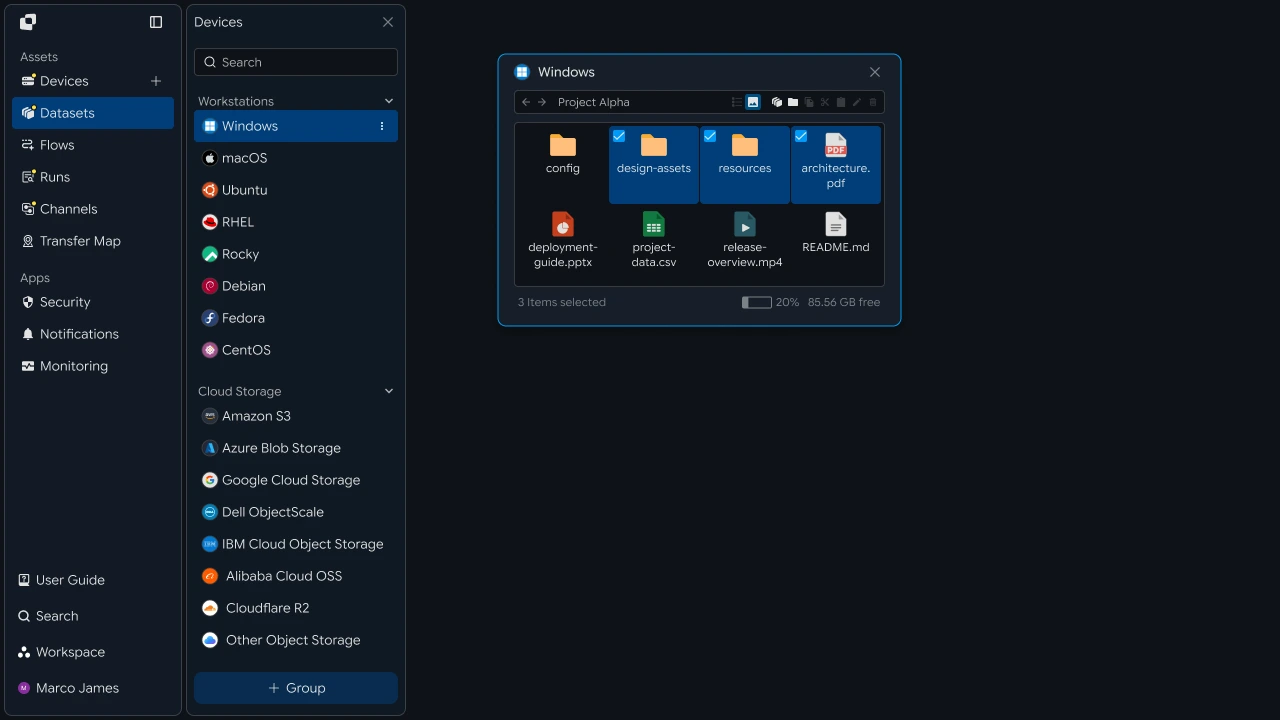
For example, you can view documents on a work PC, data on a server, and result files in storage from the same browsing environment and select the files you need.
Exploration Flow#
Move from device selection to file review and transfer
Unified File Explorer provides a workflow for finding files on connected devices and transferring selected files to the next work environment.
- Select a device
- Browse folders
- Review files
- Select the required files
- Select a transfer target
- Transfer files
- Review results
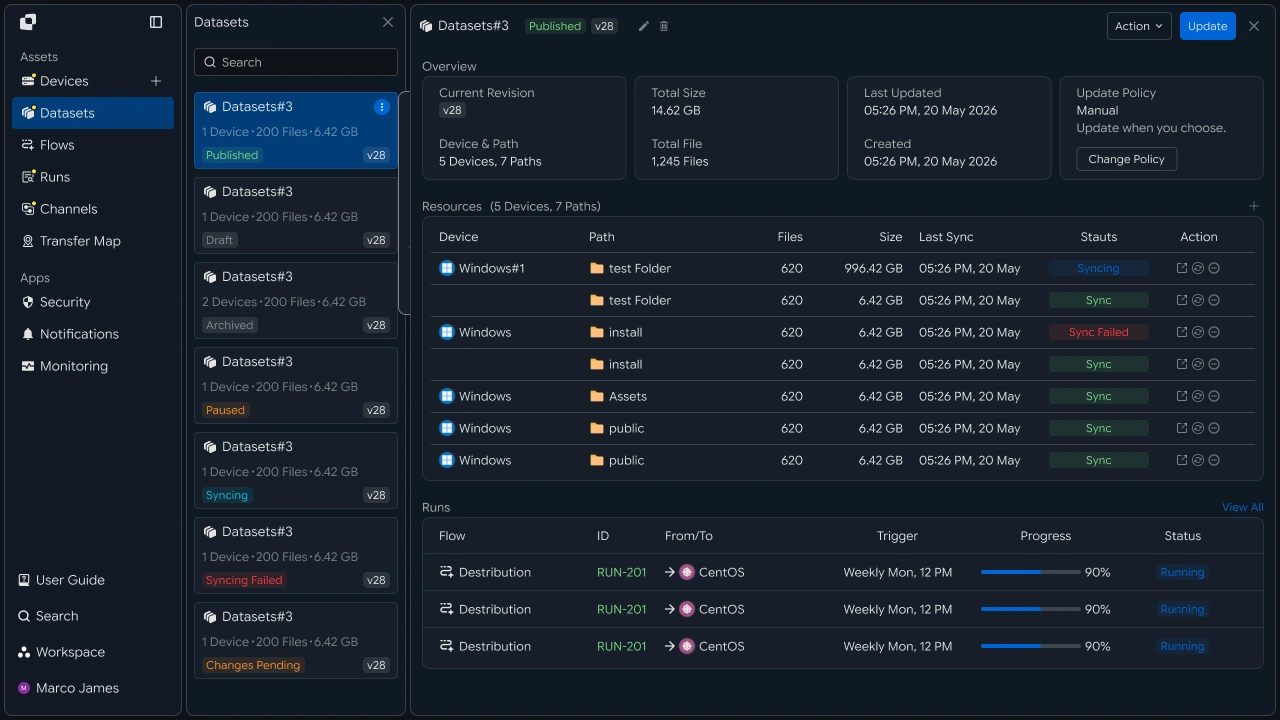
This flow takes you from locating files to transferring them to the required work location and reviewing the results.
Workflow Changes#
Connect file browsing and transfer in a single workflow
When work depends on files across multiple devices, users must identify where the required files are stored, locate them on the relevant device, and prepare them for the next work environment.
With Unified File Explorer, users can find the files they need on connected devices and transfer selected files directly to a specified device or workspace.
| Category | File Management by Device | Unified File Explorer |
|---|---|---|
| Start Work | Identify the device containing the required files | Select directly from the connected device list |
| Browse Files | Review files and folders in each device environment | Browse devices and files from one screen |
| Prepare Files | Prepare files for the next work location after reviewing them | Transfer selected files directly to the target device |
| Continue Work | Continue to the next task after preparing files | Use transferred files immediately after completion |
By combining file browsing and transfer into one flow, files across multiple work environments can be used directly where they are needed.
IT Engineers#
Configure and manage a file browsing environment across multiple devices
Connect Devices#
Connect devices for browsing and expand the environment as needed
To configure Unified File Explorer, first connect the PCs, servers, storage systems, and other devices that contain the files you need to access.
After configuring the connection information for each device, you can browse that system's files and folders from the unified explorer.
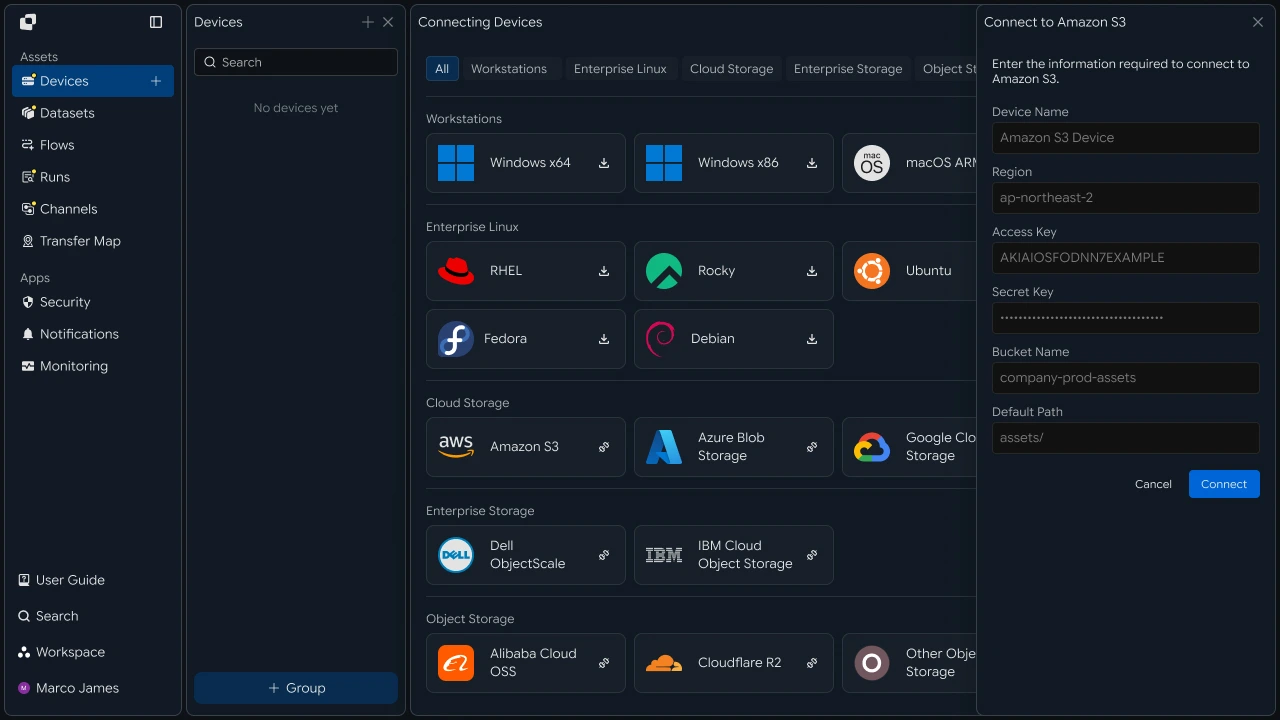
As the work environment expands, you can add new servers or storage systems in the same way. After configuring their connection information, the new devices can be included in the existing browsing environment.
| Device Type | Files Used |
|---|---|
| Work PC | Personal and team work files |
| Windows Server | Business documents and operational files |
| Linux Server | Data and processing files |
| Storage | Shared files and result files |
Adding devices extends the browsing scope to additional systems while preserving the existing file exploration environment.
Access Scope#
Define which files and folders users can access on each device
After connecting devices, configure which devices and file paths users can access based on their roles and responsibilities.
You can assign devices to individual users or user groups and define the folder scope available on each device.
For example, the operations team can be given access to designated folders on operational servers, while the data team can access work paths on analytics servers and data storage.
| User Group | Devices to Browse | File Scope |
|---|---|---|
| Operations Team | Operations Server | Operational file paths |
| Data Team | Analytics Server | Data folders |
| Business Team | Shared Storage | Work file folders |
Defining access scopes by user lets you operate Unified File Explorer around the devices and files each team needs for its work.
Browse Files#
Find the files you need across connected devices
After devices and access scopes are configured, users can select a device in the unified explorer and browse its folders and files.
Selecting a system from the device list displays its folder structure and file list, allowing users to locate files by name and path.

The file browser displays the following information:
| Item | Description |
|---|---|
| Device | Device containing the file |
| Path | Current file path |
| File Name | File name |
| Size | File size |
| Modified | Last modified time |
After locating a file, select it to continue directly to the next transfer operation.
File Transfer#
Transfer selected files to the required device or workspace
After selecting the required files in the explorer, specify the destination device and target path.
The selected files are transferred from their current location to the specified target device or workspace, where they can be reviewed and used in the next task.
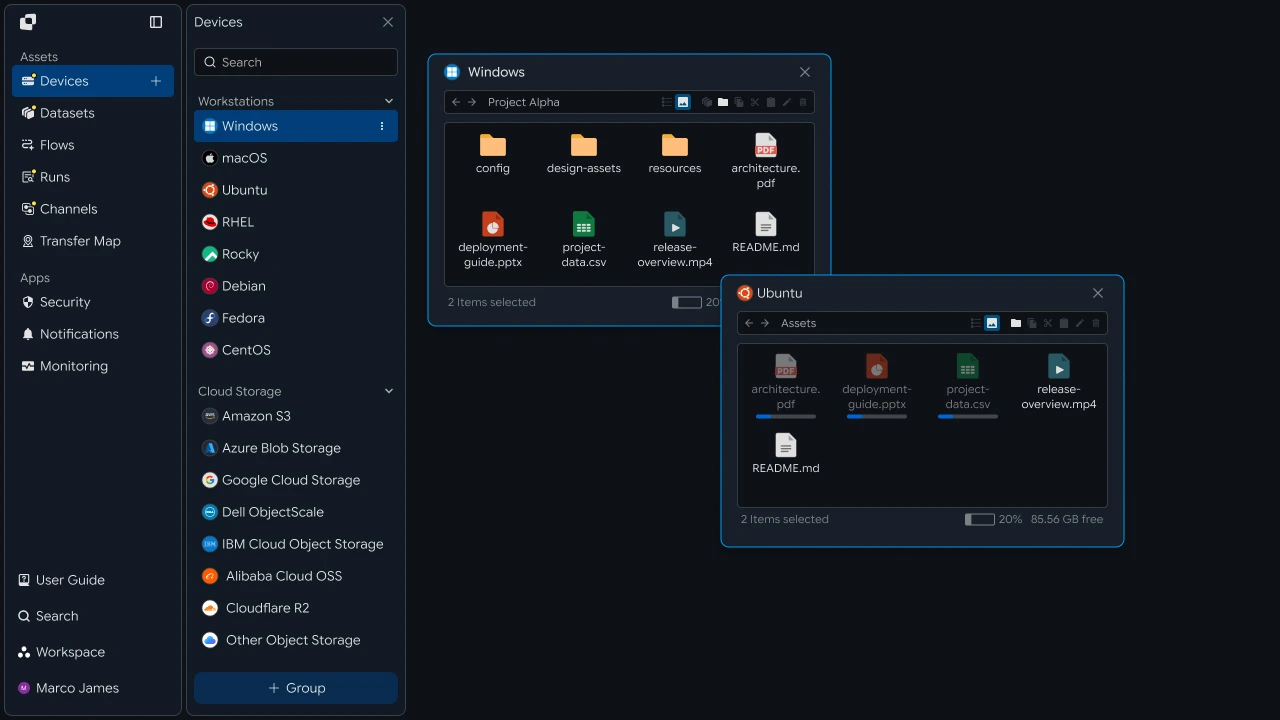
The transfer flow is structured as follows:
Finding files and selecting a destination from the same explorer connects file browsing and transfer in a single workflow.
Verify Results#
Review transfer status and file processing results
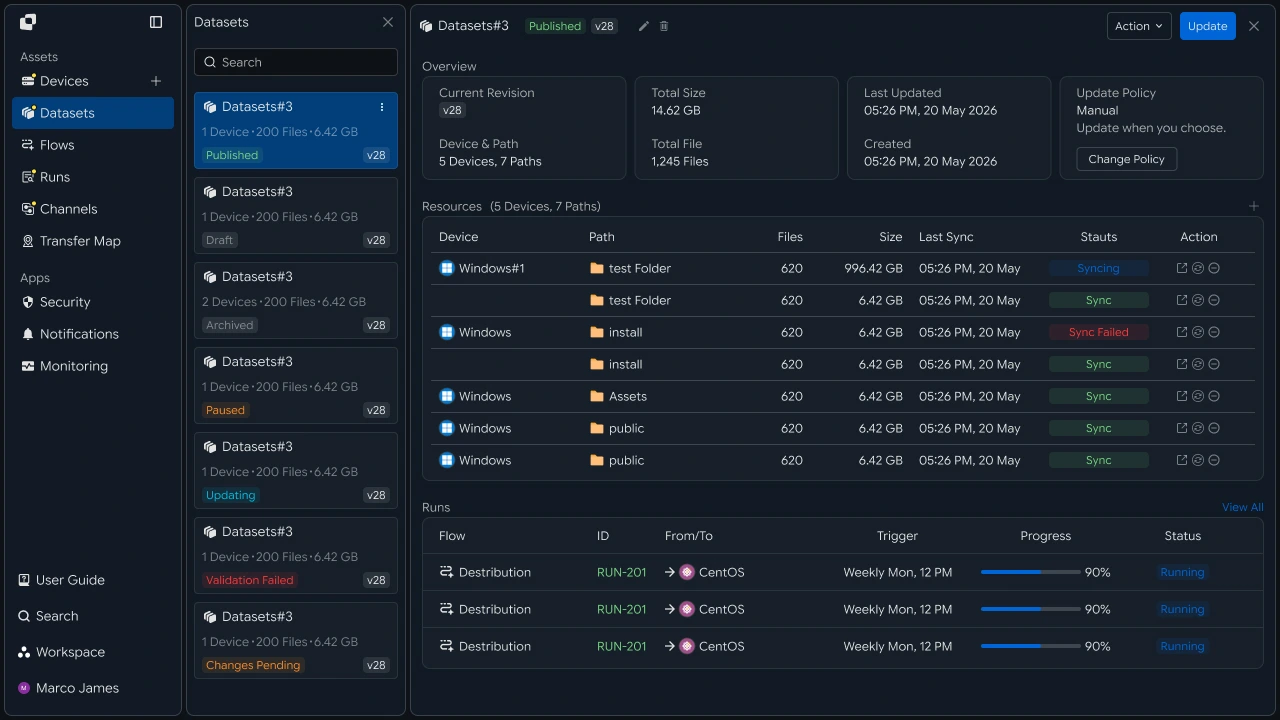
When a file transfer runs, you can review its progress and processing results in Runs.
Each run shows the Source and Target for the transferred files, file count, transfer volume, progress, execution time, and current status.
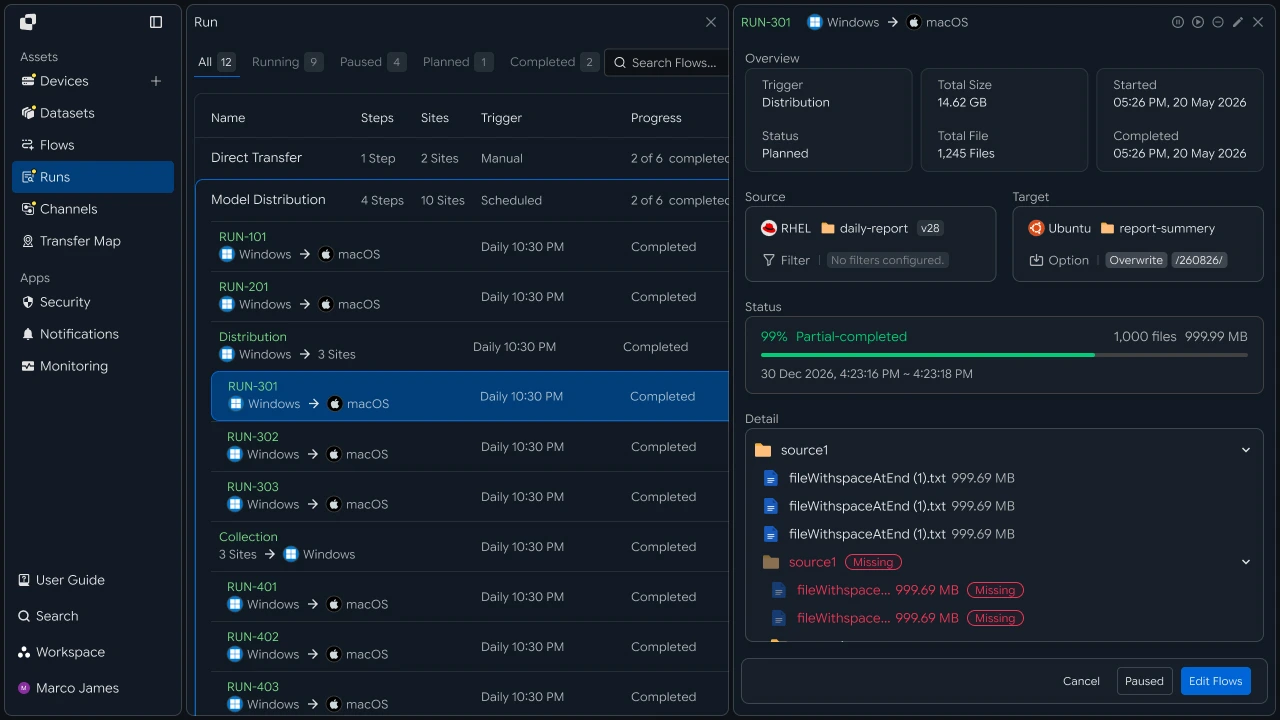
| Item | Details |
|---|---|
| Source | Device and path where the files were selected |
| Target | Device and workspace receiving the files |
| Files | Number of processed files |
| Size | Total transfer volume |
| Progress | Current transfer progress |
| Status | Current run status |
| Time | Execution and completion times |
Operators can use run results to review file transfer flows and processing status between devices and manage how files are delivered to each work environment.
Developers#
Retrieve file lists and search results from remote devices through the API and run transfers between devices
Integration Setup#
Prepare shared API calls and status values
import os
import requests

BASE_URL = os.getenv("INNORIX_BASE_URL", "https://app.innorix.com").rstrip("/")
TOKEN = os.environ["INNORIX_ACCESS_TOKEN"]
WORKSPACE_ID = os.getenv("INNORIX_WORKSPACE_ID")   # optional; falls back to the current workspace

STATUS_COMPLETE = 2
TERMINAL = {2, 4, 5, 9, 99}          # complete / error / cancelled / partial / failed
NOT_SUCCEEDED = {4, 5, 9, 99}


def api(method, path, body=None, params=None):
    headers = {
        "Content-Type": "application/json",
        "Authorization": f"Bearer {TOKEN}",
    }

    if WORKSPACE_ID:
        headers["x-workspace-id"] = WORKSPACE_ID

    response = requests.request(
        method, BASE_URL + path,
        headers=headers, json=body, params=params, timeout=30,
    )

    payload = response.json() if response.content else {}

    if not response.ok:
        raise RuntimeError(payload.get("message") or f"HTTP {response.status_code}")

    return payload.get("data")


def is_terminal(detail):
    return detail.get("isTerminal", detail.get("status") in TERMINAL)
// InnorixClient.java
public static final String BASE_URL =
env("INNORIX_BASE_URL", "https://app.innorix.com").replaceAll("/+quot;, "");
public static final String WORKSPACE_ID = env("INNORIX_WORKSPACE_ID", null);
public static final int STATUS_COMPLETE = 2;
// States the transfer no longer moves out of
public static final Set<Integer> TERMINAL = Set.of(2, 4, 5, 9, 99);
// Terminal states that are not a full success
public static final Set<Integer> NOT_SUCCEEDED = Set.of(4, 5, 9, 99);
private HttpRequest.Builder headers(HttpRequest.Builder builder) {
builder.header("Content-Type", "application/json")
.header("Authorization", "Bearer " + session.accessToken());
// When omitted the account's current workspace is used.
if (workspaceId != null) builder.header("x-workspace-id", workspaceId);
return builder;
}
/** Unwraps and returns data from the response. Throws ApiError on failure. */
public Object api(String method, String path, Object body, Map<String, Object> params) {
Resp response = request(method, path, body, params);
Object payload = null;
try {
payload = Json.parse(response.text());
} catch (RuntimeException ignored) {
payload = null;
}
if (!response.ok()) {
Map<String, Object> map = Json.asObj(payload);
String message = Json.str(map, "message", Json.str(map, "error", "unknown error"));
throw new ApiError(response.status, message, map);
}
return Json.get(payload, "data");
}
/** Use the server flag when present, otherwise fall back to the status code. */
public static boolean isTerminal(Map<String, Object> record) {
Boolean flag = Json.boolOrNull(record, "isTerminal");
if (flag != null) return flag;
Integer status = Json.intOrNull(record, "status");
return status != null && TERMINAL.contains(status);
}// innorix-client.js
const BASE_URL = (process.env.INNORIX_BASE_URL
|| "https://app.innorix.com").replace(/\/+$/, "");
const TOKEN = process.env.INNORIX_ACCESS_TOKEN;
const WORKSPACE_ID = process.env.INNORIX_WORKSPACE_ID || null;
export const STATUS_COMPLETE = 2;
export const TERMINAL = new Set([2, 4, 5, 9, 99]); // complete / error / cancelled / partial / failed
export const NOT_SUCCEEDED = new Set([4, 5, 9, 99]);
export async function api(method, path, body = null, params = null) {
const url = new URL(BASE_URL + path);
if (params) {
for (const [key, value] of Object.entries(params)) {
if (value === undefined || value === null) continue;
url.searchParams.set(key, String(value));
}
}
const headers = {
"Content-Type": "application/json",
Authorization: `Bearer ${TOKEN}`,
};
// When omitted the account's current workspace is used.
if (WORKSPACE_ID) headers["x-workspace-id"] = WORKSPACE_ID;
const response = await fetch(url, {
method,
headers,
body: body === null ? undefined : JSON.stringify(body),
signal: AbortSignal.timeout(30_000),
});
const payload = await response.json().catch(() => ({}));
if (!response.ok) {
throw new Error(payload.message || `HTTP ${response.status}`);
}
return payload.data;
}
export function isTerminal(detail) {
return detail.isTerminal !== undefined
? detail.isTerminal
: TERMINAL.has(detail.status);
}// InnorixClient.cs
public static readonly string BaseUrl =
Env("INNORIX_BASE_URL", "https://app.innorix.com").TrimEnd('/');
public static readonly string WorkspaceIdFromEnv = Env("INNORIX_WORKSPACE_ID", null);
public const int StatusComplete = 2;
/// <summary>States the transfer no longer moves out of</summary>
public static readonly HashSet<int> Terminal = new HashSet<int> { 2, 4, 5, 9, 99 };
/// <summary>Terminal states that are not a full success</summary>
public static readonly HashSet<int> NotSucceeded = new HashSet<int> { 4, 5, 9, 99 };
// Applied on every request
request.Headers.TryAddWithoutValidation("Authorization", "Bearer " + Session.AccessToken);
// When omitted the account's current workspace is used.
if (WorkspaceId != null) request.Headers.TryAddWithoutValidation("x-workspace-id", WorkspaceId);
public async Task<JsonNode> ApiAsync(string method, string path, JsonNode body = null,
IDictionary<string, object> parameters = null)
{
Resp response = await RequestAsync(method, path, body, parameters).ConfigureAwait(false);
JsonNode payload = null;
try
{
payload = J.Parse(response.Text());
}
catch (Exception)
{
payload = null;
}
if (!response.Ok)
{
JsonObject map = J.AsObj(payload);
string message = J.Str(map, "message", J.Str(map, "error", "unknown error"));
throw new ApiError(response.Status, message, map);
}
return J.Get(payload, "data");
}
/// <summary>Use the server flag when present, otherwise fall back to the status code.</summary>
public static bool IsTerminal(JsonObject record)
{
bool? flag = J.BoolOrNull(record, "isTerminal");
if (flag != null) return flag.Value;
int? status = J.IntOrNull(record, "status");
return status != null && Terminal.Contains(status.Value);
}Use the following values to determine transfer status. There are five terminal states, and Complete (2) is the successful state.
| Status Value | Meaning | Terminal |
|---|---|---|
| 2 | Complete | Yes |
| 4 | Error | Yes |
| 5 | Cancelled | Yes |
| 9 | Partial Complete | Yes |
| 99 | Failed | Yes |
| 1, 6, 12, 13 | Starting, Transferring, Synchronizing, Receiving | No |
List Folder Contents#
Retrieve a device file list and display it in the UI
Specify a device identifier and path to retrieve the files and subfolders in that folder. Because the value passed to --device is used as a path parameter, it must be a device ID.
result = api("GET", f"/api/devices/{device_id}/files", params={
    "path": "/data/reports",
    "page": 1,
    "size": 50,
    "sort": "name:asc",
    "type": "all",
})

for item in result["items"]:
    kind = "DIR " if item["isDir"] else "FILE"
print(kind, item["name"], item["size"], item.get("modifiedAt"))Map<String, Object> params = Json.newObj(
"path", "/data/reports",
"page", 1,
"size", 50,
"sort", "name:asc",
"type", "all");
Map<String, Object> result = client.apiObj("GET", "/api/devices/" + deviceId + "/files", null, params);
for (Object item : Json.arrOf(result, "items")) {
Map<String, Object> file = Json.asObj(item);
String kind = Json.bool(file, "isDir", false) ? "DIR " : "FILE";
System.out.println(kind + " " + Json.str(file, "name") + " " + Json.str(file, "size"));
}const result = await client.api("GET", `/api/devices/${deviceId}/files`, null, {
path: "/data/reports",
page: 1,
size: 50,
sort: "name:asc",
type: "all",
});
for (const item of result.items) {
const kind = item.isDir ? "DIR " : "FILE";
console.log(kind, item.name, item.size, item.modifiedAt);
}var parameters = new Dictionary<string, object>
{
["path"] = "/data/reports",
["page"] = 1,
["size"] = 50,
["sort"] = "name:asc",
["type"] = "all",
};
JsonObject result = await client.ApiObjAsync(
"GET", "/api/devices/" + deviceId + "/files", null, parameters);
foreach (JsonNode item in J.ArrOf(result, "items"))
{
JsonObject file = J.AsObj(item);
string kind = J.Bool(file, "isDir", false) ? "DIR " : "FILE";
Console.WriteLine(quot;{kind} {J.Str(file, "name")} {J.Str(file, "size")}");
}| Response Field | Description |
|---|---|
items |
List of files and folders |
total, lastPage |
Total item count and final page |
truncated |
Whether only part of the result was returned because the item limit was exceeded |
isDir |
Whether the item is a folder |
Use the device list endpoint to find the device ID.
result = api("GET", "/api/devices", params={"page": 1, "size": 200})

for device in result["devices"]:
    print(device["deviceId"], device["name"], device.get("os"),
device.get("ipAddress"))Map<String, Object> result = client.apiObj("GET", "/api/devices", null,
Json.newObj("page", 1, "size", 200));
for (Object item : Json.arrOf(result, "devices")) {
Map<String, Object> device = Json.asObj(item);
System.out.println(Json.str(device, "deviceId") + " " + Json.str(device, "name")
+ " " + Json.str(device, "os") + " " + Json.str(device, "ipAddress"));
}const result = await client.api("GET", "/api/devices", null, { page: 1, size: 200 });
for (const device of result.devices) {
console.log(device.deviceId, device.name, device.os, device.ipAddress);
}JsonObject result = await client.ApiObjAsync("GET", "/api/devices", null,
new Dictionary<string, object> { ["page"] = 1, ["size"] = 200 });
foreach (JsonNode item in J.ArrOf(result, "devices"))
{
JsonObject device = J.AsObj(item);
Console.WriteLine(quot;{J.Str(device, "deviceId")} {J.Str(device, "name")} "
+ quot;{J.Str(device, "os")} {J.Str(device, "ipAddress")}");
}The device list is returned in the data.devices array.
Search Files#
Search recursively through subfolders to find files
Folder listing returns only the current folder. To search through subfolders, start a search and retrieve subsequent results using the cursor.
RESTART_CODES = {"INVALID_CURSOR", "CURSOR_OUT_OF_SEQUENCE", "SEARCH_EXPIRED"}


def start_search(device_id, path, page_size=500):
    return api("POST", f"/api/devices/{device_id}/files/search",
               {"path": path, "pageSize": page_size})


def iter_search(device_id, path, max_pages=200):
    page = start_search(device_id, path)
    search_id = page.get("searchId")

    for _ in range(max_pages):
        for item in page.get("items") or []:
            yield search_id, item

        if not page.get("hasMore"):
            return

        try:
            page = api("GET", f"/api/devices/{device_id}/files/search",
                       params={"cursor": page["nextCursor"]})
        except RuntimeError:
            # restart the scan when the cursor expires or falls out of sequence
            page = start_search(device_id, path)
            search_id = page.get("searchId")
static final Set<String> RESTART_CODES =
Set.of("INVALID_CURSOR", "CURSOR_OUT_OF_SEQUENCE", "SEARCH_EXPIRED");
Map<String, Object> startSearch(String deviceId, String path, int pageSize) {
return client.apiObj("POST", "/api/devices/" + deviceId + "/files/search",
Json.newObj("path", path, "pageSize", pageSize));
}
List<Map<String, Object>> search(String deviceId, String path, int maxPages) {
List<Map<String, Object>> found = new ArrayList<>();
Map<String, Object> page = startSearch(deviceId, path, 500);
for (int i = 0; i < maxPages; i++) {
for (Object item : Json.arrOf(page, "items")) found.add(Json.asObj(item));
if (!Json.bool(page, "hasMore", false)) return found;
try {
page = client.apiObj("GET", "/api/devices/" + deviceId + "/files/search",
null, Json.newObj("cursor", Json.str(page, "nextCursor")));
} catch (InnorixClient.ApiError error) {
// Restart the scan when the cursor expires or falls out of sequence.
if (!RESTART_CODES.contains(Json.str(error.payload(), "error"))) throw error;
page = startSearch(deviceId, path, 500);
}
}
return found;
}const RESTART_CODES = new Set([
"INVALID_CURSOR", "CURSOR_OUT_OF_SEQUENCE", "SEARCH_EXPIRED",
]);
async function startSearch(deviceId, path, pageSize = 500) {
return client.api("POST", `/api/devices/${deviceId}/files/search`,
{ path, pageSize });
}
async function* iterSearch(deviceId, path, maxPages = 200) {
let page = await startSearch(deviceId, path);
let searchId = page.searchId;
for (let i = 0; i < maxPages; i += 1) {
for (const item of page.items || []) yield [searchId, item];
if (!page.hasMore) return;
try {
page = await client.api("GET", `/api/devices/${deviceId}/files/search`,
null, { cursor: page.nextCursor });
} catch (error) {
// Restart the scan when the cursor expires or falls out of sequence.
if (!RESTART_CODES.has(error.payload?.error)) throw error;
page = await startSearch(deviceId, path);
searchId = page.searchId;
}
}
}static readonly HashSet<string> RestartCodes = new HashSet<string>
{
"INVALID_CURSOR", "CURSOR_OUT_OF_SEQUENCE", "SEARCH_EXPIRED",
};
async Task<JsonObject> StartSearchAsync(string deviceId, string path, int pageSize = 500)
{
return await client.ApiObjAsync("POST", quot;/api/devices/{deviceId}/files/search",
new JsonObject { ["path"] = path, ["pageSize"] = pageSize });
}
async Task<List<JsonObject>> SearchAsync(string deviceId, string path, int maxPages = 200)
{
var found = new List<JsonObject>();
JsonObject page = await StartSearchAsync(deviceId, path);
for (int i = 0; i < maxPages; i++)
{
foreach (JsonNode item in J.ArrOf(page, "items")) found.Add(J.AsObj(item));
if (!J.Bool(page, "hasMore", false)) return found;
try
{
page = await client.ApiObjAsync("GET", quot;/api/devices/{deviceId}/files/search",
null, new Dictionary<string, object> { ["cursor"] = J.Str(page, "nextCursor") });
}
catch (InnorixClient.ApiError error)
{
// Restart the scan when the cursor expires or falls out of sequence.
if (!RestartCodes.Contains(J.Str(error.Payload, "error"))) throw;
page = await StartSearchAsync(deviceId, path);
}
}
return found;
}Search requests accept only the base path and page size. Name and extension filters are applied to the returned results, so using a narrower base path reduces the search scope.
| Response Field | Description |
|---|---|
searchId |
Search identifier passed when cancelling a search |
items[].type |
file or directory |
hasMore, nextCursor |
Whether another page exists and the cursor used to retrieve it |
Stop a Search#
Stop an active search
A search causes the device to scan its disk. Cancel the search when the user leaves the screen to prevent unnecessary load from accumulating on the device.
def cancel_search(device_id, search_id):
    api("POST", f"/api/devices/{device_id}/files/search/cancel",
        {"uuid": search_id})       # pass the searchId returned when the search started


search_id = None

try:
    for search_id, item in iter_search(device_id, "/data"):
        if item["type"] == "file" and item["name"].endswith(".csv"):
            print(item["path"], item["size"])
finally:
    if search_id:
        cancel_search(device_id, search_id)
void cancelSearch(String deviceId, String searchId) {
// pass the searchId returned when the search started
client.api("POST", "/api/devices/" + deviceId + "/files/search/cancel",
Json.newObj("uuid", searchId));
}
String searchId = null;
try {
Map<String, Object> page = startSearch(deviceId, "/data", 500);
searchId = Json.str(page, "searchId");
// ... walk the results
} finally {
if (searchId != null) cancelSearch(deviceId, searchId);
}async function cancelSearch(deviceId, searchId) {
// pass the searchId returned when the search started
await client.api("POST", `/api/devices/${deviceId}/files/search/cancel`,
{ uuid: searchId });
}
let searchId = null;
try {
for await (const [id, item] of iterSearch(deviceId, "/data")) {
searchId = id;
if (item.type === "file" && item.name.endsWith(".csv")) {
console.log(item.path, item.size);
}
}
} finally {
if (searchId) await cancelSearch(deviceId, searchId);
}async Task CancelSearchAsync(string deviceId, string searchId)
{
// pass the searchId returned when the search started
await client.ApiAsync("POST", quot;/api/devices/{deviceId}/files/search/cancel",
new JsonObject { ["uuid"] = searchId });
}
string searchId = null;
try
{
JsonObject page = await StartSearchAsync(deviceId, "/data");
searchId = J.Str(page, "searchId");
// ... walk the results
}
finally
{
if (searchId != null) await CancelSearchAsync(deviceId, searchId);
}Run the same cleanup logic both when starting a new search and when closing the screen.
File Transfer#
Send selected files to another device
For an immediate transfer, a device can be specified by name, IP address, or identifier, and paths are passed as plain-text strings. This differs from the browsing API, which accepts only device IDs.
When sending a list of files, use sourceItem with isDir: false instead of sourcePaths. sourcePaths treats every path as a folder, so passing files causes the server to scan each file as a folder, which can slow the request or cause it to time out.
def send_files(source, target, target_path, paths, action="numbering"):
    transfer = api("POST", "/api/transfers/manual", {
        "sourceDevice": source,
        "targetDevice": target,
        "targetPath": target_path,
        "sourceItem": [{"path": p, "isDir": False} for p in paths],
        "sendAllFolder": False,
        "transferOptions": {"target-action": action},
    })

    return transfer["monitorId"]


monitor_id = send_files("device-a", "device-b", "/data/collected",
                        ["/data/reports/2026-08.csv"])
String sendFiles(String source, String target, String targetPath,
List<String> paths, String action) {
List<Object> items = new ArrayList<>();
for (String path : paths) items.add(Json.newObj("path", path, "isDir", false));
Map<String, Object> transfer = client.apiObj("POST", "/api/transfers/manual", Json.newObj(
"sourceDevice", source,
"targetDevice", target,
"targetPath", targetPath,
"sourceItem", items,
"sendAllFolder", false,
"transferOptions", Json.newObj("target-action", action)));
return Json.str(transfer, "monitorId");
}
String monitorId = sendFiles("device-a", "device-b", "/data/collected",
List.of("/data/reports/2026-08.csv"), "numbering");async function sendFiles(source, target, targetPath, paths, action = "numbering") {
const transfer = await client.api("POST", "/api/transfers/manual", {
sourceDevice: source,
targetDevice: target,
targetPath,
sourceItem: paths.map((path) => ({ path, isDir: false })),
sendAllFolder: false,
transferOptions: { "target-action": action },
});
return transfer.monitorId;
}
const monitorId = await sendFiles("device-a", "device-b", "/data/collected",
["/data/reports/2026-08.csv"]);async Task<string> SendFilesAsync(string source, string target, string targetPath,
IEnumerable<string> paths, string action = "numbering")
{
var items = new JsonArray();
foreach (string path in paths)
items.Add(new JsonObject { ["path"] = path, ["isDir"] = false });
JsonObject transfer = await client.ApiObjAsync("POST", "/api/transfers/manual",
new JsonObject
{
["sourceDevice"] = source,
["targetDevice"] = target,
["targetPath"] = targetPath,
["sourceItem"] = items,
["sendAllFolder"] = false,
["transferOptions"] = new JsonObject { ["target-action"] = action },
});
return J.Str(transfer, "monitorId");
}
string monitorId = await SendFilesAsync("device-a", "device-b", "/data/collected",
new[] { "/data/reports/2026-08.csv" });When sending folders, use sourcePaths with sendAllFolder: True.
api("POST", "/api/transfers/manual", {
    "sourceDevice": "device-a",
    "targetDevice": "device-b",
    "targetPath": "/data/collected",
    "sourcePaths": ["/data/reports"],
    "sendAllFolder": True,
    "transferOptions": {"target-action": "numbering"},
})client.api("POST", "/api/transfers/manual", Json.newObj(
"sourceDevice", "device-a",
"targetDevice", "device-b",
"targetPath", "/data/collected",
"sourcePaths", List.of("/data/reports"),
"sendAllFolder", true,
"transferOptions", Json.newObj("target-action", "numbering")));await client.api("POST", "/api/transfers/manual", {
sourceDevice: "device-a",
targetDevice: "device-b",
targetPath: "/data/collected",
sourcePaths: ["/data/reports"],
sendAllFolder: true,
transferOptions: { "target-action": "numbering" },
});await client.ApiAsync("POST", "/api/transfers/manual", new JsonObject
{
["sourceDevice"] = "device-a",
["targetDevice"] = "device-b",
["targetPath"] = "/data/collected",
["sourcePaths"] = new JsonArray { "/data/reports" },
["sendAllFolder"] = true,
["transferOptions"] = new JsonObject { ["target-action"] = "numbering" },
});If the file size is already known, pass fileSize to skip the server's per-item lookup.
"sourceItem": [
  { "path": "/data/a.csv", "isDir": false, "fileSize": 1200 }
]
Verify Results#
Review transfer status and per-file processing results
import time


def wait(monitor_id, timeout=1800, interval=3):
    deadline = time.time() + timeout

    while time.time() < deadline:
        detail = api("GET", f"/api/transfers/{monitor_id}")

        if is_terminal(detail):
            return detail

        time.sleep(interval)

    raise TimeoutError(monitor_id)


detail = wait(monitor_id)
succeeded = detail["status"] == STATUS_COMPLETEMap<String, Object> wait(String monitorId, int timeoutSeconds, int intervalSeconds) {
long deadline = System.currentTimeMillis() + timeoutSeconds * 1000L;
while (System.currentTimeMillis() < deadline) {
Map<String, Object> detail = client.apiObj("GET", "/api/transfers/" + monitorId);
if (InnorixClient.isTerminal(detail)) return detail;
Thread.sleep(intervalSeconds * 1000L);
}
throw new InnorixClient.ApiError(0, "timeout waiting for " + monitorId);
}
Map<String, Object> detail = wait(monitorId, 1800, 3);
boolean succeeded = Json.intOrNull(detail, "status") != null
&& Json.intOrNull(detail, "status") == InnorixClient.STATUS_COMPLETE;const sleep = (ms) => new Promise((resolve) => setTimeout(resolve, ms));
async function wait(monitorId, { timeout = 1800, interval = 3 } = {}) {
const deadline = Date.now() + timeout * 1000;
while (Date.now() < deadline) {
const detail = await client.api("GET", `/api/transfers/${monitorId}`);
if (isTerminal(detail)) return detail;
await sleep(interval * 1000);
}
throw new Error(`timeout waiting for ${monitorId}`);
}
const detail = await wait(monitorId);
const succeeded = detail.status === STATUS_COMPLETE;async Task<JsonObject> WaitAsync(string monitorId, int timeoutSeconds = 1800,
int intervalSeconds = 3)
{
long deadline = Environment.TickCount64 + timeoutSeconds * 1000L;
while (Environment.TickCount64 < deadline)
{
JsonObject detail = await client.ApiObjAsync("GET", "/api/transfers/" + monitorId);
if (InnorixClient.IsTerminal(detail)) return detail;
await Task.Delay(intervalSeconds * 1000);
}
throw new InnorixClient.ApiError(0, "timeout waiting for " + monitorId);
}
JsonObject detail = await WaitAsync(monitorId);
bool succeeded = J.IntOrNull(detail, "status") == InnorixClient.StatusComplete;Full failures and partial failures should be displayed differently in the UI. Check each file's status through the file listing endpoint and retry only the failed files.
def failed_files(monitor_id):
    result = api("GET", f"/api/transfers/{monitor_id}/files", params={
        "state": "any", "size": 500,
    }) or {}

    return [r for r in (result.get("children") or [])
            if r.get("status") in NOT_SUCCEEDED]


def retry_failed(monitor_id):
    rows = failed_files(monitor_id)

    if not rows:
        return 0

    api("POST", f"/api/transfers/{monitor_id}/retry", {
        "filesRetry": [
            {"filePath": r["sourceFilePath"], "isDir": bool(r.get("isFolder"))}
            for r in rows
        ]
    })

return len(rows)List<Map<String, Object>> failedFiles(String monitorId) {
Map<String, Object> result = client.apiObj("GET",
"/api/transfers/" + monitorId + "/files", null,
Json.newObj("state", "any", "size", 500));
List<Map<String, Object>> failed = new ArrayList<>();
for (Object item : Json.arrOf(result, "children")) {
Map<String, Object> row = Json.asObj(item);
Integer status = Json.intOrNull(row, "status");
if (status != null && InnorixClient.NOT_SUCCEEDED.contains(status)) failed.add(row);
}
return failed;
}
int retryFailed(String monitorId) {
List<Map<String, Object>> rows = failedFiles(monitorId);
if (rows.isEmpty()) return 0;
List<Object> filesRetry = new ArrayList<>();
for (Map<String, Object> row : rows) {
filesRetry.add(Json.newObj(
"filePath", Json.str(row, "sourceFilePath"),
"isDir", Json.bool(row, "isFolder", false)));
}
client.api("POST", "/api/transfers/" + monitorId + "/retry",
Json.newObj("filesRetry", filesRetry));
return rows.size();
}async function failedFiles(monitorId) {
const result = (await client.api("GET", `/api/transfers/${monitorId}/files`,
null, { state: "any", size: 500 })) || {};
return (result.children || []).filter((row) => NOT_SUCCEEDED.has(row.status));
}
async function retryFailed(monitorId) {
const rows = await failedFiles(monitorId);
if (rows.length === 0) return 0;
await client.api("POST", `/api/transfers/${monitorId}/retry`, {
filesRetry: rows.map((row) => ({
filePath: row.sourceFilePath,
isDir: Boolean(row.isFolder),
})),
});
return rows.length;
}async Task<List<JsonObject>> FailedFilesAsync(string monitorId)
{
JsonObject result = await client.ApiObjAsync("GET",
quot;/api/transfers/{monitorId}/files", null,
new Dictionary<string, object> { ["state"] = "any", ["size"] = 500 });
return J.ArrOf(result, "children")
.Select(J.AsObj)
.Where(row =>
{
int? status = J.IntOrNull(row, "status");
return status != null && InnorixClient.NotSucceeded.Contains(status.Value);
})
.ToList();
}
async Task<int> RetryFailedAsync(string monitorId)
{
List<JsonObject> rows = await FailedFilesAsync(monitorId);
if (rows.Count == 0) return 0;
var filesRetry = new JsonArray();
foreach (JsonObject row in rows)
{
filesRetry.Add(new JsonObject
{
["filePath"] = J.Str(row, "sourceFilePath"),
["isDir"] = J.Bool(row, "isFolder", false),
});
}
await client.ApiAsync("POST", quot;/api/transfers/{monitorId}/retry",
new JsonObject { ["filesRetry"] = filesRetry });
return rows.Count;
}Retries can be requested only after the transfer reaches a terminal state. A retry is rejected while the transfer is still in progress, so check the status first.
| Item | Details |
|---|---|
status |
Transfer status value |
statusLabel |
Status string displayed in the UI |
percent |
Progress percentage |
fileCount, totalSize |
Number of processed files and total size |
children[].errorCode |
Per-file failure reason |