
Getting Started#
Basic Concept#
Directly connect Windows and Linux as separate file working environments
In environments that use Windows and Linux servers together, files created on one operating system often need to be moved to another server.
For example, business data created on Windows may need to be processed on a Linux server, or processing results from a Linux server may need to be checked again in a Windows environment.
When an intermediate file server or shared storage is used, an additional process is required to store the files in one location and then retrieve them again on the required server.
Direct file transfer is a method that directly connects Windows and Linux servers as Source and Target and transfers files immediately to the location where they are actually needed.
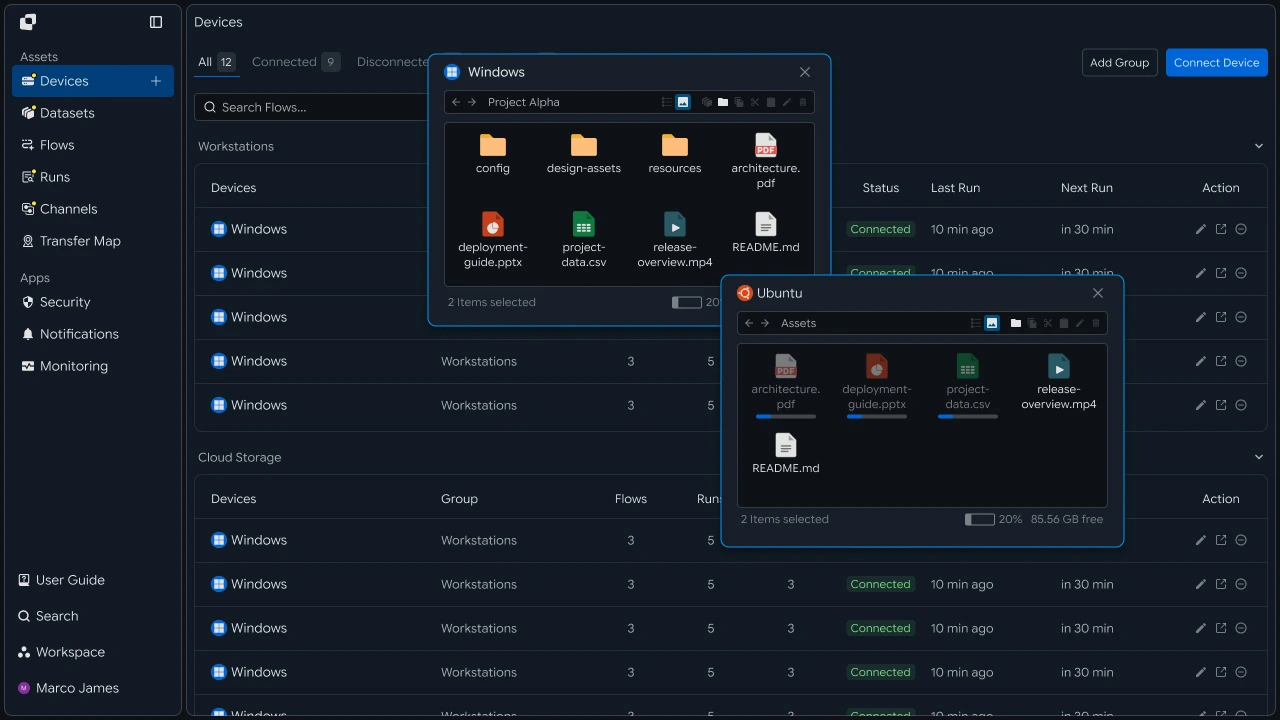
This allows you to create a simple file path of File Creation Environment → Direct Transfer → Target Working Environment without storing files in a separate shared location.
Transfer Method#
Configure the transfer path according to the direction files move and where they are actually used
File transfers between Windows and Linux do not need to be limited to one direction.
Depending on the workflow, you can configure transfers from Windows to Linux or retrieve result files from Linux back to Windows.
Windows → Linux#
Transfer files prepared on Windows to the processing environment on the Linux server.
For example, CSV files, images, installation files, or business data created on Windows can be transferred directly to an analytics or processing folder on the Linux server.
Linux → Windows#
Result files created on Linux can also be brought back to the Windows environment.
For example, analytics results, log files, or completed processing files created on the Linux server can be transferred to a Windows user's working folder.
The transfer direction can be configured according to where files are created and where they will be used.
| File Flow | Usage Example |
|---|---|
| Windows → Linux | Transfer business files to the server processing environment |
| Linux → Windows | Transfer processing results to the user environment |
| Windows → Linux → Windows | Transfer source files, process on server, retrieve results |
| Multiple Devices → Linux | Collect files from multiple Windows devices on the server |
Workflow Change#
Transfer directly to the device where files are needed without going through a shared location
Previously, an intermediate server or shared folder may have been used to move files between different operating systems.
With direct transfer, the file movement path can be shortened.
| Category | Using Shared Location | Direct File Transfer |
|---|---|---|
| File Storage | Store files in an intermediate location | Transfer directly from the source location |
| Target Preparation | Check files again on the target server | Apply directly to the specified path |
| File Movement | Separate upload and download processes | Process as a single transfer task |
| Path Management | Manage shared and target locations separately | Connect Source and Target directly |
Direct transfer not only reduces file movement steps, but also allows you to configure a clear transfer path showing how files created on Windows are used on Linux.
IT Engineer#
Device Connection#
Register Windows and Linux file access locations in the transfer environment
To configure direct file transfer, first connect the Windows and Linux servers to the transfer environment.
On Windows, check the drives and folders where files will be retrieved or stored. On Linux, specify the directories where files will be read or stored.
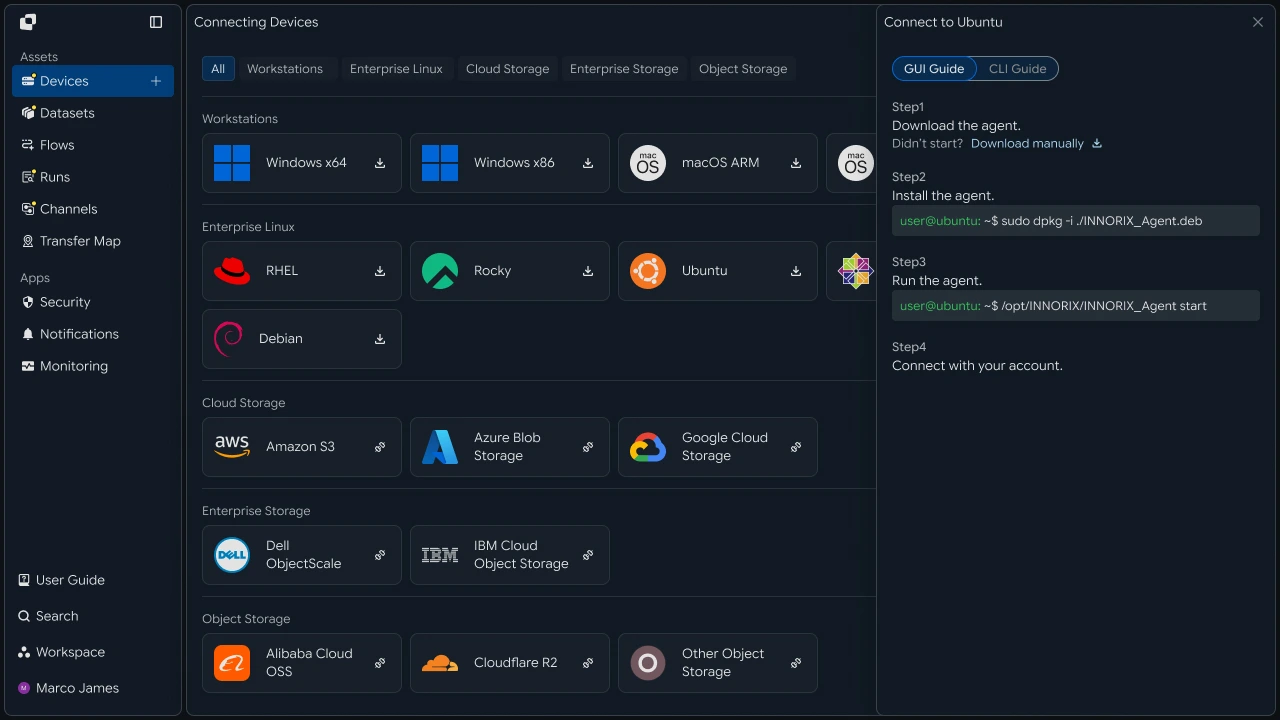
After connecting the devices, you can select the actual Source and Target to use for each transfer task.
Path Configuration#
Directly connect the source folder and target folder
In the transfer task, specify the actual file paths on Windows and Linux.
For example, you can use the following Windows folder as the Source.
D:\Export\Daily\Then specify the following Linux path as the Target.
/data/import/daily/Connecting the two locations in a single transfer task creates the following structure.
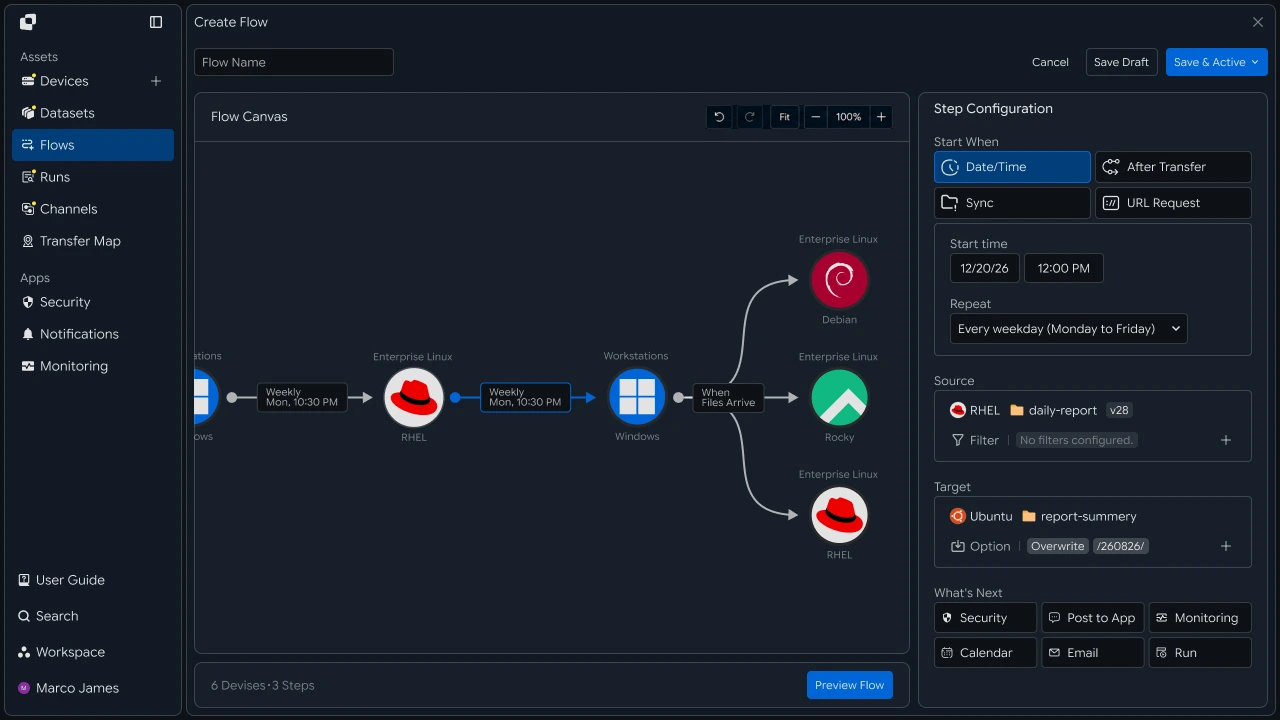
If necessary, multiple paths can also be separated according to business purpose.
| Source | Target | File Purpose |
|---|---|---|
D:\Export\Data\ |
/data/input/ |
Data Processing |
D:\Build\ |
/opt/release/ |
Installation File Distribution |
D:\Media\ |
/media/input/ |
Media Processing |
With this configuration, even when connecting one Windows server and one Linux server, you can operate separate transfer paths according to the purpose of the files.
Transfer Rules#
Run direct transfer tasks according to file characteristics and workflow timing
After Windows and Linux are connected, configure which files to transfer and when.
For example, you can transfer only CSV files created in a specific folder to a Linux analytics server, or automatically transfer an installation package to a deployment server after it is ready.
Transfer rules can be configured as follows.
Execution criteria can also be selected according to the workflow.
| Execution Criteria | Application Method |
|---|---|
| File Ready | Transfer after the specified file is created |
| Scheduled Execution | Transfer files at a specified time |
| Previous Task Complete | Transfer after another task completes |
| External Request | Run from an application or URL request |
This allows you to go beyond simply connecting two servers and connect the point when files are actually ready with the point when server processing starts.
Bidirectional Configuration#
Manage pre-processing files and processing results in different directions
In environments where both source files and result files move between Windows and Linux, you can separate transfer flows by direction instead of processing every file in a single transfer task.
For example, send source files from Windows to the Linux server, then transfer only the processed results from Linux back to Windows.
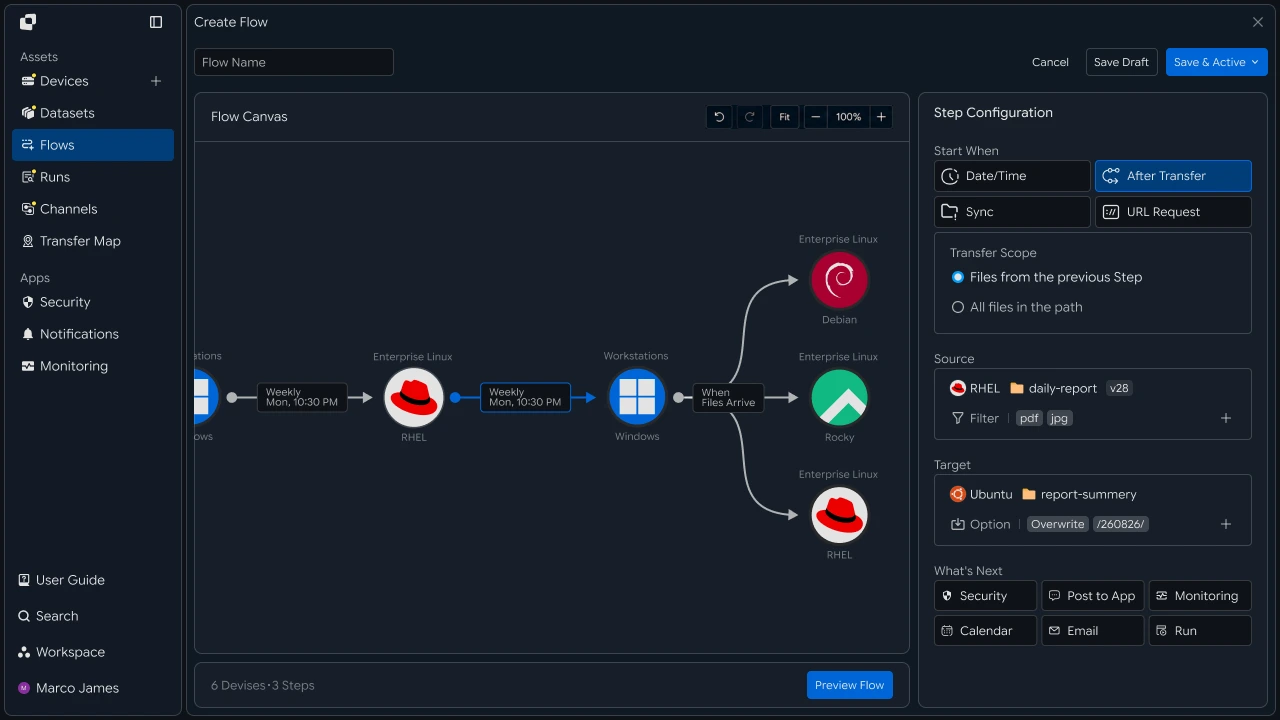
This method clearly separates the storage locations of source files and results, making it suitable for managing pre-processing and completed files separately.
Execution Status#
Check which files are being transferred between each server
When a transfer task runs, check the overall progress and transfer results in Runs.
When you select a specific Run, you can check which path on which Windows device the files came from and where they were stored on Linux.

You can check the following items through the execution information.
| Check Item | Details |
|---|---|
| Source | Source Windows or Linux device |
| Source Path | Path where files were retrieved |
| Target | Target device where files were transferred |
| Target Path | Path where files were stored |
| Total Files | Number of files to process |
| Total Size | Total transfer size |
| Progress | Current transfer progress |
| Status | Task status |
| Completed | Task completion time |
By checking per-file results, you can also identify cases where the overall task completed but some files require additional review.
Next Task#
Automatically connect server tasks based on directly transferred files
File transfer between Windows and Linux does not need to end with file movement. You can also connect tasks that occur after the files are ready on the target server.
For example, when files from Windows arrive on the Linux server, you can run a processing script and then transfer generated result files to another device.
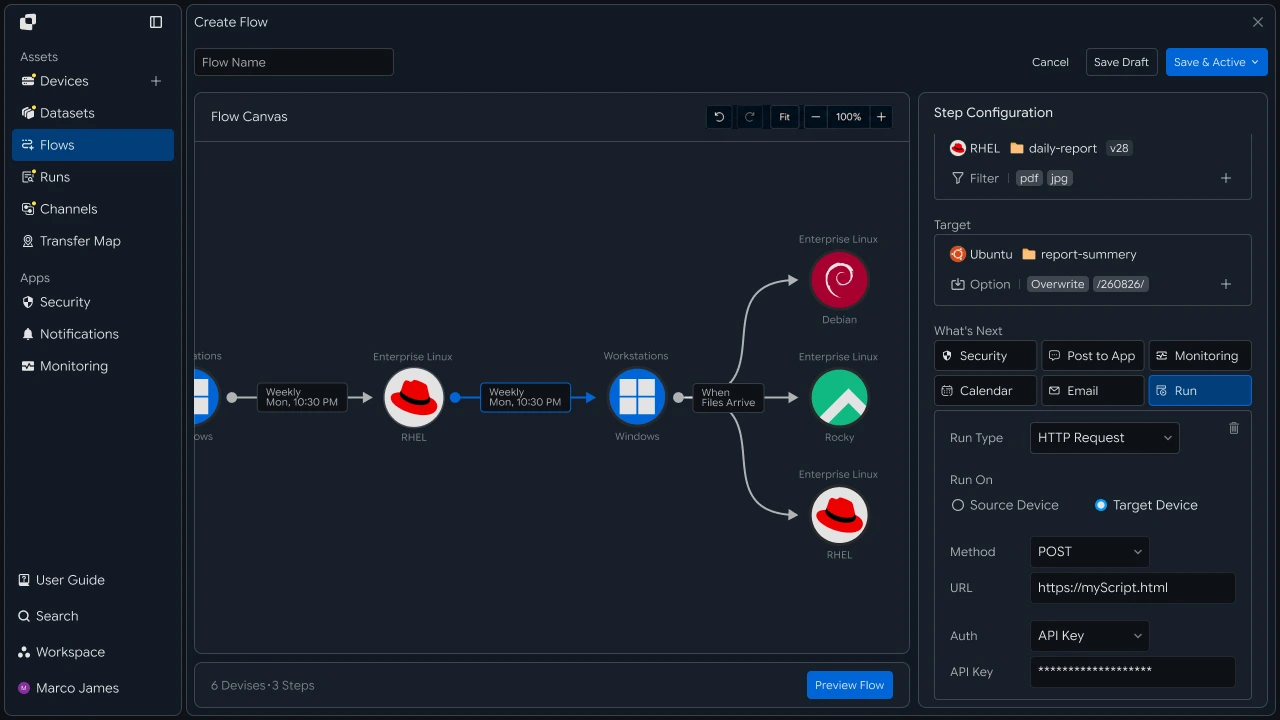
| Connected Target | Usage |
|---|---|
| Processing Task | Run server task after files are applied |
| Next Transfer | Transfer processing results to another device |
| Collaboration Tool | Notify task completion or failure results |
| Monitoring | Check transfer status between servers |
This allows you to connect multiple working environments with different operating systems into a single file flow, including Windows File Creation → Linux Processing → Result Transfer.
Issue Check#
Check Source and Target status based on where the transfer stopped
If additional review is required during direct file transfer, use the Run details to identify where the issue occurred.
Check the file path and access status of the Windows Source and the storage path and permissions of the Linux Target separately, then adjust the required settings.
After checking, you can take action on the following items.
| Check Location | Details |
|---|---|
| Windows Device | Device connection and source file status |
| Source Path | Actual file location and access scope |
| Linux Server | Target server connection status |
| Target Path | File storage location |
| Storage Permission | File creation permission in target directory |
| Run History | Transfer stage and per-file processing results |
After adjusting the environment, rerun the required task and check in the new Run whether the files were successfully applied to the target server.
This allows you to directly connect Windows and Linux file working environments without going through a separate intermediate server or shared storage and configure a transfer flow from file creation through server processing and result usage.