Getting Started
Core Concept
Distribute a single file consistently to multiple target locations
Installation files, update files, documents, data, and result files used in business operations are often shared across multiple teams and systems.
Automated file distribution connects files prepared at a single Source to multiple Targets and automatically delivers the required files to each destination.
For example, installation files prepared at headquarters can be distributed to servers at multiple branches, or new data files can be applied simultaneously across multiple processing environments.
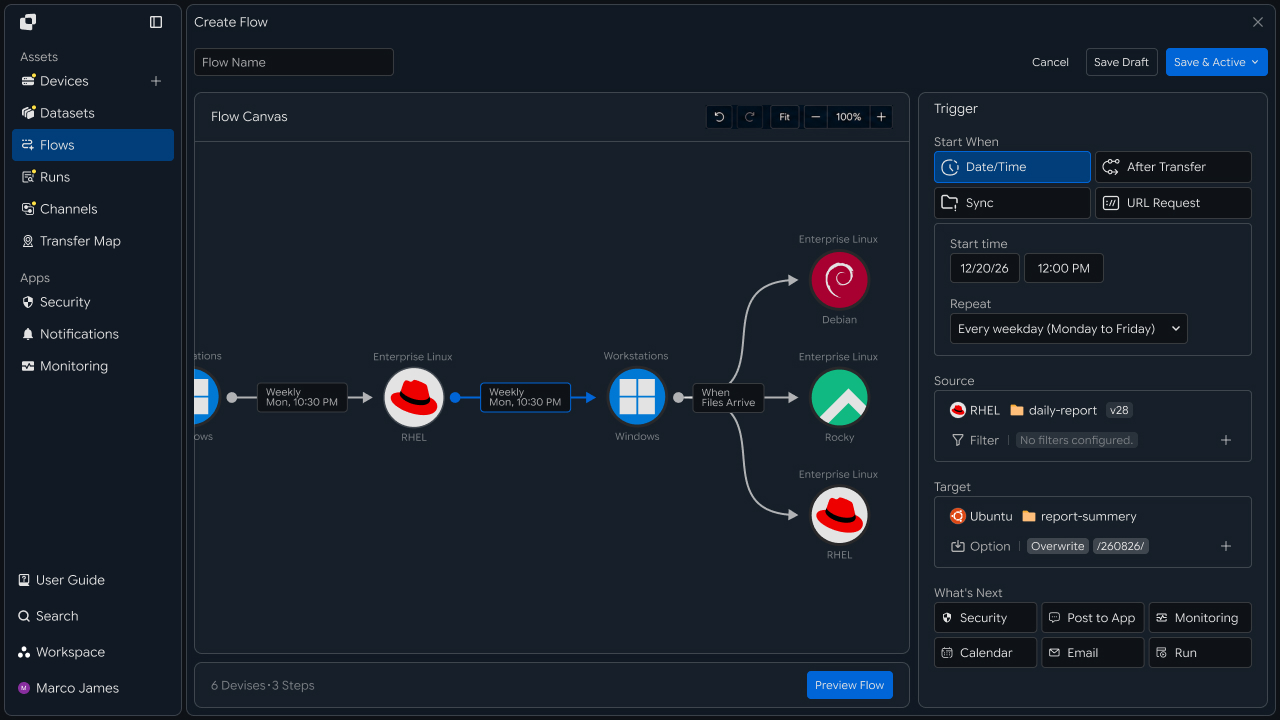
By building a distribution flow with one file as the source for multiple targets, each business environment can use the files it needs according to the same standards.
Distribution Flow
Automate the process from file preparation through delivery to multiple locations
Automated file distribution prepares the files to distribute, configures the multiple target locations that will receive them, and runs the distribution operation according to defined conditions.
① Prepare the files to distribute
↓
② Configure distribution targets
↓
③ Check distribution conditions
↓
④ Transfer files to each target
↓
⑤ Apply files at each location
↓
⑥ Review the results
Once the files are prepared at the Source, they are transferred to multiple Targets according to the configured Flow and applied so they can be used at each destination.
This workflow connects a single file to multiple business environments and devices, creating a file flow that continues from distribution through actual use.
Operational Changes
Reduce repetitive file transfer and distribution work
When the same file is used by multiple teams or devices, preparing and transferring the file to each target becomes repetitive.
With automated file distribution, you can connect a single Source file to multiple Targets and automatically distribute it to multiple locations according to defined conditions.
Before and After Distribution
| Category | Individual File Management | Automated File Distribution |
|---|---|---|
| File Preparation | Prepare files for each target | Prepare a single Source file |
| Target Selection | Select each location individually | Configure multiple Targets in a single Flow |
| File Transfer | Run a separate transfer for each target | Automatically distribute according to defined conditions |
| File Usage | Start work after the file arrives | Start work immediately at the required location |
In this way, automated file distribution connects a single file with multiple business environments.
By configuring regularly distributed files or materials shared across multiple environments as an automated distribution flow, you can connect everything from file preparation to use in each business operation.
Business Teams
Business teams focus on checking distributed files at the locations where they are needed and putting them to immediate use.
Latest Files
Use distributed files immediately at the business location
When files are distributed to multiple teams or business environments, each person can check the files currently needed for their work from their own workspace.
For example, when a new business document or processing result is distributed, each team can find the file in its workspace or designated folder and continue working immediately.
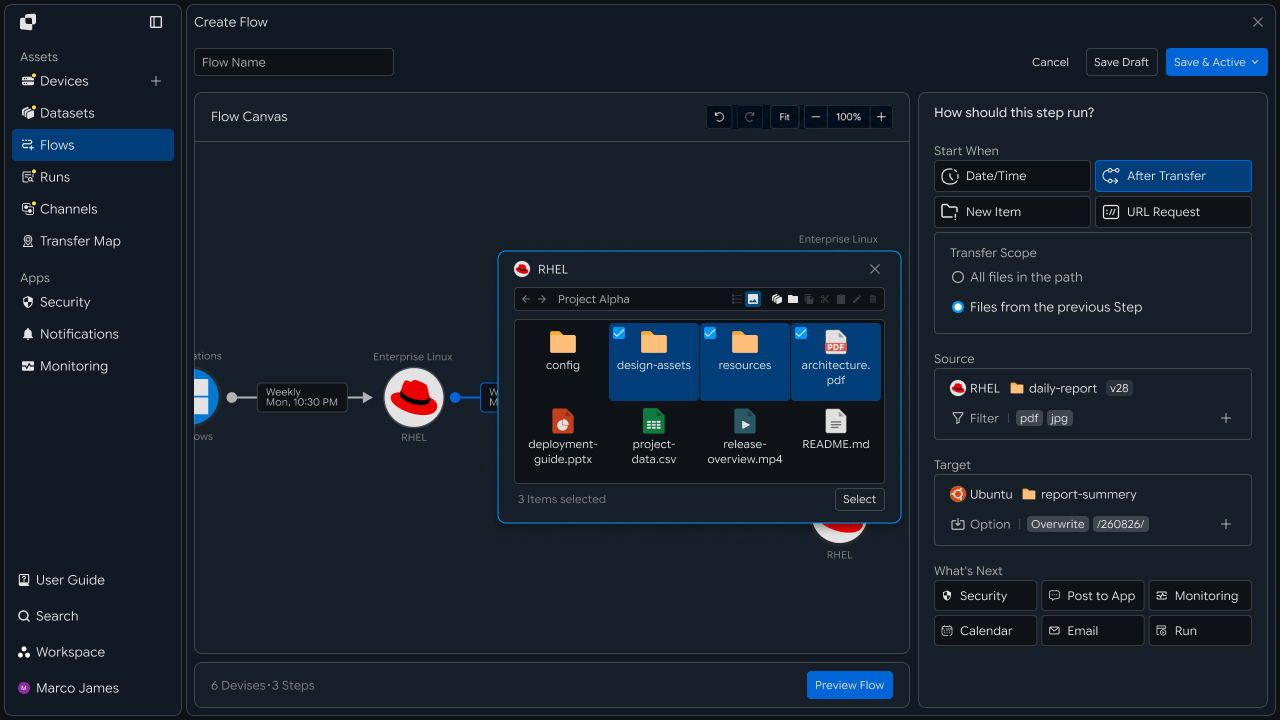
The following information can be reviewed.
| Review Item | Usage |
|---|---|
| File Name | Identify the file currently needed for work |
| File Version | Confirm the latest business standard |
| Modified Time | Check when the file was changed |
| Distribution Time | Check when the file was applied |
| File Location | Identify where the file is used for work |
Reviewing distributed file information lets you start work immediately based on the files currently required.
Team-Specific Usage
Continue using distributed files according to each team's work
Even when the same file is distributed to multiple teams, each team can use it in a way that fits its own work.
For example, when the content production team prepares a result file, it can be distributed to the review and operations teams' workspaces, allowing each team to continue its next task based on the applied file.
File Preparation
    ↓

Content Production Team
    ↓

Review Team
    ↓

Operations Team
    ↓

Follow-up Work
Connecting a single file to multiple teams' work environments reduces team-specific file preparation and lets each team immediately use the files it needs.
Workflow Connection
Continue the next task based on the distributed file
Once a file is applied at the required location, the next tasks—such as review, installation, analysis, or approval—can be performed using that file.
For example, when result data is distributed to an analysis environment, the person responsible can begin analysis using that data. When an installation file is applied to a server, the operations team can continue the next task based on the distributed file.
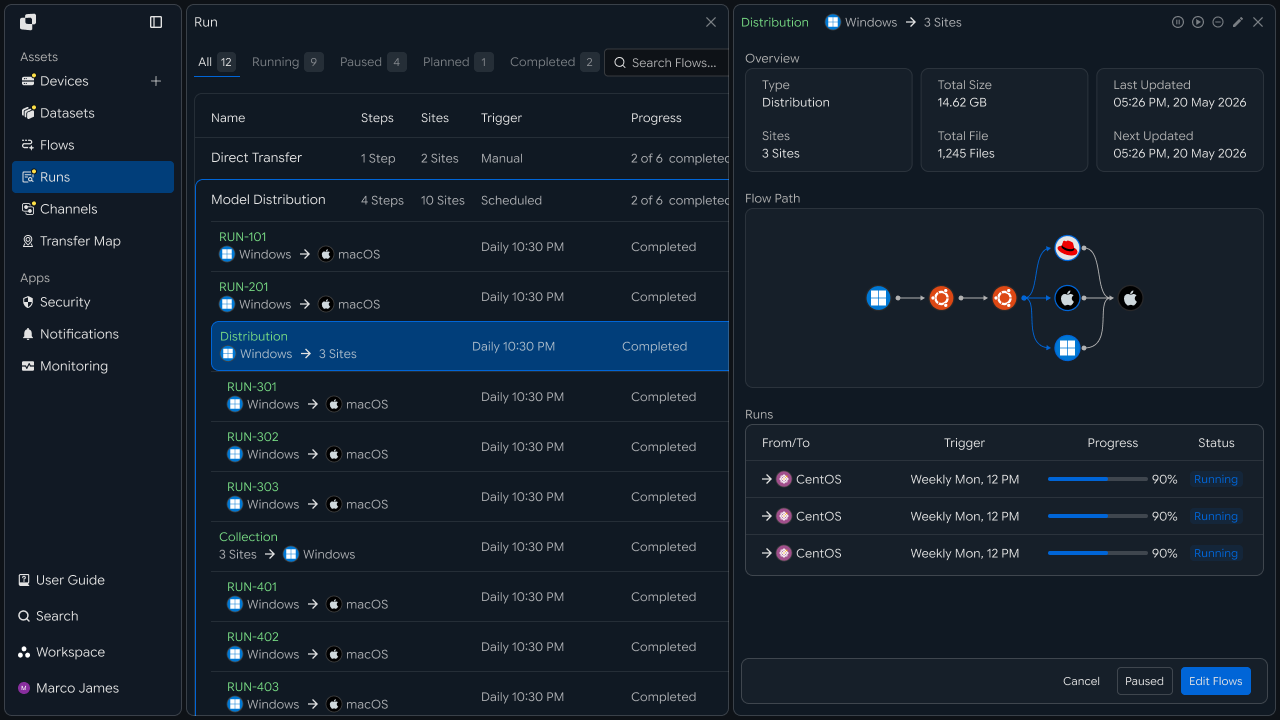
Connecting file distribution with follow-up work lets users check the required file and immediately continue to the next task.
IT Engineer
IT engineers focus on building the distribution structure, configuring execution conditions and file-handling rules, and operating distribution status across multiple targets.
Distribution Environment
Connect the source file with multiple distribution locations
To configure automated file distribution, first connect the Source containing the files to distribute with the multiple Targets that will receive them.
The Source manages the files used as the distribution baseline, while Targets can be configured as team workspaces, branch systems, servers, devices, or other locations where the files will be used.
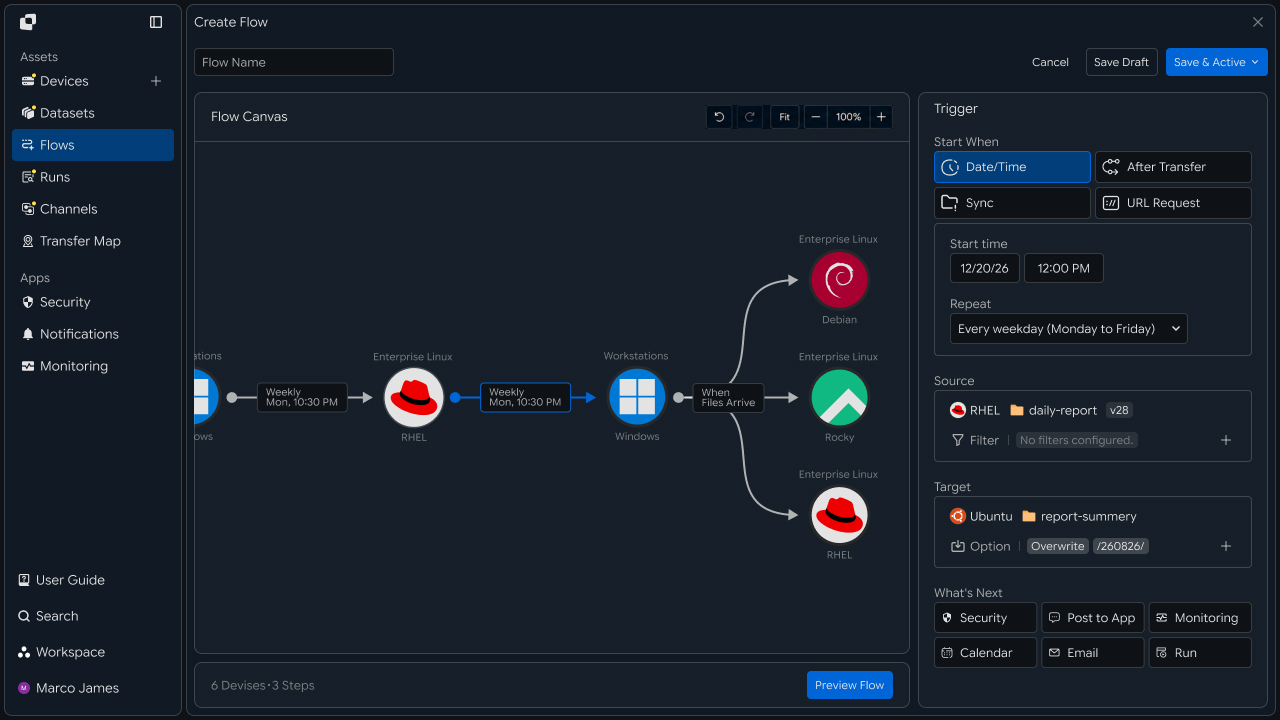
Configure the systems and file paths to use for each Source and Target.
| Category | Role |
|---|---|
| Source | Manage the original files to distribute |
| Target A | Team or business system |
| Target B | Server or device |
| Target C | Branch or additional environment |
| Target N | Expanded distribution target |
This prepares the distribution structure for connecting a single file to multiple target environments.
Execution Settings
Decide when and which files to distribute
After configuring the distribution environment, specify when distribution runs and which files are included.
Using Start When and file filters, you can configure automatic execution criteria around the business workflow, such as file creation, schedules, or completion of a previous operation.
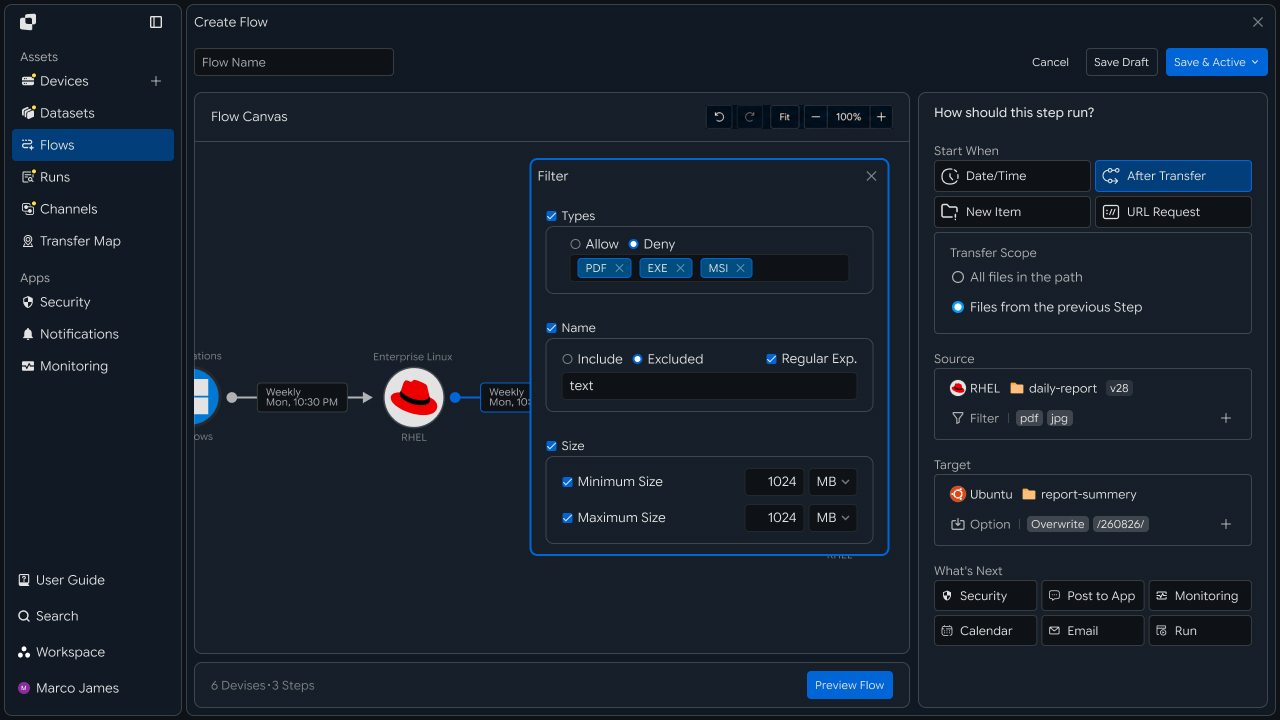
The main execution methods are as follows.
Date/Time: Distribute at the specified date and time
After Transfer: Distribute after the previous file operation is complete
Sync: Distribute based on file creation or changes
URL Request: Distribute in response to an external request
When needed, you can select the files to distribute based on their name, extension, or path.
File Policy
Set file-handling rules for target environments
When distributing files to multiple Targets, you can apply the same file-handling rules across each target environment.
Use File Conflict Handling to define what happens when a file with the same name already exists.
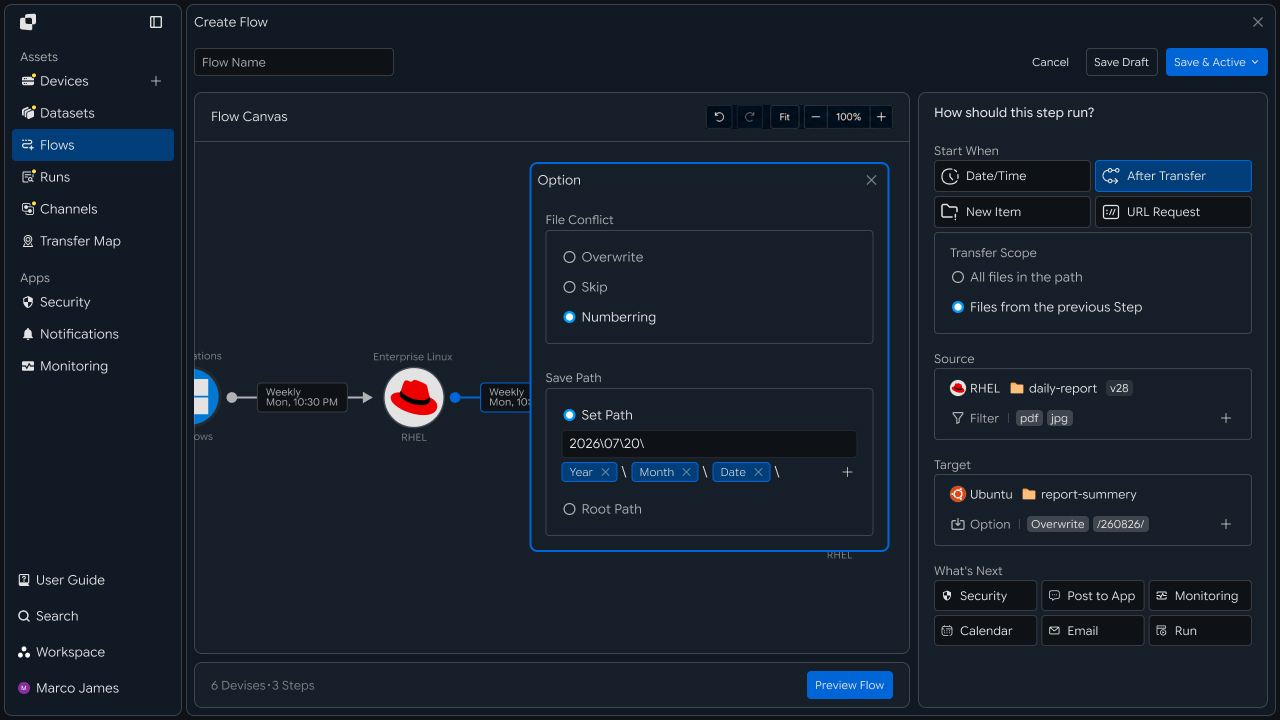
| Handling Method | Result |
|---|---|
| Overwrite | Apply the file state based on the distributed file |
| Skip | Keep the existing file at the destination |
| Numbering | Add a number to keep both files |
Applying file-handling policies to the Flow ensures consistent file management across multiple Targets.
Distribution Configuration
Automatically apply a single file to multiple targets
After configuring the Source and Targets, execution conditions, and file policies, combine the complete distribution flow into a single Flow.
A file prepared at one Source is split across multiple Targets and transferred according to the configured conditions.
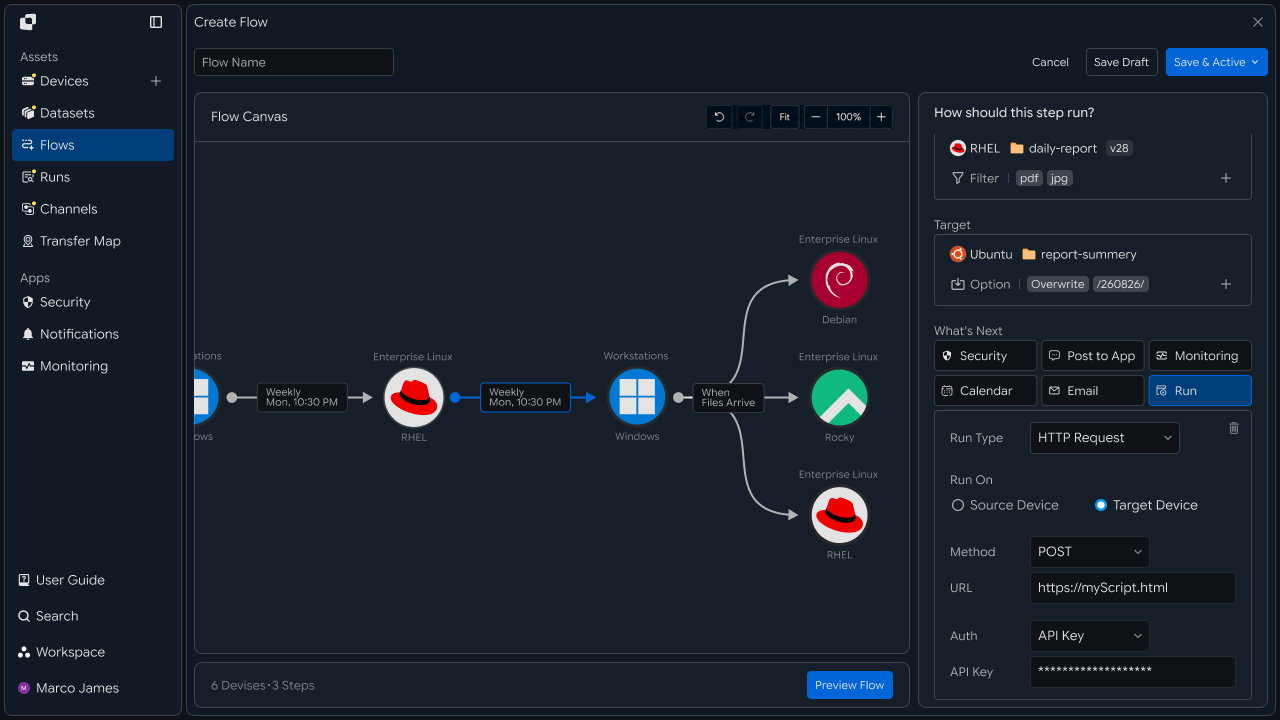
                 ┌── Team A
                 │
Source File ─────┼── Team B
                 │
                 ├── Branch Office
                 │
                 ├── Server Cluster
                 │
                 └── Device Group
You can apply separate file paths and processing conditions to each Target, allowing a single file to be distributed according to the operating requirements of multiple environments.
Automation Integration
Connect distribution results to notifications and downstream systems
When file distribution is complete, you can run the next Flow or connect to an external service to automate the work that follows distribution.
For example, you can send distribution results to a collaboration tool, create follow-up tasks in a work management system, or configure a monitoring environment to track distribution status.
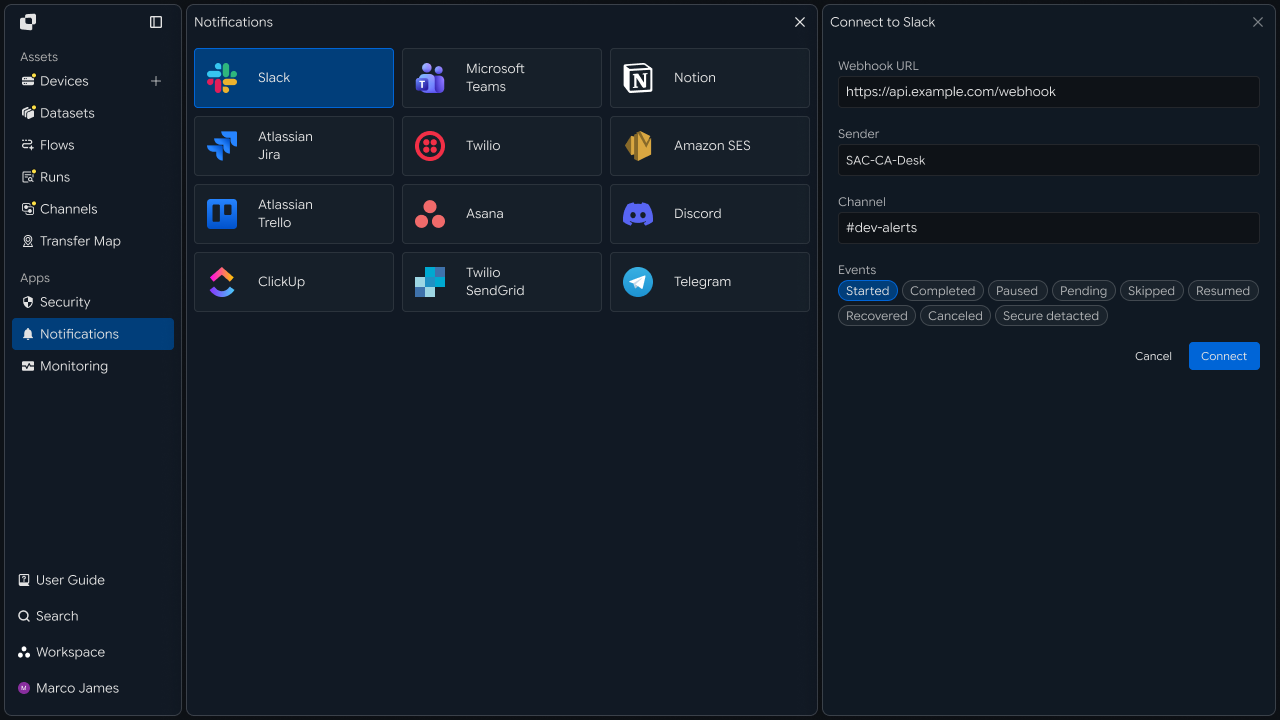
File Preparation
    ↓

Multi-Target Distribution
    ↓

Review Distribution Results
    ↓

Send Notification or Event
    ↓

Run Next Flow
Connections to external services can be extended as follows.
| Integration Area | Usage |
|---|---|
| Business · Collaboration | Distribution completion information and user notifications |
| Work Management | Create follow-up tasks and connect work |
| Monitoring | Review distribution status and operational information |
| Security | Manage events and status in the distribution environment |
Review Results
Manage overall distribution and execution results for each target
When a distribution operation runs, you can review the overall distribution status and the processing result for each Target in Runs.
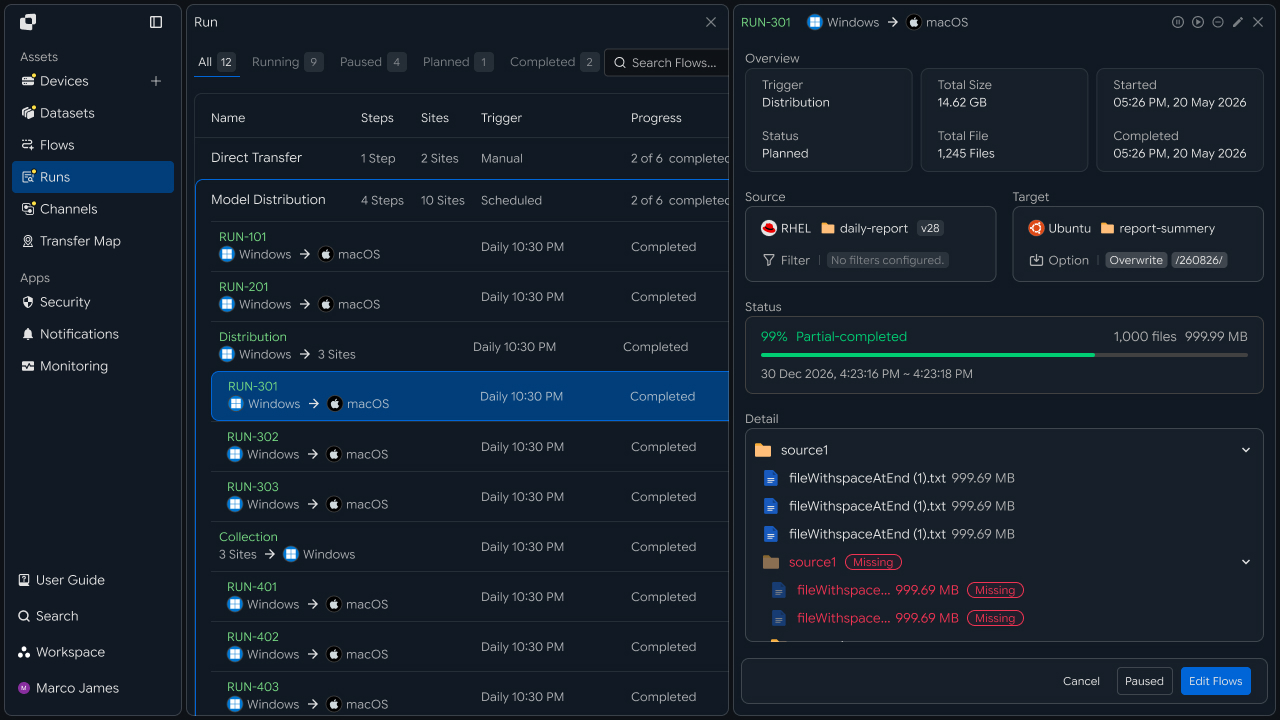
Review the following information in each Run.
| Review Item | Details |
|---|---|
| Source | Distributed file and original location |
| Target | System or device receiving the file |
| Total Files | Total number of files distributed |
| Total Size | Total distribution size |
| Progress | Current distribution progress |
| Status | Operation status |
| Started | Distribution start time |
| Completed | Distribution completion time |
Operators can review the overall distribution flow while managing execution status and processing results for each Target.
Incident Response
Review target-specific status and reprocess required distribution operations
If a target requires attention while distributing files to multiple Targets, review its status based on the Run details and execution history.
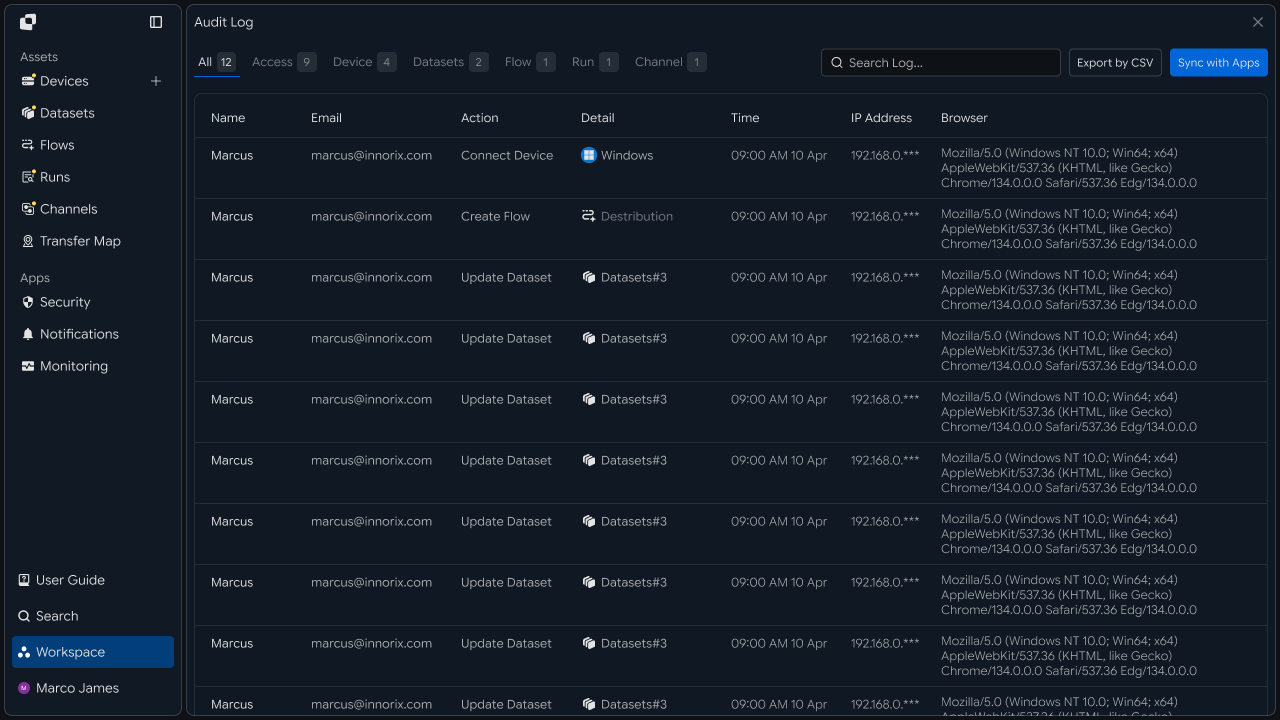
The review flow can be configured as follows.
Check Distribution Run
    ↓

Review Status by Target
    ↓

Review Detailed Execution Information
    ↓

Check Connection · Path · Permissions
    ↓

Adjust Environment
    ↓

Rerun by Target
    ↓

Review New Run
| Review Item | Details |
|---|---|
| Device Connection | Connection status of the Target system |
| Target Path | Location where the file is applied |
| Access Permissions | File read and write permissions |
| File Status | Information about the files being distributed |
| Execution History | Run and Audit Log |
Once the review is complete, rerun the required Target and review the distribution result through the new Run.