
Getting Started
Core Concepts
Keep files in the same state across multiple work environments
Business files are used across a variety of environments, including each team member's PC, department shared folders, and servers. Team folder sync connects files so that the state of files used in one folder can be kept consistent in other work environments. Even when the same business files are used in multiple locations, you can manage and use the required files in the same state.
┌─────────────────────┐                 ┌─────────────────────┐
│       Work PC       │                 │    Shared Folder    │
│                     │◀──────────────▶│                     │
│       Files         │    Keep in Sync │       Files         │
└──────────┬──────────┘                 └──────────┬──────────┘
           │                                       │
           └──────────────────┬────────────────────┘
                              │
                              ▼
                 ┌──────────────────────────┐
                 │ Work Folder              │
                 │ Synchronization          │
                 └────────────┬─────────────┘
                              │
                              ▼
                 ┌──────────────────────────┐
                 │    Servers · Systems    │
                 └──────────────────────────┘
Sync Flow
Automatically carry changes through to their reflection
Team folder sync checks the file state of connected folders and reflects changes between them according to configured conditions. When a file is created or modified in one folder, the sync conditions and processing targets are checked. The changed file is reflected in the other connected folder, and changes made in the other folder can be checked and synchronized in the same way.
① File Change
↓
② Check Changes
↓
③ Check Sync Conditions
↓
④ Reflect in Connected Folder
↓
⑤ Review Results
This flow lets you reflect required changes based on the state of connected folders no matter which work environment a file is changed in, and manage the results through a single workflow.
Business Impact
Reduce file management and repetitive work
When business files are used in multiple locations, checking for the latest file and organizing files in the required location becomes part of every task. With team folder sync, the reflection process after a file changes can be connected through a configured flow.
Before and After Sync
| Category | Manual Management | Team Folder Sync |
|---|---|---|
| File Check | Check files in multiple locations | Use the latest files from connected locations |
| File Reflection | Manually manage files in the required locations | Automatically reflect changes according to configured conditions |
| Work Connection | Prepare files for the next task | Connect to the next task after reflecting files |
| Repetitive Work | Repeat the same management process | Process automatically according to a defined flow |
In this way, team folder sync connects each work environment that uses the files. Team members can build a flow that leads from finding and organizing files into actual business work, and regularly generated reports and result files can be managed in the same way.
Business Teams
Check Latest Files
Open the latest files as soon as you start work
When the same file is used across multiple work environments, it is important to immediately identify the latest file that is the current basis for the work. With two-way sync, changes made in Work Environments A and B are reflected in each other, so each person can continue working from the latest file state in their own work folder.
For example, if a proposal is revised in Work Environment A in the morning and work resumes in Work Environment B in the afternoon, the changes are reflected in the synchronized folder. The responsible person can open the latest version of the proposal from the work folder they are currently using and continue working immediately.
Check Before Starting Work
| Check Item | Files Needed for Work |
|---|---|
| Previous Work | File last worked on |
| Another Person's Changes | File with the latest changes reflected |
| Current Work Basis | File to use now |
Because changes made in Work Folders A and B are reflected in each other, work can start from either folder by opening the latest file and continuing immediately.
Connect Workflows
Carry files from the previous task directly into the next task
Work often continues through review, revision, approval, and other follow-up tasks rather than ending with one person's work. With two-way sync, files changed in each work environment are reflected in the others, allowing the same file to be used continuously.
For example, after the author revises a report, a reviewer can open the file in another work environment and modify its contents, and the changes are reflected back in the connected folder.
One File Continuing Through the Workflow
Draft ↕ Report Revision ↕ Review · Revision ↕ Approval ↓
Follow-up Work
By reflecting changes made at each stage of the work in both directions, the next task can naturally continue from the file produced by the previous task.
Reduce Repetitive Work
Reduce the time spent managing files every day
Reports created daily or materials revised regularly are often used across multiple work environments. With two-way sync, changed files from each work environment are reflected in the others, reducing repetitive file management work.
Examples of Repetitive Work
┌──────────────────────────┐              ┌──────────────────────────┐
│   Work Environment A     │              │   Work Environment B     │
└────────────┬─────────────┘              └────────────┬─────────────┘
             │                                         │
             ▼                                         ▼
┌──────────────────────────┐              ┌──────────────────────────┐
│      Create Report       │              │    Check / Edit Files    │
└────────────┬─────────────┘              └────────────┬─────────────┘
             │                                         │
             ▼                                         ▼
┌──────────────────────────┐    ◀──────▶   ┌──────────────────────────┐
│      Work Folder A       │  Bidirectional │     Work Folder B       │
└────────────┬─────────────┘ Synchronization └────────────┬──────────┘
             │                                         │
             └──────────────────┬──────────────────────┘
                                │
                                ▼
                 ┌──────────────────────────────┐
                 │ Reflect Changes to Each Other│
                 └──────────────┬───────────────┘
                                │
                                ▼
                    ┌────────────────────────┐
                    │    Use in Next Task    │
                    └────────────────────────┘
For example, when a daily business report is created in one folder and reviewed or revised in another work environment, the changes are reflected in the connected folder as well. People can immediately use the files needed for each task and reduce repetitive file management.
| Business Use | Sync Flow |
|---|---|
| Daily Reports | Create · Revise ↔ Reflect in Work Folder |
| Recurring Result Files | File Change ↔ Reflect in Connected Environment |
| Recurring Material Sharing | Reflect changes from each work environment |
IT Engineers
Environment Setup
Connect the folders to synchronize
To configure two-way file synchronization, first add the two systems to be connected to the Flow and configure the folder to synchronize on each system.
The two systems each check for file changes, and when a file is created or modified on one side, the changes are reflected in the other folder according to the configured conditions.
Connect the Two Systems
In Flow Canvas, select the systems to synchronize and place them in the Flow. The screen shows RHEL and Windows systems connected, with the settings in the middle used to configure the file sync direction and processing conditions between the two systems.
Connecting the two systems creates not a simple transfer path that processes files from one side to the other, but a two-way file flow that checks and reflects changes from each system to the other.
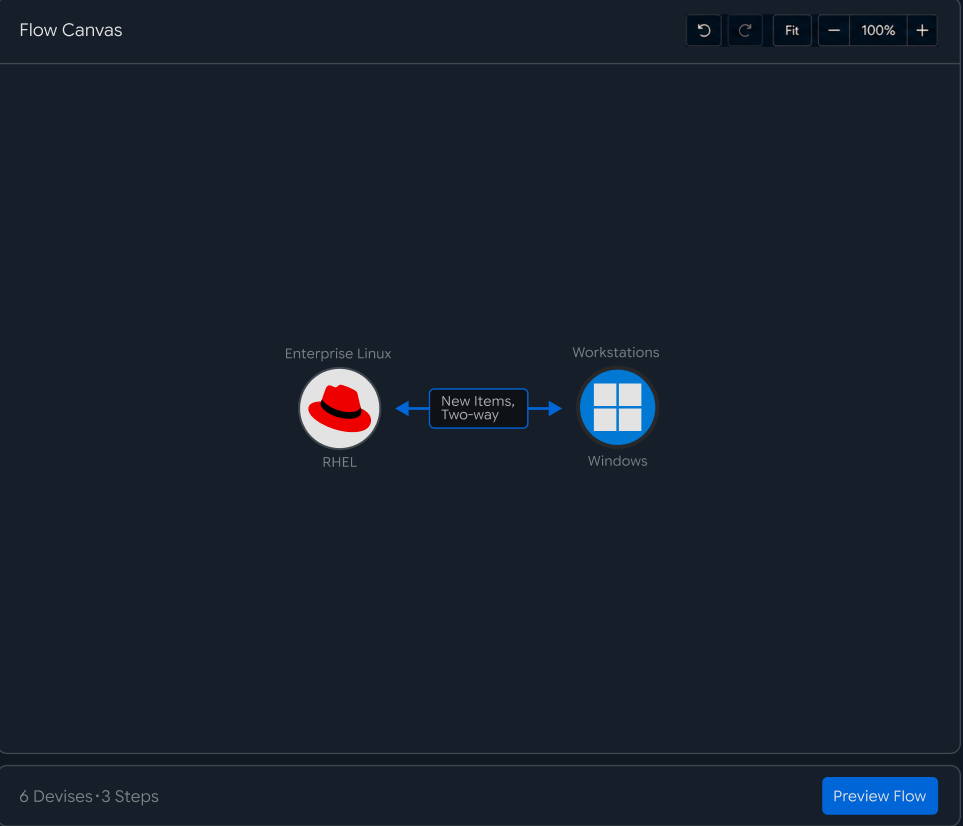
Use a screen showing RHEL and Windows systems placed in Flow Canvas with a Two-way connection configured between them.
Configure a Sync Folder on Each System
After connecting the systems, specify the folder to synchronize in each environment.
For example, set D:\git\Datasets\install as the sync target on Windows#1 and /data/distribution/install on CentOS.
Each folder serves both as the location where files are checked and as the location where changes from the other system are reflected.
┌──────────────────────────────┐          ┌──────────────────────────────┐
│        Sync Folder A         │          │        Sync Folder B         │
└──────────────────────────────┘          └──────────────────────────────┘
              │                                         │
              ▼                                         ▼
        Windows #1                                  CentOS
              │                                         │
              ▼                                         ▼
   D:\git\Datasets\install              /data/distribution/install
              │                                         │
              │           Check for Changes             │
              │                                         │
              └───────────────┐       ┌─────────────────┘
                              ▼       ▼
                         ┌─────────────────┐
                         │   Two-way Sync  │
                         └───────▲───▲─────┘
                                 │   │
              ┌──────────────────┘   └──────────────────┐
              │                                         │
              │          Reflect Changes                │
              │                                         │
              └──────────────────┐   ┌──────────────────┘
                                 │   │
                                 ▼   ▼
                         Changes Reflected
                         on Both Folders
When a file is added or modified in one folder, the changes are reflected in the other folder according to the configured sync criteria. Conversely, changes made in the other system can also be reflected in the connected folder in the same way.
Check Connection Status
After configuring each system and folder, check the connection status. Confirm that the system can be accessed normally and that the specified folder can be used, then save the sync Flow.
Once the two environments are connected, the following structure is ready.
| Category | System | Sync Folder |
|---|---|---|
| Sync Environment A | Windows#1 | D:\git\Datasets\install |
| Sync Environment B | CentOS | /data/distribution/install |
| Sync Method | Two-way | Reflect changes on both sides |
The two systems and folders are now connected as a single two-way sync flow.
Execution Conditions
Decide when and which files to synchronize
Once the environment is configured, set when to start synchronization between the two systems, which changes to check, and which files to target.
Use the Start When, Sync on, Direction, and Filter options in the settings panel on the right to configure the synchronization criteria.
Choose When Synchronization Starts
In Start When, select how to start the file synchronization task.
- Date/Time: Run synchronization at the specified date and time
- After Transfer: Run after another file processing task is complete
- Sync: Synchronize based on file changes
- URL Request: Run synchronization through an external request
To automatically synchronize based on changes in the work folder, select Sync.
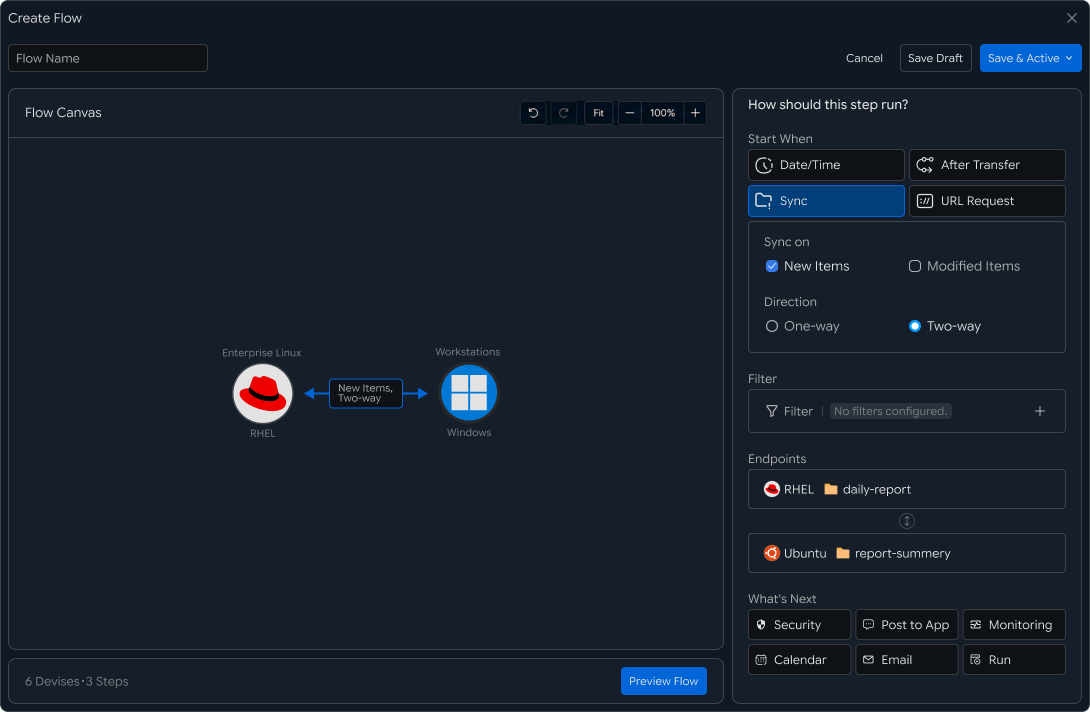
Use a screen that sets Start When, Sync on, Direction, Filter, and Endpoints.
Choose Which Changes to Check
In Sync on, select which file changes to use as synchronization criteria.
- New Items: Check for changes when a new file is created
- Modified Items: Check for changes when an existing file is modified
For example, to synchronize both newly created reports and subsequent revisions, select both options.
Check file creation or modification in one folder and reflect the changes in the connected folder according to the configured synchronization direction.
Configure One-way or Two-way Synchronization
In Direction, select the direction in which file changes are processed.
- One-way: Reflect changes from one folder in the other folder
- Two-way: Reflect changes from both folders in each other
For this two-way synchronization, select Two-way. This allows changes made in either folder, whether files are created or modified, to be reflected in the other folder according to the configured criteria.
Choose Which Files to Synchronize
Use Filter to select the files to synchronize when needed.
By setting filters based on file name, extension, or business-specific conditions, you can process only the required files instead of synchronizing everything.
For example, for reporting tasks, you can target document files such as PDF, DOCX, XLSX, and PPTX.
Check the Folders to Connect
In Endpoints, review the two systems and folders to connect bidirectionally.
The screen has the following two environments configured for synchronization.
| Category | System | Folder |
|---|---|---|
| Endpoint A | RHEL | daily-report |
| Endpoint B | Ubuntu | report-summary |
After setting the execution conditions, changes to check, sync direction, and file filters, you can configure a two-way synchronization task between the two folders based on the required file changes.
Duplicate Policy
Decide how to handle files with the same name
In two-way synchronization, you need to account for a situation where files with the same name exist in both folders and one side's file changes. In File Conflict Handling, select which file should be used as the basis for reflecting the change.
Choose a Processing Method 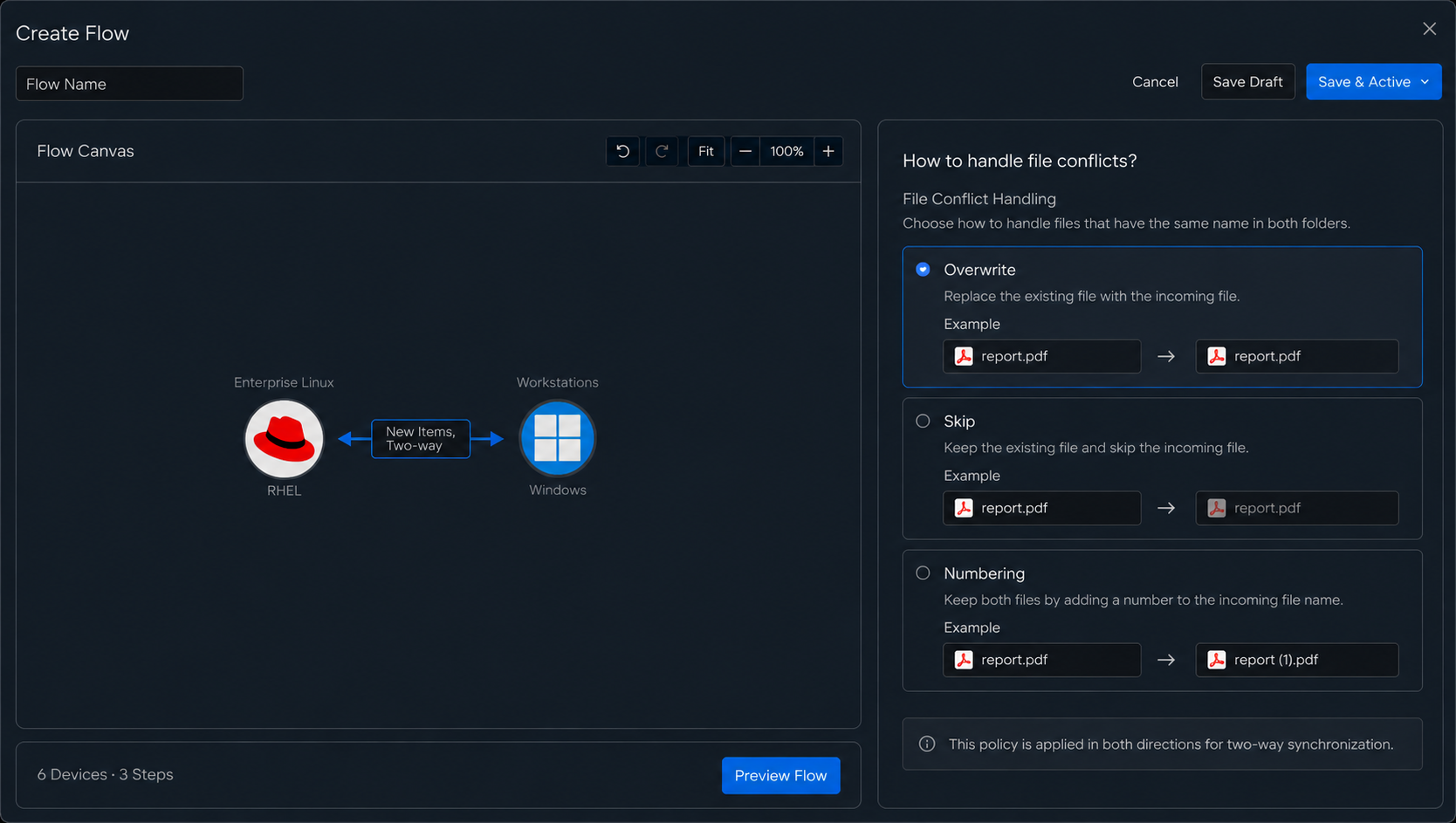 Use a settings screen that shows
 Overwrite, Skip, Numbering, and the Example for each method.
The screen provides the following three methods.
| Processing Method | Existing File | Changed File | Result |
|---|---|---|---|
| Overwrite | Replace with the changed file | Reflect | Keep the latest state based on the changed file |
| Skip | Keep as is | Do not reflect | Keep the existing file |
| Numbering | Keep as is | Save with a number added | Keep both files |
When files with the same name exist on both sides
For example, if report.pdf exists in both Work Folders A and B and one file changes, manage the change according to the configured processing method.
┌──────────────────────────┐                 ┌──────────────────────────┐
│      Work Folder A       │                 │      Work Folder B       │
└────────────┬─────────────┘                 └────────────┬─────────────┘
             │                                            │
             ▼                                            ▼
     Changed report.pdf                          Existing report.pdf
             │                                            │
             └────────────────┐      ┌────────────────────┘
                              ▼      ▼
                       Two-way Synchronization
                              │
                              ▼
                       File Conflict Handling
                              │
              ┌───────────────┼───────────────┐
              │               │               │
              ▼               ▼               ▼
      ┌───────────────┐ ┌───────────────┐ ┌───────────────┐
      │   Overwrite   │ │     Skip      │ │   Numbering   │
      └───────┬───────┘ └───────┬───────┘ └───────┬───────┘
              │                 │                 │
              ▼                 ▼                 ▼
      ┌───────────────┐ ┌───────────────┐ ┌───────────────┐
      │ Replace with  │ │ Keep existing │ │ report (1).pdf│
      │ changed file  │ │     file      │ │               │
      └───────────────┘ └───────────────┘ └───────────────┘
Choose the Method That Fits the Work
Overwrite is suitable for reflecting a file changed on one side in the other folder and keeping both folders up to date based on the latest file.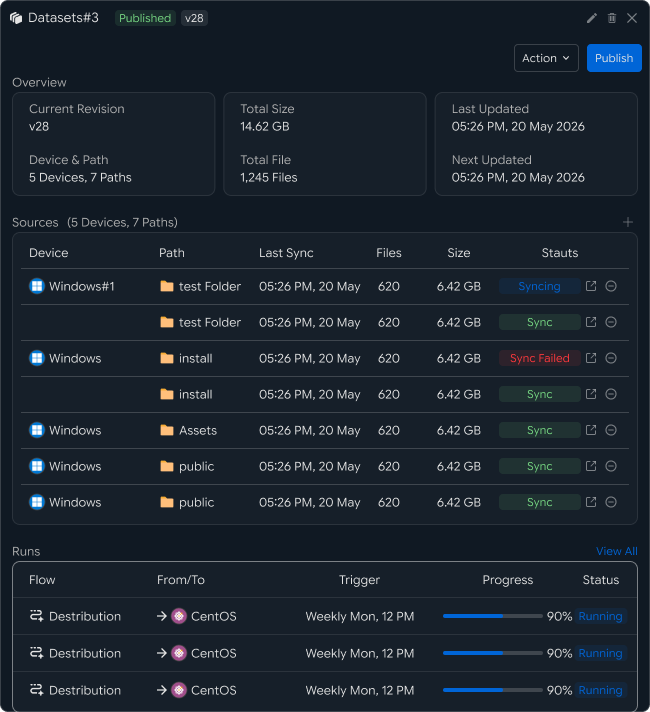
Skip can be used when the existing file in each folder should be kept as the reference.
Numbering is suitable when files used in both folders need to be retained together. It distinguishes same-name files when saving them, allowing the changed and existing files to be managed together.
Selection Guide at a Glance
| File Management Method | Selection |
|---|---|
| Reflect the latest state based on the changed file | Overwrite |
| Keep the existing file | Skip |
| Keep existing and changed files together | Numbering |
By configuring the file conflict policy, you can consistently manage changes even when files with the same name are found in Work Folders A and B.
Review Results
Review the results of executed tasks at a glance
When a two-way synchronization task runs, the Dataset screen lets you review the sync status of connected folders and recent execution results together.
At the top of the screen, you can review the current Dataset version, total file count, size, and last update time. In Sources below, review sync status by connected system and folder, and in Runs, review the progress of tasks that are actually running.
Check Sync Status by Folder
In Sources, review the Devices and Paths connected to synchronization in a list.  Each item includes the following information.
| Check Item | Details |
|---|---|
| Device | Connected system or device |
| Path | Sync folder path |
| Last Sync | Time of the last synchronization |
| Files | Number of files managed in the folder |
| Size | Total file size |
| Status | Current sync status |
For example, the screen shows Windows#1 connected to multiple folders, and each folder's status can be reviewed as Sync, Syncing, Sync Failed, and so on.
This lets you quickly identify which folders synchronized normally, whether work is currently in progress, and which items require additional review.
Check Running Synchronization Tasks
In Runs at the bottom of the screen, review recently executed synchronization tasks.
Each task provides the following information.
Flow
   │
   ├── From / To
   │
   ├── Trigger
   │
   ├── Progress
   │
   └── Status
Use From/To to review the file flow between connected systems, and use Trigger to review the condition that started the task.
Progress shows the current processing progress, while Status confirms whether the task is proceeding normally.
For example, a task in Running status means synchronization is currently in progress, and the progress value shows how far the overall task has been processed.
Review Synchronization Results Together
In two-way synchronization, it is important to review the status and execution results of each connected folder together, rather than checking only one side.
┌──────────────────────────────┐          ┌──────────────────────────────┐
│        Folder A              │          │        Folder B              │
└──────────────┬───────────────┘          └──────────────┬───────────────┘
               │                                         │
               │ Check for Changes                       │ Check for Changes
               │                                         │
               └─────────────────┐       ┌───────────────┘
                                 ▼       ▼
                          ┌──────────────────┐
                          │   Two-way Sync   │
                          └────────┬─────────┘
                                   │
                                   ▼
                          ┌──────────────────┐
                          │  Dataset Status  │
                          └────────┬─────────┘
                                   │
                     ┌─────────────┴─────────────┐
                     │                           │
                     ▼                           ▼
        ┌────────────────────────┐  ┌────────────────────────┐
        │        Sources         │  │          Runs          │
        ├────────────────────────┤  ├────────────────────────┤
        │   Status by Folder     │  │ Check Execution Results│
        └────────────────────────┘  └────────────────────────┘
In this way, the Dataset screen lets you review folder-by-folder sync status → currently running tasks → overall file status on a single screen.
Therefore, operators can confirm whether changes in a specific folder are being reflected normally, review progress when work is in progress, and use items in Sync Failed status as the basis for additional checks.
Incident Response
Investigate issues and process them again when problems occur
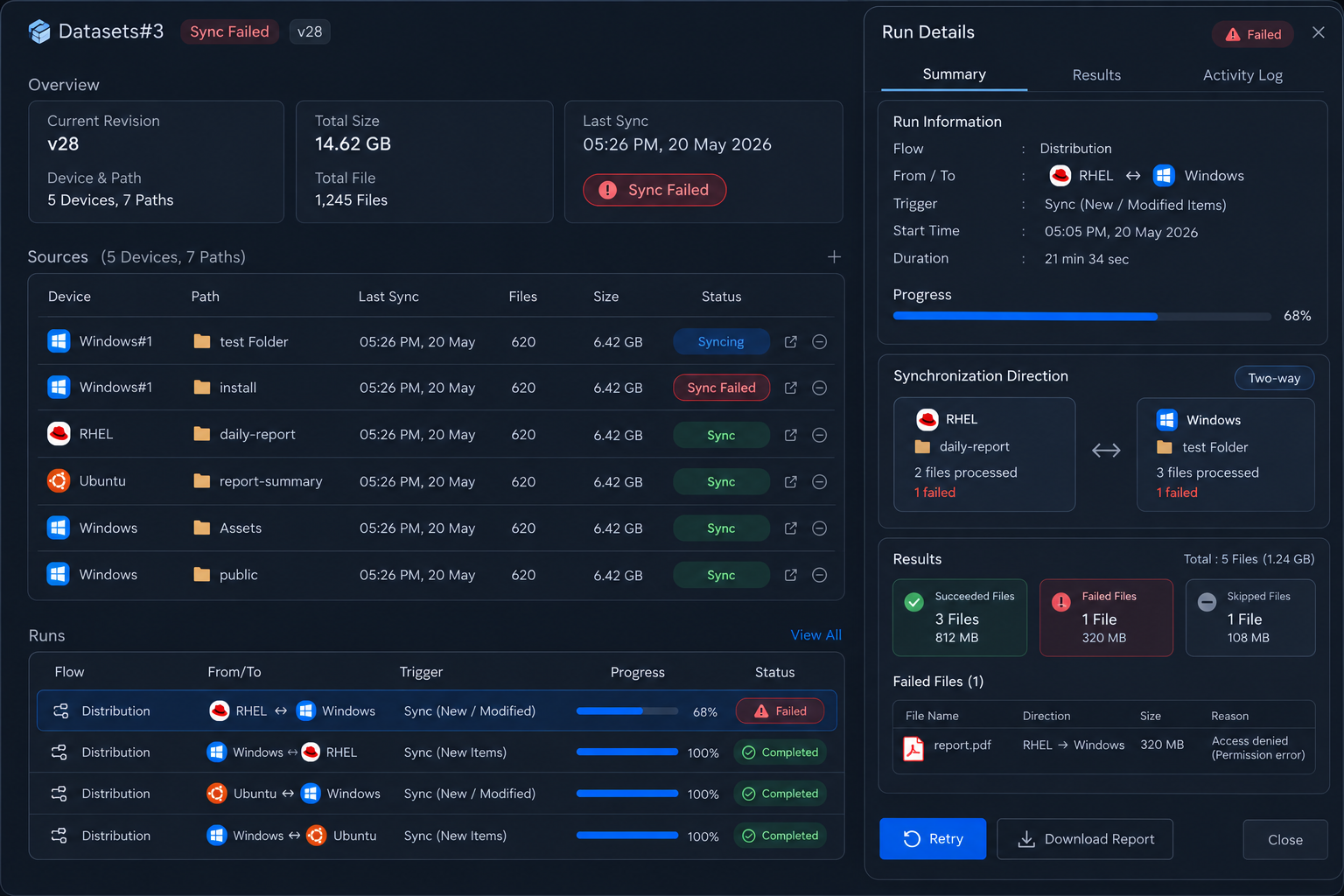
When some files fail to complete during a two-way synchronization task, review the execution result, identify which direction of synchronization encountered the problem, and reprocess the required task.
Incident response follows the flow Check task status → Check sync direction → Identify the cause → Retry → Confirm completion.
Identify Problems from the Processing Status
Executed tasks appear in Runs with Completed, Failed, or In Progress status.
When you select a task in Failed status, review the execution information and file processing results, then identify which work environment requires attention while processing changes from Work Folder A or B.
Sync Execution
    │
    ▼
Check Task Status
    │
    ├── Completed ──→ Review Results
    │
    └── Failed
          │
          ▼
      Check Sync Direction
          │
          ▼
      Review Details
          │
          ▼
      Identify Cause and Take Action
          │
          ▼
        Retry
          │
          ▼
      Review Completion Result
Reprocess After Identifying the Cause
In two-way synchronization, check the connection status of both systems, folder paths, access permissions, and file status together. Use task details and the Audit Log to determine which folder's changes require attention during processing.
After the check is complete, run the task or processing target file again. After retrying, use the new Run to confirm that changes in both folders have been reflected normally.
| Check Item | Details | Follow-up Task |
|---|---|---|
| System Connection | Connection status of the two work environments | Retry after checking the connection |
| Folder Path | Paths of both sync folders | Rerun after checking the paths |
| Access Permissions | Read and write permissions for files in both folders | Reprocess after checking permissions |
| File Status | Status of files targeted for synchronization | Retry after checking the files |
| Execution History | Audit Log and synchronization results | Run the task after identifying the cause |
Set Retry Criteria
When a task can continue normally after rerunning, such as after a temporary connection issue or a change in the file processing environment, retry the synchronization task to continue processing.
When the same item repeatedly requires review, consider the execution conditions, connection status of the two folders, access scope, and duplicate file handling policy together and reflect them in the operational criteria.
Recovery Flow at a Glance
Failed Run
    ↓

View Details
    ↓

Check Sync Direction
    ↓

Identify Cause
    ↓

Adjust Environment or File Status
    ↓

Retry
    ↓

Create New Run
    ↓

Review Reflection Results in Both Folders
    ↓

Completed
In this way, by investigating issues based on execution results and detailed records and then reprocessing them, you can manage the work that occurred during two-way synchronization and continue until file states in both work environments are correctly reflected again.