Getting Started
Basic Concept
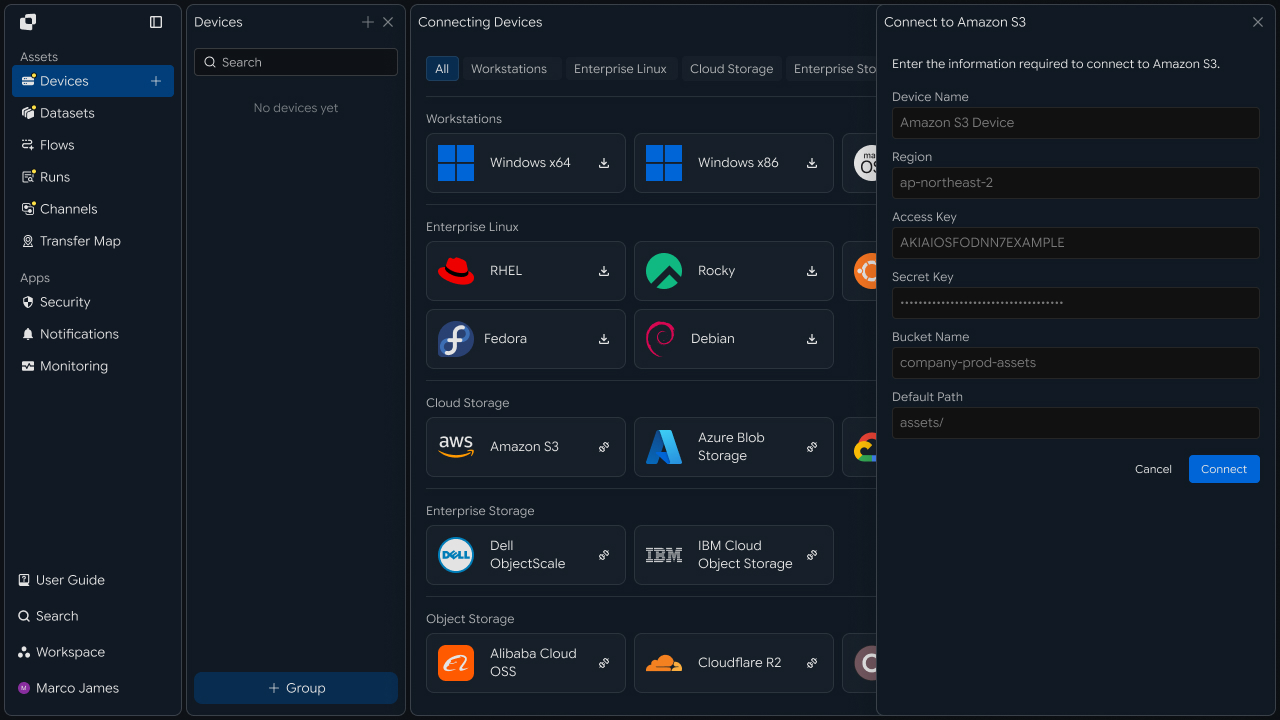
Automatically transfer DB backup files to designated object storage when they are created
Database servers may generate backup files continuously through daily or scheduled backup jobs. Rather than keeping those backups only on the same server, you may need to store additional copies in separate object storage or remote storage to protect against failures or data loss.
For example, when an existing database or backup program creates files under /backup/, you can detect those files and transfer them to a designated Bucket and path in S3-compatible object storage.
If an operator must check for each new backup file and transfer it manually, however, the backup job and remote archiving job must be run separately, and you must also verify separately that files were archived successfully and that all backup files were transferred.
With INNORIX Flow, you can keep the existing database or backup program unchanged and connect the location where backup files are created as the Source to automate the subsequent remote archiving process.
Database
    │
    │ Backup
    ▼
┌─────────────────┐
│  Backup Folder  │
│   /backup/      │
└────────┬────────┘
         │
         │ New File Detected
         ▼
┌─────────────────┐
│  Transfer Flow  │
└────────┬────────┘
         │
         │ Backup File
         ▼
┌────────────────────────┐
│     Object Storage     │
│   Bucket / Backup Path │
└────────────────────────┘
In this approach, the existing backup system continues to create backup files, while the Flow detects those files and transfers them to the next storage location.
This lets you connect the post-backup file movement into a separate automated flow of backup creation → file detection → object storage transfer → archive result verification.
Even in environments where backups are created daily or multiple times per day, the Flow can process only new files or files matching configured conditions, allowing you to keep the existing backup job while automating remote archiving and transfer-result verification.
Storage Structure
Separate object storage locations by backup type
All backup files can be stored under one path, but if full backups, incremental backups, and database-specific backups have different purposes, you can separate their storage locations as well.
For example, Source and Target paths can be mapped as follows.
| Backup Type | Source Location | Object Storage Location |
|---|---|---|
| Full Backup | /backup/full | db-backup/full/ |
| Incremental Backup | /backup/incremental | db-backup/incremental/ |
| Database-Specific Backup | /backup/database | db-backup/database/ |
| Monthly Archive | /backup/archive | db-backup/archive/ |
DB Backup Files
       │
       ├── Full Backup ──────────→ db-backup/full/
       │
       ├── Incremental ──────────→ db-backup/incremental/
       │
       └── Archive ──────────────→ db-backup/archive/
This structure does more than move files to external storage. It also lets you organize the archive layout according to backup type and purpose.
A clear path structure also makes it easier to locate specific backups later or review retention by database or time period.
Automatic Archiving
Start transfer when the backup file is actually ready
Backup files may need to be transferred only after file writing is complete rather than immediately when the file is first created.
In practice, transfer can start based not only on file creation, but also on file-write completion, a scheduled execution time, or the completion result of a previous task.
┌─────────────┐
│ DB Backup   │
│   Running   │
└──────┬──────┘
       │
       ▼
 Backup File Created
       │
       ▼
 File Write Completed
       │
       ▼
 Transfer Condition Met
       │
       ▼
 Object Storage Upload
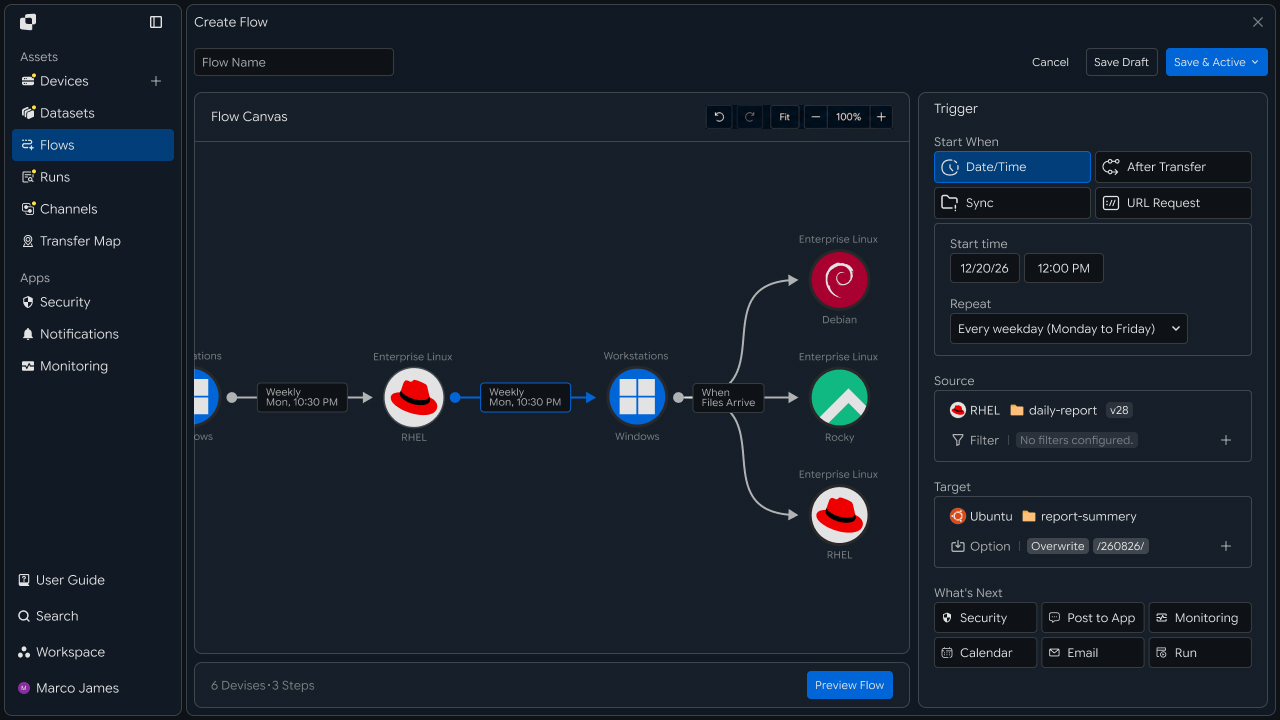
Common execution criteria include the following.
| Execution Criteria | Use |
|---|---|
| File Created | Transfer when a new backup file is created |
| File Write Complete | Transfer after file size and modification activity stabilize |
| Backup Job Complete | Transfer after the backup program finishes |
| Scheduled Run | Check and transfer generated files at a specified time |
| Previous Task Complete | Transfer as the next stage after the backup Flow |
This lets archiving start when the backup file is actually ready and connects backup creation and object storage archiving in the correct order.
IT Engineers
Connect the Source
Connect the server and folder where backup files are created as the Source
First, connect the server where DB backup files are created as the Source and specify the path where the files are stored.
If one server generates backups for multiple databases, you can separate the backup flows by path or file conditions.
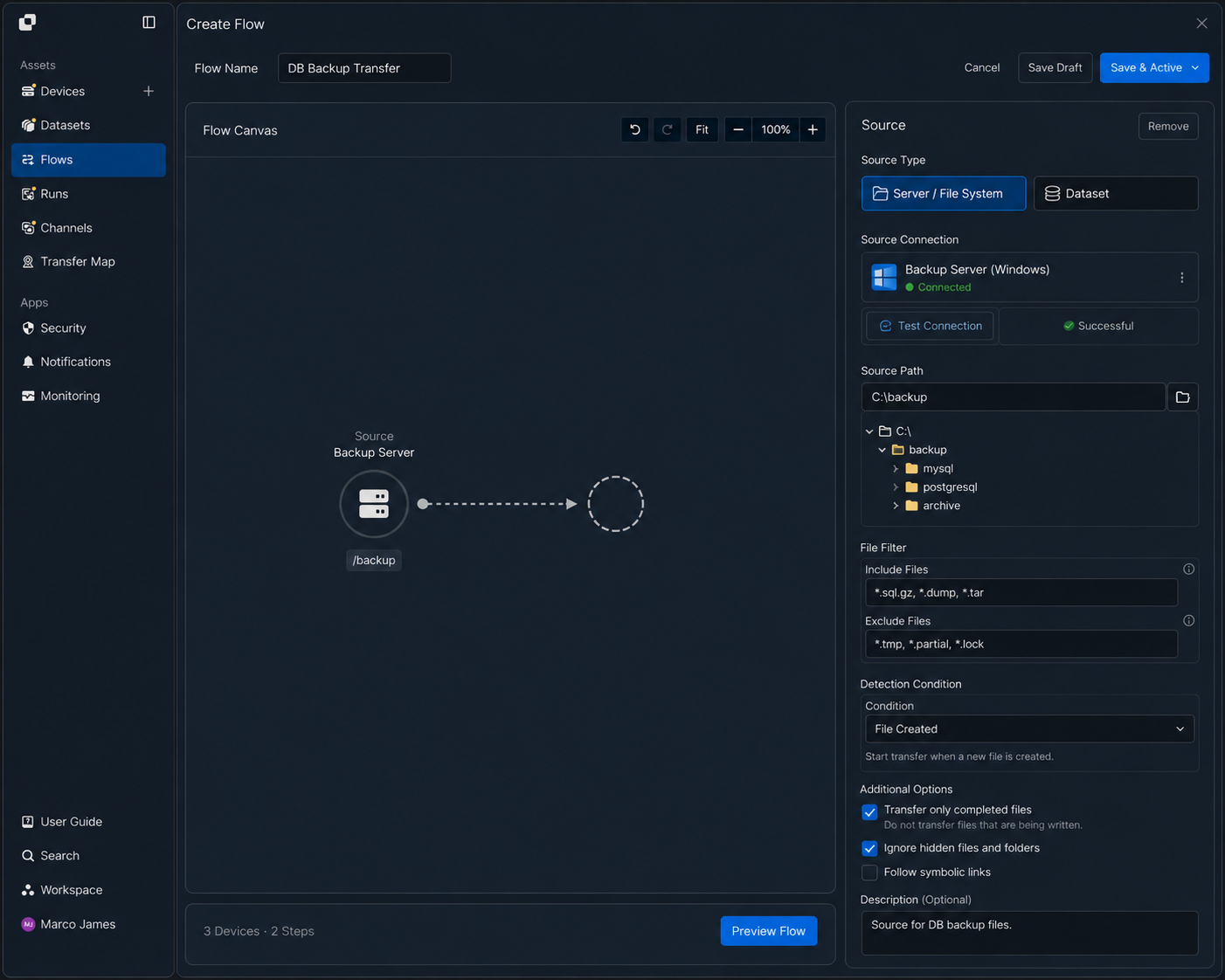
For example, the server backup structure may look like the following.
Backup Server
│
├── /backup/mysql
│       └── *.sql.gz
│
├── /backup/postgresql
│       └── *.dump
│
└── /backup/archive
        └── *.tar
After connecting the Source, configure conditions so only the backup files that actually need to be archived are selected.
| Setting | Configuration |
|---|---|
| Source | Server where DB or backup files are created |
| Source Path | Path where backup files are stored |
| File Filter | Backup-file extension and naming conditions |
| Excluded Files | Temporary files or files still being processed |
| Detection Condition | Whether a new file was created or writing completed |
This ensures that even if logs or temporary files are present in the backup folder, only the DB backup files that should actually be archived are transferred automatically.
Connect Storage
Specify the Bucket and archive path in S3-compatible storage
Connect Amazon S3 or object storage compatible with the S3 API as the Target.
After connecting the storage, specify the Bucket and internal archive path where backup files should be stored.
Source                         Target

Backup Server                  Object Storage
┌──────────────┐              ┌──────────────────┐
│ /backup/db   │ ───────────▶ │ Bucket           │
│              │    Files     │ /db-backup/      │
└──────────────┘              └──────────────────┘
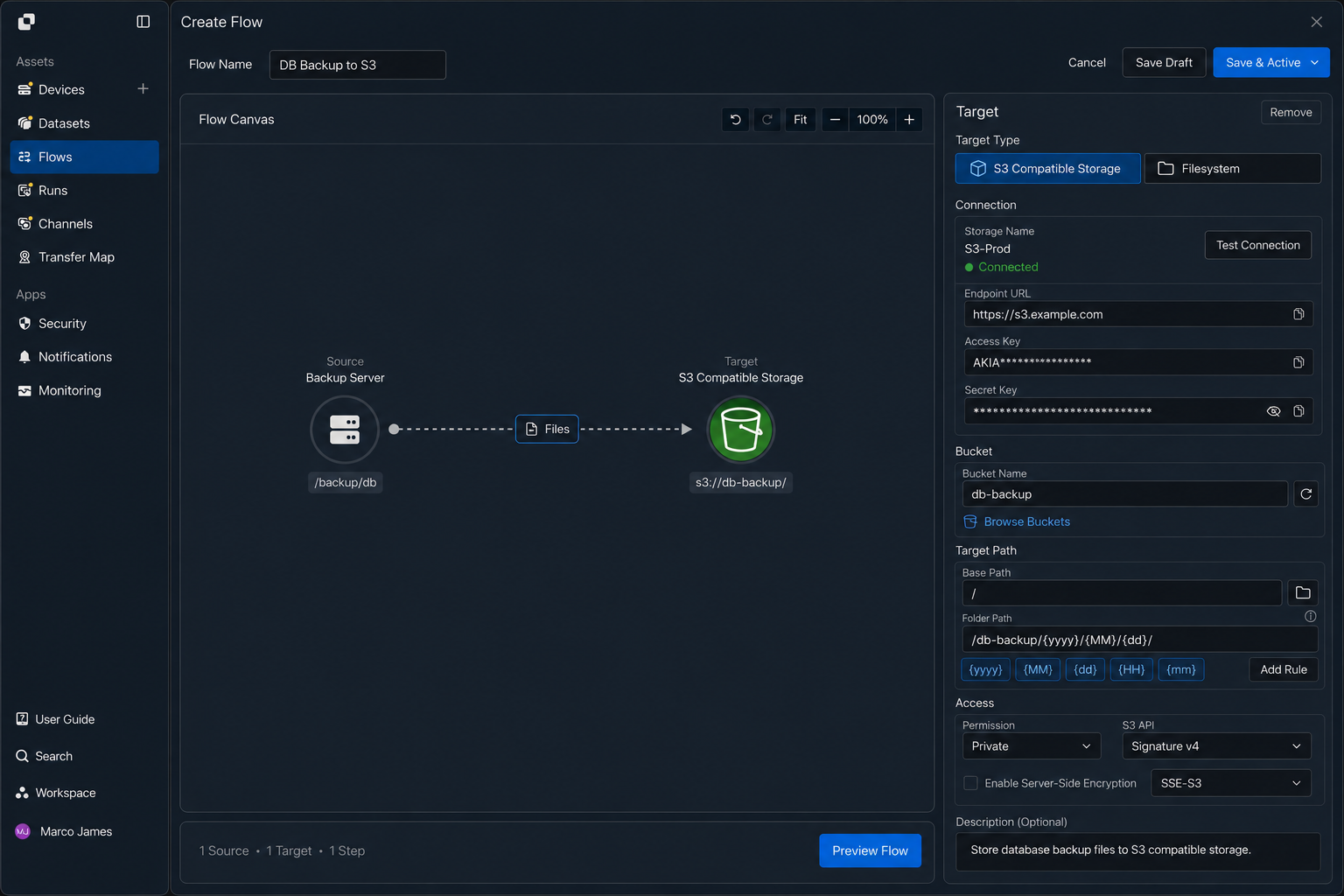
Configure the archive environment around the following storage settings.
| Configuration Item | Settings |
|---|---|
| Storage | Amazon S3 or S3-compatible storage to use |
| Bucket | Bucket where backup files are stored |
| Target Path | Archive path inside the bucket |
| Access | Access scope required to upload and verify files |
| Path Rules | Storage structure by date or backup type |
For example, separating paths by date lets backup files accumulate in a structure like the following.
db-backup/
│
├── 2026/
│   ├── 09/
│   │   ├── 01/
│   │   └── 02/
│
└── archive/
This approach helps separate file locations by creation time and archive purpose in environments where backups accumulate continuously.
Transfer Setup
Connect backup-file detection through object storage upload in one Flow
After connecting the Source and Target, configure backup-file detection, file-condition checks, and object storage upload in one Flow.
┌─────────────────┐
│ Backup Server   │
│                 │
│ /backup/db      │
└────────┬────────┘
         │
         │ Detect Backup
         ▼
    ┌─────────┐
    │  Flow   │
    │         │
    │ Filter  │
    │ Check   │
    └────┬────┘
         │
         ▼
┌─────────────────┐
│ Object Storage  │
│ Bucket / Path   │
└─────────────────┘
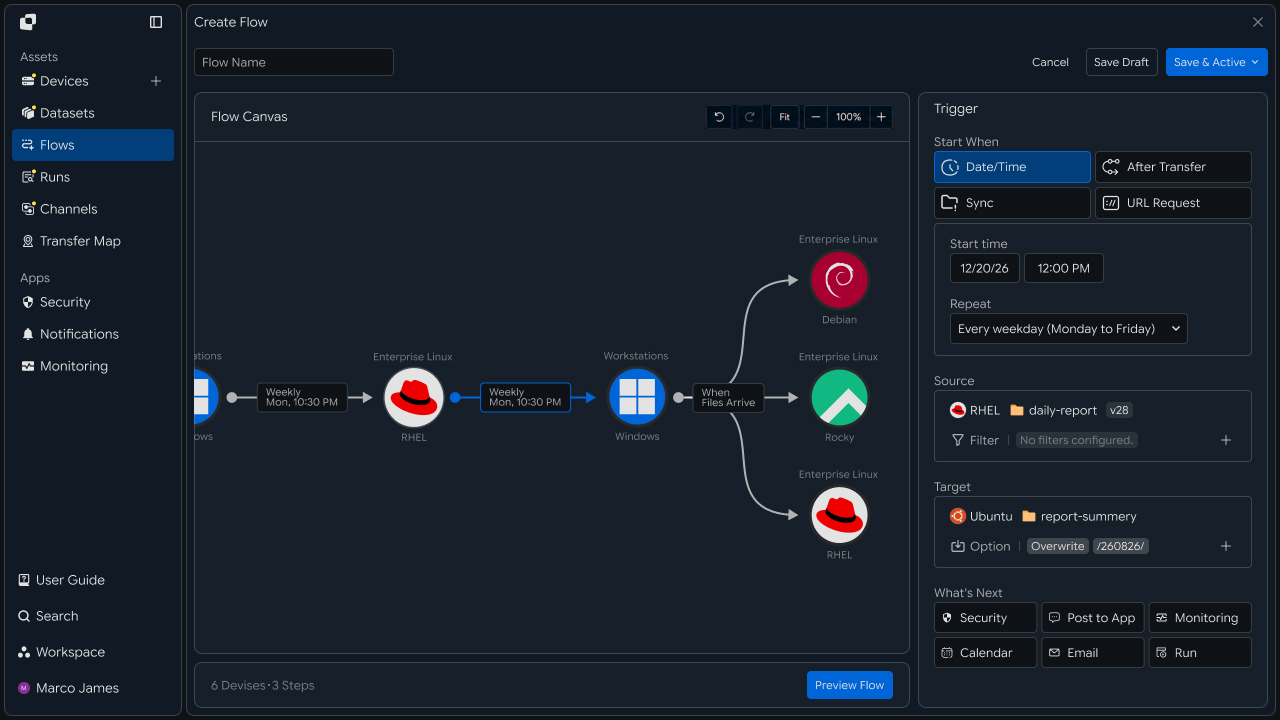
The Flow can also be adjusted for different backup environments.
Send only MySQL backup files to a separate Bucket
Store full and incremental backups under different paths
Transfer only large backups above a specified size threshold
Start automatically as the next stage after the backup job completes
Collect backup files from multiple DB servers into one central storage location
This makes the flow more than a simple file copy. It becomes an automation structure that applies different archive rules based on backup method and file type.
Verify Archiving
Review transfer results and verify that files were applied to the target storage
When backup-file transfer runs, review the overall job status and processing results in Runs.
Selecting a specific execution record shows which files came from which server, which Bucket and path received them, and how the total file count and transfer volume were processed.
Run: DB Backup Archive

Source
Backup Server
/backup/db
        │
        ▼
Files
12 files
128 GB
        │
        ▼
Target
Object Storage
db-backup/2026/09/02
        │
        ▼
Status
✓ Completed
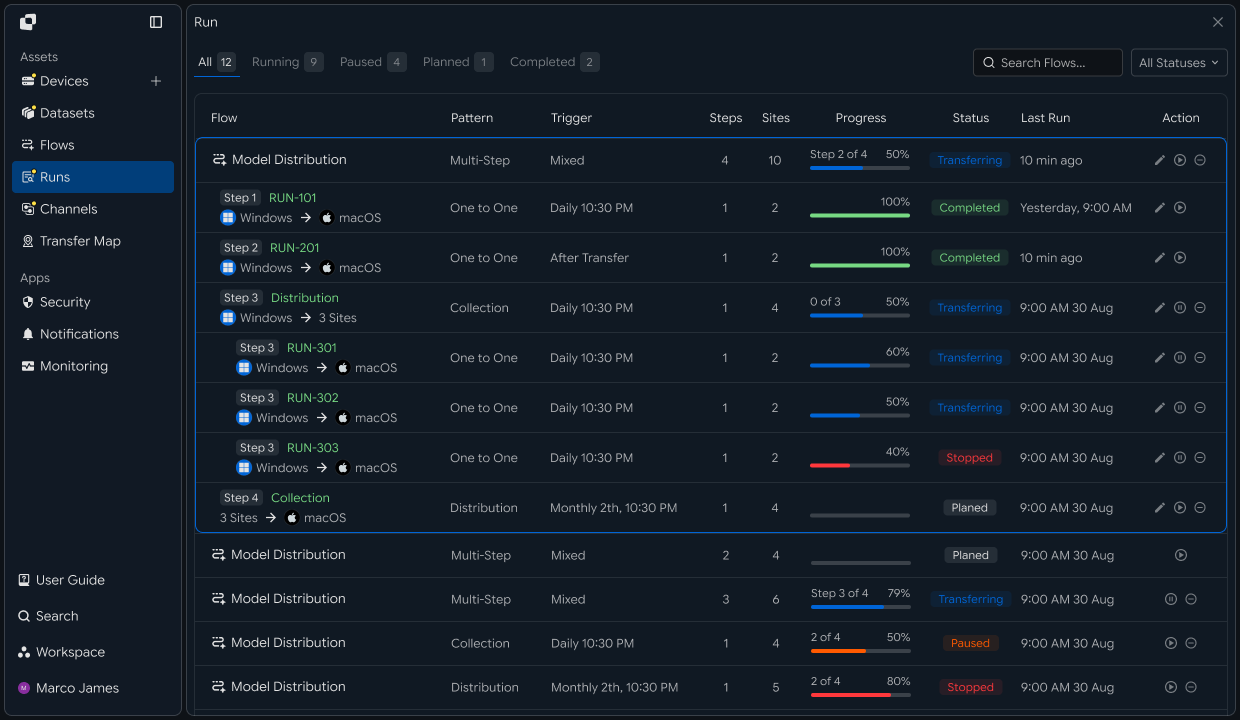
Review archive status using the following information.
| Item | Details |
|---|---|
| Source | Server and path where backup files were collected |
| Target | Destination Bucket and storage path |
| Total Files | Number of backup files processed |
| Total Size | Total size of backup files |
| Progress | Current transfer progress |
| Status | Completed or requires review |
| Started | Archive job start time |
| Completed | Time files finished saving to the target |
At this stage, review not only whether the job ended, but also which backup files were processed through which archive location.
With this recipe, you can connect the entire flow from DB backup file creation → file detection → transfer-condition check → upload to S3-compatible object storage → archive result verification → per-file archive-state validation.
This lets you preserve the existing database and backup-program workflow while automatically archiving generated backup files to separate storage and distinguish between a backup being created and that backup actually being stored safely.