
Getting Started
Concept
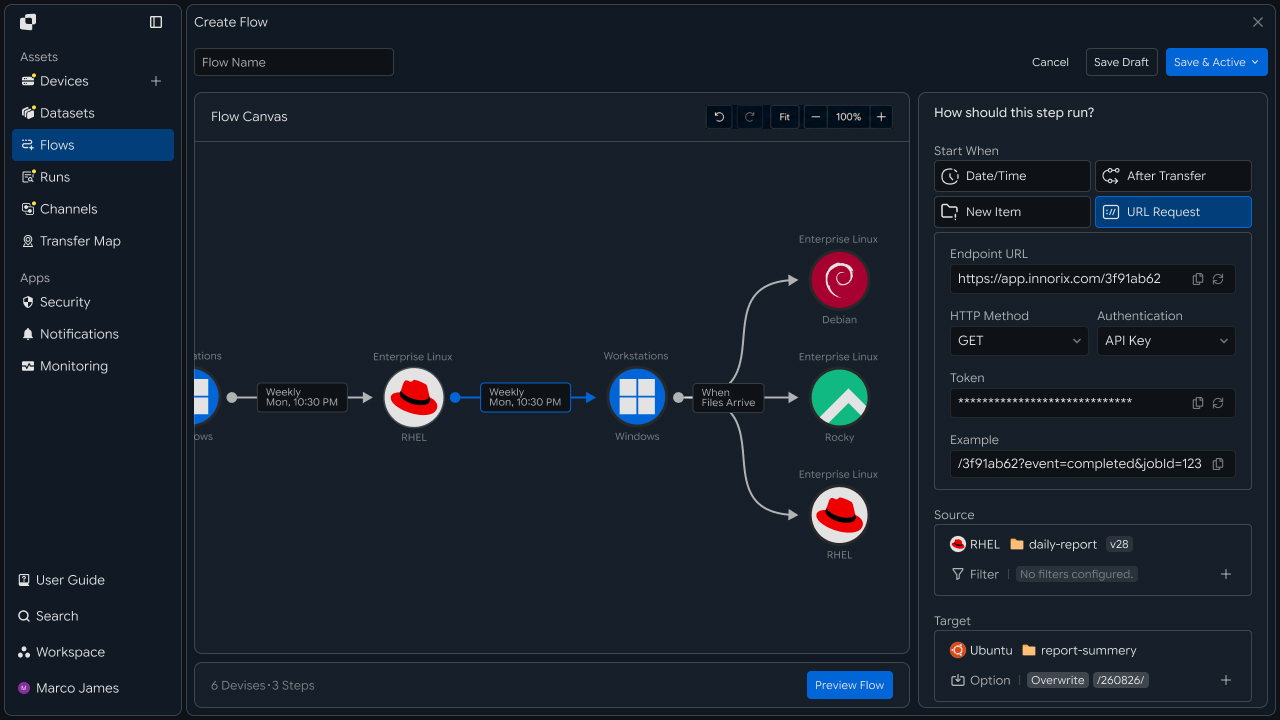
Run File Transfer Functions from an Application
File processing in an application consists of preparing files, requesting a transfer, and continuing the next business task based on the processing result.
Application integration connects file transfer functions to application requests so transfers can run when needed and processing results can be used in application business logic.
Application
     │
     │ Transfer Request
     ▼
File Transfer
     │
     ├── File Processing
     ├── Progress
     └── Result
             │
             ▼
Application Logic
This connects file transfer and result processing to application business functions.
Integration Flow
Connect the Flow from Transfer Request to Result Processing
When a file transfer request is generated in an application, the job runs based on the files to transfer and target information.
The application can use transfer progress and response information and continue the next business logic based on the final result.
File Transfer Request
      │
      ▼
File, Target Information Setup
      │
      ▼
Run Transfer Job
      │
      ▼
Receive Status, Response Information
      │
      ▼
Check Final Result
      │
      ▼
Process Application Logic
Connecting file transfer and result processing around a single request lets completed work flow naturally into the next business task.
Development Benefits
Apply File Transfer Functions to the Application Business Flow
Application integration connects the execution process and result handling required for file transfer to service functions.
| Category | Application Integration |
|---|---|
| Transfer Execution | Start file transfer based on an application request |
| Use Status | Connect progress status and response information to the UI and business logic |
| Result Processing | Use the final result in the next business function |
| Business Expansion | Connect follow-up tasks such as storage, processing, and notifications after transfer completion |
With this configuration, the flow from file transfer request to result processing can be used according to the application's business workflow.
IT Engineer
Configure and Manage Application File Transfer Integration
Integration Setup
Connect the Application to the File Transfer Environment
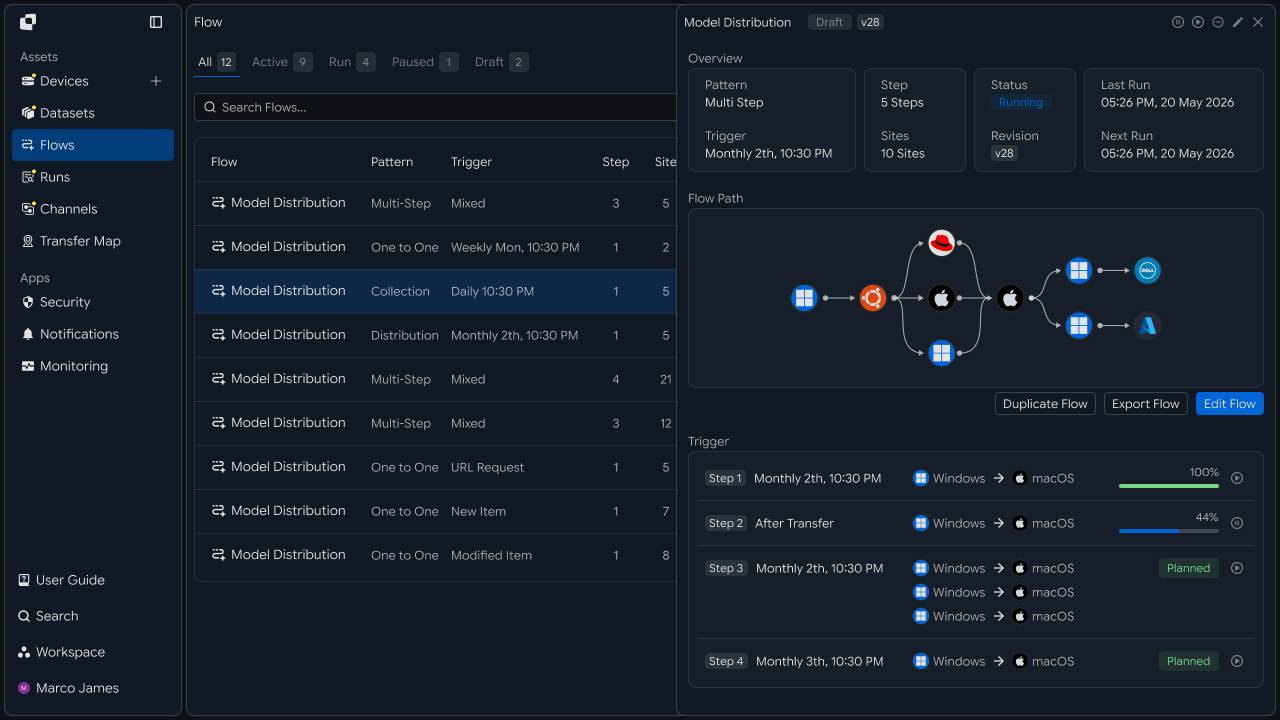
First, configure the file transfer environment and integration method so the application can use file transfer functions.
Configure request and response paths so application requests connect to file transfer jobs and execution status and result information can be returned.
┌─────────────────┐
│   Application   │
└────────┬────────┘
         │
         │ Request / Response
         ▼
┌─────────────────┐
│ Transfer Layer  │
└────────┬────────┘
         │
         ▼
┌─────────────────┐
│ Transfer Device │
└─────────────────┘
Configuring the integration environment connects the application's business functions to actual file transfer jobs.
Request configuration
Define the Files, Target, and Execution Conditions
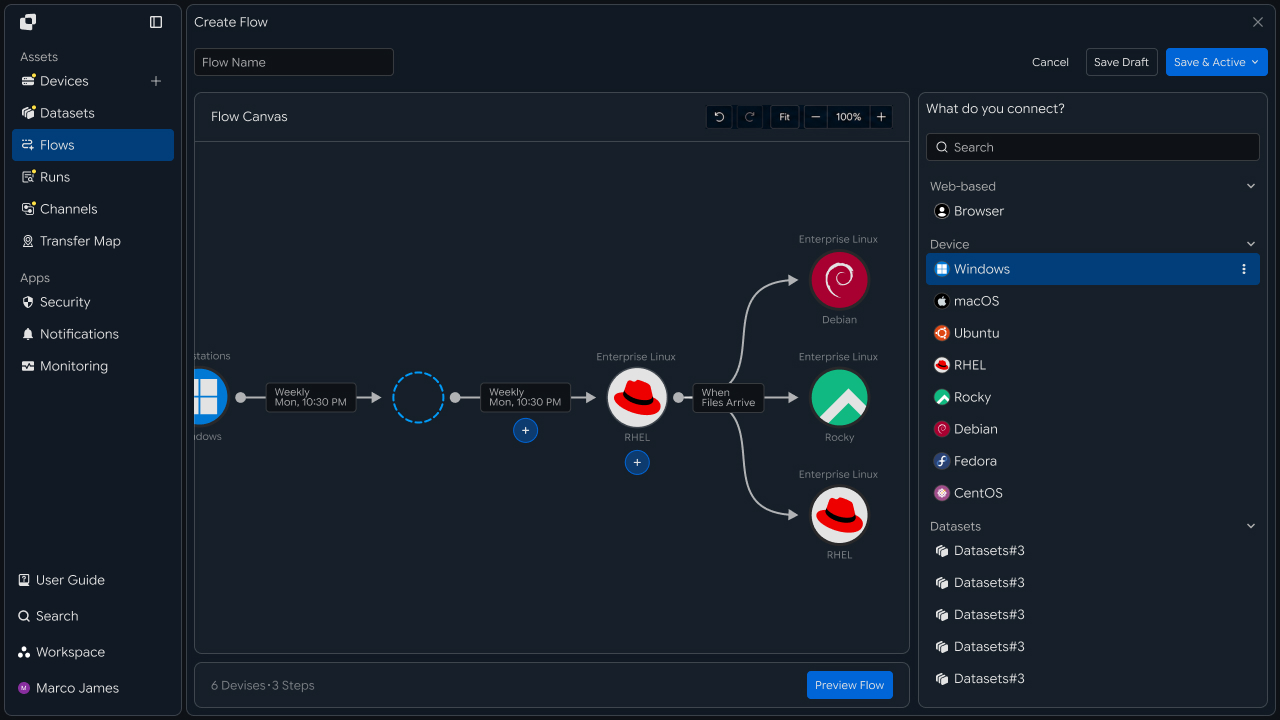
Configure which requests in the integrated application should trigger file transfers.
A request can include the files to transfer, file paths, target location, and conditions required for execution.
Transfer Request
       │
       ├── Source
       │      └── File / Path
       │
       ├── Target
       │      └── Device / Workspace
       │
       └── Options
              │
              ▼
         Transfer Run
| Configuration Item | Configuration |
|---|---|
| Source | File or file path to transfer |
| Target | Device or workspace to which files are transferred |
| Request | Request information sent by the application |
| Options | Execution conditions applied to file processing |
| Flow | File transfer job to run for the request |
Configuring the request structure allows required file transfers to run according to application business conditions.
Response Handling
Connect Transfer Status and Response Results to Application Logic
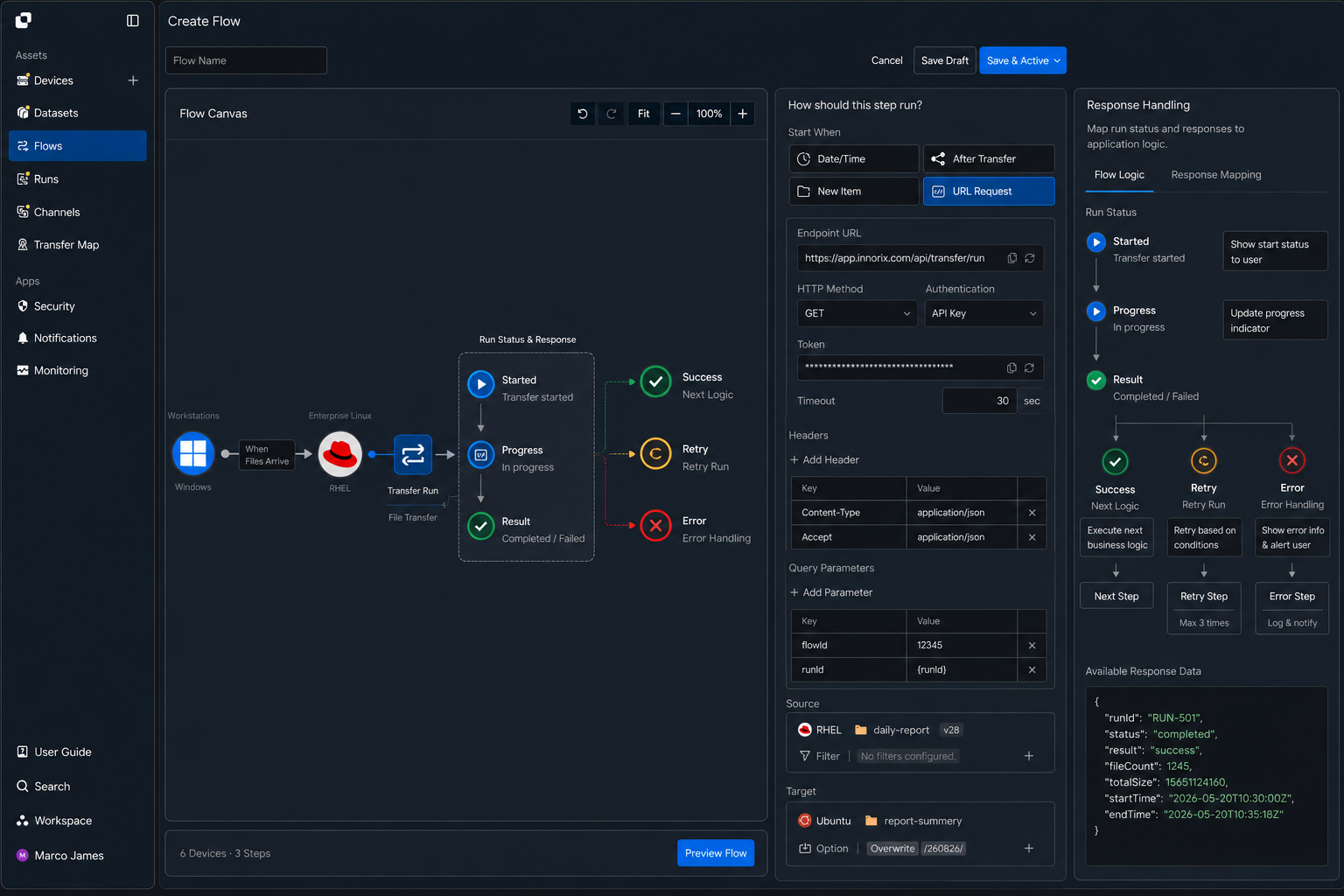
When a file transfer runs, status and response information is generated during startup, progress, and completion.
Connecting this information to the application UI and business logic allows the current progress to be displayed and a processing flow to be configured for each result.
Transfer Run
     │
     ├── Started
     │
     ├── Progress
     │
     └── Result
            │
       ┌────┼────┐
       ▼    ▼    ▼
    Success Retry Error
       │    │    │
       ▼    ▼    ▼
    Next   Retry Result
    Logic  Run   Handling
| Transfer Information | Application Use |
|---|---|
| Started | Display transfer start status |
| Progress | Display progress and processing status |
| Success | Run the next business logic |
| Retry | Request the job again according to the retry conditions |
| Error | Connect the processing flow based on response information |
This section manages transfer status and final response results in a single processing structure, consolidating content that was repeated in the existing status and event handling and error handling sections.
Integration Verification
Check the Final Transfer Result in the Application
After integration is configured, run an actual file transfer request from the application and check the overall processing result.
Verify that the requested files were processed to the specified target, and validate the application result together with the file transfer execution record.
Application Request
        │
        ▼
   Transfer Run
        │
        ▼
  File Processing
        │
        ▼
  Result Response
        │
   ┌────┴────┐
   ▼         ▼
Application  Run
 Result      Record
   │         │
   └────┬────┘
        ▼
   Final Check
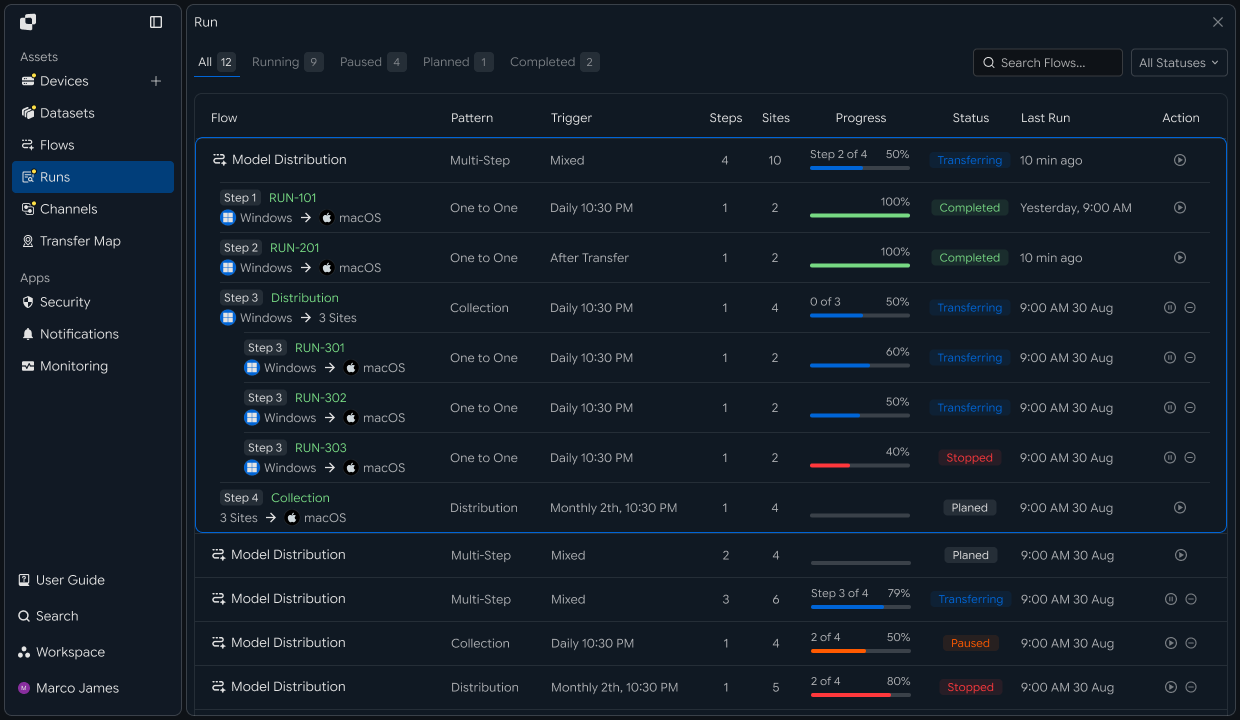
During integration verification, check the overall flow using the following information.
| Check Item | Details |
|---|---|
| Request | Transfer request generated by the application |
| Execution | File transfer job created for the request |
| Files | Processed files, file count, and size |
| Target | Specified device or workspace |
| Status | Transfer progress and final result |
| Response | Result information returned to the application |
Developer
Run transfers from business applications and connect progress, control, and results to business data
Integration Preparation
Prepare Common API Call Code and Status Values
import os
import requests

BASE_URL = os.getenv("INNORIX_BASE_URL", "https://app.innorix.com").rstrip("/")
TOKEN = os.environ["INNORIX_ACCESS_TOKEN"]
WORKSPACE_ID = os.getenv("INNORIX_WORKSPACE_ID")   # optional; falls back to the current workspace

STATUS_COMPLETE = 2
TERMINAL = {2, 4, 5, 9, 99}          # complete / error / cancelled / partial / failed
NOT_SUCCEEDED = {4, 5, 9, 99}


def api(method, path, body=None, params=None):
    headers = {
        "Content-Type": "application/json",
        "Authorization": f"Bearer {TOKEN}",
    }

    if WORKSPACE_ID:
        headers["x-workspace-id"] = WORKSPACE_ID

    response = requests.request(
        method, BASE_URL + path,
        headers=headers, json=body, params=params, timeout=30,
    )

    payload = response.json() if response.content else {}

    if not response.ok:
        raise RuntimeError(payload.get("message") or f"HTTP {response.status_code}")

    return payload.get("data")


def is_terminal(detail):
    return detail.get("isTerminal", detail.get("status") in TERMINAL)
Transfer status is determined using the values below. There are five terminal states, and the value representing success is Complete (2).
| Status Value | Meaning | Terminal |
|---|---|---|
| 2 | Complete | Yes |
| 4 | Error | Yes |
| 5 | Cancelled | Yes |
| 9 | Partially Complete | Yes |
| 99 | Failed | Yes |
| 1 , 6 , 12 , 13 | Starting, Transferring, Synchronizing, Receiving | No |
Determine terminal status and success separately. Partially Complete (9) and Cancelled (5) are also terminal states, so treating a transfer as successful based only on isTerminal can record a failure as a success.
Preflight Validation
Validate Paths Before Transfer
A transfer can be created successfully even when a path is invalid. The failure appears at execution time, after the business data has already been recorded as in progress.
def validate_paths(source_id, target_id, source_paths, target_path):
    # sourceItems reads filePath, not path
    return api("POST", "/api/transfers/validate-path", {
        "sourceId": source_id,
        "targetId": target_id,
        "sourceItems": [{"filePath": p} for p in source_paths],
        "targetPath": target_path,
    }) or {}


result = validate_paths("device-a", "device-b",
                        ["/data/report.pdf"], "/archive")

if result.get("invalidSourcePaths"):
    raise ValueError(f"missing source paths: {result['invalidSourcePaths']}")

if result.get("validTargetPath") is False:
raise ValueError("target path not found")| Response Item | details |
|---|---|
validSourcePaths | Validated source path |
invalidSourcePaths | Source path that cannot be found |
validTargetPath | Whether the target path is valid |
Send each path in filePath within sourceItems. If users enter paths directly in the UI, apply this validation when the input is saved.
Transfer Creation
Request a Transfer by Specifying Devices, Paths, and Processing Rules
When sending a file list, explicitly set isDir: false in sourceItem. sourcePaths treats every path as a folder, so if files are supplied, the server attempts to scan each file as a folder, which can slow the operation or cause a timeout.
def create_transfer(source_id, target_id, source_paths, target_path,
                    action="numbering"):
    transfer = api("POST", "/api/transfers/manual", {
        "sourceDevice": source_id,
        "targetDevice": target_id,
        "targetPath": target_path,
        "sourceItem": [{"path": p, "isDir": False} for p in source_paths],
        "sendAllFolder": False,
        "transferOptions": {"target-action": action},
    })

    return transfer["monitorId"]
When sending at the folder level, use sourcePaths and sendAllFolder: True.
api("POST", "/api/transfers/manual", {
    "sourceDevice": source_id,
    "targetDevice": target_id,
    "targetPath": target_path,
    "sourcePaths": ["/data/reports"],
    "sendAllFolder": True,
    "transferOptions": {"target-action": "numbering"},
})
Choose how to handle files with the same name at the target according to the nature of the business task.
| Value | Behavior | Suitable Use Case |
|---|---|---|
numbering | Preserve by adding a number | Work that retains submissions by iteration |
overwrite | Overwrite | Work that maintains only the latest state |
nosend | Skip without sending if already present | Work that does not resend the same file |
If settlement data uses overwrite, the previous iteration is lost, so do not simply use the default; specify the option according to the business requirement.
If files are skipped by nosend, the transfer can end in a terminal state other than success. If completion is judged only by status == 2, normal behavior will be counted as a failure, so code using this policy should handle terminal status and success separately.
Business Data Integration
Store monitorId in Business Data for Tracking
The monitorId returned when a transfer is created is used for subsequent queries, control, and retries. If this value is not stored in business data, the transfer cannot be tracked later.
def start_order_transfer(order_id, source_id, target_id, paths, target_path):
    validate_paths(source_id, target_id, paths, target_path)

    monitor_id = create_transfer(source_id, target_id, paths, target_path)

    db.execute(
        "UPDATE orders SET monitor_id = %s, transfer_state = %s WHERE id = %s",
        (monitor_id, "transferring", order_id),
    )

    return monitor_id
Conversely, there are cases where business data must be retrieved using monitorId, such as when an operator finds a problem in the transfer list.
CREATE INDEX idx_orders_monitor_id ON orders (monitor_id);
Status Display
Display Progress Status and Determine Whether the Transfer Has Ended
import time


def describe(monitor_id):
    return api("GET", f"/api/transfers/{monitor_id}")


def wait(monitor_id, timeout=1800, interval=3):
    deadline = time.time() + timeout

    while time.time() < deadline:
        detail = describe(monitor_id)

        if is_terminal(detail):
            return detail

        time.sleep(interval)

    raise TimeoutError(monitor_id)


detail = describe(monitor_id)

print(detail["statusLabel"], detail["percent"], "%")
print(detail["transferSize"], "/", detail["totalSize"])| Response Item | UI use |
|---|---|
statusLabel | Status display string |
percent | progress |
transferSize , totalSize | Transfer volume |
fileCount , folderCount | Target size |
estimateTime | remaining time |
sourceDeviceName , targetDeviceName | source and target |
A short polling interval can generate excessive requests. For UI display purposes, an interval of about 3 seconds is appropriate.
Transfer Control
Pause, Resume, or Cancel Based on User Requests
All three actions are called without a request body. However, even when the call succeeds, the instruction must reach the device before the status changes, so an immediate UI refresh may still show the previous state.
PAUSED = 3
RUNNING_STATES = {1, 6, 12, 13}
CANCELLED = 5


def control(monitor_id, action, tries=10):
    api("POST", f"/api/transfers/{monitor_id}/{action}", {})

    expected = {
        "pause": {PAUSED},
        "resume": RUNNING_STATES,
        "cancel": {CANCELLED},
    }[action]

    for _ in range(tries):
        time.sleep(1)
        detail = describe(monitor_id)

        if detail.get("status") in expected:
            return detail

    return describe(monitor_id)
In the UI, it is natural to disable the button immediately, show that processing is in progress, and update the status after the change is confirmed.
When multiple transfers need to be stopped at once, use bulk cancellation.
result = api("POST", "/api/transfers/bulk-cancel", {"monitorIds": monitor_ids})

print(result.get("cancelled"), result.get("failed"))
A transfer that has already ended has nothing to cancel, so cancellation fails and is included in the response's failed field. This is a normal response, not an error.
Result Finalization
Finalize the Transfer Result in Business Data and Retry Failed Files
def finalize(order_id, monitor_id):
    detail = describe(monitor_id)

    if not is_terminal(detail):
        return None

    status = detail["status"]
    succeeded = status == STATUS_COMPLETE

    db.execute(
        "UPDATE orders SET transfer_state = %s, transfer_status = %s WHERE id = %s",
        ("done" if succeeded else "failed", status, order_id),
    )

    return succeeded
Storing the status value as well makes it possible to distinguish failure types later. Cancelled (5) and Failed (99) require different follow-up actions.
If only some files fail, retry only those files.
def failed_files(monitor_id):
    result = api("GET", f"/api/transfers/{monitor_id}/files", params={
        "state": "any", "size": 500,
    }) or {}

    return [r for r in (result.get("children") or [])
            if r.get("status") in NOT_SUCCEEDED]


def retry_failed(monitor_id):
    rows = failed_files(monitor_id)

    if not rows:
        return 0

    api("POST", f"/api/transfers/{monitor_id}/retry", {
        "filesRetry": [
            {"filePath": r["sourceFilePath"], "isDir": bool(r.get("isFolder"))}
            for r in rows
        ]
    })

    return len(rows)
Each item contains sourceFilePath, statusName, and errorCode, so the UI can show which file failed and why. Retry can be called only after the transfer has ended.
If the entire transfer needs to be run again, retrieve the previous execution information and replay it.
config = api("GET", f"/api/transfers/{monitor_id}/replay-data")
api("POST", f"/api/transfers/{monitor_id}/replay", {"action": "replay"})| Check Item | Details |
|---|---|
| Request | Validated source and target |
| Execution | Generated monitorId |
| Status | Progress and terminal status |
| Result | Success status and status value |
| Files | Failed files and error codes |
| Follow-up | Retry or replay result |