Getting Started
Basic Concept
In Linux and Unix environments, the rsync command is widely used to synchronize files between servers and storage.
For example, you can copy a specific folder from a business server to a backup server, apply only newly generated files to a remote server, or synchronize directories across multiple systems at scheduled times.
A typical rsync job defines the source path, target path, exclusion conditions, and execution options directly in a shell script or Cron job.
Application Server
       │
       │ /data/report
       ▼
   rsync Script
       │
       │ Schedule / Options
       ▼
   Remote Server
       │
       ▼
 /backup/report
As synchronization jobs increase, server-specific rsync commands, Cron settings, exclusion rules, and execution logs can become distributed across multiple environments.
For example, one server may synchronize a backup folder every morning, while another applies file changes to a remote system immediately. If settings and execution results for each job are distributed across separate scripts and servers, it can be difficult to review overall synchronization status or failure history in one place.
By converting to managed Flows, you can configure the source path, target path, file conditions, and execution timing used by existing rsync jobs as Flows and manage execution results and failure history across multiple synchronization jobs.
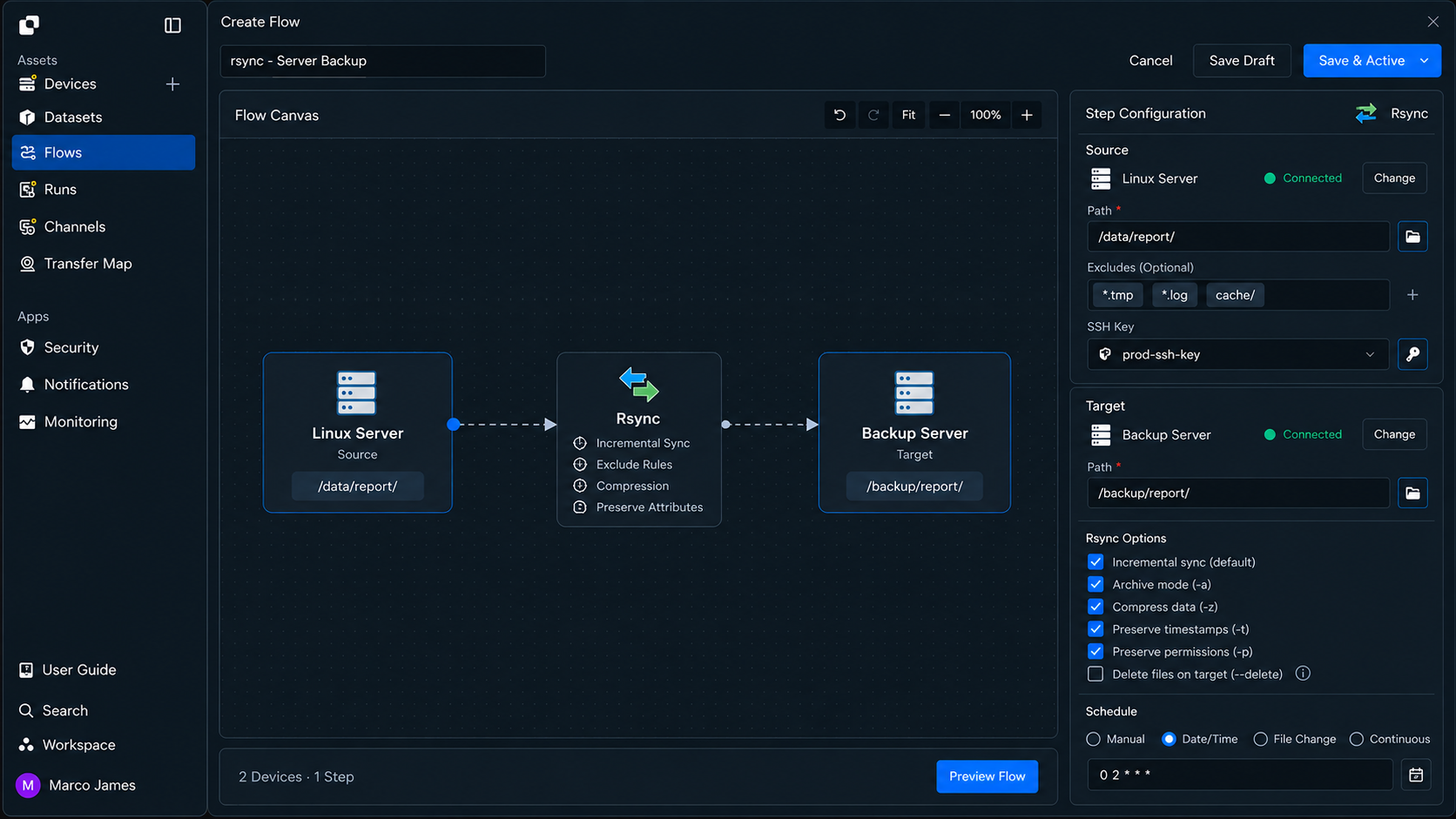
Before

Server A ──┐
           ├──▶ rsync Script + Cron ──▶ Target
Server B ──┘


After Conversion

Server A ──┐
           ├──▶ Managed Flow ──▶ Target A
Server B ──┘         │
                     ├── Runs
                     ├── Activity
                     └── Failure History
You can retain file generation and processing operations on existing servers while moving to centralized management of the actual synchronization jobs and execution conditions.
Conversion Scope
A single rsync script may include file preparation, logging, and post-completion processing in addition to simple file synchronization.
For example, a batch job may be structured as follows.
Daily Job
    │
    ├── Generate Files
    ├── Compress
    ├── rsync
    ├── Write Log
    └── Cleanup
In this case, not every operation needs to be rewritten as a Flow.
File generation, compression, and business-specific processing logic can remain in the existing environment, while the rsync section that performs actual file synchronization and its execution conditions can be moved to a managed Flow.
| Existing Operation | Conversion Method |
|---|---|
| File generation | Keep existing program or script |
| File processing | Keep existing shell commands |
| File synchronization | Convert from rsync to Flow |
| Execution schedule | Move Cron conditions to Flow execution conditions |
| Execution results | Check centrally in Runs |
| Failure records | Manage through per-job execution history |
| Follow-up operations | Connect based on Flow results |
This allows you to convert the parts requiring file synchronization and operational management to managed Flows first without replacing the entire existing automation environment at once.
IT Engineer
Job Analysis
First, identify the information used for actual synchronization in the existing rsync commands and scripts.
An rsync job may simply copy files between two paths, but it may also exclude specific extensions, process subdirectories, or apply only changed files.
Review the existing job using the following items.
| Item | Details |
|---|---|
| Source | Files or directories to synchronize |
| Source Path | Path containing source files |
| Target | System where files will be applied |
| Target Path | Target storage location |
| Synchronization scope | All files or changed files |
| Exclusion conditions | Files and paths to exclude from synchronization |
| Execution conditions | Schedule, change, or external execution |
| Existing options | Conditions applied to the rsync command |
| Follow-up processing | Operations run after synchronization completes |
For example, if different folders are synchronized across multiple servers, each job can be organized as follows.
┌─────────────────┐
│ Source Server A │
│ /data/report    │
└────────┬────────┘
         │
         ├──────────────┐
         │              │
         ▼              ▼
   Daily Sync      On-Demand Sync
         │              │
         └──────┬───────┘
                ▼
           Target Storage
This process organizes synchronization paths and execution methods previously distributed across servers and scripts into Flow configuration units.
Path Migration
Configure the source and target paths used by the existing rsync job as the Flow's Source and Target.
For example, if the /data/export folder on a business server is synchronized to /backup/export on a remote backup server, apply the same file flow to the Flow.
┌────────────────────────┐
│ Source                 │
│                        │
│ /data/export/          │
│   ├── report.csv       │
│   ├── result.zip       │
│   └── daily/           │
└────────────┬───────────┘
             │
             │ Sync Flow
             ▼
┌────────────────────────┐
│ Target                 │
│                        │
│ /backup/export/        │
└────────────────────────┘
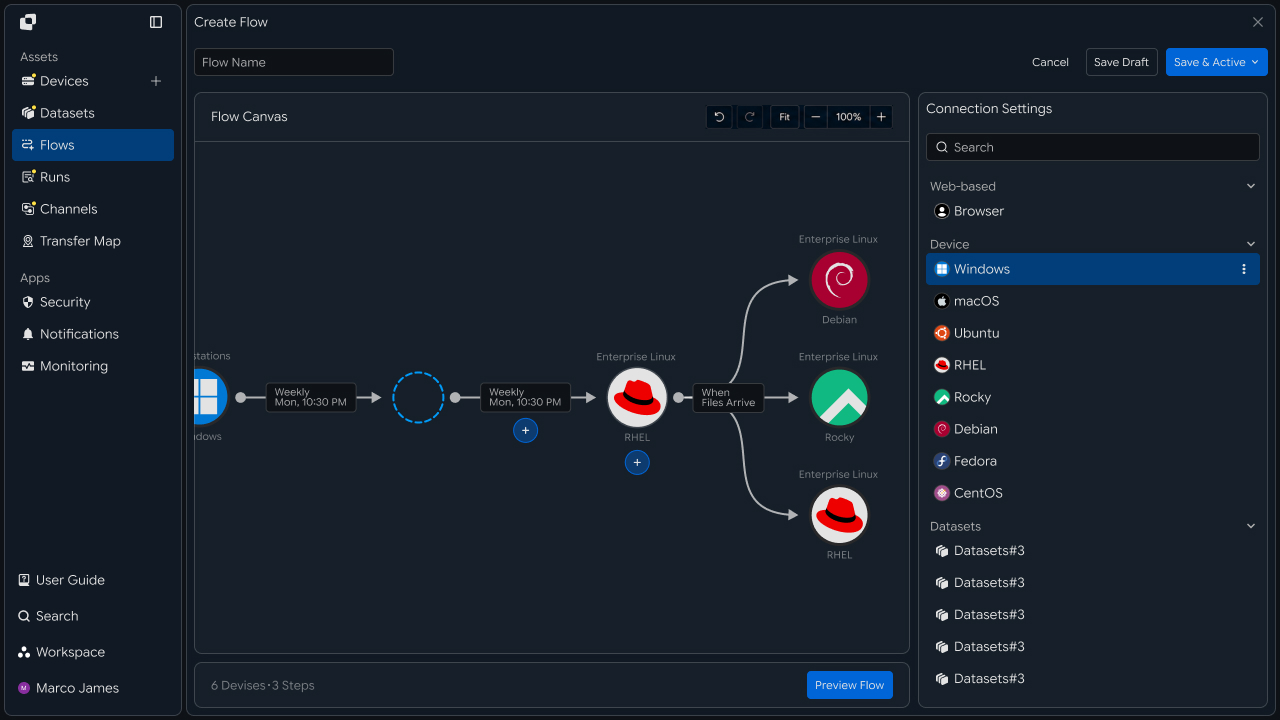
Move the path information used by the existing rsync job while also checking the file scope required for actual business operations and the target storage location.
When one script synchronizes to multiple target systems, you can separate Flows by Target or configure the required transfer structure within a single flow.
Synchronization Conditions
After configuring the paths, identify how the existing rsync job is triggered and move those criteria to the Flow's execution conditions.
Depending on the business environment, synchronization jobs can repeat at scheduled times or start after a specific file is created or changed.
                    Sync Trigger
                         │
          ┌──────────────┼──────────────┐
          ▼              ▼              ▼
       Schedule      File Change    External Request
          │              │              │
          └──────────────┼──────────────┘
                         ▼
                      Sync Flow
                         │
                         ▼
                       Target
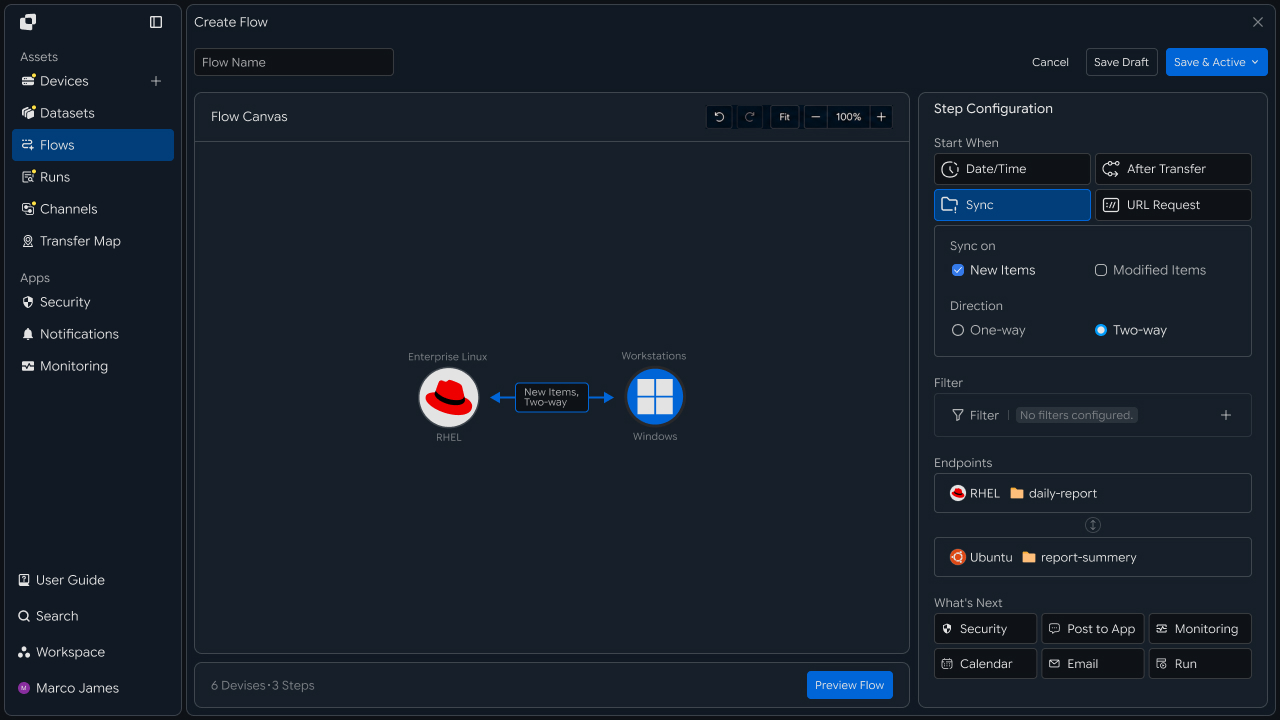
For example, the following execution criteria can be configured.
| Execution Criteria | Usage |
|---|---|
| Date/Time | Run at a scheduled time daily or weekly |
| File Change | Run after a new file is created or changed |
| After Transfer | Run after the previous file-processing operation completes |
| URL Request | Run in response to an external system request |
A job previously run by Cron at a specific time each day can be configured as a schedule-based Flow, while a structure that ran rsync after another file-processing operation can be connected to the result of the preceding operation.
Synchronization Method
Existing rsync jobs may apply only changed files or exclude specific files and paths instead of repeatedly processing the entire directory.
When converting to a Flow, clearly configure the file scope required for actual synchronization.
Source Folder
     │
     ├── report_01.csv ──────┐
     ├── report_02.csv ──────┤
     ├── temp.log ───────────┼── Excluded
     └── archive/ ───────────┤
                              ▼
                         File Rules
                              │
                    ┌─────────┴─────────┐
                    ▼                   ▼
                 Include             Exclude
                    │                   │
                    ▼                   └── Keep
                 Sync Flow
                    │
                    ▼
                  Target
The synchronization scope can be configured using the following criteria.
| File Processing Criteria | Configuration Method |
|---|---|
| Entire path | Synchronize files in the specified folder |
| Specific files | Select only required files |
| By extension | Include only file types required for business operations |
| Exclusion rules | Exclude temporary files or log files |
| Subpaths | Preserve the required directory structure |
| Changed files | Process primarily files changed since the previous run |
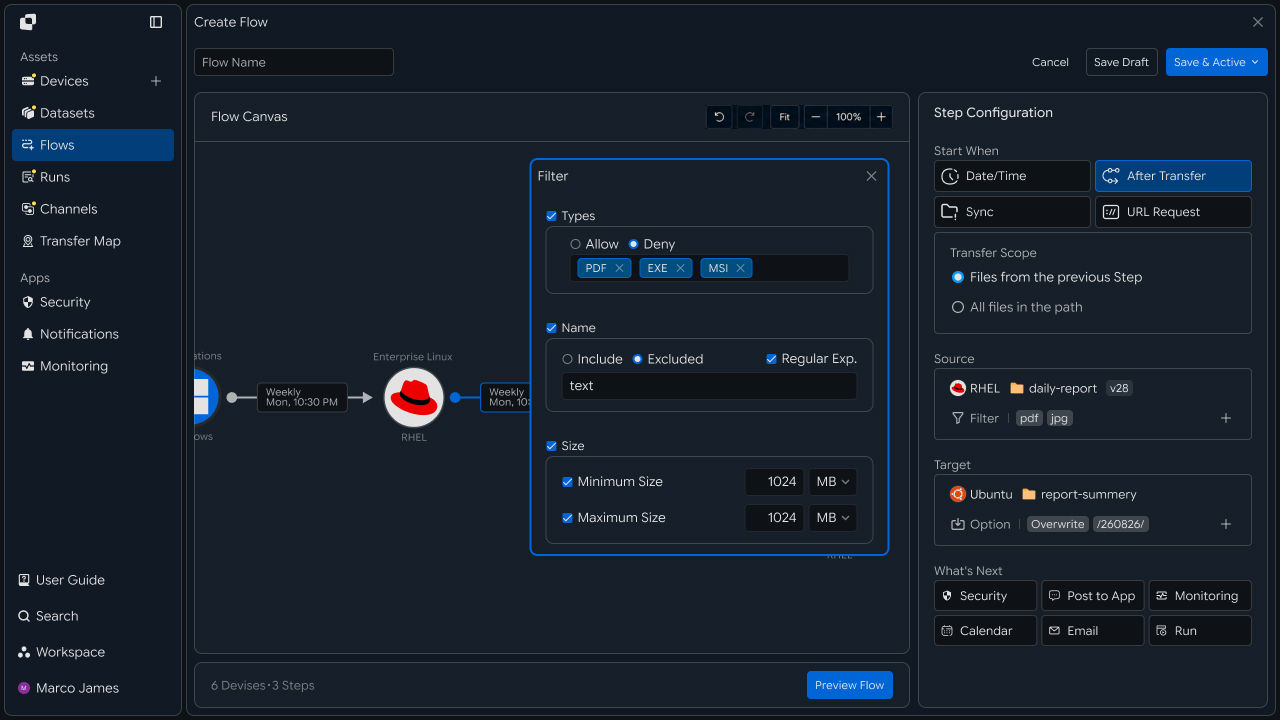
This allows the file scope and processing criteria previously defined in scripts to be reviewed and managed in the Flow.
Flow Configuration
After configuring synchronization paths and execution conditions, review the complete file flow from Source to Target.
In addition to a basic structure that applies files from one Source to one Target, you can collect data from multiple servers into one central storage location or apply one file to multiple systems.
                Source Systems
              ┌──────┼──────┐
              ▼      ▼      ▼
           Server A Server B Server C
              │      │      │
              └──────┼──────┘
                     ▼
                 Sync Flow
                     │
              ┌──────┴──────┐
              ▼             ▼
        Backup Storage   Archive
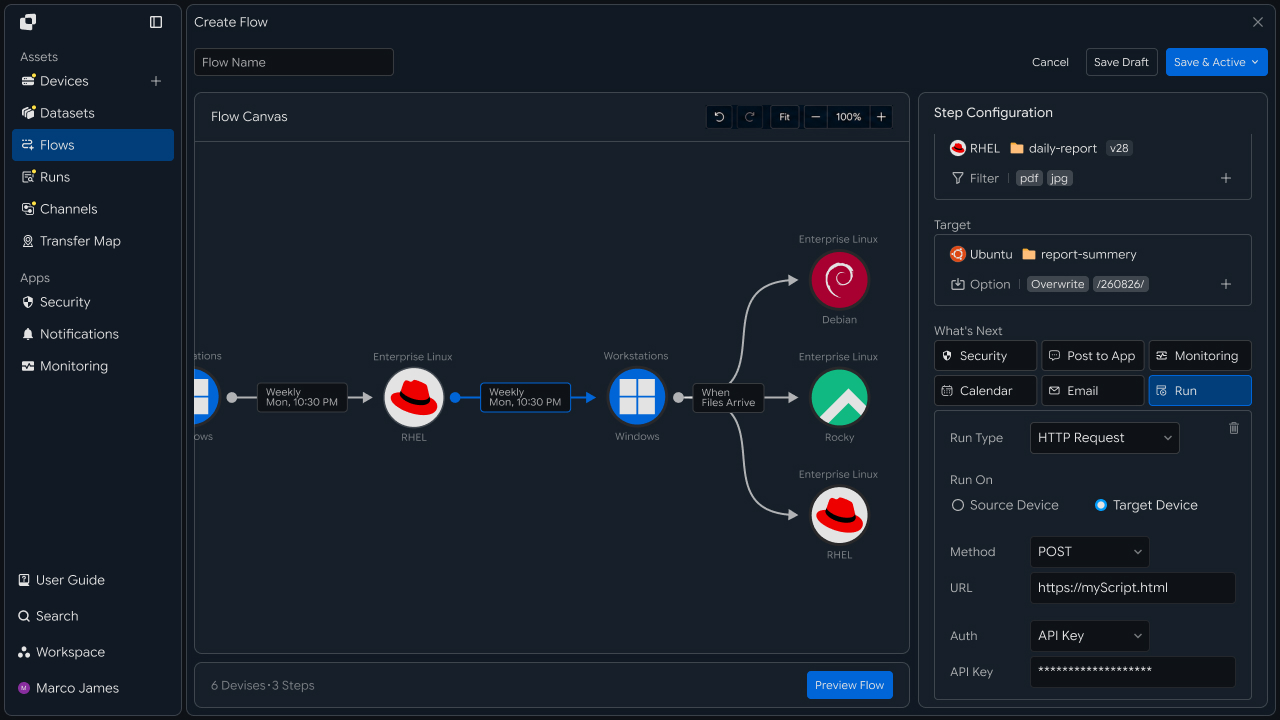
Depending on the business environment, the synchronization flow can be extended as follows.
Collect result files from multiple servers into central storage
Automatically apply changed files from business folders to remote servers
Distribute one reference folder to servers at multiple sites
Connect result files from processing servers to the next system
Repeatedly synchronize backup files to remote storage
This allows file synchronization jobs previously managed through scripts on individual servers to be configured as individual Flows.
Execution Management
When a Flow runs, you can check the progress and results of each synchronization job in Runs.
Even when multiple jobs run simultaneously, you can compare their status in the execution list and select a specific Run to check the Source, Target, processed files, and execution time.
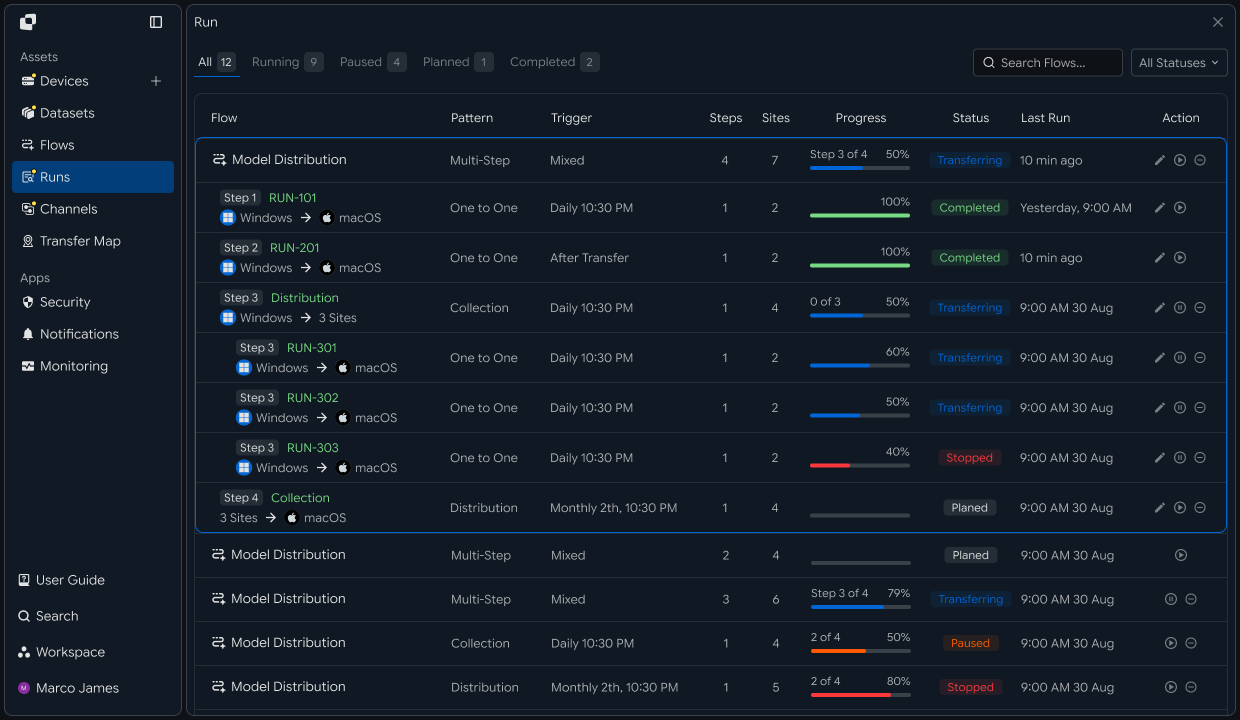
The following information can be checked in the execution results.
| Item | Details |
|---|---|
| Source | Source system and path used for synchronization |
| Target | Target system and location where files are applied |
| Total Files | Number of files to process |
| Total Size | Total file size |
| Progress | Current processing progress |
| Status | Execution status and completion state |
| Started | Job start time |
| Completed | Job completion time |
This allows execution results to be compared by synchronization job without checking separate logs on each existing server.
Failure History
If a synchronization operation requires additional review, check the Run details to identify where processing stopped.
For example, after checking the Source system connection, Target storage location, and file access permissions, you can take the required action and rerun the job.
Run Review
    │
    ▼
View Details
    │
    ├── Source Connection
    │
    ├── Target Connection
    │
    ├── File Path
    │
    └── File Status
            │
            ▼
      Configuration Check
            │
            ▼
           Retry
            │
            ▼
         New Run
            │
            ▼
        Result Verify
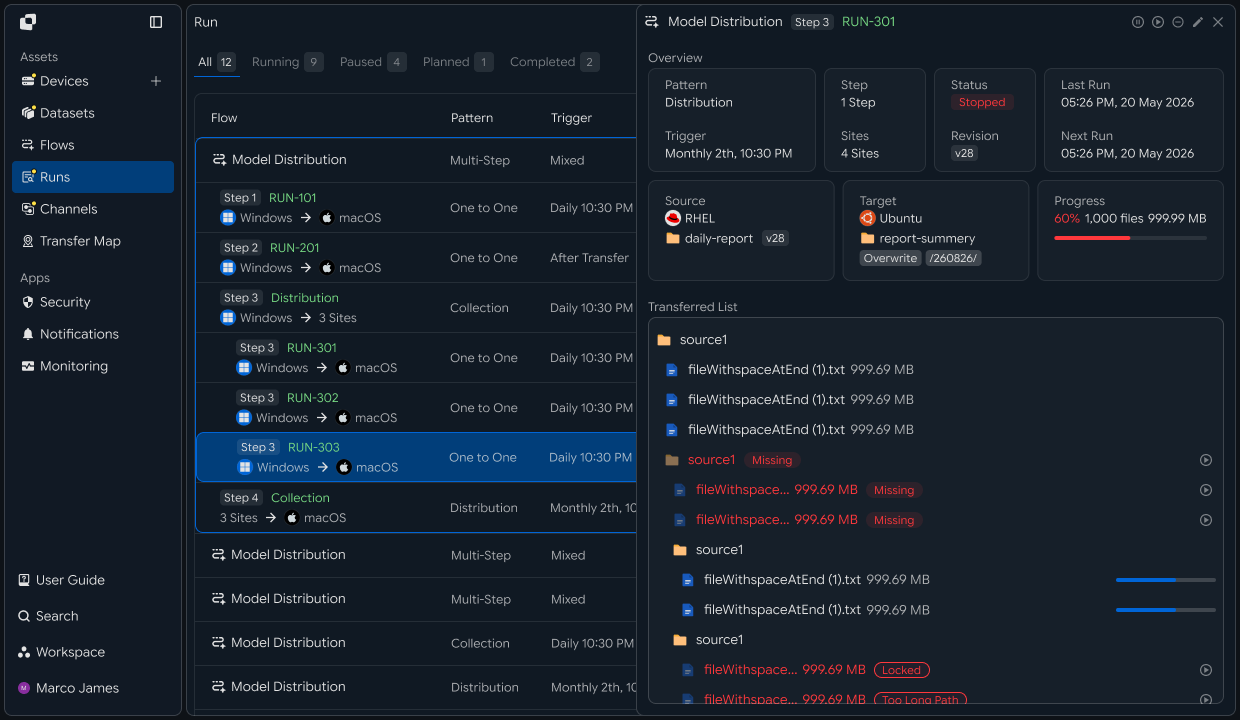
When reviewing failure history, the following items can be checked together.
| Item | Details | Follow-up Action |
|---|---|---|
| Source connection | Source system connection status | Check Device connection |
| Target connection | Target system access status | Check target environment |
| File path | Source and Target paths | Adjust paths |
| Access permissions | File read and write permissions | Check permission settings |
| File status | Information about files to process | Check file status |
| Execution record | Run details and activity history | Adjust environment and rerun |
After resolving the issue, rerun the required job and use the new Run to verify that files were successfully applied to the target location.
This process creates a conversion flow covering analyze existing rsync jobs → migrate synchronization paths → configure execution conditions → set file-processing criteria → configure managed Flows → check execution results → manage failure history.
While retaining the file-generation and business-processing structure on existing servers, you can move distributed rsync paths and execution conditions to managed Flows and operate synchronization configuration, execution results, and failure history through one management flow.