Getting Started
Basic Concept
Distribute installation files and firmware by device and version
Software and firmware files are used across servers, branch systems, production equipment, edge devices, and other environments.
Software and firmware distribution prepares installation packages, build artifacts, and firmware files, then configures deployment jobs based on the target devices and versions to apply.
You can build deployment flows that match your operating environment, whether distributing one file to multiple devices or applying different files and versions by device group.
Deployment Structure
Deployment File
    │
    ▼
Set Version Criteria
    │
    ▼
Select Target Devices
    │
    ├────────→ Server Group
    ├────────→ Branch Devices
    └────────→ Edge Devices
                    │
                    ▼
                 Review Results
This process lets you manage the files to distribute, target devices, and application criteria in a single flow.
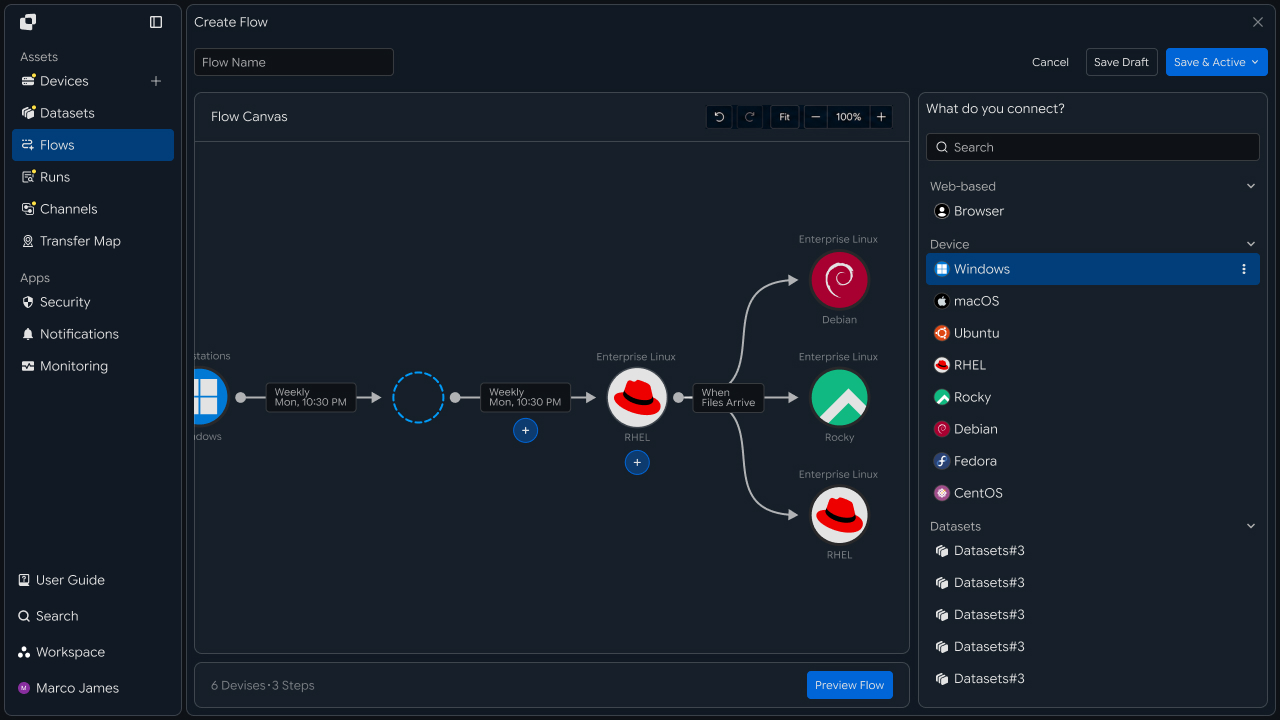
Deployment Flow
Move from file preparation to deployment and result verification
A deployment job starts by preparing the installation file or firmware and defining the devices and versions that will receive it.
When the deployment runs under the specified conditions, files are transferred to each target device, where you can review per-device progress and file application results.
① Prepare deployment files
↓
② Configure target devices
↓
③ Set version and execution criteria
↓
④ Distribute files to targets
↓
⑤ Review application results
If needed, you can rerun the deployment for a specific device or device group.
Deployment Benefits
Manage multi-device file distribution and version control in one flow
When applying software and firmware across multiple devices, teams need to manage the deployment files, targets, versions, and execution results together.
Software and firmware distribution lets you manage deployment work by device in a single operational flow and track which files were delivered to which targets.
| Category | Per-Device Management | Deployment Flow |
|---|---|---|
| Deployment Targets | Review targets device by device | Manage by device and group |
| Deployment Files | Check applicable targets for each file | Configure files as part of the deployment job |
| Version Application | Review version status by device | Deploy according to version criteria |
| Execution Results | Review results for each device separately | Review results across targets together |
| Redeployment | Reselect required devices | Rerun by target or group |
This creates a single operational flow from software and firmware distribution through result verification for each target.
IT Engineers
Deployment Files
Prepare installation packages and firmware files for deployment
First, prepare the installation packages, build artifacts, or firmware files to distribute.
A file can be used across multiple targets in a single deployment job, or different files can be assigned to different device groups depending on the operating environment.
For example, the following file types can be configured for deployment.
| File Type | Example Use |
|---|---|
| Installation Package | Application installer |
| Build Artifact | Latest build files and deployment packages |
| Firmware | Firmware for devices and edge systems |
| Update File | Update files for existing environments |
After preparing the deployment files, configure the devices and groups that should receive them.
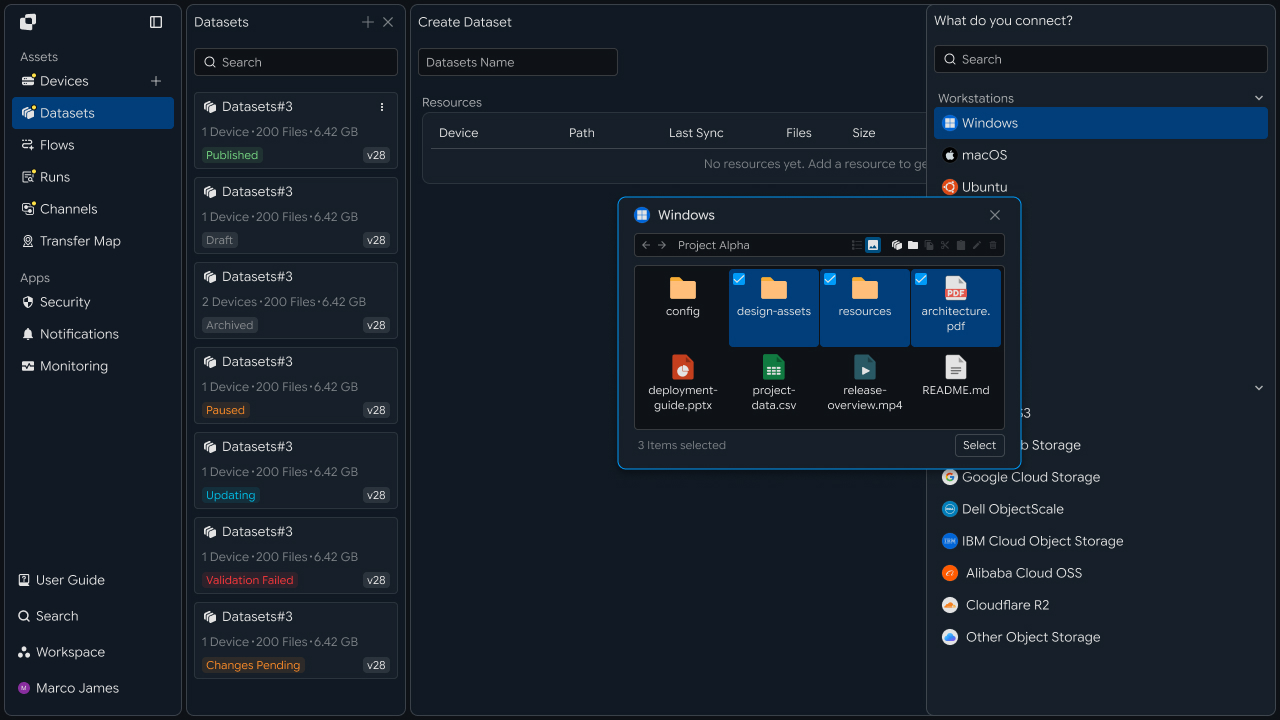
Target Setup
Organize servers, branch systems, and edge devices by group and device
Deployment targets can be configured as individual devices or grouped together.
For example, targets can be organized around operating criteria such as headquarters servers, nationwide branch systems, specific production equipment, or edge-device groups.
                Deployment Targets
                    │
        ┌───────────┼───────────┐
        ▼           ▼           ▼
      Server Group  Branch Group   Edge Group
        │           │           │
      Device A      Device D       Device G
      Device B      Device E       Device H
      Device C      Device F       Device I
This lets you select multiple devices in a single deployment job or limit the deployment scope to specific groups and devices.
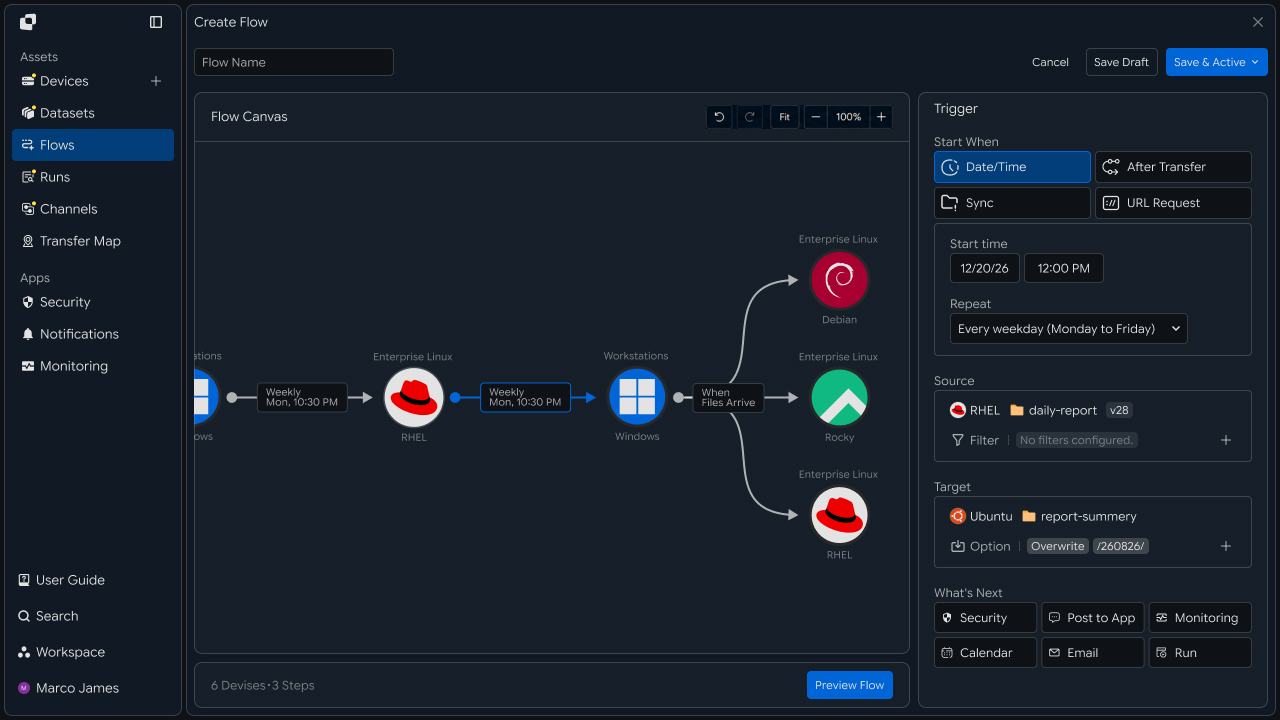
Deployment Criteria
Set file versions and execution conditions by device
After configuring the targets, define which files should be deployed and under what conditions.
Link deployment-file versions to target devices, then configure execution to run immediately, on a schedule, or after another task completes.
Criteria to Configure
| Setting | Configuration |
|---|---|
| Deployment File | Specify the installation package or firmware |
| Applied Version | Specify the file version to deploy to target devices |
| Target Scope | Select all devices, a group, or individual devices |
| Execution Condition | Run immediately, on a schedule, or after another task completes |
| File Path | Set the storage or application location on the target device |
For example, you can deploy newly prepared firmware to a specific device group or distribute build artifacts to designated servers after a build job completes.
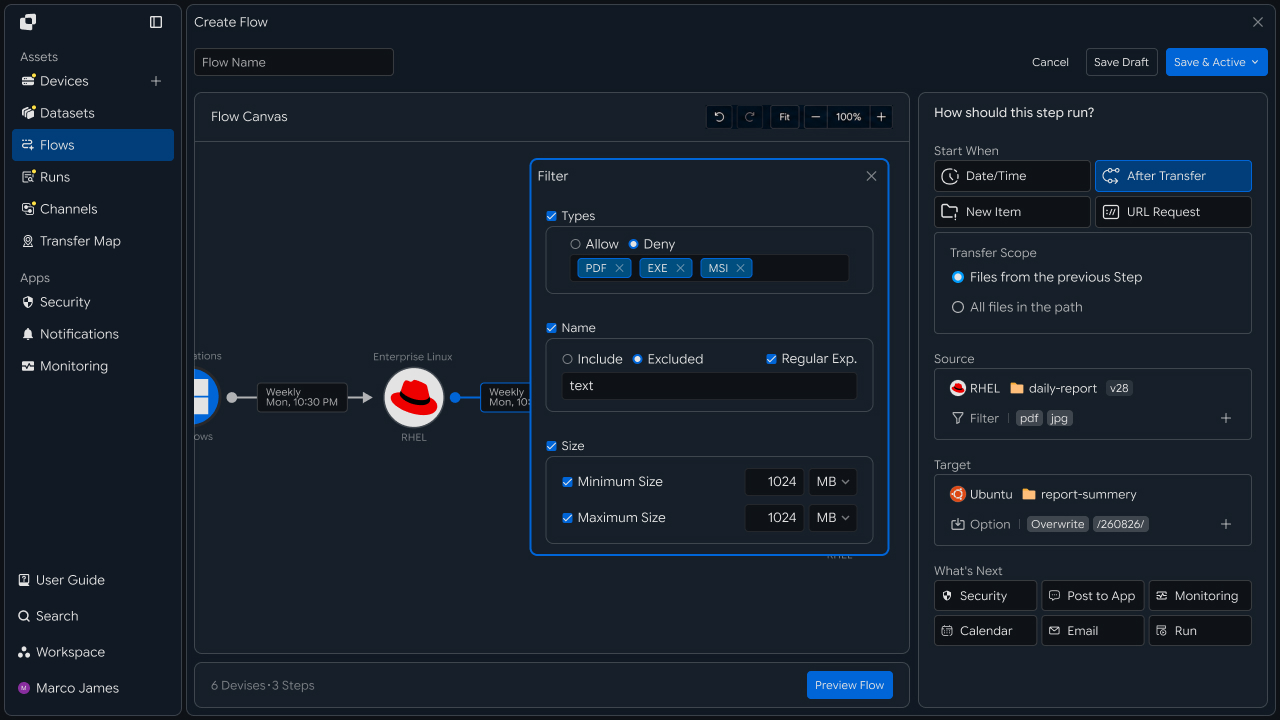
Multi-Device Deployment
Transfer files to multiple target devices in one deployment workflow
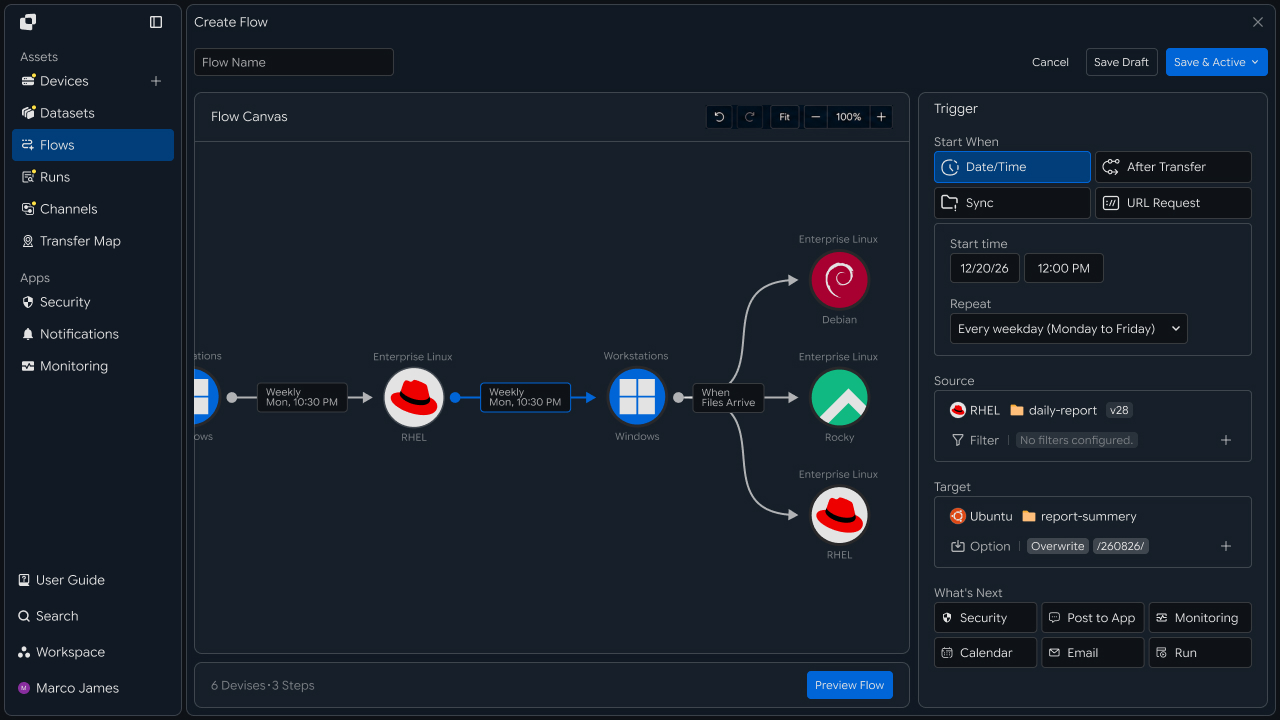
After defining the deployment criteria, configure a multi-device flow that sends one file to multiple targets.
In Flow Canvas, connect one deployment source to multiple target devices to distribute the same file across servers, branch systems, edge devices, and other environments.
                  Deployment File
                      │
                      ▼
                 Deployment Job
            ┌─────────┼─────────┐
            ▼         ▼         ▼
         Server      Branch     Edge
            │         │         │
            ▼         ▼         ▼
          Verify       Verify      Verify
You can process all target devices together or select specific groups and devices based on operational requirements.
Result Management
Review per-target status and rerun deployment for required devices
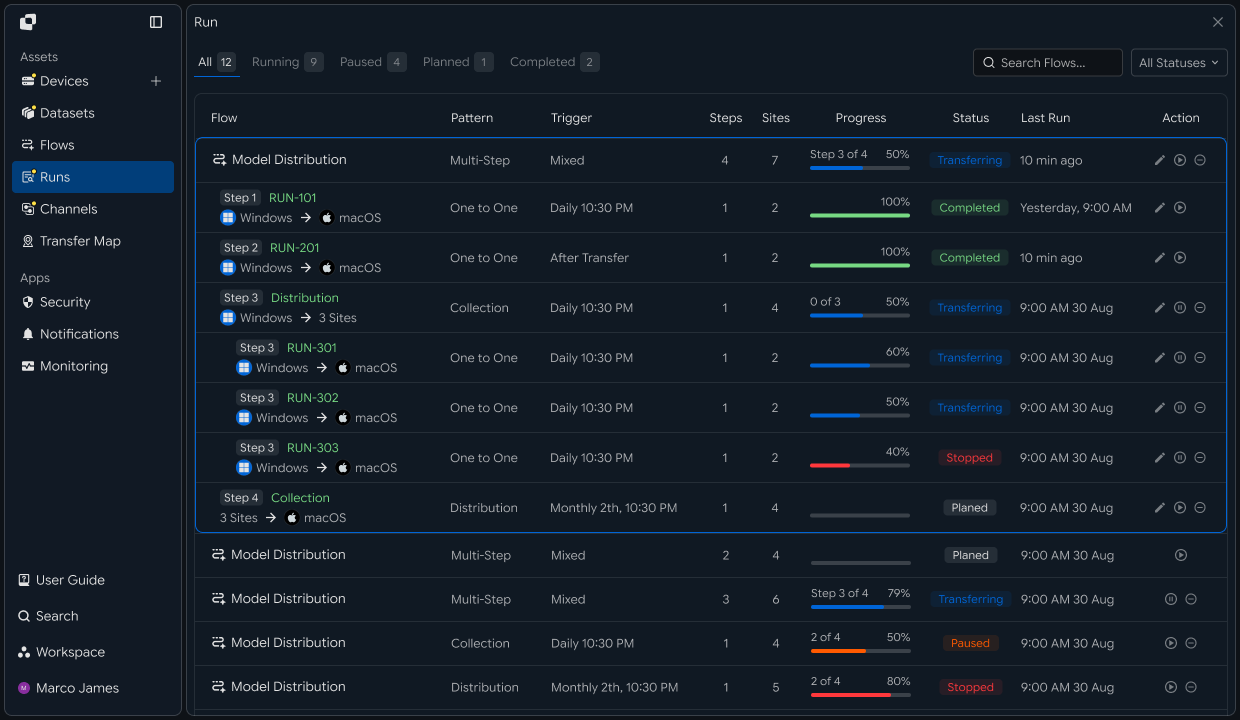
When a deployment runs, use Runs and the job details to review the overall deployment status and results for each target.
During review, you can check each device's progress, processed files, execution time, and related details.
Deployment Result Flow
Run Deployment
    │
    ▼
Review Overall Job Status
    │
    ├── Completed
    │      │
    │      └── Review per-target application results
    │
    ├── Running
    │      │
    │      └── Review progress and processing status
    │
    └── Needs Review
           │
           ▼
       Review Details
           │
           ▼
       Select Target Device
           │
           ▼
       Rerun Deployment
| Item | Details |
|---|---|
| Target Device | Server or device that received the files |
| Progress Status | Current processing status of the deployment job |
| File Result | File application result for each target device |
| Execution Time | Deployment start and completion times |
| Redeployment Target | Device or group to rerun |
If a deployment result for a specific device needs to be reviewed again, rerun the required deployment for that target or device group.
Developers
Distribute one artifact to multiple devices and aggregate the application results by device
Integration Setup
Prepare shared API calls and status values
import os
import requests

BASE_URL = os.getenv("INNORIX_BASE_URL", "https://app.innorix.com").rstrip("/")
TOKEN = os.environ["INNORIX_ACCESS_TOKEN"]
WORKSPACE_ID = os.getenv("INNORIX_WORKSPACE_ID")   # optional; falls back to the current workspace

STATUS_COMPLETE = 2
TERMINAL = {2, 4, 5, 9, 99}          # complete / error / cancelled / partial / failed
NOT_SUCCEEDED = {4, 5, 9, 99}


def api(method, path, body=None, params=None):
    headers = {
        "Content-Type": "application/json",
        "Authorization": f"Bearer {TOKEN}",
    }

    if WORKSPACE_ID:
        headers["x-workspace-id"] = WORKSPACE_ID

    response = requests.request(
        method, BASE_URL + path,
        headers=headers, json=body, params=params, timeout=30,
    )

    payload = response.json() if response.content else {}

    if not response.ok:
        raise RuntimeError(payload.get("message") or f"HTTP {response.status_code}")

    return payload.get("data")


def is_terminal(detail):
    return detail.get("isTerminal", detail.get("status") in TERMINAL)
Use the following values to determine transfer status. There are five terminal states, and Complete (2) is the successful state.
| Status Value | Meaning | Terminal |
|---|---|---|
| 2 | Complete | Yes |
| 4 | Error | Yes |
| 5 | Cancelled | Yes |
| 9 | Partial Complete | Yes |
| 99 | Failed | Yes |
| 1 · 6 · 12 · 13 | Starting · Transferring · Synchronizing · Receiving | No |
Configure Deployment Targets
Define device groups as lists and resolve their identifiers
Manage deployment targets as lists. If you work with device names, resolve them to identifiers first.
def resolve_device(name):
    result = api("GET", "/api/devices/resolve", params={"name": name}) or {}
    devices = result.get("devices") or []
    count = result.get("matchCount", len(devices))

    if count != 1 or not devices:
        raise RuntimeError(f"{name}: {count} matches")

    return devices[0]["deviceId"]


GROUPS = {
    "server": ["srv-01", "srv-02", "srv-03"],
    "branch": ["branch-seoul", "branch-busan"],
    "edge":   ["edge-line-01", "edge-line-02"],
}

RESOLVED = {
    group: [resolve_device(name) for name in names]
    for group, names in GROUPS.items()
}
You can also filter the complete device list by condition.
result = api("GET", "/api/devices", params={"page": 1, "size": 200}) or {}

edge_devices = [d["deviceId"] for d in result.get("devices") or []
                if d["name"].startswith("edge-")]
The device list is returned in the data.devices array.
Design Versioned Paths
Make the deployment-file version visible in the path
Record the deployed version in the path so you can see which version was applied where.
def package_path(product, version):
    return f"/release/{product}/{version}"


def target_path(product, version):
    return f"/opt/{product}/{version}"


PRODUCT, VERSION = "app", "2.14.0"
Keeping separate version folders preserves previous versions and makes rollback easier if a problem occurs. If every release overwrites the same path, there is no previous version to roll back to.
Multi-Device Deployment
Send one file to multiple devices
A single transfer handles one target device. Create a transfer for each target and store the returned monitorId by device to track progress and results.
def deploy(source, targets, product, version, target_paths=None):
    src = package_path(product, version)

    # pass a list when targets need different paths; the order must match
    paths = target_paths or [target_path(product, version)] * len(targets)

    return {
        device: api("POST", "/api/transfers/manual", {
            "sourceDevice": source,
            "targetDevice": device,
            "targetPath": path,
            "sourcePaths": [src],
            "sendAllFolder": True,
            "checkIntegrity": True,
            "transferOptions": {"target-action": "overwrite"},
        })["monitorId"]
        for device, path in zip(targets, paths)
    }


transfers = deploy("device-build-01", RESOLVED["edge"], PRODUCT, VERSION)
Within a version folder, redeployments usually send the same files again, so use overwrite. Using numbering creates an additional copy every time you redeploy.
Enable integrity verification. Applying corrupted firmware can prevent a device from booting.
If devices share field network links, apply a rate limit so deployment traffic does not interfere with other work.
"transferOptions": {
  "target-action": "overwrite",
  "limitRate": 20480
}
The limitRate unit is KB/s.
Aggregate Results
Collect and review application status by device
def wait(monitor_id, timeout=3600, interval=3):
    deadline = time.time() + timeout

    while time.time() < deadline:
        detail = api("GET", f"/api/transfers/{monitor_id}")

        if is_terminal(detail):
            return detail

        time.sleep(interval)

    raise TimeoutError(monitor_id)


def failed_files(monitor_id):
    result = api("GET", f"/api/transfers/{monitor_id}/files", params={
        "state": "any", "size": 500,
    }) or {}

    return [r for r in (result.get("children") or [])
            if r.get("status") in NOT_SUCCEEDED]


def retry_failed(monitor_id):
    rows = failed_files(monitor_id)

    if not rows:
        return 0

    api("POST", f"/api/transfers/{monitor_id}/retry", {
        "filesRetry": [
            {"filePath": r["sourceFilePath"], "isDir": bool(r.get("isFolder"))}
            for r in rows
        ]
    })

    return len(rows)
Continue checking the remaining devices even if one fails so you can determine how far the deployment was applied.
def deploy_report(transfers, timeout=3600):
    results = {}

    for device, monitor_id in transfers.items():
        try:
            results[device] = wait(monitor_id, timeout=timeout)
        except TimeoutError:
            results[device] = {"status": None}

    succeeded = [d for d, r in results.items()
                 if r.get("status") == STATUS_COMPLETE]
    failed = [d for d in results if d not in succeeded]

    return succeeded, failed, results


succeeded, failed, results = deploy_report(transfers)

print(f"{len(succeeded)} succeeded / {len(failed)} failed")

for device in failed:
    detail = results[device]
print(f" {device:20} {detail.get('statusName') or detail.get('status')}")| Item | Details |
|---|---|
status | Transfer status by device |
percent | Progress |
fileCount · totalSize | Number and total size of applied files |
endDate | Completion time |
Redeploy Failed Devices
Skip successful devices and redeploy only failed targets
Rerunning the entire deployment retransfers files to devices that already succeeded. Select only the failed targets and rerun them.
for device in failed:
    monitor_id = transfers[device]
    rows = failed_files(monitor_id)

    if rows:
        # reached the device, but some files failed
        print(f"{device}: retried {retry_failed(monitor_id)} files")
    else:
        # no per file record means the transfer never started
        state = api("GET", f"/api/devices/{device}/connectivity") or {}
        print(f"{device}: transfer never started - connected {state.get('isConnected')}"
              f" ({state.get('stateLabel')})")
If there is no per-file failure record, check device connectivity first. After the connection is restored, rerun the deployment.
if still_offline:
    retry_transfers = deploy("device-build-01", recovered, PRODUCT, VERSION)
    _, still_failed, _ = deploy_report(retry_transfers)
Review Deployment History
Check which version was applied to each device and when
from datetime import datetime, timedelta, timezone


def paginate(path, params=None, limit=200, max_pages=50):
    query = dict(params or {})
    query["limit"] = limit
    cursor = None

    for _ in range(max_pages):
        if cursor:
            query["cursor"] = cursor

        result = api("GET", path, params=query) or {}

        for record in result.get("data") or []:
            yield record

        pagination = result.get("pagination") or {}

        if not pagination.get("hasMore"):
            return

        cursor = pagination.get("nextCursor")

        if not cursor:
            return


end = datetime.now(timezone.utc)
fmt = "%Y-%m-%dT%H:%M:%SZ"

for row in paginate(f"/api/devices/{device_id}/transfer-history", params={
    "startDate": (end - timedelta(days=30)).strftime(fmt),
    "endDate": end.strftime(fmt),
}):
    print(row.get("startDate"), row.get("statusName"), row.get("monitorId"))
Recording the deployment identifier and version together in the application links deployment history to the corresponding version.
db.insert("deployments", {
    "product": PRODUCT,
    "version": VERSION,
    "device": device,
    "monitorId": transfers[device],
    "result": "done" if device in succeeded else "failed",
})| Item | Details |
|---|---|
| Deployment File | Transferred package and version |
| Target | Device and group |
| Result | Success or failure by device |
| Redeployment | Targets rerun and their results |
| History | Recent deployment records by device |