Overview
You can configure Microsoft Defender antivirus integration to scan files during transfer and block or detect threats using Microsoft Defender built into Windows.
Microsoft Defender is built into Windows and performs scanning locally, so no separate API Endpoint or API Key is required. After completing the integration, files are scanned at the configured scan timing (Scan timing), and when a threat is detected, the transfer is blocked or an alert is generated according to the specified handling method (On detection). The files to scan are specified by the scan scope (Scan scope).
The entire process proceeds in the following order: ① Check Microsoft Defender Status → ② Configure the Integration in the Product.
Prerequisites
Before you begin, check the following.
| Item | Description |
|---|---|
| Operating system | A Windows environment with Microsoft Defender built in is required. |
| Microsoft Defender | Microsoft Defender Antivirus must be enabled and running. |
| Definition updates | For accurate detection, the latest virus definitions (signatures) must be installed. |
Check Microsoft Defender Status
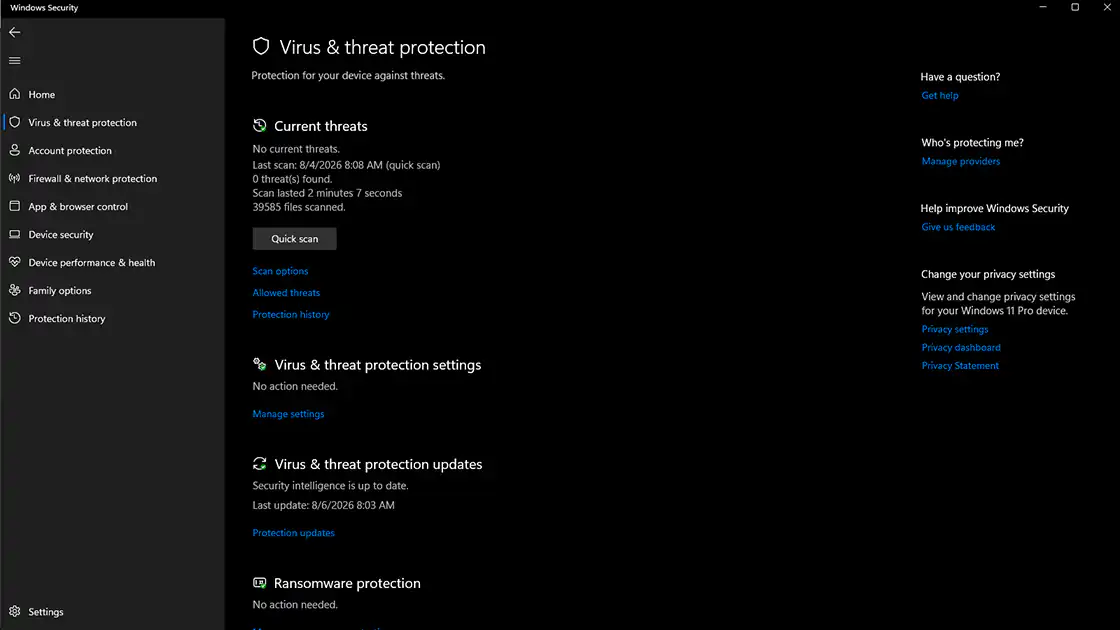
Microsoft Defender is built into Windows and scans files locally without separate credentials. Before scanning, verify that Defender is working properly.
Step 1. Check Running Status
In Windows Security → Virus & threat protection, verify that Microsoft Defender is turned on and real-time protection is enabled.
ℹ️ If third-party antivirus software is installed, Microsoft Defender may be automatically disabled, so check this when using Defender.
Step 2. Check Definition Updates
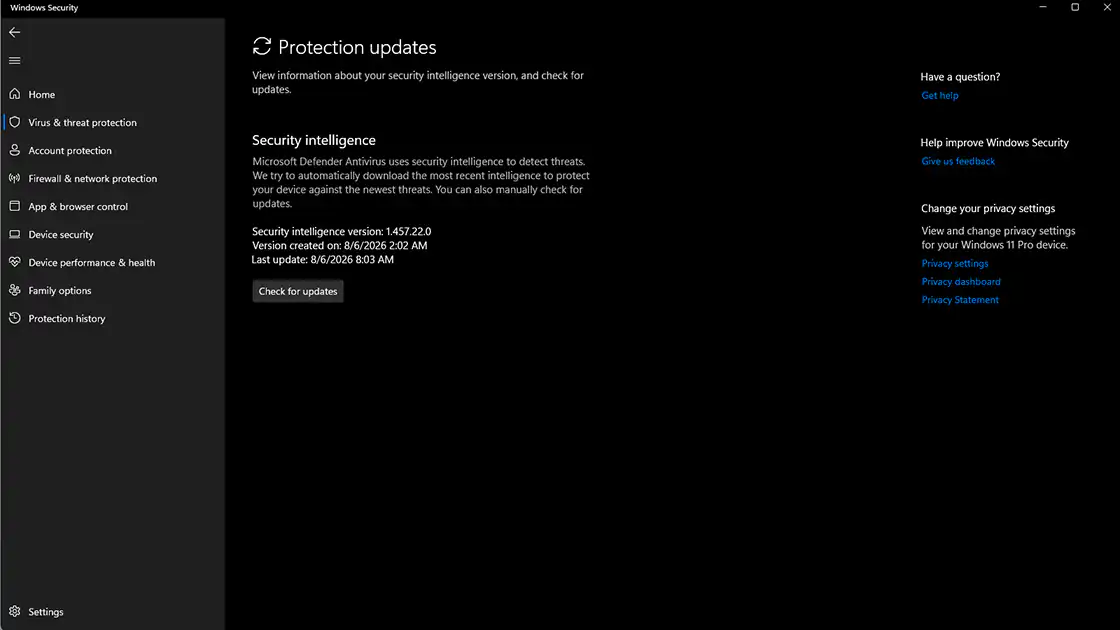
Under Virus & threat protection updates, verify that the latest definitions are installed.
Checklist
- ✔ Microsoft Defender is enabled and running.
- ✔ The latest definitions are installed.
Microsoft Defender Integration Settings
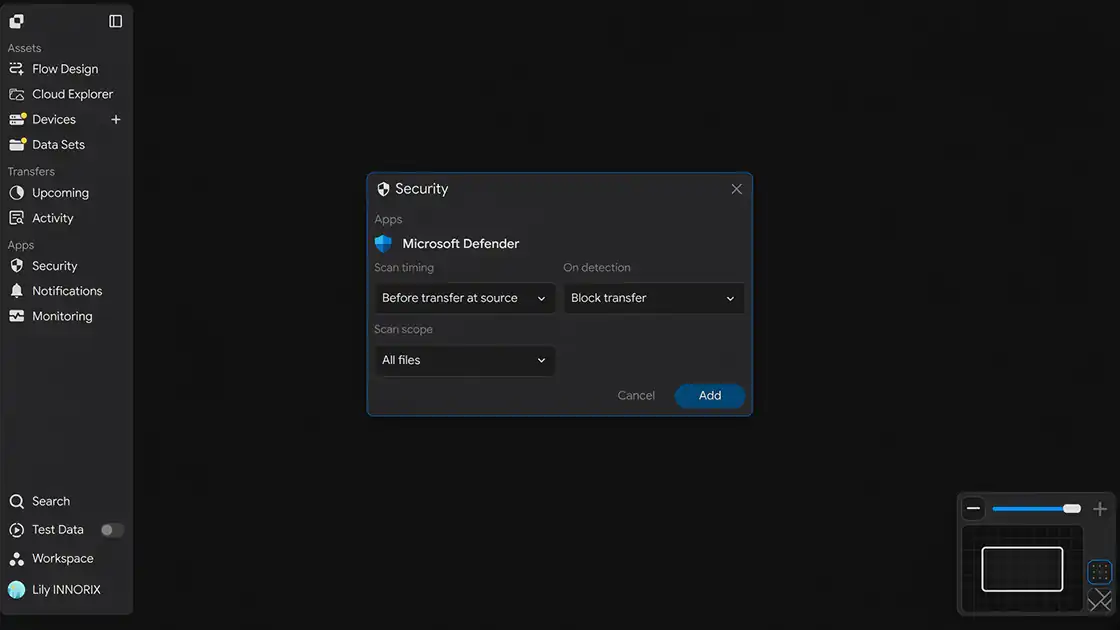
Specify the scanning options. Because Microsoft Defender operates locally, configure only the scanning options without entering credentials.
When you open the Security settings window, the following screen is displayed.
Step 1. Select Scan timing
Select when to scan files under Scan timing.
| Option | Description |
|---|---|
| Before transfer at source | Scans files at the source before transfer. |
| After transfer at target | Scans files at the target after transfer. |
| Bothway | Scans files at both the source before transfer and the target after transfer. |
Step 2. Select On detection
Select how to handle a detected threat under On detection.
| Option | Description |
|---|---|
| Block transfer | Blocks the transfer when a threat is detected. |
| Alert only | Allows the transfer to continue but generates only an alert. |
| Admin confirm | Processes the item after administrator confirmation. |
Step 3. Select Scan scope
Select the target scope to scan under Scan scope.
| Option | Description |
|---|---|
| All files | Scans all transferred files. |
| Executable files only | Scans executable files only. |
| Custom exceptions | Scans according to user-defined exception rules. |
Step 4. Save the Settings
After completing the input, click Add to save the integration.
Checklist
- ✔ Scan timing, On detection, and Scan scope have been selected.
Verify the Integration
Verify that the settings are working correctly.
Step 1. Transfer a Test File
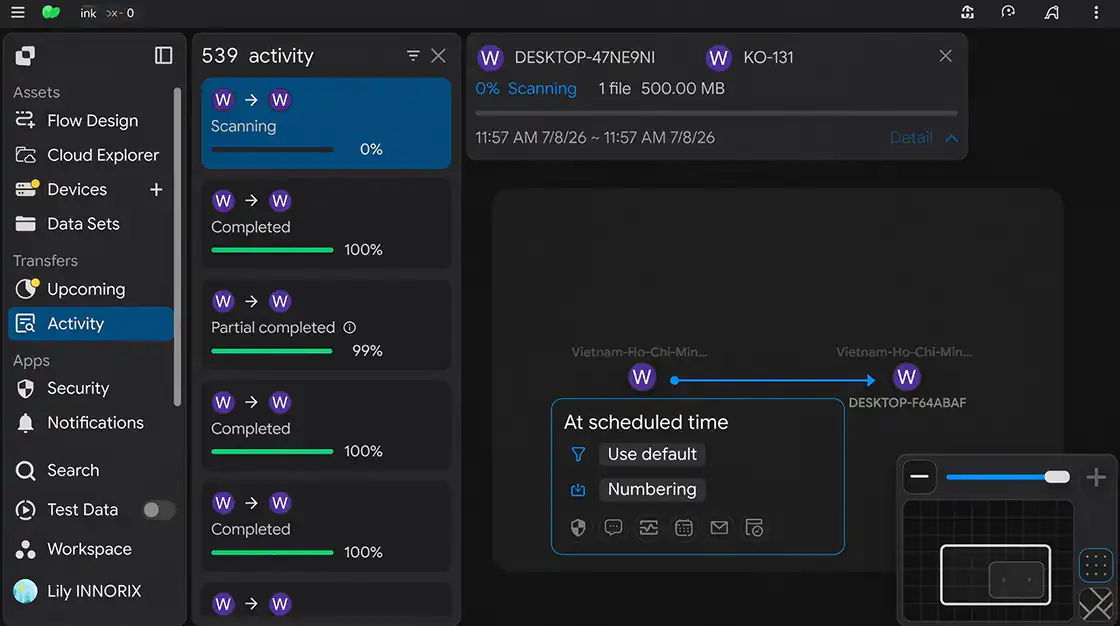
Transfer an actual file to verify that scanning is performed. You can verify scanning behavior with a safe test file, such as the standard antivirus test file (EICAR).
Step 2. Check the Processing Result
Verify that the configured handling method (On detection) works as expected. (For example, Block transfer blocks the transfer, while Alert only generates an alert.)
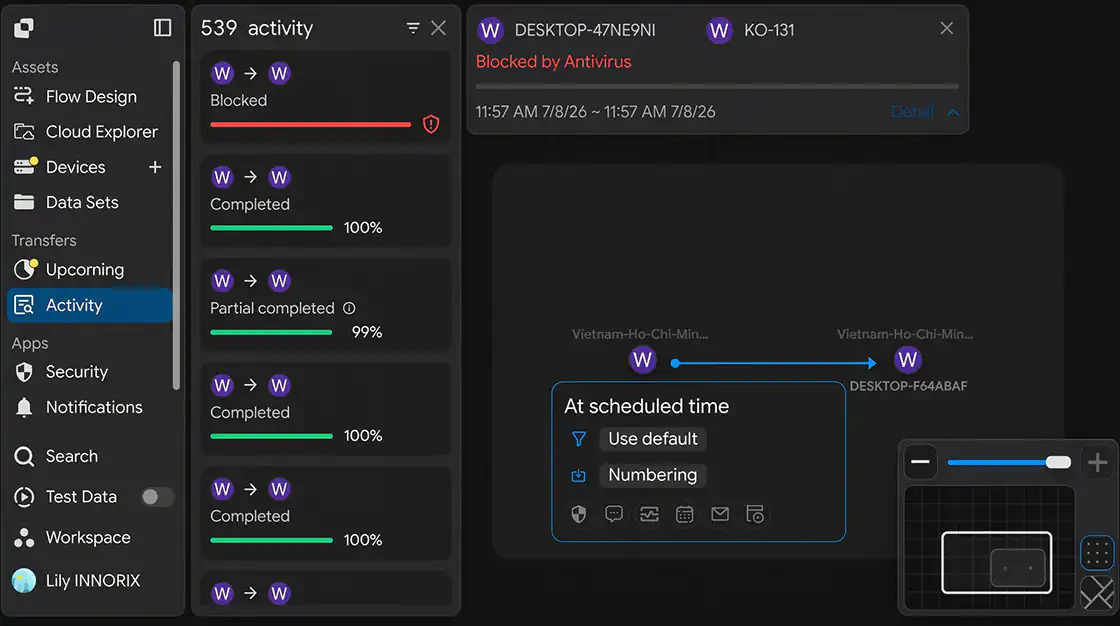
Checklist
- ✔ File scanning has been performed.
- ✔ It operates according to the configured handling method.
Setup Complete
Once the settings are saved, the integration is applied. Files transferred afterward are scanned by Microsoft Defender at the specified timing and scope, and detected threats are handled according to the specified method.
Troubleshooting
If scanning does not work correctly, check the following items.
| Issue | Checklist |
|---|---|
| Scanning is not performed | Check whether Microsoft Defender is enabled and running (and whether third-party antivirus software has disabled Defender). |
| A threat is not detected | Check whether the virus definitions are up to date. |
| The transfer is not blocked when a threat is detected | Check whether On detection is set to Block transfer. |
| A specific file is not scanned | Check the Scan scope setting (All files / Executable files only / Custom exceptions). |
| Transfer slows down | If Scan timing is Bothway, bidirectional scanning may take more time (adjust if necessary). |