Overview
You can configure the Symantec Norton antivirus integration to scan files during transfer and detect or block threats.
After the integration is complete, files are scanned at the configured Scan timing. If a threat is detected, the transfer is blocked or an alert is generated according to the selected On detection action. The files to scan are defined by the Scan scope.
The entire process consists of two steps: ① Check API credentials → ② Configure the integration in the product.
Prerequisites
Before you begin, check the following.
| Item | Description |
|---|---|
| Symantec Norton | A Symantec Norton environment and API access permissions for file scanning are required. |
| API Credentials | An API Endpoint and API Key are required. |
| Network | Outbound HTTPS (443) communication to the API Endpoint must be allowed from the environment where the product is installed. |
Check API Credentials
To scan files with Symantec Norton, you need an API Endpoint and API Key.
Step 1. Check the API Endpoint
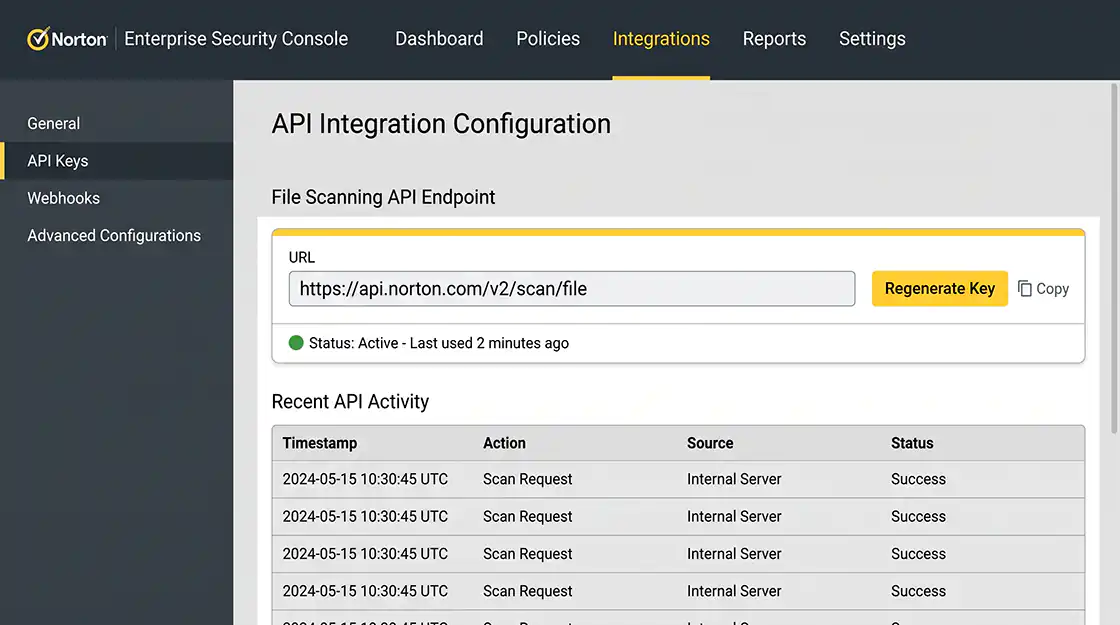
In the management console, check the API endpoint address to use for file scanning.
Step 2. Generate an API Key
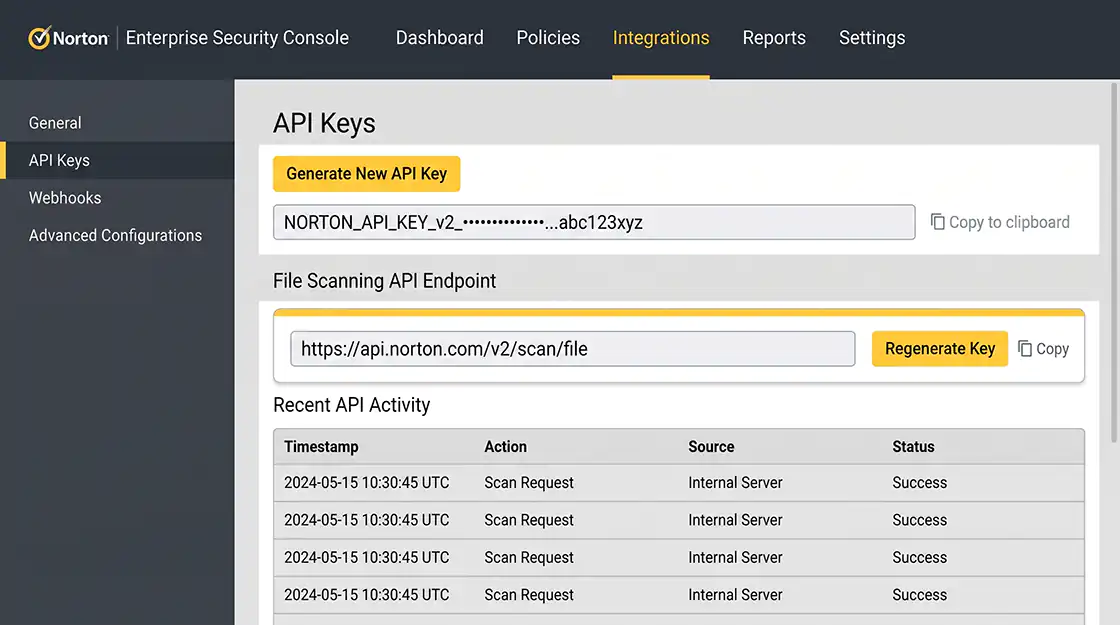
In the API access settings of the management console, generate or check the API Key and copy it.
ℹ️ Treat this API Key like a password. Anyone who knows the value can access the scanning API, so do not expose it in public repositories or external documents. If it is exposed, revoke the key and generate a new one.
Verification
- ✔ The API Endpoint has been checked.
- ✔ The API Key has been generated.
Configure the Symantec Norton Integration
Enter the verified credentials and configure the scanning options.
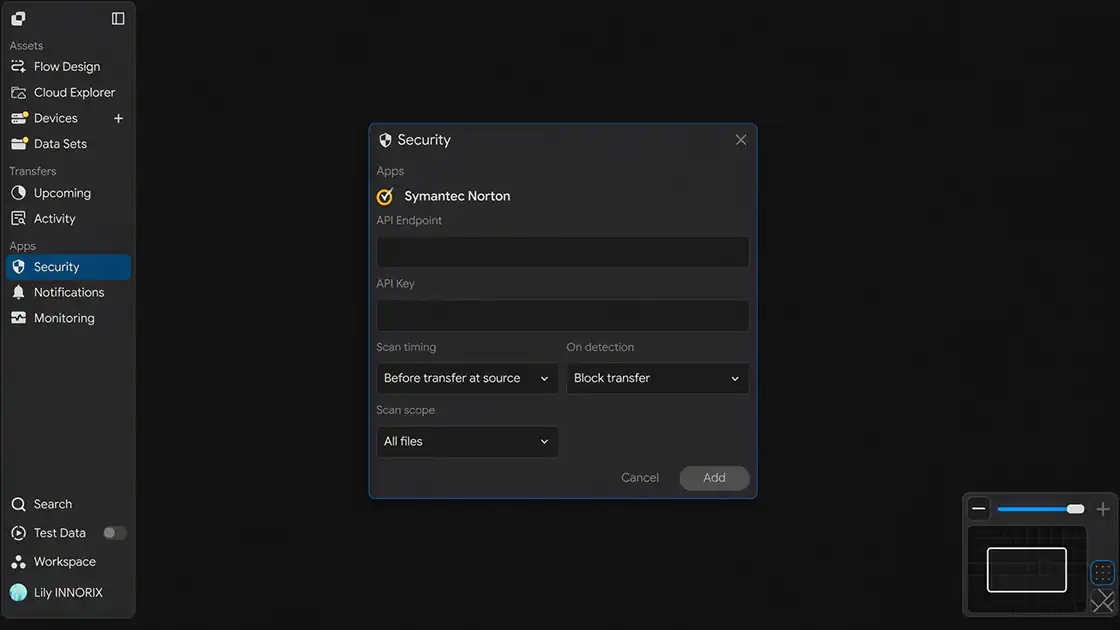
Open the Security settings window to display the screen below.
Step 1. Enter the API Endpoint
Enter the verified address in the API Endpoint field.
Step 2. Enter the API Key
Enter the generated key in the API Key field.
Step 3. Select Scan timing
Under Scan timing, select when files should be scanned.
| Option | Description |
|---|---|
| Before transfer at source | Scans the file at the source before transfer. |
| After transfer at target | Scans the file at the target after transfer. |
| Bothway | Scans at both the source before transfer and the target after transfer. |
Step 4. Select On detection
Under On detection, select how to handle detected threats.
| Option | Description |
|---|---|
| Block transfer | Blocks the transfer when a threat is detected. |
| Alert only | Allows the transfer to continue and generates an alert only. |
| Admin confirm | Requires administrator confirmation before proceeding. |
Step 5. Select Scan scope
Under Scan scope, select the range of files to scan.
| Option | Description |
|---|---|
| All files | Scans all transferred files. |
| Executable files only | Scans executable files only. |
| Custom exceptions | Scans according to user-defined exception rules. |
Step 6. Save the Settings
After entering the information, click Add to save the integration.
Verification
- ✔ The API Endpoint and API Key have been entered.
- ✔ Scan timing, On detection, and Scan scope have been selected.
Verify the Integration
Verify that the configuration works correctly.
Step 1. Transfer a Test File
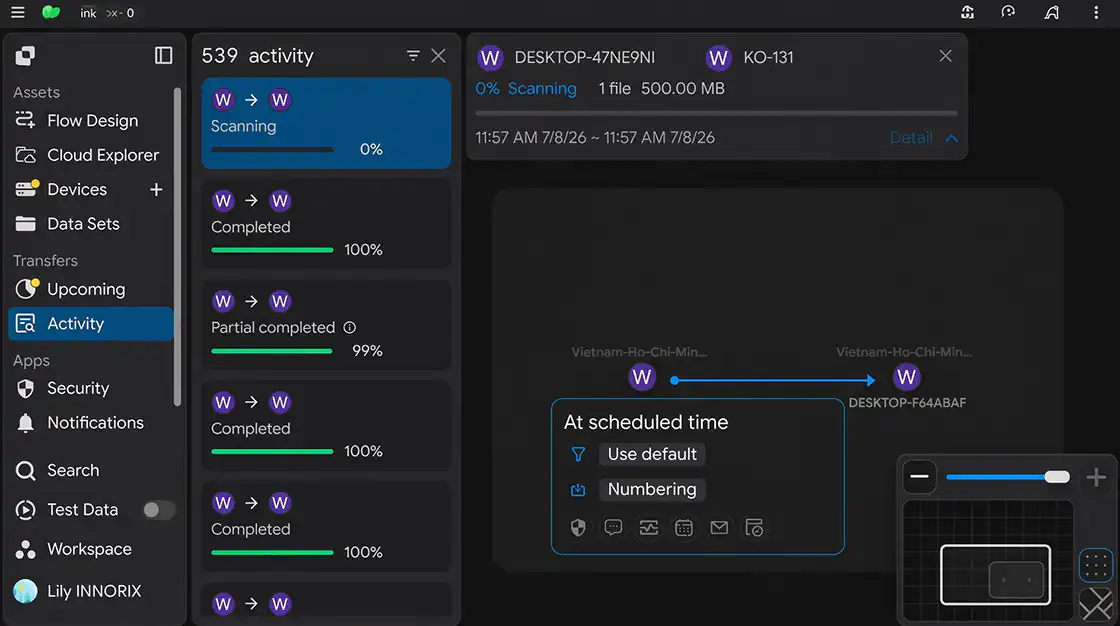
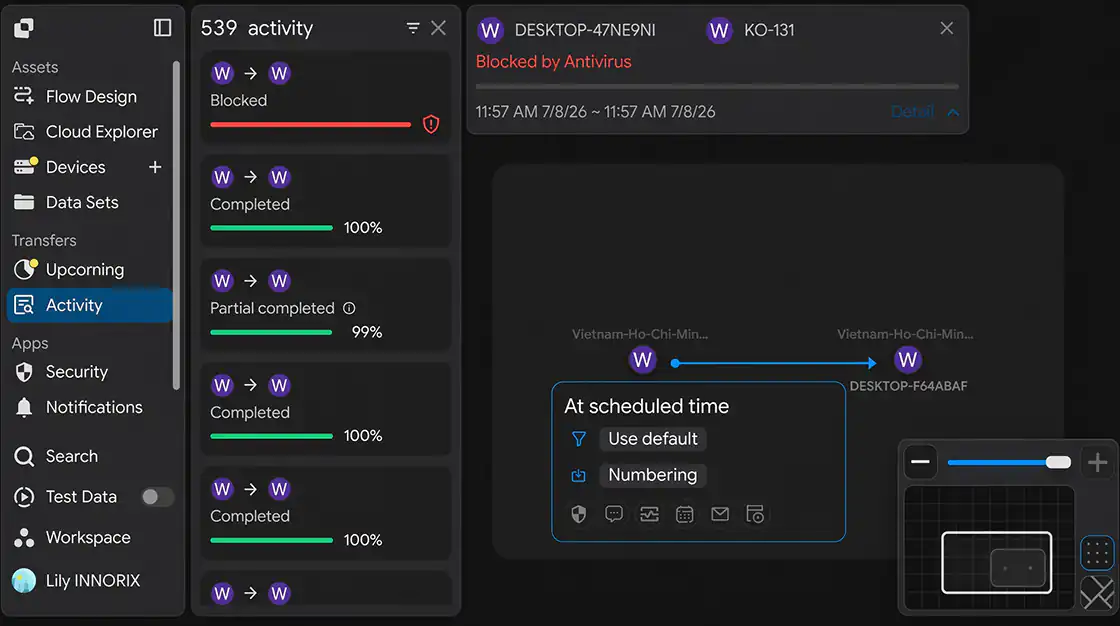
Transfer an actual file to verify that scanning is performed. You can verify scanning behavior using a safe test file such as the standard antivirus test file (EICAR).
Step 2. Check the Result
Verify that the configured On detection action works as expected. (For example, Block transfer blocks the transfer, while Alert only generates an alert.)
Verification
- ✔ File scanning has been performed.
- ✔ The configured handling action works as expected.
Setup Complete
The integration is applied when you save the settings. Afterward, transferred files are scanned at the specified timing and scope, and detected threats are handled according to the configured action.
Troubleshooting
If scanning does not work correctly, check the following.
| Problem | What to Check |
|---|---|
| Scan is not performed | Verify that the API Endpoint and API Key are correct and contain no leading/trailing spaces or missing values |
| Authentication error occurs | Verify that the API Key is valid and has not been revoked or regenerated |
| Transfer is not blocked when a threat is detected | Verify that On detection is set to Block transfer |
| Certain files are not scanned | Check the Scan scope setting (All files / Executable files only / Custom exceptions) |
| Transfer is slower | If Scan timing is set to Bothway, scanning in both directions may take additional time (adjust if necessary) |
| Integration fails in a closed network | Verify that outbound communication to the API Endpoint (443) is allowed through the firewall or proxy |