Overview
You can integrate Slack notifications to receive real-time updates on status changes during file transfer tasks.
After completing the integration, notification messages are automatically sent to the selected Slack channel whenever designated events occur, such as a transfer being Started, Completed, or Failed.
The entire process consists of two steps: ① Obtain a Webhook URL from Slack → ② Configure notifications in the product.
Prerequisites
Before you begin, check the following.
| Item | Description |
|---|---|
| Slack workspace | Permission to install apps or administrator approval is required. |
| Notification channel | Create the Slack channel that will receive notifications in advance. (Example: #all-innorix) |
| Network | Outbound communication to hooks.slack.com (443) must be allowed from the environment where the product is installed. |
Obtain a Slack Webhook URL
First, obtain an Incoming Webhook URL from Slack to receive external messages.
To do this, create a Slack app, enable the required feature, and then select the channel that will receive notifications.
Step 1. Create a Slack App
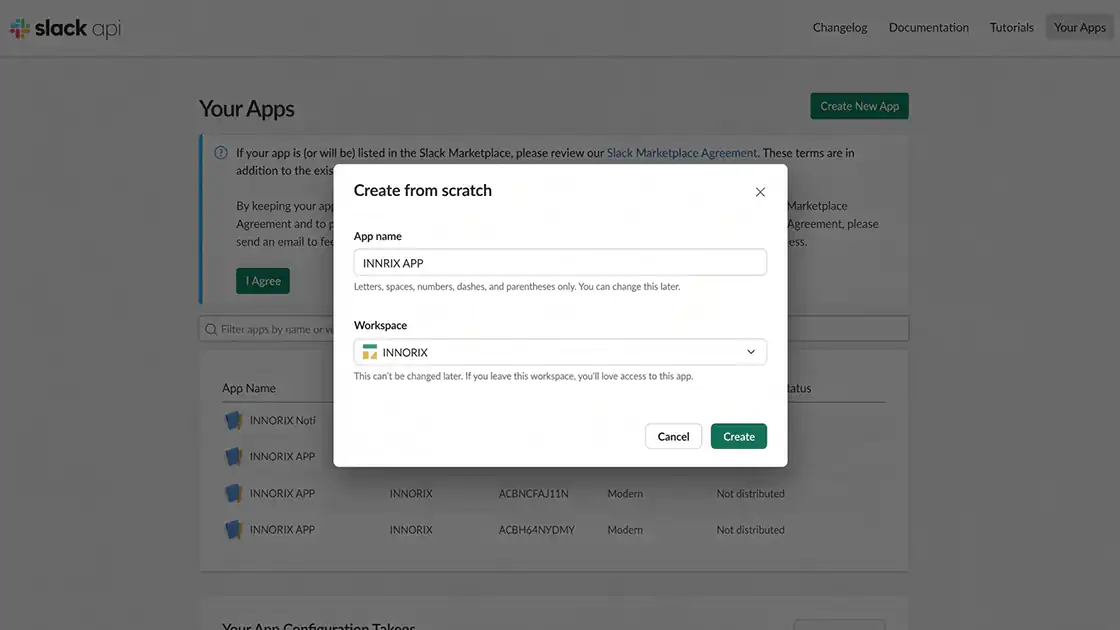
Go to the Slack API page(https://api.slack.com/apps) and select Create New App → From scratch.
Enter an app name (Example: INNORIX APP), select a workspace, and then click Create App.
Step 2. Enable Incoming Webhooks
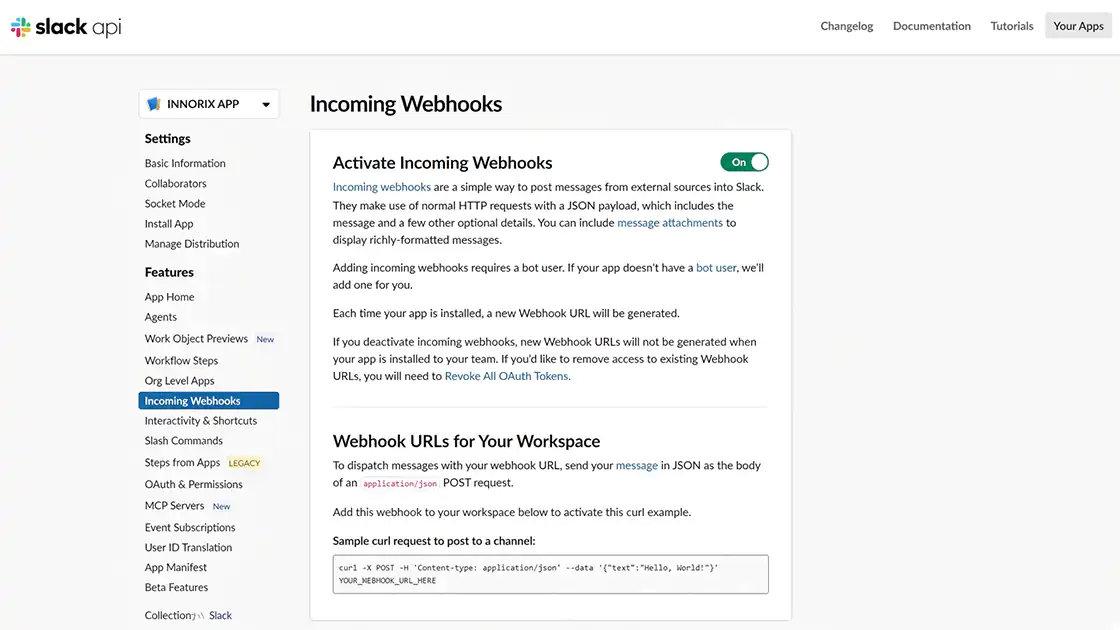
Select Incoming Webhooks from the left sidebar of the app settings page.
Change the Activate Incoming Webhooks toggle at the top to On.
Step 3. Add a Webhook to the Workspace
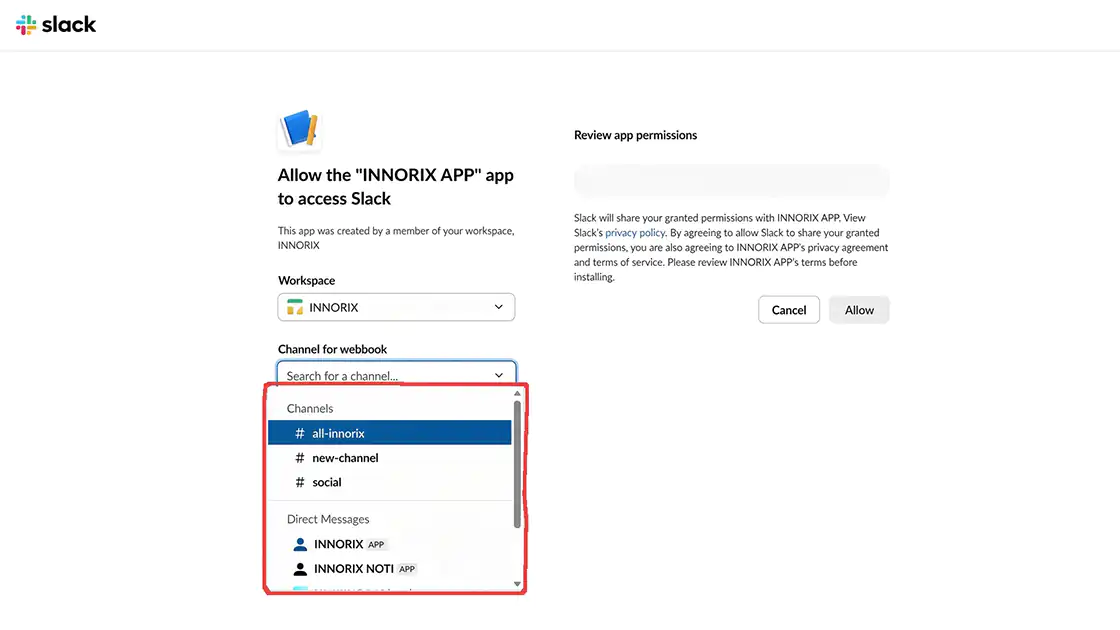
Click Add New Webhook to Workspace at the bottom of the page.
Select the channel that will receive notifications, and then click Allow.
Step 4. Copy the Webhook URL
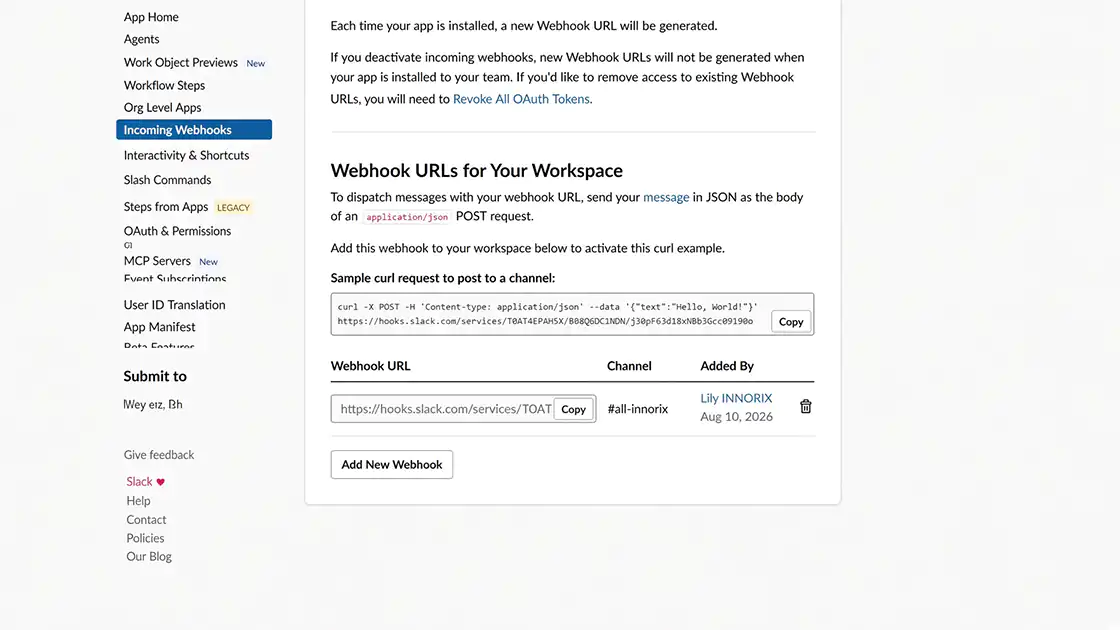
Copy the generated URL under Webhook URLs for Your Workspace.
ℹ️ A Webhook URL is sensitive information, similar to a password. Anyone who knows the URL can send messages to the channel, so make sure it is not exposed in public repositories or external documents.
The URL format is as follows.
https://hooks.slack.com/services/T00000000/B00000000/XXXXXXXXXXXXXXXXXXXXXXXX
Checklist
- ✔ A Slack app has been created.
- ✔ Incoming Webhooks have been enabled.
- ✔ The Webhook URL has been copied.
Slack Notification Settings
Enter the issued Webhook URL in the product's notification settings.
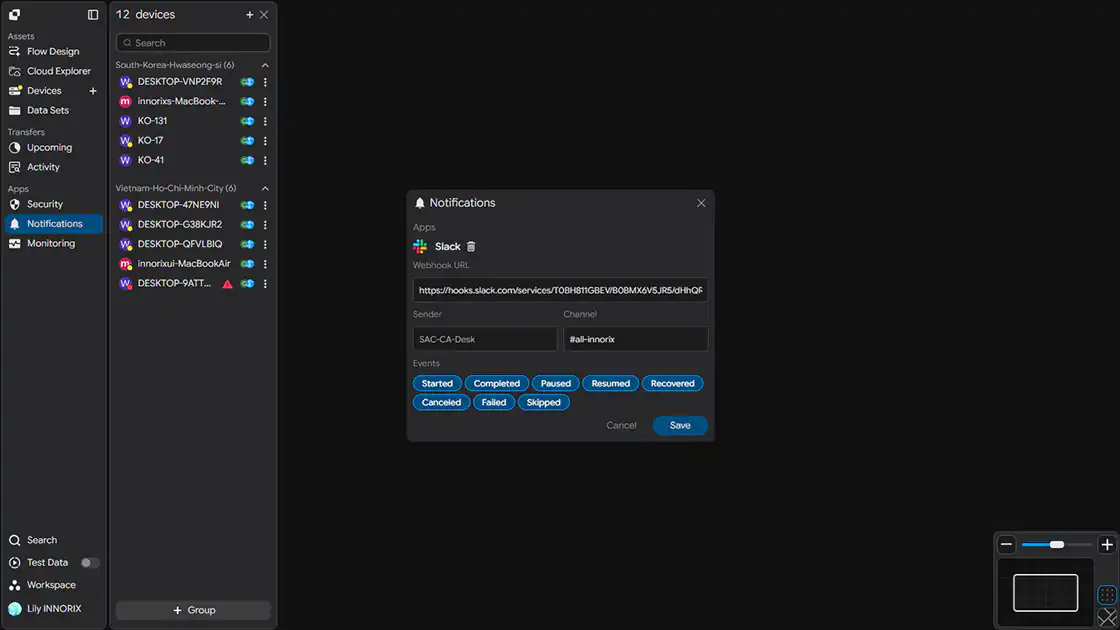
When you open the Notifications settings window, the following screen is displayed.
Step 1. Enter the Webhook URL
Paste the copied URL into the Webhook URL field.
Step 2. Enter the Sender
Enter the sender name to be displayed in notification messages in the Sender field.
Set it so you can identify which system the notification came from. (Example: SAC-CA-Desk)
Step 3. Enter the Channel
Enter the name of the channel that will receive notifications in the Channel field. (Example: #all-innorix)
Because notifications are actually sent to the channel connected to the Webhook URL, enter the same channel that was selected when creating the Webhook in Obtain a Slack Webhook URL.
Step 4. Select Notification Events
Select the events for which you want to receive notifications under Events.
You can select multiple events, and messages are sent only when the selected events occur.
| Event | When It Occurs |
|---|---|
| Started | When the transfer task starts |
| Completed | When the transfer is completed successfully |
| Paused | When the transfer is temporarily paused |
| Resumed | When a paused transfer starts again |
| Recovered | When the transfer is automatically recovered and resumed after an interruption or error |
| Canceled | When the user cancels the transfer |
| Failed | When the transfer fails |
| Skipped | When a specific file is skipped (Example: an existing file or a file matching a filter condition) |
Step 5. Save the Settings
After completing the input, click Add to save the integration.
Checklist
- ✔ The Webhook URL has been entered.
- ✔ Sender and Channel have been configured.
- ✔ The events for which notifications will be received have been selected.
Verify the Integration
Verify that the settings are working correctly.
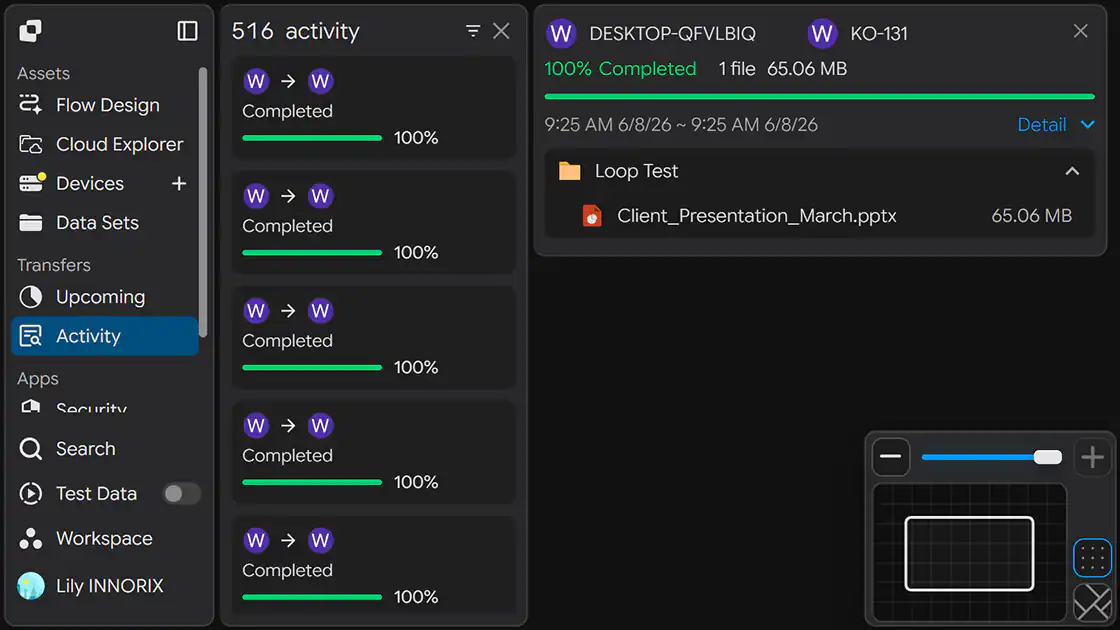
Step 1. Trigger a Test Event
Run an actual transfer task or trigger one of the selected events.
Step 2. Check the Slack Channel
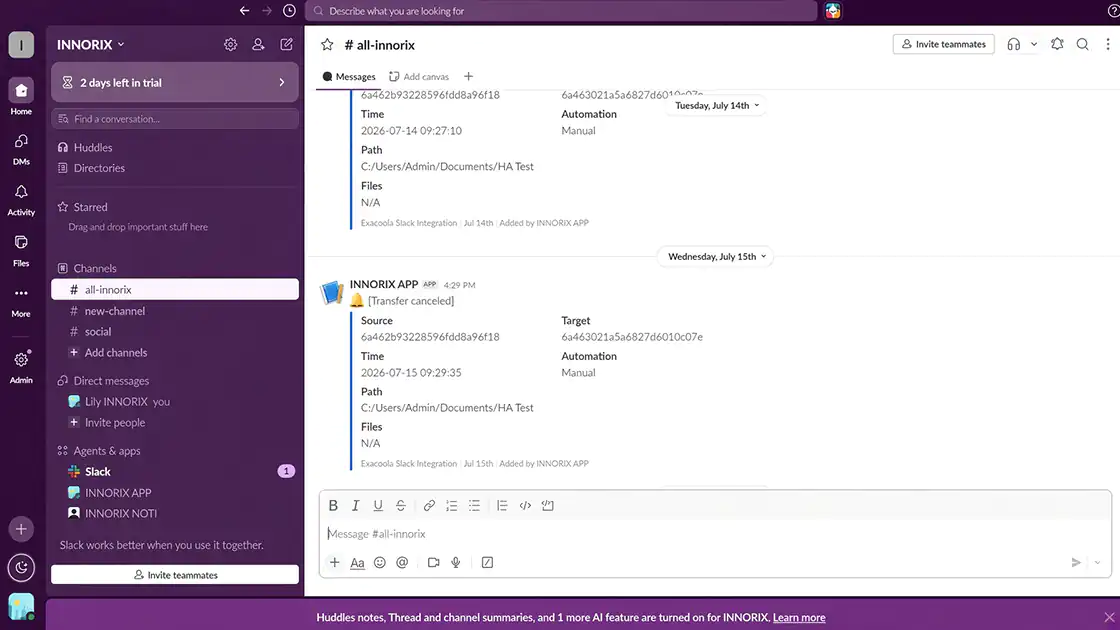
Check whether a notification message has arrived in the designated Slack channel.
If the integration is working correctly, an event notification is displayed along with the Sender name.
Checklist
- ✔ A notification has arrived in the Slack channel.
- ✔ The Sender name is displayed correctly.
- ✔ The triggered event was delivered accurately.
Setup Complete
Once the settings are saved, the integration is applied.
After that, notifications are automatically sent to the designated Slack channel whenever the selected events occur.
Troubleshooting
If notifications do not arrive, check the following items.
| Issue | What to Check |
|---|---|
| No notifications are received at all | Check whether the Webhook URL was entered correctly (no leading or trailing spaces or missing characters). |
| Notifications are sent to a different channel | Check whether the Channel value matches the channel selected when creating the Webhook. |
no_service error occurs | Check whether the app was deleted or the URL was revoked, then issue a new Webhook. |
| Notifications do not arrive in a private channel | Check whether the account that created the Webhook has joined the channel. |
| Notification failure in a closed network | Check whether outbound communication to hooks.slack.com (443) is allowed by the firewall or proxy. |