Overview
You can integrate Twilio notifications to receive file transfer status changes via SMS.
After the integration is complete, a text message is automatically sent to the specified mobile number whenever a selected event occurs, such as a transfer being Started, Completed, or Failed.
The entire process consists of two steps: ① Check Twilio credentials and sender number → ② Configure notifications in the product.
Prerequisites
Before you begin, check the following.
| Item | Description |
|---|---|
| Twilio Account | A Twilio account that can send SMS messages is required. Trial accounts have sending restrictions, so a paid account is recommended for production environments. |
| Twilio Phone Number | A Twilio phone number capable of sending SMS messages is required. |
| Recipient Number | Prepare the mobile number that will receive notifications in E.164 format, including the country code. |
| Network | Outbound HTTPS communication to api.twilio.com (443) must be allowed from the environment where the product is installed. |
Check Twilio Credentials and Sender Number
To receive SMS notifications through Twilio, check the account credentials and sender number in the Twilio Console.
Step 1. Check the Account SID and Auth Token
Sign in to the Twilio Console (https://console.twilio.com).
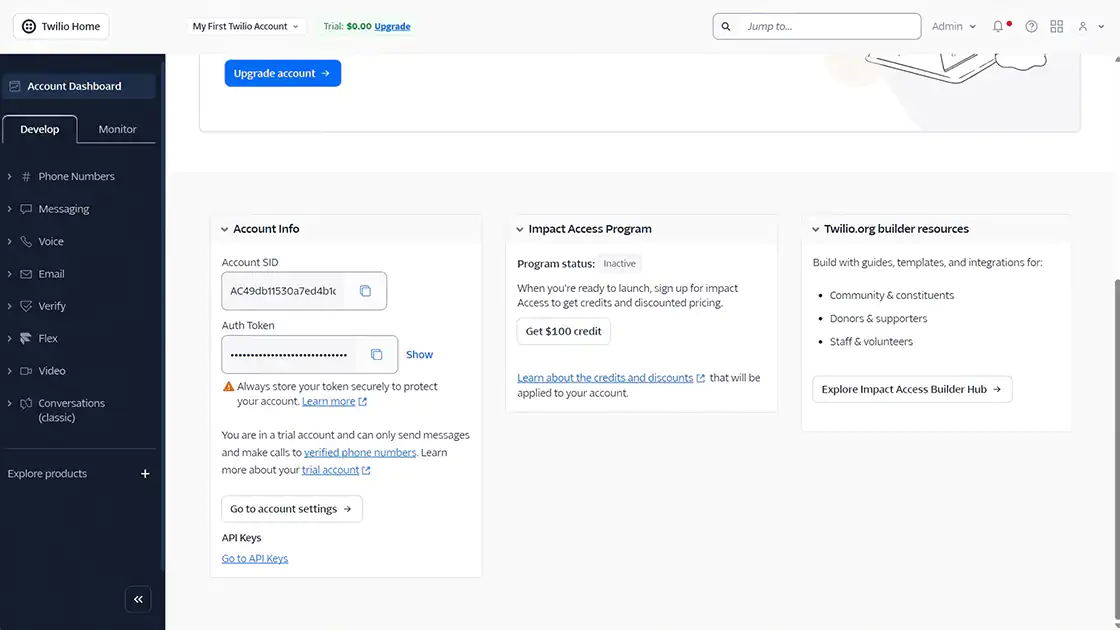
In Account Info on the home screen, check the Account SID (starting with AC) and Auth Token.
ℹ️ The Auth Token should be treated like a password. Anyone who knows the value can send messages or make calls using the account and incur charges, so do not expose it in public repositories or external documents. If necessary, you can rotate the Auth Token in the Console.
Step 2. Check the Twilio Phone Number
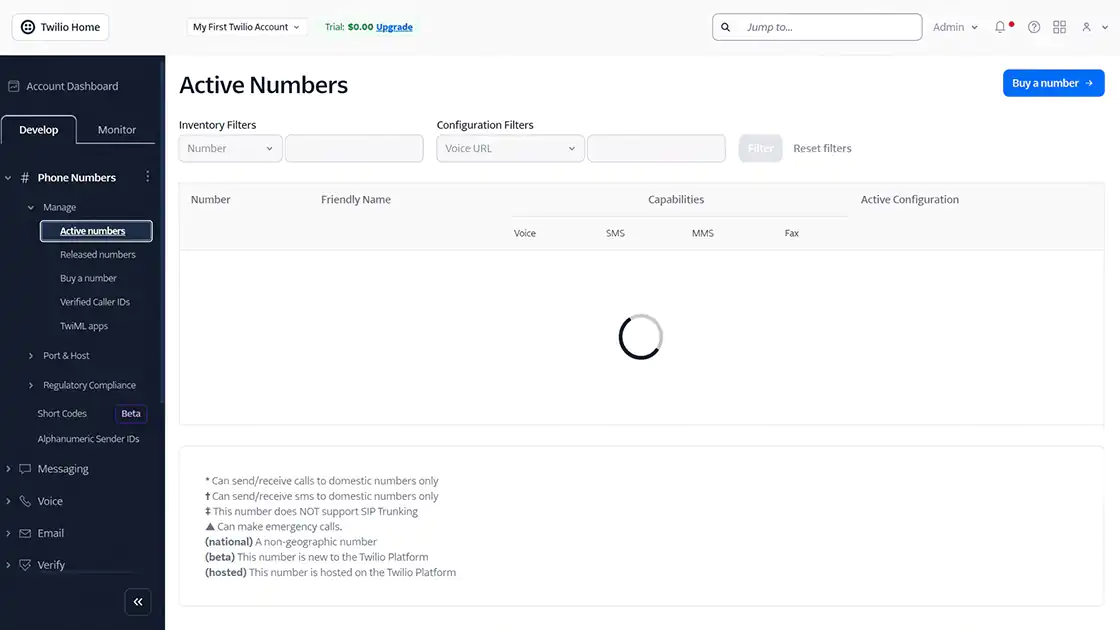
In the Console, open Phone Numbers → Manage → Active Numbers and check the Twilio phone number that can send SMS messages.
If you do not have a number, purchase a new one.
Some numbers may support voice only or be available only in certain countries, so verify that the number supports SMS.
Use the phone number in E.164 format, including the country code.
Step 3. Check the Recipient Number and Sending Requirements
Prepare the mobile number that will receive notifications in E.164 format.
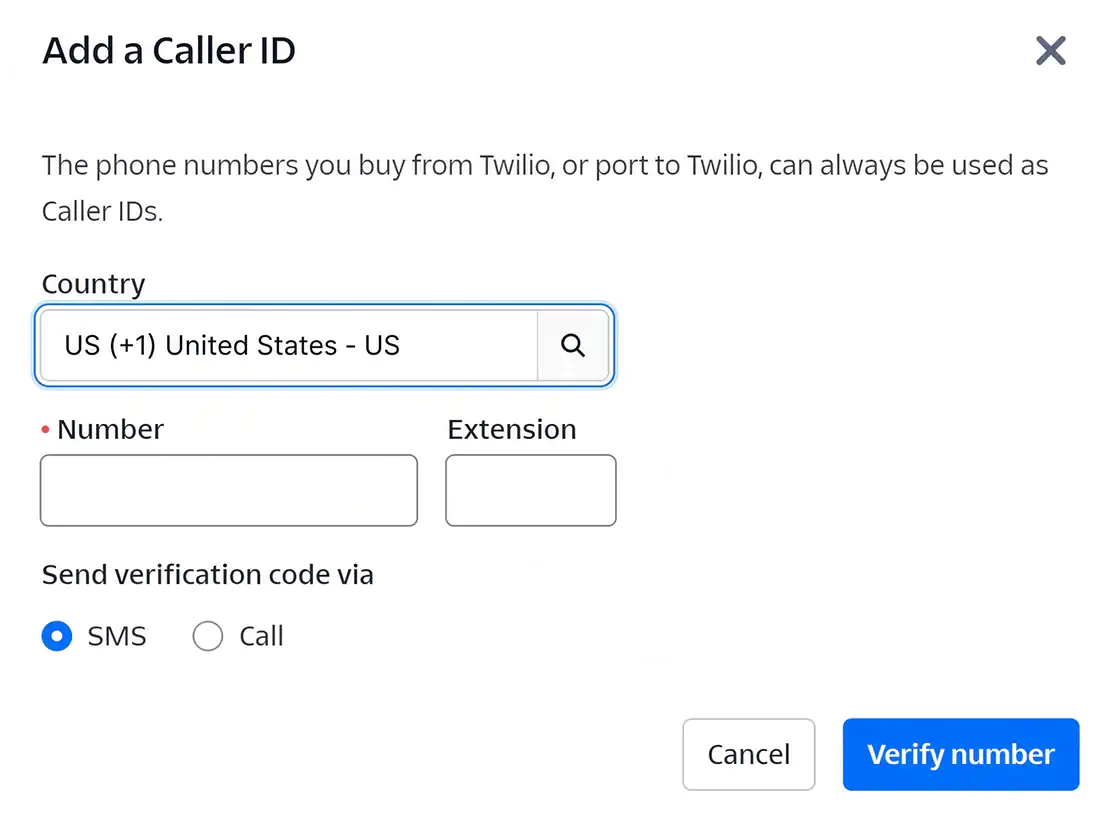
With a Twilio Trial account, SMS messages can only be sent to numbers registered under Verified Caller IDs, so verify the recipient number in advance or upgrade to a paid account.
Also check that the destination country is allowed under Messaging → Settings → Geo Permissions.
By default, only the country where the account is registered is enabled, so you must enable other countries before sending messages to them.
Verification
- ✔ The Account SID and Auth Token have been checked.
- ✔ A Twilio phone number capable of sending SMS messages has been checked.
- ✔ The recipient number meets the sending requirements, including number verification and country permissions.
Configure Twilio Notifications
Enter the verified credentials and phone numbers in the product's notification settings.
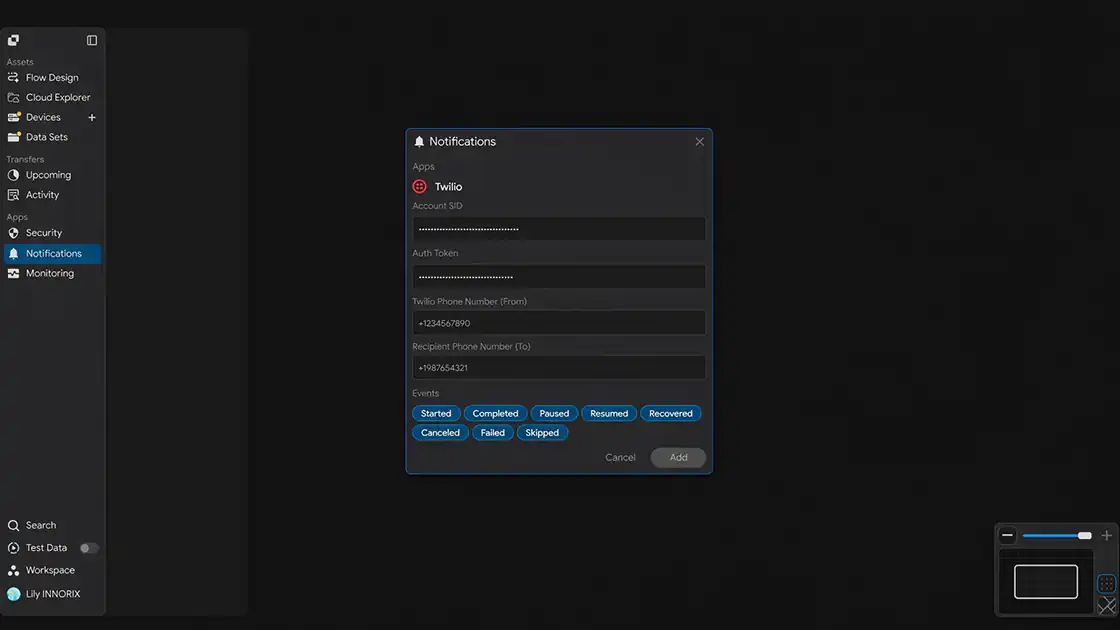
Open the Notifications settings window to display the screen below.
Step 1. Enter the Account SID
Enter the verified Account SID (starting with AC) in the Account SID field.
Step 2. Enter the Auth Token
Enter the verified Auth Token in the Auth Token field.
Step 3. Enter the Twilio Phone Number (From)
Enter the Twilio phone number to use as the sender in E.164 format in the Twilio Phone Number (From) field.
Example:
+[country code][phone number]
Step 4. Enter the Recipient Phone Number (To)
Enter the mobile number that will receive notifications in E.164 format in the Recipient Phone Number (To) field.
Example:
+[country code][phone number]
Step 5. Select Notification Events
Select the events you want to receive notifications for in the Events field.
You can select multiple events. SMS messages are sent only when the selected events occur.
| Event | When It Occurs |
|---|---|
| Started | When a transfer job starts |
| Completed | When a transfer completes successfully |
| Paused | When a transfer is paused |
| Resumed | When a paused transfer resumes |
| Recovered | When a transfer automatically recovers and resumes after an interruption or error |
| Canceled | When a user cancels a transfer |
| Failed | When a transfer fails |
| Skipped | When a specific file is skipped (for example, because it already exists or matches a filter condition) |
ℹ️ Twilio charges for SMS messages based on the number sent, so we recommend selecting only the events you need.
Step 6. Save the Settings
After entering the information, click Add to save the integration.
Verification
- ✔ The Account SID and Auth Token have been entered.
- ✔ The sender and recipient numbers have been entered.
- ✔ Notification events have been selected.
Verify the Integration
Verify that the configuration works correctly.
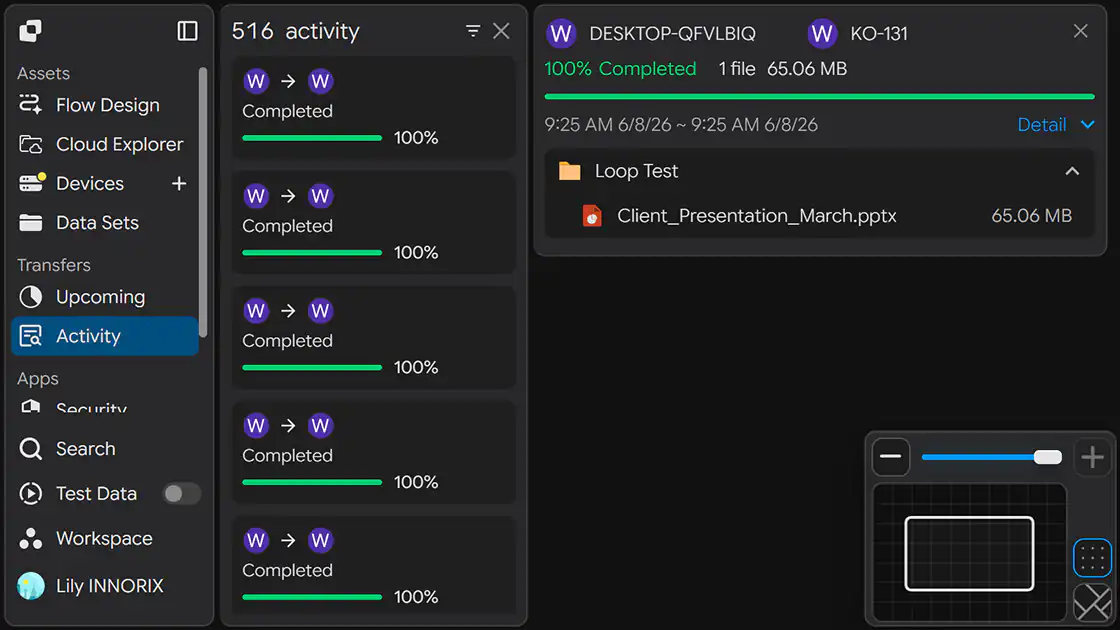
Step 1. Trigger a Test Event
Run an actual transfer job or trigger one of the selected events.
Step 2. Check the Recipient Phone
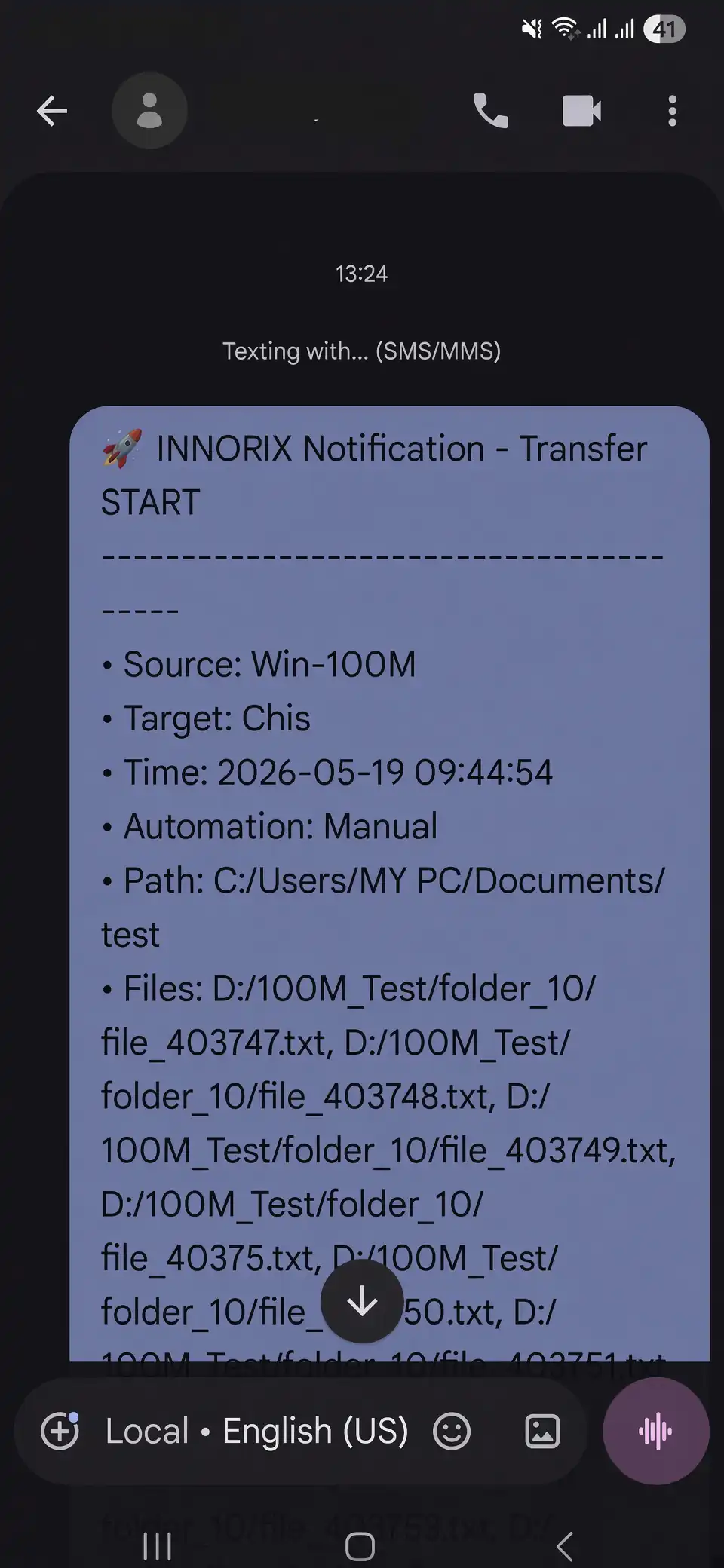
Verify that a notification text message has arrived at the specified recipient number.
Verification
- ✔ A notification text message has arrived at the recipient number.
- ✔ The event that occurred has been delivered correctly.
Setup Complete
The integration is applied when you save the settings.
Afterward, an SMS notification is automatically sent to the specified recipient number whenever a selected event occurs.
Troubleshooting
If the text message does not arrive, check the following.
| Problem | What to Check |
|---|---|
| Text message does not arrive | Verify that the Account SID, Auth Token, sender number, and recipient number are entered correctly, and that the phone numbers are in E.164 format, including + and the country code. |
| Authentication error occurs | Verify that the Account SID and Auth Token are correct and that the Auth Token has not been rotated. |
| Messages are not sent from a Trial account | Verify that the recipient number is registered under Verified Caller IDs, or upgrade to a paid account. |
| Messages are not sent to a specific country | Verify that the destination country is allowed under Messaging → Settings → Geo Permissions. Additional registration may be required for some countries. |
| Sender number error | Verify that the Twilio phone number you are using supports SMS sending. |
| Integration fails in a closed network | Verify that outbound HTTPS communication to api.twilio.com (443) is allowed through the firewall or proxy. |