Getting Started
Core Concepts
Transfer files and objects between cloud services, accounts, and regions
Files and objects are managed in different storage environments depending on the cloud service, account, project, and region.
Transfer between cloud storage moves files and objects from the source storage to a designated destination storage and configures data paths between the required accounts and regions.
Source Storage
      │
      ▼
Transfer Flow
      │
      ▼
Target Storage
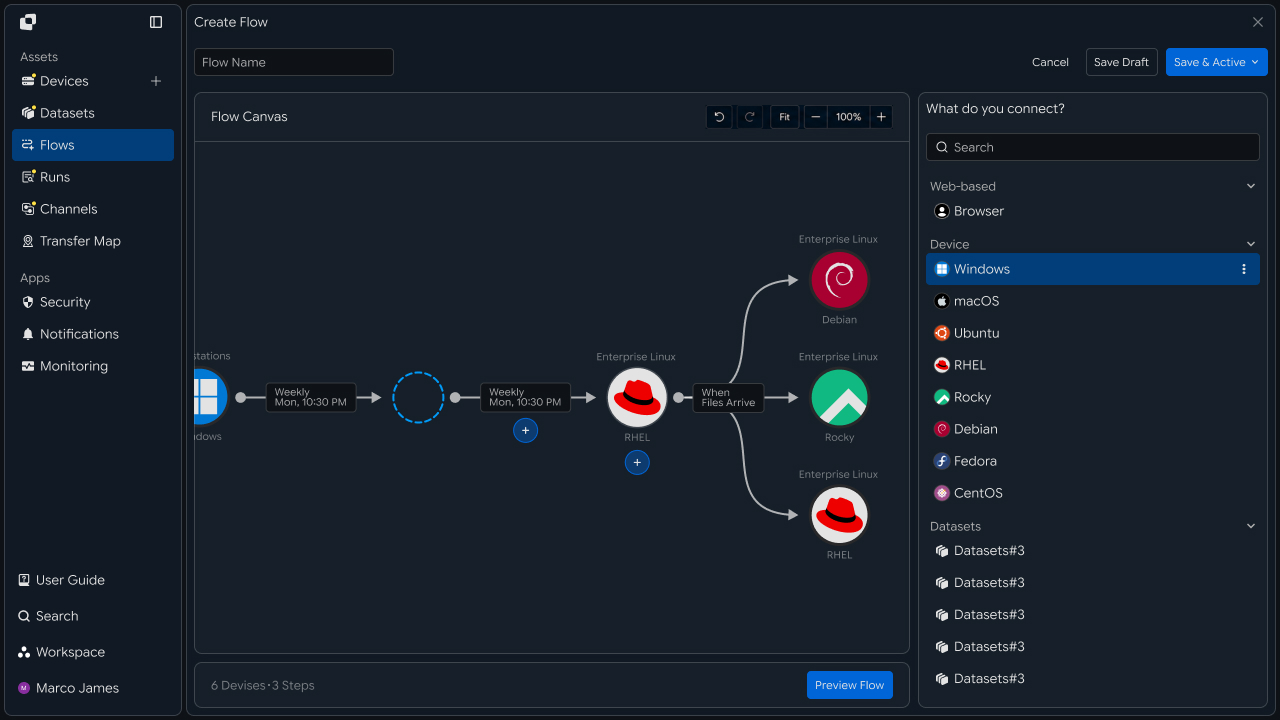
For example, you can transfer data from Amazon S3 to Azure Blob or connect different accounts and regions within the same cloud service to build a file flow.
Transfer Flow
Connect everything from source selection to applying data to the destination storage
A cloud-to-cloud transfer connects the source and destination storage, selects the files to transfer, and applies them to the configured path.
Source Storage
      │
      ▼
Account · Region Connection
      │
      ▼
Configure Transfer Path
      │
      ▼
Transfer Files · Objects
      │
      ▼
Apply to Destination Storage
Use Cases
Move distributed cloud data to the environments where it is needed
Transfer between cloud storage lets you move data distributed across services, accounts, and regions to storage locations that match business and operational requirements.
| Use Case | Transfer Flow |
|---|---|
| Between Services | Amazon S3 → Azure Blob |
| Between Accounts | Account A → Account B |
| Between Regions | Region A → Region B |
| Processing Result Management | Processing Storage → Archive Storage |
IT Engineers
Configure and operate large-scale file transfers across cloud environments
Storage Connection
Configure the cloud environments and access scope used for transfers
First, connect the cloud storage services you will use, such as Amazon S3, Azure Blob, GCS, and Cloudflare R2.
Configure each storage account, project, region, and access scope to prepare the environments used by transfer tasks.
Amazon S3 ──────┐
Azure Blob ─────┤
GCS ────────────┼──→ Transfer Environment
Cloudflare R2 ──┘
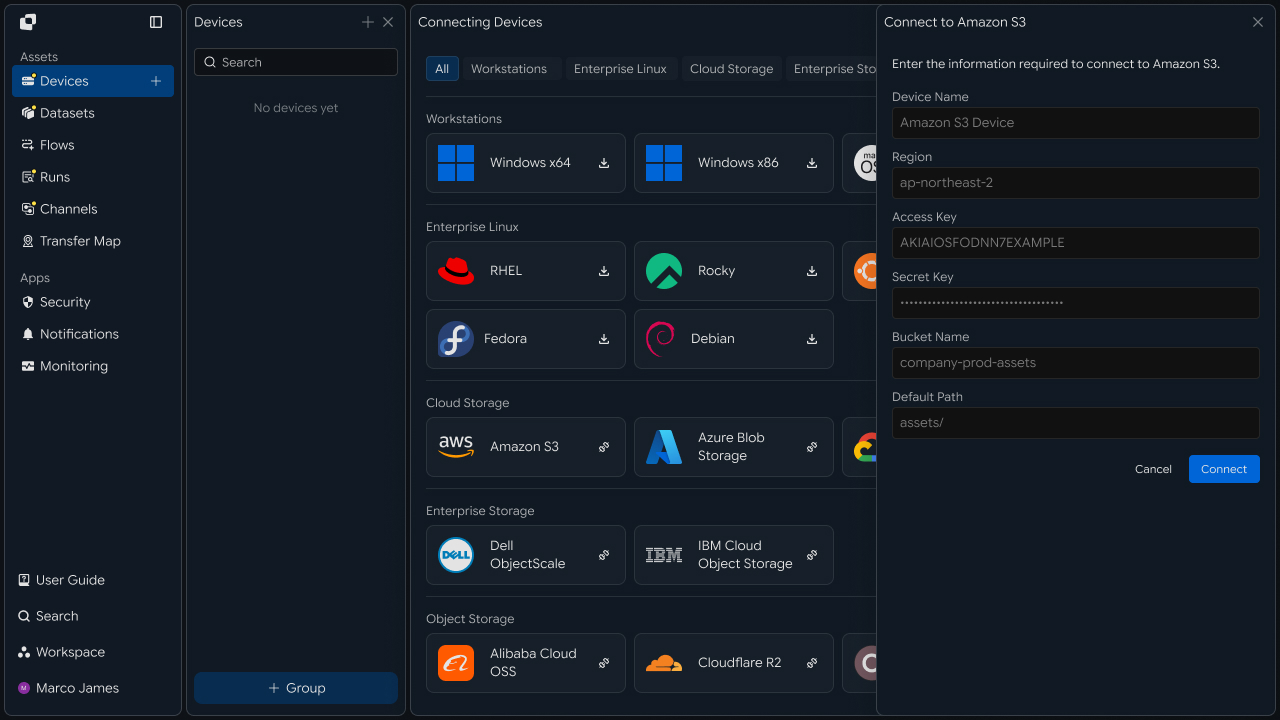
This step combines the transfer environment and access scope into one configuration, consolidating the previous Storage Connection and Account · Region content.
Transfer Path
Connect the source bucket to the destination storage location
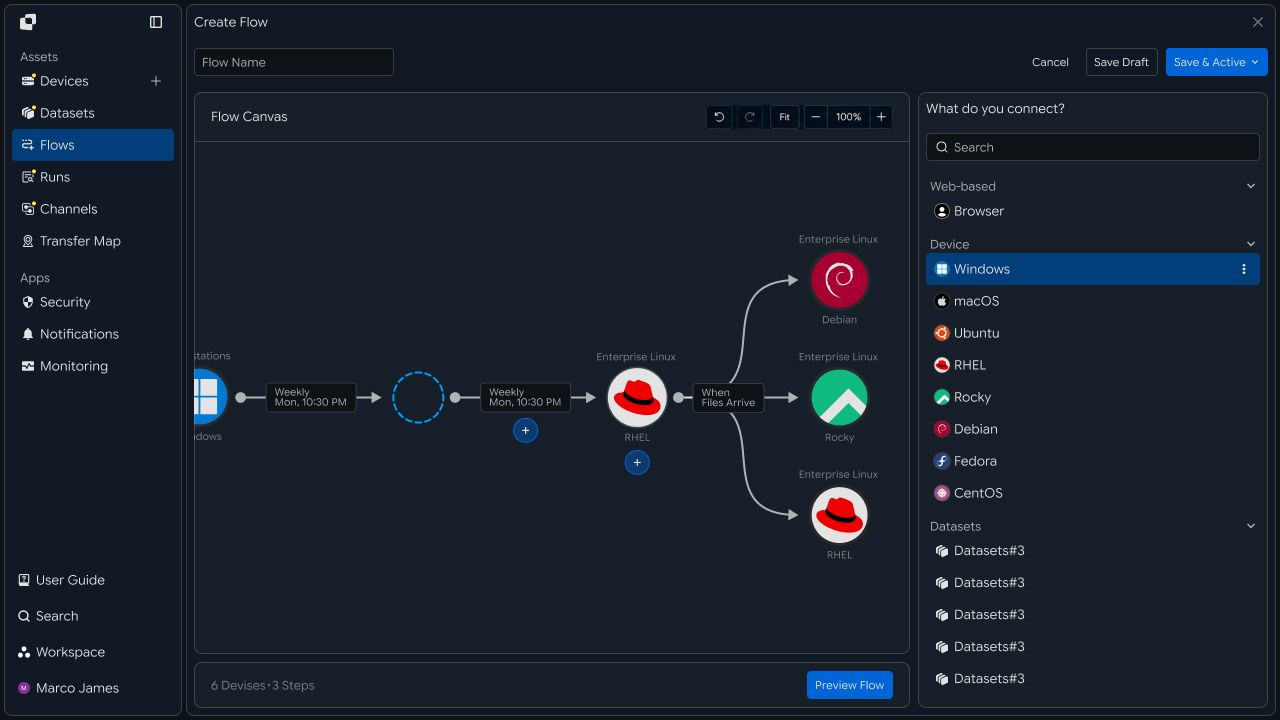
Specify the source bucket or container and destination storage location used for the transfer, then configure the file movement path.
When needed, storage locations across different services, accounts, or regions can be connected in a single transfer task.
Source
Account A / Region 1
Bucket: media-source
          │
          ▼
      Transfer
          │
          ▼
Target
Account B / Region 2
Bucket: media-archive
Transfer Rules
Configure transfer tasks according to file scale and processing conditions
When transferring large files and many objects, configure both the file scope to process and the execution conditions.
Define transfer targets based on conditions such as file path, type, or name, and configure the task to run on a schedule, when files are created, or in response to an external request.
Source Storage
       │
       ▼
   Transfer Rules
       │
 ┌─────┼──────────┐
 ▼                ▼
Files          Objects
 │                │
 └──────┬─────────┘
        ▼
   Transfer Run
        │
        ▼
 Target Storage
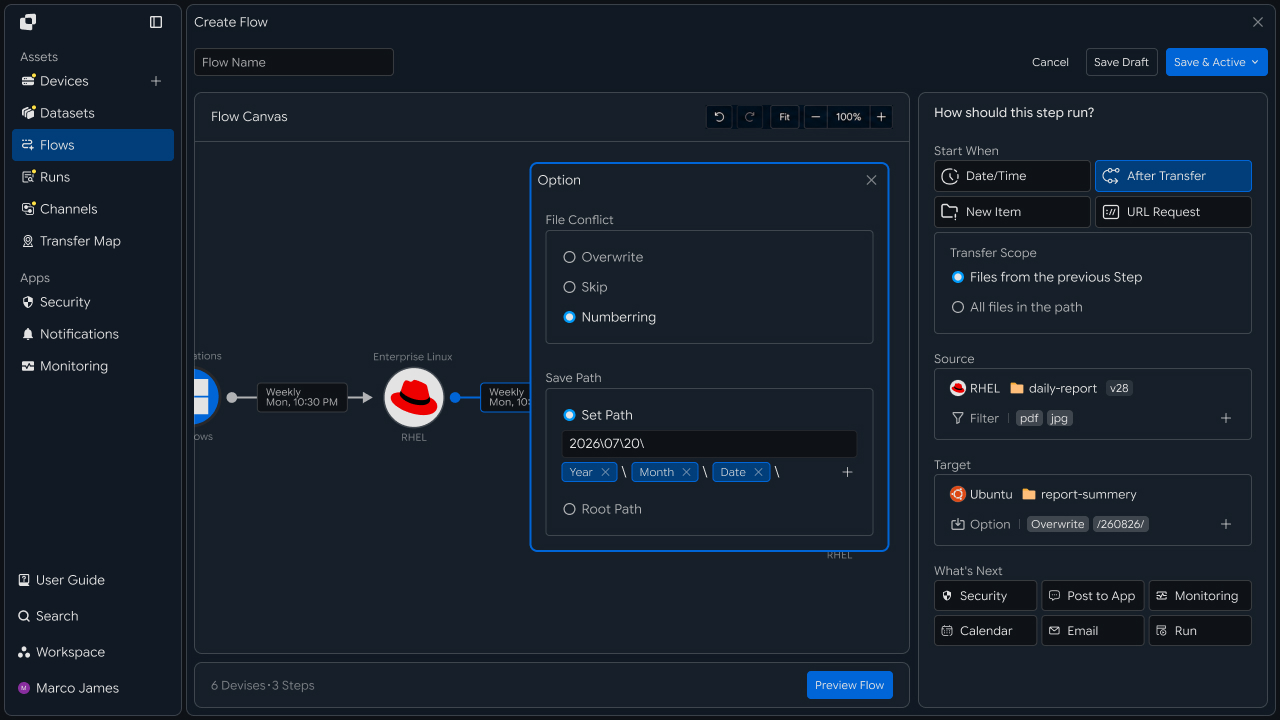
The previous Bulk Transfer and Transfer Conditions content share the common purpose of defining criteria for an actual transfer task, so they are consolidated into one step.
Verify Results
Check transferred files and processing status by destination
When a transfer task runs, Runs shows the source and destination storage, progress, processed file count and total size, and execution status.
Transfer Run
     │
     ├── Source / Target
     │
     ├── Trigger
     │
     ├── Progress
     │
     └── Status
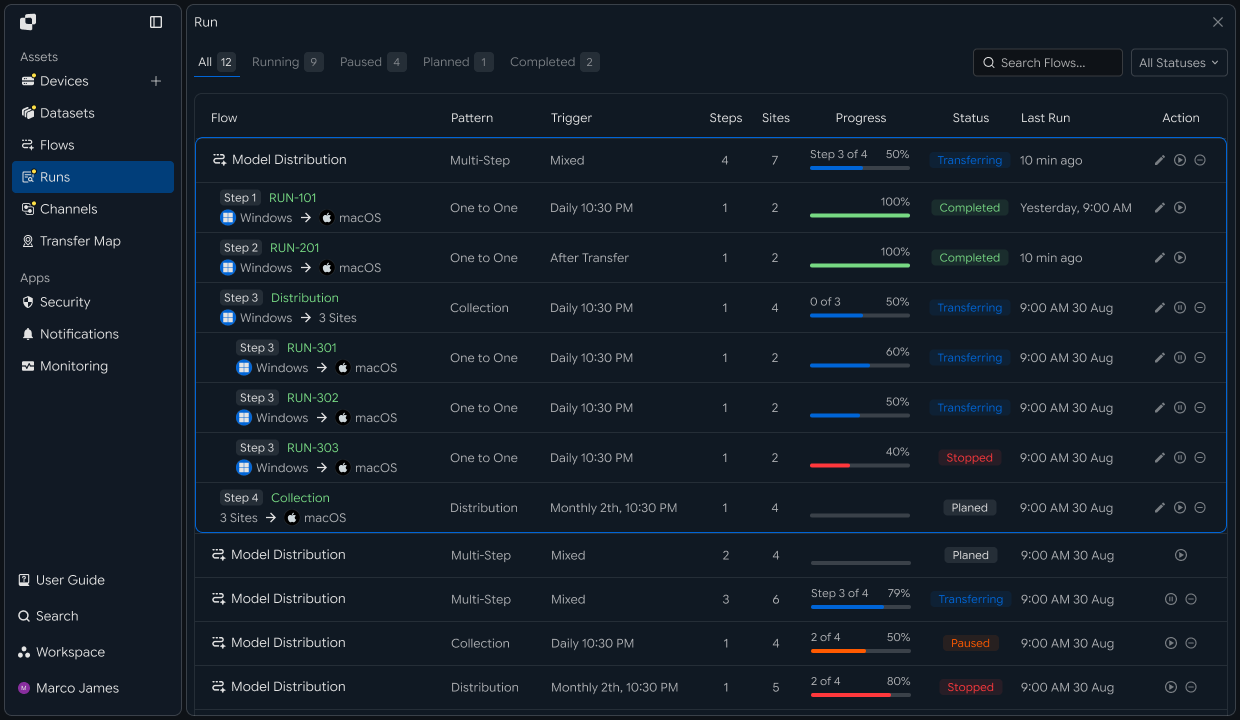
Reviewing the execution result for each task lets you manage the state of files and objects applied to each destination storage.
Operations Management
Manage transfer tasks across multiple cloud environments centrally
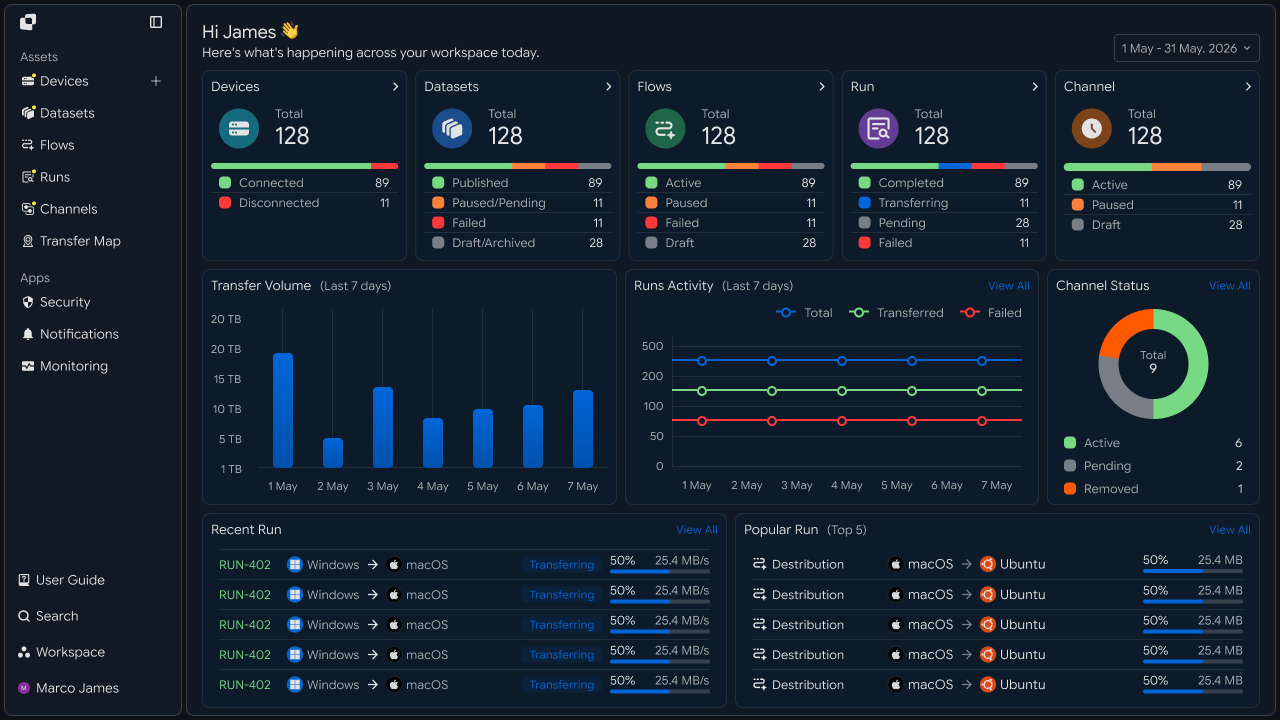
When using multiple cloud services, accounts, and regions, you can review execution history and processing status for each transfer task together.
When a specific transfer task requires additional review, inspect its detailed execution result and rerun the required task.
             Cloud Operations
                    │
       ┌────────────┼────────────┐
       ▼            ▼            ▼
   S3 Transfer  Azure Transfer  GCS Transfer
       │            │            │
       └────────────┼────────────┘
                    ▼
             Runs & Results
| Management Item | Details |
|---|---|
| Cloud Environment | Service, account, and region |
| Transfer Path | Source and destination storage locations |
| Transfer Rules | File scope and execution conditions |
| Execution Status | Running tasks and completion results |
| Processing Results | Information about transferred files and objects |
Developers
Transfer objects between different cloud storage systems and verify them by comparing object counts
Integration Preparation
Prepare shared request code and status values
import os
import requests

BASE_URL = os.getenv("INNORIX_BASE_URL", "https://app.innorix.com").rstrip("/")
TOKEN = os.environ["INNORIX_ACCESS_TOKEN"]
WORKSPACE_ID = os.getenv("INNORIX_WORKSPACE_ID")   # optional; falls back to the current workspace

STATUS_COMPLETE = 2
TERMINAL = {2, 4, 5, 9, 99}          # complete / error / cancelled / partial / failed
NOT_SUCCEEDED = {4, 5, 9, 99}


def api(method, path, body=None, params=None):
    headers = {
        "Content-Type": "application/json",
        "Authorization": f"Bearer {TOKEN}",
    }

    if WORKSPACE_ID:
        headers["x-workspace-id"] = WORKSPACE_ID

    response = requests.request(
        method, BASE_URL + path,
        headers=headers, json=body, params=params, timeout=30,
    )

    payload = response.json() if response.content else {}

    if not response.ok:
        raise RuntimeError(payload.get("message") or f"HTTP {response.status_code}")

    return payload.get("data")


def is_terminal(detail):
    return detail.get("isTerminal", detail.get("status") in TERMINAL)
Determine the transfer status using the values below. There are five terminal states, and the successful state is Complete (2).
| Status Value | Meaning | Terminal |
|---|---|---|
| 2 | Complete | Yes |
| 4 | Error | Yes |
| 5 | Cancelled | Yes |
| 9 | Partially Complete | Yes |
| 99 | Failed | Yes |
| 1 · 6 · 12 · 13 | Started · Transferring · Synchronizing · Receiving | No |
Select Storage
Choose the device identifier and path for connected storage
Connected cloud storage appears as transfer target devices. Check the identifier in the list.
result = api("GET", "/api/devices", params={"page": 1, "size": 200}) or {}

for device in result.get("devices") or []:
    print(device["deviceId"], device["name"], device.get("os"))
The device list is returned in the data.devices array.
When working by name, convert the name to its identifier. Multiple connections to the same service with different accounts and regions can have similar names and cause confusion.
def resolve_device(name):
    result = api("GET", "/api/devices/resolve", params={"name": name}) or {}
    devices = result.get("devices") or []
    count = result.get("matchCount", len(devices))

    if count != 1 or not devices:
        raise RuntimeError(f"{name}: {count} matches - use a more specific name")

    return devices[0]["deviceId"]
Paths below buckets and containers use the prefix as-is. Cloud storage services accept prefix-style paths directly, so no additional transformation is required.
Run the Transfer
Send objects under the source prefix
def move_objects(source, target, source_prefix, target_prefix):
    transfer = api("POST", "/api/transfers/manual", {
        "sourceDevice": source,
        "targetDevice": target,
        "targetPath": target_prefix,
        "sourcePaths": [source_prefix],
        "sendAllFolder": True,
        "transferOptions": {"target-action": "overwrite"},
    })

    return transfer["monitorId"]
For transfers between services, overwrite is safer. With numbering, object keys change and no longer match the paths referenced by applications.
To inspect transfer targets in advance, retrieve the object list from the source storage.
result = api("GET", f"/api/devices/{SOURCE}/files", params={
    "path": "media/2026/09",
    "page": 1, "size": 200, "type": "file",
})

print(result.get("total"), "objects")

if result.get("truncated"):
    print("result was truncated - narrow the prefix")
Handle Large Object Sets
Split by prefix and move objects through multiple transfers
When a bucket contains millions of objects, transferring everything at once is difficult. Splitting by prefix lets you retransmit only the failed range.
PREFIXES = [f"media/2026/{month:02d}" for month in range(1, 13)]

transfers = {
    prefix: move_objects(SOURCE, TARGET, prefix,
                         prefix.replace("media", "archive", 1))
    for prefix in PREFIXES
}def wait(monitor_id, timeout=3600, interval=3):
deadline = time.time() + timeout
while time.time() < deadline:
detail = api("GET", f"/api/transfers/{monitor_id}")
if is_terminal(detail):
return detail
time.sleep(interval)
raise TimeoutError(monitor_id)
def failed_files(monitor_id):
result = api("GET", f"/api/transfers/{monitor_id}/files", params={
"state": "any", "size": 500,
}) or {}
return [r for r in (result.get("children") or [])
if r.get("status") in NOT_SUCCEEDED]
def retry_failed(monitor_id):
rows = failed_files(monitor_id)
if not rows:
return 0
api("POST", f"/api/transfers/{monitor_id}/retry", {
"filesRetry": [
{"filePath": r["sourceFilePath"], "isDir": bool(r.get("isFolder"))}
for r in rows
]
})
return len(rows)for prefix, monitor_id in transfers.items():
detail = wait(monitor_id, timeout=14400)
print(f"{prefix:24} {detail.get('statusName')}"
f" {detail.get('fileCount')} objects {detail.get('totalSize')} bytes")
if detail["status"] != STATUS_COMPLETE:
print(f" retried {retry_failed(monitor_id)} files")Even if one range fails, continue checking the remaining ranges so you know exactly how far the transfer progressed.
Conditional Transfer
Select objects to move by type and size
There are many cases where only specific files need to be moved rather than everything.
def build_filter(exts=None, min_size=None, exclude=None):
    file_option = {}

    if exts:
        # extension whitelist, without the leading dot
        file_option["extension"] = {
            "extension": [e.lstrip(".").lower() for e in exts],
            "allow": True,
        }

    if min_size is not None:
        # over and equal both True means size or larger
        file_option["fileSize"] = {"size": min_size, "over": True, "equal": True}

    if exclude:
        # allow=False excludes files whose name contains this. Server matching is case sensitive.
        file_option["fileName"] = {"name": exclude, "allow": False}

    return {"send-fileoption": file_option} if file_option else {}
Use send-fileoption.extension for extension filters. The send-filetype-cus regular expression matches only filenames with the extension removed, so it does not work as an extension condition.
| Filter | Location | Behavior |
|---|---|---|
| Extension | send-fileoption.extension | If allow: true, transfer only files with this extension |
| Size | send-fileoption.fileSize | Specify thresholds with over and equal |
| Name | send-fileoption.fileName | If allow: false, exclude files containing the specified value |
When multiple filters are provided, they are combined with AND. Only files that pass every filter are transferred.
options = {
    **build_filter(exts=["mp4", "mov"], min_size=1048576),
    "target-action": "overwrite",
}

api("POST", "/api/transfers/manual", {
    "sourceDevice": SOURCE,
    "targetDevice": TARGET,
    "targetPath": "archive/2026/09",
    "sourcePaths": ["media/2026/09"],
    "sendAllFolder": True,
    "transferOptions": options,
})
Delta Transfer
Send only objects added since the last transfer
If the same prefix is moved on a regular basis, there is no need to retransmit everything.
transfer = api("POST", "/api/transfers/manual", {
    "sourceDevice": SOURCE,
    "targetDevice": TARGET,
    "targetPath": "archive/2026/09",
    "sourcePaths": ["media/2026/09"],
    "sendAllFolder": True,
    "incremental": True,
    "transferOptions": {"target-action": "overwrite"},
})
This option is disabled by default. The agent calculates the changes and transfers only objects added or modified since the last transfer. Always use overwrite for incremental transfers.
Verify Results
Verify by comparing the object counts at the source and destination
Unlike file systems, object storage may not support checksum retrieval. Compare the object counts at the source and destination to confirm that everything was transferred without omissions.
def count_objects(device, prefix):
    total, page = 0, 1

    while True:
        result = api("GET", f"/api/devices/{device}/files", params={
            "path": prefix,
            "page": page, "size": 1000, "type": "file",
        }) or {}

        total += len(result.get("items") or [])

        if page >= (result.get("lastPage") or 1):
            return total

        page += 1


source_count = count_objects(SOURCE, "media/2026/09")
target_count = count_objects(TARGET, "archive/2026/09")

if source_count != target_count:
    raise RuntimeError(
        f"object counts differ: source {source_count} / target {target_count}")
If the counts differ, the transfer is incomplete. Retransmit the failed prefix ranges until the counts match.
| Review Item | Details |
|---|---|
| Storage | Device identifiers for the source and destination |
| Transfer Path | Bucket and prefix |
| Scope | Prefix ranges processed separately |
| Result | Success and failure by range |
| Verification | Whether the source and destination object counts match |