Getting Started
Core Concepts
Bring files generated across multiple sites together in a single central environment
Business systems at branches, production equipment at factories, and edge devices in the field generate a variety of files, including business documents, production data, logs, and result files.
Branch · factory · edge data collection connects file-generation locations at each site to a central collection environment and automatically transfers files to a headquarters server or cloud storage according to configured conditions.
Branch A ──────┐
             │
Factory B ──────┼────→ Central Collection Environment ────→ Headquarters Server
             │              │
Edge Device C ─┘              └──────────→ Cloud
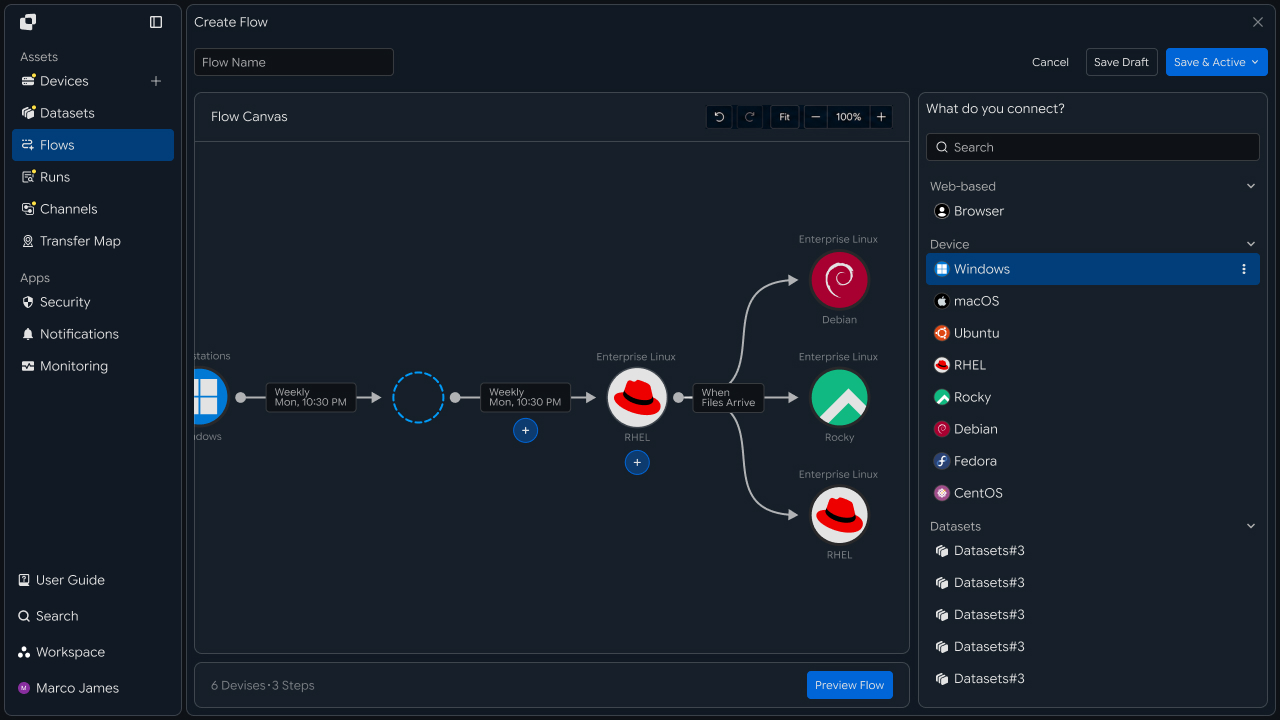
Connecting files from each site into a single central collection flow lets you consolidate data generated across distributed environments into designated storage locations for analysis and downstream business processing.
Collection Flow
Detect files generated at each site and automatically carry them through to central storage
When a file is created or changed at a site, check the configured collection conditions and transfer the target file to a central server or cloud.
Site File Created
      │
      ▼
Detect File Changes
      │
      ▼
Check Collection Conditions
      │
      ▼
Transfer to Central Environment
      │
      ▼
Check Collection Result
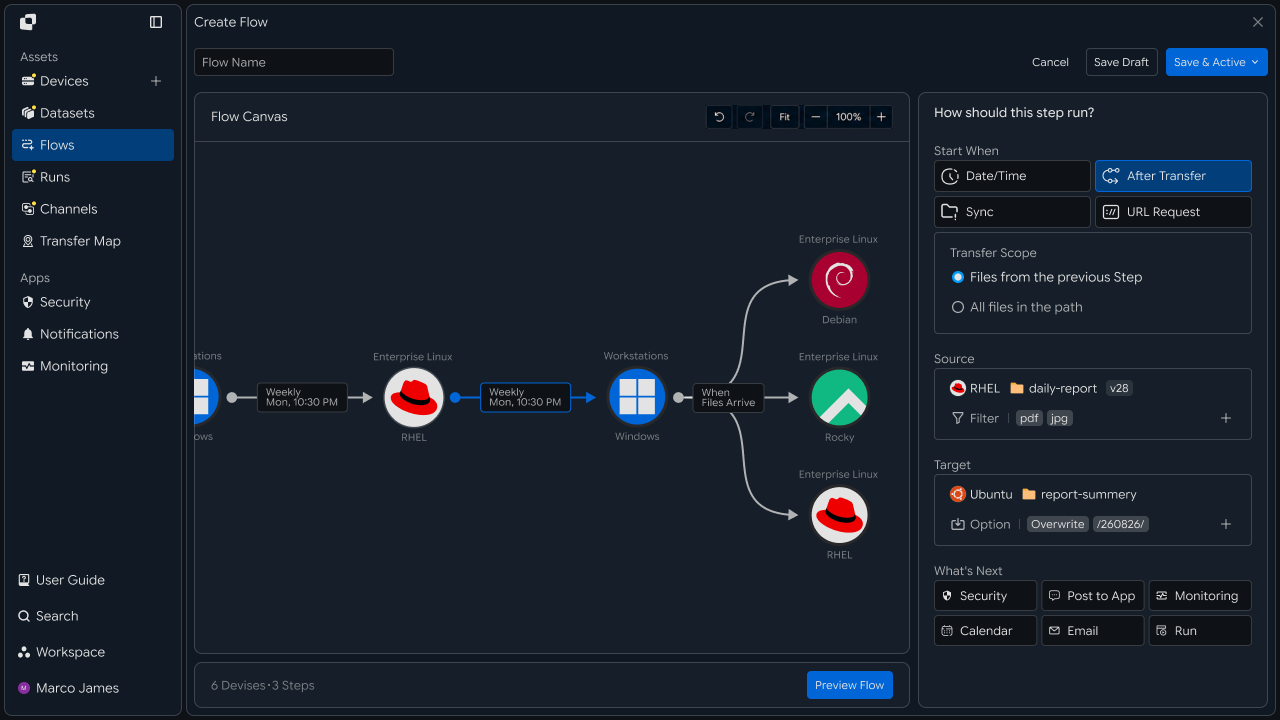
You can start collection based on file creation, file changes, or a defined schedule, then use collected files in the central environment for analysis and follow-up work.
Operational Benefits
Manage data flows from multiple sites together in a central environment
Each site may use different systems, file-generation locations, and collection schedules. Connecting them to a central collection environment lets you manage files generated across multiple sites in a single flow.
| Site Environment | Generated Files | Central Collection Location | Use |
|---|---|---|---|
| Branch | Business Documents · Reports | Headquarters Server | Business Review |
| Factory | Production Data · Inspection Results | Cloud | Analysis · Quality Management |
| Edge Device | Sensor Data · Logs | Central Analysis Environment | Data Processing |
IT Engineers
Collection Environment
Connect branches, factories, edge devices, and file-generation locations
First, connect the branches, production equipment, and edge devices from which files will be collected to the central management environment.
Specify the folders or storage locations where files are generated on each device to define the collection targets and file paths.
Branch-A
└── /data/report

Factory-01
└── /production/result

Edge-Server-01
└── /logs/device
Collection Path
Connect site-specific file locations to the central storage environment
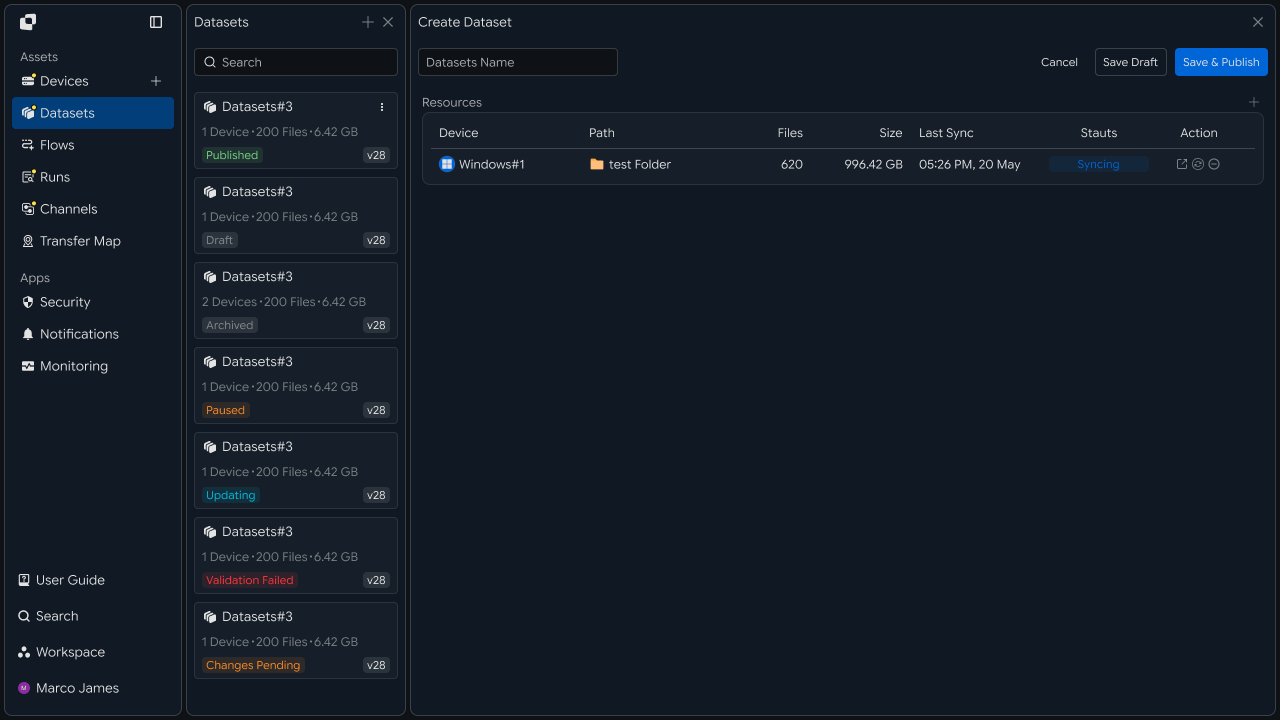
After connecting the collection target devices, configure each site's file path and central storage location as a single collection path.
You can collect files from each site into a headquarters server or transfer them to cloud storage or an analysis environment based on the data type and purpose.
Branch A ────────┐
               │
Factory B ────────┼──→ Central Collection ───→ Headquarters Server
               │         │
Edge Device C ───┘         └───────→ Cloud Storage
| Collection Source | File Path | Central Storage Location |
|---|---|---|
| Branch A | /report/daily | /data/branch |
| Factory B | /production/result | /data/factory |
| Edge C | /logs/device | /data/edge |
Collection Conditions
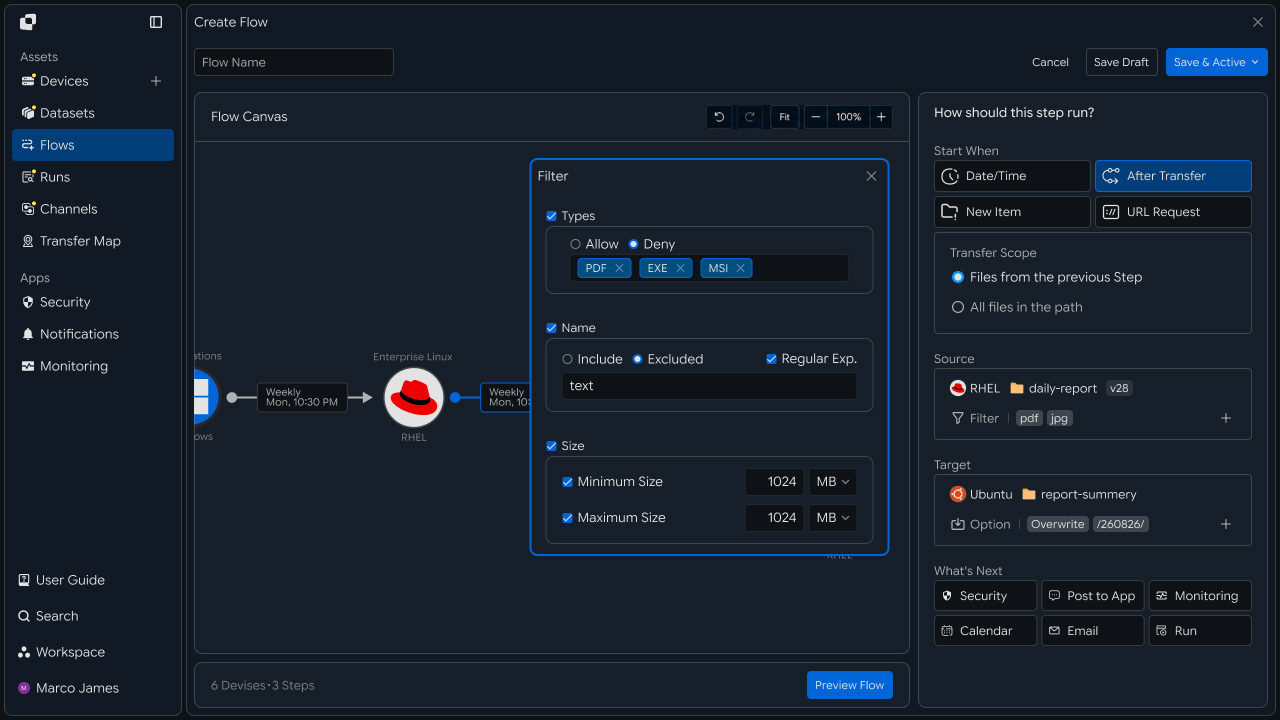
Start collection tasks based on file events and schedules
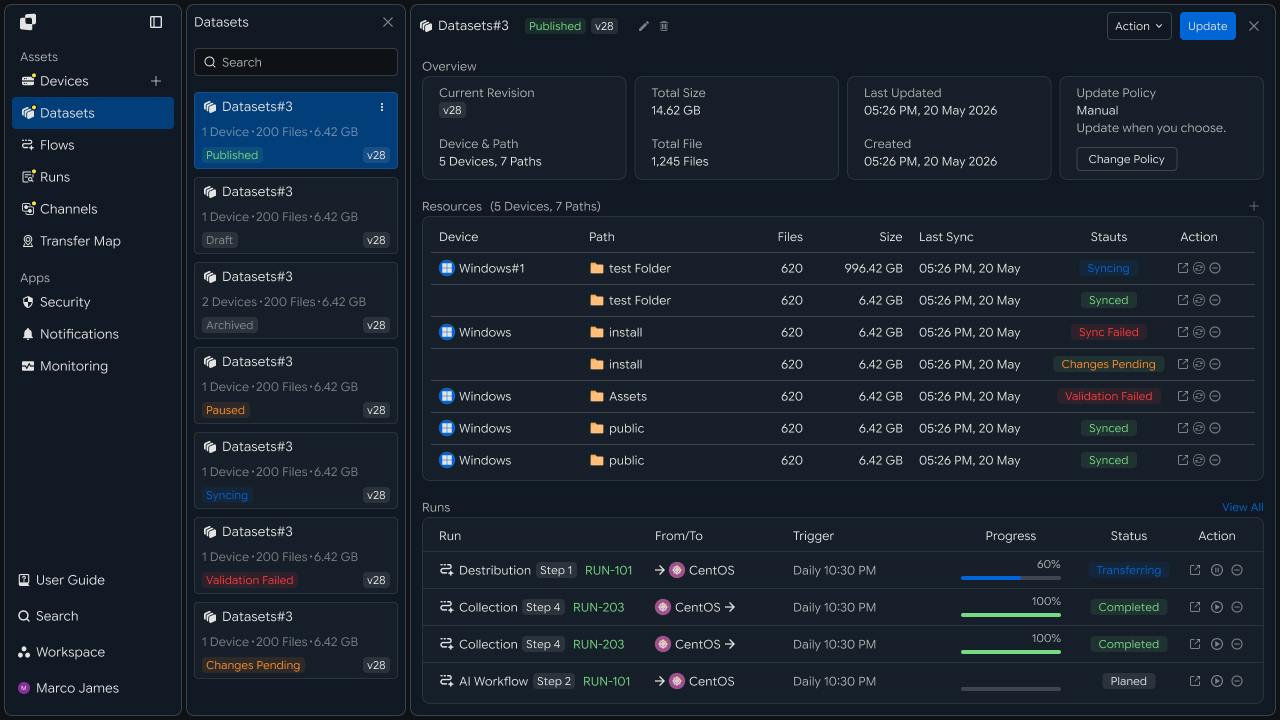
You can start collection when files are created or changed, or configure the task to collect required files according to a defined schedule.
Specify collection targets based on file paths and types to define the scope according to the data required from files generated at each site.
              Collection Start Conditions
                    │
       ┌────────────┼────────────┐
       ▼            ▼            ▼
    File Created      File Changed      Recurring Schedule
       │            │            │
       └────────────┼────────────┘
                    ▼
                 File Collection
Collection Automation
Connect central collection through data processing and result storage
A file collection task can consolidate data from multiple sites into a central environment and then continue with analysis, transformation, or separate storage tasks.
Branch Data ────┐
                │
Factory Data ────┼──→ Central Collection ───→ Data Processing
                │                       │
Edge Data ────┘                       ▼
                                    Result Storage
By connecting collected files to processing systems, you can create an automated flow from site data collection → central transfer → data processing → result storage.
Collection Status
Review collection tasks and processing results from multiple sites centrally
Use Runs and the Dataset screen to review collection tasks from multiple branches, factories, and edge devices together.
Manage current collection status using device-level execution status and progress, processed file counts, and recent execution results.
Branch-A
├── Status      Completed
├── Files       128
└── Last Run    Completed

Factory-01
├── Status      Running
├── Progress    68%
└── Last Run    In Progress

Edge-Server-01
├── Status      Completed
└── Files       2,431
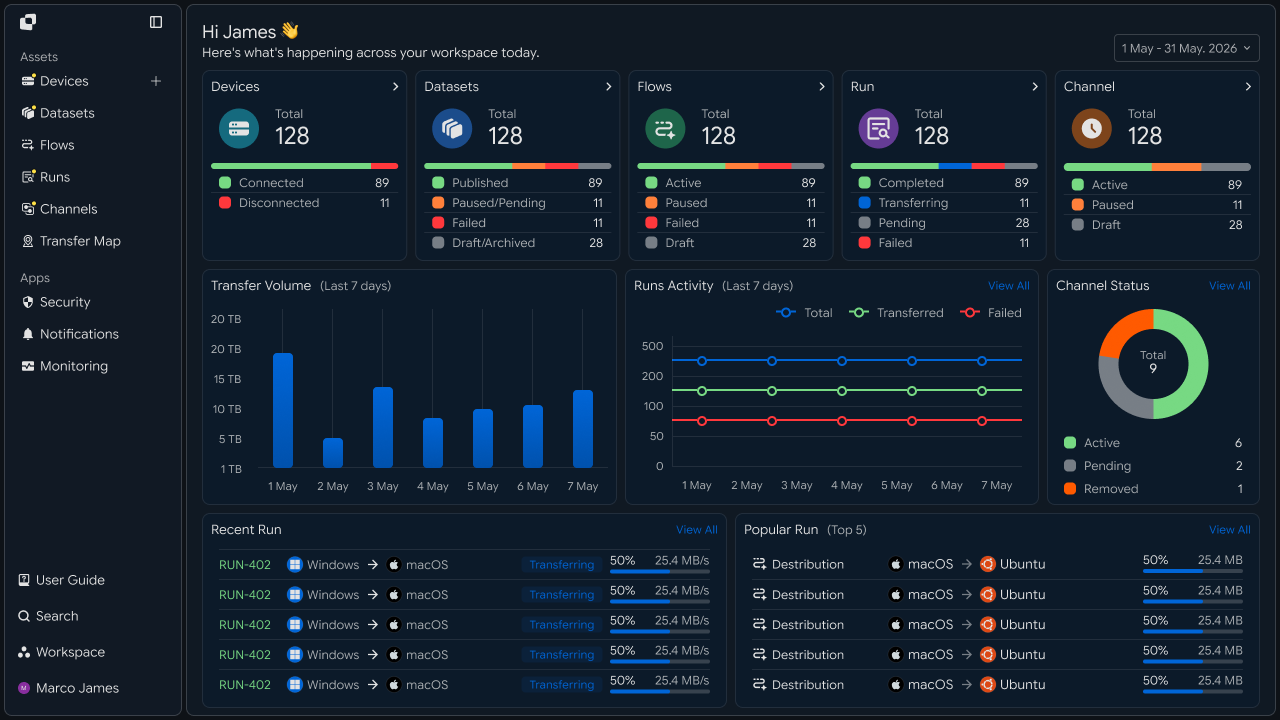
This replaces the need to review each site's file collection separately by managing the overall status and device-level processing state together in a central view.
Operational Response
Check site connectivity and file-processing status, then rerun required tasks
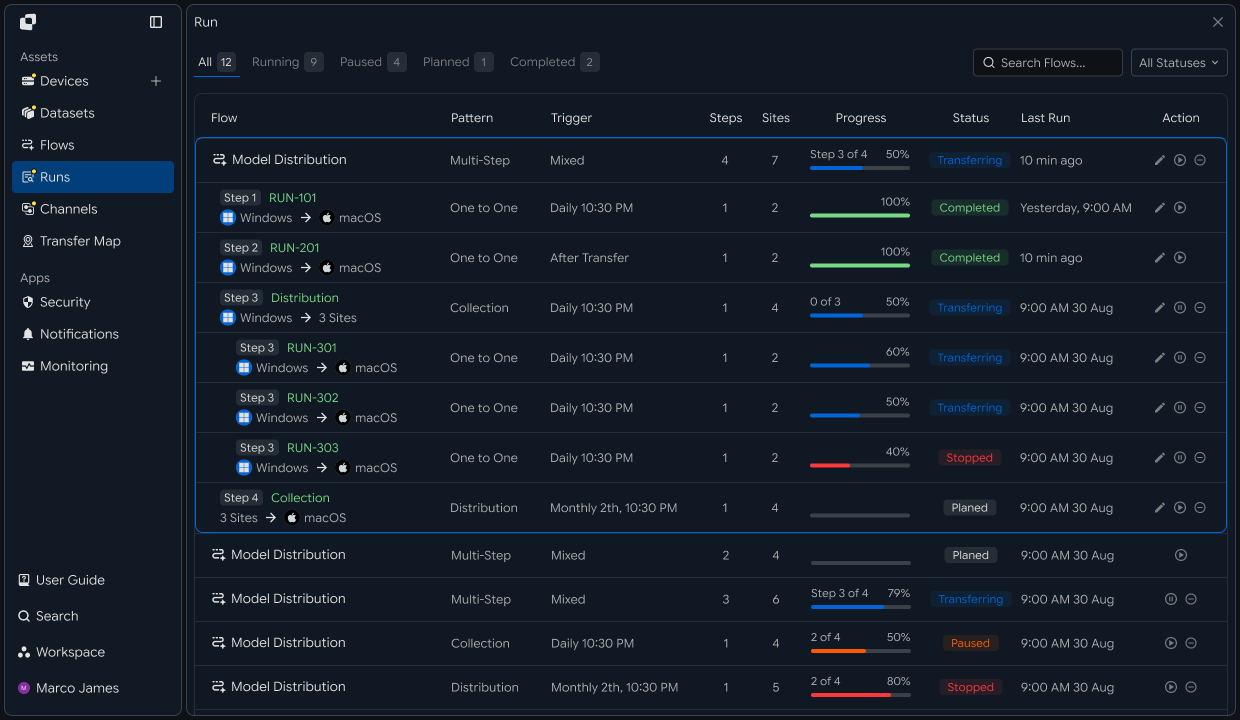
When a collection task requires review, use execution details and the Activity Log to check the site's device connection status, file path, access scope, and processing result.
Run Collection Task
      │
      ▼
Check Execution Status
      │
 ┌────┴─────┐
 ▼          ▼
Completed  Review Required
 │          │
 ▼          ▼
Check Results  Check Device · Path · File Status
                │
                ▼
             Adjust Settings
                │
                ▼
             Rerun Task
                │
                ▼
              Check Results
Developers
Register site-specific collection automation and aggregate connection status and collection results
Integration Preparation
Prepare shared request code and path conventions
import os
import requests

BASE_URL = os.getenv("INNORIX_BASE_URL", "https://app.innorix.com").rstrip("/")
TOKEN = os.environ["INNORIX_ACCESS_TOKEN"]
WORKSPACE_ID = os.getenv("INNORIX_WORKSPACE_ID")   # optional; falls back to the current workspace

STATUS_COMPLETE = 2
TERMINAL = {2, 4, 5, 9, 99}          # complete / error / cancelled / partial / failed
NOT_SUCCEEDED = {4, 5, 9, 99}


def api(method, path, body=None, params=None):
    headers = {
        "Content-Type": "application/json",
        "Authorization": f"Bearer {TOKEN}",
    }

    if WORKSPACE_ID:
        headers["x-workspace-id"] = WORKSPACE_ID

    response = requests.request(
        method, BASE_URL + path,
        headers=headers, json=body, params=params, timeout=30,
    )

    payload = response.json() if response.content else {}

    if not response.ok:
        raise RuntimeError(payload.get("message") or f"HTTP {response.status_code}")

    return payload.get("data")


def is_terminal(detail):
return detail.get("isTerminal", detail.get("status") in TERMINAL)import base64
import time
def encode_path(device_id, raw_path):
normalized = str(raw_path or "").replace("\\", "/")
token = base64.b64encode(normalized.encode("utf-8")).decode("ascii")
return f"{device_id}_ino_{token}"
def now_iso():
return time.strftime("%Y-%m-%dT%H:%M:%S.000Z", time.gmtime())Determine the transfer status using the values below. There are five terminal states, and the successful state is Complete (2).
| Status Value | Meaning | Terminal |
|---|---|---|
| 2 | Complete | Yes |
| 4 | Error | Yes |
| 5 | Cancelled | Yes |
| 9 | Partially Complete | Yes |
| 99 | Failed | Yes |
| 1 · 6 · 12 · 13 | Started · Transferring · Synchronizing · Receiving | No |
Configure Site List
Treat site information as data and create collection tasks in bulk
When there are dozens of sites, creating them one by one in the interface is difficult. Store the site list as data and iterate through it.
SITES = [
    {"device": "branch-seoul", "path": "/report/daily", "target": "/data/branch"},
    {"device": "branch-busan", "path": "/report/daily", "target": "/data/branch"},
    {"device": "factory-01", "path": "/production/result", "target": "/data/factory"},
    {"device": "edge-line-01", "path": "/logs/device", "target": "/data/edge"},
]

CENTRAL = "device-hq-01"


def site_target(site):
    # sites reuse the same file names, so put the site id in the target path
    return f"{site['target']}/{site['device']}"
Without separating destination paths, files with the same name, such as result.csv, from different sites overwrite one another.
Register Collection Automation
Create collection tasks for each site and define execution conditions
def build_collection(site, central, schedule=None, options=None):
    name = f"collect {site['device']}"
    sync = schedule is None

    body = {
        "name": name,
        "flowName": name,
        "transferType": "sync" if sync else "normal",
        "timezone": "Asia/Seoul",
        "step": 1,
        "isUpcoming": False,
        "details": [
            {
                "senderId": site["device"],
                "receiverId": central,
                "sourceItem": [
                    {
                        "hash": encode_path(site["device"], site["path"]),
                        "filePath": site["path"],
                        "isDir": True,
                    }
                ],
                "targetPath": encode_path(central, site_target(site)),
                "step": 1,
                "transferOptions": {
                    "noSchedule": sync,
                    "target-action": "numbering",
                    "send-fileoption": {},
                    **({"syncType": 1} if sync else {}),
                    **(options or {}),
                },
            }
        ],
        "schedules": [schedule or {
            "type": "none", "startDateType": "now",
            "startDate": now_iso(), "timezone": "Asia/Seoul",
        }],
    }

    return body


DAILY = {
    "type": "day", "startDateType": "now",
    "hour": "02", "minute": "00", "ampm": "am",
    "startDate": now_iso(), "timezone": "Asia/Seoul",
}

collectors = {
    site["device"]: api("POST", "/api/automations",
                        build_collection(site, CENTRAL, DAILY))["automationId"]
    for site in SITES
}
There are four requirements that must always be followed when creating an automation request.
| Item | How to Configure |
|---|---|
isUpcoming | Must be false. The server default of true ignores the schedule in the request and replaces it with a one-time five-minute schedule. A stage with triggerAutomation forces the value to false, so you only need to set it directly on the first stage without a trigger |
step | Set it in both the top level and details. It indicates the hop position within the workflow |
sourceItem | Include both hash (the path token) and filePath (the plain-text path) |
syncType | Set it inside transferOptions. 1 is one-way and 2 is two-way |
Registration succeeds even if all four items are omitted, but the behavior changes at execution time. If a recurring schedule was registered but runs only once, check isUpcoming first.
| Execution Method | Configuration | Suitable Site |
|---|---|---|
| Scheduled Execution | transferType: normal + schedule | Sites where files are created at a defined time |
| Creation Detection | transferType: sync + transferOptions.syncType | Production equipment and edge devices where files are created frequently |
File creation times vary by site, so there is no need to standardize on a single method.
Prevent Duplicate Registrations
Prevent the same collection task from being created twice
Even if an automation with the same name already exists, a new one is created. Iterating through the site list again would run collection twice.
def find_automation(name):
    # the name we send is stored as flowName in the response
    # automationName is a server generated id like T4037-8500-1815, not the name we set.
    for page in range(1, 6):
        result = api("GET", "/api/automations",
                     params={"page": page, "size": 100, "search": name}) or {}

        items = [item
                 for flow in result.get("automations") or []
                 for item in flow.get("automations") or []]

        for item in items:
            if item.get("flowName") == name:
                return item

        if len(items) < 100:
            return None

    return None


def ensure_collection(site, central, schedule=None):
    name = f"collect {site['device']}"

    if find_automation(name):
        return None

    return api("POST", "/api/automations",
               build_collection(site, central, schedule))["automationId"]
The automation list is returned nested by flow group, so you must iterate through the inner arrays as well. Server search uses partial matching, so select only the item whose name exactly matches from the returned results.
Handling Offline Sites
Find disconnected sites and send queued files after recovery
Site devices can experience unstable networks. The response differs depending on whether collection failed or the device itself became disconnected.
def site_state(device_id):
    state = api("GET", f"/api/devices/{device_id}/connectivity") or {}
    return bool(state.get("isConnected")), state.get("stateLabel")


for site in SITES:
    connected, label = site_state(site["device"])

    if not connected:
        print(f"{site['device']:20} {label}")
The connectivity field in the response is isConnected. The accompanying stateLabel can be used directly on the screen.
When connectivity is restored, send all files that accumulated during the outage at once. Compare the source and destination lists and select only the missing files.
def list_files(device_id, path):
    found, page = {}, 1

    while True:
        result = api("GET", f"/api/devices/{device_id}/files", params={
            "path": path, "page": page, "size": 200, "type": "file",
        }) or {}

        for item in result.get("items") or []:
            found[item["name"]] = item.get("size")

        if page >= (result.get("lastPage") or 1):
            return found

        page += 1


def catch_up(site, central):
    source_files = list_files(site["device"], site["path"])
    missing = sorted(set(source_files) - set(list_files(central, site_target(site))))

    if not missing:
        return None

    # send file lists through sourceItem; sourcePaths treats every path as a folder
    return api("POST", "/api/transfers/manual", {
        "sourceDevice": site["device"],
        "targetDevice": central,
        "targetPath": site_target(site),
        "sourceItem": [
            {"path": f"{site['path'].rstrip('/')}/{name}",
             "isDir": False,
             "fileSize": source_files[name]}
            for name in missing
        ],
        "sendAllFolder": False,
        "transferOptions": {"target-action": "numbering"},
    })["monitorId"]
Providing the file size as well makes the operation faster because the server does not need to retrieve the size of each item again.
With numbering as the destination policy, filenames accumulate with sequence numbers. In that configuration, identify files by comparing them against the transfer history rather than by name.
Collection Status Aggregation
Review collection results from multiple sites at once
def paginate(path, params=None, limit=200, max_pages=50):
    query = dict(params or {})
    query["limit"] = limit
    cursor = None

    for _ in range(max_pages):
        if cursor:
            query["cursor"] = cursor

        result = api("GET", path, params=query) or {}

        for record in result.get("data") or []:
            yield record

        pagination = result.get("pagination") or {}

        if not pagination.get("hasMore"):
            return

        cursor = pagination.get("nextCursor")

        if not cursor:
returnfrom collections import Counter
from datetime import datetime, timedelta, timezone
def site_summary(device_id, days=1):
end = datetime.now(timezone.utc)
fmt = "%Y-%m-%dT%H:%M:%SZ"
rows = list(paginate(f"/api/devices/{device_id}/transfer-history", params={
"startDate": (end - timedelta(days=days)).strftime(fmt),
"endDate": end.strftime(fmt),
}))
failed = [r for r in rows if r.get("status") in NOT_SUCCEEDED]
return {"total": len(rows), "failed": len(failed)}
header = "{:20} {:^6} {:>6} {:>6}".format("site", "up", "collect", "fail")
print(header)
print("-" * len(header))
for site in SITES:
connected, _ = site_state(site["device"])
summary = site_summary(site["device"])
print(f"{site['device']:20} {'O' if connected else 'X':^6}"
f" {summary['total']:>6} {summary['failed']:>6}")Transfer history is returned in the data.data array, while pagination information is returned in data.pagination.
Exception Handling
Review failed collection tasks and run them again
def wait(monitor_id, timeout=3600, interval=3):
    deadline = time.time() + timeout

    while time.time() < deadline:
        detail = api("GET", f"/api/transfers/{monitor_id}")

        if is_terminal(detail):
            return detail

        time.sleep(interval)

    raise TimeoutError(monitor_id)


def failed_files(monitor_id):
    result = api("GET", f"/api/transfers/{monitor_id}/files", params={
        "state": "any", "size": 500,
    }) or {}

    return [r for r in (result.get("children") or [])
            if r.get("status") in NOT_SUCCEEDED]


def retry_failed(monitor_id):
    rows = failed_files(monitor_id)

    if not rows:
        return 0

    api("POST", f"/api/transfers/{monitor_id}/retry", {
        "filesRetry": [
            {"filePath": r["sourceFilePath"], "isDir": bool(r.get("isFolder"))}
            for r in rows
        ]
    })

return len(rows)for device, automation_id in collectors.items():
runs = api("GET", f"/api/automations/{automation_id}/executions") or []
if not runs:
print(f"{device}: no run history - check registration and start condition")
continue
latest = runs[0]
if latest["status"] != STATUS_COMPLETE:
print(f"{device}: retried {retry_failed(latest['monitorId'])} files")Execution history places the latest run at the beginning of the array. If the history is empty, the automation was registered but never executed, so check isUpcoming and the start condition.
| Review Item | Details |
|---|---|
| Site Device | isConnected and stateLabel |
| Collection Task | Automation and execution conditions by site |
| Destination Path | Storage location separated by site identifier |
| Collection Status | Collection count and failures by site |
| Queued Files | Files missing from the offline period |