Getting Started
Core Concepts
Automatically start the required task when a file is created or changed
In business environments, it is common for the next task to follow after a new file is created or an existing file is modified.
For example, when a report is saved, it can be transferred to a review system; when a data file is ready, analysis can begin on a processing server; and when processing results are generated, result files can be applied to a designated workspace.
File event automation monitors file changes at specified devices and folders and starts the next task when an event matching the configured conditions occurs.
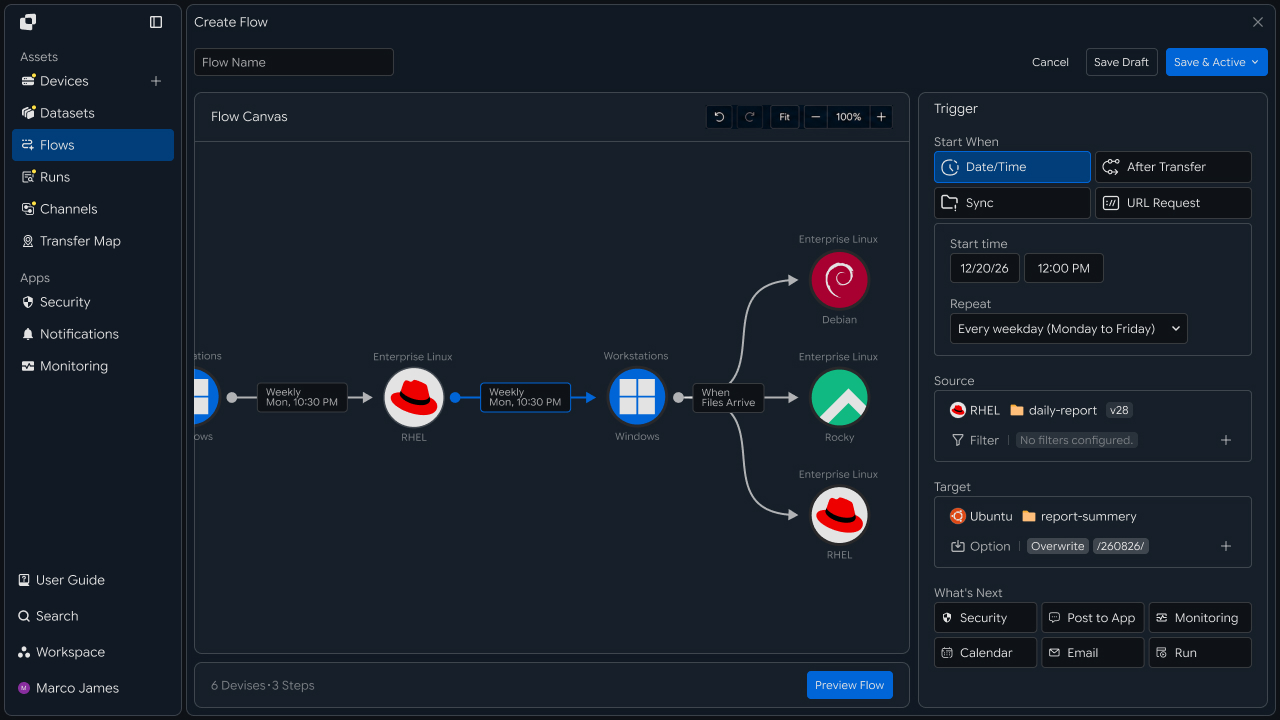
Because the file itself becomes the trigger for the next business task, file creation and modification can be used as automation conditions that match the workflow.
Event Flow
Automatically connect file change detection to follow-up processing
File event automation checks file status at a designated location and executes connected tasks in sequence when a configured event occurs.
① File Created or Changed
↓
② Detect File Event
↓
③ Check Processing Conditions
↓
④ Start Follow-up Task
↓
⑤ Check Processing Result
For example, when a new file is created in a specific folder, configure it to automatically transfer the file to the destination system and start the next processing task after the transfer is complete.
File Event
    ↓

Trigger
    ↓

File Transfer
    ↓

Processing
    ↓

Result
Using file changes as the starting point of the workflow connects everything from the moment a file is ready through the next task.
Automation Benefits
Naturally continue to the next task based on file status
In environments where the next business task starts after file processing is complete, operators repeatedly check file status and run the required task.
With file event automation, configure file creation and modification as execution conditions so the next task can continue as soon as a matching file is ready.
| Category | Typical File Processing | File Event Automation |
|---|---|---|
| Task Start | Run the task after checking file status | Start the task based on a file event |
| Target Check | Check files and paths for each task | Check files that meet the configured conditions |
| Follow-up Processing | Run the next task according to the business sequence | Automatically run connected tasks |
| Business Flow | Manage file tasks and next steps separately | Connect the flow from file event to result |
Event-based automation uses file status changes as the starting point of the business workflow so required tasks continue in a defined order once files are ready.
IT Engineers
Automate file event detection through follow-up tasks
Detection Configuration
Connect the devices and folders where file changes should be detected
IT engineers connect the devices and target folders whose file events will be monitored to the automation environment.
Specify the Source where files are created or modified, then connect the system and destination location that should run after the event to the Flow.
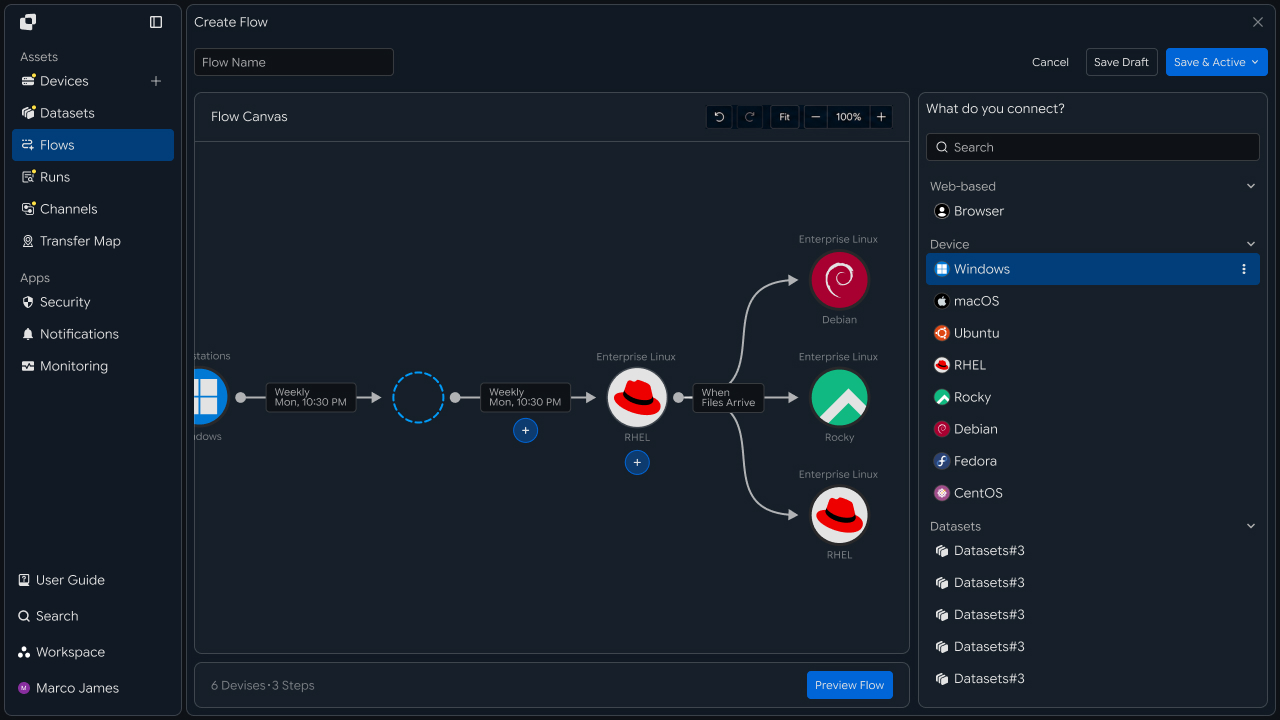
For example, monitor file changes in /report/input on a Windows server and configure a flow that continues to a Linux processing server and result storage when an event occurs.
| Configuration Item | Setting |
|---|---|
| Detection Device | Device where file changes are monitored |
| Detection Folder | File path where events are monitored |
| Processing Device | System that runs tasks after an event occurs |
| Result Location | Workspace where completed files are applied |
Connecting the event detection environment with the follow-up processing environment establishes the basic automation structure.
Event Conditions
Define the file events and processing targets that start a task
After configuring the detection environment, specify which file status changes should be treated as events.
For example, configure a task to start when a new file is created or to run a follow-up task when an existing file is modified.
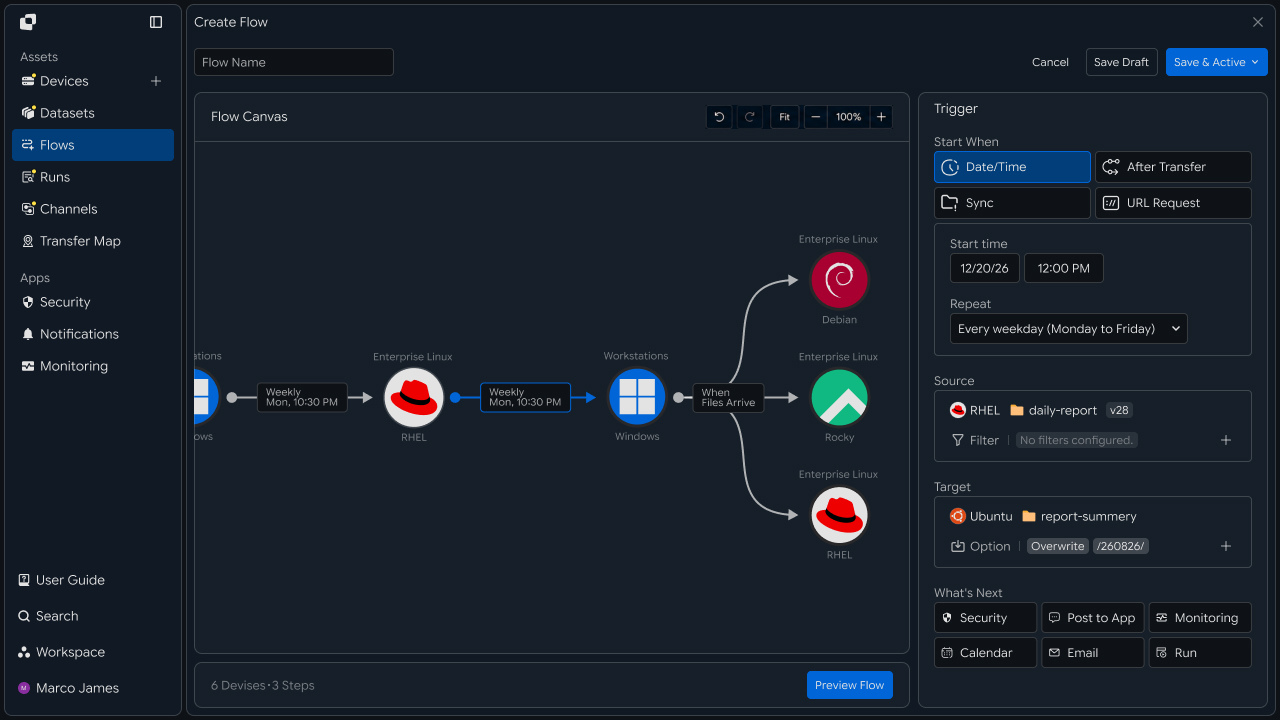
The main settings are as follows.
| Configuration Item | Use |
|---|---|
| Detection Event | Define the file creation or modification trigger |
| Target Path | Specify the folder where events are monitored |
| File Filter | Define targets by name and extension |
| Execution Scope | Define which files are processed after the event occurs |
For example, start data processing only when a new .csv file is created, or run result deployment when report.xlsx is modified.
Specific event conditions let you start follow-up tasks based on the file changes required by the business workflow.
Flow Connection
Connect the required tasks in order after a file change
After a file event occurs, connect required tasks such as transfer, transformation, storage, and deployment in the Flow Canvas.
Each task can be configured to continue to the next task based on the execution result of the previous stage, creating a processing flow with multiple tasks connected to a single file event.
File Created
      ↓

Filter Check
      ↓

Transfer
      ↓

Processing
      ↓

Result Storage
      ↓

Next Flow
For example, when an original video file is created, transfer it to a processing server, then apply the result file to the deployment location when the conversion task is complete.
Execution Check
Review progress and processing results at each stage
Tasks executed from a file event can be reviewed in Runs for their progress status and processing results.
Each execution record shows which event started the task, the target files, connected tasks, progress, and execution status.
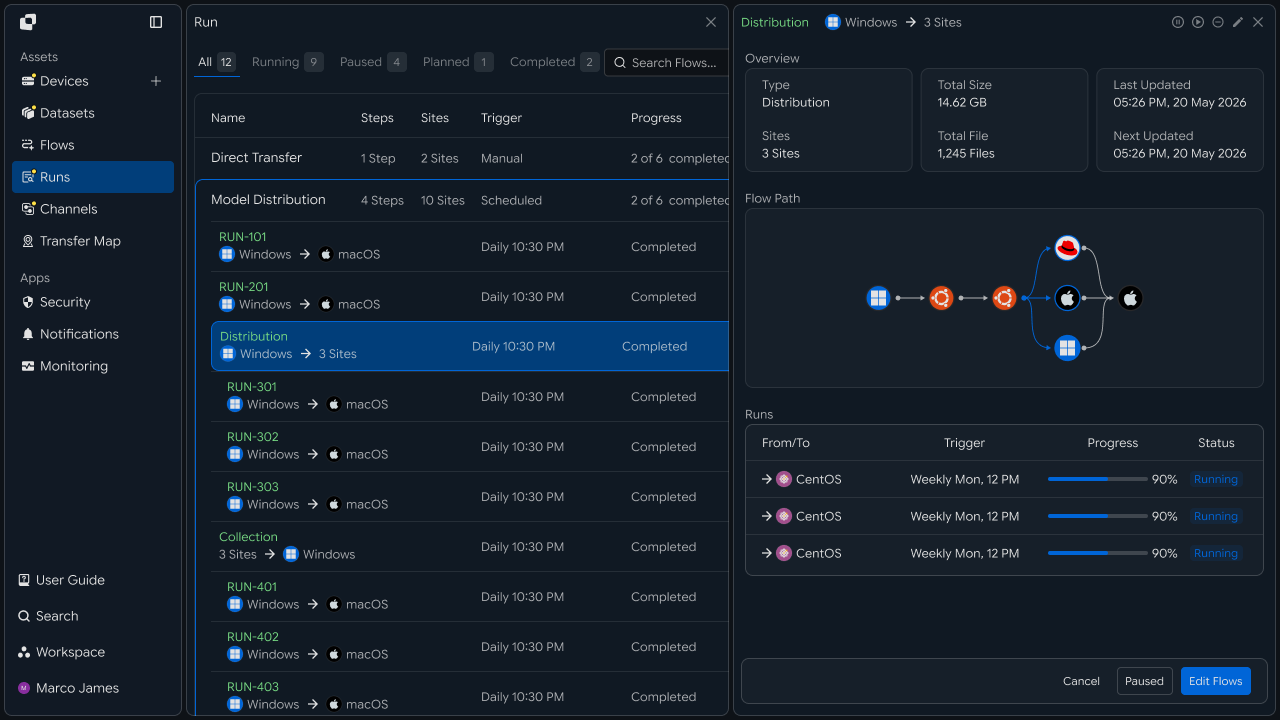
| Review Item | Details |
|---|---|
| Trigger | File event that started the task |
| Source | Device and path where the event occurred |
| Files | Files processed |
| Flow | Connected task flow |
| Progress | Processing progress by stage |
| Status | Current or completed task status |
Reviewing execution results confirms whether each stage, from event detection through follow-up processing, ran according to the configured flow.
Exception Handling
Check event detection and follow-up task status, then process again when needed
When a task requires additional review, check the event detection status together with the execution record of the follow-up task.
In Runs and Audit Log, you can review the device and file path where the event occurred, the Trigger conditions, target files, and execution status of follow-up tasks.
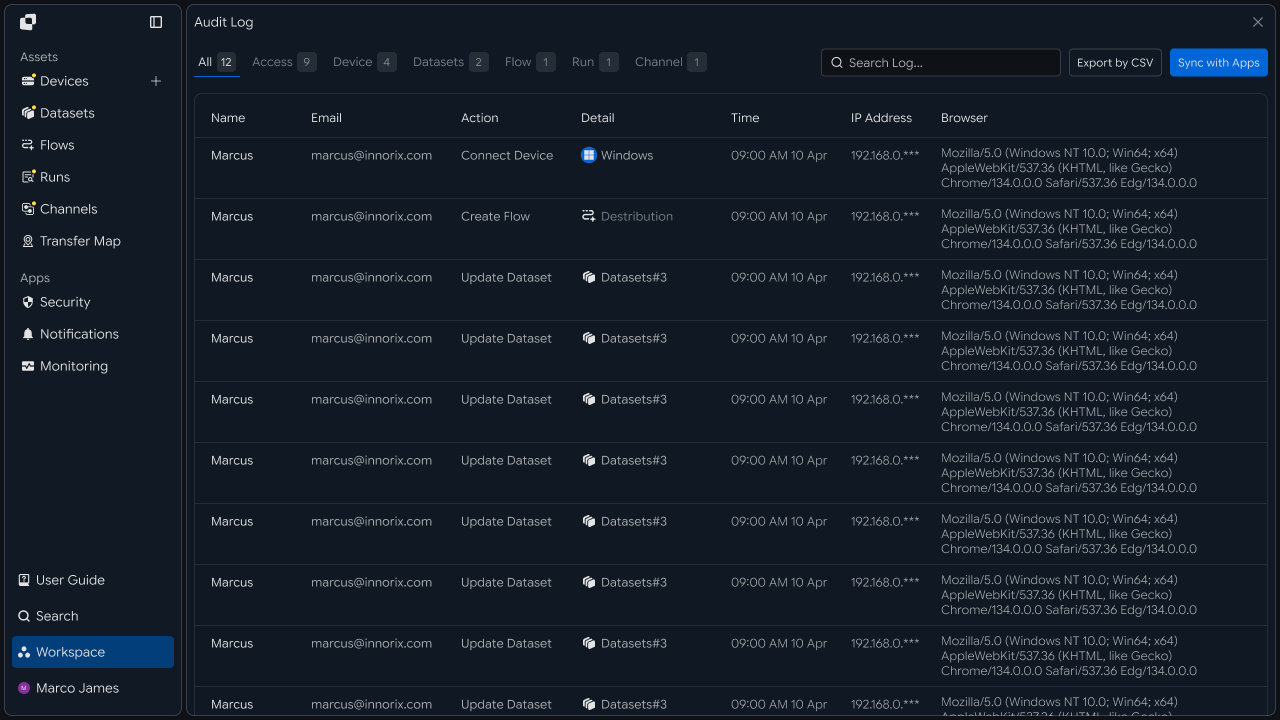
Check Execution Status
      ↓

Review Event Detection Record
      ↓

Check Trigger Conditions
      ↓

Check Device · Path · File Status
      ↓

Check Follow-up Task Status
      ↓

Adjust Required Settings
      ↓

Rerun Task
      ↓

Check Results
| Review Item | Details |
|---|---|
| Event Conditions | Criteria for detecting file creation · modification |
| Device Connection | Status of detection and processing devices |
| File Path | Event target folder and file location |
| File Conditions | Filter and processing target settings |
| Follow-up Task | Execution status of connected tasks |
| Execution Record | Run and Audit Log |
Managing file events and follow-up task status together lets you operate an automation flow suited to the business environment, from file changes through transfer, processing, and use of the results.
Developers
Monitor a folder and automatically run transfers and external calls when files arrive
Integration Preparation
Prepare shared request code and path conventions
import os
import requests

BASE_URL = os.getenv("INNORIX_BASE_URL", "https://app.innorix.com").rstrip("/")
TOKEN = os.environ["INNORIX_ACCESS_TOKEN"]
WORKSPACE_ID = os.getenv("INNORIX_WORKSPACE_ID")   # optional; falls back to the current workspace

STATUS_COMPLETE = 2
TERMINAL = {2, 4, 5, 9, 99}          # complete / error / cancelled / partial / failed
NOT_SUCCEEDED = {4, 5, 9, 99}


def api(method, path, body=None, params=None):
    headers = {
        "Content-Type": "application/json",
        "Authorization": f"Bearer {TOKEN}",
    }

    if WORKSPACE_ID:
        headers["x-workspace-id"] = WORKSPACE_ID

    response = requests.request(
        method, BASE_URL + path,
        headers=headers, json=body, params=params, timeout=30,
    )

    payload = response.json() if response.content else {}

    if not response.ok:
        raise RuntimeError(payload.get("message") or f"HTTP {response.status_code}")

    return payload.get("data")


def is_terminal(detail):
    return detail.get("isTerminal", detail.get("status") in TERMINAL)
The automation receives the path as a token that combines the device identifier and a base64-encoded path rather than as a plain-text path.
import base64


def encode_path(device_id, raw_path):
    normalized = str(raw_path or "").replace("\\", "/")
    token = base64.b64encode(normalized.encode("utf-8")).decode("ascii")
    return f"{device_id}_ino_{token}"
The value in the token must be the exact device ID. Registration succeeds with a device name, but the target cannot be found at execution time.
Register Watch Automation
Watch a folder and transfer files immediately when they arrive
For real-time monitoring, set transferType to sync and include syncType in transferOptions.
import time


def now_iso():
    return time.strftime("%Y-%m-%dT%H:%M:%S.000Z", time.gmtime())


def create_watch(source, source_path, target, target_path,
                 watch_type=1, action="overwrite", webhook=None):
    body = {
        "name": f"watch {source_path}",
        "flowName": f"watch {source_path}",
        "transferType": "sync",
        "timezone": "Asia/Seoul",
        "step": 1,
        "isUpcoming": False,
        "details": [
            {
                "senderId": source,
                "receiverId": target,
                "sourceItem": [
                    {
                        "hash": encode_path(source, source_path),
                        "filePath": source_path,
                        "isDir": True,
                    }
                ],
                "targetPath": encode_path(target, target_path),
                "step": 1,
                "transferOptions": {
                    "noSchedule": True,
                    "target-action": action,
                    "send-fileoption": {},
                    "syncType": 1,
                    "watchFolderType": watch_type,
                },
            }
        ],
        "schedules": [
            {"type": "none", "startDateType": "now",
             "startDate": now_iso(), "timezone": "Asia/Seoul"}
        ],
    }

    if webhook:
        body["processors"] = [{
            "category": "run",
            "type": "http",
            "config": {"url": webhook, "method": "POST"},
        }]

    return api("POST", "/api/automations", body)["automationId"]
There are four requirements that must always be followed when creating an automation request.
| Item | How to Configure |
|---|---|
isUpcoming | Must be false. The server default of true ignores the schedule in the request and replaces it with a one-time five-minute schedule. A stage with triggerAutomation forces the value to false, so you only need to set it directly on the first stage without a trigger |
step | Set it in both the top level and details. It indicates the hop position within the workflow |
sourceItem | Include both hash (the path token) and filePath (the plain-text path) |
syncType | Set it inside transferOptions. 1 is one-way and 2 is two-way |
Registration succeeds even if all four items are omitted, but the behavior changes at execution time. If a recurring schedule was registered but runs only once, check isUpcoming first.
The server reads the watch path from sourceItem[0].filePath. If you specify only the path token and omit the plain-text path, no watch target is configured.
watchFolderType | Detection Target |
|---|---|
1 | File Creation (default) |
2 | File Modification |
The value is an integer, not a string.
The watch runs whenever a file arrives. If the destination policy is numbering, the target folder grows quickly, so use overwrite when only the latest state needs to be retained.
The agent considers writing complete when file size stops changing and then sends the event. Larger files take longer to move from detection to the event, which prevents incomplete files from being transferred.
Passing webhook to create_watch registers it in the automation's processors in the following form.
{
  "processors": [
    {
      "category": "run",
      "type": "http",
      "config": {
        "url": "https://internal.example.com/hook",
        "method": "POST",
        "body": { "event": "transfer_done" }
      }
    }
  ]
}
category is run, while type is http, not https. Put url, method, and body inside config. The call occurs after transfer completion; if config.events is set to {"completed": true}, it is called only for successful transfers. If omitted, it is called for all events, including failures.
Manage Watch Automation
Review and clean up registered watch automations
Watch automations appear in the same list as regular automations. Items whose transferType is sync are real-time watches.
items, _ = list_automations(search="watch")

for item in items:
    print(item["automationId"], item.get("automationName"),
          item.get("transferType"))


# Delete an automation you no longer want to watch
api("DELETE", f"/api/automations/{automation_id}")
The automation list is returned nested by flow group, so you must iterate through the inner arrays as well. The item name is stored in flowName passed during creation, not automationName.
Downstream System Calls
Receive the URL called by the processor and start follow-up work
The endpoint at the specified URL processes the request as follows.
The call arrives after the transfer completes, but if config.events is omitted, it also arrives for failed transfers. To react to failures, the receiving side should inspect the status and distinguish success from failure.
def handle_notification(payload):
    monitor_id = payload.get("monitorId")

    # If you subscribed to the completed event only, this check can be skipped
    if monitor_id:
        detail = api("GET", f"/api/transfers/{monitor_id}")

        if detail["status"] != STATUS_COMPLETE:
            return handle_failure(payload)

    start_downstream_job(payload)
The same transfer can generate multiple notifications, so the receiver should handle repeated delivery of the same event only once.
Review Execution Results
Retrieve the results of tasks started by events
runs = api("GET", f"/api/automations/{automation_id}/executions") or []

for run in runs:
    print(run["startTime"], run["status"], run["monitorId"])
Execution history places the latest run at the beginning and returns the full history without pagination. Use each run's monitorId to review file-level processing results as well.
Recover Missing Files
Compare source and destination lists and retransmit only missing files
Files that arrive while a device is temporarily offline or while monitoring is stopped are not detected.
def list_files(device_id, path):
    found, page = {}, 1

    while True:
        result = api("GET", f"/api/devices/{device_id}/files", params={
            "path": path, "page": page, "size": 200, "type": "file",
        })

        for item in result["items"]:
            found[item["name"]] = item.get("size")

        if page >= result.get("lastPage", 1):
            return found

        page += 1


def recover_missing(source, source_path, target, target_path):
    source_files = list_files(source, source_path)
    missing = sorted(set(source_files) - set(list_files(target, target_path)))

    if not missing:
        return None

    # send file lists through sourceItem; sourcePaths treats every path as a folder
    return api("POST", "/api/transfers/manual", {
        "sourceDevice": source,
        "targetDevice": target,
        "targetPath": target_path,
        "sourceItem": [
            {"path": f"{source_path.rstrip('/')}/{name}",
             "isDir": False,
             "fileSize": source_files[name]}
            for name in missing
        ],
        "sendAllFolder": False,
        "transferOptions": {"target-action": "overwrite"},
    })["monitorId"]
Providing the file size as well makes the operation faster because the server does not need to retrieve the size of each item again.
Because real-time responsiveness is the reason for using watch mode, run the reconciliation once a day to supplement it by catching missed files.
| Review Item | Details |
|---|---|
| Watch Automation | transferType, syncType, and watchFolderType |
| Watch Path | Whether sourceItem[0].filePath is specified |
| Schedule Override | Whether isUpcoming: false is set |
| Execution History | Processing result for each run |
| Missing Files | Files present at the source but absent at the destination |