Getting Started
Core Concepts
Manage file transfers separately by workspace
A file workspace groups the files, storage locations, transfer targets, and access scope used for a specific business operation into a single space.
For example, development, content, and data analysis teams can each have a separate workspace with the storage locations and transfer systems required for that work.
File Workspace
      │
 ┌────┼───────────────┐
 ▼    ▼               ▼
Files Storage       Access
 │       │             │
 ▼       ▼             ▼
Transfer Targets   Users / Devices
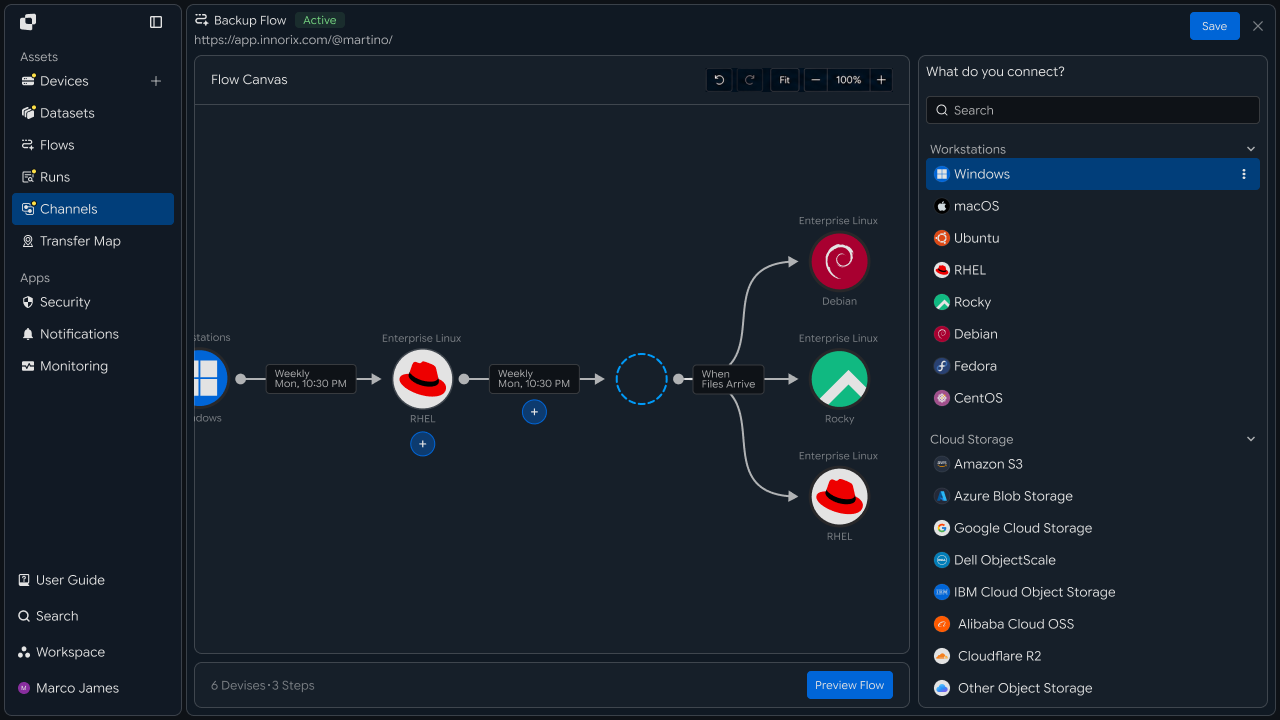
This configuration separates and manages files and transfer environments by workspace across multiple business operations.
Workspace Flow
Continue from file storage through transfer and result confirmation
Users select a workspace for which they have access, then store or review the required files.
When a transfer task connected to the workspace is run, selected files are transferred to the designated system and work environment, and the execution result can be reviewed in the same space.
Select Workspace
      │
      ▼
Store · Review Files
      │
      ▼
Run Transfer Task
      │
      ▼
Apply to Destination System
      │
      ▼
Check Processing Result
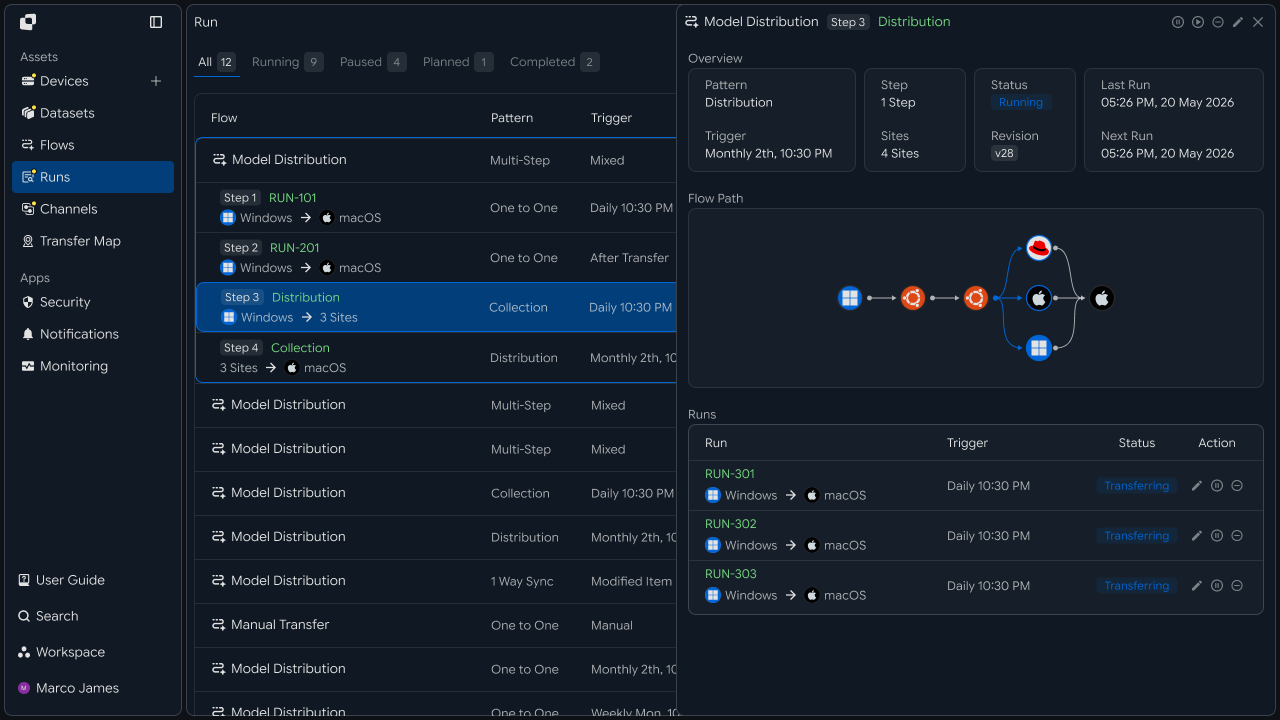
Separation Benefits
Manage files for multiple operations and systems according to purpose
Organizing workspaces by business purpose provides a single management standard for files, storage locations, transfer targets, and access scope.
| Category | Individual Management | Workspace Management |
|---|---|---|
| Files | Review files in multiple locations separately | Manage files by business workspace |
| Storage Locations | Check the location for each file | Configure storage locations by workspace |
| Transfer Targets | Check the destination for each task | Connect transfer systems and paths by workspace |
| Access Scope | Review files by user | Manage access scope based on the workspace |
| Result Review | Review results by task | Review execution results by workspace |
Business Teams
Manage and use required files in the workspace
Select a Workspace
View the files and tasks needed for the work in one place
When starting work, select the workspace containing the required files and tasks.
The workspace contains the files used for the business operation and the connected transfer tasks, so users can perform file work in the space needed for their current task.
My Workspaces
     │
     ├── Project A
     │      ├── Files
     │      └── Transfers
     │
     ├── Media Team
     │      ├── Files
     │      └── Transfers
     │
     └── Data Analysis
            ├── Files
            └── Transfers
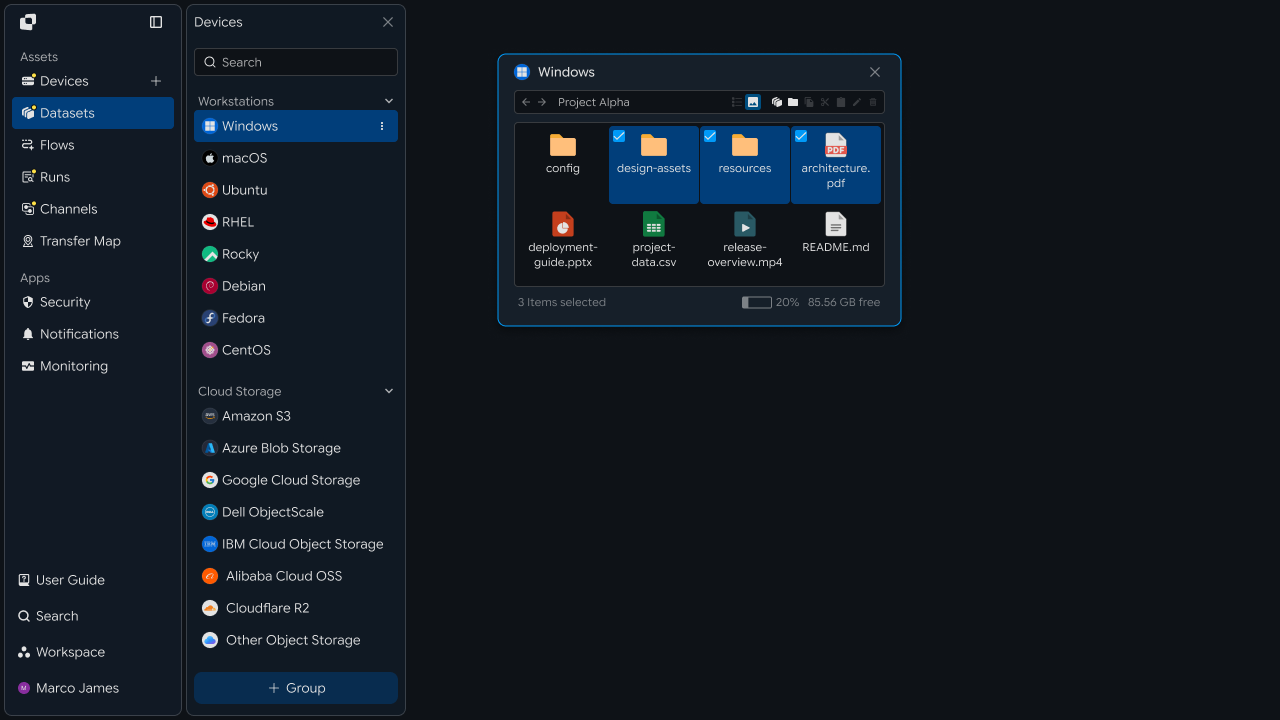
Use Files
Store required files and use them for the next task
Store the files required for work in the workspace and review the files needed for the current task.
Stored files can be used together with the business flows connected to the workspace, allowing users to select the required file and continue to the next task.
Workspace
    │
    ├── Upload Files
    │
    ├── Browse Files
    │
    └── Select Files
            │
            ▼
        Next Work
Run a Transfer
Send files using a prepared transfer task
After selecting the required files, run the transfer task configured in the workspace.
Users can select the files and task needed for the current work, then review progress and processing results.
Select Files
      │
      ▼
Select Transfer
      │
      ▼
Run
      │
 ┌────┴────┐
 ▼         ▼
Progress   Target
 │         │
 └────┬────┘
      ▼
   Result
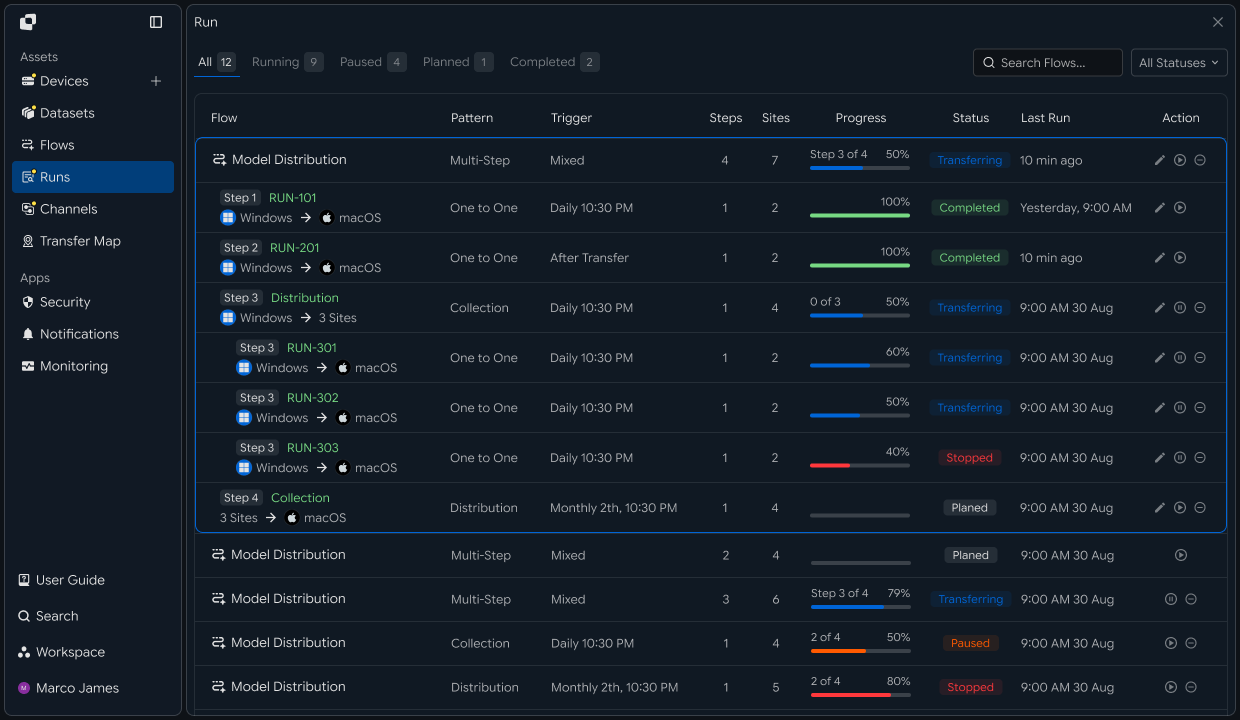
Business teams can manage the required files in the workspace and continue to the next task using the prepared transfer flow.
IT Engineers
Configure and manage file workspaces and transfer environments centrally
Workspace Configuration
Configure file storage locations and management scope by business purpose
Create workspaces according to business purpose, then configure the file storage locations and management scope used in each space.
For example, development outputs, media files, and data-processing results can each be configured in separate workspaces.
Organization
      │
 ┌────┼───────────────┐
 ▼    ▼               ▼
Dev  Media           Data
 │     │               │
 ▼     ▼               ▼
Storage Storage      Storage
Transfer Connection
Connect workspaces with destination systems and file paths
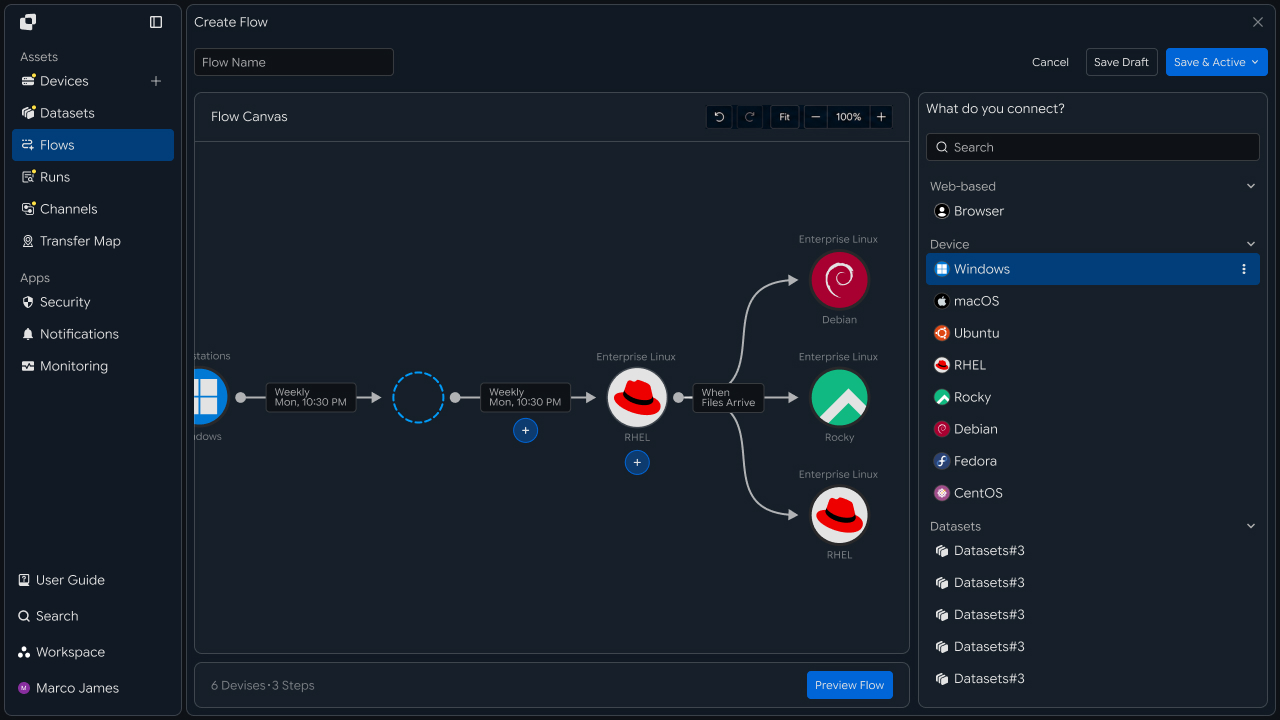
Connect the transfer target systems and file paths used by each workspace.
Connect servers, storage systems, and business devices to a workspace and configure file transfer paths to build the transfer environment for each business operation.
Workspace
     │
     ├── Source Storage
     │
     ├── Transfer Flow
     │
     └── Target Devices
             │
      ┌──────┼──────┐
      ▼      ▼      ▼
   Server  Storage  System
Access Policy
Manage access scope and transfer rules by user and system
For each workspace, configure the access scope of users and groups, connectable systems, file paths, and transfer tasks that can be run.
When the business environment or user configuration changes, access scope and processing criteria can be adjusted from the same policy screen.
Workspace Policy
       │
 ┌─────┼────────────┐
 ▼     ▼            ▼
Users Groups      Devices
 │       │            │
 ▼       ▼            ▼
Access  Operations  Paths
             │
             ▼
       Transfer Rules
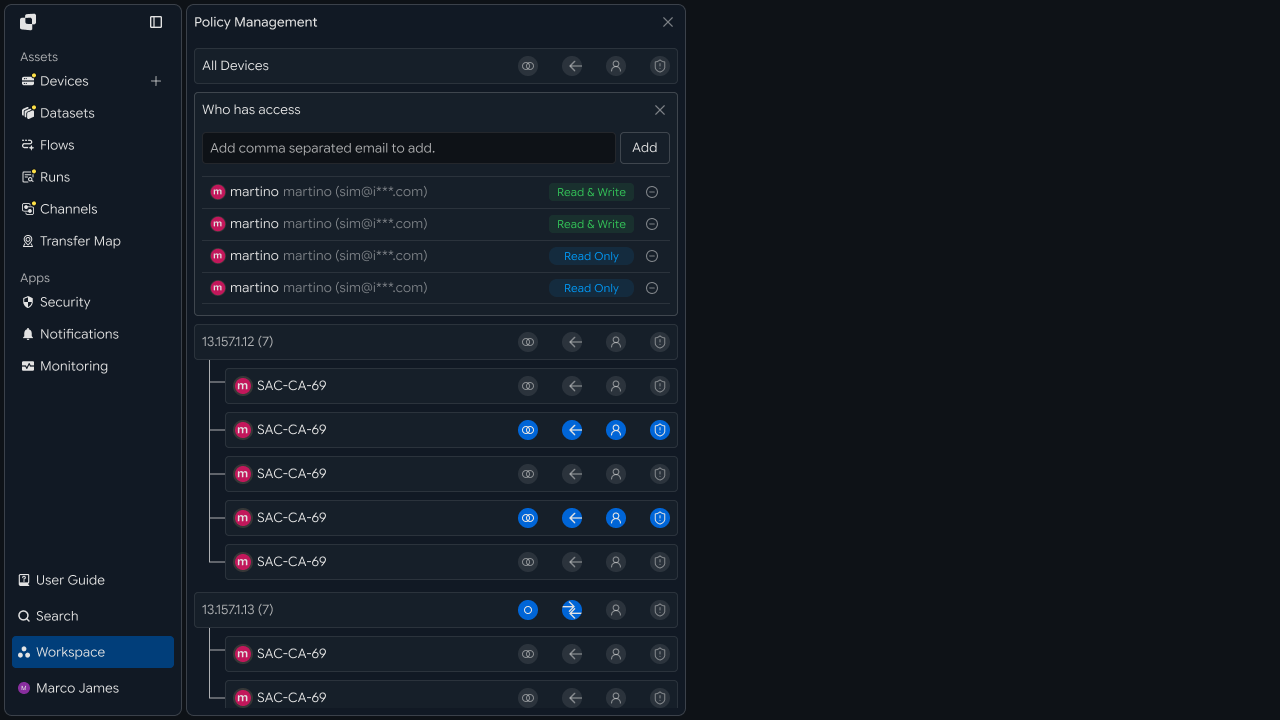
| Management Item | Setting |
|---|---|
| Workspace | Workspace for users and business operations |
| Users / Groups | Users and groups that use the workspace |
| Devices | Systems that can be connected |
| Paths | Paths where files are used |
| Operations | File tasks that can be run |
| Transfer Rules | File transfer criteria and processing rules |
Operations Management
Review transfer results by workspace together with the overall operational status
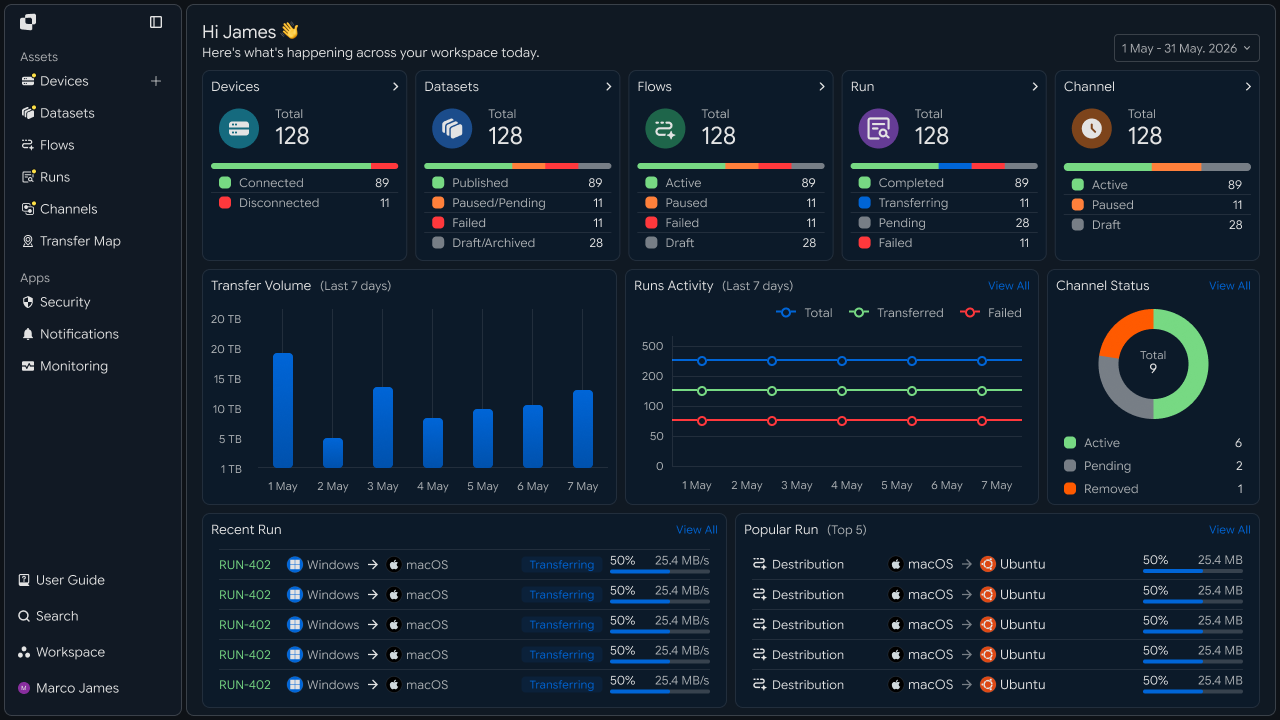
Review file transfers and processing results executed in each workspace, while centrally managing the status of multiple workspaces and connected systems.
Operators can review the execution status of a specific workspace or understand the overall operational situation based on the status of the entire environment.
Central Management
        │
 ┌──────┼───────────────┐
 ▼      ▼               ▼
Workspace Devices      Runs
 │        │              │
 └────────┼──────────────┘
          ▼
     Operations View
Workspaces can be configured and managed through the following flow.
Configure Workspace
       │
       ▼
Connect Storage Location
       │
       ▼
Configure Destination Systems · Transfer Paths
       │
       ▼
Configure User · System Access Policies
       │
       ▼
Run Transfer Task
       │
       ▼
Review Workspace · Overall Operational Status
Developers
Send the workspace identifier and token with each request and handle authorization responses
Authentication
Obtain an access token and refresh it when it expires
The workspace API authenticates with an access token. If no token is available, log in to the account to obtain one.
import os
import threading

import requests

BASE_URL = os.getenv("INNORIX_BASE_URL", "https://app.innorix.com").rstrip("/")


def login(email, password):
    response = requests.post(f"{BASE_URL}/api/auth/login",
                             json={"email": email, "password": password},
                             timeout=30)
    response.raise_for_status()

    # the login response nests the tokens under data.user
    user = response.json()["data"]["user"]
    return user["accessToken"], user.get("refreshToken")


def refresh(refresh_token):
    response = requests.post(f"{BASE_URL}/api/auth/token/refresh",
                             headers={"X-Refresh-Token": refresh_token},
                             timeout=30)
    response.raise_for_status()

    # the refresh response nests the tokens directly under data
    data = response.json()["data"]
    return data["accessToken"], data.get("refreshToken")
The response structures for login and refresh are different. Login returns data under data.user, while refresh returns it directly under data.
A refresh token is valid only once. In a server application where multiple threads use the same token, lock the refresh operation so it cannot occur concurrently.
class Session:
    def __init__(self, email, password):
        self._lock = threading.Lock()
        self._access, self._refresh = login(email, password)

    @property
    def access_token(self):
        with self._lock:
            return self._access

    def renew(self):
        with self._lock:
            self._access, self._refresh = refresh(self._refresh)
            return self._access
Assign a Workspace
Send the workspace identifier with every request
The workspace is passed in a header, not in the request body. Setting it directly at each call site can cause omissions, so centralize request construction in one place.
class Client:
    def __init__(self, session, workspace_id=None):
        self.session = session
        self.workspace_id = workspace_id

    def request(self, method, path, body=None, params=None, retried=False):
        headers = {
            "Content-Type": "application/json",
            "Authorization": f"Bearer {self.session.access_token}",
        }

        # when omitted the account's current workspace is used
        if self.workspace_id:
            headers["x-workspace-id"] = self.workspace_id

        response = requests.request(method, BASE_URL + path, headers=headers,
                                    json=body, params=params, timeout=30)

        if response.status_code == 401 and not retried:
            self.session.renew()
            return self.request(method, path, body, params, retried=True)

        return response
If no workspace identifier is specified, the account's currently accessible workspace is used. An application using a single workspace can operate without specifying one.
Token expiration is handled here as well. When 401 is received, refresh once and retry; if the retried request fails again, propagate the failure unchanged.
Check Access Scope
Check the account's view scope and accessible systems
me = api("GET", "/api/auth/me") or {}
print(me)

result = api("GET", "/api/devices", params={"page": 1, "size": 20}) or {}

if result.get("viewScope"):
    print("view scope:", result["viewScope"])

for device in result.get("devices") or []:
print(device["deviceId"], device["name"])| Response Item | Details |
|---|---|
devices | List of systems connected to the workspace |
totalRows · lastPage | Total count and last page |
viewScope | Current account view scope |
The device list is returned in the data.devices array. Use viewScope in the response to determine whether the account can view everything or only a subset.
Permission Handling
Distinguish 401 and 403 and handle them as reauthentication or user guidance
Authentication failure and insufficient permissions must be handled differently. The former requires reauthentication; the latter requires user guidance.
| Status | Meaning | Handling |
|---|---|---|
| 401 | Token is missing or invalid | Refresh and retry; if it fails, sign in again |
| 403 | Workspace or path is inaccessible | Inform the user |
| 404 | System or path does not exist | Inform the user that the target is unavailable |
| 429 | Too many requests | Retry after a short delay |
class WorkspaceForbidden(Exception):
    pass


def call(client, method, path, body=None, params=None):
    response = client.request(method, path, body, params)

    if response.status_code == 403:
        raise WorkspaceForbidden(path)

    payload = response.json() if response.content else {}

    if not response.ok:
        raise RuntimeError(payload.get("message") or f"HTTP {response.status_code}")

    return payload.get("data")


try:
    devices = call(client, "GET", "/api/devices")
except WorkspaceForbidden:
    devices, notice = [], "no permission to access this workspace"
Separating insufficient permissions into a dedicated exception lets the calling code turn it into a user-facing message. Because results can differ for the same user depending on the workspace, display the current workspace at the top of the screen so users do not mistake an empty list for a permissions problem.
Multi-Workspace Handling
Separate credentials in code that handles multiple workspaces
Passing the workspace identifier as a function argument can lead to it being omitted somewhere in the call chain. Create a client for each workspace and pass the client object instead.
clients = {
    workspace_id: Client(session, workspace_id)
    for workspace_id in WORKSPACE_IDS
}


def collect_devices():
    result = {}

    for workspace_id, client in clients.items():
        try:
            result[workspace_id] = call(client, "GET", "/api/devices")
        except WorkspaceForbidden:
            continue

    return result
There is no endpoint for listing workspaces. Check by providing candidate workspaces and filtering to the ones the account can access.
If accounts differ by customer, separate the sessions as well. Keep their creation points separate so they are not mixed with a configuration where one session is shared across multiple workspaces.
def build_client(config):
    session = Session(config["email"], config["password"])
    return Client(session, config["workspace_id"])


clients = {name: build_client(cfg) for name, cfg in TENANTS.items()}
A batch that iterates through multiple workspaces should prevent a failure in one workspace from stopping the entire batch.
failed = []

for name, client in clients.items():
    try:
        run_for(client)
    except Exception as error:
        failed.append((name, error))

for name, error in failed:
print(f"{name}: {error}")| Management Item | Handled in Code |
|---|---|
| Session | Account-level access and refresh tokens |
| Workspace | Workspace identifier in the request header |
| Permissions | 403 response and user guidance |
| Resources | Workspace-specific systems and view scope |
| Execution | Transfers created within the workspace |