Getting Started
Core Concepts
Automatically connect everything from file collection through processing to result delivery
In media and data workflows, the locations where files are created, the systems that process them, and the locations where results are used can all be different.
For example, you can collect video files generated by multiple recording systems, transfer them to a conversion server, store the processed results on storage, and then transfer them to the next work environment.
File Creation
    │
    ▼
File Collection
    │
    ▼
File Processing
    │
    ▼
Use Results
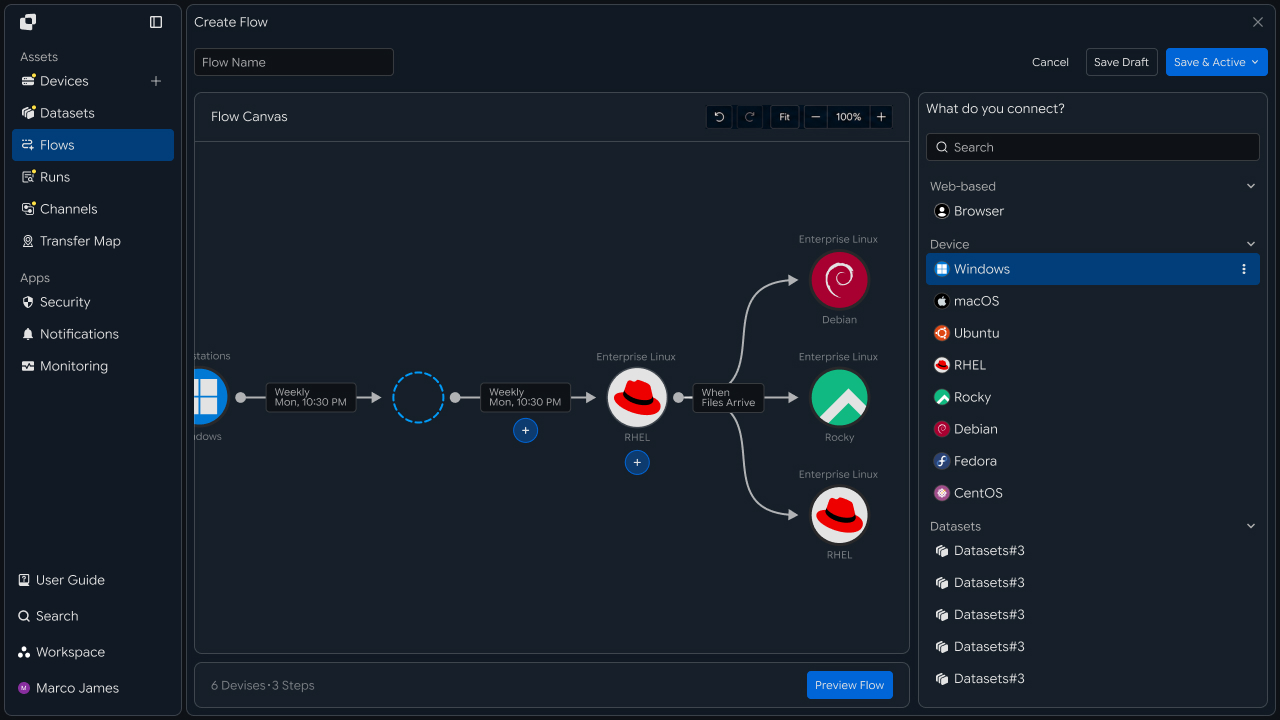
The result of each stage becomes the input for the next task, letting you connect everything from file creation through collection, processing, and result use in a single flow.
Automation Flow
Collect files from multiple systems and process them in a defined sequence
The automation flow collects files generated across multiple systems as a single task and connects the collected results to the required processing systems.
When processing is complete, transfer the generated result files to designated locations for use in the next business task.
Source A ───┐
            │
Source B ───┼──→ Collect
            │       │
Source C ───┘       ▼
                  Process
                     │
                     ▼
                  Result
Configuring the next stage to run based on file status and task completion conditions automatically connects each file task in sequence.
Automation Benefits
Reduce repetitive file movement and management at every stage
When multi-stage file tasks are performed separately, file preparation, transfer, and result review are repeated.
By configuring an automation flow, you can connect the result of the previous stage to the next task and manage the entire process after file creation as a single flow.
| Category | Individual File Processing | Automation Flow |
|---|---|---|
| File Collection | Check files on each system separately | Collect files from multiple systems in a single flow |
| Processing Execution | Run the task after preparing files | Run the next task based on collection results |
| Result Use | Manage completed files at the next location | Connect results to designated locations and business tasks |
| Progress Review | Review each stage separately | Review the overall flow and stage-by-stage results |
This lets you connect file tasks distributed across multiple systems and devices into a single automated flow.
IT Engineers
Build an automated processing flow for media and data files
Collection Environment
Connect systems where files are created with collection locations
First, connect the systems where files are created with the locations from which they will be collected.
Configure recording systems, business servers, data collection devices, storage systems, and other file-producing environments as Sources, then specify the file paths used on each system.
Source Devices
      │
 ┌────┼────┐
 ▼    ▼    ▼
Cam  Server Storage
 │      │      │
 └──────┼──────┘
        ▼
    Collection
This collection environment lets files generated in multiple locations flow into a single automation workflow.
Processing Connection
Route collected files to the required processing systems
Connect collected files to environments that perform the required work, such as conversion servers, analysis servers, and AI processing systems.
You can consolidate files from multiple Sources into one processing system or route them to different tasks based on file type and processing conditions.
Source A ───┐
            ├──→ Collect ───→ Process Server
Source B ───┤                       │
            │                       ▼
Source C ───┘                   Processing
When processing is complete, connect the generated files to the next result stage.
Result Delivery
Store processing results and connect them to the next work environment
Transfer processed result files to storage, servers, applications, or other locations used by the next business task.
Connecting result storage and transfer to the next work environment as a single result stage lets file use continue automatically after processing completes.
Processing
     │
     ▼
Result Files
     │
 ┌───┴───────┐
 ▼           ▼
Storage   Next System
When needed, extend the file-use flow by connecting notifications or additional processing tasks after result delivery.
Execution Conditions
Run the next stage based on file and task status
Each stage can be configured to run when specified conditions are met.
For example, start collection when a file is created, run the processing task when collection completes, and start result delivery when the processing result is ready.
File Ready
    │
    ▼
Collect Complete?
    │
   Yes
    │
    ▼
Start Processing
    │
    ▼
Result Ready?
    │
   Yes
    │
    ▼
Deliver Result
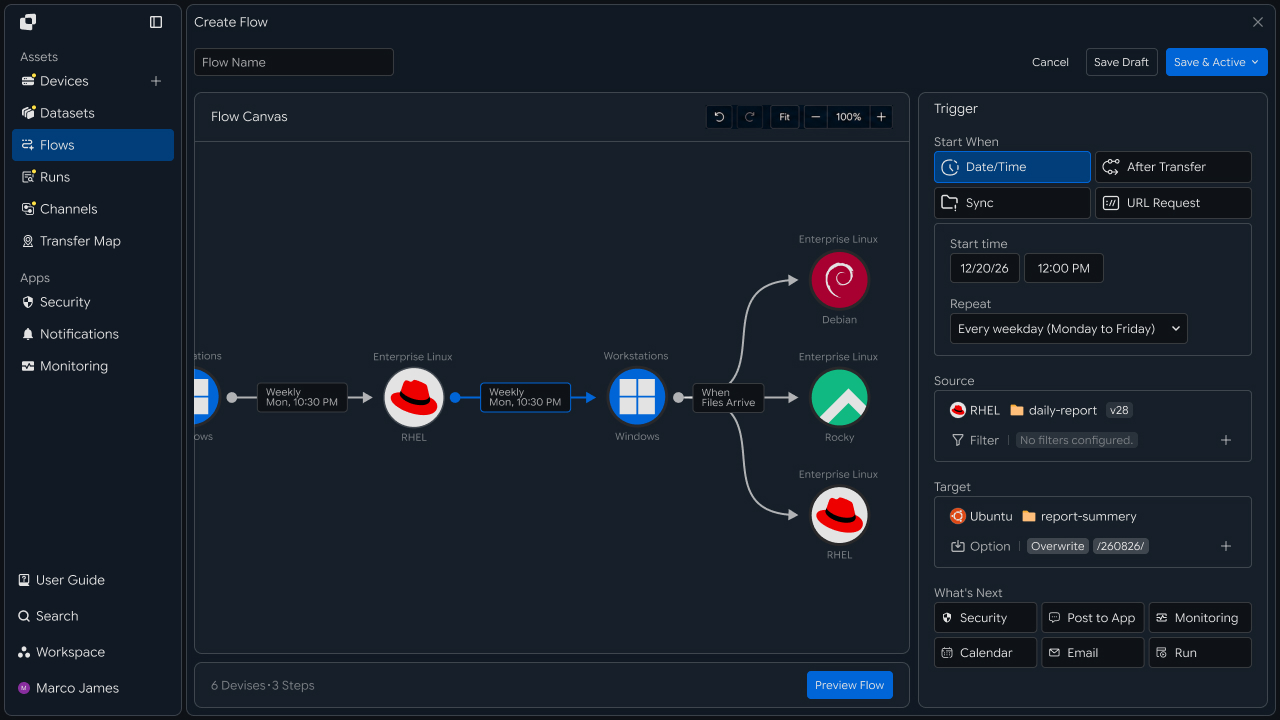
Using file status and the previous task's result as execution conditions lets you connect multiple tasks in a defined sequence.
Verify Results
Review the overall flow and processing status at each stage together
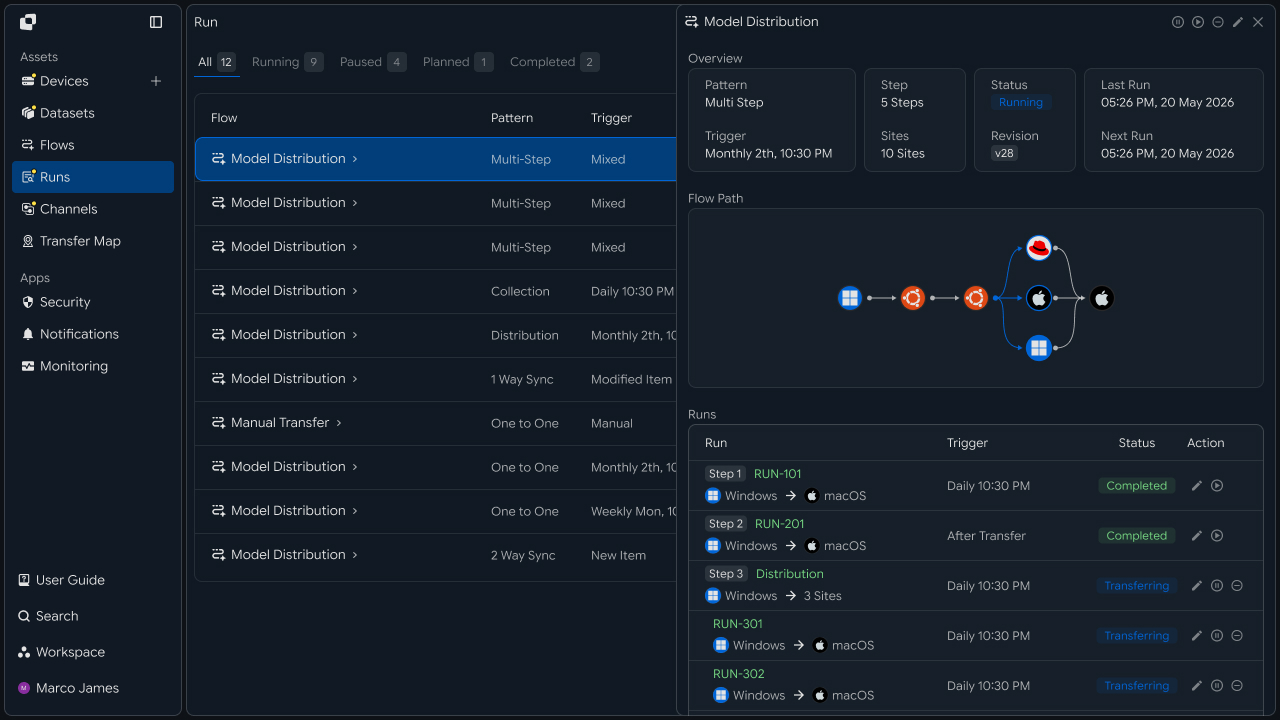
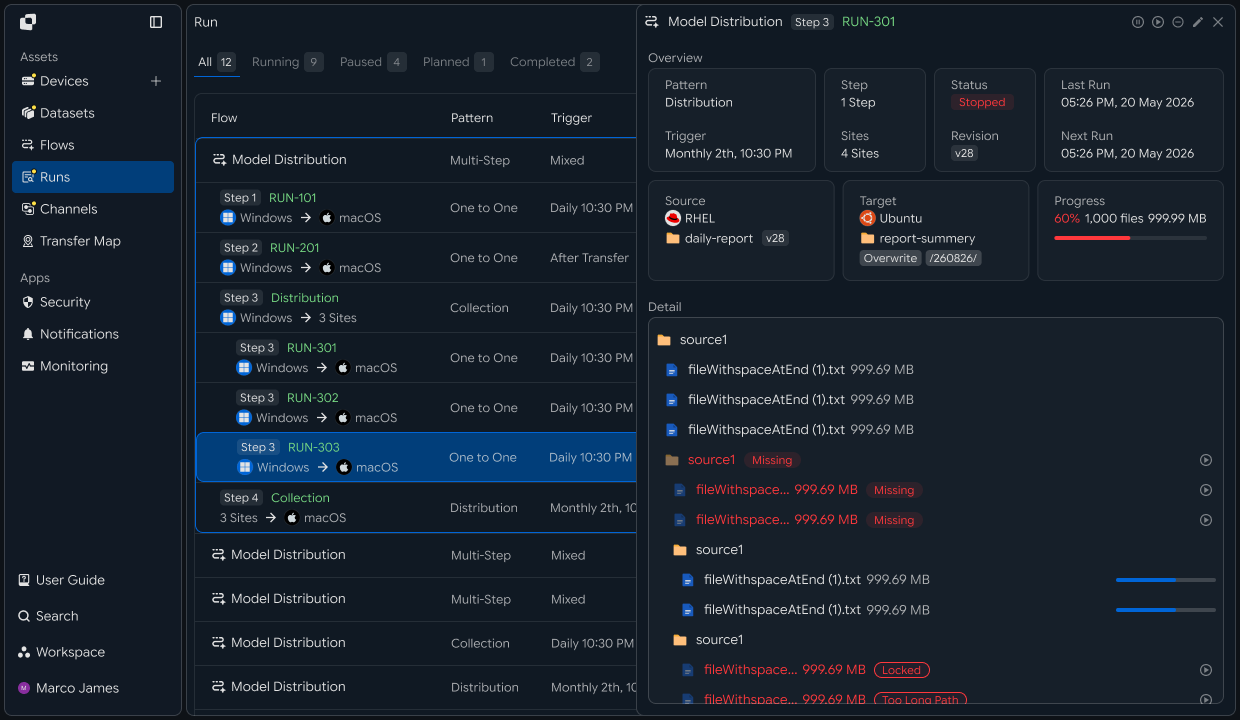
When the automation flow runs, review the status of the overall workflow together with the processing results at each stage.
You can identify how far the current task has progressed based on collected files, processing tasks, and result delivery status.
Workflow Run
     │
 ┌───┼──────────────┐
 ▼   ▼       ▼      ▼
Collect Process Result Complete
  ✓      ✓       ●
                 │
              Running
| Review Stage | Key Information |
|---|---|
| Collection | Collected files and execution status |
| Processing | Processing task and progress result |
| Result | Stored or transferred result files |
| Overall Execution | Workflow progress status and execution time |
Reviewing the overall flow together with individual stage status makes it easy to understand current progress and processing results.
Exception Handling
Review stages that require attention and rerun tasks when needed
When a task requires additional review during execution, check the detailed information and execution record for that stage.
Select the task requiring attention among file collection, processing systems, and result delivery, check system connectivity, file paths, and processing status, then rerun the required task.
Workflow Run
     │
     ▼
Status Check
     │
 ┌───┴────────┐
 ▼            ▼
Completed   Attention
                │
                ▼
          View Details
                │
                ▼
          Check Settings
                │
                ▼
              Retry
                │
                ▼
          Result Confirmed
| Review Item | Details | Follow-up |
|---|---|---|
| Collection Environment | System connection and file path | Check environment and rerun |
| Processing Task | Processing status and execution result | Check processing environment |
| Result Delivery | Destination location and transfer status | Check connection status and rerun |
| Execution Record | Stage-by-stage task information | Review details and take action |
Developers
Filter targets by extension and size, collect them into a processing system, and pass results to the next system
Integration Preparation
Prepare shared request code and path conventions
import os
import requests

BASE_URL = os.getenv("INNORIX_BASE_URL", "https://app.innorix.com").rstrip("/")
TOKEN = os.environ["INNORIX_ACCESS_TOKEN"]
WORKSPACE_ID = os.getenv("INNORIX_WORKSPACE_ID")   # optional; falls back to the current workspace

STATUS_COMPLETE = 2
TERMINAL = {2, 4, 5, 9, 99}          # complete / error / cancelled / partial / failed
NOT_SUCCEEDED = {4, 5, 9, 99}


def api(method, path, body=None, params=None):
    headers = {
        "Content-Type": "application/json",
        "Authorization": f"Bearer {TOKEN}",
    }

    if WORKSPACE_ID:
        headers["x-workspace-id"] = WORKSPACE_ID

    response = requests.request(
        method, BASE_URL + path,
        headers=headers, json=body, params=params, timeout=30,
    )

    payload = response.json() if response.content else {}

    if not response.ok:
        raise RuntimeError(payload.get("message") or f"HTTP {response.status_code}")

    return payload.get("data")


def is_terminal(detail):
return detail.get("isTerminal", detail.get("status") in TERMINAL)import base64
import time
def encode_path(device_id, raw_path):
normalized = str(raw_path or "").replace("\\", "/")
token = base64.b64encode(normalized.encode("utf-8")).decode("ascii")
return f"{device_id}_ino_{token}"
def now_iso():
return time.strftime("%Y-%m-%dT%H:%M:%S.000Z", time.gmtime())Determine the transfer status using the values below. There are five terminal states, and the successful state is Complete (2).
| Status Value | Meaning | Terminal |
|---|---|---|
| 2 | Complete | Yes |
| 4 | Error | Yes |
| 5 | Cancelled | Yes |
| 9 | Partially Complete | Yes |
| 99 | Failed | Yes |
| 1 · 6 · 12 · 13 | Started · Transferring · Synchronizing · Receiving | No |
Filter Targets
Filter files to transfer using extension, size, and name conditions
Specify filters in the transfer options so that only files matching the conditions, rather than the entire source folder, are transferred.
def build_filter(exts=None, min_size=None, exclude=None):
    file_option = {}

    if exts:
        # extension whitelist, without the leading dot
        file_option["extension"] = {
            "extension": [e.lstrip(".").lower() for e in exts],
            "allow": True,
        }

    if min_size is not None:
        # over and equal both True means size or larger
        file_option["fileSize"] = {"size": min_size, "over": True, "equal": True}

    if exclude:
        # allow=False excludes files whose name contains this. Server matching is case sensitive.
        file_option["fileName"] = {"name": exclude, "allow": False}

    return {"send-fileoption": file_option} if file_option else {}
Use send-fileoption.extension for extension filters. The send-filetype-cus regular expression matches only filenames with the extension removed, so it does not work as an extension condition.
| Filter | Location | Behavior |
|---|---|---|
| Extension | send-fileoption.extension | If allow: true, transfer only files with this extension |
| Size | send-fileoption.fileSize | Specify thresholds with over and equal |
| Name | send-fileoption.fileName | If allow: false, exclude files containing the specified value |
When multiple filters are provided, they are combined with AND. Only files that pass every filter are transferred.
FILTER = build_filter(exts=["mp4", "mov", "wav"], min_size=1024, exclude=".tmp")Verify through a search that the conditions work as intended before adding them to the automation.
page = api("POST", f"/api/devices/{SOURCE_ID}/files/search",
           {"path": SOURCE_PATH, "pageSize": 500})

matched = [i for i in page["items"]
           if i["type"] == "file" and i["name"].lower().endswith((".mp4", ".mov"))]

print(f"{len(matched)} matched")
Search requests do not accept condition parameters, so evaluate the conditions against the returned results.
File Collection
Consolidate files from multiple systems into a single processing system
One transfer handles one source system. Create a transfer for each system and separate the destination paths by source.
SOURCES = [
    ("device-cam-01", "/media/raw"),
    ("device-cam-02", "/media/raw"),
    ("device-mic-01", "/audio/raw"),
]

for source, source_path in SOURCES:
    # give each source its own folder so file names do not collide
    target_path = f"/work/incoming/{source}"

    monitor_id = api("POST", "/api/transfers/manual", {
        "sourceDevice": source,
        "targetDevice": PROCESS_ID,
        "targetPath": target_path,
        "sourcePaths": [source_path],
        "sendAllFolder": True,
        "transferOptions": {"target-action": "numbering", **FILTER},
    })["monitorId"]

    print(source, "->", target_path, monitor_id)
Keeping paths separated by system lets collection continue from the other systems even when one system is offline. Without separate destination paths, files with the same name from different systems overwrite one another.
Control Save Paths
Define the folder structure below the destination path
TARGET_OPTIONS = {
    "savepath": True,          # keep the source folder structure (lowercase p)
    "optionPath": 3,           # how many trailing path segments to keep
    "target-action": "numbering",
}| Field | Type | Description |
|---|---|---|
savepath | boolean | Whether to preserve the source folder structure |
optionPath | integer | Number of trailing levels of the source path to preserve |
target-action | string | Handling policy when a file with the same name exists |
When files with the same name arrive from multiple systems, increase optionPath to distinguish the source. To organize files by date, put the date in the destination path itself rather than using an option.
from datetime import date

target_path = f"/work/incoming/{date.today():%Y/%m/%d}"
Connect Stages
Automatically start result delivery when collection completes
Create each segment as an automation and group them with the same flowId. Put the previous stage's automationId in the next stage's triggerAutomation.value so the server runs them in sequence.
import uuid

flow_id = str(uuid.uuid4())


def build_step(name, source, source_path, target, target_path,
               step, trigger_id=None, options=None, webhook=None):
    schedule = {
        "type": "none",
        "startDateType": "now",
        "startDate": now_iso(),
        "timezone": "Asia/Seoul",
    }

    if trigger_id:
        schedule["triggerAutomation"] = {"value": trigger_id}

    body = {
        "name": name,
        "flowName": name,
        "flowId": flow_id,
        "transferType": "normal",
        "timezone": "Asia/Seoul",
        "step": step,
        "isUpcoming": False,
        "details": [
            {
                "senderId": source,
                "receiverId": target,
                "sourceItem": [
                    {
                        "hash": encode_path(source, source_path),
                        "filePath": source_path,
                        "isDir": True,
                    }
                ],
                "targetPath": encode_path(target, target_path),
                "step": step,
                "transferOptions": {
                    "noSchedule": False,
                    "target-action": "numbering",
                    "send-fileoption": {},
                    **(options or {}),
                },
            }
        ],
        "schedules": [schedule],
    }

    if webhook:
        body["processors"] = [{
            "category": "run",
            "type": "http",
            "config": {"url": webhook, "method": "POST"},
        }]

    return body


collect_id = api("POST", "/api/automations", build_step(
    "collect", "device-cam-01", "/media/raw",
    PROCESS_ID, "/work/incoming", step=1,
    options=FILTER, webhook=ENCODE_HOOK))["automationId"]

archive_id = api("POST", "/api/automations", build_step(
    "archive", PROCESS_ID, "/work/output",
    ARCHIVE_ID, "/archive", step=2,
    trigger_id=collect_id, options=TARGET_OPTIONS))["automationId"]
There are four requirements that must always be followed when creating an automation request.
| Item | How to Configure |
|---|---|
isUpcoming | Must be false. The server default of true ignores the schedule in the request and replaces it with a one-time five-minute schedule. A stage with triggerAutomation forces the value to false, so you only need to set it directly on the first stage without a trigger |
step | Set it in both the top level and details. It indicates the hop position within the workflow |
sourceItem | Include both hash (the path token) and filePath (the plain-text path) |
syncType | Set it inside transferOptions. 1 is one-way and 2 is two-way |
Registration succeeds even if all four items are omitted, but the behavior changes at execution time. If a recurring schedule was registered but runs only once, check isUpcoming first.
The Source and Target of a stage must be different systems. Specifying the same system returns 400.
Processors are called after transfer completion. Use config.events to specify which events to react to; to receive failures as well, check the status on the receiving side.
Delta Transfer
Send only files that changed since the last execution
transfer = api("POST", "/api/transfers/manual", {
    "sourceDevice": "device-cam-01",
    "targetDevice": PROCESS_ID,
    "targetPath": "/work/incoming",
    "sourcePaths": ["/media/raw"],
    "sendAllFolder": True,
    "incremental": True,
    "transferOptions": {"target-action": "overwrite"},
})
This option is disabled by default. The agent on the system calculates the changes and transfers only files added or modified since the last execution.
For incremental transfers, the destination policy must be overwrite. With a numbering policy, modified files accumulate under new names and the processing system continues reading the old files.
Verify Results and Retransmit
Review each stage's run and retransmit only failed files
def wait(monitor_id, timeout=3600, interval=3):
    deadline = time.time() + timeout

    while time.time() < deadline:
        detail = api("GET", f"/api/transfers/{monitor_id}")

        if is_terminal(detail):
            return detail

        time.sleep(interval)

    raise TimeoutError(monitor_id)


def failed_files(monitor_id):
    result = api("GET", f"/api/transfers/{monitor_id}/files", params={
        "state": "any", "size": 500,
    }) or {}

    return [r for r in (result.get("children") or [])
            if r.get("status") in NOT_SUCCEEDED]


def retry_failed(monitor_id):
    rows = failed_files(monitor_id)

    if not rows:
        return 0

    api("POST", f"/api/transfers/{monitor_id}/retry", {
        "filesRetry": [
            {"filePath": r["sourceFilePath"], "isDir": bool(r.get("isFolder"))}
            for r in rows
        ]
    })

return len(rows)for step, automation_id in enumerate([collect_id, archive_id], start=1):
runs = api("GET", f"/api/automations/{automation_id}/executions") or []
latest = runs[0] if runs else {}
if latest.get("status") not in (None, STATUS_COMPLETE):
print(f"step {step} failed, retried {retry_failed(latest['monitorId'])} files")
breakExecution history places the latest run at the beginning and returns the full history without pagination.
| Review Item | Details |
|---|---|
| Selection Criteria | Extension · size · name filters |
| Collection | Separate destination paths by system |
| Save Location | savepath and optionPath |
| Flow | Run and status for each stage |
| Retransmission | Failed files and processing results |