Getting Started
Core Concepts
Migrate data from existing file environments to cloud storage
Enterprise files are distributed across various environments, including NAS, SMB shared folders, NFS storage, and file servers.
Cloud migration transfers existing files to designated cloud storage while continuously applying changes that occur during the migration period, keeping file states aligned until the final cutover.
Existing File Environment
      │
      ▼
Initial File Migration
      │
      ▼
Synchronize Changed Files
      │
      ▼
Check Cutover Status
      │
      ▼
Cloud Cutover
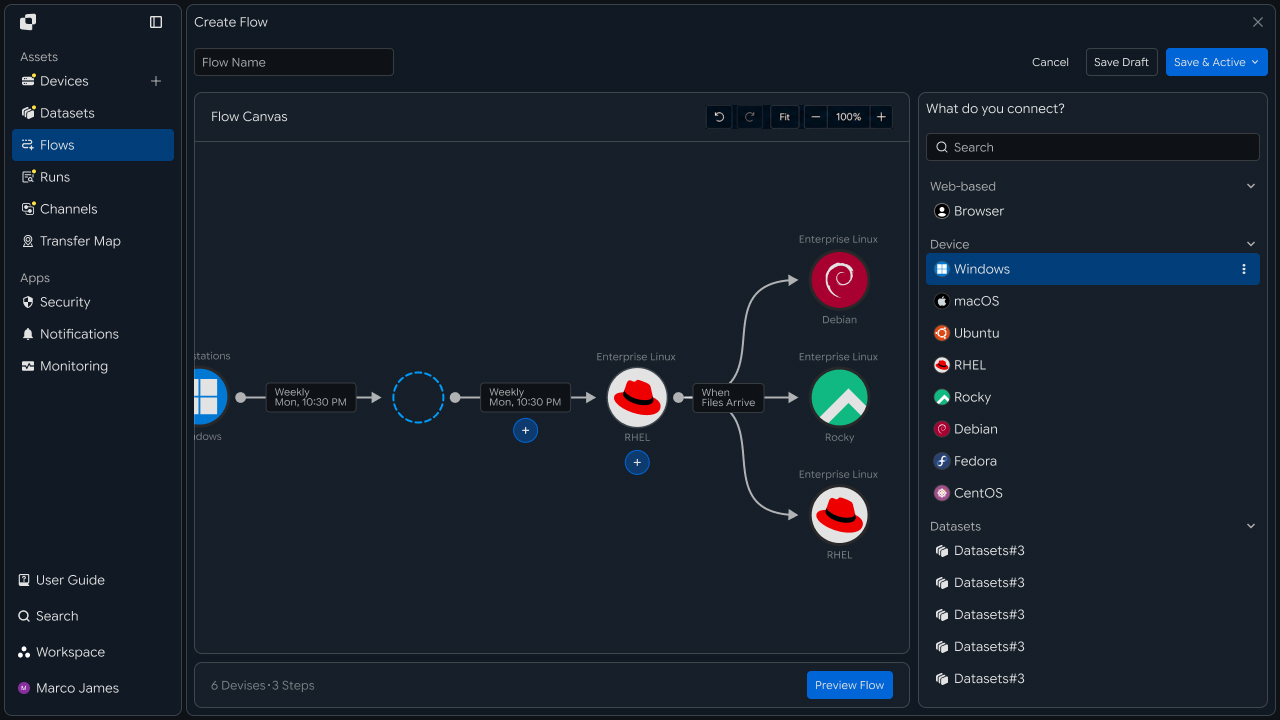
Connecting initial file migration with changed-file synchronization lets you migrate data from the existing file environment to the cloud and keep file states aligned through the cutover.
Migration Flow
Continue from initial file migration through changed-file synchronization to final cutover
File migration transfers the initial data to the cloud first, then continuously applies files created or modified during the migration period.
① Connect Source Environment
        │
        ▼
② Initial File Migration
        │
        ▼
③ Detect Changes
        │
        ▼
④ Synchronize Changed Files
        │
        ▼
⑤ Check Cutover Status
        │
        ▼
⑥ Cloud Cutover
This flow lets you manage both the initial files and subsequent changes while progressing through the cloud cutover.
Migration Benefits
Carry the existing file workflow into the cloud environment
By configuring initial migration and change synchronization together, you can keep the file state connected between the source environment and the cloud throughout the cutover period.
| Category | Existing File Environment | Cloud Cutover Flow |
|---|---|---|
| Initial Data | Managed in the existing environment | Migrate large volumes of files to the cloud |
| Changed Files | Check status by file | Continuously synchronize changes |
| Cutover Preparation | Check file status by environment | Review based on migration and synchronization results |
| Downstream Work | Use the existing storage location | Connect workflows using the cloud storage location |
IT Engineers
Source Environment
Connect migration paths from NAS and file servers
First, connect the NAS, SMB, NFS, and file servers that store the files to be migrated, then specify the file paths to migrate to the cloud.
Configure access scope so files can be read and changes can be detected in each source environment.
NAS ─────────┐
SMB ─────────┤
NFS ─────────┼──→ Migration Flow
File Server ─┘
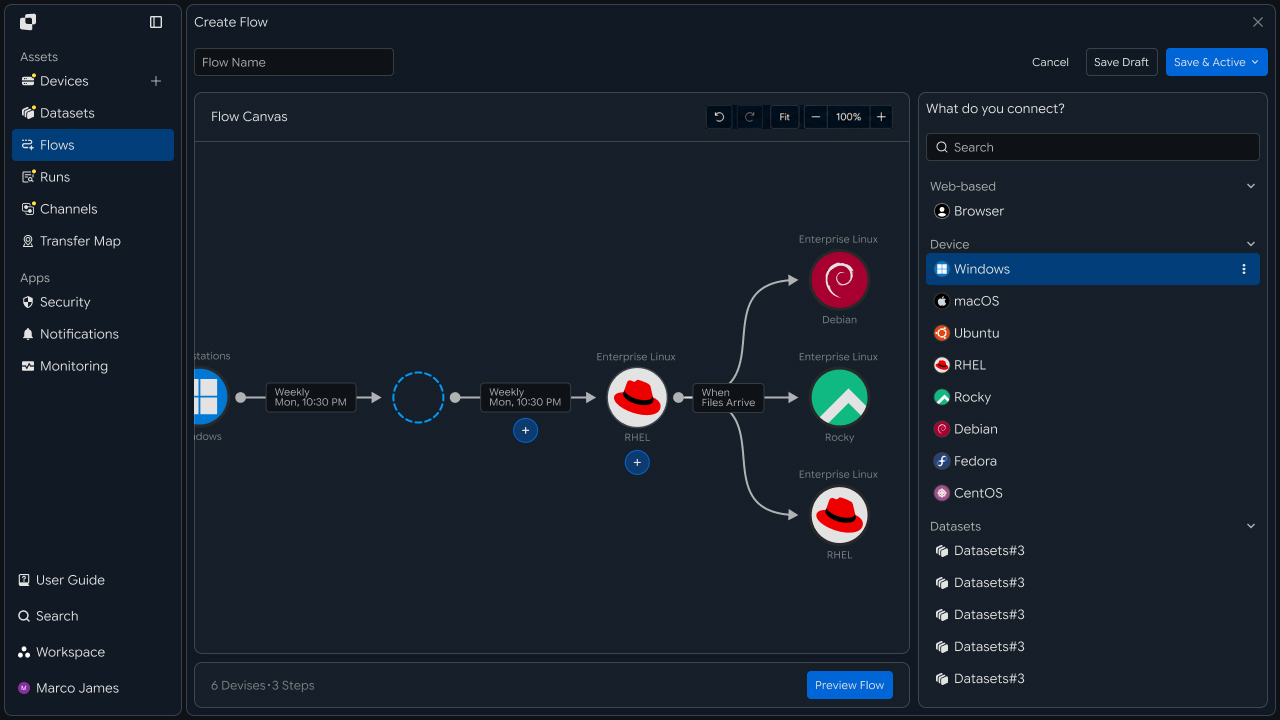
Connecting multiple source environments lets you configure migration tasks by storage location within a single flow.
Cloud Connection
Configure cloud storage and destination paths
After connecting the source environment, configure the cloud storage and destination location where files will be stored.
Specify the destination bucket or container and storage path, then connect it to the source file path.
Original Storage
        │
        ▼
 Migration Flow
        │
        ▼
Cloud Storage
   └─ Target Path
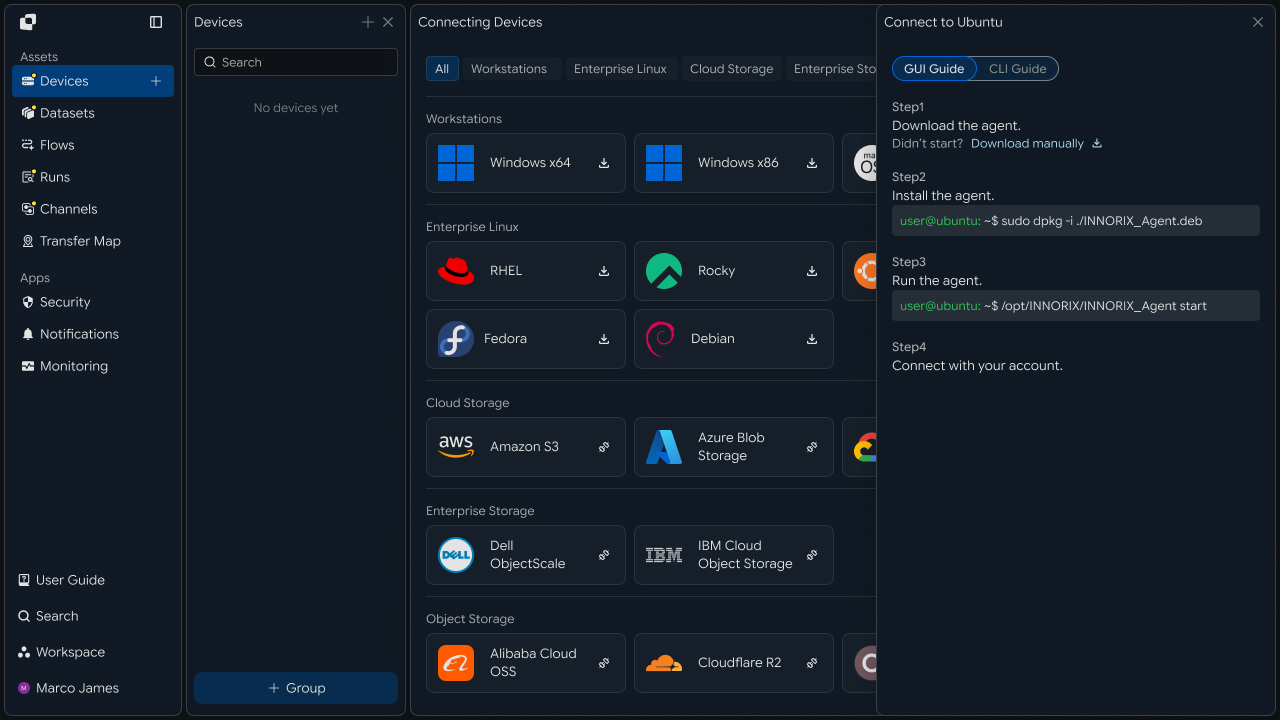
Configuring the source paths and cloud storage locations prepares the file flow for initial migration and change synchronization.
Initial Migration
Transfer existing large volumes of files to the cloud
After the migration environment is configured, transfer existing files and large datasets to cloud storage.
During execution, you can review the processed file count, total size, progress, and task status.
Original Files
      │
      ▼
Initial Transfer
      │
      ▼
Cloud Storage
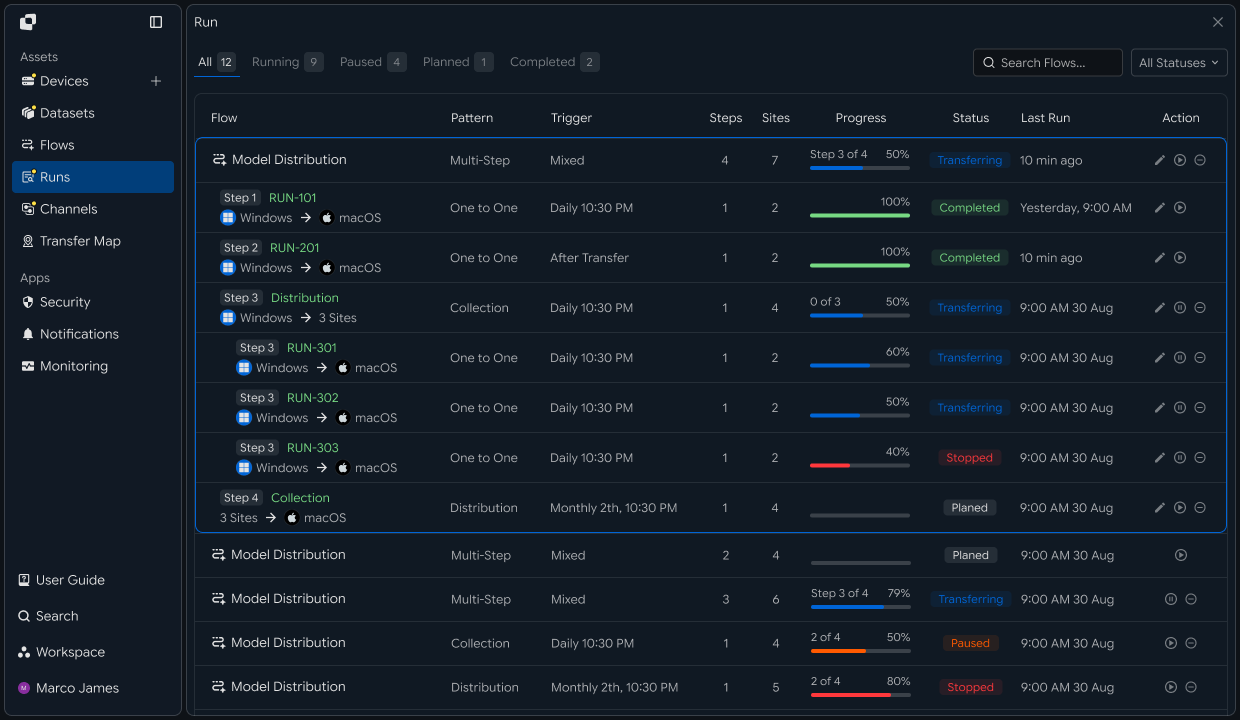
The initial migration result becomes the baseline for subsequent changed-file synchronization and the final cutover.
Change Synchronization
Continuously apply files changed during the migration period
Files may continue to be created or modified in the existing file environment after the initial migration.
Use New Items and Modified Items to identify changes and configure those files to synchronize to cloud storage.
Original Environment
        │
   New / Modified
        │
        ▼
   Change Detection
        │
        ▼
      Sync
        │
        ▼
  Cloud Storage
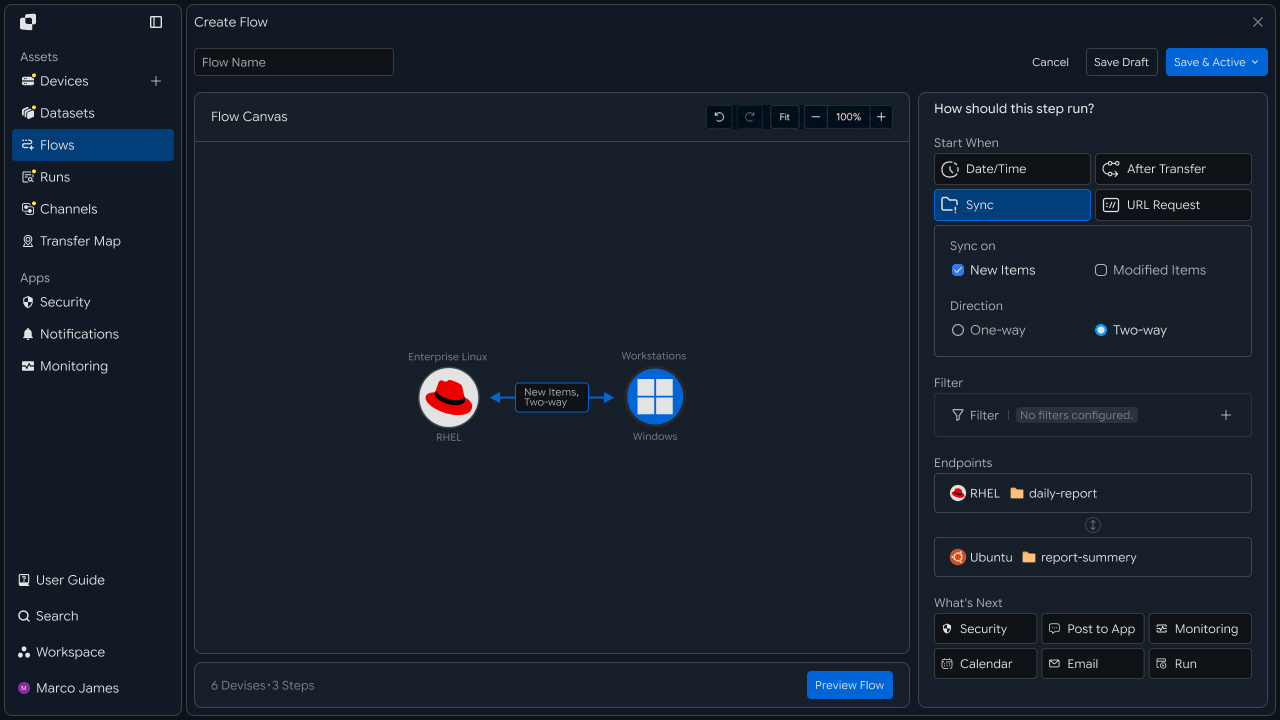
Continuously applying changed files keeps the post-migration file state aligned in the cloud environment.
Cutover Verification
Verify the results of initial migration and change synchronization
Before the final cutover, review the initial file migration result together with the synchronization status of files changed afterward.
Use file count and size, recent execution results, and synchronization status to assess cutover readiness between the source and cloud environments.
Initial Transfer ──┐
                   ├──→ Migration Status
Change Sync ───────┘
                         │
                    ┌────┴────┐
                    ▼         ▼
                 Ready    Check Items
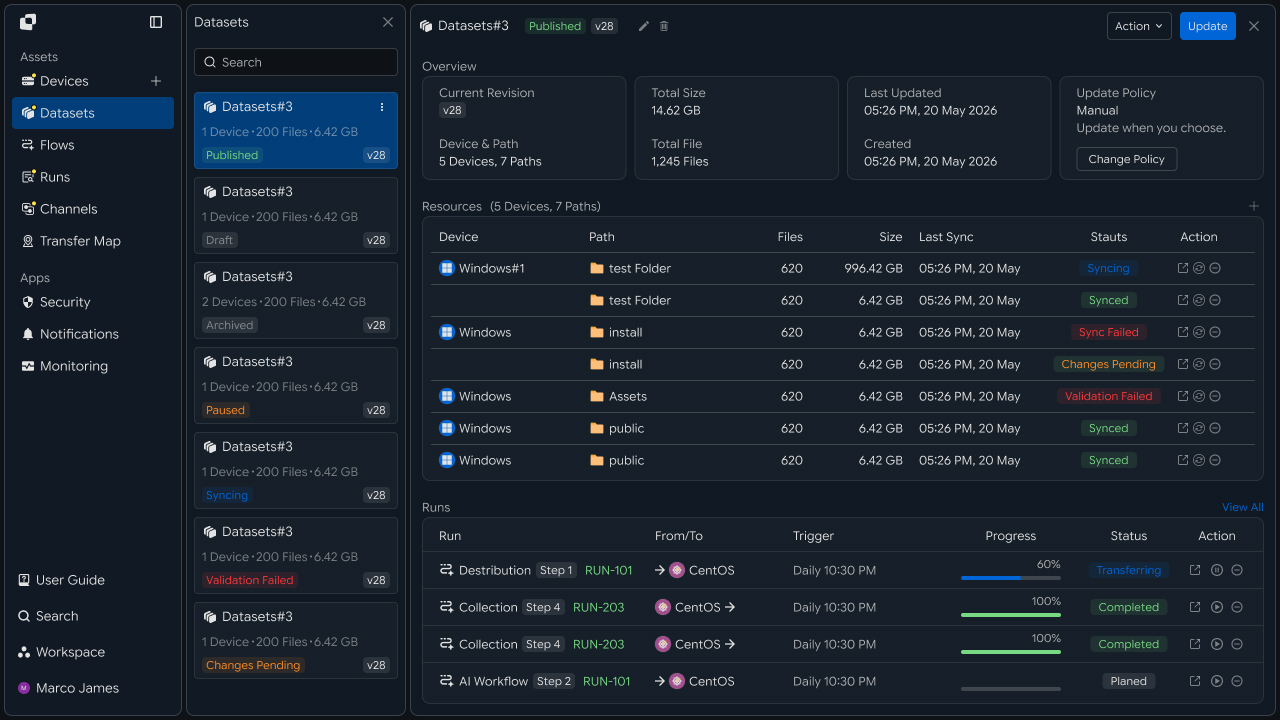
Reviewing the initial migration and change synchronization results together lets you determine when to switch business operations to the cloud environment.
Final Cutover
Switch file operations to use the cloud environment as the reference
After cutover verification is complete, set cloud storage as the reference environment for subsequent file operations.
Connect the storage locations used by business systems, applications, and follow-up file tasks to the cloud so the file flow can continue.
Before
NAS / File Server
        │
        ▼
 Migration Flow
        │
        ▼
Cloud Storage
        │
        ▼
After
App / Service / Workflow
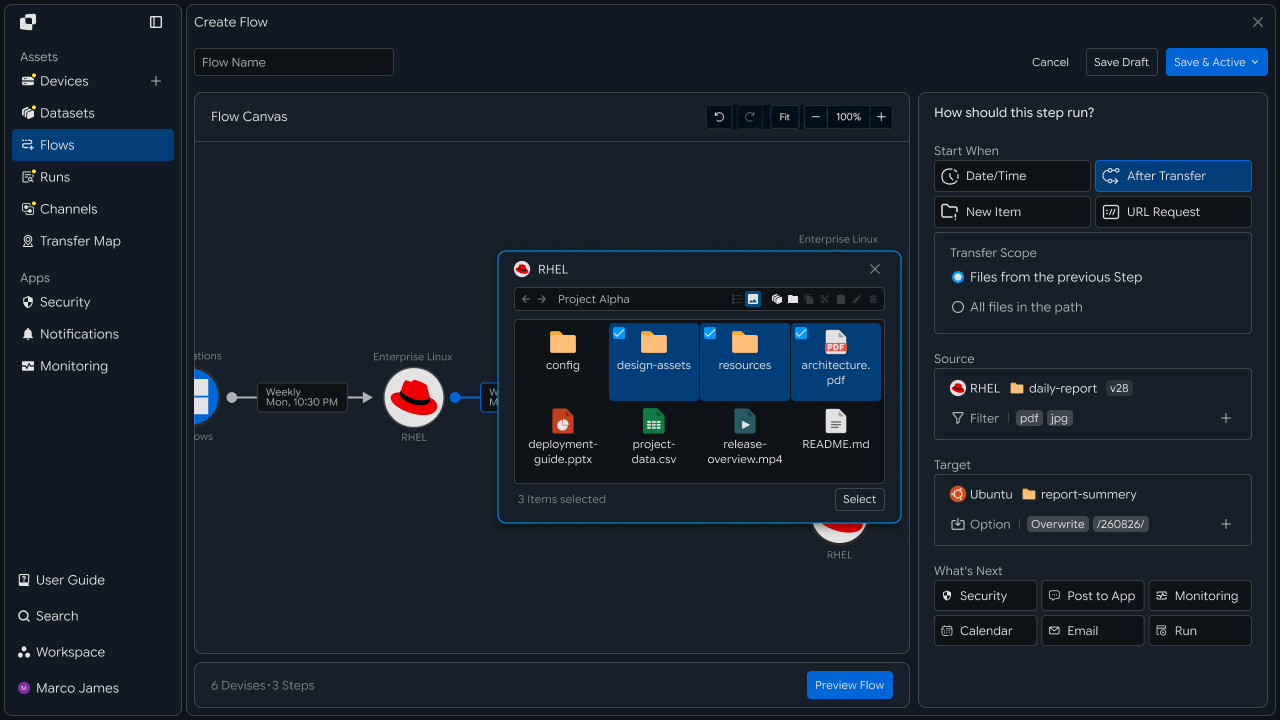
After migration, connect downstream tasks and automation workflows using the files stored in the cloud as the basis.
Operational Response
Review migration and synchronization tasks and rerun them when needed
For tasks requiring review during migration, use Runs and detailed execution records to check source connectivity, destination paths, file processing results, and synchronization status.
Migration Run
      │
      ▼
Status Check
      │
 ┌────┴─────┐
 ▼          ▼
Complete  Check Items
             │
             ▼
       View Details
             │
             ▼
       Update Settings
             │
             ▼
           Retry
             │
             ▼
       Result Confirm
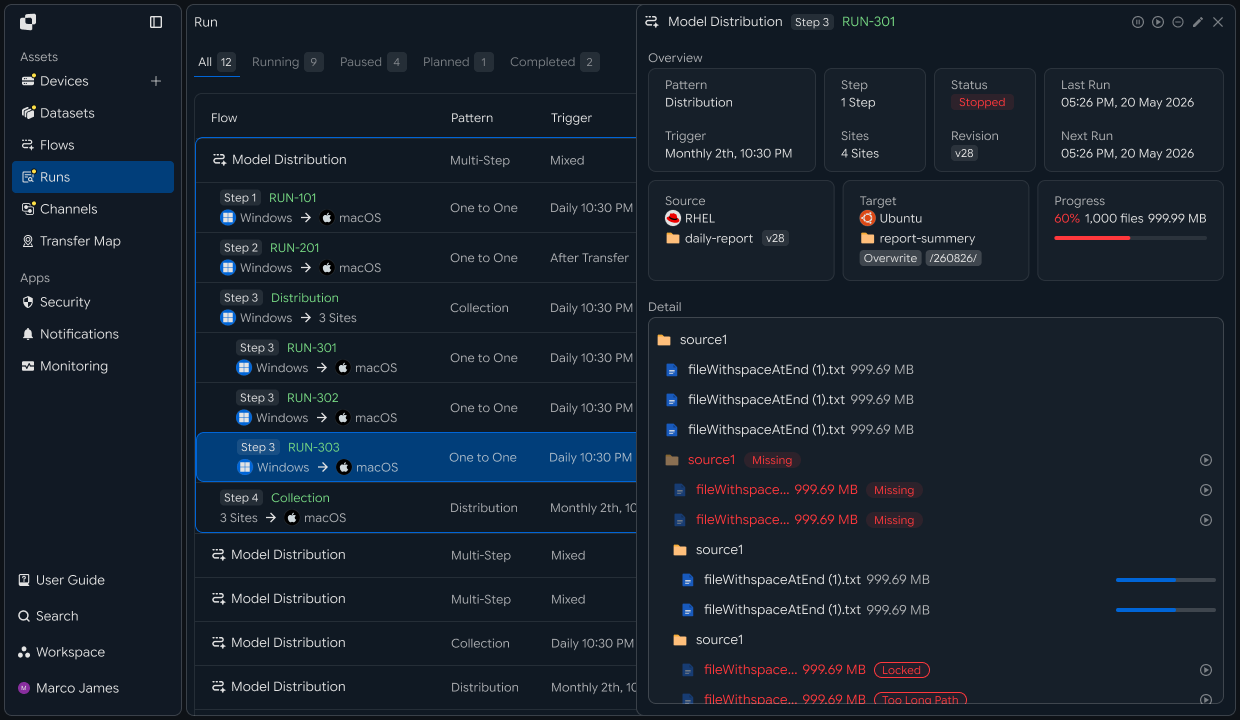
| Review Item | Details | Follow-up |
|---|---|---|
| Source Environment | NAS · SMB · NFS · file server connections and paths | Check connections and paths |
| Cloud | Storage location and access status | Check destination settings |
| Initial Migration | Large-file processing result | Rerun the required task |
| Change Synchronization | Status of added and modified files | Rerun synchronization |
| Execution Record | Task status and detailed processing result | Review settings and rerun |
Developers
Move an existing shared folder to the cloud and continuously apply changes during the migration period
Integration Preparation
Prepare shared request code and path conventions
import os
import requests

BASE_URL = os.getenv("INNORIX_BASE_URL", "https://app.innorix.com").rstrip("/")
TOKEN = os.environ["INNORIX_ACCESS_TOKEN"]
WORKSPACE_ID = os.getenv("INNORIX_WORKSPACE_ID")   # optional; falls back to the current workspace

STATUS_COMPLETE = 2
TERMINAL = {2, 4, 5, 9, 99}          # complete / error / cancelled / partial / failed
NOT_SUCCEEDED = {4, 5, 9, 99}


def api(method, path, body=None, params=None):
    headers = {
        "Content-Type": "application/json",
        "Authorization": f"Bearer {TOKEN}",
    }

    if WORKSPACE_ID:
        headers["x-workspace-id"] = WORKSPACE_ID

    response = requests.request(
        method, BASE_URL + path,
        headers=headers, json=body, params=params, timeout=30,
    )

    payload = response.json() if response.content else {}

    if not response.ok:
        raise RuntimeError(payload.get("message") or f"HTTP {response.status_code}")

    return payload.get("data")


def is_terminal(detail):
return detail.get("isTerminal", detail.get("status") in TERMINAL)import base64
import time
def encode_path(device_id, raw_path):
normalized = str(raw_path or "").replace("\\", "/")
token = base64.b64encode(normalized.encode("utf-8")).decode("ascii")
return f"{device_id}_ino_{token}"
def now_iso():
return time.strftime("%Y-%m-%dT%H:%M:%S.000Z", time.gmtime())Determine the transfer status using the values below. There are five terminal states, and the successful state is Complete (2).
| Status Value | Meaning | Terminal |
|---|---|---|
| 2 | Complete | Yes |
| 4 | Error | Yes |
| 5 | Cancelled | Yes |
| 9 | Partially Complete | Yes |
| 99 | Failed | Yes |
| 1 · 6 · 12 · 13 | Started · Transferring · Synchronizing · Receiving | No |
Determine Migration Scope
Check the number and total size of files to migrate in advance
You need to know the scale before starting migration so you can plan the schedule.
def scan(device_id, path, max_pages=200):
    page = api("POST", f"/api/devices/{device_id}/files/search",
               {"path": path, "pageSize": 1000})

    total = size = 0
    search_id = page.get("searchId")

    try:
        for _ in range(max_pages):
            for item in page.get("items") or []:
                if item["type"] == "file":
                    total += 1
                    size += item.get("size") or 0

            if not page.get("hasMore"):
                break

            page = api("GET", f"/api/devices/{device_id}/files/search",
                       params={"cursor": page["nextCursor"]})
    finally:
        # stop the device scan once the count is done
        if search_id:
            api("POST", f"/api/devices/{device_id}/files/search/cancel",
                {"uuid": search_id})

    return total, size


count, size = scan("device-nas-01", "/share/team")
print(f"{count} files / {size / (1024 ** 3):.1f}GB")
Search requires the system to actually scan its disk. If not stopped, the scan continues even after the review is finished.
Initial Migration
Send existing large volumes of files to the cloud
Sending everything at once increases the scope that must be restarted after a failure. Split the transfer by top-level folder.
def target_for(folder, base):
    return folder.replace("/share", base, 1)


def migrate(source, target, folder, base):
    transfer = api("POST", "/api/transfers/manual", {
        "sourceDevice": source,
        "targetDevice": target,
        "targetPath": target_for(folder, base),
        "sourcePaths": [folder],
        "sendAllFolder": True,
        "transferOptions": {"target-action": "overwrite"},
    })

    return transfer["monitorId"]


FOLDERS = ["/share/team/design", "/share/team/docs", "/share/team/archive"]

transfers = {
    folder: migrate("device-nas-01", "device-cloud-01", folder, "/migrated")
    for folder in FOLDERS
}
Use overwrite as the destination policy. It is common to rerun transfers during migration, and numbering would accumulate copies.
Folders with very large file counts can take a long time to transfer. If interrupted, resume the transfer instead of retransmitting from the beginning.
def wait(monitor_id, timeout=3600, interval=3):
    deadline = time.time() + timeout

    while time.time() < deadline:
        detail = api("GET", f"/api/transfers/{monitor_id}")

        if is_terminal(detail):
            return detail

        time.sleep(interval)

    raise TimeoutError(monitor_id)


def failed_files(monitor_id):
    result = api("GET", f"/api/transfers/{monitor_id}/files", params={
        "state": "any", "size": 500,
    }) or {}

    return [r for r in (result.get("children") or [])
            if r.get("status") in NOT_SUCCEEDED]


def retry_failed(monitor_id):
    rows = failed_files(monitor_id)

    if not rows:
        return 0

    api("POST", f"/api/transfers/{monitor_id}/retry", {
        "filesRetry": [
            {"filePath": r["sourceFilePath"], "isDir": bool(r.get("isFolder"))}
            for r in rows
        ]
    })

return len(rows)for folder, monitor_id in transfers.items():
detail = wait(monitor_id, timeout=86400)
print(f"{folder:28} {detail.get('statusName')}"
f" {detail.get('fileCount')} files")
if detail["status"] != STATUS_COMPLETE:
print(f" retried {retry_failed(monitor_id)} files")Change Synchronization
Continue applying files changed during the migration period
Files continue to change at the source even when the initial migration takes several days. Transfer only the changes periodically.
transfer = api("POST", "/api/transfers/manual", {
    "sourceDevice": "device-nas-01",
    "targetDevice": "device-cloud-01",
    "targetPath": "/migrated/team/design",
    "sourcePaths": ["/share/team/design"],
    "sendAllFolder": True,
    "incremental": True,
    "transferOptions": {"target-action": "overwrite"},
})
This option is disabled by default. The agent on each system calculates changes and sends only files added or modified since the last transfer.
Always use overwrite for incremental transfers. With numbering, modified files accumulate under new names and the cloud state diverges from the source.
If the script cannot keep running continuously, register it as an hourly automation.
def build_sync(name, source, source_path, target, target_path, schedule):
    return {
        "name": name,
        "flowName": name,
        "transferType": "normal",
        "timezone": "Asia/Seoul",
        "step": 1,
        "isUpcoming": False,
        "details": [
            {
                "senderId": source,
                "receiverId": target,
                "sourceItem": [
                    {
                        "hash": encode_path(source, source_path),
                        "filePath": source_path,
                        "isDir": True,
                    }
                ],
                "targetPath": encode_path(target, target_path),
                "step": 1,
                "transferOptions": {
                    "noSchedule": False,
                    "target-action": "overwrite",
                    "send-fileoption": {},
                },
            }
        ],
        "schedules": [schedule],
    }


HOURLY = {
    "type": "hour",
    "startDateType": "now",
    "startDate": now_iso(),
    "timezone": "Asia/Seoul",
}

syncs = {
    folder: api("POST", "/api/automations", build_sync(
        f"sync {folder}", "device-nas-01", folder,
        "device-cloud-01", target_for(folder, "/migrated"),
        HOURLY))["automationId"]
    for folder in FOLDERS
}
There are four requirements that must always be followed when creating an automation request.
| Item | How to Configure |
|---|---|
isUpcoming | Must be false. The server default of true ignores the schedule in the request and replaces it with a one-time five-minute schedule. A stage with triggerAutomation forces the value to false, so you only need to set it directly on the first stage without a trigger |
step | Set it in both the top level and details. It indicates the hop position within the workflow |
sourceItem | Include both hash (the path token) and filePath (the plain-text path) |
syncType | Set it inside transferOptions. 1 is one-way and 2 is two-way |
Registration succeeds even if all four items are omitted, but the behavior changes at execution time. If a recurring schedule was registered but runs only once, check isUpcoming first.
Aggregate Progress
Query progress by transfer and synchronization run
def progress(transfers):
    for folder, monitor_id in transfers.items():
        detail = api("GET", f"/api/transfers/{monitor_id}")

        print(f"{folder:28} {detail.get('statusName'):12}"
              f" {detail.get('percent', 0):>5}%"
              f" {detail.get('fileCount', 0)} files")
Results for each synchronization run can be reviewed through the execution history.
for folder, automation_id in syncs.items():
    runs = api("GET", f"/api/automations/{automation_id}/executions") or []
    latest = runs[0] if runs else {}

    print(f"{folder:28} runs {len(runs):>3}"
          f" last {latest.get('startTime')} {latest.get('status')}")
Execution history places the latest run at the beginning of the array. If the history is empty, the automation was registered but never executed, so check isUpcoming and the start condition.
Cutover Verification
Verify that files at the source and in the cloud match
To determine the cutover point, verify that the files in the two environments match. Compare source and destination file lists by folder to find missing files.
def list_names(device_id, path):
    names, page = set(), 1

    while True:
        result = api("GET", f"/api/devices/{device_id}/files", params={
            "path": path, "page": page, "size": 200, "type": "file",
        }) or {}

        names.update(item["name"] for item in result.get("items") or [])

        if page >= (result.get("lastPage") or 1):
            return names

        page += 1


missing = list_names("device-nas-01", "/share/team/design") \
        - list_names("device-cloud-01", "/migrated/team/design")

print(f"{len(missing)} missing")
If files are missing, retransmit the affected folder until the lists match. To compare size as well as names, include size in the list and compare it.
Cutover and Cleanup
Stop synchronization and make the cloud the reference environment
When the cutover is complete, stop the synchronization automation. If the source continues to be synchronized, changes from the cloud can be overwritten.
for automation_id in syncs.values():
    api("POST", f"/api/automations/{automation_id}/pause", {"pause": True})
Delete the automation after the environment has remained stable for a defined period. Leaving it stopped can allow it to be resumed accidentally.
for automation_id in syncs.values():
api("DELETE", f"/api/automations/{automation_id}")| Review Item | Details |
|---|---|
| Migration Scope | File count and total size |
| Initial Migration | Transfer status by folder |
| Change Synchronization | Execution result by run |
| Verification | Whether source and destination file lists match |
| Cutover | Synchronization stopped and environment cleaned up |