Getting Started
Core Concepts
Run file transfer tasks and review results from collaboration tools
When a business task requires a file transfer, review the request, run the file transfer task, and share the result with the relevant people.
Slack·Teams integration connects requests made in collaboration tools to designated file transfer tasks and sends the execution results back to the corresponding collaboration space.
Collaboration Request
    │
    ▼
Run File Transfer
    │
    ▼
Process Files
    │
    ▼
Result Notification
    │
    ▼
Next Task
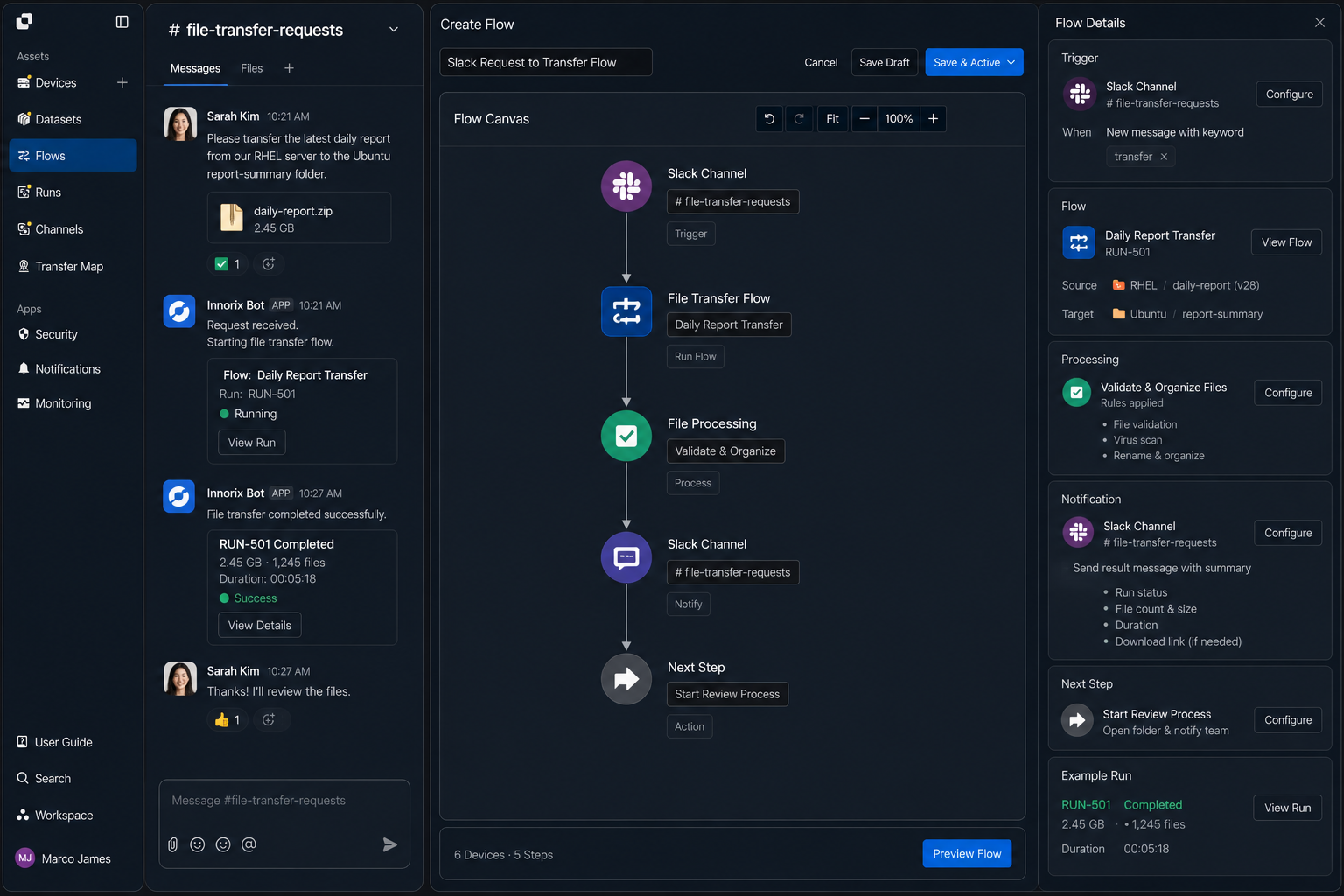
This connects collaboration requests, file transfer tasks, and execution results into a single business workflow.
Integration Flow
Continue from task request through file transfer to result notification
When a user requests a file transfer from a collaboration tool, the integrated system runs the designated task based on the request.
Once the file transfer is complete, the processing result is sent to the collaboration tool's channel or conversation, allowing the responsible person to review it and continue the next task.
┌──────────────┐
│ Slack / Teams│
│ File Transfer Request │
└──────┬───────┘
       │
       ▼
┌──────────────┐
│ Transfer Flow│
│ Run Task            │
└──────┬───────┘
       │
       ▼
┌──────────────┐
│ File Transfer│
│ Process Files       │
└──────┬───────┘
       │
       ▼
┌──────────────┐
│ Run Result   │
└──────┬───────┘
       │
       ▼
┌──────────────┐
│ Slack / Teams│
│ Review Result       │
└──────────────┘
Connecting file transfer and result sharing around a single request lets relevant people continue the workflow in the same work space.
Business Impact
Connect collaboration requests and file transfers in a single workflow
Connecting collaboration tools with file transfer tasks lets you build one workflow from the business request through the actual file processing.
| Category | Typical Workflow | Slack·Teams Integration |
|---|---|---|
| Task Request | Share the request with the responsible person | Request a task from the collaboration tool |
| Task Execution | Review the request and run the file transfer | Run the Flow linked to the request |
| Result Sharing | Share the result after completion | Automatically notify of the processing result |
| Follow-up | Continue the next task after reviewing the result | Immediately connect to the next task based on the result |
With this setup, the workflow from the business request to the file transfer result can be managed as a connected collaboration and file transfer environment.
IT Engineers
Integrate and manage collaboration tools with file transfers
Service Connection
Connect collaboration tools with the file transfer environment
First, configure the integration information between Slack or Microsoft Teams and the Innorix file transfer environment.
Configure the service connection so it can receive requests from the collaboration tool and send task results back. Include the service to use, the channel or conversation scope, and the integration information.
Slack / Teams
      │
      │ Service Connection
      ▼
┌───────────────────┐
│ Integration Layer │
└─────────┬─────────┘
          │
          ▼
     File Transfer
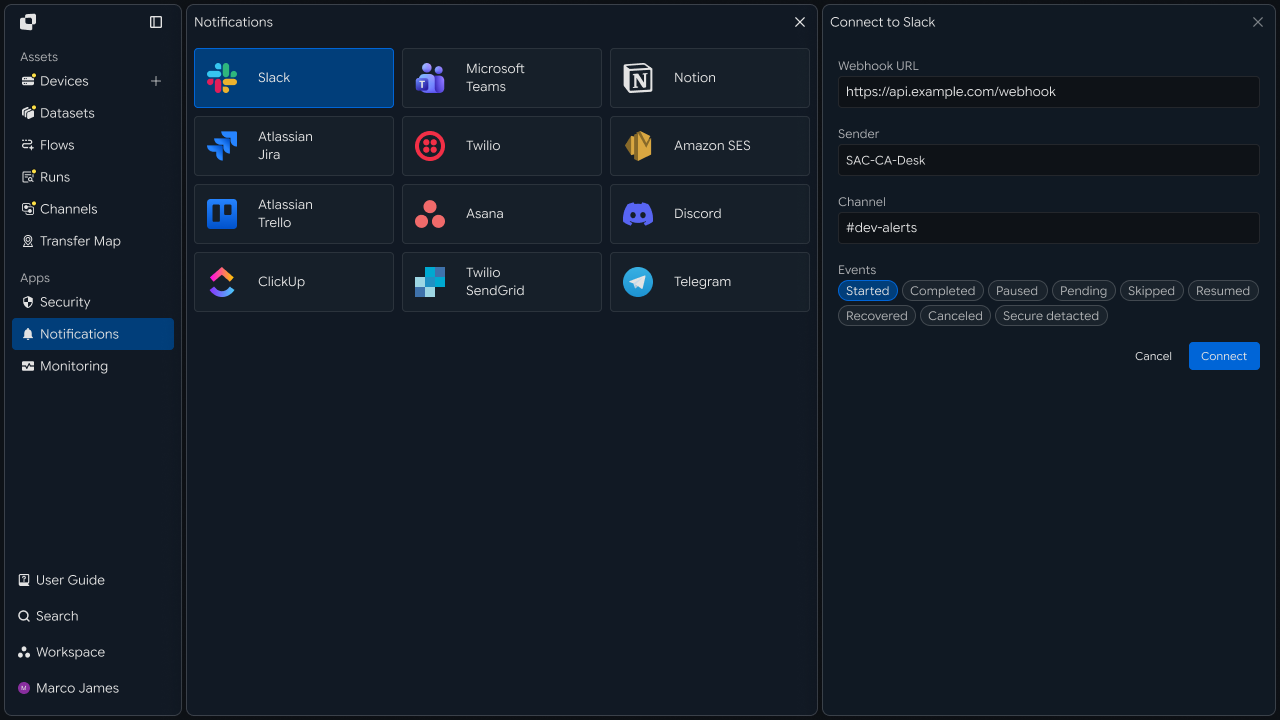
Once the service connection is complete, you can connect collaboration tool requests to file transfer tasks.
Request Linking
Connect collaboration tool requests to designated file tasks
After connecting the service, configure which file task should run when a request occurs in the collaboration tool.
Set requests from a specific channel, messages, buttons, or a defined request format as task start conditions, and connect those requests to a file transfer Flow.
Request Type
   │
   ├── Transfer Request ─────→ Transfer Flow
   │
   ├── Collection Request ─────→ Collection Flow
   │
   └── Distribution Request ─────→ Distribution Flow
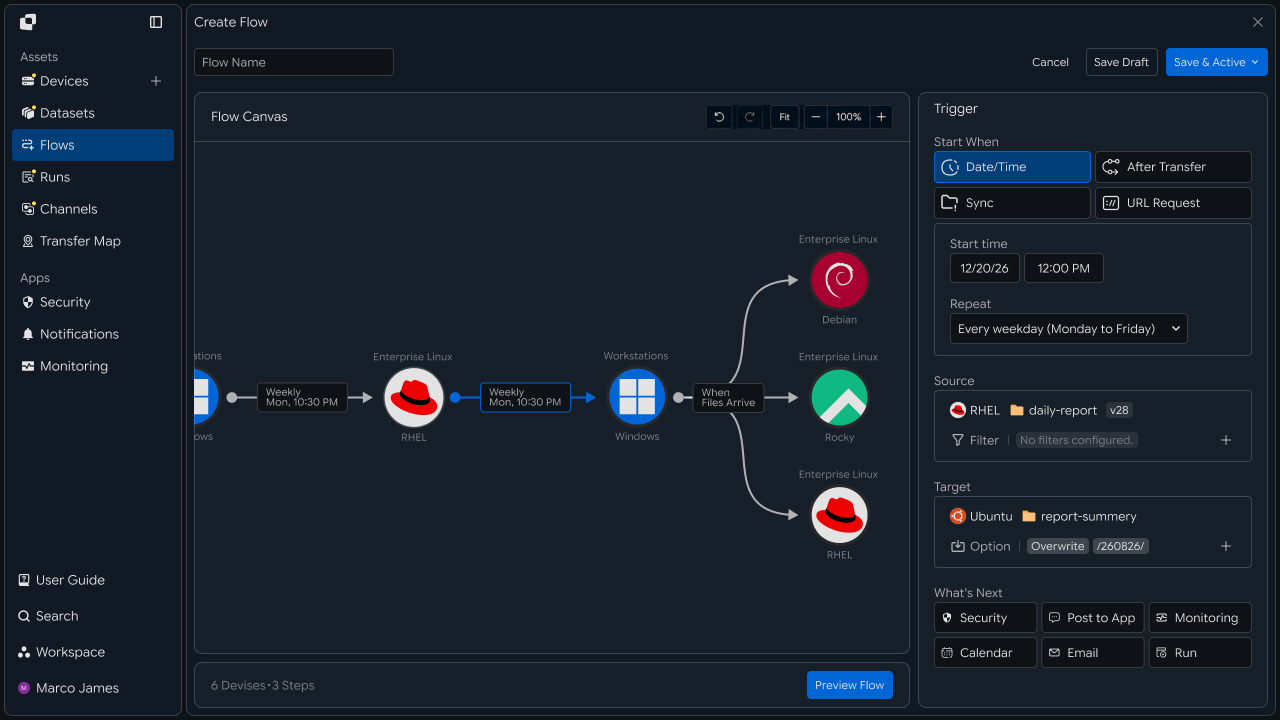
Connect each request to the task to run and the execution information it requires.
| Configuration Item | Setting |
|---|---|
| Request | Request received from the collaboration tool |
| Trigger | Condition that starts the task |
| Flow | File task to run |
| Source | Location where the files are prepared |
| Target | Destination to which files are transferred |
| Parameters | Execution values applied according to the request |
Connecting requests and tasks lets you run designated file flows based on business requests from the collaboration tool.
Permission Management
Set the task execution scope for each user
Configure the scope of file tasks that can be run according to collaboration tool users and business roles.
Assign executable Flows by user or group, and configure the devices, file paths, and transfer destinations they can access.
User Group A
     │
     ├── Transfer A
     ├── Collect A
     └── Status View

User Group B
     │
     ├── Transfer B
     ├── Distribution
     └── Result View
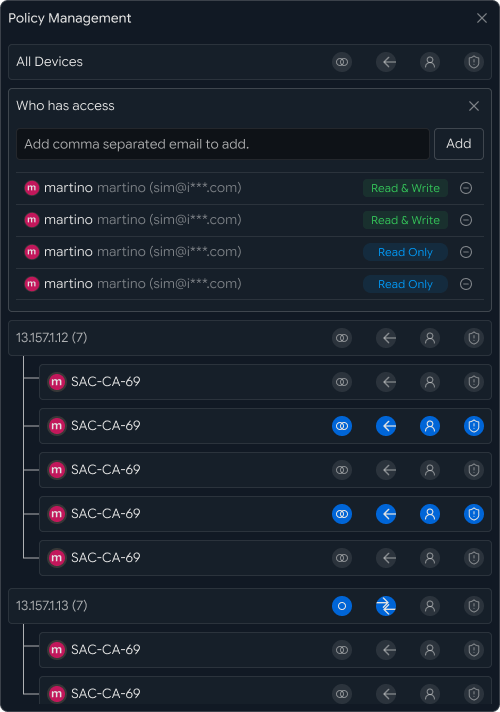
| Managed Item | Scope |
|---|---|
| User | Users who can submit task requests |
| Group | User groups by business function |
| Flow | Executable file tasks |
| Device | Accessible devices |
| Path | File paths that can be used |
| Target | Target work spaces available for transfer |
Configuring permission scopes lets you manage both collaboration tool requests and the execution scope of the actual file tasks.
Result Notifications
Automatically send file transfer results to collaboration tools
You can configure file task results to be sent as notifications to designated channels and conversations in Slack or Teams.
By setting notification targets according to completed tasks and results that require additional review, the relevant people can see results immediately in the collaboration space.
                 File Flow
                     │
          ┌──────────┴──────────┐
          │                     │
          ▼                     ▼
      Completed            Attention
          │                     │
          └──────────┬──────────┘
                     ▼
              Result Message
                     │
          ┌──────────┴──────────┐
          ▼                     ▼
       Slack                 Teams
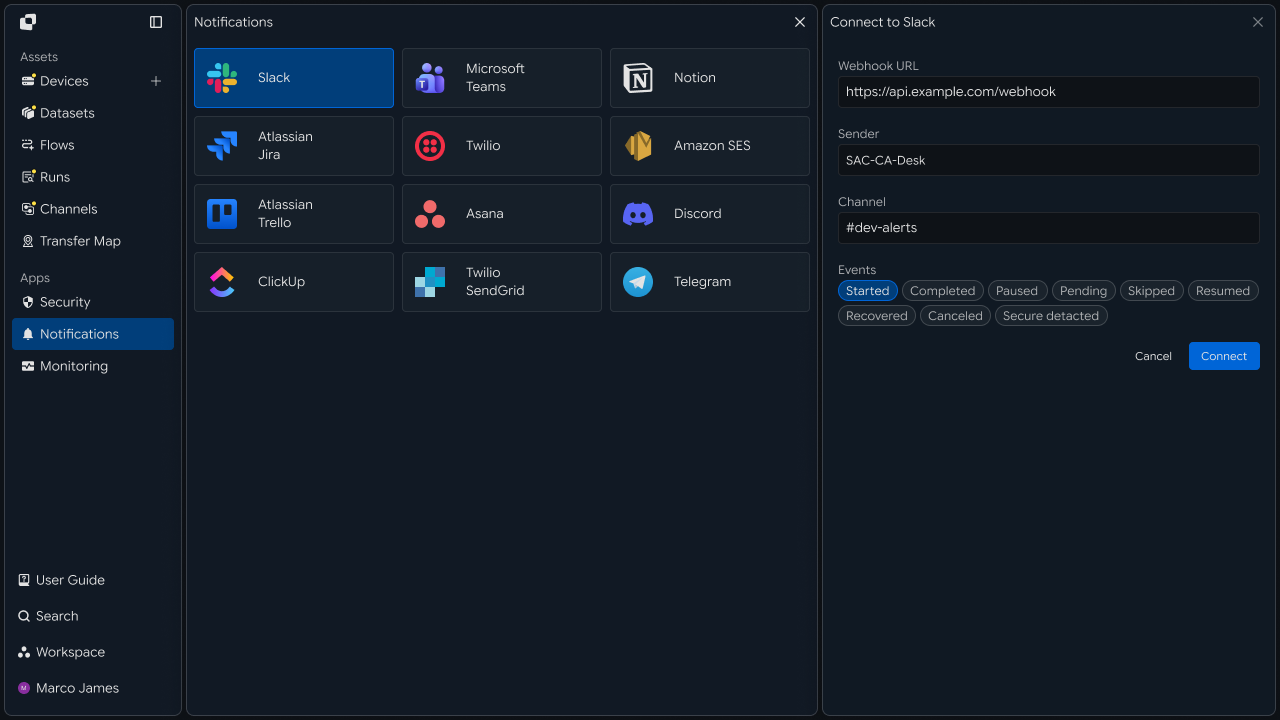
Notifications can include execution information needed for the business task.
Executed task name
Requesting user or channel
Number and size of processed files
Execution time
Final processing result
Result review information
Connecting file task results to the collaboration tool lets responsible people review processing results alongside the business conversation.
Execution History
Review the execution history from request through file processing
When an integrated task runs, use Runs to review the actual file task that was executed and its processing result.
Use collaboration tool requests as the basis for starting tasks, and use Runs to manage which Flow ran and which paths the files were processed from and to.
Request
   │
   ▼
Trigger
   │
   ▼
Transfer Flow
   │
   ├── Source
   ├── Target
   ├── Files
   └── Progress
   │
   ▼
Run Result
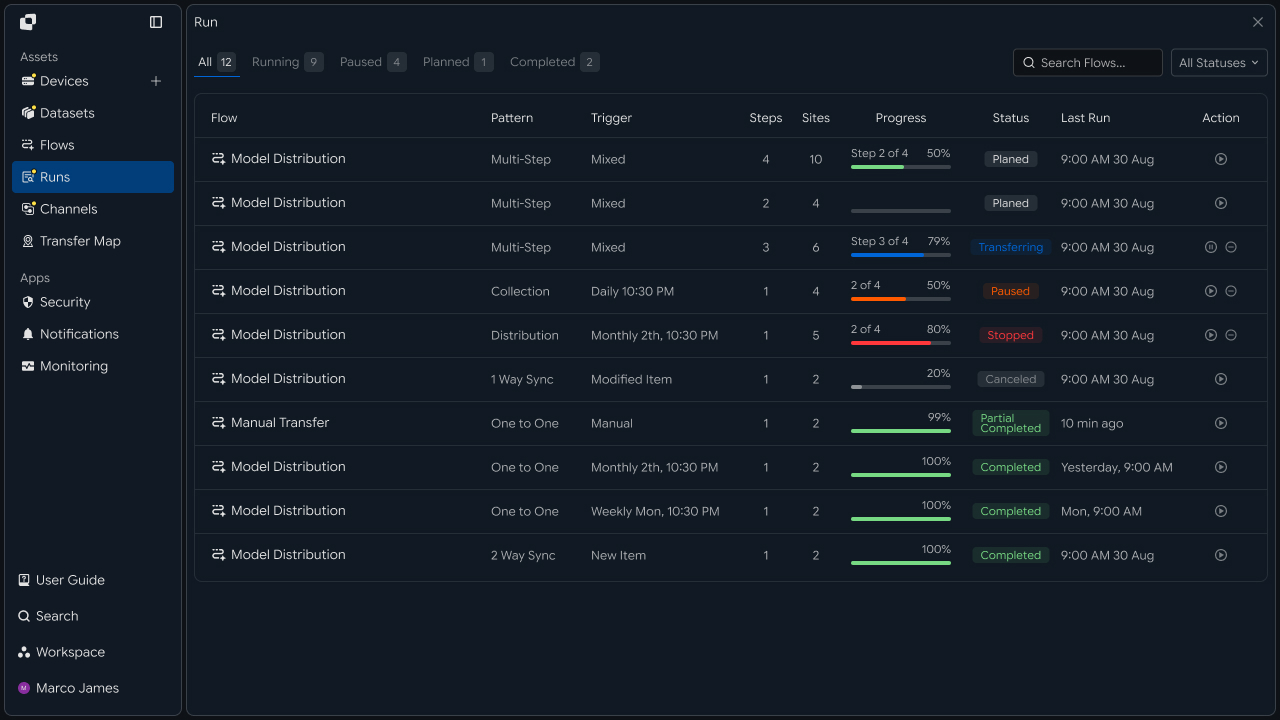
| Review Item | Details |
|---|---|
| Trigger | Request or condition that started the task |
| Flow | File task that was executed |
| Source | Location where the file was prepared |
| Target | Destination where the file was processed |
| Files | Information about processed files |
| Progress | Task progress |
| Status | Final execution result |
Execution history lets you manage the actual processing steps and results of file tasks started by collaboration requests.
Exception Handling
Check execution status during integration and reprocess tasks as needed
When a task requires review, check execution status in order: request reception, service connection, permissions, and file task sequence.
Use Runs and Audit Log to organize the review scope based on the stages the task passed through and its detailed records.
Collaboration Request
    │
    ▼
Service Connection
    │
    ▼
Permission Check
    │
    ▼
Flow Execution
    │
    ▼
Review Execution History
    │
    ▼
Adjust Settings
    │
    ▼
Rerun Task
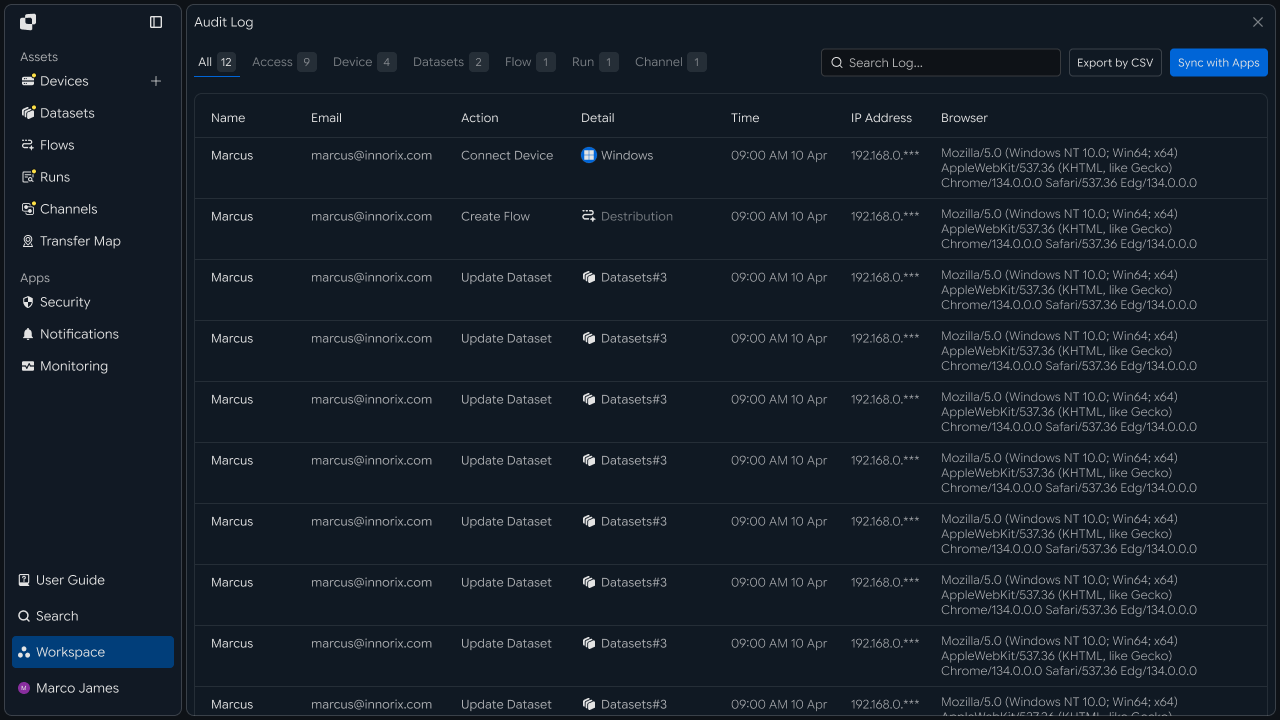
| Check Item | Details |
|---|---|
| Request | Task request information from the collaboration tool |
| Service Connection | Slack or Teams integration status |
| Permissions | Task execution scope of the requesting user |
| Flow | File task linked to the request |
| File Path | Source and Target settings |
| Execution History | Run and Audit Log |
By managing the connection status at each stage—from the collaboration tool request through file task execution and result review—you can operate the collaboration and file transfer environments as a single automation flow.
Developers
Register collaboration tool integrations and automatically send notifications for transfer events in a workspace
Integration Preparation
Prepare shared request code and status values
import os
import requests

BASE_URL = os.getenv("INNORIX_BASE_URL", "https://app.innorix.com").rstrip("/")
TOKEN = os.environ["INNORIX_ACCESS_TOKEN"]
WORKSPACE_ID = os.getenv("INNORIX_WORKSPACE_ID")

STATUS_COMPLETE = 2
TERMINAL = {2, 4, 5, 9, 99}          # complete / error / cancelled / partial / failed


def api(method, path, body=None, params=None):
    headers = {
        "Content-Type": "application/json",
        "Authorization": f"Bearer {TOKEN}",
    }

    # When omitted the account's current workspace is used.
    if WORKSPACE_ID:
        headers["x-workspace-id"] = WORKSPACE_ID

    response = requests.request(method, BASE_URL + path, headers=headers,
                                json=body, params=params, timeout=30)

    if not response.ok:
        raise RuntimeError((response.json() or {}).get("message") or response.status_code)

    return (response.json() or {}).get("data")
Review Integration Rules
Check required integration fields in advance
Required fields differ by integration type. Query the rules before registration to confirm which values must be populated.
data = api("GET", "/api/integrations/rules/slack") or {}

# the response nests once more under the type name: data.slack.fields
rule = data.get("slack") or next(iter(data.values()), {})

print(rule.get("category"), rule.get("modes"))

for field in rule.get("fields") or []:
    mark = "required" if field.get("required") else "optional"
    print(f"  {field.get('id'):20} {field.get('type'):10} {mark}")
The response is nested once more under the type name, so the field list is in data.slack.fields. For Teams integration, query teams instead of slack.
Register Integration
Register the integration with the events that should trigger notifications
When registering an integration, specify the events that should send notifications in notificationConfig.events. After that, when a transfer or automation in the same workspace reaches one of those events, the server automatically sends a notification. You do not need to attach an integration to every transfer.
def create_slack_integration(name, webhook_url, channel, on=None):
    # events mapped to true are the ones that fire
    events = {e: True for e in (on or ["completed", "error"])}

    body = {
        "name": name,
        "type": "slack",
        "mode": "webhook",
        "webhookUrl": webhook_url,
        "config": {
            "name": name,
            "webhookUrl": webhook_url,
            "channel": channel,
        },
        # this is what wires transfer/automation events to the integration
        "notificationConfig": {"events": events},
    }

    result = api("POST", "/api/integrations", body) or {}
    return result.get("integrationId")


integration_id = create_slack_integration(
    "transfer alerts", "https://hooks.slack.com/services/...",
    "#file-ops", on=["completed", "error"])
The events you can specify are as follows.
| Event | When |
|---|---|
started | Transfer started |
completed | Transfer completed |
paused · resumed | Paused · Resumed |
recovered | Recovered after interruption |
canceled | Cancelled |
error | Failed |
skipped | Skipped by policy |
Notifications are sent only for events set to true. For Teams integration, set type to teams and register it with the same structure.
Verify Automatic Notifications
Confirm that transfers automatically send notifications after integration registration
Once the integration is registered, transfers in that workspace send notifications without additional settings. Create a standard transfer to verify this.
import time


def is_terminal(detail):
    return detail.get("isTerminal", detail.get("status") in TERMINAL)


def send(source, target, files, target_path):
    transfer = api("POST", "/api/transfers/manual", {
        "sourceDevice": source,
        "targetDevice": target,
        "targetPath": target_path,
        "sourceItem": [{"path": p, "isDir": False} for p in files],
        "sendAllFolder": False,
        "transferOptions": {"target-action": "numbering"},
    })
    return transfer["monitorId"]


# with an integration in place, this transfer fires completed·error notifications
monitor_id = send("device-a", "device-b", ["/data/report.pdf"], "/archive")

deadline = time.time() + 1800
while time.time() < deadline:
    detail = api("GET", f"/api/transfers/{monitor_id}")
    if is_terminal(detail):
        break
    time.sleep(3)
Notifications are sent only for events configured in the integration. The transfer code contains no notification settings because the integration is applied at the workspace level.
Manage Integrations
Review and clean up registered integrations
result = api("GET", "/api/integrations", params={"page": 1, "size": 100}) or {}

for item in result.get("data") or []:
    print(item.get("integrationId"), item.get("type"),
          item.get("name"), item.get("notificationConfig", {}).get("events"))


# Delete an integration you no longer use.
api("DELETE", f"/api/integrations/{integration_id}")| Review Item | Details |
|---|---|
| Integration Rules | Fields required by the type |
| Integration Registration | Events specified in notificationConfig.events |
| Automatic Notifications | Event notifications from workspace transfers |
| Management | Review and delete registered integrations |