Getting Started
Core Concepts
Automatically connect multiple file tasks according to sequence and conditions
A file-related task often goes through multiple steps rather than ending with a single operation.
For example, you can collect files from multiple devices, transfer them to a processing server, save the processing results, and then use them in the next task.
File workflow automation connects individual file tasks into a single Flow according to the business sequence instead of running each task independently.
File Collection
   ↓

File Transfer
   ↓

File Processing
   ↓

Save Results
   ↓

Next Task
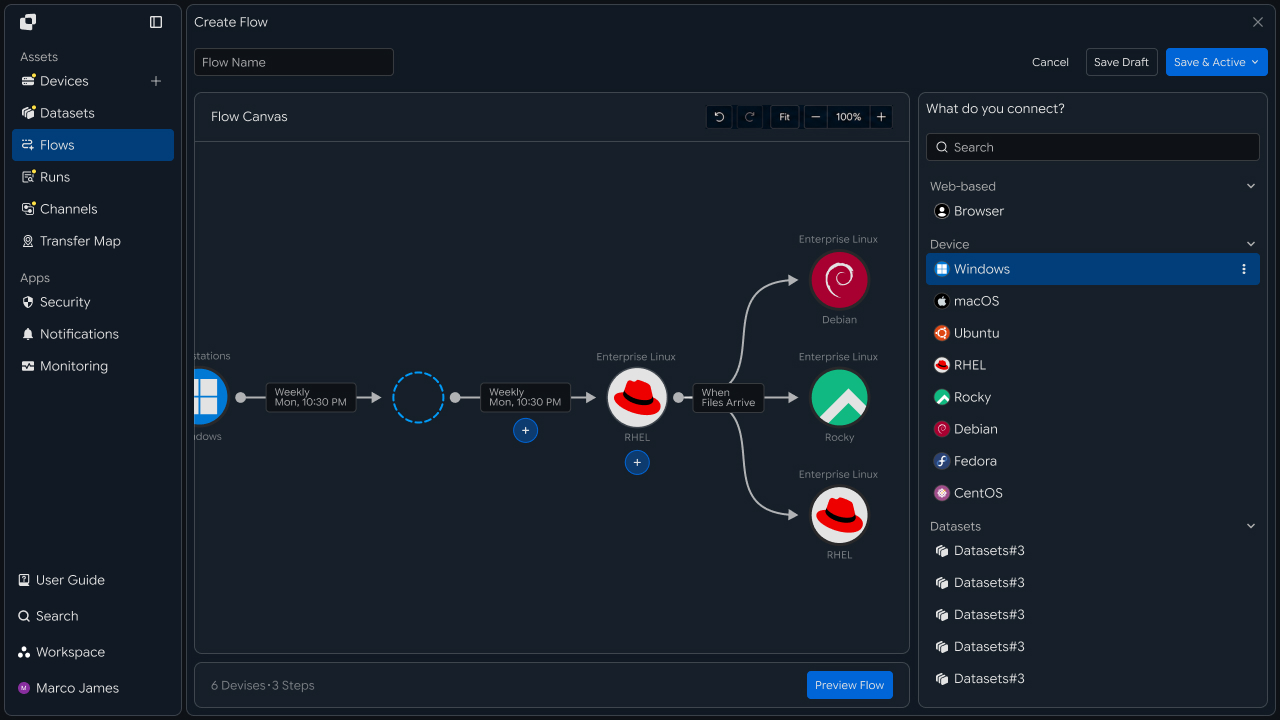
By setting each task's start condition, execution order, and criteria for connecting to the next step, you can configure the entire file workflow as a single workflow.
Workflow Flow
Connect the flow from task start through completion
The workflow runs based on its start condition and continues to the next step according to the configured task order.
① Start Condition Occurs
↓
② Run First File Task
↓
③ Review Task Result
↓
④ Run Next Task
↓
⑤ Complete Entire Workflow
For example, you can configure a workflow to start at a specified time, collect files from multiple devices, transfer the files to a processing server when collection is complete, and save the result files.
Trigger
   ↓

Collect
   ↓

Transfer
   ↓

Process
   ↓

Store
   ↓

Complete
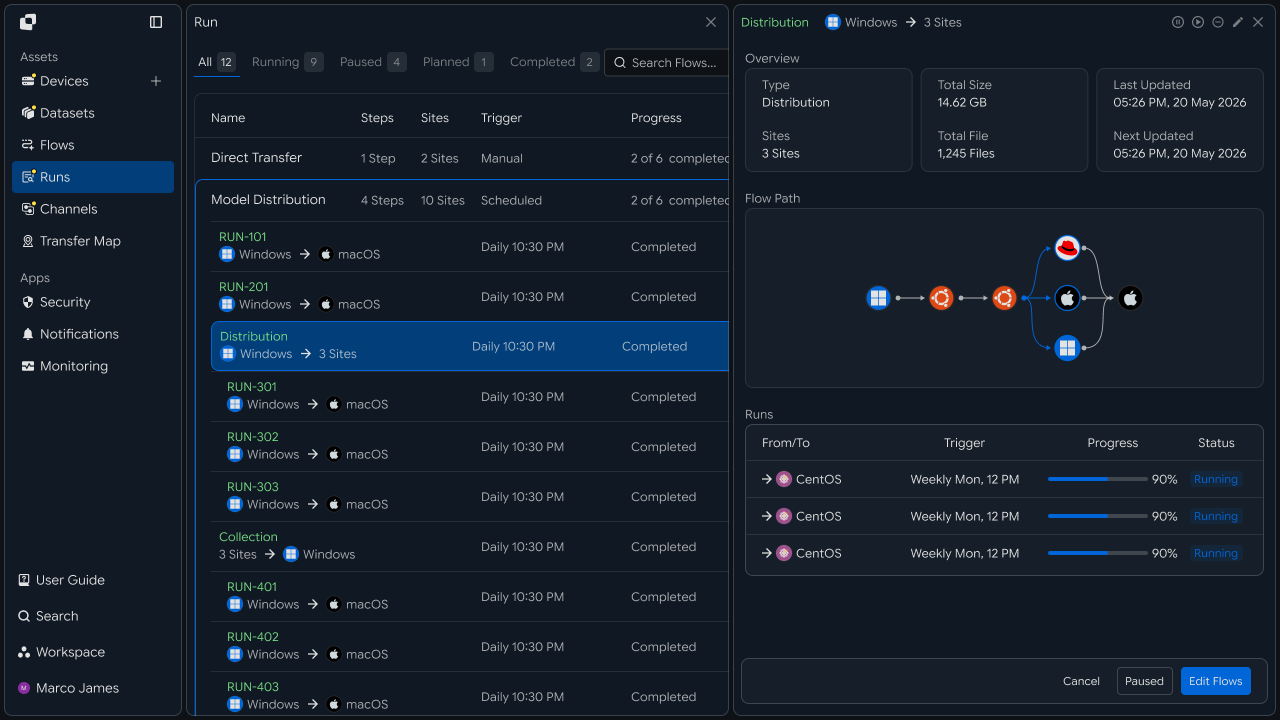
In this way, connecting the result of the previous task as the input to the next step allows multiple file tasks to continue as a single execution flow.
Automation Benefits
Manage multiple file tasks as a single execution flow
When a business process connects multiple tasks such as file collection, transfer, and processing, each stage must run in sequence and its result must be reviewed.
File workflow automation lets you configure repetitive task sequences as a single Flow and automatically run connected tasks according to the start condition.
| Category | Individual File Tasks | File Workflow Automation |
|---|---|---|
| Task Configuration | Manage each task separately | Configure multiple tasks as one Flow |
| Execution Order | Run each task separately according to the business sequence | Run each stage according to the configured order |
| Task Connection | Prepare the previous result directly for the next task | Connect the previous task result to the next step |
| Progress Review | Check status by task | Review overall flow and stage status together |
| Business Expansion | Add settings by task | Expand by connecting tasks to the existing Flow |
By connecting multiple file tasks into one workflow, you can consistently manage the business flow from the point files are prepared through the stage where final results are used.
IT Engineers
Configure and run multiple file tasks as a single workflow
Start Conditions
Define when the workflow should start
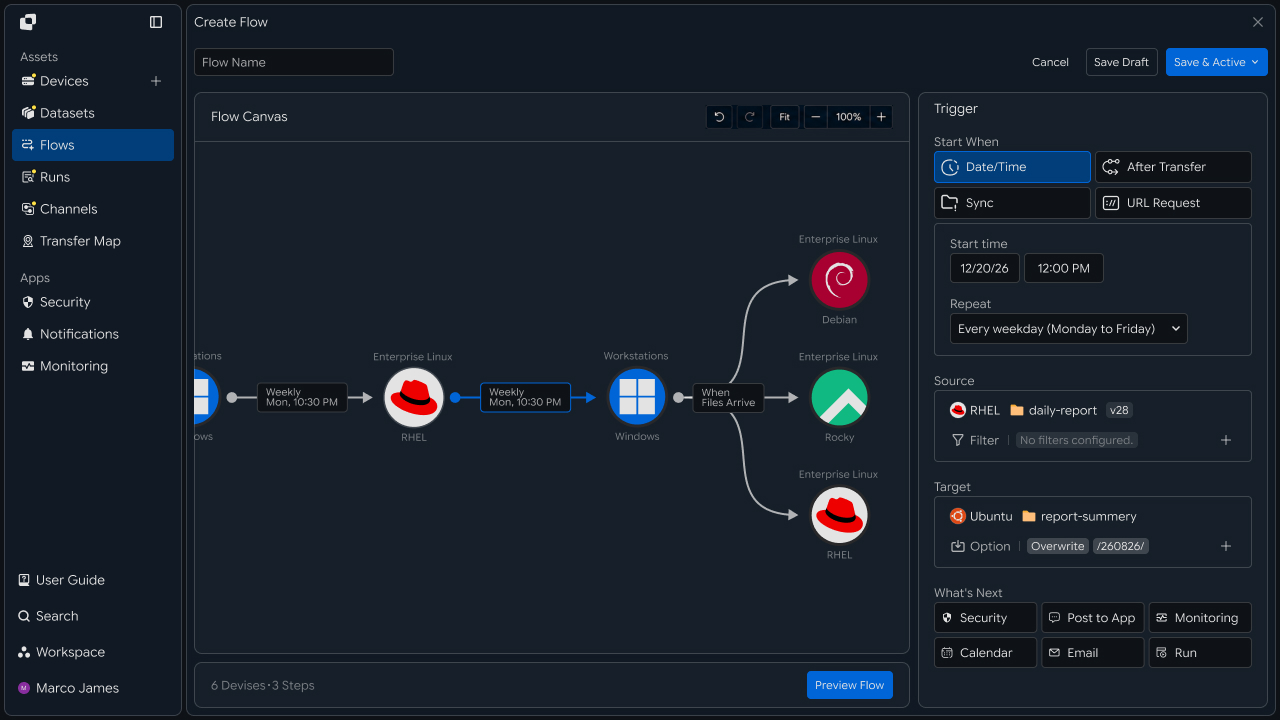
When configuring a workflow, first set the criteria that start the entire task sequence.
In Start When, you can select start conditions suited to the business flow, such as a specified time, completion of another task, a file event, or an external request.
| Start Condition | Use |
|---|---|
| Date/Time | Run the workflow on the specified schedule |
| After Transfer | Start the next task after the previous file transfer completes |
| Sync | Start based on file creation or modification |
| URL Request | Run based on a request from an external service or system |
For example, you can configure the workflow to collect files from multiple systems at a set time every day, or to start the next transfer and processing tasks after a specific file becomes available.
Once a start condition is configured, the entire workflow runs according to criteria suited to the business environment.
Flow Configuration
Connect multiple file tasks in the correct order
After setting the start condition, place and connect file tasks in the required business order in Flow Canvas.
Each step can include tasks such as file collection, transfer, processing, and saving, connected so that the next task starts after the previous task completes.
Start
  │
  ▼
Collect Files
  │
  ▼
Transfer
  │
  ▼
Process
  │
  ▼
Store Results
When configuring the workflow, set the Source and Target, file paths, and processing conditions for each task so the file flow at each stage can be managed as one structure.
Parallel Execution and Branching
Run multiple tasks at the same time or split the flow by condition
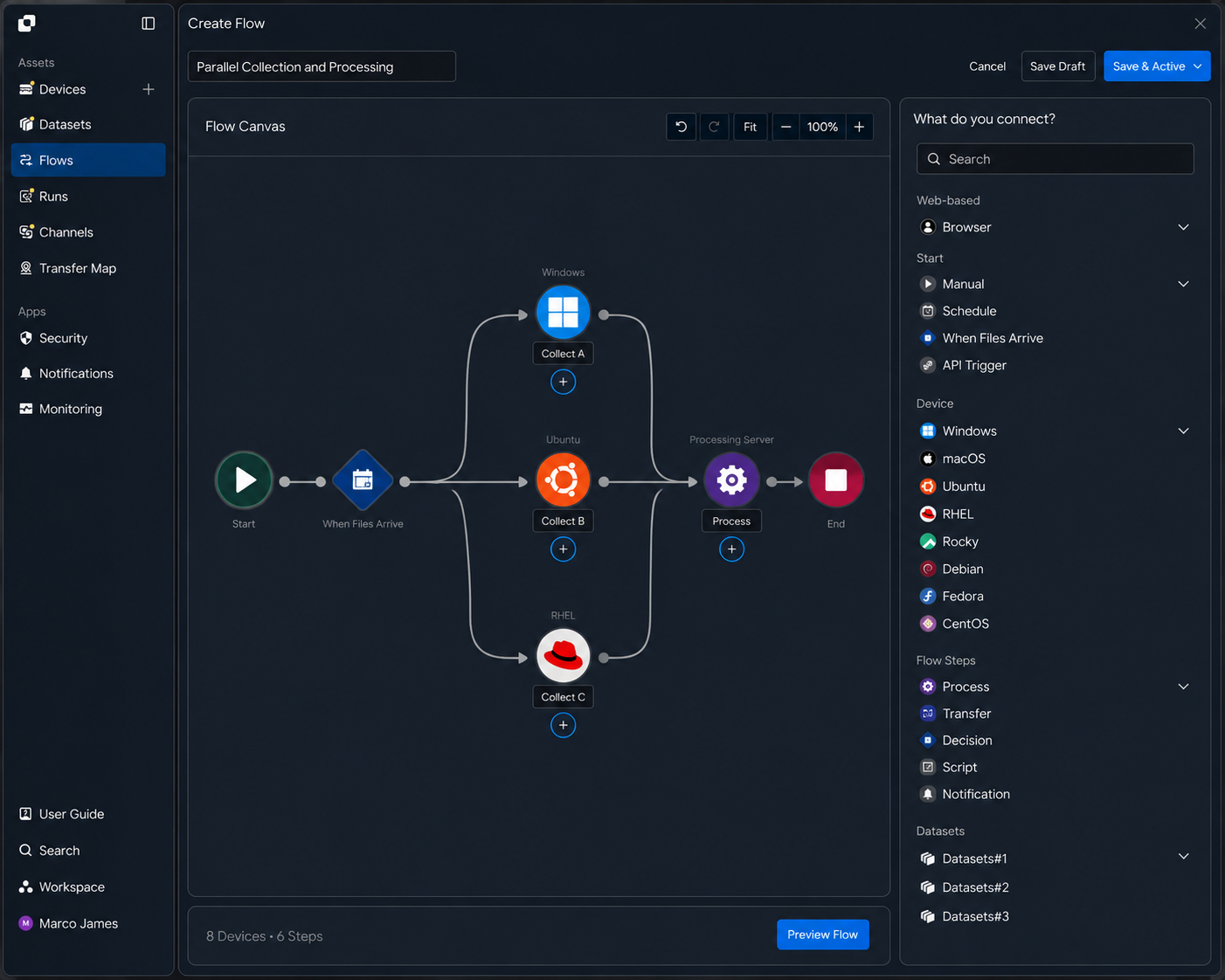
A single workflow can start multiple file tasks at the same time or branch into different next steps based on task results and configured conditions.
For example, you can collect files from multiple devices simultaneously and connect them to one processing stage, or route files to different processing tasks according to file type.
             ┌─ Collect A ─┐
Start ───────┼─ Collect B ─┼──→ Process
             └─ Collect C ─┘
Branching based on conditions can be used as follows.
File Check
    │
    ├── Report ──→ Report Processing
    │
    └── Media ───→ Media Processing
Using parallel execution and conditional branching lets you configure multiple processing paths within one workflow according to file types and business situations.
Multi-Source Collection
Gather files from multiple devices into one workflow
Files distributed across multiple servers, PCs, and storage systems can be collected from each Source and connected into a single processing flow.
Specify the file path of each device as a Source and connect the collected files to a common Target or processing server.
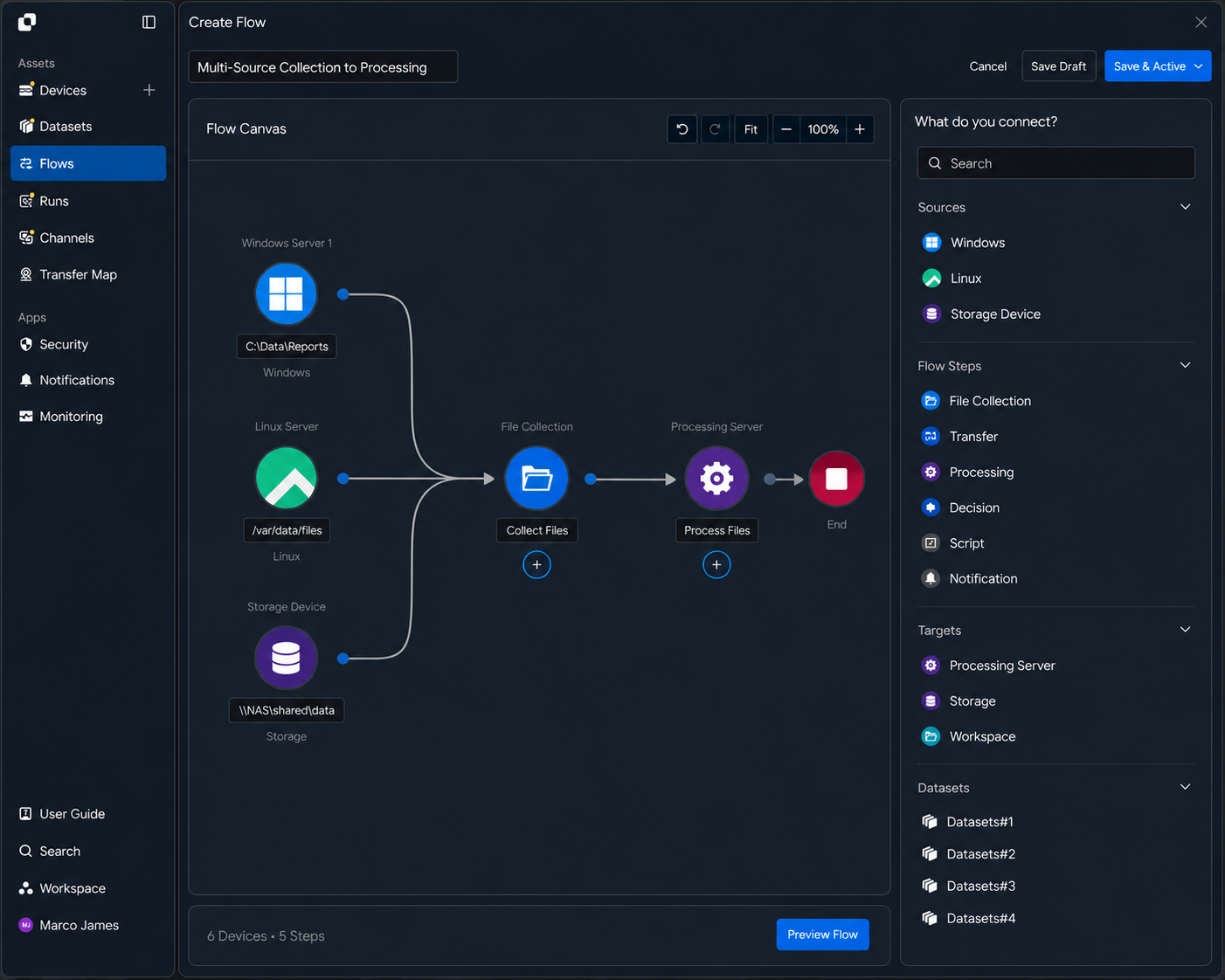
Windows ──┐
Linux ────┼──→ File Collection ──→ Processing
Storage ─┘
With multi-source collection, you can manage the structure of processing files from each device in one workflow and connect the transfer and processing tasks that follow collection.
Run Review
Review the status of the entire workflow and each task stage
When the workflow runs, review the overall execution status in Runs, then select a task to review the progress and processing result for each stage.
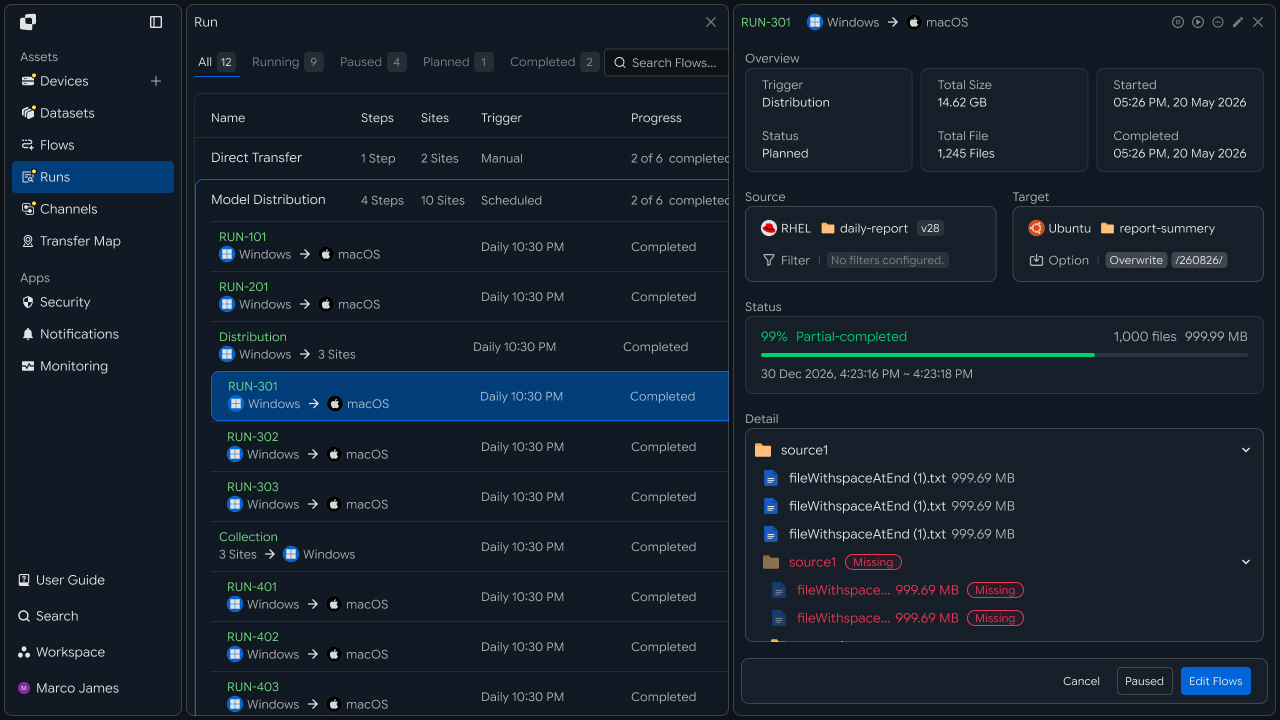
The main items to review are as follows.
| Review Item | Details |
|---|---|
| Flow | Executed workflow |
| Trigger | Condition that started the task |
| Steps | Task configuration by stage |
| Progress | Overall and stage-by-stage progress |
| Files | Information about processed files |
| Status | Status of each stage and the overall execution |
| Time | Execution start and completion time |
Reviewing the overall execution status together with the result of each stage makes it easy to see how far the workflow has progressed and which stage is currently being processed.
Exception Handling
Review a specific stage's execution status and rerun the required task
When a stage requires attention during workflow execution, review the entire Flow together with the detailed execution history of that task.
Select an execution status in Runs to review the order in which tasks progressed and the result of each stage, and use Audit Log to review detailed execution records.
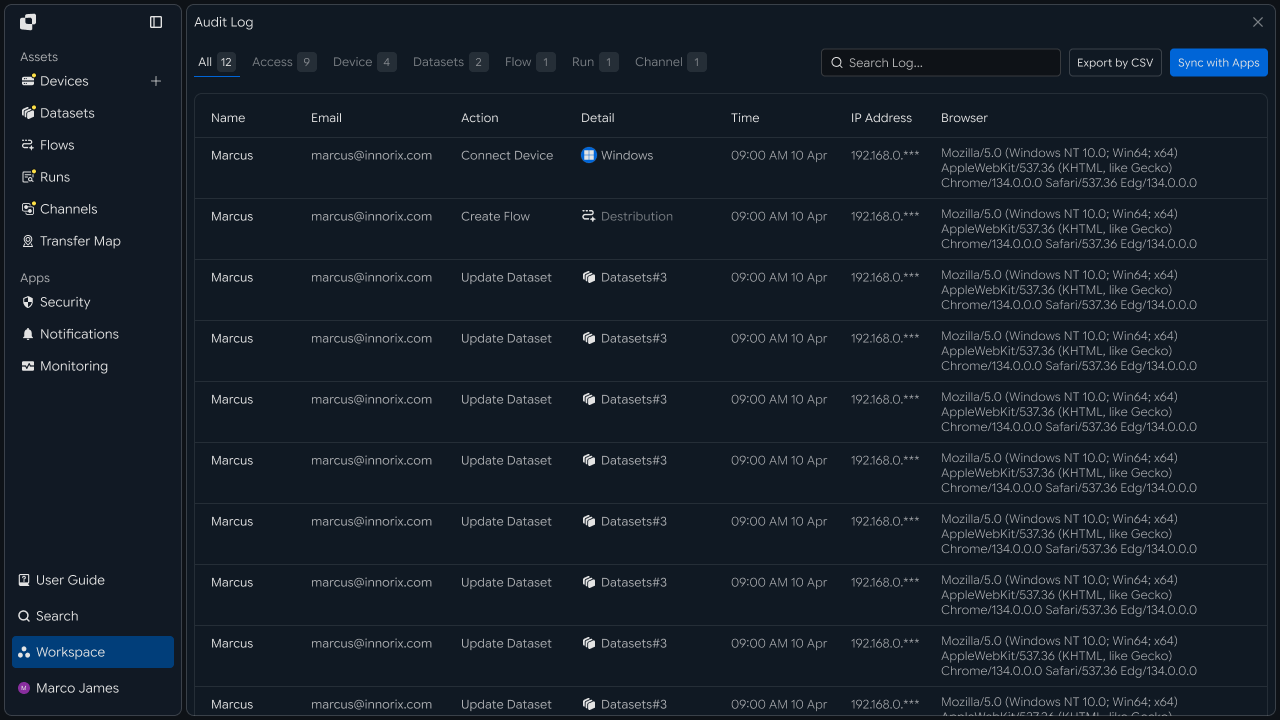
Workflow Run
      ↓

Step Status Check
      ↓

Select Stage to Review
      ↓

Review Execution History
      ↓

Check Source · Target · Conditions
      ↓

Adjust Required Settings
      ↓

Rerun Task
      ↓

Review Overall Result
| Check Item | Details |
|---|---|
| Start Condition | Workflow execution criteria |
| Task Order | Stage connection structure |
| Source | Location where files are prepared |
| Target | Location where files are processed |
| Execution Condition | Processing criteria for each stage |
| Execution History | Run and Audit Log |
By reviewing the entire workflow together with stage-by-stage execution history, you can systematically operate an automation flow made up of multiple file tasks and rerun the required stage.
Developers
Group multiple transfer stages into one flow so the next stage runs automatically when the previous stage finishes
Integration Preparation
Prepare shared request code and path conventions
import os
import requests

BASE_URL = os.getenv("INNORIX_BASE_URL", "https://app.innorix.com").rstrip("/")
TOKEN = os.environ["INNORIX_ACCESS_TOKEN"]
WORKSPACE_ID = os.getenv("INNORIX_WORKSPACE_ID")   # optional; falls back to the current workspace

STATUS_COMPLETE = 2
TERMINAL = {2, 4, 5, 9, 99}          # complete / error / cancelled / partial / failed
NOT_SUCCEEDED = {4, 5, 9, 99}


def api(method, path, body=None, params=None):
    headers = {
        "Content-Type": "application/json",
        "Authorization": f"Bearer {TOKEN}",
    }

    if WORKSPACE_ID:
        headers["x-workspace-id"] = WORKSPACE_ID

    response = requests.request(
        method, BASE_URL + path,
        headers=headers, json=body, params=params, timeout=30,
    )

    payload = response.json() if response.content else {}

    if not response.ok:
        raise RuntimeError(payload.get("message") or f"HTTP {response.status_code}")

    return payload.get("data")


def is_terminal(detail):
    return detail.get("isTerminal", detail.get("status") in TERMINAL)
Automation receives paths as tokens that concatenate a device identifier with a base64-encoded path rather than as plain-text paths.
import base64
import time


def encode_path(device_id, raw_path):
    normalized = str(raw_path or "").replace("\\", "/")
    token = base64.b64encode(normalized.encode("utf-8")).decode("ascii")
    return f"{device_id}_ino_{token}"


def now_iso():
    return time.strftime("%Y-%m-%dT%H:%M:%S.000Z", time.gmtime())
Determine the transfer status using the values below. There are five terminal states, and the successful state is Complete (2).
| Status Value | Meaning | Terminal |
|---|---|---|
| 2 | Complete | Yes |
| 4 | Error | Yes |
| 5 | Cancelled | Yes |
| 9 | Partially Complete | Yes |
| 99 | Failed | Yes |
| 1 · 6 · 12 · 13 | Started · Transferring · Synchronizing · Receiving | No |
Step Definition
Create automation for each stage and group them with the same flowId
flowId is not issued by the server. The client generates it and places the same value in every stage of the same flow.
import uuid

flow_id = str(uuid.uuid4())


def build_step(name, source, source_path, target, target_path,
               step, flow_id, trigger_id=None, action="numbering",
               webhook=None, is_dir=False):
    schedule = {
        "type": "none",
        "startDateType": "now",
        "hour": "00",
        "minute": "00",
        "ampm": "am",
        "startDate": now_iso(),
        "timezone": "Asia/Seoul",
    }

    if trigger_id:
        # The server canonicalizes a chained step: it rewrites schedule.type to
        # triggerSchedule and forces isUpcoming=false, so type=none is fine here.
        schedule["triggerAutomation"] = {"value": trigger_id}

    body = {
        "name": name,
        "flowName": name,
        "flowId": flow_id,
        "transferType": "normal",
        "timezone": "Asia/Seoul",
        "step": step,
        "isUpcoming": False,
        "details": [
            {
                "senderId": source,
                "receiverId": target,
                "sourceItem": [
                    {
                        "hash": encode_path(source, source_path),
                        "filePath": source_path,
                        "isDir": is_dir,
                    }
                ],
                "targetPath": encode_path(target, target_path),
                "step": step,
                "transferOptions": {
                    "noSchedule": False,
                    "target-action": action,
                    "send-fileoption": {},
                },
            }
        ],
        "schedules": [schedule],
    }

    if webhook:
        body["processors"] = [{
            "category": "run",
            "type": "http",
            "config": {"url": webhook, "method": "POST"},
        }]

    return body
There are four requirements that must always be followed when creating an automation request.
| Item | How to Configure |
|---|---|
isUpcoming | Must be false. The server default of true ignores the schedule in the request and replaces it with a one-time five-minute schedule. A stage with triggerAutomation forces the value to false, so you only need to set it directly on the first stage without a trigger |
step | Set it at both the top level and in details. It indicates the hop position within the flow |
sourceItem | Include both hash (the path token) and filePath (the plain-text path) |
syncType | Set it inside transferOptions. 1 is one-way and 2 is two-way |
Registration succeeds even if all four items are omitted, but the behavior changes at execution time. If a recurring schedule was registered but runs only once, check isUpcoming first.
Stage Linking
Start the next stage when the previous stage finishes
Put the automationId from the previous stage's creation response into schedules[].triggerAutomation.value of the next stage.
STEPS = [
    {"name": "site to relay", "source": "device-site-01", "source_path": "/data/out",
     "target": "device-relay-01", "target_path": "/relay/in"},
    {"name": "relay to hq", "source": "device-relay-01", "source_path": "/relay/in",
     "target": "device-hq-01", "target_path": "/hq/incoming"},
]

previous = None
created = []

for index, spec in enumerate(STEPS, start=1):
    body = build_step(spec["name"], spec["source"], spec["source_path"],
                      spec["target"], spec["target_path"],
                      step=index, flow_id=flow_id, trigger_id=previous)

    automation_id = api("POST", "/api/automations", body)["automationId"]
    created.append(automation_id)
    previous = automation_id
After the requests are sent in sequence, the application's role is finished. The server handles subsequent stage execution, so the flow continues even if the application process has terminated.
The source and target of a single stage must be different devices. Specifying the same device returns 400. To build an A → B → C relay, at least two devices are required; with two devices, the flow becomes A → B, B → A.
Registration Failure Handling
Roll back so no partial registration state remains
If registration of the second stage fails, only the first stage remains. The file reaches the relay server and stops there.
created = []

try:
    previous = None

    for index, spec in enumerate(STEPS, start=1):
        body = build_step(**spec, step=index, flow_id=flow_id, trigger_id=previous)
        automation_id = api("POST", "/api/automations", body)["automationId"]
        created.append(automation_id)
        previous = automation_id
except Exception:
    for automation_id in reversed(created):
        api("DELETE", f"/api/automations/{automation_id}")
    raise
Treating registration as a single transaction prevents the flow from running after being left in a partially registered state.
Multi-Source Collection Configuration
Gather files from multiple devices into one processing stage
One automation handles one source device. To collect from multiple devices, create a transfer for each device and separate the destination path by source.
SOURCES = [
    ("device-win-01", "/data/out"),
    ("device-linux-01", "/data/out"),
    ("device-storage-01", "/share/out"),
]

for source, source_path in SOURCES:
    # give each source its own folder so file names do not collide
    target_path = f"/work/incoming/{source}"

    monitor_id = api("POST", "/api/transfers/manual", {
        "sourceDevice": source,
        "targetDevice": "device-proc-01",
        "targetPath": target_path,
        "sourcePaths": [source_path],
        "sendAllFolder": True,
        "transferOptions": {"target-action": "numbering"},
    })["monitorId"]

    print(source, "->", target_path, monitor_id)
When collections are separated by device, the remaining collections continue even if one device is offline. If the destination path is not separated, files with the same name from different devices overwrite each other.
External Call Integration
Call an external system when a stage completes
{
  "processors": [
    {
      "category": "run",
      "type": "http",
      "config": {
        "url": "https://internal.example.com/hook",
        "method": "POST",
        "body": { "event": "transfer_done" }
      }
    }
  ]
}
category must be run, and type is http, not https. Put url, method, and body inside config.
The call occurs after transfer completion. In config.events, specify which event to respond to, such as {"completed": true}; if omitted, all events trigger the call.
Business information can be included in the request body.
body["processors"] = [{
    "category": "run",
    "type": "http",
    "config": {
        "url": "https://internal.example.com/step-started",
        "method": "POST",
        "body": '{"flowId": "%s", "step": 2}' % flow_id,
    },
}]
Run Review
Review per-stage run results and find where execution stopped
def flow_status(step_ids):
    for step, automation_id in enumerate(step_ids, start=1):
        runs = api("GET", f"/api/automations/{automation_id}/executions") or []
        latest = runs[0] if runs else {}

        yield {
            "step": step,
            "automationId": automation_id,
            "monitorId": latest.get("monitorId"),
            "status": latest.get("status"),
            "runs": len(runs),
        }


for state in flow_status(created):
    if state["status"] != STATUS_COMPLETE:
        print(f"stalled at step {state['step']} (status={state['status']})")
        break
Execution history is ordered with the latest run first. If a preceding stage does not succeed, the next stage does not start, so when a stage has no history, check the stage before it.
To view only transfers that are currently in progress, filter the results through automation.
running = list(paginate("/api/transfers",
                        params={"automationId": automation_id}, limit=20))

# list items expose id/progress; totalSize·fileCount live under detail
for record in running:
    print(record["id"], record.get("progress", 0), record["statusName"])
The transfer list is returned in the data.data array, and pagination information is returned in data.pagination.
Exception Handling
Stop the flow and rerun only the failed stage
If a problem occurs in an intermediate stage, stop that stage. A stopped stage does not send a completion signal, so later stages that use it as a trigger do not run.
api("POST", f"/api/automations/{automation_id}/pause", {"pause": True})

# pause every step to stop the whole flow
for automation_id in created:
    api("POST", f"/api/automations/{automation_id}/pause", {"pause": True})
When only some files fail in a stage, call retransmission for the transfer containing those files.
def retry_failed(monitor_id):
    result = api("GET", f"/api/transfers/{monitor_id}/files", params={
        "state": "any", "size": 500,
    }) or {}

    rows = [r for r in (result.get("children") or [])
            if r.get("status") in NOT_SUCCEEDED]

    if not rows:
        return 0

    api("POST", f"/api/transfers/{monitor_id}/retry", {
        "filesRetry": [
            {"filePath": r["sourceFilePath"], "isDir": bool(r.get("isFolder"))}
            for r in rows
        ]
    })

return len(rows)| Review Item | Details |
|---|---|
flowId | Group of stages belonging to the same flow |
| Stage Order | Connection between the top-level step and the start condition |
| Device Configuration | Whether the source and target of each stage are different |
| Schedule Replacement | Whether isUpcoming: false is set |
| Execution History | Run and status by stage |
| Failed Files | Errors and retransmission results by file |