
Quick Start#
After installing the product, use the sample pages to verify that uploads and downloads work. The configuration files and options are explained in detail in later chapters.
Installation#
This section explains the installation package contents, licensing, and how to connect the server and frontend.
Package Files#
<Web Root>/innorix/
├── innorix.js        (includes license)
├── innorix.css
├── config.js         (UI presets)
├── install/          (agent installation page and files)
└── exam/             (samples; exclude from production deployment)

<Web Application>/WEB-INF/lib/
└── InnorixJAVA.jar (+ dependency JARs)| File | Purpose |
|---|---|
innorix.js |
Control and transfer engine. Includes the license. |
innorix.css |
Styling for the control and transfer window |
config.js |
UI presets (box_config) |
install/ |
Agent installation page and files |
exam/ |
Sample pages. Exclude from production deployments. |
InnorixJAVA.jar |
Server library. Place in WEB-INF/lib along with dependency JARs. |
Do not include servlet-api.jar, as it is usually provided by the web application server (WAS).
License#
The license is embedded at the top of innorix.js, not supplied as a separate file. Apply a license by replacing the file with the issued innorix.js. The license must match its issued settings, such as the accessing domain and IP address.
Deploying the Server Library#
Copy the JARs to the web application's WEB-INF/lib directory. Restart the WAS after replacing the JARs.
Storage Directory#
Create a dedicated directory for uploaded files and grant write permission to the account running the WAS. In production, place it outside the web root.
mkdir -p /data/innorix/upload
chown -R tomcat:tomcat /data/innorix/upload
chmod 750 /data/innorix/upload
Frontend Integration#
Load CSS, innorix.js, and config.js in that order on the page. config.js is only required when using UI presets.
<link rel="stylesheet" href="/innorix/innorix.css">
<script src="/innorix/innorix.js"></script>
<script src="/innorix/config.js"></script>
Options are merged in the following order: built-in defaults, presets, and create() arguments. Therefore, values passed directly to create() take highest precedence.
box = innorix.create({
  el: '#fileBox',
  uploadURL: '/innorix/exam/upload.jsp',
  boxConfig: box_config.upload_basic,
  boxWidth: 800   // Overrides the preset value (600)
});
UI Configuration#
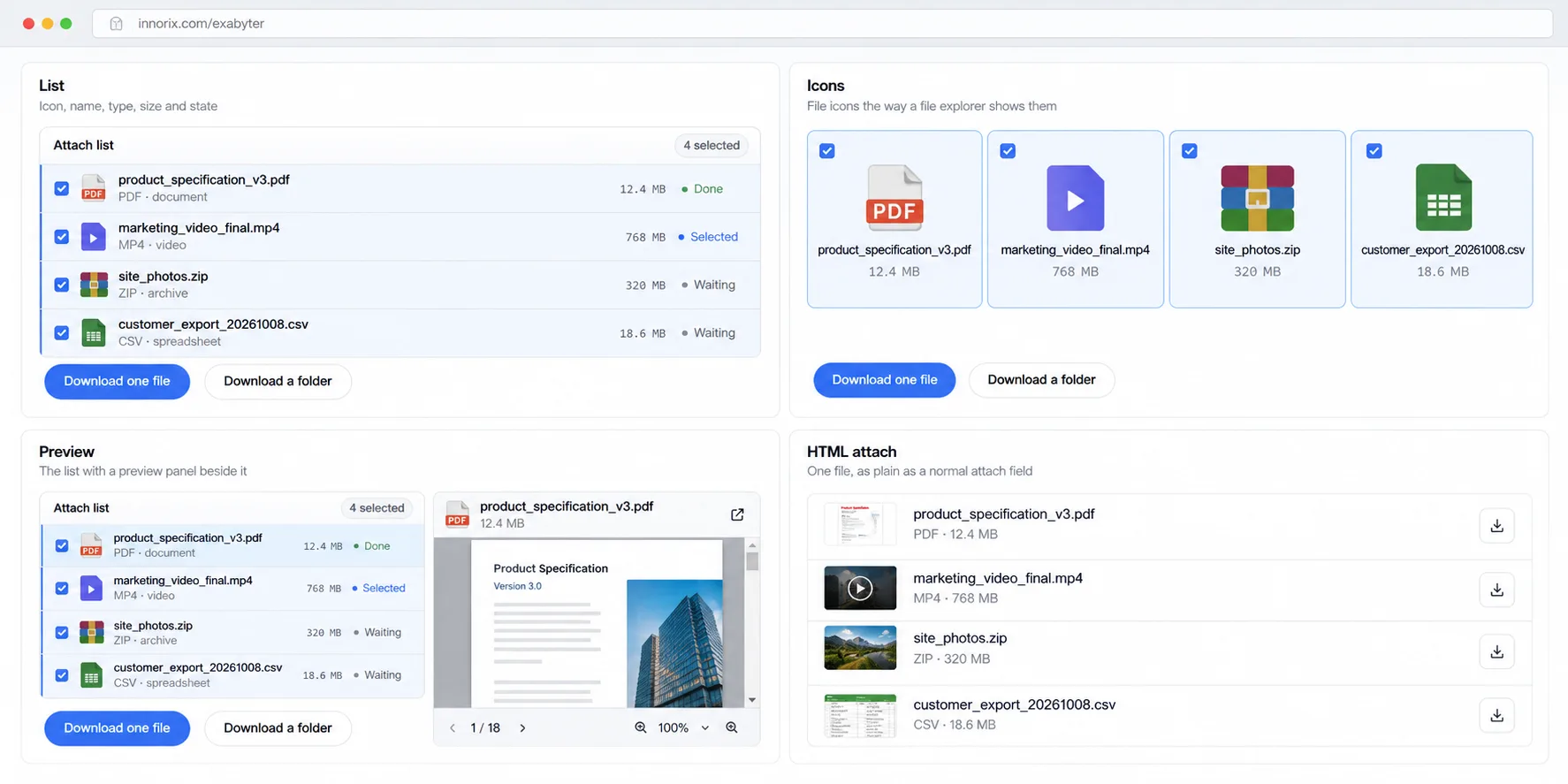
Set the appearance of the control (file list) using boxStyle and that of the transfer window using transferWindowStyle.
Control Styles#
boxStyle |
Appearance |
|---|---|
list |
List view |
icon |
Icon view |
preview |
Displays previews alongside the list |
html |
Custom HTML rendered by the application |
box = innorix.create({
  el: '#fileBox',
  uploadURL: './upload.jsp',
  boxStyle: 'list'          // list, icon, preview, html
});
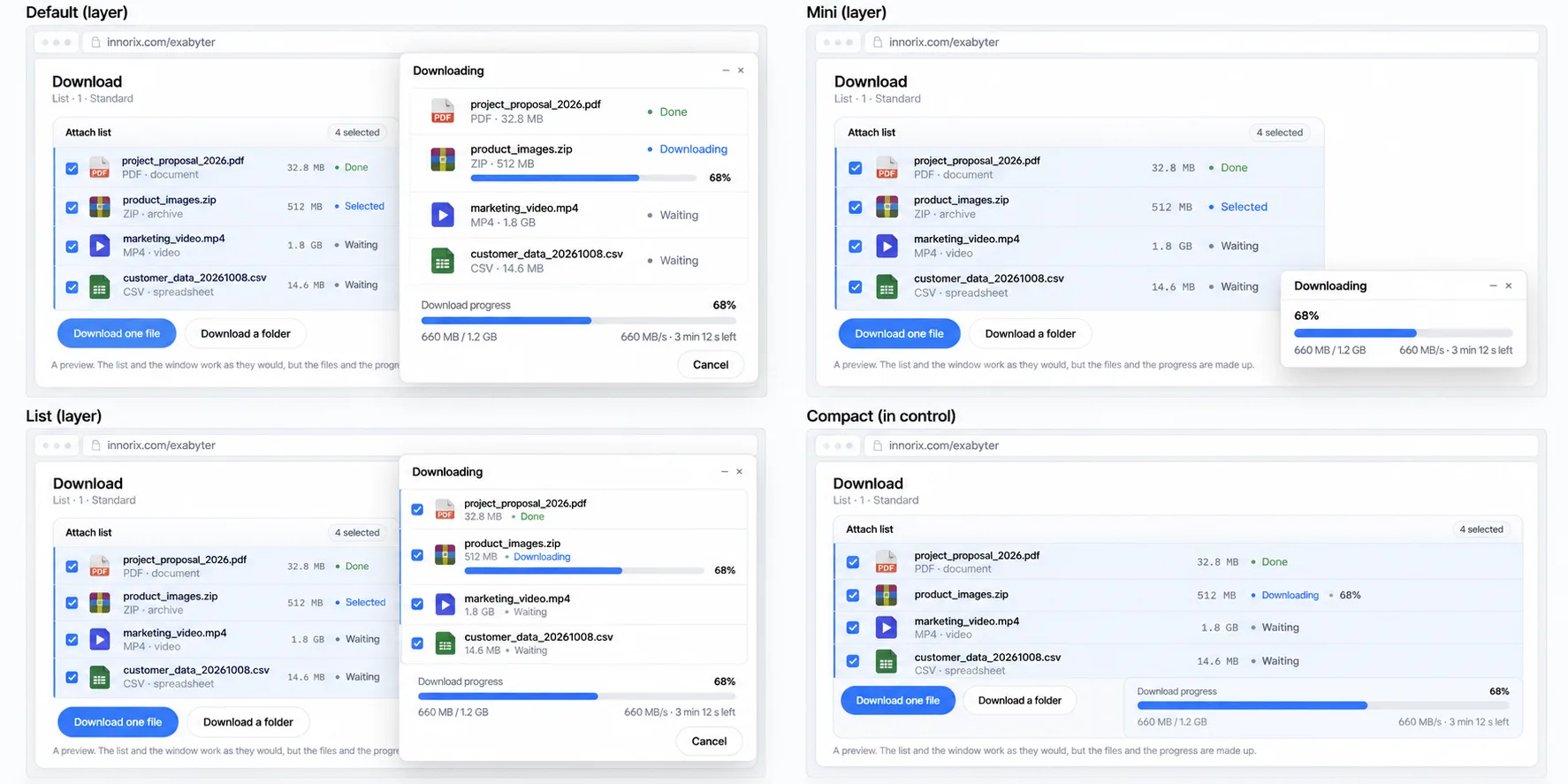
Transfer Window Styles#
transferWindowStyle |
Appearance |
|---|---|
default |
Standard-size transfer window |
mini |
Smaller version of the layered transfer window |
list |
Layered window with a file list above the progress indicator |
compact |
Displays at the bottom of the list without a separate layer |
box = innorix.create({
  el: '#fileBox',
  uploadURL: './upload.jsp',
  transferWindowStyle: 'mini'   // default, mini, list, compact
});
To prevent the transfer window from opening, specify showTransferWindow: false.
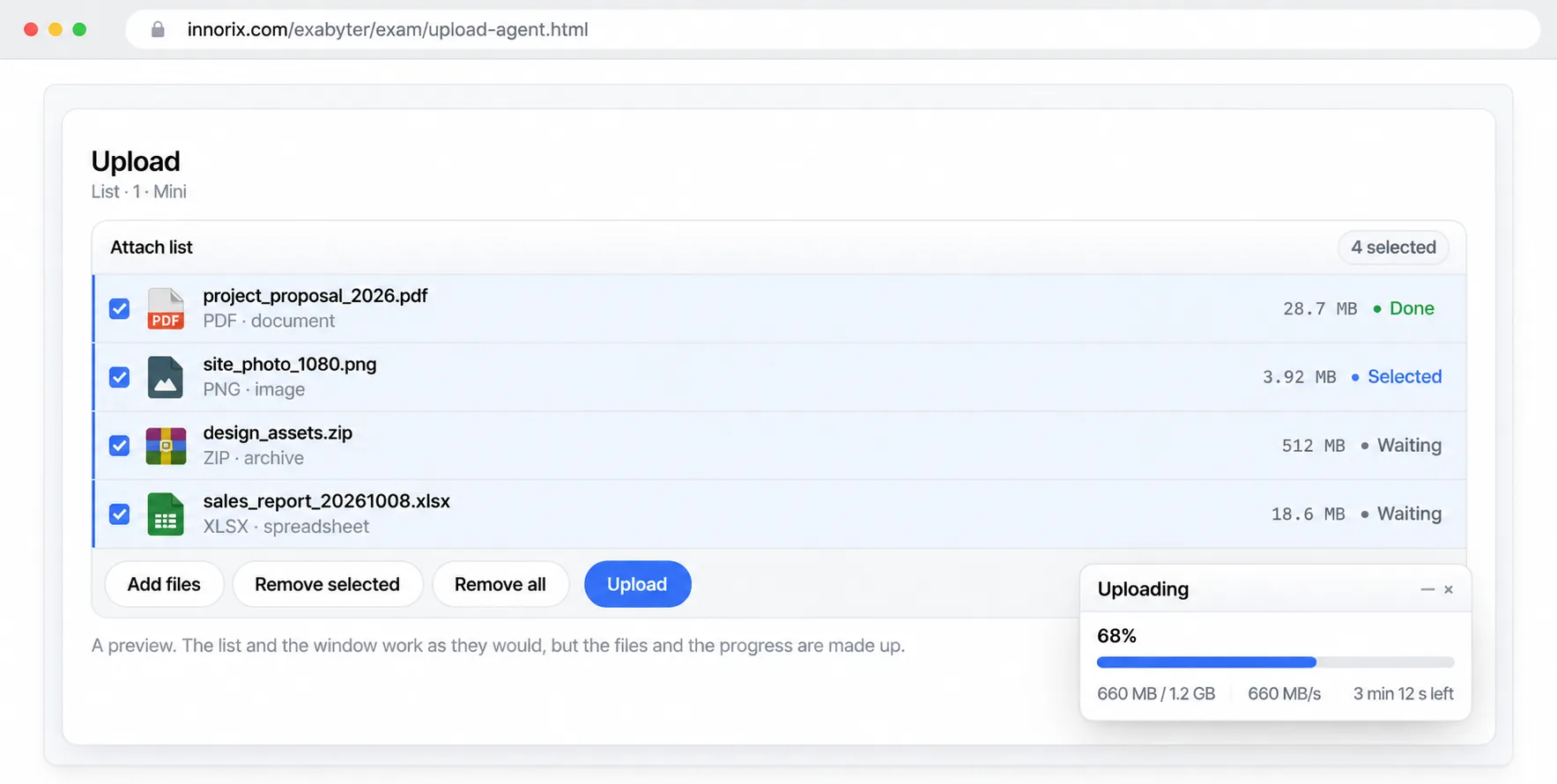
Quick Upload Verification#
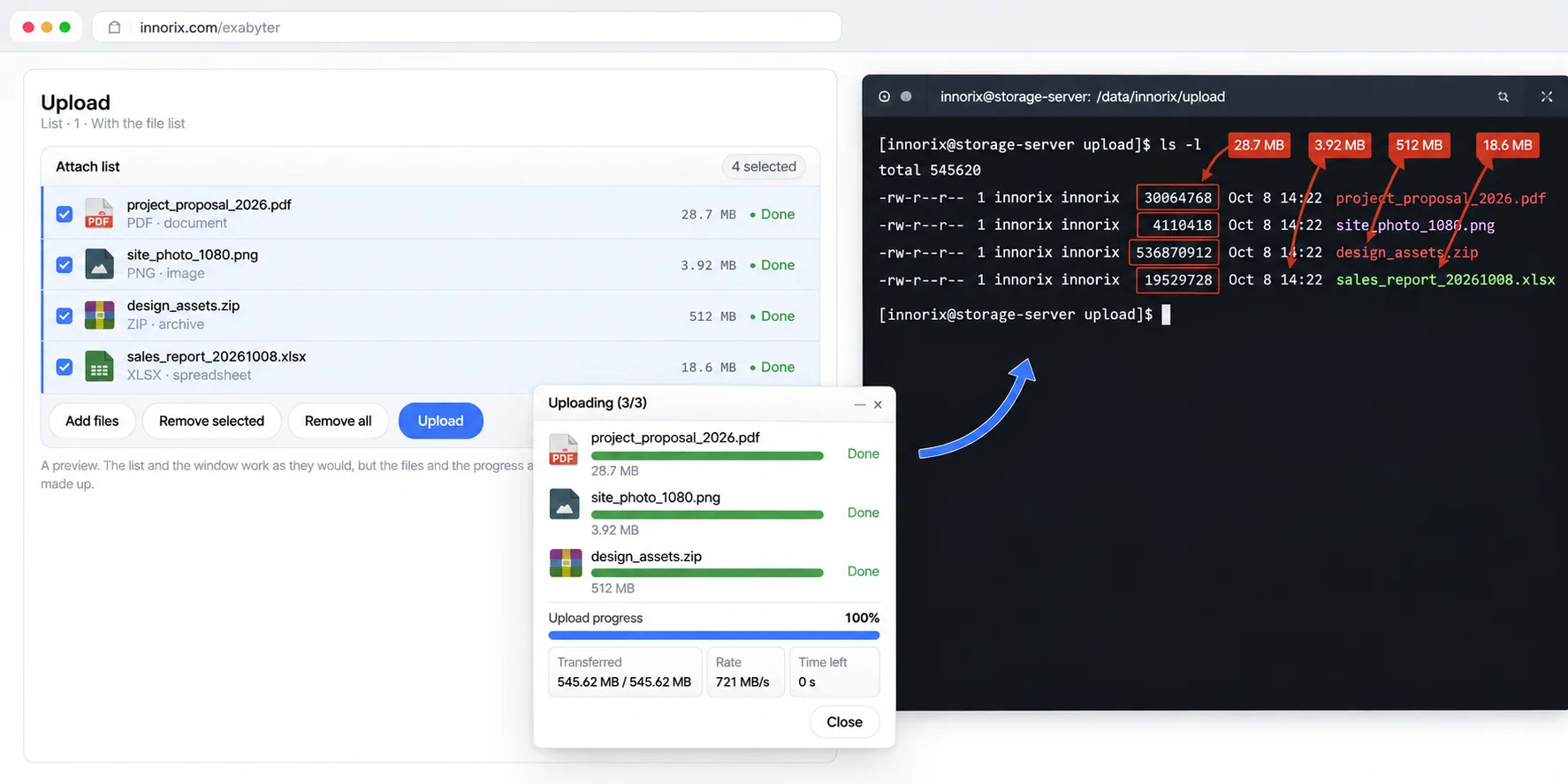
- On a PC where the agent can be installed, open
exam/upload-agent.htmlat the web server URL. If the agent is missing, installation instructions appear.
- Add files and click Upload.
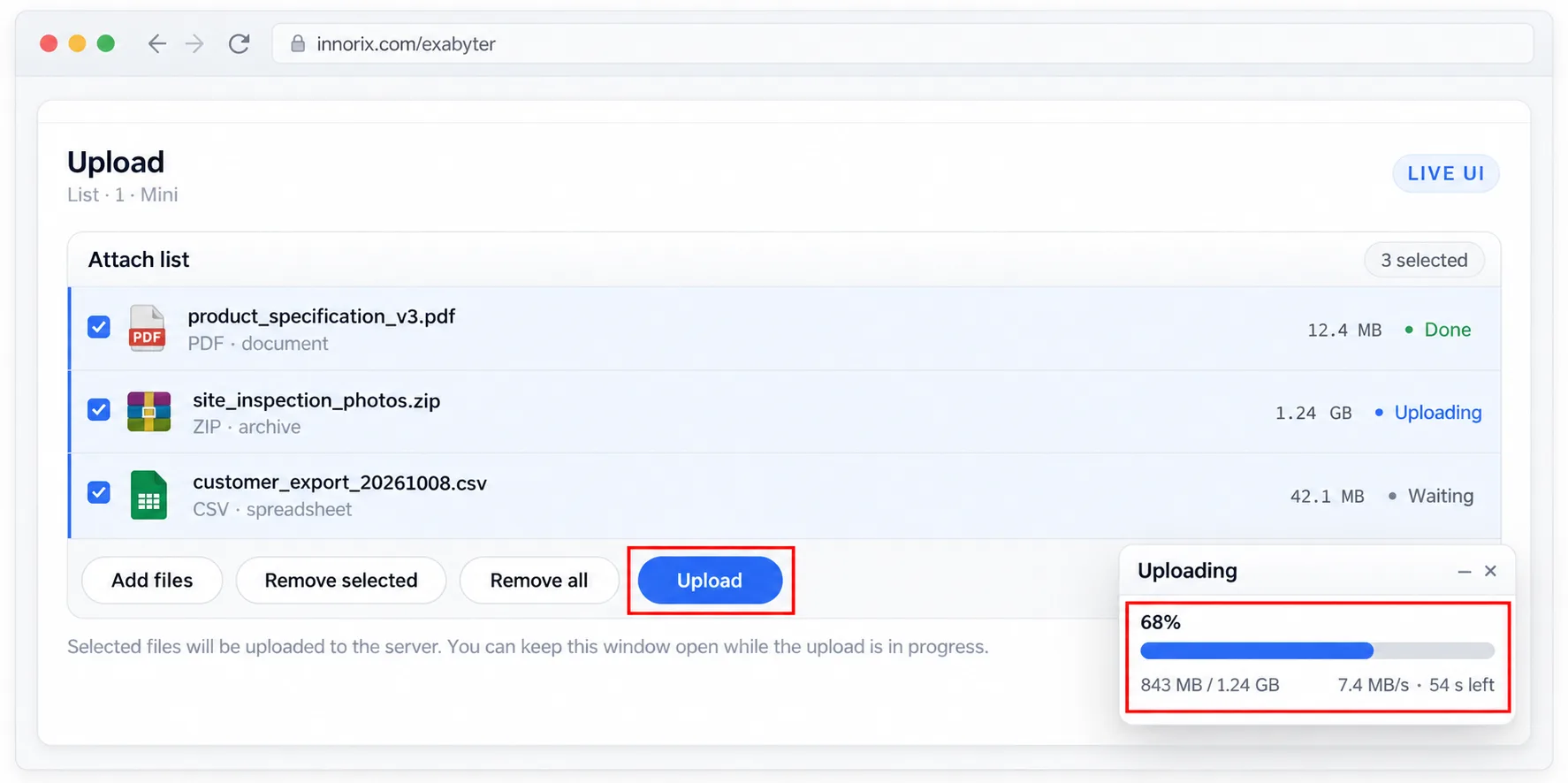
- Operation is normal if the transfer window shows Completed and files of the same size appear in the storage directory.
Quick Download Verification#
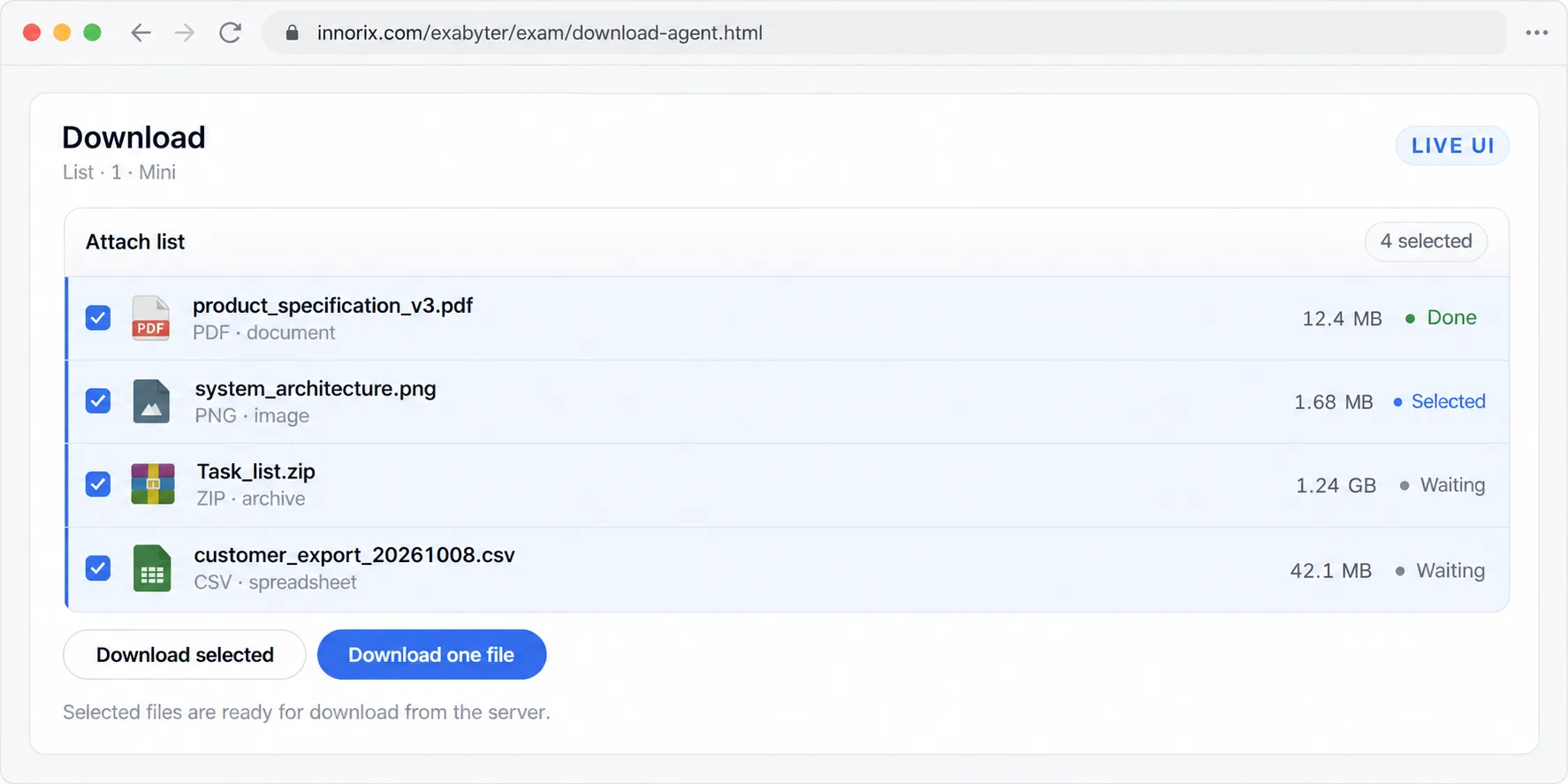
- Open
exam/download-agent.htmlat the web server URL. The sample providesTask_list.zipfrom the same directory asdownload.jsp.
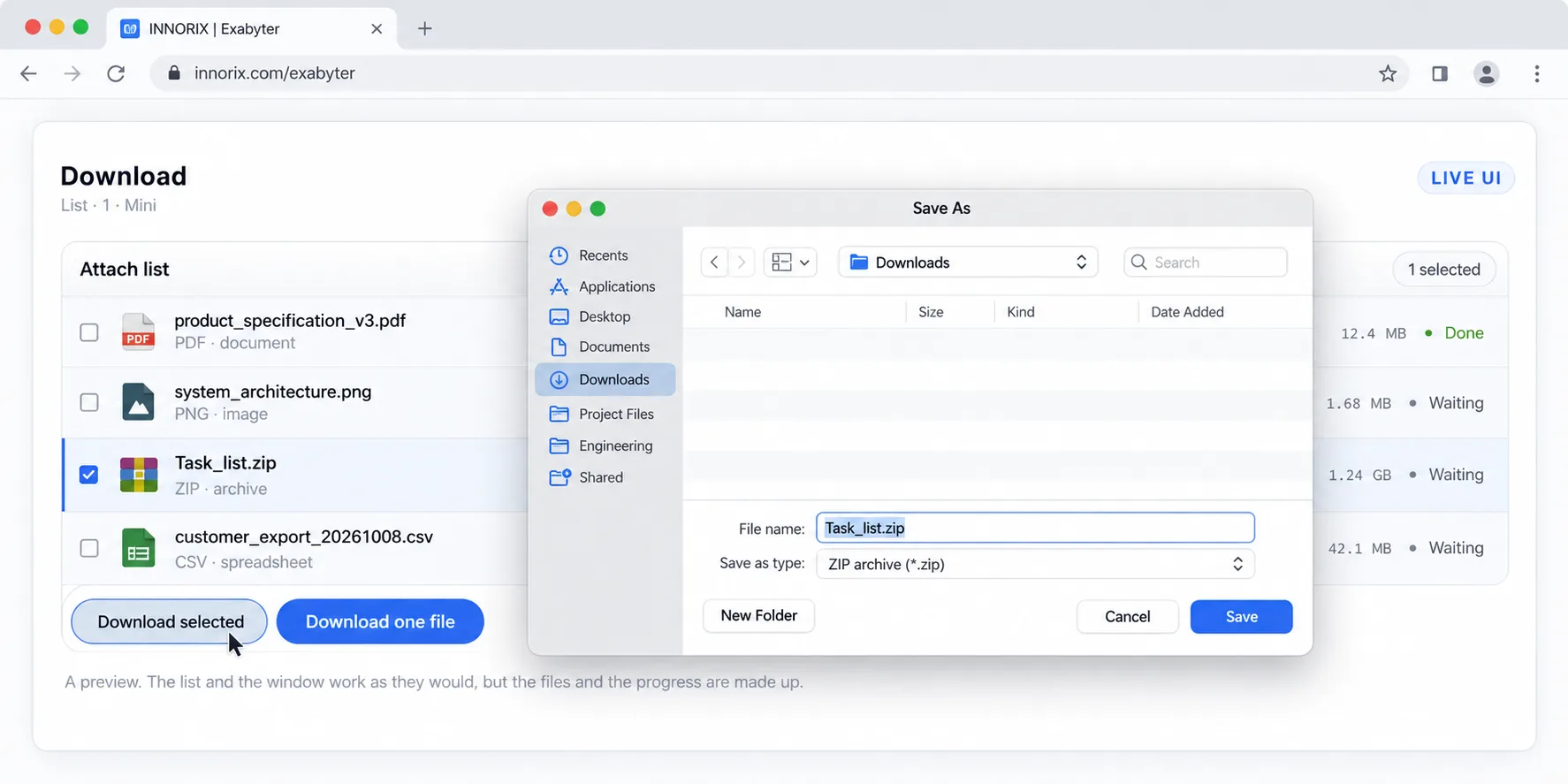
- Select the file in the list and click Download.
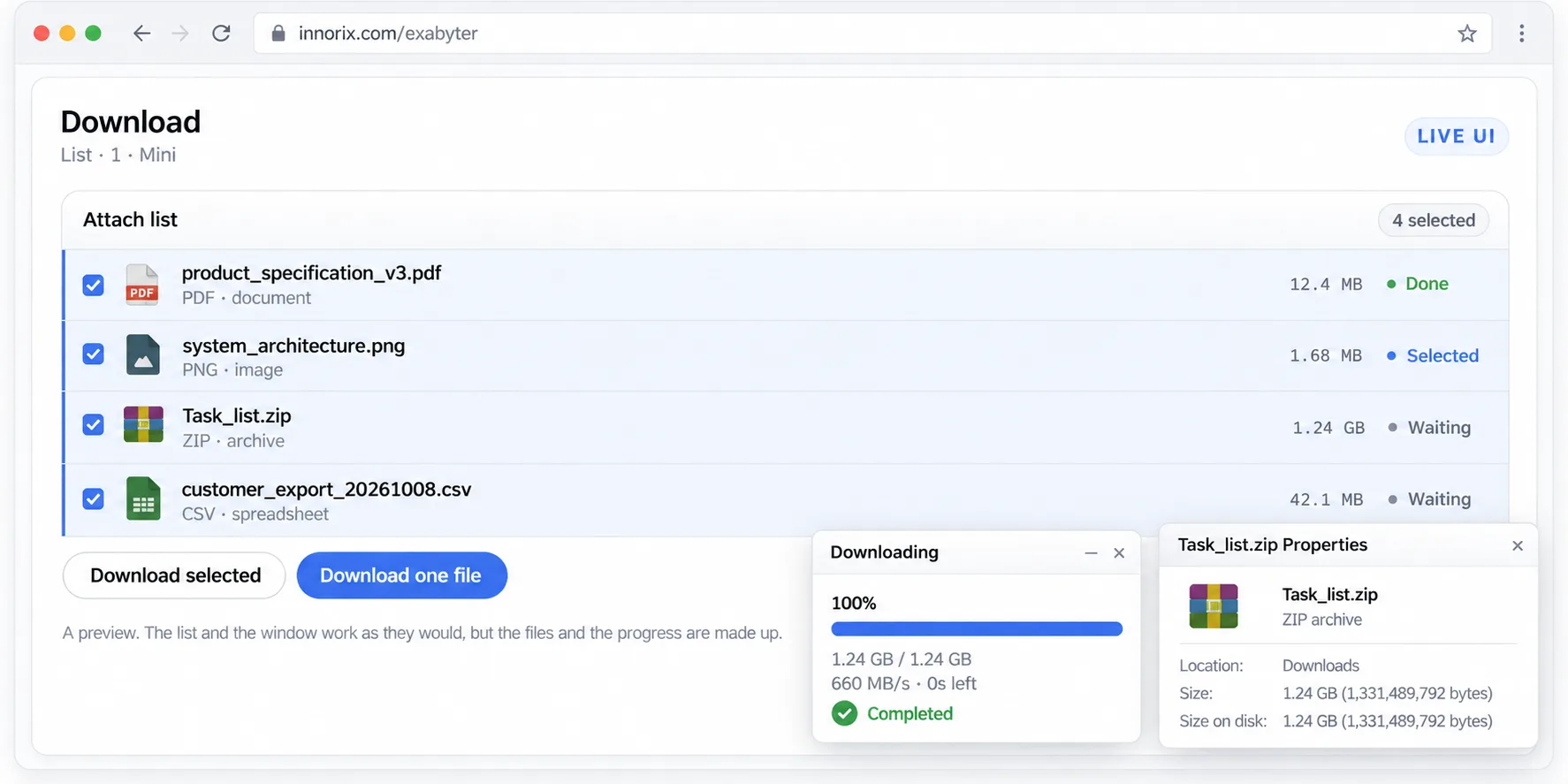
- Operation is normal if the transfer window shows Completed and the downloaded file size matches the original.
Upload#
This chapter explains how to upload user-selected files to the server and handle storage results and application data on both the page and server. Each feature follows the sequence Description → Functions/Options → Example, so you can read only the features you need.
File Selection#
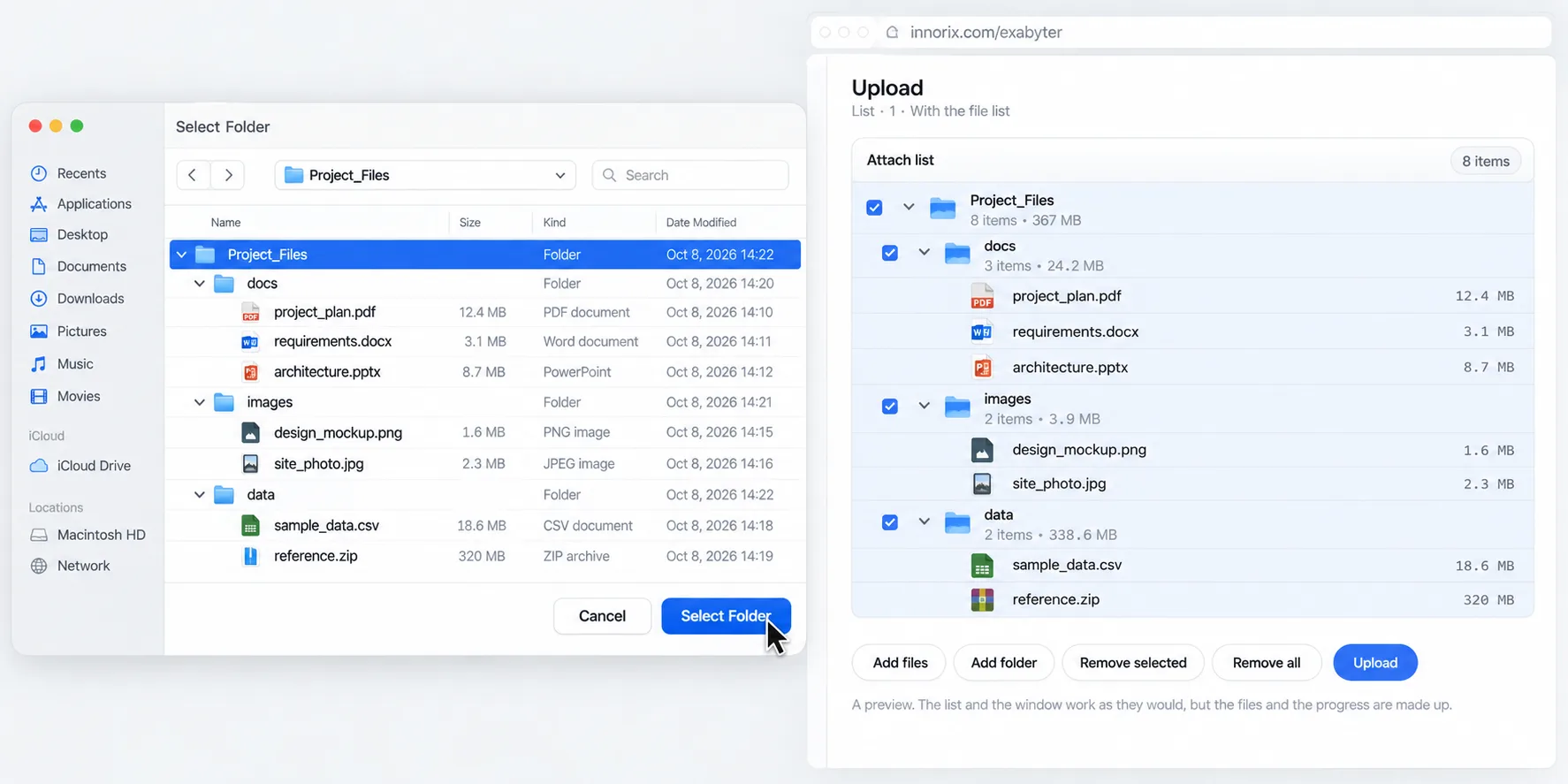
The Add File button on a bulletin-board post, drag-and-drop from Explorer, and programmatic path selection all add files to a single upload list. Subsequent validation and transfer operations use this list.
File selection dialog ─┐
Folder selection dialog ─┤
Drag and drop ──────────┼→ Upload list → Validation → Transfer
Programmatic path ─────┘
File and Folder Selection Buttons#
Connect selection dialogs to button clicks. These methods do not work on controls with transferMode set to download, and calls made before the control is ready are ignored.
| Method | Description |
|---|---|
openFileDialog() |
Select multiple files |
openFileDialogSingle() |
Select one file |
openFolderDialog() |
Select a folder |
<div id="fileBox"></div>
<input type="button" value="Add Files"      onclick="box.openFileDialog();">
<input type="button" value="Add Single File" onclick="box.openFileDialogSingle();">
<input type="button" value="Add Folder"     onclick="box.openFolderDialog();">
<input type="button" value="Upload"         onclick="box.upload();">

<script>
  var box;
  window.onload = function () {
    box = innorix.create({
      el: '#fileBox',
      uploadURL: './upload.jsp',
      installURL: '../install/install.html',
      folderAttach: true,
      addFolder: true
    });
  };
</script>
Folder Options#
| Option | Description |
|---|---|
folderAttach |
Allow folder attachments |
addFolder |
Preserve the folder structure on the server. If disabled, only files are uploaded without folder information. |
openFolderItems, showFolderItems |
Whether folder entries can be collapsed in the list |
addEmptyFile |
Whether to include zero-byte files |
Drag and Drop#
By default, the control accepts dropped files (enableDropZone). For instructions and an example of using a custom area as a drop zone, see 5. Advanced Usage > UI and Controls > Custom Drop Zone.
Adding Files by Path and Automatic Upload#
| Name | Description |
|---|---|
addLocalFiles(filePath) |
Attach files using a path specified in code. The validation rules are the same as for dialog selection. |
afterAddFiles |
Fires after a single attachment operation finishes. Its argument is the array of files actually added to the list. |
Calling upload() in afterAddFiles automatically uploads files immediately after they are attached. Because consecutive attachment operations may trigger repeated calls, guard against starting more than once.
var started = false;  // Prevent upload() from being called twice during consecutive attachments
box.on('afterAddFiles', function (files) {
  if (started) return;
  started = true;
  box.setPostData({ resourceId: document.getElementById('resourceId').value });
  box.upload();
});
Restoring Previous Transfers#
When the window is closed and reopened, unfinished transfers can be restored to the list. If the original file has changed, it will not be restored and the file_is_modified error is reported.
| Option | Description |
|---|---|
attachIncompleteFiles |
Look up unfinished previous transfers when the control loads |
autoLoadTransfer |
If enabled, restore and resume uploading automatically without asking; if disabled, ask the user whether to resume. |
Attachment Settings#
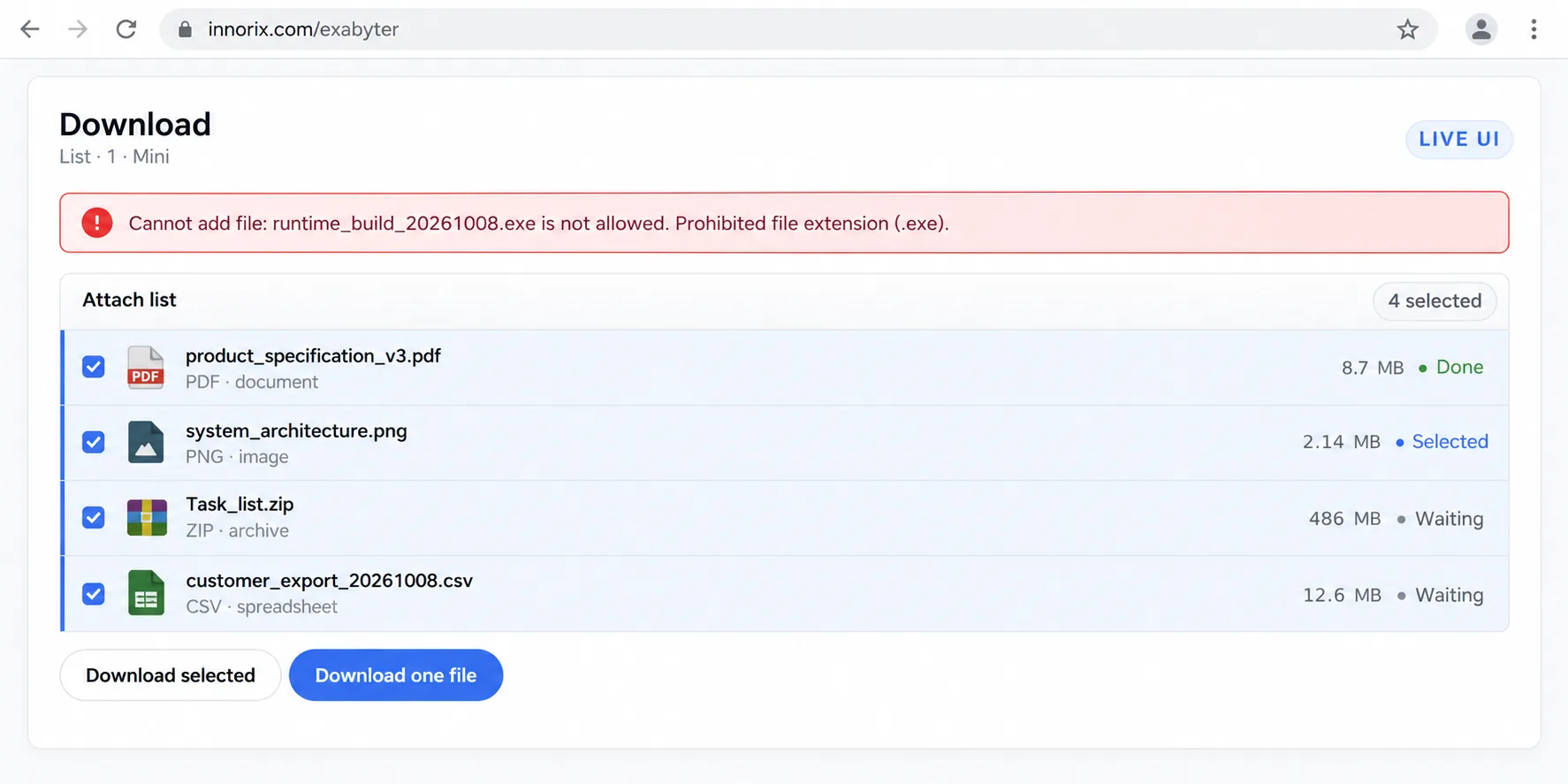
For example, registration documents may be limited to a maximum of five files, only PDF and JPG, and 10 MB per file. Rejecting files only after they reach the server wastes bandwidth, so validate them when they enter the list, reject only the offending files, and report violations through addFileError.
Selected files → Duplicates → Count → Total size → Blocked extensions → Allowed extensions → Individual size → Original exists → Add to list
                                  (Reject at first failed check; addFileError)
If the count or total-size limit is exceeded, processing of the remaining files in that selection batch stops, while previously accepted files remain in the list. Extension or individual-size errors skip only the affected file.
Restriction Options#
Specify these in innorix.create(). Unspecified restrictions are not checked.
| Option | Description |
|---|---|
maxFileCount |
Maximum number of files (a count, not bytes) |
maxFileSize, maxTotalSize |
Individual and total size limits (bytes) |
allowType |
Allowed extensions (lowercase, without a dot). Group objects are also supported in addition to arrays. |
denyType |
Blocked extensions. denyType takes precedence when it overlaps with allowType. |
useSignature |
Check the actual file type using its initial bytes (detects renamed extensions). See 5. Advanced Usage > Security > Signature Validation for precautions. |
addDuplicateFile |
Duplicate attachment policy |
box = innorix.create({
  el: '#fileBox',
  uploadURL: './upload.jsp',
  maxFileCount: 5,
  maxFileSize: 10 * 1024 * 1024,    // 10 MB per file
  maxTotalSize: 50 * 1024 * 1024,   // 50 MB total
  allowType: ['jpg', 'png', 'pdf'],
  denyType: ['exe', 'msi', 'bat'],
  useSignature: true
});
Files without an extension are rejected when
allowTypeis set. Duplicate detection is based on file paths, so files with the same name in different folders are treated as separate files. Demo licenses have fixed file count and total size limits; if restrictions behave unexpectedly, check the license type first.
Handling Violations (addFileError)#
The handler receives (errors, files), and the error object contains type, message, and file.
type |
Meaning |
|---|---|
addDuplicateFile |
Duplicate file |
maxFileCount, maxTotalSize, maxFileSize |
File count or size limit exceeded |
denyType, allowType |
Extension rule violation |
file_is_modified |
Original file changed during restoration |
- Ordinary validation failures are passed as arrays, but signature validation may pass a single error object. Wrap non-array values in an array before processing.
- Disable the default notification layer with
showNotificationLayer: falseand display custom messages for eachtype. - Files rejected by returning
falseinbeforeAddFiledo not triggeraddFileError, so display any required explanation within that handler.
box = innorix.create({
  el: '#fileBox',
  uploadURL: './upload.jsp',
  maxFileSize: 10 * 1024 * 1024,
  denyType: ['zip'],
  showNotificationLayer: false
});

var MESSAGES = {
  maxFileSize:      'You can attach up to 10 MB per file.',
  denyType:         'ZIP files cannot be attached.',
  addDuplicateFile: 'This file is already attached.'
};

box.on('addFileError', function (p) {
  var list = Array.isArray(p) ? p : [p];
  var e = list[0];
  alert(MESSAGES[e.type] || e.message);
});
Cancel the Entire Batch if Any File Fails#
By default, accepted files are attached and only failed files are rejected. To cancel the entire batch, record the failure in addFileError, then remove the files just added in the subsequent afterAddFiles event using removeFileById().
var batchFailed = false;

box.on('addFileError', function (p) {
  batchFailed = true;
  var e = (Array.isArray(p) ? p : [p])[0];
  alert(e.message);
});

box.on('afterAddFiles', function (added) {
  if (batchFailed) {
    added.forEach(function (f) { box.removeFileById(f.id); });
  }
  batchFailed = false;
});
Revalidate on the Server#
Client-side restrictions can be bypassed by disabling JavaScript or sending requests directly, so the server must revalidate during getFileInfo. For allowlist validation code, see 5. Advanced Usage > Security > Extension Validation and Storage Policy. To block attachments based on login permissions, disable the control with setControlDisabledState(true) or return false from beforeAddFile.
Running an Upload#
When uploading hundreds of photos, users should be able to pause, resume, cancel, and continue uploads even if the connection slows or the window closes.
upload() → uploadBefore check → Transfer (uploadProgress) → uploadComplete
                                     │
                          Pause / Resume / Cancel / Retry after error
Files begin uploading in list order, but multiple files may transfer concurrently, so completion order may differ. Large files are transmitted in multiple requests and resume from the last received position after interruptions.
Starting an Upload#
| Name | Description |
|---|---|
upload() |
Starts a transfer. Does not start if the control is not ready, no target files exist, uploadURL is missing, a transfer is already in progress, or uploadBefore returns false. |
uploadBefore |
Event immediately before start. Return false to cancel. |
transferStart |
Set upload to auto (transfer immediately) or manual (use the Start button in the transfer window). |
startTransferProgress() |
Start the transfer in the transfer window when using manual. |
<div id="fileBox"></div>
<input type="button" value="Add Files" onclick="box.openFileDialog();">
<input type="button" value="Upload"    onclick="box.upload();">

<script>
  var box;
  window.onload = function () {
    box = innorix.create({
      el: '#fileBox',
      uploadURL: './upload.jsp'
    });
    box.on('uploadBefore', function () {
      if (!document.getElementById('agree').checked) {
        alert('You must agree to the terms before uploading.');
        return false;   // Cancel the start
      }
    });
    box.on('uploadComplete', function (p) { console.log(p.files); });
  };
</script>
Uploading Only Selected Files and Sorting#
| Name | Description |
|---|---|
getSelectedFiles() |
Retrieve selected entries |
removeFileById(id) |
Remove an entry from the list. May be blocked in beforeRemoveFile. |
sortName, sortSize, sortType, sortModified |
Sort before calling upload() |
Design the server not to depend on file order. If order matters, send sequence numbers using setFilePostDataByIndex.
function uploadSelectedOnly() {
  var selected = box.getSelectedFiles();
  if (selected.length === 0) { alert('No files are selected.'); return; }

  box.getUploadFiles().forEach(function (f) {
    if (!f.selected) box.removeFileById(f.id);
  });
  box.upload();
}
Transfer Options#
For speed limits, compression, encryption, integrity checking, and bulk-transfer options, see 5. Advanced Usage > Transfer Control.
Transfer Controls and Events#
| Type | Name |
|---|---|
| Method | transferPause(), transferResume(), transferCancel(), closeTransferWindow() |
| Event | uploadProgress, uploadPause, uploadResume, uploadCancel, uploadComplete |
| Option | cancelConfirmation (confirmation before cancellation), uploadDuplicate (resume/overwrite policy) |
- Call cancel and resume only after the transfer has started at least once.
- Resuming after a pause continues from the position recorded on the server.
- Confirming cancellation in the transfer window also removes stored previous-transfer information, but does not delete files or temporary files already saved on the server.
uploadCompletesuppliesp.fileswithclientFileName,serverFileName,serverFilePath, andfileState. If the handler returnsfalse, the transfer window does not close automatically.- While the server merges file parts, progress may stay at 100%; use
workingServerandworkingServerStopto indicate that processing is ongoing. - If the upload path includes a proxy or WAF, check request-size limits too.
<input type="button" value="Pause" onclick="box.transferPause();">
<input type="button" value="Resume"      onclick="box.transferResume();">
<input type="button" value="Cancel"      onclick="box.transferCancel();">

<script>
  box.on('uploadPause',  function (p) { console.log('Paused', p.progress + '%'); });
  box.on('uploadResume', function (p) { console.log('Resumed'); });
  box.on('uploadCancel', function (p) { console.log('Canceled'); });
</script>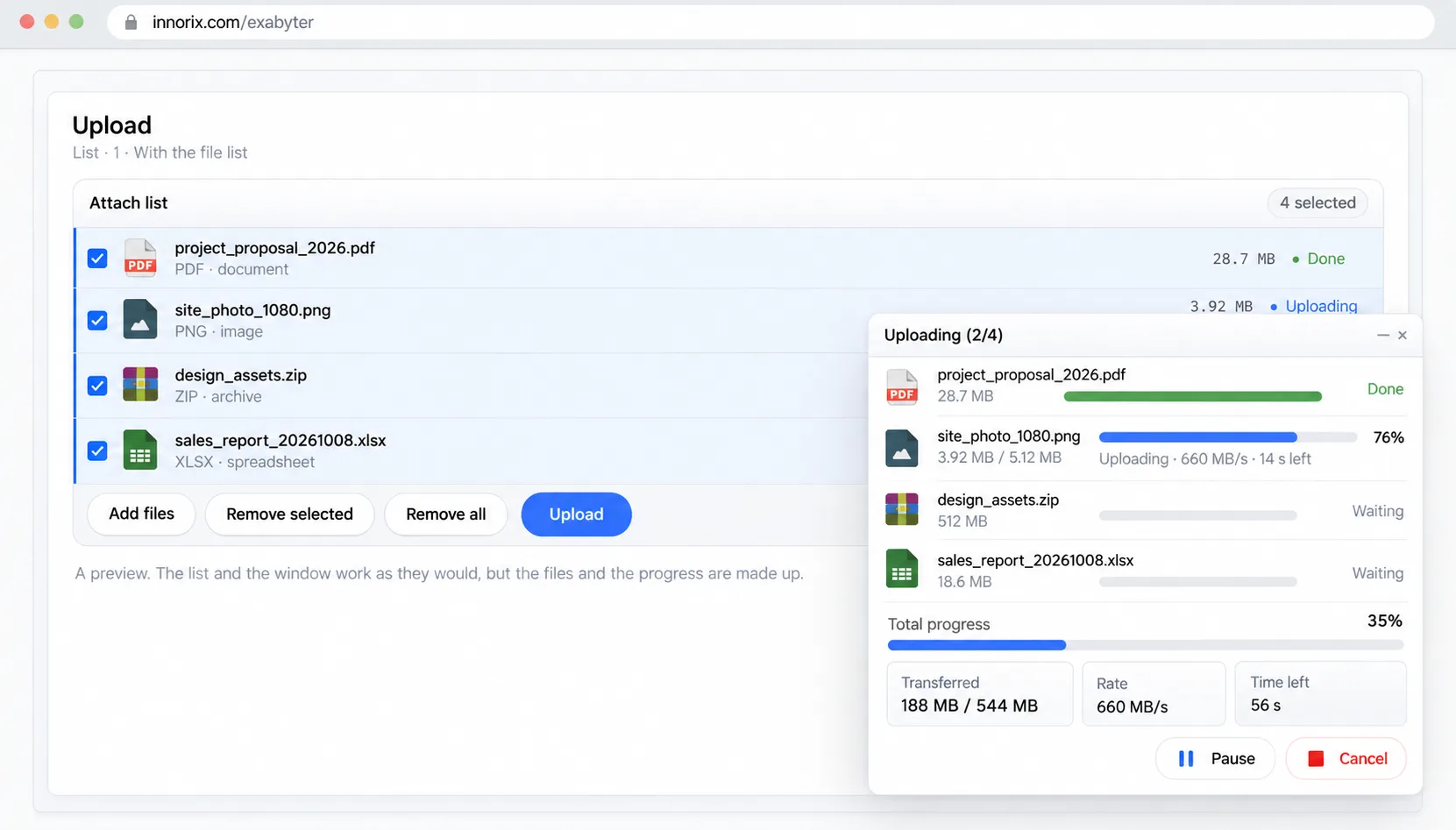
Server Storage#
This section determines where and under what name bulletin-board attachments are saved on the server. The server uses one InnorixUpload instance, and run() handles request identification, reassembling segments, and writing responses. Developers set storage paths, file names, and post-completion handling before and after run().
The server is called multiple times per file, rather than once per request. There is no overall completion request; operations are handled file by file, and run() also supports resuming uploads.
Receive request → getFileInfo (determine storage path and file name) → attachFile (save segment, repeat)
         → attachFileCompleted (one file completed) → isUploadDone() post-processing
Minimal Endpoint#
Create InnorixUpload and call run() only for POST requests. Retain the POST condition so the instance is not created for preflight (OPTIONS) requests.
| Method | Description |
|---|---|
run() |
Processes requests and writes responses. Because it writes the response body, do not emit any spaces or other output before or after it. |
runForSpring() |
For Spring environments |
runAction() |
Does not write a response; the caller writes the response directly. |
isUploadDone() |
Returns true for a request that completed storage of one file. |
<%@ page language="java" contentType="text/html; charset=UTF-8" pageEncoding="UTF-8"%>
<%@ page import="com.innorix.transfer.InnorixUpload" %>
<%
if (request.getMethod().equals("POST")) {
    String directory = InnorixUpload.getServletAbsolutePath(request);
    directory = directory.substring(0, directory.lastIndexOf("/") + 1) + "data";
    int maxPostSize = 2147482624;   // bytes

    InnorixUpload uploader = new InnorixUpload(request, response, maxPostSize, directory);
    String result = uploader.run();

    if (uploader.isUploadDone()) {
        // Point at which one file has finished being saved
    }
}
response.setHeader("Access-Control-Allow-Origin", "*");
response.setHeader("Access-Control-Allow-Credentials", "true");
response.setHeader("Access-Control-Allow-Methods", "POST, OPTIONS");
%>
Reading Request Values and Branching by Stage#
Read request values with getParameter() and distinguish stages using _action. Change the path and file name during getFileInfo, before calling run().
| Value | Description |
|---|---|
_action |
speedCheck, getServerInfo, getFileInfo, attachFile, attachFileCompleted |
_orig_filename, _filesize |
Original file name and file size |
_transferId |
Transfer identifier |
el |
Distinguishes multiple controls on one page |
String _action        = uploader.getParameter("_action");
String _orig_filename = uploader.getParameter("_orig_filename");
String _filesize      = uploader.getParameter("_filesize");
String _el            = uploader.getParameter("el");

if ("getFileInfo".equals(_action)) {
    // Pre-validation and determining the storage path/file name
}

String result = uploader.run();
Storage Path and File Name#
| Method | Description |
|---|---|
setDirectory(path) |
Specify the storage directory |
setFileName(name) |
Specify the stored file name |
setOverwrite(true) |
Delete the existing file and save if the name already exists. The default is name(number).extension. |
setSaveFolderTree |
Preserve folder structure during folder uploads |
setHideServerPathInfo(true) |
Hide the server path from the client. Do not enable this if the client needs to locate files using serverFilePath. |
- Keep the storage directory outside the web root. Otherwise, an uploaded
.jspfile may be executed. - For subdirectories in
setDirectory(), use session values or IDs assigned by the server, not user input. - Use a UUID for the stored attachment file name and keep the original name separately in the database. Replace spaces and invalid characters (
\ / : * ? " < > |). clientFileNameis the name shown in the UI;serverFileNameis the server-side file name.
String _action        = uploader.getParameter("_action");
String _orig_filename = uploader.getParameter("_orig_filename");
String userId         = (String) session.getAttribute("userId");   // Use the server session value

if ("getFileInfo".equals(_action) && _orig_filename != null) {
    String sub = new java.text.SimpleDateFormat("yyyyMMdd").format(new java.util.Date());
    uploader.setDirectory(directory + "/" + userId + "/" + sub);

    String ext = _orig_filename.contains(".")
        ? _orig_filename.substring(_orig_filename.lastIndexOf(".")) : "";
    uploader.setFileName(java.util.UUID.randomUUID().toString() + ext);
}
String result = uploader.run();
Completion Handling and Database Records#
isUploadDone()returnstruefor a request that finishes saving one file. With three files it runs three times. Use the stored file name as a unique database key so that repeated execution due to retries is safe.- Handle overall completion by sending a confirmation request from the client's
uploadCompleteevent. Partial failures causeuploadError, so confirm only fromuploadComplete. - When saving forms and files separately, choose files first (temporary key, linked upon form submission) or form first (issue a post ID, then use
setPostData). - To record progress on the server, use
_start_offsetand_end_offsetfromattachFile. Segment requests can arrive out of order, so calculate progress from the combined received ranges and record it in memory or cache rather than a database.
String _run_retval = uploader.run();

if (uploader.isUploadDone()) {
    String orig  = uploader.getParameter("_orig_filename");
    String saved = uploader.getParameter("_new_filename");
    String size  = uploader.getParameter("_filesize");
    String board = uploader.getParameter("boardId");   // Value sent with setPostData

    // INSERT INTO attach(board_id, orig_name, saved_name, size) ...
}box.on('uploadComplete', function (p) {
// p.files: all files uploaded in this transfer
$.post('/board/attach/commit', { files: JSON.stringify(p.files) });
});Data Exchange#
This covers sending a post ID and category with the files and returning an attachment ID created by the server to the page. Values travel with the upload request and response without separate requests.
Page → setPostData / setFilePostDataByIndex / setCustomHeader → Server getParameter / getHeader
Server → setCustomValue + sendCustomValue → customValue in page uploadComplete
Sending Values#
| Method | Description | Read on Server |
|---|---|---|
setPostData(obj) |
Values shared by the entire transfer (e.g., post ID) | getParameter("key") |
setFilePostDataByIndex(i, obj) |
Per-file values (e.g., category, sequence number) | getParameter("key") |
setCustomHeader(obj) |
HTTP header values (e.g., authentication token) | request.getHeader("key") |
- Set all values before calling
upload(). - Per-file value indexes correspond to the order at the time
getAllFiles()is called. Set them immediately beforeupload(), and do not add or remove files afterward. - If a value is absent,
getParameterreturnsnull; check before use. - Clients can modify submitted values, so retrieve authentication values such as user IDs from the server session, and validate file names and paths before using them.
function upload() {
  box.setPostData({ boardId: '1024' });

  var files = box.getAllFiles();
  for (var i = 0; i < files.length; i++) {
    box.setFilePostDataByIndex(i, { customValue: files[i].fileSize });
  }

  box.setCustomHeader({ value: 'test' });   // Authentication token, etc.
  box.upload();
}String boardId = uploader.getParameter("boardId");
String customValue = uploader.getParameter("customValue"); // null if absent
String headerValue = request.getHeader("value");Receiving Values#
After run(), the server sets and sends values in isUploadDone() or the attachFileCompleted block. The client reads them from each file item's customValue in uploadComplete. All returned values are strings.
| Method | Description |
|---|---|
setCustomValue(key, value) |
Specify a value to return from the server to the page (e.g., attachment ID or converted path). |
sendCustomValue() |
Send the specified values |
String _run_retval = uploader.run();

if (uploader.isUploadDone()) {
    uploader.setCustomValue("attachId", String.valueOf(newAttachId));
    uploader.sendCustomValue();
}box.on('uploadComplete', function (p) {
p.files.forEach(function (f) {
console.log(f.customValue.attachId);
});
});If Korean or special characters display incorrectly, check the encoding of values read on the server.
Errors and Reprocessing#
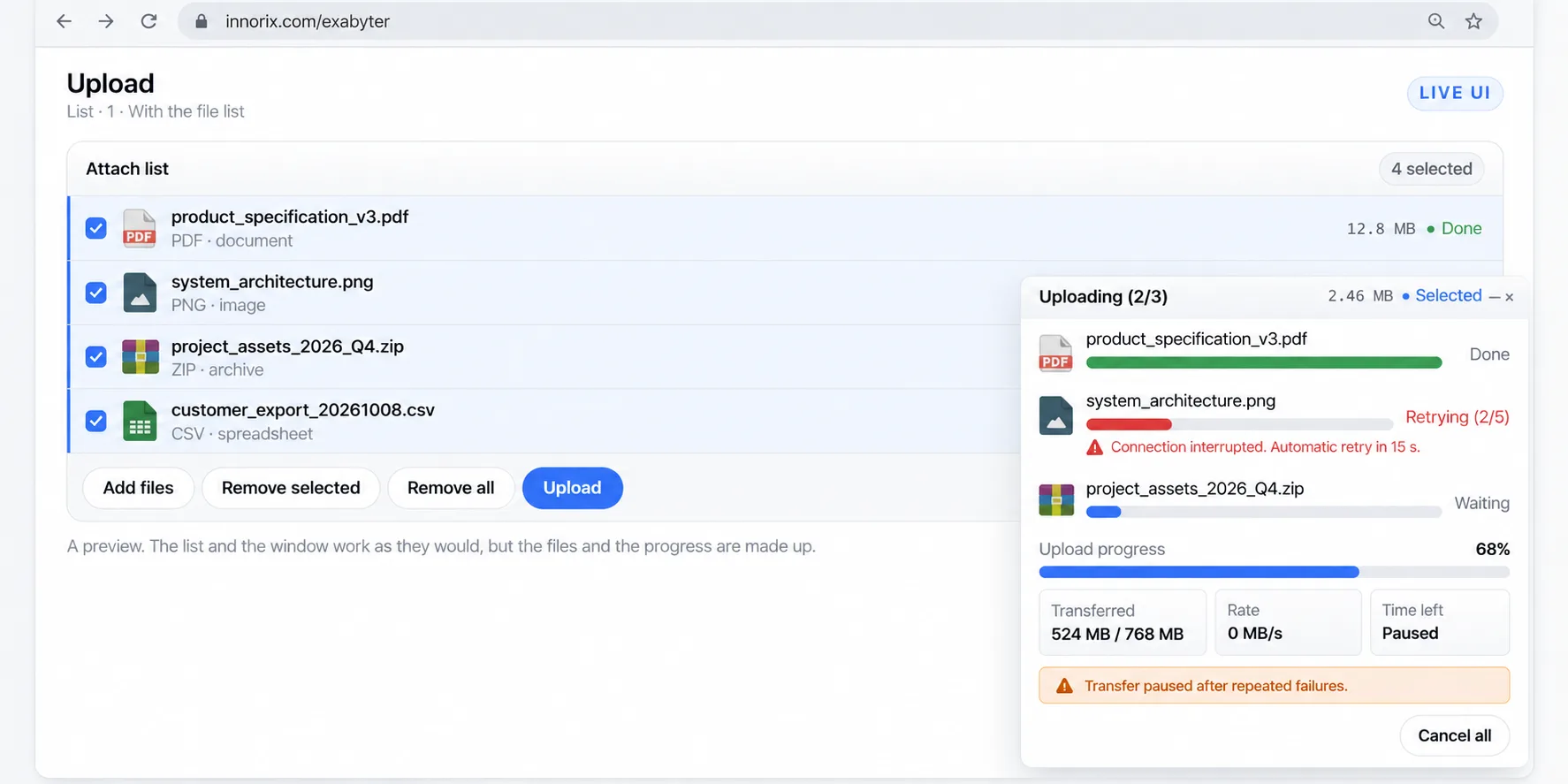
In mobile environments where a connection may briefly drop while riding an elevator or switching Wi-Fi networks, transient errors should be retried automatically and uploads resumed from the last received position instead of restarting. When a server policy rejects an upload, report the reason using a custom error.
Error occurs (uploadError)
   ├ Unrecoverable → Pause (uploadPause) → User resumes
   └ Recoverable → Automatic retry (uploadRetry) → Resume upload
Server rejection → InnorixCustomError → Show reason in transfer window
Retry Options and Error Events#
| Option | Description |
|---|---|
retryCount, retryDelay |
Number of retries and interval. Large values can flood the server with retries during an outage. |
autoRecovery |
If enabled, automatically resume after an error; if disabled, the Resume button must be used for each error. |
maxErrorCount |
Maximum allowed error count |
skipErrorFile |
Skip files with errors. Since retrying policy-violating files produces the same result, skip them or pause and inform the user. |
timeout |
Clean up unresponsive connections |
Event arguments are state objects with fields such as state, progress, retries, stopRetrying, and statusMessage. While paused, resume using transferResume() or the Resume button in the transfer window.
box = innorix.create({
  el: '#fileBox',
  uploadURL: './upload.jsp',
  retryCount: 3,
  autoRecovery: true,
  maxErrorCount: 10,
  skipErrorFile: true
});

box.on('uploadRetry', function (p) { console.log('Retry', p.retries); });
box.on('uploadError', function (p) { console.log(p.statusMessage); });
Error Code Categories#
statusMessage.errorCode is categorized as follows.
| Code | Category |
|---|---|
0 |
Client error |
1399, 10001003 |
Server error |
400~599 |
Network error |
1004~1999 |
Server-supplied custom error (displays the message specified by the server) |
5000 |
License error |
10001 and above |
File access, server storage, integrity, or decryption error |
Server Custom Errors#
Use these when the server must reject an operation due to missing permissions, prohibited extensions, or insufficient storage. To display a reason to users, use codes 1004–1999. Decompression failure returns code 1002.
| Method | Description |
|---|---|
InnorixCustomError.set(code, message, detail, confirm) |
Set the error code and reason |
run() |
Send error response; stop further processing (return) |
showCustomError(), setCustomError() |
Shortcut methods in InnorixUpload |
InnorixCustomError err = new InnorixCustomError(response);
err.set("1006", "PathTooLong", "The path is too long.", false);
err.run();
return;
Reprocessing Flow#
After pausing and resuming or reopening the page, uploads continue from the position recorded on the server. This requires the server to use InnorixUpload.run().
| Name | Description |
|---|---|
attachIncompleteFiles, autoLoadTransfer, uploadDuplicate |
Control restoration of previous transfers. If restoration is declined, stored information is removed; modified files are reported as file_is_modified. |
closeTransferWindow() |
Used in a pattern where the transfer window closes after a delay following uploadError. |
UploadInfoCallBack |
Share upload-resume information across multiple servers |
- Clean up server-side temporary files from canceled transfers on the server.
- No control option limits connection counts per user, so enforce limits at the server, L4 load balancer, or WAF.
box = innorix.create({
  el: '#fileBox',
  uploadURL: './upload.jsp',
  installURL: '../install/install.html',
  uploadDuplicate: true,        // Resume uploads
  attachIncompleteFiles: true,  // Find previous transfers on load
  autoLoadTransfer: false       // If false, ask the user
});

box.on('uploadError', function (p) {
  setTimeout(function () { box.closeTransferWindow(); }, 3000);
});
Download#
This chapter explains how to reliably download files from the server to the user's PC. Each feature follows Description → Functions/Options → Example so you can consult only the sections you need.
Download Files#
Consider a document-management page where users select multiple contracts to download together. Because the control does not know which files exist on the server, the application builds a list and passes it to presetDownloadFiles(). The control then handles transfer and storage. Pass the list after control initialization finishes (loadComplete).
Server list API → File list JSON → presetDownloadFiles() → Control list → Start downloadCreating File Entries#
Convert the server list into entries understood by the control. The visible file name is always determined by printFileName and is independent of the name used to store the file on the server.
| Name | Description |
|---|---|
printFileName |
File name used in the list and when saving, including its extension |
downloadUrl |
Server URL providing the file. If authentication is required, cookies/session information must be sent. |
fileSize |
Numeric size in bytes. Strings such as "1.2MB" are invalid. If omitted, the control checks size with a HEAD request. |
rootName |
Folder path, using / as the separator |
skipFileSizeCheck |
Add a file without a known size (e.g., when size is determined after conversion) |
Convert the response from the server list API into printFileName/fileSize/downloadUrl and pass it on loadComplete.
box.on('loadComplete', function () {
  $.getJSON('/board/1024/attachments', function (rows) {
    var list = rows.map(function (r) {
      return {
        printFileName: r.originalName,
        fileSize: r.size,   // Numeric value in bytes
        downloadUrl: '/download.jsp?fileID=' + encodeURIComponent(r.id)
      };
    });
    box.presetDownloadFiles(list);
  });
});
Encode values containing Korean or special characters using encodeURIComponent() before including them in downloadUrl.
box.presetDownloadFiles([{
  printFileName: 'Final Contract.pdf',
  fileSize: 4952305,
  downloadUrl: 'download.jsp?fileID=2&name=' + encodeURIComponent('Final Contract.pdf')
}]);
Only invalid entries are omitted from the list, and addFileError fires.
| Error | Meaning |
|---|---|
invalid_download_file |
Missing URL, file name, or size |
duplicate_file |
The same downloadUrl already exists. Use distinct URL parameters for different files. |
Handling Folders and Sizes#
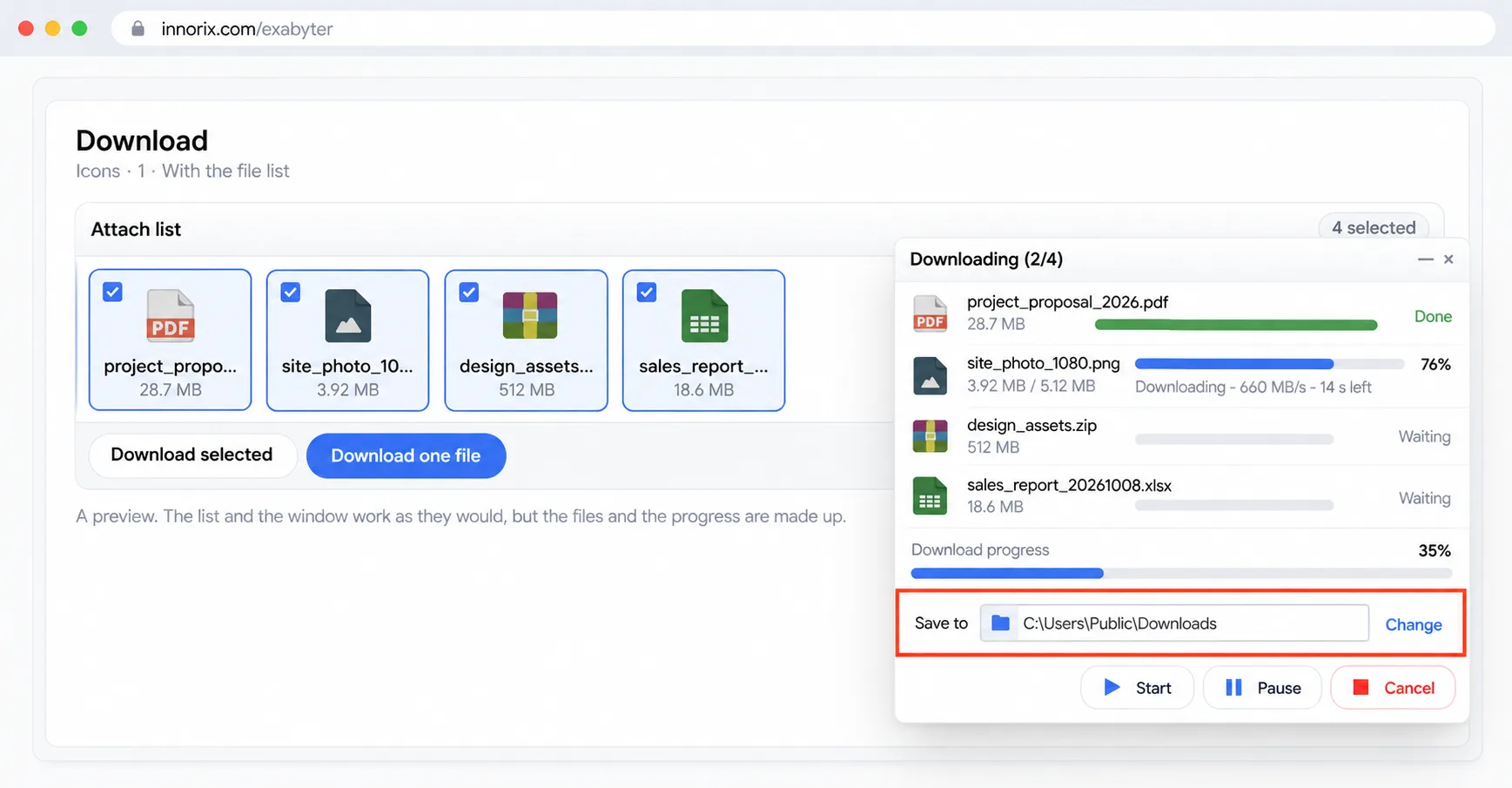
Set rootName and enable addFolder to preserve folder structure. Represent empty folders using isFolder entries. If there are many entries, omitting fileSize slows list construction, so preferably include sizes in the list API response.
box = innorix.create({
  el: '#fileBox',
  addFolder: true,   // Save rootName as a subfolder
  boxConfig: box_config.download_agent
});

box.on('loadComplete', function () {
  box.presetDownloadFiles([
    { rootName: 'FolderA',         printFileName: 'Exabyter and Exchanger.png',
      fileSize: 281624,  downloadUrl: 'download.jsp?fileID=1' },
    { rootName: 'FolderA/FolderB', printFileName: 'Exabyter Brochure.pdf',
      fileSize: 4952305, downloadUrl: 'download.jsp?fileID=2' },
    // Empty folder
    { downloadUrl: 'test', printFileName: 'empty', fileSize: 0, isFile: false, isFolder: true }
  ]);
});
Use
getFileCount()to check the number of entries. If the list appears but downloads fail, enterdownloadUrldirectly in the browser address bar to check the server response first.
Serving Files#
Consider downloading payslips that should only be available to logged-in users. Hiding them from the list is not a security control, so check permissions at the server URL invoked by the control. The control requests downloadUrl; the server checks permissions, then responds with only the requested byte range (streaming, the default approach).
Control → downloadUrl request → Server (permission check → file lookup → byte-range response) → Agent saves file| Delivery Method | Description |
|---|---|
| Streaming download (default) | The server handles range requests and returns only the requested bytes. Use when authentication/authorization checks are needed. |
| Direct download | Request downloadUrl directly. Suitable for static files, external storage, and presigned URLs. First verify that the target server supports Range requests. |
| Start notification | Send a DownloadStart request before the actual download request. Use when generating or converting a file on demand. |
| Server relay | The server fetches a file from an external system (such as ECM) and returns it. Use when external authentication must not be exposed to the browser. |
Creating Byte-Range Responses#
The server reads the request values and responds with only the specified range.
| Request Value | Description |
|---|---|
_StartOffset, _EndOffset |
Requested byte range. End is inclusive, so length is end - start + 1. |
_Action |
When start notifications are enabled: DownloadStart (before start), DownloadComplete (after completion). |
| Application parameters | Values placed directly in downloadUrl, such as fileID |
Set Accept-Ranges: bytes, Content-Disposition, and Content-Length in the response. If no range values are supplied, send the entire file to support direct browser requests.
The following download.jsp responds with only the requested range.
<%@ page language="java" contentType="text/html; charset=UTF-8" pageEncoding="UTF-8"%>
<%@ page import="java.io.*" %>
<%
String szStart = request.getParameter("_StartOffset");
String szEnd   = request.getParameter("_EndOffset");
String fileID  = request.getParameter("fileID");

// Look up the file using fileID and check authorization here.
File file = lookupFile(fileID);
String orgFileName = lookupName(fileID);
orgFileName = java.net.URLEncoder.encode(orgFileName, "UTF-8").replaceAll("\\+", "%20");

response.setContentType("application/octet-stream");
response.setHeader("Accept-Ranges", "bytes");
response.setHeader("Content-Disposition", "attachment; filename=\"" + orgFileName + "\"");

long start = (szStart != null) ? Long.parseLong(szStart) : 0;
long end   = (szEnd   != null) ? Long.parseLong(szEnd)   : 0;
long length = (szStart != null || szEnd != null)
        ? end - start + 1      // Control request: specified range
        : file.length();       // Direct browser request: entire file
response.setHeader("Content-Length", String.valueOf(length));

InputStream in = null;
OutputStream outStream = null;
try {
    in = new BufferedInputStream(new FileInputStream(file));
    outStream = new BufferedOutputStream(response.getOutputStream());
    if (start > 0) in.skip(start);

    byte[] buf = new byte[8192];
    while (length > 0) {
        int read = in.read(buf, 0, (int) Math.min(buf.length, length));
        if (read == -1) break;
        outStream.write(buf, 0, read);
        length -= read;
    }
} finally {
    if (outStream != null) { outStream.flush(); outStream.close(); }
    if (in != null) in.close();
}
%>
Using the InnorixDownload class handles range responses and headers together.
<%@ page import="com.innorix.transfer.InnorixDownload" %>
<%
InnorixDownload d = new InnorixDownload(request, response, "UTF-8", directory);   // directory ends with /
d.setFileName(sysFileName);        // Stored file name on the server
d.setPrintFileName(orgFileName);   // Content-Disposition file name
d.run();
%>
Use only
response.getOutputStream(), because spaces or newlines before the body can corrupt the file. Encode theContent-Dispositionfile name usingURLEncoder, then replace+with%20.
Authorization Checks#
Check the session (401) and access permissions (403) on every request, including each range request. For an example, see 5. Advanced Usage > Security > Download for Logged-In Users Only.
Creating Files on Request#
When start notifications (sendDownloadTime) are enabled, each file receives _Action=DownloadStart before the main request (not for direct downloads). For an example of reporting actual sizes after conversion or DRM removal, see 5. Advanced Usage > External Module Integration > DRM Removal on Download.
Starting a Download#
For example, users may select only a few photos or click Download All in a photo management screen. Choose the method appropriate to the screen, since the start time and selected files differ. The downloadBefore event occurs immediately before starting and can prevent the download.
Build list → downloadBefore (may block) → Start transfer → Progress → CompleteStart Methods#
| Method | Description | When to Use |
|---|---|---|
download() |
Download all entries in the list | Automatic start, regular button |
downloadAll() |
Trigger downloadBefore, then call download() |
Download all after pre-start confirmation |
downloadSelectedFiles() |
Download only selected entries | Screens with checkboxes |
downloadAndOpen() |
Download one file and open it; does not trigger downloadBefore |
Preview-oriented screens |
startTransferProgress() |
Start a pending transfer | When transferStart is set to manual |
If no files are available for transfer, show a notification and stop. For speed limits, see 5. Advanced Usage > Transfer Control.
Starting and Pre-Start Confirmation#
For automatic start, call download() immediately after building the list.
box.on('loadComplete', function () {
  box.presetDownloadFiles(filesFromServer);
  box.download();
});
To start after user confirmation, have the downloadBefore handler return false explicitly to block the transfer when declined.
box.on('downloadBefore', function () {
  return window.confirm('Start the download?');
});
Clicking the button opens the transfer window and starts progress. Monitor progress and speed via the
downloadStart,downloadProgress, anddownloadCompleteevents.
Saving Files#
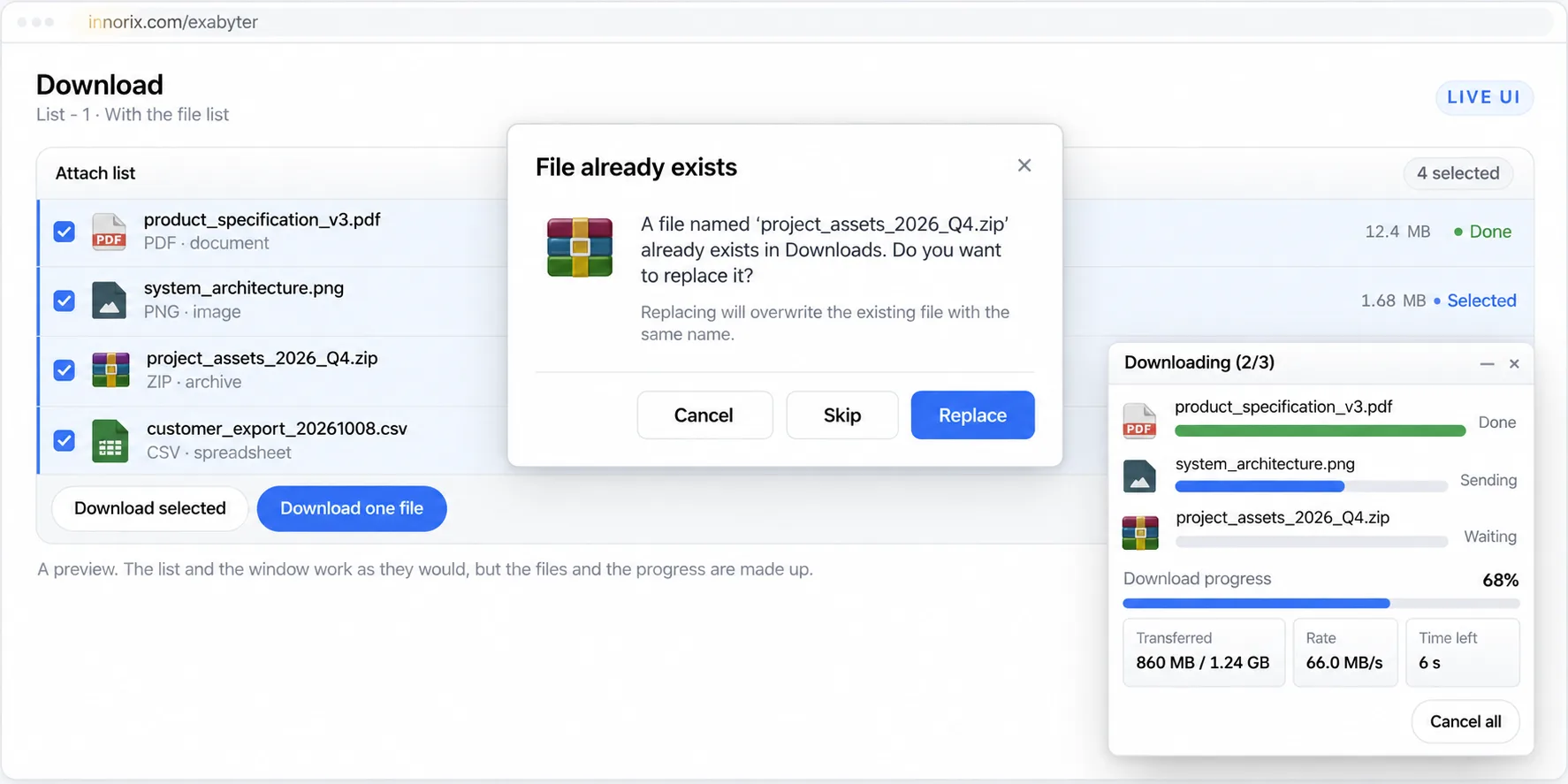
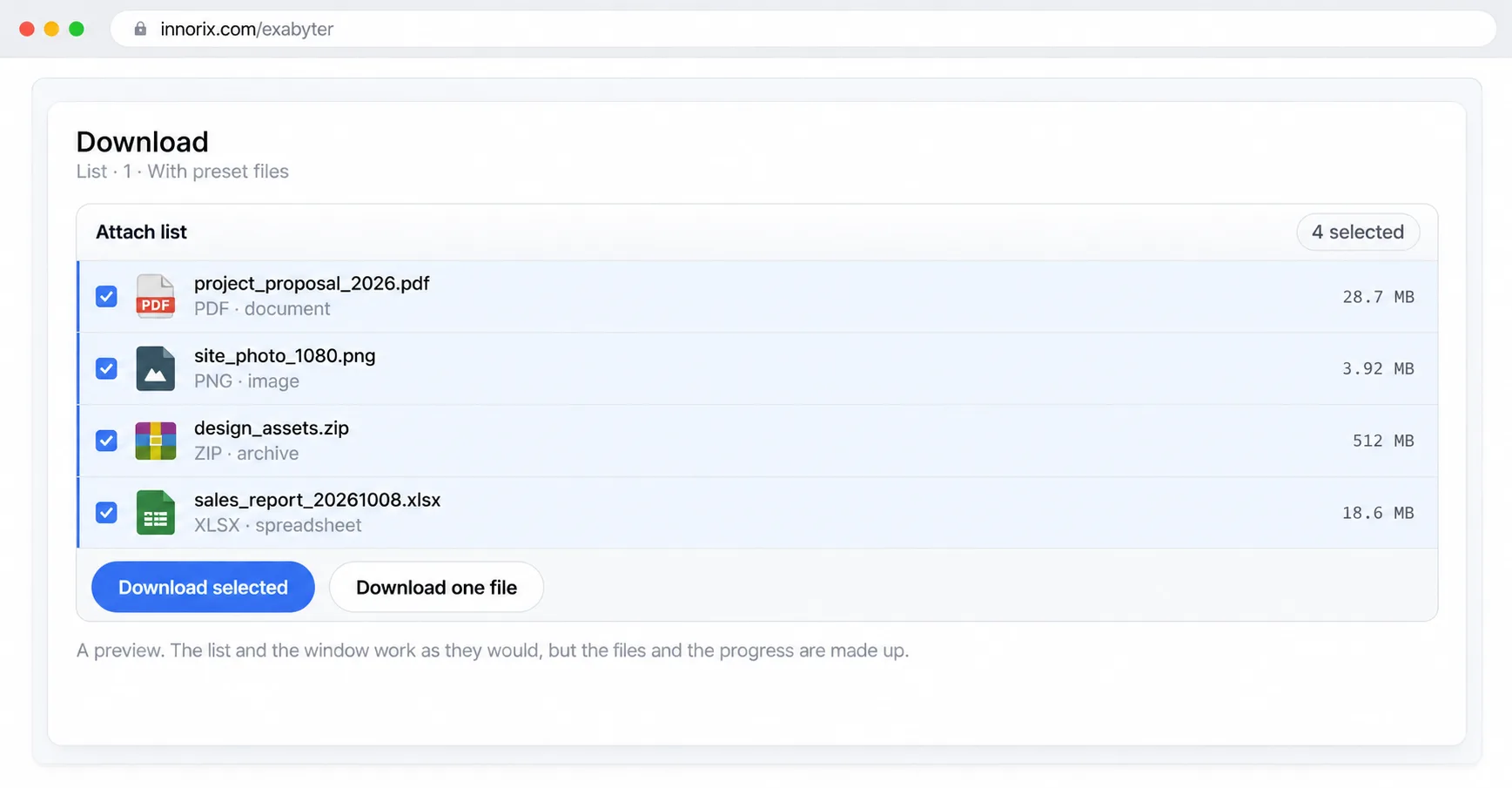
Suppose a user repeatedly downloads the same report and a file with that name already exists in the folder. Defining the save location and duplicate-name policy ahead of time reduces user prompts. Choose the path via savePath or the path-selection dialog (setDownloadPath()), and handle name conflicts with downloadDuplicate.
Determine save path → Check duplicate file name → Apply folder structure → Save fileHandling Duplicate Names (downloadDuplicate)#
| Value | Description | When to Use |
|---|---|---|
resume |
Resume an incomplete file | Re-downloading large files |
overwrite |
Overwrite an existing file | Always replace with the latest result |
numbering |
Save separately with a numbered suffix | Preserve existing files without user interaction |
confirm |
Show a confirmation dialog; text can be changed through language resources | Let users choose |
Setting the Save Path#
| Name | Description |
|---|---|
savePath |
Save to the specified path; if omitted, use the agent's default path. |
getDownloadPath() |
Get the current save path |
pathChange |
Allow users to change the path. Changes are allowed only before the transfer begins. |
setDownloadPath(callback) |
Open the path-selection dialog |
openDownloadFolder() |
Open the destination folder |
Specify the save path and duplicate-name policy as creation options.
box = innorix.create({
  el: '#fileBox',
  savePath: 'C:\\Downloads\\exabyter',   // Double the backslashes
  downloadDuplicate: 'numbering',
  boxConfig: box_config.download_agent
});
Open the path-selection dialog and start the transfer only if a valid path is selected.
function downloadToChosenFolder() {
  box.setDownloadPath(function (response) {
    if (response.result == true) {
      box.download();
    }
  });
}
Write
\as\\in JavaScript strings representing Windows paths.
Folder Structure and File Names#
rootName is used as a subfolder only when addFolder is enabled. Downloading nested folders may create long paths, so validate folder depth and file name length when constructing the list. Replace Windows-invalid characters (\ / : * ? " < > |) in printFileName in advance. After saving, open the destination folder and inspect file names, subfolders, and conflict-resolution results.
Errors and Reprocessing#
Imagine Wi-Fi disconnecting during a business trip when a 2 GB video is 80% downloaded. Configure the transfer to resume where it stopped instead of starting again. An error triggers downloadError; with automatic recovery enabled, the download resumes shortly afterward, otherwise it pauses until the user resumes it. Resuming requires the server to support range responses correctly. When the browser is reopened, users are asked whether to resume any incomplete transfers.
Error occurs → downloadError → (autoRecovery enabled) resume shortly → downloadRetry
                         → (autoRecovery disabled) pause → User resumes
Retry Options#
| Option | Description |
|---|---|
retryCount, retryDelay |
Agent retry count and interval |
autoRecovery |
Automatically resume the same transfer after an error |
maxErrorCount |
Maximum number of consecutive errors allowed before pausing |
skipErrorFile |
Skip a file with errors (allows some files to fail in a multi-file transfer) |
attachIncompleteFiles |
Look up incomplete transfers when the control is created (resume on revisit) |
For other options, see 6. API Reference.
Handling Error Events#
Register downloadError, downloadRetry, downloadPause, and downloadCancel handlers to display status in the UI. Read status IDs and error codes from the event argument's statusMessage. Users control transfers with transferPause(), transferResume(), and transferCancel().
box.on('downloadError',  function (p) { console.log(p.statusMessage); });
box.on('downloadRetry',  function (p) { console.log('retry', p.retries); });
box.on('downloadPause',  function (p) { console.log('paused'); });
box.on('downloadCancel', function (p) { console.log('canceled'); });
Server Error Responses#
The server responds with HTTP error codes or InnorixCustomError. Custom codes use the 1000–1999 range, and messages in that range appear in the transfer window. Do not return an error page with HTTP 200, because it may be saved as file content.
<%@ page import="com.innorix.transfer.InnorixCustomError" %>
<%
InnorixCustomError customError = new InnorixCustomError(response);
customError.set("1600", "customErrorTitle", "customErrorMessage", false);
customError.run();
return;
%>
Error Types and Actions#
| Error | What to Check |
|---|---|
| Server script error | Server logs |
| File missing on server | downloadUrl and authorization response |
| Integrity check error | Whether the server file changed; delete resume information and retry |
| Decryption error | Key and isCrypt settings |
| Network/socket error | Proxy, session, authentication |
| File opening, writing, or path-length error | Destination folder permissions, capacity, path length |
- Resuming after a server file has been replaced can corrupt the downloaded file. For frequently replaced files, clear resume information using
deleteDownloadResumeInfo(), or useoverwrite/numbering. - Assume temporary files from failed transfers are not automatically deleted and establish a cleanup process.
- If failures continue, open the same URL in the browser to inspect the server response and verify that range requests return a
Content-Lengthequal to the requested length.
Completion Handling#
To keep a history of which user downloaded which files, the page receives a downloadComplete event when the transfer finishes and, if configured, calls a server completion-notification URL.
Transfer completes → downloadComplete event (page) + Completion URL call (server) → Follow-up processingCompletion Events and Server Notifications#
| Method | Description | When to Use |
|---|---|---|
downloadComplete event |
Receive the file list in the page. If the handler returns false, the transfer window stays open. |
Refresh UI, call external modules |
downloadCompletedEvent option |
Calls the specified URL on completion when use and url are set. |
Record download history on server |
_Action=DownloadComplete |
Handle the _Action value at the file-delivery URL |
Centralize authentication logic |
Completion notifications are client-originated requests and must not be trusted on their own. Base billing or permission deductions on server records of range responses sent.
Specify the completion-notification URL and handle downloadComplete in the page.
box = innorix.create({
  el: '#fileBox',
  downloadCompletedEvent: { use: true, url: '/innorix/download-complete.jsp' },
  boxConfig: box_config.download_agent
});

box.on('downloadComplete', function (p) {
  console.log(p.files);
});
The server handles _Action=DownloadComplete, records the history, and responds with 200.
<%
String action = request.getParameter("_Action");
if ("DownloadComplete".equals(action)) {
    // Record history
    response.setStatus(200);
    return;
}
%>
Operation is normal if the server log shows a completion record and the transfer window closes properly.
Integrity and Encryption#
Enable post-transfer integrity checking with downloadIntegrity; server integration specifications must be confirmed separately. Mark encrypted stored files with each entry's isCrypt field. Because the first item's setting applies to the entire transfer, handle encrypted files in a separate transfer.
Advanced Usage#
This chapter covers UI configuration, storage integration, security, external module integration, and agent configuration beyond basic upload and download. Each section starts with a scenario and explains settings and code together.
UI and Controls#
When placing separate attachment controls for Contract Documents and Site Photos on the same screen, decide how to structure the controls first.
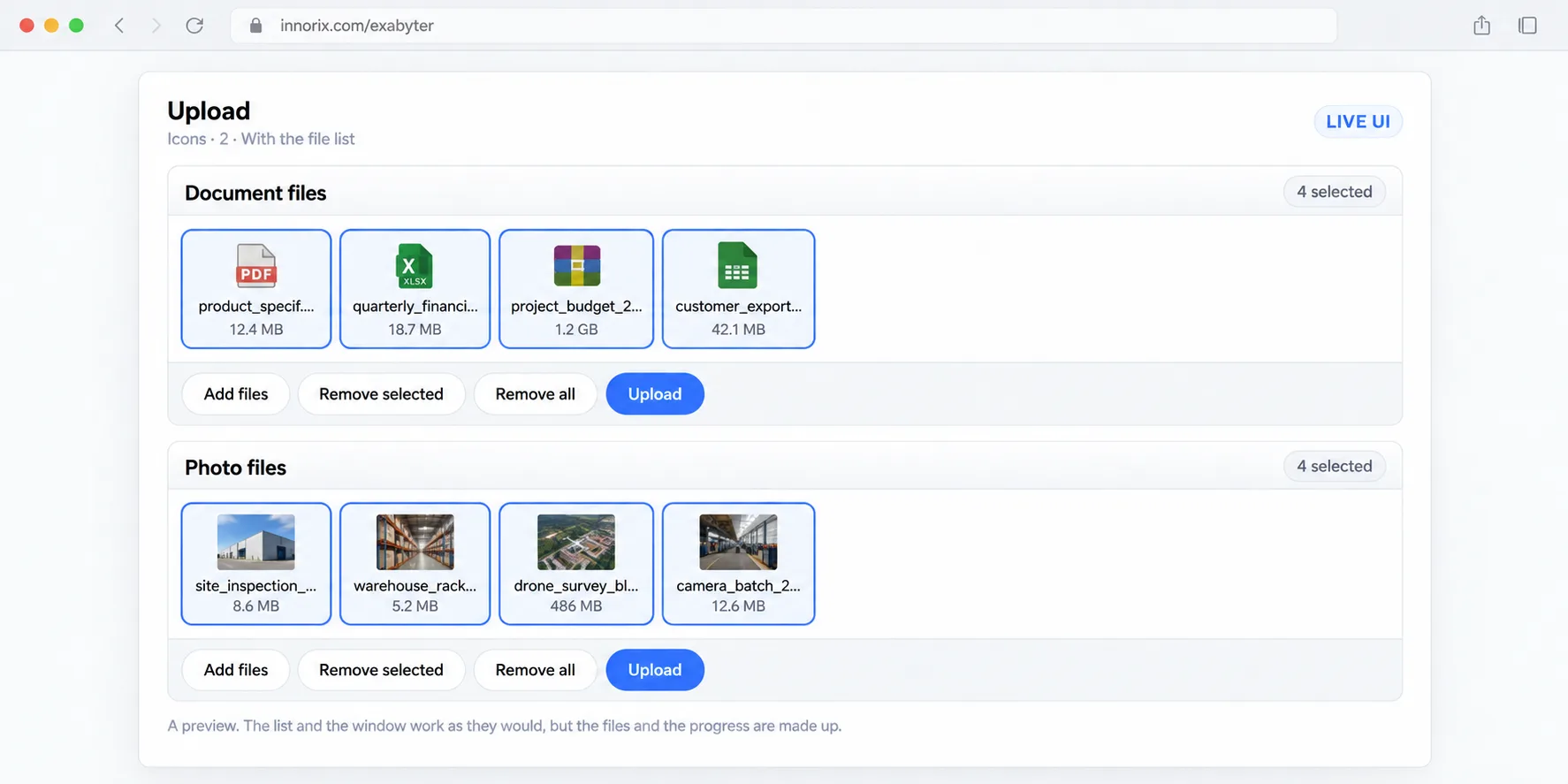
A control is a file-transfer unit created by innorix.create(). Each control has its own el, settings, file list, and events. Multiple controls can share one page; call destroy() when the view is removed.
create(el) → loadComplete → Add files / Transfer / Receive events → destroy()
   └ Control A (upload)   ─┐
   └ Control B (upload)   ─┼→ One page; each control has independent lists/events
   └ Control C (download) ─┘
Multiple Controls on One Page#
Use a separate el and variable for each control and configure them independently. Register events on each control object, so events from one are not dispatched to another.
el: Element in which to render the control; must differ for each control.allowType: Allowed extensions for each controlsetPostData(): Send an additional value so the server can identify the control
The following is an example of independent transfers. The document and photo controls upload their own lists (exam/upload-multiSample.html).
<div id="fileBox1"></div>
<div id="fileBox2"></div>

<script>
  var box1, box2;
  window.onload = function () {
    box1 = innorix.create({ el: '#fileBox1', uploadURL: './upload.jsp', allowType: ['pdf', 'mp4'] });
    box2 = innorix.create({ el: '#fileBox2', uploadURL: './upload.jsp', allowType: ['jpg'] });

    box1.on('afterAddFiles', function () { box1.setPostData({ slot: 'doc' });   box1.upload(); });
    box2.on('afterAddFiles', function () { box2.setPostData({ slot: 'photo' }); box2.upload(); });
  };
</script>
The server distinguishes requests from different controls using the value sent with setPostData.
String slot = uploader.getParameter("slot");A combined transfer gathers files from multiple controls into one control and uploads them together (exam/combine-agent-3box.html).
function upload() {
  box3.addFiles(box1.getAllFiles());
  box3.addFiles(box2.getAllFiles());
  box3.upload();
}
To call the same method on several controls at once, group them with innorix.group(). A method called on the group is executed with the same arguments on each grouped control.
var all = innorix.group(box1, box2);
all.removeAllFiles();            // Clear both controls' lists
var counts = all.getFileCount(); // [box1 count, box2 count]
group().upload() uploads each control's list separately; it does not combine them into one transfer. To combine them, use the addFiles() approach above.
Dynamic Creation and Destruction of Controls#
In popups, tabs, SPAs, and other changing views, create the control when the view opens and destroy it when it closes. Call create() only when the el element exists in the DOM.
innorix.create(option): Create a controlbox.setSize(w, h): Change its sizebox.destroy(): Remove the list UI, fireonDestroy, then delete the control's properties
var box = null;

function openUploader() {
  box = innorix.create({
    el: '#fileBox',
    uploadURL: '/innorix/upload.jsp',
    boxWidth: 600,
    boxHeight: 300,
    boxConfig: box_config.upload_basic
  });
  box.on('uploadComplete', function (p) { console.log(p.files); });
}

function closeUploader() {
  if (box) {
    box.destroy();
    box = null;
  }
}
After destroy(), create a new control with innorix.create() rather than reusing the same variable. Do not initialize twice on the same el without destroying the old control. Calls such as removeAllFiles() before loadComplete return false.
Custom Drop Zone#
Designate any element outside the control (such as a bulletin-board body or separate card) as a drop zone. On each dragenter, call setDropZone(event, element) to specify the target.
enableDropZone: Whether the control's default drop area is enabled (defaulttrue)setDropZone(evt, el): Specify the drop zonesetDropzoneError: Event triggered when a non-file item is dropped
<div id="dropZone" style="width:500px; height:200px; border:1px dashed #999;">
  Drag files here
</div>
<div id="fileControl" style="display:none"></div>

<script>
  var innoJquery = innorix._load('innoJquery');
  var control;

  innoJquery(document).ready(function () {
    control = innorix.create({ el: '#fileControl', uploadURL: './upload.jsp' });

    innoJquery('#dropZone').on({
      dragenter: function (evt) {
        control.setDropZone(evt, this);   // Set this element as the drop zone
      }
    });
  });
</script>
If the target element is scrolled or zoomed, the drop coordinates may be inaccurate.
Displaying an Embedded Control's Transfer Window on the Host Page#
When a control is embedded inside another page, enable hostTransferWindow to show its transfer window on the host page outside the embedded area.
hostTransferWindow: Display transfer window on the host page (defaultfalse)hostTransferWindowTarget: Target host page:'top'(topmost, default) or'parent'(immediate parent)hostTransferWindowTop,hostTransferWindowLeft: Window position (defaultcenters it)hostTransferWindowCssURL:<link>tag string to insert in the host page's<head>
box = innorix.create({
  el: '#fileBox',
  uploadURL: '/innorix/upload.jsp',
  hostTransferWindow: true,
  hostTransferWindowTarget: 'top',
  hostTransferWindowCssURL: '<link rel="stylesheet" href="/css/innorix.css">',
  boxConfig: box_config.upload_basic
});
The embedded control and host page must share the same origin, and global jQuery must be loaded on the host page. If innorix.css is missing on the host page, the transfer window may appear broken; add it via hostTransferWindowCssURL or include it directly.
Context Menu and Delete-Key Removal#
Enable or disable the right-click list menu with useContextMenu. It defaults to true; when false, no custom menu is created and the browser's default context menu appears.
box = innorix.create({
  el: '#fileBox',
  uploadURL: './upload.jsp',
  useContextMenu: false   // Disable the context menu
});
The control does not provide Delete-key removal or an option to toggle it. If needed, implement a keydown listener in the page to remove selected files, and add or remove that handler to enable or disable the feature.
function onDelKey(e) {
  if (e.key === 'Delete' && box.getSelectedFileCount() > 0) {
    box.removeSelectedFiles();
  }
}
document.addEventListener('keydown', onDelKey);       // Enable Delete-key removal
// document.removeEventListener('keydown', onDelKey); // Disable
To request confirmation before deletion, return false from beforeRemoveFile.
Receiving List Events#
Receive control initialization, selection, deselection, and removal through events on the control object.
| Event | When | Argument |
|---|---|---|
loadComplete |
Control ready (initialization finished) | |
afterAddFiles |
Immediately after files are added | Array of added files |
onSelectRows |
Row selected | Array of files |
onUnSelectRows |
Row selection cleared | Array of files |
beforeRemoveFile |
Immediately before removal (return false to cancel) |
File |
removeFiles |
Removal completed | Array of removed files |
onDestroy |
Control destroyed |
box.on('loadComplete', function () { console.log('Control ready'); });
box.on('onSelectRows',   function (p) { console.log('Selected', p); });
box.on('onUnSelectRows', function (p) { console.log('Deselected', p); });
box.on('removeFiles',    function (p) { console.log('Removed', p); });
To disable the Remove button when no file is selected, check box.getSelectedFileCount() in these three events.
function syncButtons() {
  document.getElementById('delBtn').disabled = box.getSelectedFileCount() === 0;
}
box.on('onSelectRows', syncButtons);
box.on('onUnSelectRows', syncButtons);
box.on('removeFiles', syncButtons);
For other events and options, see 6. API Reference.
Detailed Transfer Window and List Configuration#
For example, an internal approval screen may need a narrow attachment list and a custom progress bar consistent with the page design. Configure the list and transfer window using options, and replace only selected portions with custom UI.
The UI consists of two areas: the list (file list) and the transfer window shown during a transfer. Choose the transfer window with transferWindowStyle and the list with boxStyle. box_config.* presets define the default configuration, while options passed directly to innorix.create() override presets. Transfer events make it possible to hide the built-in window and build custom progress UI.
Create control → List (boxStyle, size, folders) → Start transfer → Transfer window (transferWindowStyle)
                                                       └→ (or) Hidden + events → Custom progress UI
Transfer Window UI#
Choose the transfer window appearance using transferWindowStyle: default, mini, list, or compact.
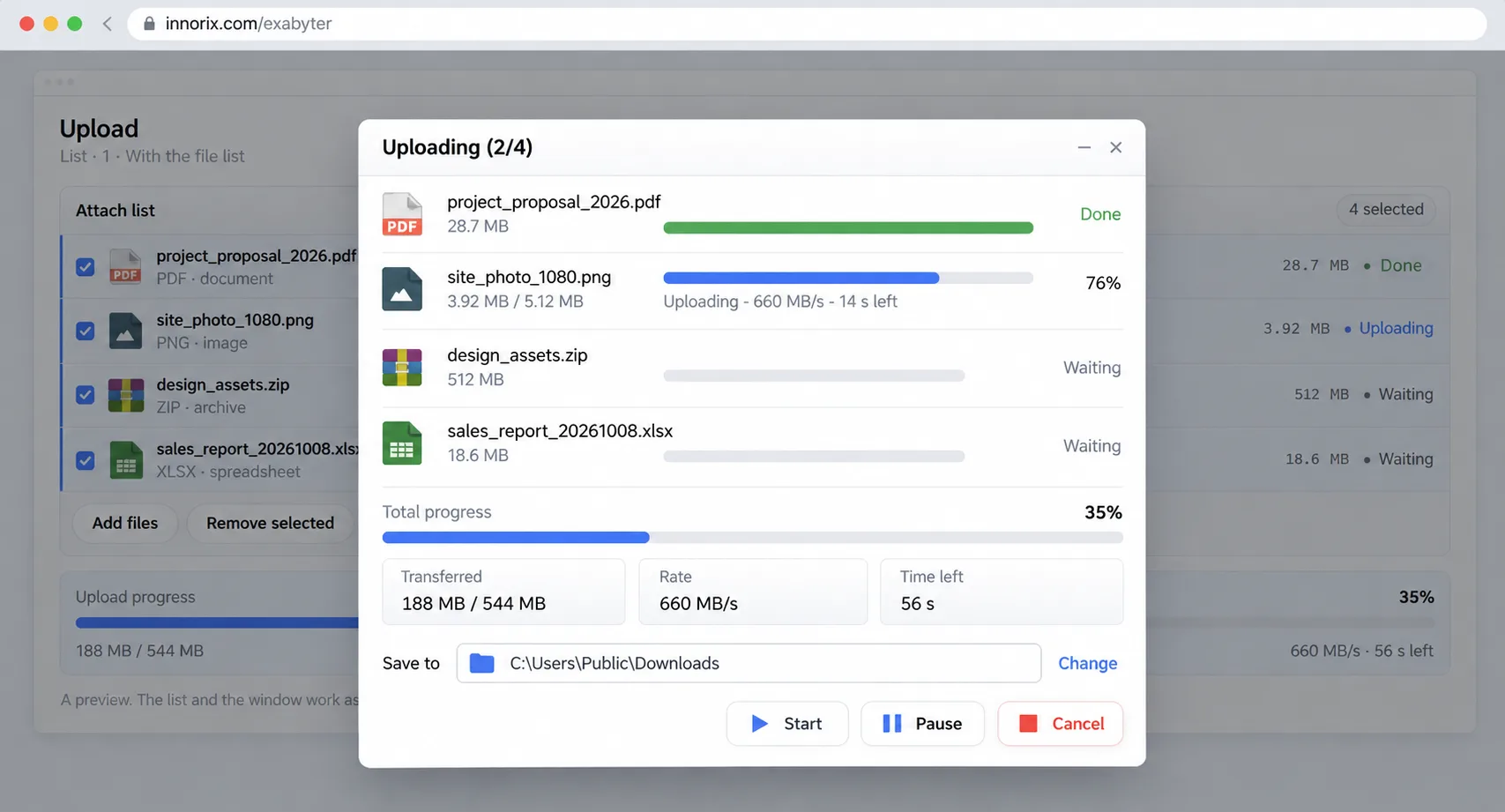
Default#
transferWindowStyle: 'default' is the standard-size transfer window. Use the supplied window with progress, speed, remaining time, status, and Start/Pause/Cancel buttons.
| Option | Purpose |
|---|---|
transferWindowStyle |
Window appearance: default, mini, list, compact |
transferWindowTitle |
Title-bar text (default Exabyter) |
hostTransferWindow |
Display an embedded control's transfer window on its host page |
draggableTransferWindow |
Allow dragging the window by the title bar (default true) |
transferStart |
Start method: 'auto' starts immediately on upload(), while 'manual' requires the user to click Start. |
cancelConfirmation |
Ask for confirmation when Close is clicked during a transfer |
Configure the default transfer window with a custom title, manual start, and cancellation confirmation.
box = innorix.create({
  el: '#fileBox',
  uploadURL: './upload.jsp',
  transferWindowStyle: 'default',        // Default transfer window
  transferWindowTitle: 'Attachment Upload',
  transferStart: { upload: 'manual' },   // Start with the Start button
  cancelConfirmation: true,              // Confirm cancellation on close
  boxConfig: box_config.upload_basic
});
If the control is embedded in another page, configure it to display on the host page.
box = innorix.create({
  el: '#fileBox',
  uploadURL: './upload.jsp',
  hostTransferWindow: true,            // Display transfer window on host page
  hostTransferWindowTarget: 'top',     // 'top': topmost host; 'parent': immediate parent
  draggableTransferWindow: true,       // Move the window by dragging its title bar
  boxConfig: box_config.upload_basic
});
Presets use automatic transferStart, so explicitly override this for manual start. With hostTransferWindow, jQuery and innorix.css must be loaded on the target host page, and the host and embedded control must share the same origin.
Mini#
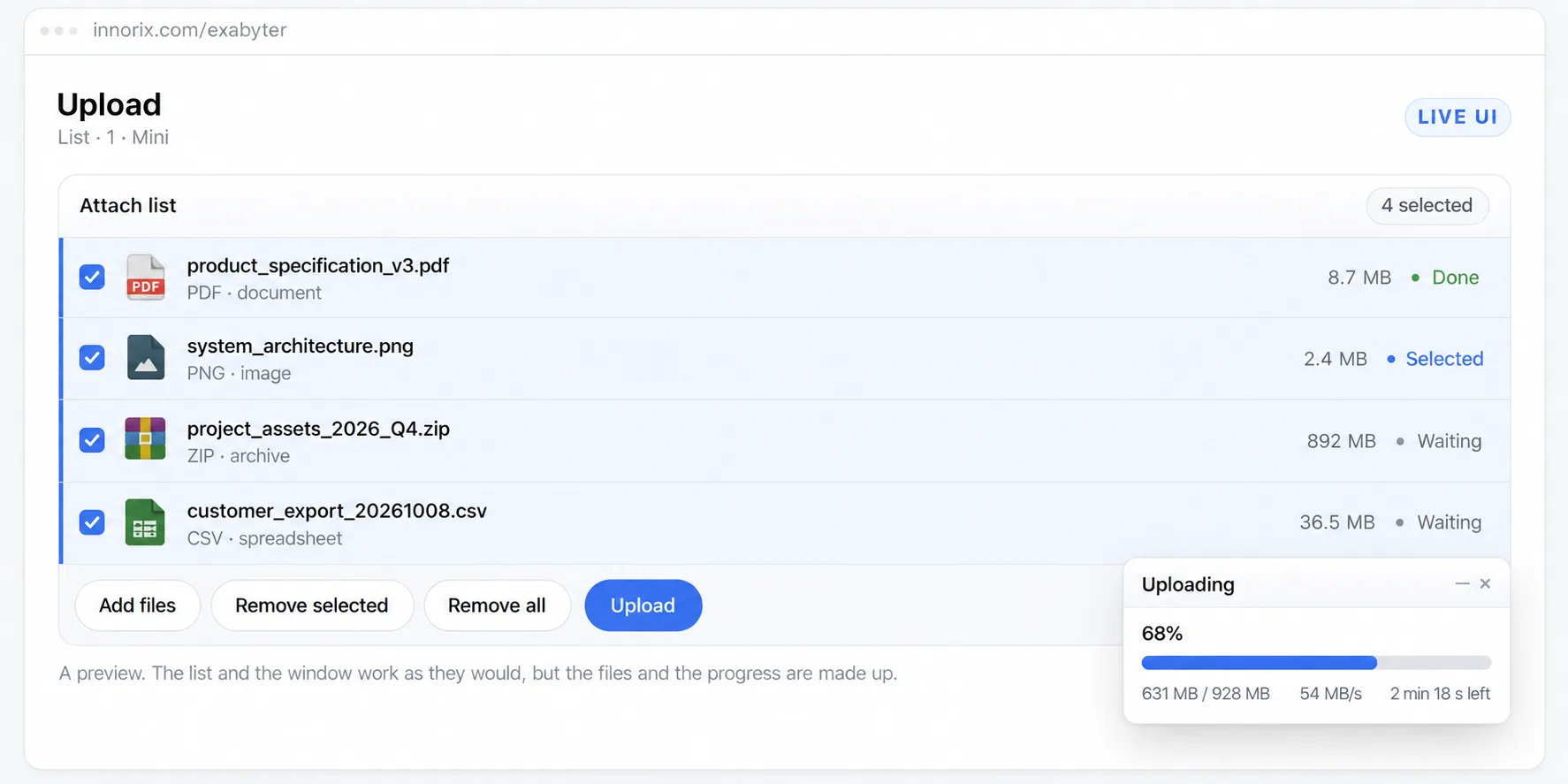
transferWindowStyle: 'mini' is a smaller transfer window displayed as a layer.
box = innorix.create({
  el: '#fileBox',
  uploadURL: './upload.jsp',
  transferWindowStyle: 'mini',   // Small layered transfer window
  boxConfig: box_config.upload_basic
});
List#
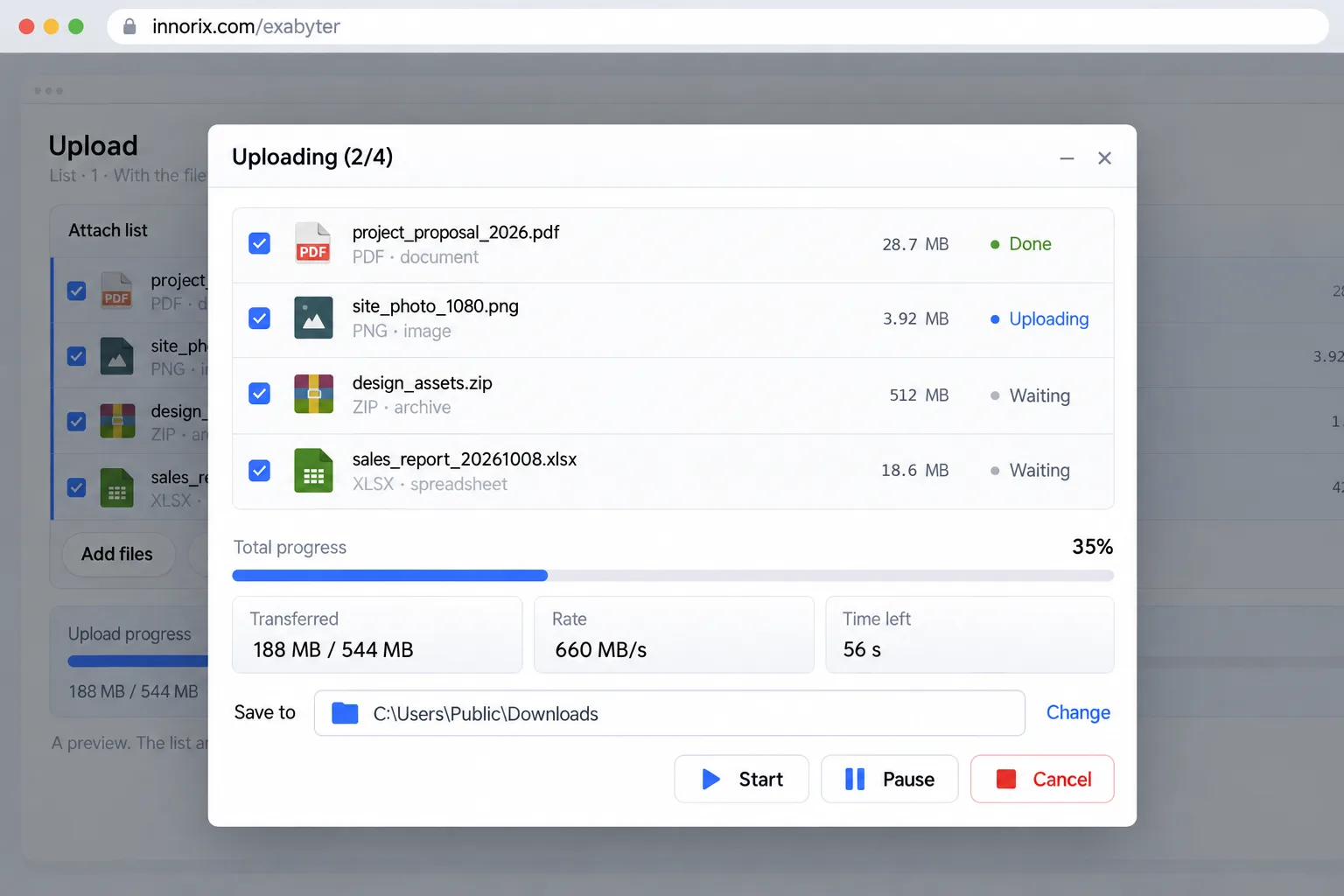
transferWindowStyle: 'list' is displayed as a layer with a file list above the progress indicator.
box = innorix.create({
  el: '#fileBox',
  uploadURL: './upload.jsp',
  transferWindowStyle: 'list',   // Layer with file list above progress
  boxConfig: box_config.upload_basic
});
Compact#
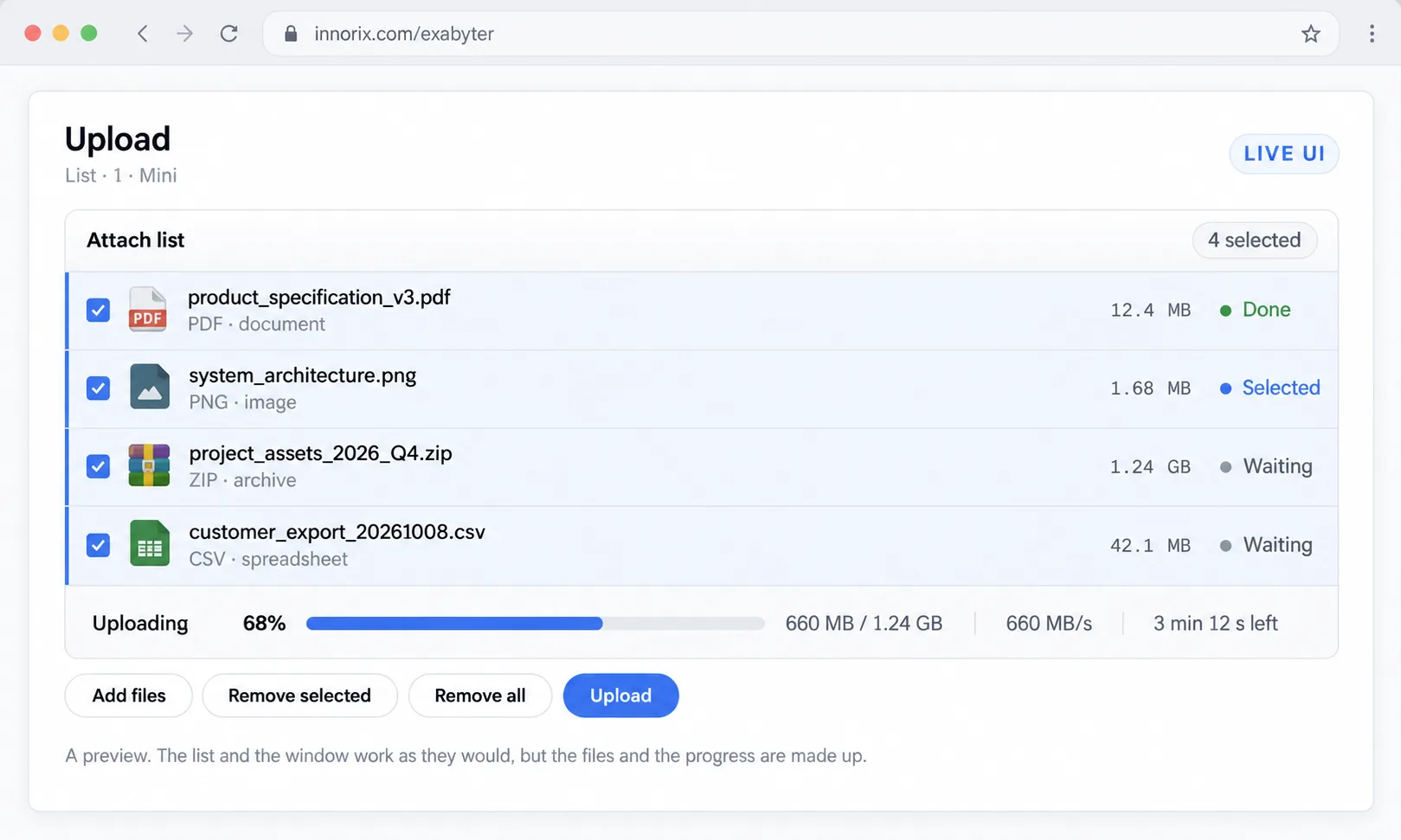
transferWindowStyle: 'compact' shows transfer status below the list, without a separate layer.
box = innorix.create({
  el: '#fileBox',
  uploadURL: './upload.jsp',
  transferWindowStyle: 'compact',   // Display under the list without a layer
  boxConfig: box_config.upload_basic
});
Hidden#
To hide the built-in window, set showTransferWindow: false and build your own progress UI using uploadProgress/downloadProgress events. You can render progress, status, and buttons in any designated area of the page.
| Item | Purpose |
|---|---|
showTransferWindow: false |
Do not open the built-in transfer window |
uploadProgress, downloadProgress |
Provide transfer state objects (progress, speed, state, etc.) |
transferPause(), transferResume(), transferCancel() |
Pause, resume, cancel |
state is one of Before, Ready, Transferring, Complete, Cancel, Error, or Pause, and speed is measured in bytes per second. If the built-in window is hidden, users lose its Pause and Cancel controls, so connect all three methods to your own buttons.
box = innorix.create({
  el: '#fileBox',
  uploadURL: './upload.jsp',
  showTransferWindow: false,   // Do not open the built-in window
  boxConfig: box_config.upload_basic
});

box.on('uploadProgress', function (s) {
  document.getElementById('pg').value = s.progress;
  document.getElementById('st').innerText = s.state;
  document.getElementById('sp').innerText = Math.round(s.speed / 1024);
});

box.on('uploadComplete', function (p) {
  console.log(p.files);
});
Display status in the page's #transferPanel area and connect the buttons.
<div id="transferPanel" style="border:1px solid #c0c0c0; padding:8px; width:400px;">
  <div>Status: <span id="st">Waiting</span> / Speed: <span id="sp">0</span> KB/s</div>
  <progress id="pg" value="0" max="100" style="width:100%"></progress>
  <input type="button" value="Pause" onclick="box.transferPause();"/>
  <input type="button" value="Resume" onclick="box.transferResume();"/>
  <input type="button" value="Cancel" onclick="box.transferCancel();"/>
</div>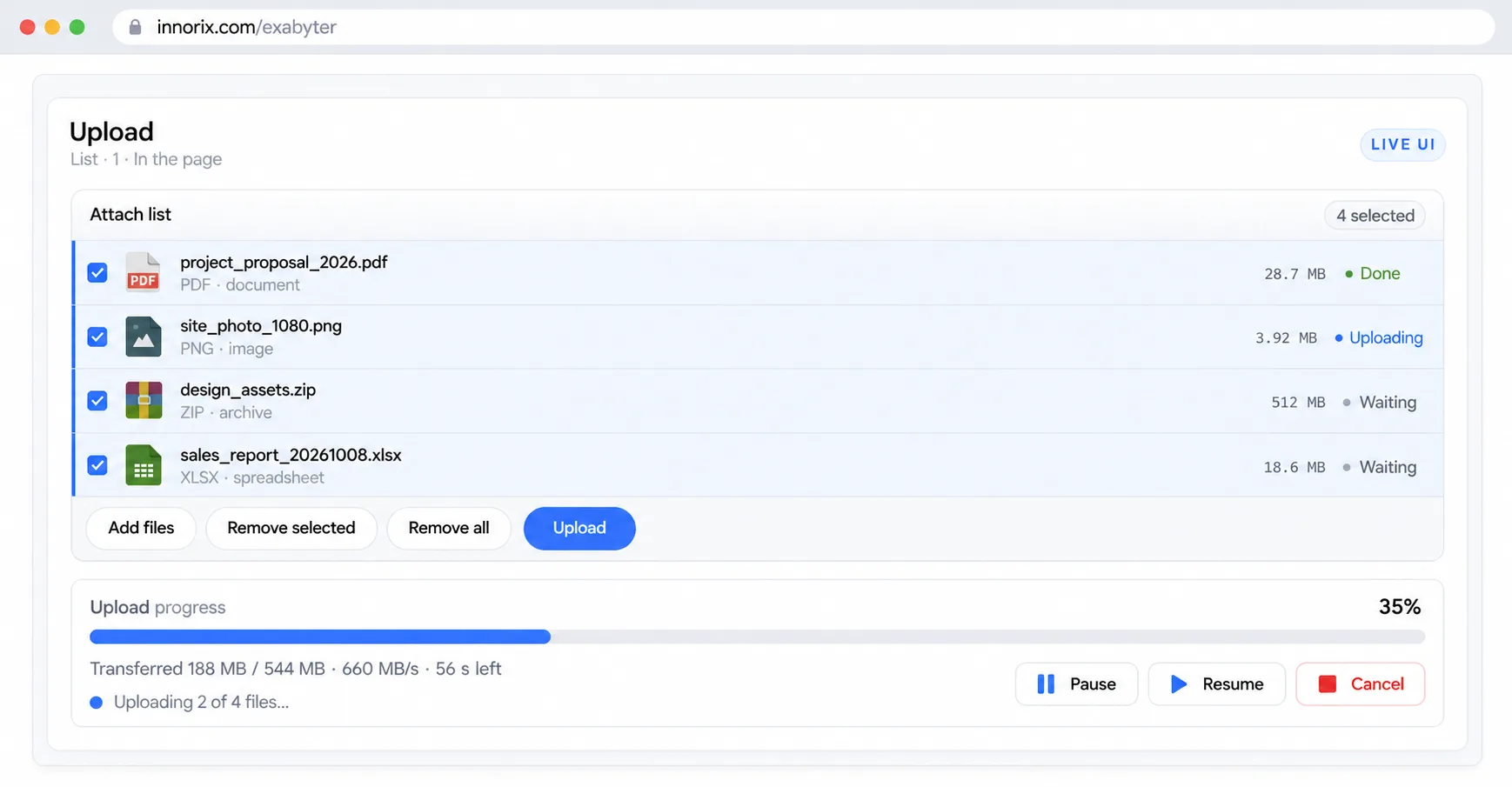
When the transfer state changes, events update the custom UI; verify that the buttons work. Use downloadProgress to implement the same behavior for downloads.
List UI#
Choose the list appearance using boxStyle: list, icon, preview, or html.
List View#
boxStyle: 'list' is a list-style view. Size, folder, and large-list options are as follows.
| Option | Purpose |
|---|---|
boxWidth, boxHeight |
List dimensions in pixels; specify using these options, not CSS on the el element. |
setSize(w, h) |
Change dimensions after initialization |
folderAttach, showFolderItems |
Allow folder attachment and display nested entries as a tree |
maxMassFileListCount |
Maximum visible file rows (up to 1000); above this, show a notice row and count/size summary. |
massFileTransfer |
Enable bulk transfer regardless of file count when true |
Create a sized list, enabling folder trees and large-list handling.
box = innorix.create({
  el: '#fileBox',
  boxStyle: 'list',
  boxWidth: 980,
  boxHeight: 465,
  uploadURL: './upload.jsp',
  folderAttach: true,           // Allow folder attachments
  showFolderItems: true,        // Show items inside folders
  maxMassFileListCount: 500,    // Display at most 500 rows
  boxConfig: box_config.upload_basic
});

// Change the size after creation
box.setSize(700, 300);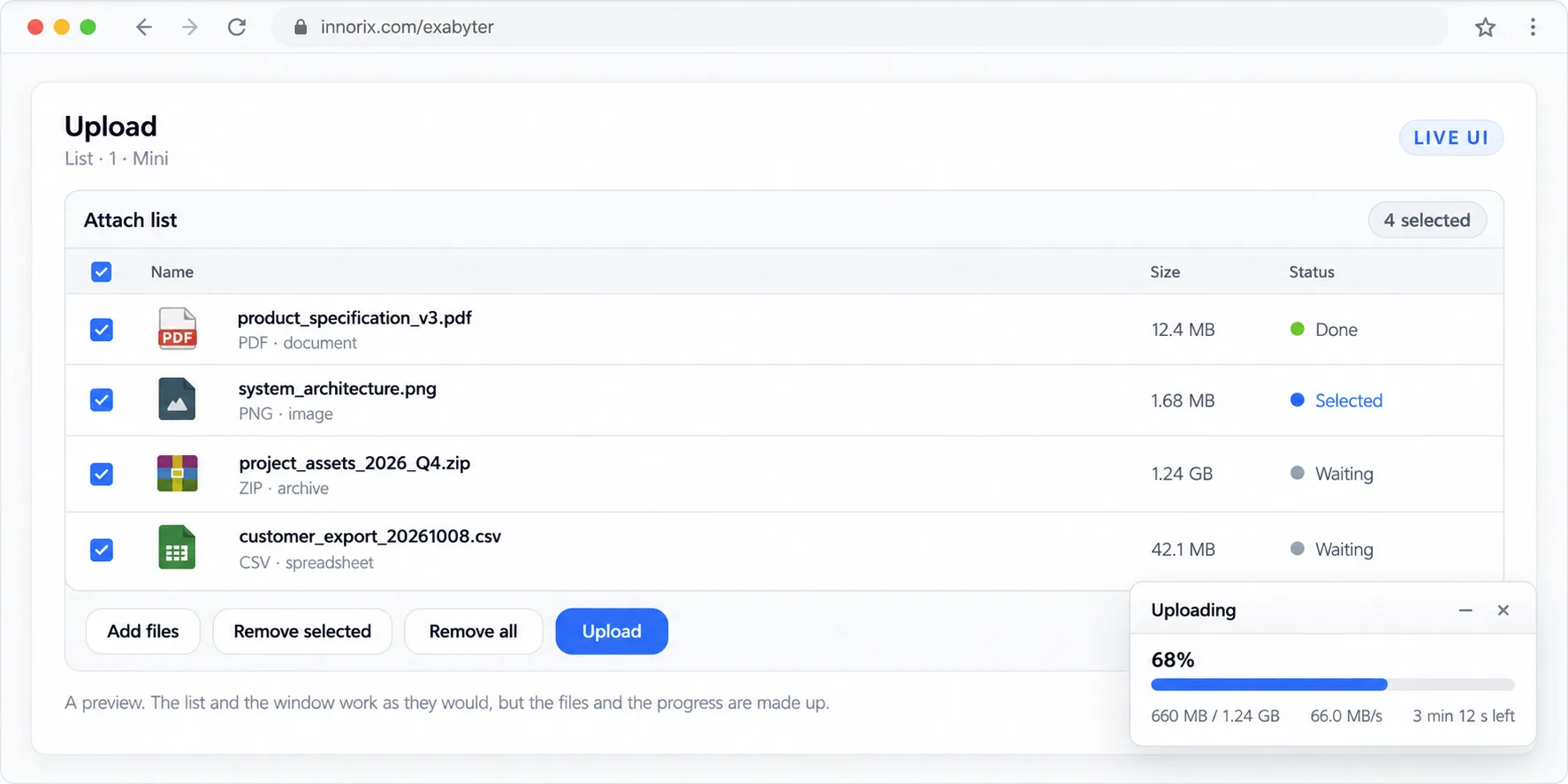
The list should have the specified dimensions, and attached folders should show children in a tree. Files not displayed have no visible rows, so use removeAllFiles() for bulk cleanup.
Icon View#
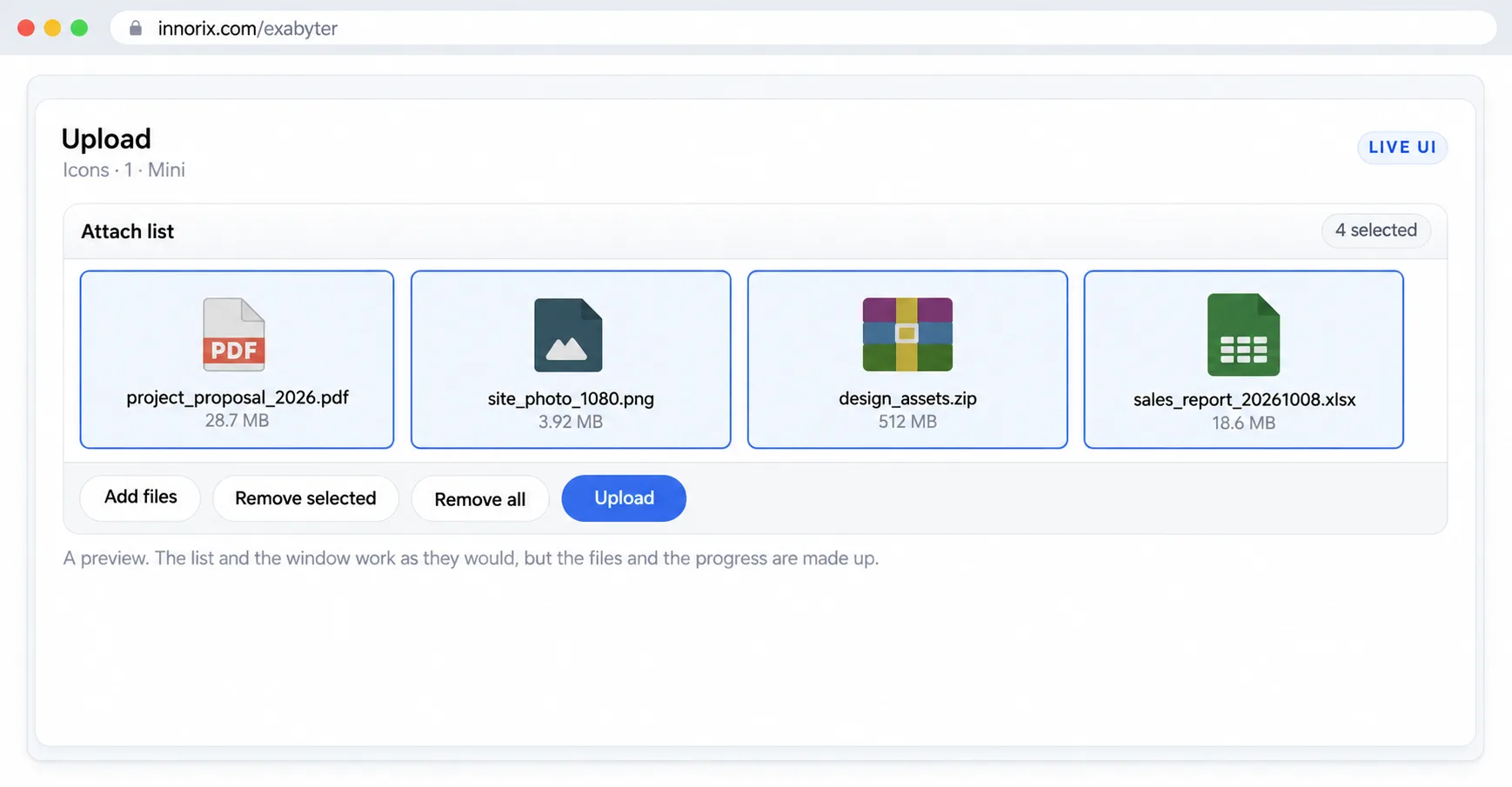
boxStyle: 'icon' displays entries as icons.
box = innorix.create({
  el: '#fileBox',
  boxStyle: 'icon',
  boxWidth: 550,
  boxHeight: 200,
  uploadURL: './upload.jsp',
  boxConfig: box_config.upload_basic
});
Preview View#
boxStyle: 'preview' displays a list with a preview panel. The following options determine preview placement and PDF support.
| Option | Purpose |
|---|---|
setPreviewDiv |
Display the preview in a specified element: [element ID, width, height] |
showPreviewPdf |
Render the first PDF page in a canvas. Load PDF.js (pdfjsLib) first. |
Display the preview in #previewBox outside the control.
<div id="previewBox"></div>
<div id="fileBox"></div>

<script>
  box = innorix.create({
    el: '#fileBox',
    uploadURL: './upload.jsp',
    boxStyle: 'preview',
    setPreviewDiv: ['previewBox', 240, 180]   // [element ID, width, height]
  });
</script>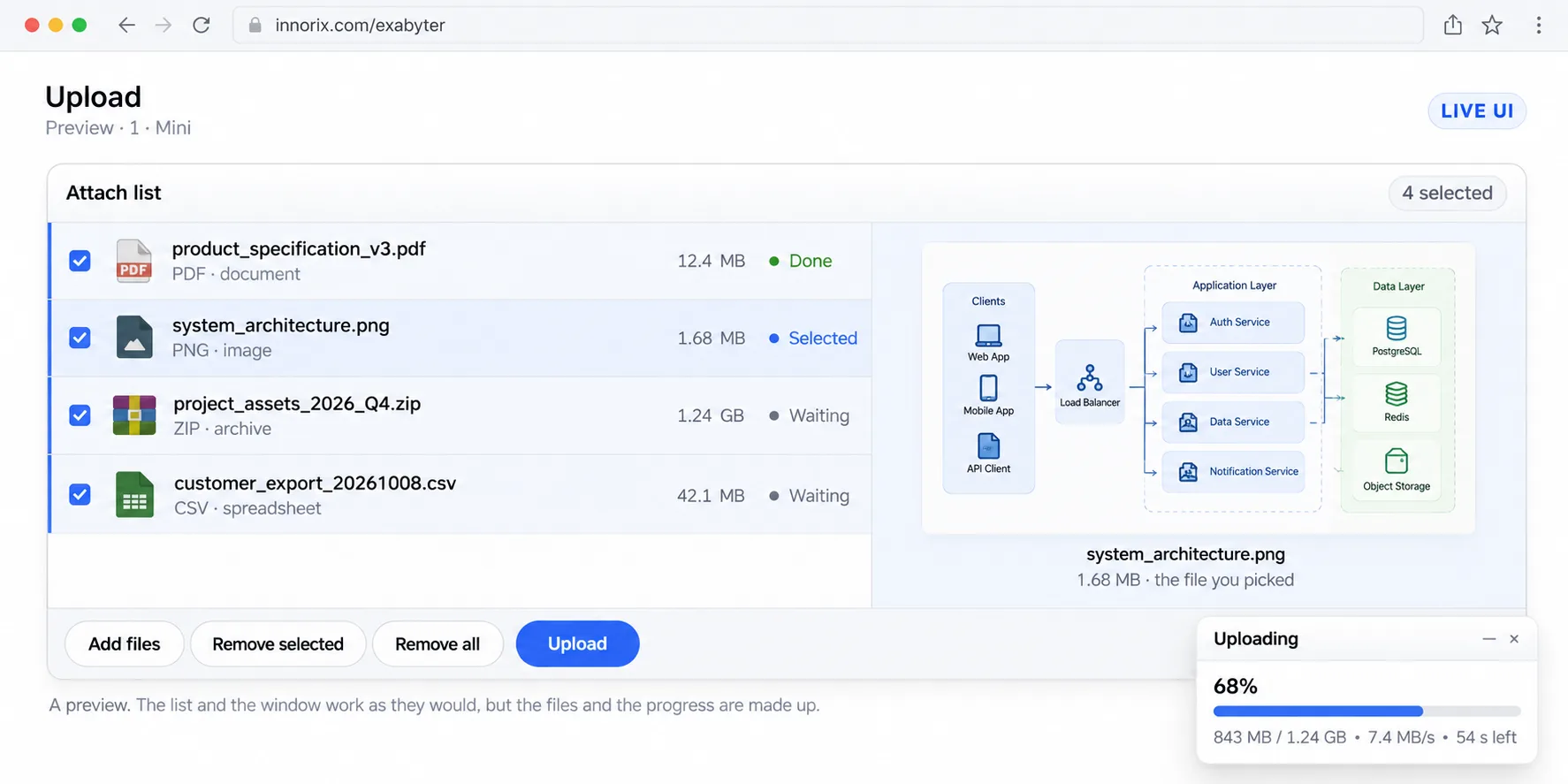
Authenticated image URLs require cookies and CORS permissions. HEIC previews are not supported.
HTML View#
boxStyle: 'html' lets the application render its own HTML list. Hide the control on screen and render an HTML table while leaving file selection and transfers to the control.
| Item | Purpose |
|---|---|
| Control element | Hide with display:none |
afterAddFiles |
Build table rows using filePath, fileSize, and id from the event array |
removeFileById(id) |
Delete both the HTML table row and the file from the control list |
<div id="dropZone" style="overflow:auto; width:500px; height:200px; border:1px solid #c0c0c0;">
  <table id="fileTable">
    <thead>
      <tr><th>File Name</th><th>Size</th><th>Type</th><th>Delete</th></tr>
    </thead>
    <tbody></tbody>
  </table>
</div>
<div id="fileControl" style="display:none"></div>

<input type="button" value="Add File" onclick="control.openFileDialog();">
<input type="button" value="Upload" onclick="control.upload();">

<script src="../innorix.js"></script>
<script>
  var innoJquery = innorix._load('innoJquery');
  var control;

  innoJquery(document).ready(function () {
    control = innorix.create({
      el: '#fileControl',
      boxStyle: 'html',
      uploadURL: './upload.jsp'
    });

    // Create a table row after adding a file
    control.on('afterAddFiles', function (p) {
      for (var i = 0; i < p.length; i++) {
        var name = p[i].filePath.replace(/\\/g, '/').split('/').pop();
        innoJquery('#fileTable > tbody').append(
          '<tr><td>' + name + '</td><td>' + p[i].fileSize + '</td><td>General</td>' +
          '<td><input type="button" value="Delete" onclick="deleteRow(this, \'' + p[i].id + '\')"></td></tr>');
      }
    });
  });

  // Remove the table row and the corresponding file in the control
  function deleteRow(btn, id) {
    var row = btn.parentNode.parentNode;
    row.parentNode.removeChild(row);
    control.removeFileById(id);
  }
</script>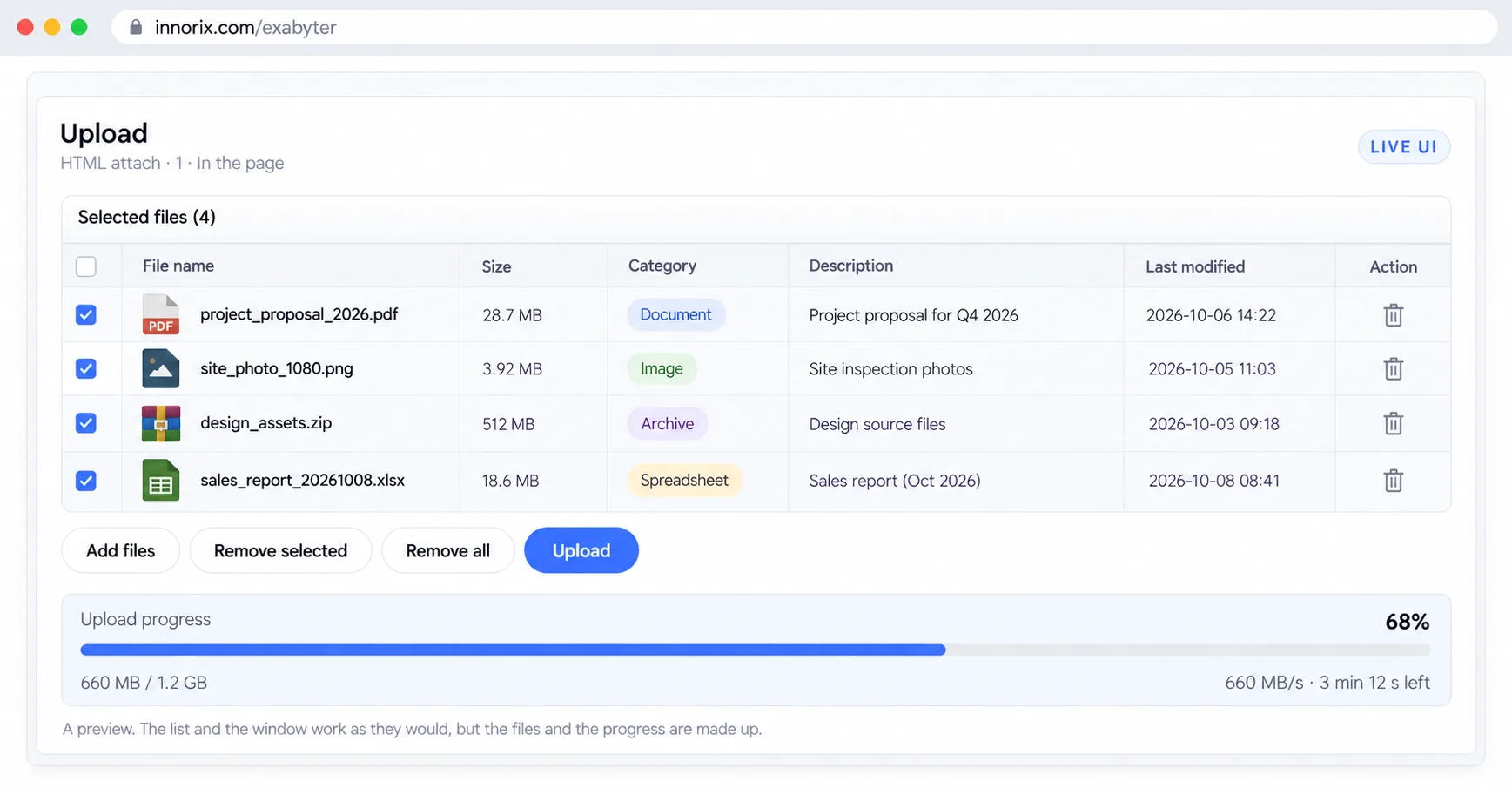
Always call removeFileById() when deleting a table row to keep table and control file order synchronized. It is working normally if adding a file creates a row in the HTML table.
Image Processing#
For product registration, you may need a smaller list thumbnail and a logo watermark along with each uploaded photo. The control generates thumbnails and applies watermarks before upload, sending them with the original without separate server conversion.
Image processing happens on the client, not the server. The server receives thumbnails as ordinary files. Each thumbnail is added as a separate file in the upload list, so the original and thumbnail complete separately on the server. Only image files are processed; other types are skipped.
Attach image → appendThumbnailProperty / appendWatermarkProperty → upload()
            → Original and thumbnail are each saved on the server
Generating Thumbnails#
After adding the file, call appendThumbnailProperty(index, width, height, baseline) before upload().
| Argument | Purpose |
|---|---|
index |
File index or "ALL" |
width, height |
Thumbnail dimensions |
baseline |
HORIZONTAL (width-based), VERTICAL (height-based), FIX (fixed dimensions) |
Receive start and completion through thumbnailStart and thumbnailComplete. Thumbnails are always JPEG, so a PNG original may produce a different format.
Set thumbnail properties before upload(), and distinguish thumbnails on the server by _thumb_ in the file name.
box.appendThumbnailProperty('ALL', 300, 200, 'HORIZONTAL');
box.upload();if (uploader.isUploadDone()) {
String saved = uploader.getParameter("_new_filename");
boolean isThumb = saved != null && saved.contains("_thumb_");
}Adding Watermarks#
Call appendWatermarkProperty(index, imageUrl, position). Build the position by combining a vertical value (TOP, BOTTOM, CENTER) and horizontal value (LEFT, RIGHT, CENTER) with |. An image with an unsupported extension returns "not_supported" and is not applied, so check the return value. The result is JPEG. If a policy requires server-side conversion, such as preventing changes to original images or standardizing formats, do not rely on the client; process the image with a server library during completion handling.
Insert a logo image at the bottom-left. A return value of "not_supported" means it was not applied.
var r = box.appendWatermarkProperty('ALL', './logo.png', 'LEFT|BOTTOM');
if (r === 'not_supported') alert('Check the watermark image format.');
box.upload();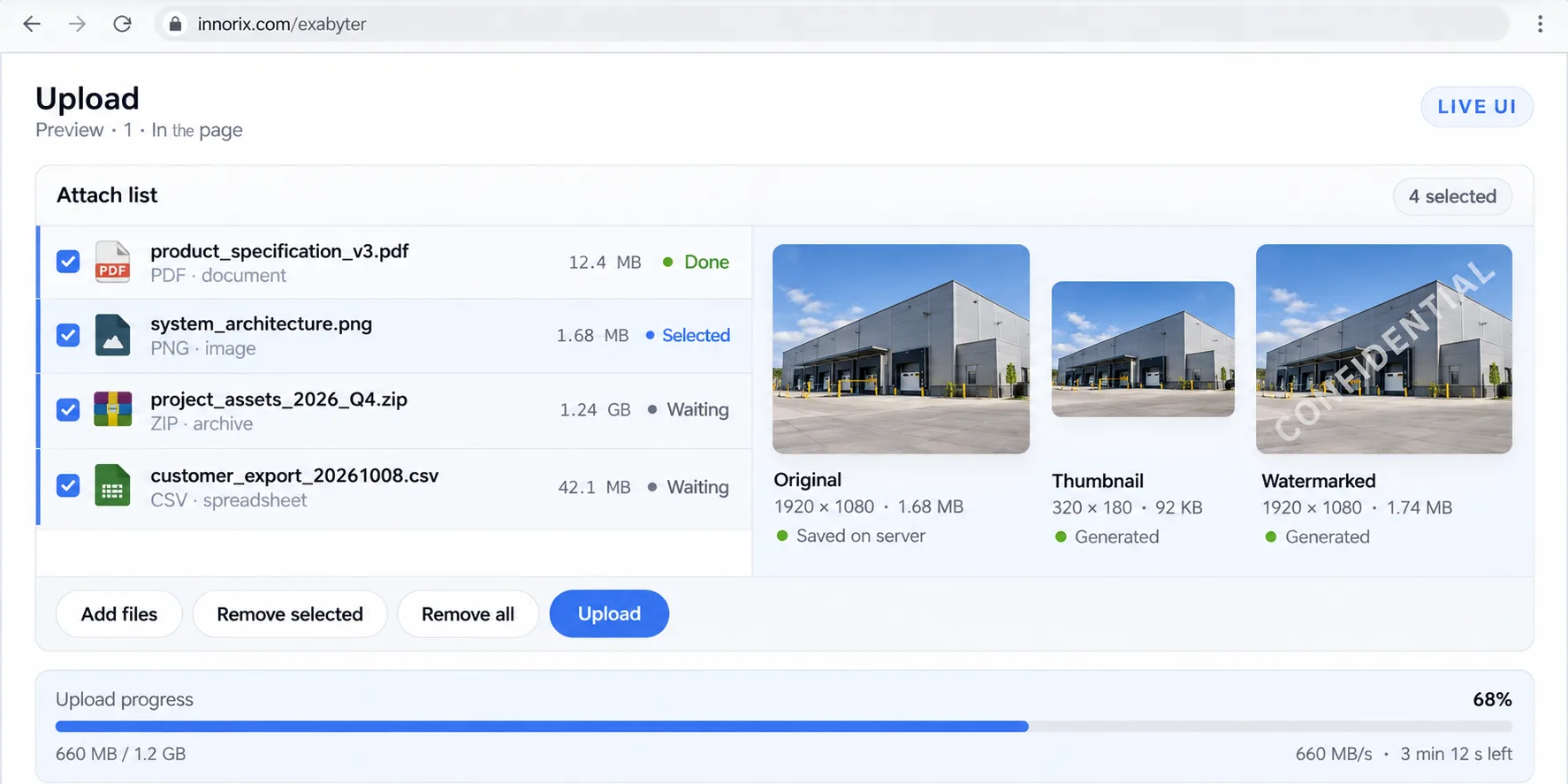
Transfer Control#
Adjust transfer speed, compression, encryption, and integrity checking for large files or constrained connections. Upload and download options are collected here.
Upload Transfer Options#
- Speed: Set a ceiling with
limitRateand change it withsetLimitRate. The control does not adjust speed based on server load; enforce mandatory limits on the server or proxy. - Compression:
useCompressis effective for text and logs; ZIP, JPG, and MP4 mainly incur CPU overhead. The server automatically decompresses usingsetAutoDecompress(decompress, deleteOriginal). - Encryption:
useEncryptrequires matching keys and IVs on client and server. Also setuseEncryptMetato hide file names. Do not hardcode keys in source, and do not treat this as a substitute for HTTPS. - Integrity: Configure
integrity; failures display an Integrity Check Error in the transfer window. - Bulk transfer: Use
massFileTransferfor very large numbers of small files. File list display is restricted in this mode.
Set speed, compression, and encryption options on the client, and create InnorixUpload on the server with the same key and IV.
box = innorix.create({
  el: '#fileBox',
  uploadURL: './upload-crypt.jsp',
  installURL: '../install/install.html',
  limitRate: 2000,
  useCompress: true,
  useEncrypt: true,
  useEncryptMeta: true
});InnorixUpload uploader = new InnorixUpload(request, response, maxPostSize, "UTF-8",
directory, true, ENCRYPT_KEY, ENCRYPT_IV); // 32-character key, 16-character IV
uploader.setAutoDecompress(true, true); // Delete original after decompression
String result = uploader.run();Download Speed Limits#
Set a per-client ceiling using limitRate. Because it is a client-side option, it may be bypassed; enforce mandatory limits on the server or L4.
Storage Integration#
For example, a company may store uploads on a NAS or send video files directly to an S3 bucket. You can use a mounted storage path as the destination, or transfer directly to storage using a presigned URL (an upload/download URL valid for a limited time).
For mounted storage, configure the mount path as the server's storage directory (directory). For S3, the server issues a presigned URL and the control transfers directly to storage, reducing server load by avoiding relay through the application server.
[Mount/NAS] Control → upload endpoint → Mounted path (storage directory)

[S3]       Control → Server endpoint (issues presigned URL) → Direct S3 transfer
Requirements: Mounted storage needs write permission for the WAS account and sufficient space. S3 needs a bucket, credentials, bucket CORS settings, and the
InnorixS3UploadandAwsS3libraries. Samples:s3_upload.html,s3_upload.jsp,s3_download1.html,s3_download2.html,s3_download.jsp.
Saving to a Mounted Path#
Configure the mount path as the storage directory.
- Server write failures are displayed as errors 40001 and 40002.
- If servers are redundant, all WAS instances must use the same mount under the same path.
The following upload.jsp specifies the mounted directory (directory).
<%@ page import="com.innorix.transfer.InnorixUpload" %>
<%
if (request.getMethod().equals("POST")) {
    String directory = "/usr/local/mount/upload";   // Mounted path
    int maxPostSize = 2147482624; // bytes

    InnorixUpload uploader = new InnorixUpload(request, response, maxPostSize, directory);
    String result = uploader.run();
}
%>
Uploaded files are written to the mounted path.
S3 Upload#
The server returns a presigned URL and the control transfers to it.
isPresignedUrl: true,uploadURL: Client optionsInnorixS3Upload,setExpirationTimeSecond: Issue URLs and configure expiration on the server
Create a control with isPresignedUrl: true and the server endpoint uploadURL.
box = innorix.create({
  el: '#fileBox',
  transferMode: 'both',
  downloadType: 'direct',
  isPresignedUrl: true,
  uploadURL: './s3_upload.jsp',
  installURL: '../install/install.html'
});
The following s3_upload.jsp uses InnorixS3Upload to return a presigned URL. Credentials are read from environment variables.
<%@ page import="com.innorix.transfer.InnorixS3Upload" %>
<%
if (request.getMethod().equals("POST")) {
    String S3_URI = "https://s3.amazonaws.com";
    String S3_REGION = "ap-northeast-2";
    String S3_ACCESS_KEY_ID = System.getenv("S3_ACCESS_KEY_ID");
    String S3_SECRET_KEY = System.getenv("S3_SECRET_KEY");
    String S3_BUCKET = "my-bucket";
    String directory = "upload";
    int maxPostSize = 2147482624; // bytes

    InnorixS3Upload uploader = new InnorixS3Upload(request, response, maxPostSize, "UTF-8",
        S3_URI, S3_REGION, S3_BUCKET, S3_ACCESS_KEY_ID, S3_SECRET_KEY, directory);
    uploader.setExpirationTimeSecond(60 * 60);   // URL validity period (seconds)

    String result = uploader.run();
}
%>
Set the validity period longer than the transfer time of the largest file. Read access keys from environment variables or a key-management service; never use sample credentials in production.
S3 Download#
Point downloadUrl to an endpoint that returns a presigned URL.
After loadComplete, configure each downloadUrl in presetDownloadFiles() to point to an endpoint that returns a presigned URL.
box.on('loadComplete', function () {
  box.presetDownloadFiles([{
    printFileName: 'test4.zip',
    fileSize: 2147484672,
    downloadUrl: './s3_download.jsp?_filePath=' + encodeURIComponent('test4.zip')
  }]);
});
The following s3_download.jsp generates and returns a URL using AwsS3.GetDownloadUrl(bucket, key, seconds).
<%@ page import="com.innorix.transfer.AwsS3" %>
<%
String filePath = "upload/";
String name = java.net.URLDecoder.decode(request.getParameter("_filePath"));

AwsS3 awsS3 = new AwsS3();
awsS3.GetAmazonS3("https://s3.amazonaws.com", "ap-northeast-2",
    System.getenv("S3_ACCESS_KEY_ID"), System.getenv("S3_SECRET_KEY"));

String downloadUrl = awsS3.GetDownloadUrl("my-bucket", filePath + name, 60 * 60);
response.getWriter().write(downloadUrl);
%>
The control downloads directly from S3 using the returned address.
Upload Resume Data and S3 Storage#
- With multiple servers, implement
UploadInfoCallBackto store resume information in shared storage such as a database. If not configured, this information is not recorded. - Use
InnorixS3Uploadfor S3-compatible storage. WithisPresignedUrl: trueon the client, the browser uploads directly to storage; bucket CORS must be configured, and post-processing must be implemented separately. Do not hardcode access keys.
The following examples manage upload-resume data externally or save to S3-compatible storage.
// Store upload-resume information in a shared database, etc. (UploadInfoCallBack implementation)
InnorixUpload uploader = new InnorixUpload(request, response, maxPostSize, directory, new MyUploadInfoCallBack());

// Save to S3-compatible storage (read credentials from environment variables, etc.)
InnorixS3Upload s3Uploader = new InnorixS3Upload(
    request, response, maxPostSize, "UTF-8",
    S3_URI, S3_REGION, S3_BUCKET, S3_ACCESS_KEY_ID, S3_SECRET_KEY, directory);
s3Uploader.setExpirationTimeSecond(60 * 60);
String result = s3Uploader.run();
For browsers to upload directly to storage, set isPresignedUrl on the client.
box = innorix.create({
  el: '#filebox',
  uploadURL: './s3_upload.jsp',
  isPresignedUrl: true
});
If a file is not saved, check permissions, path, URL expiration, and CORS, in that order.
Security#
Consider restricting contract attachments to logged-in users. Because the control cannot know the user's permissions, authorization must be enforced by the server endpoints specified by uploadURL and downloadUrl. Client options such as allowType and maxFileSize are advisory and can be bypassed by directly sending requests.
Security has four layers. Protect the connection with HTTPS and authenticate requests with cookies or tokens. Validate files using extensions and signatures (markers in file contents), and protect storage by hiding server paths.
User → [HTTPS] → Control (cookies/tokens) → Server (authentication, authorization, type validation) → StorageSecurity Options#
| Method | Description | When to Use |
|---|---|---|
| HTTPS | Use HTTPS for the page and both uploadURL and downloadUrl |
All production environments |
| Cookies and tokens | cookie, customHeader, postData |
Restrict to logged-in users |
CSRF token (useCsrf) |
Attach a token from the page's meta tag to request headers | Servers with CSRF protection |
| Extension and signature validation | allowType, denyType, useSignature plus server revalidation |
Block disguised files |
| Integrity checking | integrity, downloadIntegrity |
Detect corruption or tampering |
| Encryption | useEncrypt (contents), useEncryptMeta (file names/paths) |
Sensitive files |
Downloads for Logged-In Users Only#
Because the control downloads files in multiple requests, perform login and ownership checks on every request.
- Look up the internal server path using a file ID; never use a request parameter directly as a path.
- Validate byte-range values against the file size.
- With
downloadType: stream, the storage path is not exposed to the client. - Hide the server path in upload responses using
setHideServerPathInfo(true)andsetHideRootPath(true).
The following download.jsp checks login and ownership, looks up the path by file ID, validates the range, and returns the selected bytes. The application must implement findDownloadable and DownloadInfo.
<%@ page contentType="application/octet-stream" trimDirectiveWhitespaces="true" %>
<%@ page import="java.io.*, java.net.URLEncoder" %>
<%
// 1. Check login
Long userId = (Long) session.getAttribute("userId");
if (userId == null) { response.sendError(401); return; }

// 2. Look up by file ID and verify ownership (return null if missing or unauthorized)
DownloadInfo info = findDownloadable(userId, request.getParameter("fileID"));
if (info == null) { response.sendError(404); return; }

File file = info.storedFile;   // Path determined by the server
long size = file.length();

// 3. Validate the range
long start = 0, end = size - 1;
try {
    String szStart = request.getParameter("_StartOffset");
    String szEnd   = request.getParameter("_EndOffset");
    if (szStart != null) start = Long.parseLong(szStart);
    if (szEnd   != null) end   = Long.parseLong(szEnd);
} catch (NumberFormatException e) { response.sendError(400); return; }

if (start < 0 || end < start || end >= size) {
    response.setHeader("Content-Range", "bytes */" + size);
    response.sendError(416);
    return;
}
long length = end - start + 1;

// 4. Headers
String encoded = URLEncoder.encode(info.printName, "UTF-8").replaceAll("\\+", "%20");
response.setHeader("Accept-Ranges", "bytes");
response.setHeader("Content-Disposition", "attachment; filename=\"" + encoded + "\"");
response.setHeader("Content-Length", String.valueOf(length));
response.setHeader("Cache-Control", "private, no-store");

// 5. Output only the requested range
RandomAccessFile raf = new RandomAccessFile(file, "r");
try {
    raf.seek(start);
    OutputStream os = response.getOutputStream();
    byte[] buf = new byte[8192];
    long remain = length;
    while (remain > 0) {
        int n = raf.read(buf, 0, (int) Math.min(buf.length, remain));
        if (n == -1) break;
        os.write(buf, 0, n);
        remain -= n;
    }
    os.flush();
} finally {
    raf.close();
}
%>
Passing Sessions and Tokens#
The agent uses a separate HTTP client, so provide login information through control options.
cookie: Defaults todocument.cookie. Use the control on the same domain.customHeader,postData: Pass tokens in cross-origin or WebView setups where cookies are difficult to use.useCsrf: true: Without this, uploads may be rejected with 403 by CSRF-protected servers.- Large transfers may outlast sessions; refresh the session only while a transfer is running. Return
401on authentication failure instead of redirecting.
Set the session cookie using setCookie() in loadComplete.
<script>
  box.on('loadComplete', function () {
    box.setCookie('JSESSIONID=<%= session.getId() %>');
  });
</script>
Once a transfer starts, request session refreshes, and stop them on completion, error, or cancellation.
var keepAliveTimer = null;

function startKeepAlive() {
  stopKeepAlive();
  keepAliveTimer = setInterval(function () {
    fetch('/session/ping', { credentials: 'same-origin', cache: 'no-store' });
  }, 5 * 60 * 1000);
}
function stopKeepAlive() {
  if (keepAliveTimer) { clearInterval(keepAliveTimer); keepAliveTimer = null; }
}

box.on('uploadStart',    startKeepAlive);
box.on('uploadComplete', stopKeepAlive);
box.on('uploadError',    stopKeepAlive);
box.on('uploadCancel',   stopKeepAlive);
Pass the token using customHeader or postData and set useCsrf: true. useCsrf reads the token from a page <meta> tag.
<meta name="_csrf"        content="${_csrf.token}">
<meta name="_csrf_header" content="${_csrf.headerName}">box = innorix.create({
el: '#fileBox',
uploadURL: '/innorix/upload.jsp',
customHeader: { 'X-Auth-Token': authToken },
postData: { boardId: '1024' },
useCsrf: true,
boxConfig: box_config.upload_basic
});Extension Validation and Storage Policy#
Client-side validation provides guidance; the server makes the final decision.
- Client:
allowType,denyType,useSignature, andaddFileErrorevent - Server: Revalidate against an allowlist and reject with
showCustomError. - The server generates the stored file name and retains the original name in the database, using it only in download
Content-Disposition. - Keep the storage directory outside the web root and remove execution permission.
Set allowType and useSignature and use addFileError to explain rejected files.
box = innorix.create({
  el: '#fileBox',
  uploadURL: './upload.jsp',
  allowType: ['jpg', 'png', 'pdf'],
  useSignature: true,
  boxConfig: box_config.upload_basic
});

box.on('addFileError', function (p) {
  if (p.type == 'allowType') {
    alert('This file type is not allowed.');
  }
});
The following upload.jsp checks against an allowlist during getFileInfo and generates a new stored file name.
<%@ page import="com.innorix.transfer.InnorixUpload" %>
<%!
static final java.util.Set<String> ALLOW =
    new java.util.HashSet<String>(java.util.Arrays.asList("jpg", "png", "pdf"));

static String ext(String name) {
    if (name == null) return "";
    int dot = name.lastIndexOf('.');
    return dot < 0 ? "" : name.substring(dot + 1).toLowerCase();
}
%>
<%
if (request.getMethod().equals("POST")) {
    String directory = "/data/upload";   // Path outside the web root
    int maxPostSize = 2147482624; // bytes

    InnorixUpload uploader = new InnorixUpload(request, response, maxPostSize, directory);
    String action = uploader.getParameter("_action");
    String orig   = uploader.getParameter("_orig_filename");

    if ("getFileInfo".equals(action)) {
        if (!ALLOW.contains(ext(orig))) {
            uploader.showCustomError("1700", "File type not allowed", ext(orig), false);
            return;
        }
        uploader.setFileName(java.util.UUID.randomUUID() + "." + ext(orig));
    }
    String result = uploader.run();
}
%>
Signature Validation#
With useSignature, the control reads the beginning of the file and checks whether the actual format matches the extension. Office files (docx, xlsx, pptx), jar, and apk are ZIP-based, so blocking ZIP may also block these; test deny lists with actual business files. Signature checking does not replace malware scanning, and MIME-type-based checks are not provided.
Encryption and Integrity#
useEncrypt encrypts file contents and useEncryptMeta encrypts file names and paths. setAutoDecryption lets the server decrypt received files automatically. Read keys and IVs from environment variables rather than source constants. Enable integrity checking with integrity and downloadIntegrity, and compare checksums on the server. Use the encryption samples (upload-crypt.html, upload-crypt.jsp) to configure the detailed values.
useEncrypt encrypts file contents; useEncryptMeta encrypts file names and paths.
box = innorix.create({
  el: '#fileBox',
  uploadURL: './upload-crypt.jsp',
  useEncrypt: true,
  useEncryptMeta: true,
  useSignature: true,
  denyType: ['zip'],
  installURL: '../install/install.html'
});
The following upload-crypt.jsp reads the key and IV from environment variables and passes them to the InnorixUpload constructor. Use setAutoDecryption(false) to store files in encrypted form.
<%@ page import="com.innorix.transfer.InnorixUpload" %>
<%
if (request.getMethod().equals("POST")) {
    String directory = "/data/upload";
    int maxPostSize = 2147482624; // bytes
    String key = System.getenv("INNORIX_CRYPT_KEY");   // 16, 24, or 32 characters
    String iv  = System.getenv("INNORIX_CRYPT_IV");    // 16 characters

    InnorixUpload uploader = new InnorixUpload(request, response, maxPostSize, "UTF-8",
        directory, true, key, iv);   // true: encrypt metadata (matches useEncryptMeta)

    uploader.setAutoDecryption(false);      // Keep stored files encrypted
    uploader.setHideServerPathInfo(true);   // Exclude server path from the response

    String result = uploader.run();
}
%>
External Module Integration#
For example, attachments may require antivirus scanning on upload and DRM removal on download. Exabyter has no option to call those solutions directly. Instead, invoke external modules at stage-specific hooks in server endpoints and return results to the control.
Server endpoints pass through stages such as checking file information, completing storage, and starting downloads. Invoke external modules at these stages. Return scan results using custom values (customValue), which the control reads and displays from uploadComplete.
Upload completes → Server hook calls external module → Result in customValue → Display result on uploadComplete| Integration Point | Purpose |
|---|---|
getFileInfo |
Pre-validation and choosing the stored file name |
isUploadDone() |
Antivirus, DRM, or personal-data scan immediately after saving |
DownloadStart |
Authorization, DRM removal, and reporting changed file size |
Integration Methods#
| Method | Description | When to Use |
|---|---|---|
| Synchronous scan immediately after saving | Scan in isUploadDone() before responding |
Small files |
| Asynchronous scan after isolating in temporary storage | Mark status as "Scanning" and prohibit downloads until passed | Large files requiring lengthy scans |
| DRM removal on download | Remove DRM in DownloadStart and report resulting size |
DRM-protected files |
Scanning Stored Files and Returning Results#
Scan stored files using external modules and return the results.
setCustomValue,sendCustomValue: Include result values in the response.- If the server decompresses files, scan the extracted files as well and guard against
../paths. - There is no dedicated personal-information filtering API, so invoke an application-specific scanner from the hook.
The following upload.jsp scans a stored file (isUploadDone()) with an external module and returns the result via setCustomValue and sendCustomValue. The application must implement scanner to call the integration target.
<%
InnorixUpload uploader = new InnorixUpload(request, response, maxPostSize, directory);
String result = uploader.run();

if (uploader.isUploadDone()) {
    File saved = new File(directory, uploader.getParameter("_new_filename"));

    ScanResult r = scanner.scan(saved);   // Call an external module such as antivirus/DRM
    if (!r.clean) {
        saved.delete();
        uploader.setCustomValue("scan", "infected");
    } else {
        uploader.setCustomValue("scan", "clean");
    }
    uploader.sendCustomValue();
}
%>
Read customValue from the file information in uploadComplete to display scanning results.
box.on('uploadComplete', function (p) {
  p.files.forEach(function (f) {
    if (f.customValue.scan == 'infected') {
      alert(f.clientFileName + ': This file is blocked.');
    }
  });
});
DRM Removal During Download#
Check authorization and remove DRM during the download-start stage. If the file size changes after DRM removal, report the new size so the download list can be updated.
The following download.jsp checks permissions during DownloadStart and reports the size after DRM removal using InnorixCustomValue. The client requires sendDownloadTime: true.
<%@ page import="com.innorix.transfer.InnorixCustomError" %>
<%@ page import="com.innorix.transfer.InnorixCustomValue" %>
<%
String action = request.getParameter("_Action");
String fileID = request.getParameter("fileID");

if ("DownloadStart".equals(action)) {
    if (!canDownload(userId, fileID)) {   // Implement in the application
        InnorixCustomError err = new InnorixCustomError(response);
        err.set("1600", "Unauthorized", "You do not have permission to download this file.", false);
        err.run();
        return;
    }
    InnorixCustomValue customValue = new InnorixCustomValue();
    customValue.setCustomValue("fileSize", String.valueOf(releasedSize));   // Size after DRM removal
    customValue.run(response);
    return;
}
if ("DownloadComplete".equals(action)) {
    response.setStatus(200);
    return;
}
%>
Checking Storage Space and External Post-Processing#
- There is no automatic disk-space check. Compare available space using
File.getUsableSpace()duringgetFileInfoand returnInnorixCustomErrorif insufficient. - Antivirus, personal-data filtering, and DRM are not built in. Call external engines after
isUploadDone(), or put lengthy processing on a separate queue. If the web server or proxy timeout is shorter than post-processing, the connection will be dropped. - Use
setCustomValue()andsendCustomValue()to inform the page of scan results. renameTocan fail across file systems when moving to another storage target, so copy and then delete. Do not trust client-provided paths; verify that the file is inside a server-known temporary directory.- Closing the browser before completion may leave partial files behind, so plan temporary-upload cleanup.
Check free space in getFileInfo, then report external scanning results after completion using setCustomValue.
if ("getFileInfo".equals(_action)) {
    long need = Long.parseLong(uploader.getParameter("_filesize"));
    long free = new java.io.File(directory).getUsableSpace();

    if (free < need + 1024L * 1024 * 1024) {      // Reserve 1 GB of free space
        InnorixCustomError err = new InnorixCustomError(response);
        err.set("1700", "NoSpace", "Insufficient server storage space.", false);
        err.run();
        return;
    }
}
String result = uploader.run();

if (uploader.isUploadDone()) {
    // Call external scanning engine (queue separately if it takes too long)
    uploader.setCustomValue("scan", "clean");
    uploader.sendCustomValue();
}Agent#
This section covers uploading multi-gigabyte videos and photo folders without browser limits. In Agent mode, the agent installed on the user's PC performs transfers, while the web-page control provides the UI and controls. All examples in this manual use Agent mode.
When Agent mode is selected at control creation, the control checks whether the agent is installed. If installed, it transfers directly to the server. Otherwise, the user is directed to the installation page. Cookies, save paths, retries, and timeouts are passed to the agent transfer command.
Web page (control) → Agent installation check → (not installed) Installation page → Agent ↔ Direct server transferInstallation and Launch Options#
| Method | Description | When to Use |
|---|---|---|
Open installation page (installMethod) |
Open the installation page in the same window | Simple return flow after installation |
Installation popup (installPopup) |
Open in a popup | Preserve the page being edited |
Skip installation check (skipPluginCheck) |
Skip detection | Internal environments where installation is guaranteed |
Save path (savePath) |
Set download destination | Fixed save folder |
Mobile installation page (installURLMobile) |
Mobile installation URL | Using a mobile agent |
Creating a Control in Agent Mode#
Specify Agent mode, the upload endpoint, and the installation page.
installURL: Installation page URLredirectquery: After installation, the installation page redirects to this value without validating it. Restrict it to same-origin paths in the installation page or web-server configuration.
Create an Agent-mode control with uploadURL, installURL, and boxConfig.
box = innorix.create({
  el: '#fileBox',
  uploadURL: './upload.jsp',
  installURL: '../install/install.html',
  boxConfig: box_config.upload_agent
});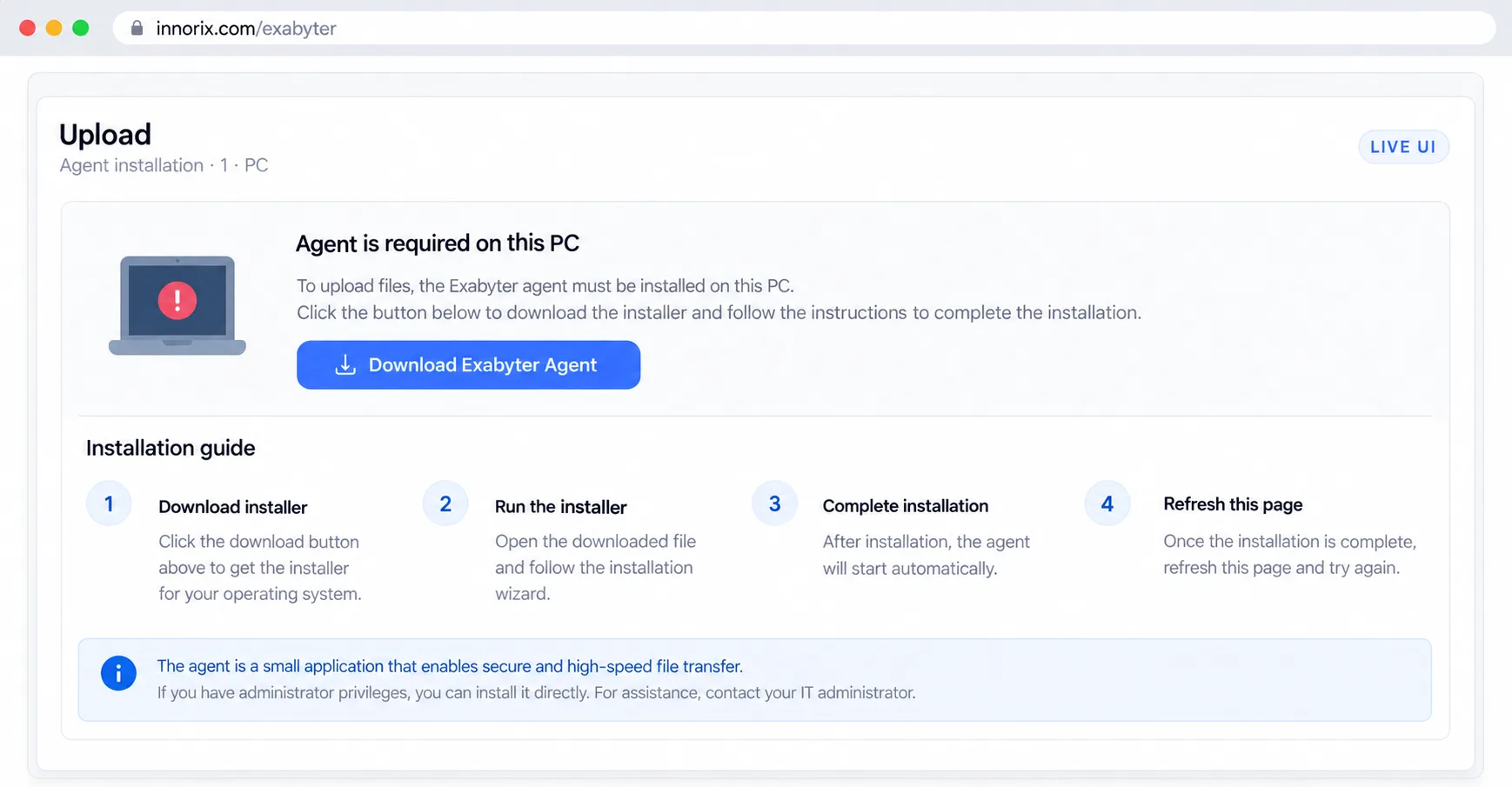
Download-Only Control#
In environments where the agent is guaranteed to be installed, skip the installation check. Transfers will fail on PCs without the agent, so use this only in managed internal environments.
skipPluginCheck: true: Skip installation checksdownloadDuplicate: Duplicate download policy
A download-only control configured with skipPluginCheck: true and downloadDuplicate.
box = innorix.create({
  el: '#fileBox',
  boxStyle: 'list',
  skipPluginCheck: true,
  downloadDuplicate: 'numbering',
  installURL: '../install/install.html',
  boxConfig: box_config.download_agent
});

box.on('loadComplete', function () {
  box.presetDownloadFiles([{
    printFileName: '5GB.mp4',
    fileSize: 5393874944,
    downloadUrl: 'download.jsp?fileID=7'
  }]);
});
API Reference#
This chapter consolidates Exabyter control options, methods, events, and server APIs for quick lookup while implementing features. Option and event names are case-sensitive.
Configuration Options#
These options are passed to innorix.create(). When using a boxConfig preset, preset values are applied first and options passed directly to create() override them. The strings "true" and "false" are converted to booleans.
Create a control with innorix.create() and override options from a boxConfig preset.
box = innorix.create({
  el: '#fileBox',
  uploadURL: './upload.jsp',
  installURL: '../install/install.html',
  boxWidth: 980,                          // Override preset value
  boxConfig: box_config.upload_agent
});
Creation and Default Behavior#
| Option | Type | Description |
|---|---|---|
el |
String | Required selector for the element containing the control |
boxConfig |
Object | Preset object; directly specified options take precedence |
config |
Object | Group of options merged with the create() arguments |
transferMode |
String | "upload", "download", "both" |
skipPluginCheck |
Boolean | Skip agent connection and version checks |
boxStyle |
String | List appearance: list (table list), icon (icons), preview (list with preview panel), html (application-rendered HTML list) |
transferWindowStyle |
String | Window appearance: default (standard), mini (small layered), list (layer with file list above progress), compact (below file list). Hide with showTransferWindow: false. |
boxStyleTheme |
String | Add a theme class to the root element |
boxWidth, boxHeight |
Number / String | Control width and height |
controlLang |
String | UI language (ko, en) |
Server Connections#
| Option | Type | Description |
|---|---|---|
uploadURL |
String / Array | Upload request URL |
uploadCompletedEvent |
Object | Completion URL configuration { use, url } for uploads |
downloadCompletedEvent |
Object | Completion URL configuration { use, url } for downloads |
sendLogUrl |
String | Log submission URL |
isPresignedUrl |
Boolean | Use S3 presigned URLs |
isS3Transfer |
Boolean | S3 transfer mode |
useProxy |
Boolean | Use a proxy |
custom |
Object | Custom values passed to agent requests |
File Selection and Preliminary Validation#
| Option | Type | Description |
|---|---|---|
allowType |
Array / Object | Allowed extensions (lowercase, no dot) |
denyType |
Array | Blocked extensions |
maxFileCount |
Number | Maximum number of entries in the upload list |
maxFileSize |
Number | Maximum size per file (bytes) |
maxTotalSize |
Number | Total size limit for the upload list (bytes) |
useSignature |
Boolean | Detect disguised extensions using file signatures |
addDuplicateFile |
Boolean | If false, reject duplicates from the same path |
addEmptyFile |
Boolean | Allow zero-byte files |
addFolder |
Boolean | Add folder entries |
folderAttach |
Boolean | Allow folder attachments |
isGetFolderSize |
Boolean | Calculate and display folder size |
massFileTransfer |
Boolean | Bulk-transfer mode |
massAddFileMode |
Boolean | Bulk-add mode |
enableDropZone |
Boolean | Use agent drop zone |
File List Display#
| Option | Type | Description |
|---|---|---|
showSelectBox |
Boolean | Show selection checkboxes in rows |
showFuncBtn |
Array | Row action buttons ("remove", "move") |
showFileListHeader |
Boolean | Show list header |
showByteSize |
Boolean | Display file sizes as byte counts |
showPreviewPdf |
Boolean | Preview the selected PDF (with boxStyle: 'preview') |
setPreviewDiv |
Array | [element ID, width, height]; render preview in another element |
showFolderItems |
Boolean | Expand and display folder children |
openFolderItems |
Boolean | Toggle folder children by clicking |
showGraph |
Boolean | Show transfer graph |
useContextMenu |
Boolean | Enable right-click context menu |
showNotificationLayer |
Boolean | Use built-in notification layer |
fileListWindowStatus |
Boolean | Show per-file status in list |
pathChange |
Boolean | Show the path-change button in the download window |
transferWindowTitle |
String | Transfer window title |
hideLogo |
Boolean | Hide the control logo |
Transfer Window and Embedded Environments#
| Option | Type | Description |
|---|---|---|
showTransferWindow |
Boolean | Show transfer window |
showTransferStatusIcon |
Boolean | Show status icon in transfer window |
draggableTransferWindow |
Boolean | Allow dragging the window by its header |
cancelConfirmation |
Boolean | Show confirmation dialog on cancellation |
hostTransferWindow |
Boolean | Display embedded control's window on host page |
hostTransferWindowTarget |
String | Host page for the window ("parent", "top") |
hostTransferWindowTop, hostTransferWindowLeft |
String | Window top and left positions |
hostTransferWindowMarginTop, hostTransferWindowMarginLeft |
String | Window margin-top and margin-left |
hostTransferWindowCssURL |
String | Content to add to the host page's head |
Installation and Agent#
| Option | Type | Description |
|---|---|---|
installURL |
String | Installation page URL |
installPopup |
Boolean | Open installation page as a popup |
installPopupWidth, installPopupHeight |
Number | Popup width and height |
installMethod |
String | "layer" displays a layered installation notice; other values navigate to a page |
showInstallBtn |
Boolean | Show Install/Use button based on installation status |
pluginURL |
String | Installer URL linked from the installation layer |
Transfer Behavior#
| Option | Type | Description |
|---|---|---|
transferStart |
Object | Start behavior { upload, download }: "auto" or manual |
retryCount |
Number | Number of allowed retries |
retryDelay |
Number | Retry interval |
maxErrorCount |
Number | Pause when cumulative errors exceed this value |
autoRecovery |
Boolean | Retry automatically on errors |
uploadDuplicate |
Boolean | true to resume writing, false to overwrite |
downloadDuplicate |
String | Duplicate download policy |
resumeCondition |
Boolean | If true, start upload in resume mode |
attachIncompleteFiles |
Boolean | Find incomplete transfers on load and ask about restoring |
autoLoadTransfer |
Boolean | Add incomplete transfers to list and resume without confirmation |
downloadType |
String | "stream" (range requests) or "direct" (go directly to downloadUrl) |
savePath |
String | Download destination path |
skipDownloadCheck |
Boolean | Bypass all download-list validation |
checkDownloadTimeout |
Number | Timeout in ms for HEAD on entries without known size |
sendDownloadTime |
Boolean | Notify server when download starts/finishes |
postData |
Object | Additional parameters sent with every upload request |
customHeader |
Object | Additional headers added to every request |
cookie |
String | Cookie passed to transfer command |
charset |
String | Character set passed to transfer command |
referer |
String | Referer passed to transfer command |
presetDownloadFiles |
Array | Preconfigure the download list in creation options |
Security#
| Option | Type | Description |
|---|---|---|
useEncrypt |
Boolean | Encrypt transfer; pair with server key configuration |
useEncryptMeta |
Boolean | Encrypt metadata |
useCompress |
Boolean | Compress transfer |
downloadIntegrity |
Boolean | Verify integrity after download |
Methods#
Methods on the control object (box) returned by innorix.create(). Controls are usable after loadComplete; before that, or while a file dialog is open, calls return false. Methods that change state return this on success, allowing chaining.
Call methods from buttons after loadComplete to add files and upload them.
<input type="button" value="Add Files" onclick="box.openFileDialog();"/>
<input type="button" value="Add Folder" onclick="box.openFolderDialog();"/>
<input type="button" value="Upload" onclick="box.upload();"/>
Creating, Initializing, and Destroying Controls#
| Method | Description | Returns |
|---|---|---|
innorix.create(option) |
Create a control | Control object |
innorix.group(box1, box2, ...) |
Group controls to call the same method at once | Group object |
innorix.setLanguage(lang) |
Set UI language | innorix |
innorix.addLanguageResource(lang, resource) |
Add language resources | innorix |
innorix.checkAgentInstalled(callback) |
Check whether the agent is reachable and get its version | None |
setOption(obj) |
Merge options and reinitialize the control; do not call during transfer | this |
getOption() |
Return the current options object (read-only) | Object |
destroy() |
Remove the control UI and destroy the object | None |
isAgentInstalled(callback) |
Check whether the agent is installed | None |
getTransferMode() |
Return transferMode |
String |
isEnsureMode(mode) |
Check whether "upload" or "download" is available |
Boolean |
Selecting, Adding, and Removing Files#
| Method | Description | Returns |
|---|---|---|
openFileDialog() |
Open multi-file selection dialog | this / false |
openFileDialogSingle() |
Open single-file selection dialog | this / false |
openFolderDialog() |
Open folder selection dialog | None / false |
addFiles(files) |
Add an array of file information to the list | None / false |
setDropZone(event, element) |
Set an external element as drop zone | None / false |
selectAllFiles(), unselectAllFiles() |
Select all / Deselect all | this |
addSelectFilesById(ids) |
Select files identified by an array of id values |
this |
unSelectFilesById(ids) |
Deselect files identified by an array of id values |
this |
removeFileByIndex(index) |
Remove a file by its list position | this / false |
removeFileById(id) |
Remove one file by id |
this / false |
removeSelectedFiles() |
Remove all selected files | this / false |
removeAllFiles([callback]) |
Clear the list and invoke callback() |
this / false |
clearFiles() |
Clear the list | this / false |
sortName(order), sortSize(order), sortType(order), sortModified(order) |
Sort by name, size, type, or modified time. order is "asc" or anything else (descending). |
— |
Setting the Download List#
| Method | Description | Returns |
|---|---|---|
presetDownloadFiles(files) |
Register download files. Required fields are printFileName, downloadUrl, and fileSize. Appends without clearing the existing list. |
None |
Register files in presetDownloadFiles() from within loadComplete.
box.on('loadComplete', function () {
  box.presetDownloadFiles([{
    printFileName: 'Exabyter Brochure.pdf',
    fileSize: 1048576,
    downloadUrl: 'download.jsp?fileID=2'
  }]);
});
Reading the File List#
| Method | Description | Returns |
|---|---|---|
getAllFiles([type]) |
Information on all files; "ORIGINAL" excludes thumbnails |
Array |
getSelectedFiles() |
Selected files | Array |
getSelectedFileCount(), getSelectedFolderCount() |
Count of selected files and folders | Number |
getSelectSize() |
Total selected size (bytes) | Number |
getUploadFiles(), getDownloadFiles() |
Upload and download files | Array |
getFileCount() |
Total number of files | Number |
getTotalFolderCount(), getTotalFolderNames() |
Folder count and array of names | Number, Array |
getTotalSize() |
Total size of all files (bytes) | Number |
getUploadFilesSize(), getDownloadFilesSize() |
Total upload and download file sizes (bytes) | Number |
getFileByIndex(index) |
Get file by list position | File object / undefined |
getFileById(id) |
Get file by id |
File object / undefined |
File object fields are listed below. Modifying these fields does not affect the server; use them only for reading.
| Field | Type | Description |
|---|---|---|
id, rowID |
String | File identifiers; both values are identical |
printFileName |
String | Display file name |
fileSize |
Number | Size (bytes) |
transferType, mode |
String | "upload" or "download" |
selected |
Boolean | Whether selected |
filePath |
String | Full client path (upload) |
basePath |
String | Parent path of the attachment location (upload) |
boxId |
String | Control element ID (upload) |
uploadUrl |
String | Upload URL (upload) |
isFile |
Boolean | false for folders (upload) |
rootName, folderName |
String | Folder path |
fileExt, fileExtType |
String | Extension category (picture, video, audio, document, pdf, etc.; file if unlisted) |
downloadUrl |
String | Download URL (download) |
validate |
Boolean | Whether size validation is complete (download) |
modificationTime |
Number | Modification time (ms) |
postData |
Object | Per-file values set with setFilePostDataByIndex() or setFilePostDataById() |
customValue |
Object | Values returned by server through setCustomValue() |
thumbnail, parentID |
Boolean, String | Whether this is a generated thumbnail; id of the original file |
Input fields for entries passed to presetDownloadFiles() are listed below.
| Field | Type | Required | Description |
|---|---|---|---|
downloadUrl |
String | Yes | URL serving the file; must be unique within the list |
printFileName |
String | Yes | File name displayed and saved |
fileSize |
Number | Yes | Size in bytes |
modificationTime |
Number | No | Modification time (ms) |
rootName |
String | No | Parent folder path for saving folder structures |
isFile |
Boolean | No | false denotes a folder entry |
id, rowID |
String | No | Entry ID, generated if omitted |
customValue |
Object | No | Key/value pairs appended to the download request query |
thumbnailUrl |
String | No | Thumbnail path for preview |
Upload and Download Execution#
| Method | Description | Returns |
|---|---|---|
upload() |
Transfer all upload files in the list | this / false |
download(), downloadAll() |
Download all entries in the list | this / false |
downloadSelectedFiles() |
Download selected entries only | this / false |
downloadAndOpen() |
Download and open the last selected file | this / None |
uploaddownload() |
In both mode, separate selected files by type and transfer them |
None |
startTransferProgress() |
Start transfer in the window; call after upload() with manual transferStart |
None |
Canceling, Pausing, and Resuming Transfers#
| Method | Description | Returns |
|---|---|---|
transferPause() |
Pause an ongoing transfer | this / false |
transferResume() |
Resume a paused transfer | this / false |
transferCancel() |
Cancel transfer | this / false |
closeTransferWindow() |
Close the transfer window | None |
getIncompleteTransfer() |
Retrieve unfinished uploads and build a resume list | None |
deleteUploadResumeInfo(), deleteDownloadResumeInfo() |
Delete saved resume information | None |
Size, Graph, and UI Controls#
| Method | Description | Returns |
|---|---|---|
setSize(width, height) |
Change control dimensions | this |
showGraph(), hideGraph() |
Show or hide the transfer graph | None |
showNotificationLayer(type, title, message) |
Show a notification layer | None |
estimateUploadTime(callback) |
Estimated upload time (seconds); false on failure |
this |
estimateDownloadTime(callback) |
Estimated download time (seconds); false on failure |
this |
getDownloadPath([callback]) |
Get the download save path | String / None |
setDownloadPath(callback) |
Open destination folder selection dialog | None |
openDownloadFolder() |
Open the downloads folder | None / false |
Cookies, Headers, and POST Data#
| Method | Description | Returns |
|---|---|---|
setCookie(cookieString) |
Set the cookie string included in transfer requests | true |
getCookie() |
Return the configured cookie string | String |
deleteCookie() |
Delete the configured cookie | true |
setCustomHeader(obj) |
Set HTTP headers on transfer requests; do not call during a transfer | this |
setPostData(obj) |
Set values sent with all uploads, replacing previous values | this |
setFilePostDataByIndex(index, obj) |
Set per-file values using list position | true |
setFilePostDataById(id, obj) |
Set per-file values using id |
true |
setResumeType(type) |
Change transfer-resume behavior (resumeType) |
true |
Read configured values on the server using uploader.getParameter("key").
Image Resizing and Watermarks#
| Method | Description | Returns |
|---|---|---|
appendThumbnailProperty(index, width, height, baseline) |
Add a resized thumbnail of an original image to the upload list. index is a position or "ALL"; baseline is "VERTICAL", "HORIZONTAL", or "FIX". |
true |
appendWatermarkProperty(index, imageUrl, position) |
Apply a watermark to an image. imageUrl accepts jpg, jpeg, png; position uses the format "BOTTOM|RIGHT". |
true / "not_supported" |
Events#
Events emitted by the control. Register with box.on(name, handler) and remove all handlers for an event with box.off(name). Register several at once using box.on({ name: handler, ... }). Some events cancel the action when the handler returns false.
Register loadComplete, addFileError, and uploadComplete with box.on().
box.on('loadComplete', function () {
  console.log('Control ready');
});

box.on('addFileError', function (p) {
  console.log(p.type);
});

box.on('uploadComplete', function (p) {
  console.log(p.files);
});
Effect of Return Values#
| Event | When false Is Returned |
|---|---|
beforeAddFile |
Do not add the file to the list |
beforeRemoveFile |
Do not remove the file |
uploadBefore, downloadBefore |
Do not start transfer |
uploadComplete, downloadComplete |
Do not automatically close transfer window |
Control Creation and Initialization Events#
| Event | Trigger | p |
|---|---|---|
loadComplete |
Immediately after the control becomes ready to call methods | None |
onDestroy |
When destroy() is called |
None |
installPopupBlocked |
Browser blocks the installation page popup | None |
File Addition and Removal Events#
| Event | Trigger | p |
|---|---|---|
beforeAddFile |
Immediately before adding a file to the list | File object |
afterAddFiles |
After one add operation is complete | Array of file objects |
addFileError |
On file count, size, extension, etc. validation violation | Error object or array |
beforeRemoveFile |
Immediately before removing a file | File object |
removeFiles |
After file removal | Array of file objects |
The addFileError error object is { type, message, file }. Always normalize it to an array. Possible type values follow.
type |
Cause |
|---|---|
addDuplicateFile |
File from the same path already exists in list |
maxFileCount |
Too many files |
maxTotalSize |
Total size exceeded |
maxFileSize |
Individual file size exceeded |
denyType |
Blocked extension |
allowType |
Extension is not in allowlist |
attachFileError |
File does not exist |
invalid_download_file |
Download entry lacks downloadUrl, printFileName, or fileSize |
duplicate_file |
Same downloadUrl already exists in list |
file_is_modified |
Original changed, so resume restoration was rejected |
Selection and Sorting Events#
| Event | Trigger | p |
|---|---|---|
onSelectRows |
When files are selected | Array of selected file objects |
onUnSelectRows |
When files are deselected | Array of deselected file objects |
onDblClickRows |
On double-clicking a file row | One file object |
afterSortFiles |
After sorting | Array of all sorted file objects |
Drop Zone Events#
| Event | Trigger | p |
|---|---|---|
dropzoneShow |
When dragged files enter the drop area | None |
dropzoneHide |
When dragged files leave the area or are dropped | None |
setDropzoneError |
When a non-file object is dragged to setDropZone() |
Browser event |
agentFileDialogShow, agentFileDialogHide |
When the agent's file dialog opens/closes | None |
Upload Events#
After upload(), events occur in the following order: uploadBefore → uploadStart → uploadProgress → uploadComplete.
| Event | Trigger | p |
|---|---|---|
uploadBefore |
Immediately after upload(), before transfer begins |
true |
uploadStart |
When transfer starts | Transfer state object |
uploadProgress |
When transfer state updates | Transfer state object |
uploadAlways |
On every state update | Transfer state object |
uploadComplete |
After all files have transferred | Transfer state object |
uploadCancel |
When transfer is canceled | Transfer state object |
uploadError |
When an error occurs during transfer | Transfer state object |
uploadPausing, uploadPause, uploadResume |
Pause requested, paused, resumed | Transfer state object |
uploadRetry |
When automatic retry begins after an error | Transfer state object |
Download Events#
These have the same structure as upload events, but names start with download. p is a transfer state object with type: "download".
| Event | Trigger |
|---|---|
downloadBefore |
Immediately after download() or downloadSelectedFiles(); p is true |
downloadStart |
Transfer starts |
downloadProgress |
Status updates |
downloadAlways |
Every state update |
downloadComplete |
All files finished downloading |
downloadCancel |
Cancellation |
downloadError |
Error |
downloadPausing, downloadPause, downloadResume |
Pause requested, paused, resumed |
downloadRetry |
Automatic retry begins |
changeDownloadPath |
Download save path changed; p is path string |
Transfer State Object#
All transfer events pass objects of the same shape.
| Field | Type | Description |
|---|---|---|
transferID |
String | Transfer group ID; same as server _transferId |
type |
String | "upload" or "download" |
state |
String | Before, Ready, Transferring, Complete, Cancel, Error, Pause |
progress |
Number | Progress (0–100) |
speed |
Number | Transfer speed (bytes/s) |
totalSize |
Number | Total size (bytes) |
transferSize |
Number | Transferred size (bytes) |
totalFileCount |
Number | Total number of files |
transferCompletedFileCount |
Number | Number of completed files |
retries |
Number | Retry count |
stopRetrying |
Boolean | Whether retries have stopped |
files |
Array | Array of files being transferred |
client_ip |
String | Client IP observed by server |
statusMessage |
Object | { id, errorCode, customError }: status ID, error code (false if absent), and server-supplied custom error |
The p.files entries in uploadComplete include the following fields in addition to ordinary file-object fields.
| Field | Type | Description |
|---|---|---|
clientFileName |
String | Client file name |
serverFileName |
String | File name stored on the server |
serverFilePath |
String | Server storage path |
Read serverFileName from p.files in uploadComplete and populate the form.
box.on('uploadComplete', function (p) {
  var form = document.getElementById('f_write');
  p.files.forEach(function (f) {
    var input = document.createElement('input');
    input.type = 'hidden';
    input.name = 'serverFileName';
    input.value = f.serverFileName;
    form.appendChild(input);
  });
  form.submit();
});
Server API#
The server library (com.innorix.transfer package) handles upload and download requests. An upload endpoint handles all requests through InnorixUpload.run(), creating a new instance for each request. Read user values with uploader.getParameter(), not request.getParameter().
Create InnorixUpload, change stored file name during getFileInfo, then call run() and isUploadDone().
<%@ page import="com.innorix.transfer.InnorixUpload" %>
<%
if (request.getMethod().equals("POST")) {
    String directory = InnorixUpload.getServletAbsolutePath(request);
    directory = directory.substring(0, directory.lastIndexOf("/") + 1) + "data";
    int maxPostSize = 2147482624; // bytes

    InnorixUpload uploader = new InnorixUpload(request, response, maxPostSize, directory);

    String action = uploader.getParameter("_action");
    if ("getFileInfo".equals(action)) {
        uploader.setFileName("new-" + uploader.getParameter("_orig_filename"));   // Call before run()
    }

    String result = uploader.run();

    if (uploader.isUploadDone()) {
        // One file finished saving
    }
}
%>
Upload Request Actions#
Requests are multipart/form-data POSTs, with _action identifying the processing stage.
_action |
Processing Stage | Server Action |
|---|---|---|
speedCheck |
Before transfer | Handle request for measuring speed |
getServerInfo |
After speed test | Return server information |
getFileInfo |
Once per file | Check eligibility, determine storage name/path, decide whether to resume |
attachFile |
Repeated per segment | Save received bytes at the designated position |
attachFileCompleted |
Once per file | Finalize merge, integrity checks, decompression, decryption, etc.; afterward isUploadDone() is true. |
Upload Request Parameters#
| Parameter | Action | Description |
|---|---|---|
_action |
All | Request stage |
_orig_filename |
getFileInfo, attachFile, attachFileCompleted |
Original file name |
_unique_filename |
Same | Client-generated unique file name (resume identifier) |
_new_filename |
attachFile, attachFileCompleted |
Stored file name chosen during getFileInfo |
_filesize |
getFileInfo, attachFile, attachFileCompleted |
Total file size (bytes) |
_folder, _clientpath |
Same | Folder path, client path |
_serverpath |
attachFile |
Server storage path |
_filepath |
attachFileCompleted |
Path of the stored server file |
_start_offset, _end_offset |
attachFile |
Segment start/end offsets (inclusive) |
_encrypt |
attachFile, attachFileCompleted |
Whether transfer is encrypted |
_compressed |
getFileInfo, attachFile, attachFileCompleted |
Whether transfer is compressed |
_check_integrity |
attachFileCompleted |
Whether integrity check is requested |
_transferId |
All | Transfer group ID, corresponds to client transferID |
el |
All | ID of the control that submitted the request |
| Custom key | All | Values from setPostData(), per-file data, and file customValue |
Upload Response Protocol#
The control reads lines in the form <tag>value</tag> from the response body. run() writes the response.
| Response Tag | Action | Meaning |
|---|---|---|
file_code |
All | 0000 indicates success; any other value or missing value indicates failure. |
file_savefilename |
getFileInfo |
Stored file name on server |
file_savepath |
getFileInfo, attachFile |
Server storage path |
file_neednewupload |
getFileInfo |
0 to resume, 1 for a new upload |
file_customvalue |
getFileInfo, attachFile |
Custom values returned by server, merged into file's customValue |
Download Requests#
When downloadType is "stream", the download endpoint handles range requests. Use InnorixDownload or implement the range response directly.
| Parameter | Condition | Description |
|---|---|---|
_StartOffset, _EndOffset |
downloadType: "stream" |
Requested range (end inclusive) |
_Action |
sendDownloadTime: true |
DownloadStart (before start), DownloadComplete (after finish) |
| Custom key | File's customValue |
Key is appended to query |
Possible server responses to DownloadStart follow.
| Response | Effect |
|---|---|
| Normal response | Proceed with download |
InnorixCustomValue with fileSize |
Replace the file size in the list with this value |
InnorixCustomError |
Stop download and show code, title, and message |
Server Classes#
| Class | Purpose |
|---|---|
InnorixUpload |
Handle upload requests; run() processes all _action values |
InnorixS3Upload |
S3-compatible storage uploader derived from InnorixUpload |
InnorixTransfer |
Derived from InnorixUpload; Save() is equivalent to run(), while Save(name) specifies stored file name |
InnorixDownload |
Write requested range of file bytes in a response |
InnorixCustomValue |
Return custom values from server to client |
InnorixCustomError |
Return custom errors in response |
UploadInfoCallBack |
Let the application manage resume-data storage and the server file path |
Handling Upload Requests and Detecting Completion#
Create a new InnorixUpload instance for each request and handle all _action values with run().
| Method | Purpose |
|---|---|
run() |
Process request actions and write the response; returns String |
runForSpring() |
Perform equivalent work and return a result object (getCode(), getXml()) |
isUploadDone() |
Return true when attachFileCompleted successfully saves one file |
Reading Request Values and Received Files#
| Method | Purpose |
|---|---|
getParameter(name), getParameterNames() |
Request parameters and parameter-name list |
getFileNames(), getFilesystemName(name), getOriginalFileName(name), getContentType(name), getFile(name) |
Access received file metadata |
getFileStream() |
Stream of the stored file |
Setting Storage Path and File Name#
Call these before run() during getFileInfo.
| Method | Purpose |
|---|---|
getFileName(), setFileName(name) |
Get or set stored file name |
getDirectory(), setDirectory(path) |
Get or set storage directory |
isOverwrite(), setOverwrite(bool) |
Whether to overwrite a file with the same name |
isSaveFolderTree(), setSaveFolderTree(bool) |
Preserve folder structure when saving |
setHideServerPathInfo(bool) |
Send empty server storage path in the response |
setHideRootPath(bool) |
Interpret returned client paths as relative to directory |
Custom Values and Error Responses#
| Method | Purpose |
|---|---|
setCustomValue(key, value), sendCustomValue() |
Return server values to client |
setCustomError(code, message, detail, confirm), showCustomError(...) |
Configure and immediately send custom errors |
setServerInfo(host, id, groupId, latitude, longitude) |
Additional values in server-info response |
Compression and Encryption#
| Method | Purpose |
|---|---|
setAutoDecompress(bool, bool) |
Whether to automatically decompress completed compressed files and delete compressed originals afterward |
setEncryptKey(key), setEncryptIV(iv) |
Encryption key and IV |
setAutoDecryption(bool) |
Whether to decrypt received encrypted files automatically upon completion |
decryptFile(src, dest), encryptFile(src, dest) |
Per-file decryption/encryption |
Download Responses and Auxiliary Response Classes#
| Class | Method | Purpose |
|---|---|---|
InnorixDownload |
run() |
Respond with the specified byte range, or the entire file if none is provided |
InnorixDownload |
setFileName(name) |
Name of file to return |
InnorixDownload |
setPrintFileName(name) |
File name shown in response headers |
InnorixCustomError |
set(code, title, message[, confirm]), run() |
Return custom error response |
InnorixCustomValue |
setCustomValue(key, value), run(response) |
Return key/value pairs, such as fileSize during download startup |
External Storage of Resume Information#
Pass UploadInfoCallBack as the last argument to the InnorixUpload constructor. Use it to store resume state in external storage such as a database or to change the server-side storage path.
| Method | When Called | Purpose |
|---|---|---|
onCreateUploadInfo(path, size) |
When a new upload begins in getFileInfo |
Create new resume information |
onLoadUploadInfo(path, size) |
When searching for a previous transfer in getFileInfo |
Return resume information as string |
onRemoveUploadInfo(path) |
After attachFileCompleted succeeds |
Delete resume information |
onChangeServerFilePath(path) |
Each time the server save path is built | Use returned nonempty string as save path |