Getting Started
Basic Concepts
Transfer Files and Artifacts Not Managed by Git Separately
Git manages source code and change history, while files such as build artifacts, deployment packages, and large datasets can be managed through a separate transfer flow.
By connecting files generated or prepared after Git operations to the required devices, you can configure a management flow suited to the file characteristics and usage environment.
Git Repository
      │
      │ Code Change
      ▼
Build / Processing
      │
      │ Output Files
      ▼
File Transfer
      │
      ▼
Target Device
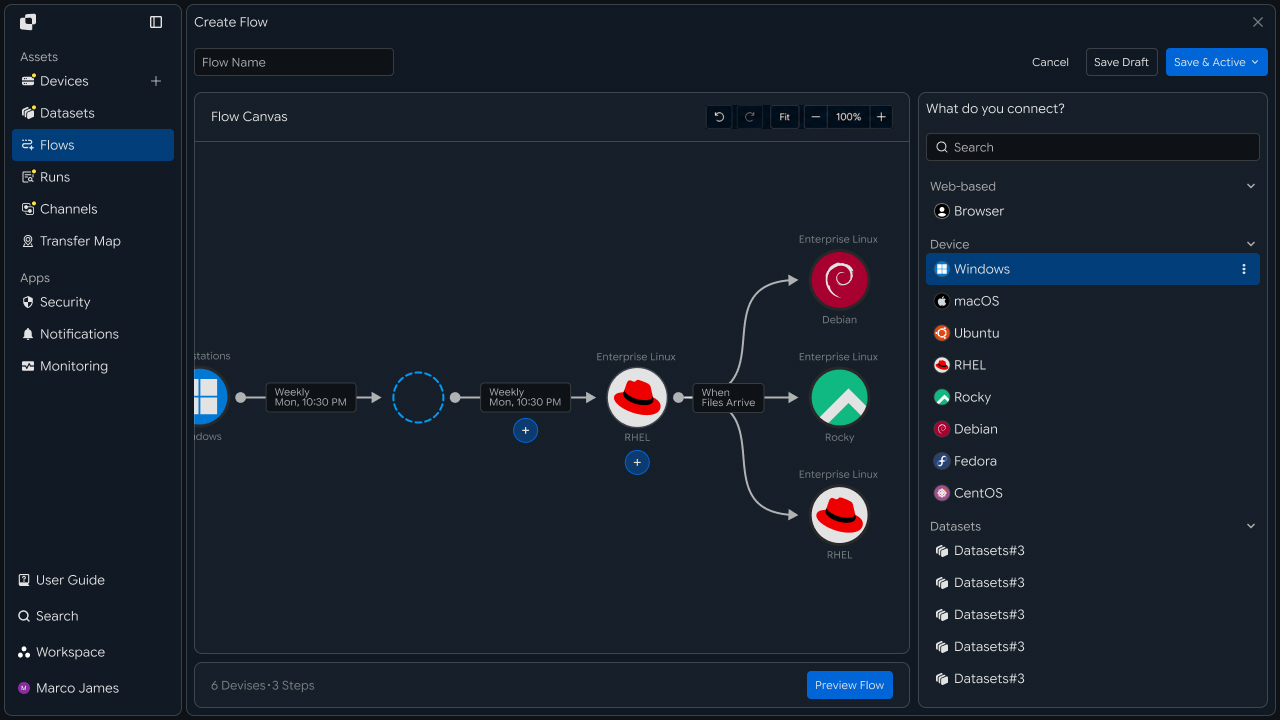
For example, after changing source code and completing a build, you can automatically transfer the generated package or result files to test servers, deployment servers, or data-processing equipment.
Integration Flow
Automatically continue from Git operations to file transfer
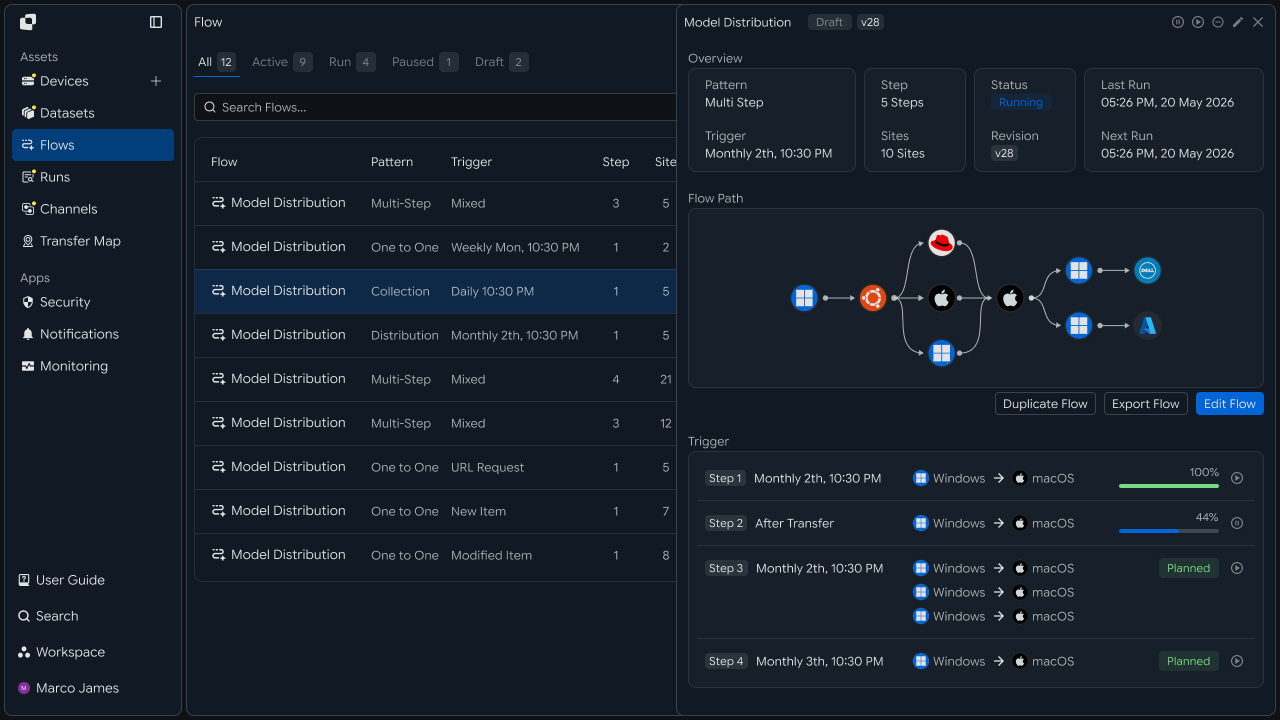
Run build or file-processing tasks based on Git operations, and start file transfer according to the specified conditions when the required files are ready.
When the transfer is complete, the target device can continue with the next task, such as testing, deployment, or data processing.
Git Task
   │
   ▼
Build · File Processing
   │
   ▼
Result File Creation
   │
   ▼
Transfer Task Execution
   │
   ▼
Target Device Deployment
   │
   ▼
Continue to the Next Task
Separation Benefits
Manage source code and work files in their respective ways
Using Git and file transfer together lets you connect source-code change management with the transfer and use of separate files in one workflow.
| Category | Git | File Transfer |
|---|---|---|
| Managed Items | Source code and change history | Result files and work files |
| Primary Role | Code changes and version control | File processing and target-device deployment |
| Execution Timing | Code operation and event occurrence | Configured task conditions are met |
| Usage Environment | Development and configuration management | Testing, deployment, and work equipment |
This lets you manage each file according to its purpose while automatically running file transfers after Git operations when needed.
IT Engineers
Environment Connection
Connect Git operations to file-transfer devices
First, connect the devices used for Git operations and file transfer into one flow.
Connect Git operations with the build or file-processing environment and the target devices that will use the result files to form the complete file flow.
┌──────────────┐
│     Git      │
└──────┬───────┘
       │
       ▼
┌──────────────┐
│ Build Server │
└──────┬───────┘
       │
       ▼
┌──────────────┐
│ File Transfer│
└──────┬───────┘
       │
       ▼
┌──────────────┐
│Target Device │
└──────────────┘
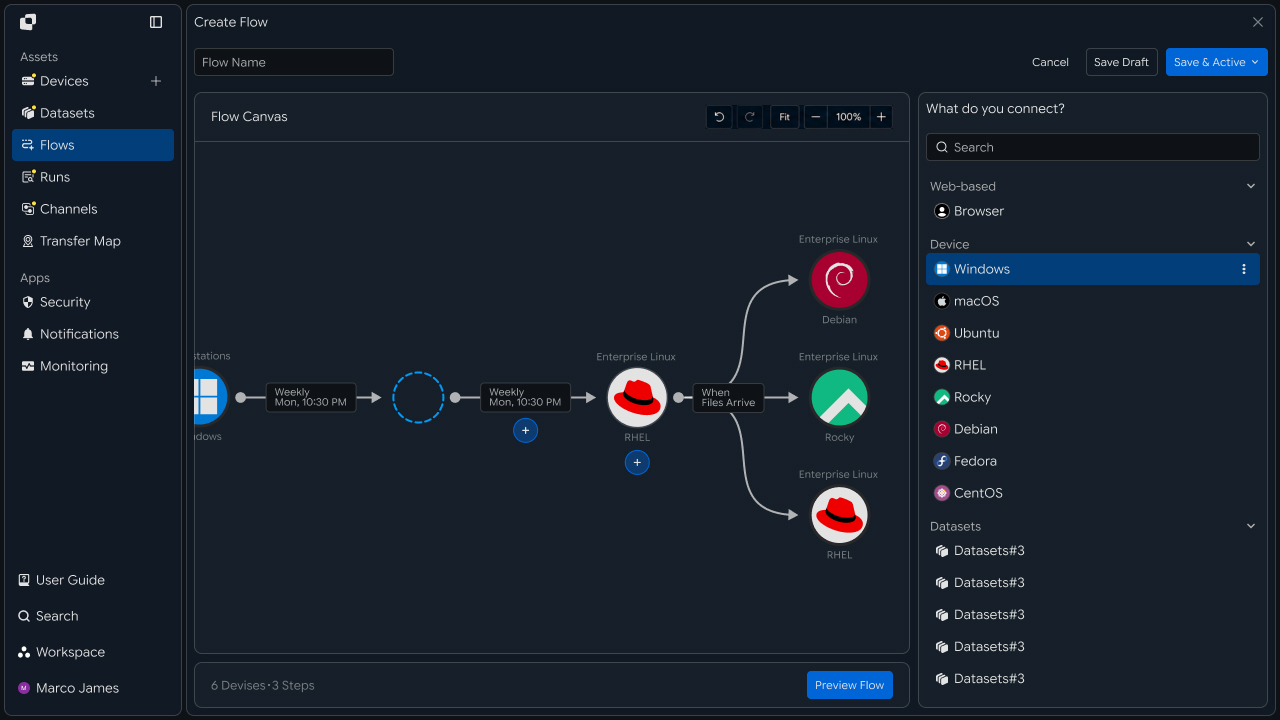
Connecting each device and task prepares the basic environment in which files generated after Git operations continue to the next transfer stage.
Transfer Rules
Set files, targets, and execution conditions as one standard
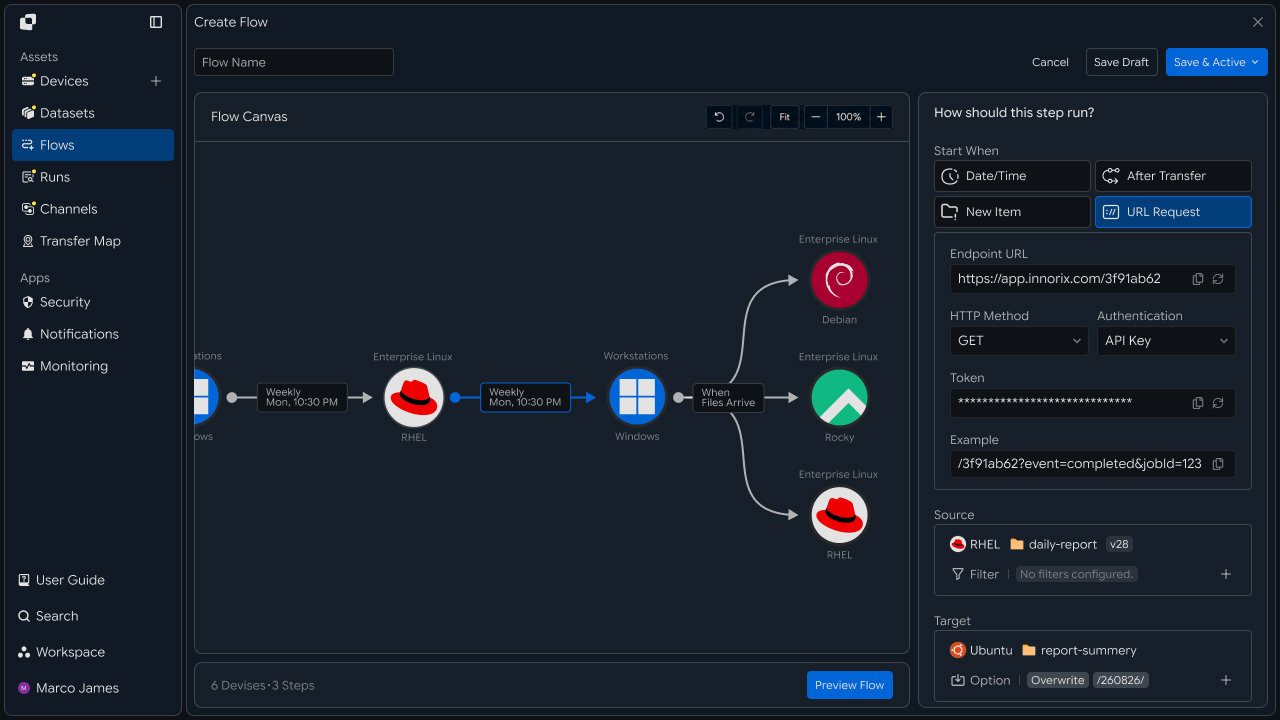
Specify the files to manage separately and the target devices, then set when to start the file transfer based on Git or a subsequent task.
Specify the path and type of files to transfer and connect the target server or device. You can then use conditions such as code changes, build completion, or result-file creation as the transfer start criteria.
Git / Build Event
        │
        ▼
 Start Condition
        │
        ├── Source
        │      └── File / Path
        │
        └── Target
               └── Device
                      │
                      ▼
                 Transfer Run
| Configuration Item | Configure Details |
|---|---|
| Start Condition | Criteria for starting the transfer, such as a Git operation or build completion |
| Source | Result files and file paths |
| Filter | File name and extension conditions for transfer |
| Target | Server or device that will use the files |
| Transfer | File transfer executed according to the configured conditions |
With this configuration, you can manage which files to transfer to which devices after which operations as a single execution standard.
Automated Flow
Automatically transfer files to designated devices after Git operations
Using the devices and transfer rules configured above, complete the automated flow from Git operations to file transfer.
When a Git operation occurs, the connected build or processing task runs, and prepared files are transferred to the designated devices according to the configured conditions.
Git Push
   │
   ▼
Build
   │
   ▼
Output Ready
   │
   ├──────────────┐
   │              │
   ▼              ▼
Test Server   Deploy Server
   │              │
   └──────┬───────┘
          ▼
       Complete
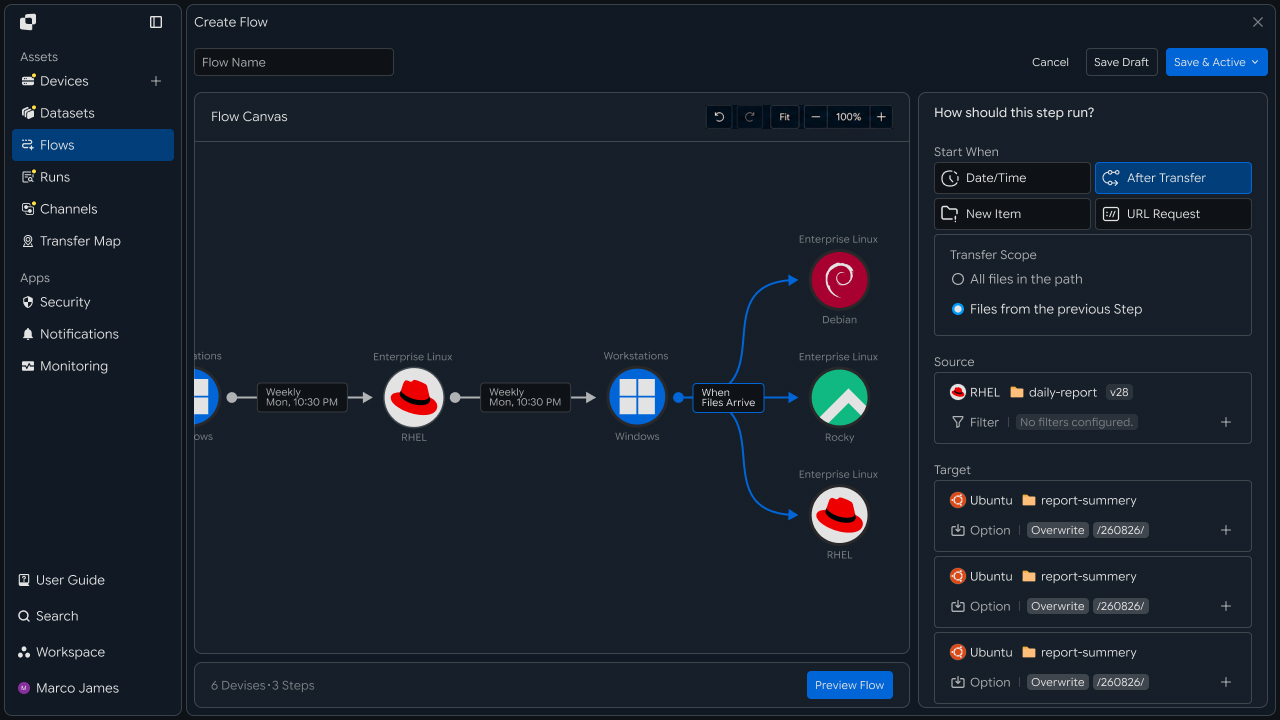
By configuring one result file to be transferred to multiple test or deployment environments, you can automatically connect files to the required work environments after Git operations.
Result Management
Manage transfer status and reprocessing flow together
Review executed file-transfer tasks through Runs and execution details.
You can check which transfer tasks were executed based on Git operations and manage processing status and transferred-file information by target device.
Git Workflow
      │
      ▼
 Transfer Run
      │
 ┌────┼───────┐
 ▼    ▼       ▼
Files Status Progress
      │
      ▼
 Result Review
      │
 ┌────┴─────────────┐
 ▼                  ▼
Completed      Check Required
                    │
                    ▼
              Run Details
                    │
                    ▼
               Condition Check
                    │
                    ▼
                  Retry
                    │
                    ▼
                 Complete
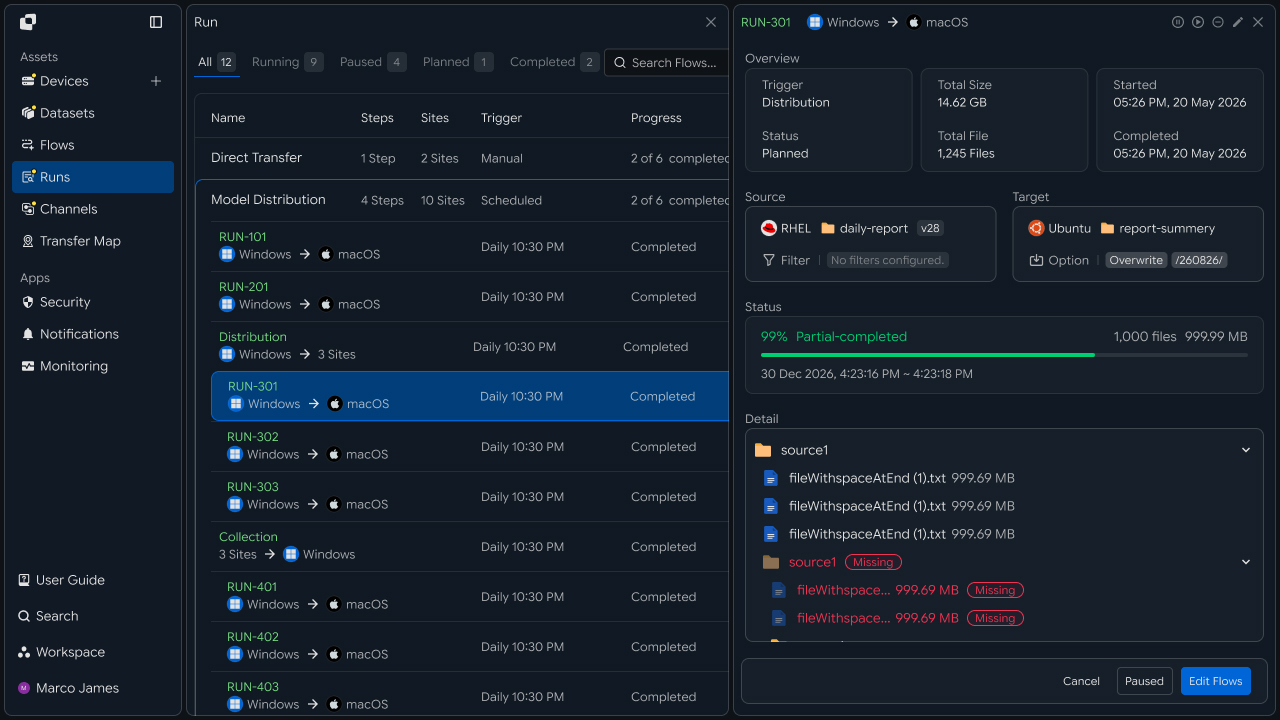
The main items to check are as follows.
| Check Item | Details |
|---|---|
| Trigger | Git or subsequent task that started the file transfer |
| Source | Transferred files and file paths |
| Target | Target device that will use the files |
| Progress | Transfer progress |
| Status | Execution status and processing result |
| Files | Number and size of processed files |
| Audit Log | Execution history and details for each task |
If the execution result requires additional review, use the Run details and Audit Log to check file readiness, transfer paths, and target-device connectivity, then rerun the required task.
Developer
Send build artifacts to multiple deployment targets and reflect transfer results in the pipeline exit code
Integration Setup
Prepare common API-call code and CI credentials
import os
import requests

BASE_URL = os.getenv("INNORIX_BASE_URL", "https://app.innorix.com").rstrip("/")
TOKEN = os.environ["INNORIX_ACCESS_TOKEN"]
WORKSPACE_ID = os.getenv("INNORIX_WORKSPACE_ID")   # optional; falls back to the current workspace

STATUS_COMPLETE = 2
TERMINAL = {2, 4, 5, 9, 99}          # complete / error / cancelled / partial / failed
NOT_SUCCEEDED = {4, 5, 9, 99}


def api(method, path, body=None, params=None):
    headers = {
        "Content-Type": "application/json",
        "Authorization": f"Bearer {TOKEN}",
    }

    if WORKSPACE_ID:
        headers["x-workspace-id"] = WORKSPACE_ID

    response = requests.request(
        method, BASE_URL + path,
        headers=headers, json=body, params=params, timeout=30,
    )

    payload = response.json() if response.content else {}

    if not response.ok:
        raise RuntimeError(payload.get("message") or f"HTTP {response.status_code}")

    return payload.get("data")


def is_terminal(detail):
    return detail.get("isTerminal", detail.get("status") in TERMINAL)
Transfer status is determined by the values below. There are five terminal states, and the value corresponding to success is Complete (2).
| Status Value | Meaning | Terminal |
|---|---|---|
| 2 | Complete | Yes |
| 4 | Error | Yes |
| 5 | Canceled | Yes |
| 9 | Partially Complete | Yes |
| 99 | Failed | Yes |
| 1 · 6 · 12 · 13 | Starting · Transferring · Synchronizing · Receiving | No |
When calling from CI, inject the token as a pipeline secret. Do not commit it to the repository.
# GitHub Actions example
env:
  INNORIX_BASE_URL: https://app.innorix.com
  INNORIX_ACCESS_TOKEN: ${{ secrets.INNORIX_ACCESS_TOKEN }}
Artifact Path Design
Include the commit or tag in the path to preserve deployment history
Record which code produced the artifact in the path. Keeping separate version folders preserves previous artifacts and makes rollback easier when problems occur.
import os
import subprocess


def git_ref():
    try:
        sha = subprocess.check_output(
            ["git", "rev-parse", "--short", "HEAD"], text=True).strip()
    except (subprocess.CalledProcessError, FileNotFoundError):
        sha = "unknown"

    return os.getenv("GIT_TAG") or sha


def target_path(base, ref):
    return f"{base}/{ref}"
If you overwrite a single path, there is nothing to roll back to.
Artifact Transfer
Send build result files to target devices
When sending a file, explicitly set isDir: false in sourceItem. sourcePaths treats every path as a folder, so putting an artifact file there can cause the server to scan it as a folder, slowing the operation or causing a timeout.
def deploy_artifact(source, target, artifact_path, base):
    ref = git_ref()

    transfer = api("POST", "/api/transfers/manual", {
        "sourceDevice": source,
        "targetDevice": target,
        "targetPath": target_path(base, ref),
        "sourceItem": [{
            "path": artifact_path,
            "isDir": False,
            "isFolder": False,
            "fileSize": os.path.getsize(artifact_path),
        }],
        "sendAllFolder": False,
        "transferOptions": {"target-action": "overwrite"},
    })

    return transfer["monitorId"], target_path(base, ref)
When sending a build directory as a folder, use sourcePaths and sendAllFolder: True.
api("POST", "/api/transfers/manual", {
    "sourceDevice": source,
    "targetDevice": target,
    "targetPath": target_path(base, ref),
    "sourcePaths": ["/build/output"],
    "sendAllFolder": True,
    "transferOptions": {"target-action": "overwrite"},
})
Because rebuilds usually use the same reference, use overwrite. With numbering, copies accumulate each time you redeploy.
Multi-Target Deployment
Send one artifact to multiple environments
One transfer handles one target device. To send to both test and staging, create separate transfers.
TARGETS = [
    ("device-test-01", "/deploy/app"),
    ("device-stage-01", "/deploy/app"),
]

transfers = {
    target: deploy_artifact("device-build-01", target,
                            "/build/output/app.tar.gz", base)[0]
    for target, base in TARGETS
}def wait(monitor_id, timeout=3600, interval=3):
deadline = time.time() + timeout
while time.time() < deadline:
detail = api("GET", f"/api/transfers/{monitor_id}")
if is_terminal(detail):
return detail
time.sleep(interval)
raise TimeoutError(monitor_id)
def failed_files(monitor_id):
result = api("GET", f"/api/transfers/{monitor_id}/files", params={
"state": "any", "size": 500,
}) or {}
return [r for r in (result.get("children") or [])
if r.get("status") in NOT_SUCCEEDED]
def retry_failed(monitor_id):
rows = failed_files(monitor_id)
if not rows:
return 0
api("POST", f"/api/transfers/{monitor_id}/retry", {
"filesRetry": [
{"filePath": r["sourceFilePath"], "isDir": bool(r.get("isFolder"))}
for r in rows
]
})
return len(rows)results = {}
for target, monitor_id in transfers.items():
results[target] = wait(monitor_id, timeout=3600)
failed = [t for t, d in results.items() if d["status"] != STATUS_COMPLETE]Even if one target fails, continue checking the others so you know how far the deployment progressed. If you stop at the first failure, you cannot determine the redeployment scope.
Large Artifact Transfer
Control large-artifact throughput with speed and concurrency options
For large artifacts such as container images or datasets, control transfer speed with throughput options.
api("POST", "/api/transfers/manual", {
    "sourceDevice": source,
    "targetDevice": target,
    "targetPath": target_path(base, ref),
    "sourcePaths": ["/build/output"],
    "sendAllFolder": True,
    "transferOptions": {
        "target-action": "overwrite",
        "networkLevel": 3,           # throughput priority level
        "concurrentTransfers": 8,    # concurrent transfers
    },
})
If the CI runner and deployment target share the same network link, apply a rate limit so other tasks are not affected.
"transferOptions": {
  "target-action": "overwrite",
  "limitRate": 51200
}
The unit of limitRate is KB/s.
Pipeline Integration
Set the pipeline exit code from the transfer result
CI determines success from the exit code. If the transfer fails, the pipeline must fail as well.
import sys

if __name__ == "__main__":
    monitor_id, path = deploy_artifact(
        os.environ["BUILD_DEVICE"],
        os.environ["TARGET_DEVICE"],
        os.environ["ARTIFACT_PATH"],
        os.environ["DEPLOY_BASE"],
    )

    detail = wait(monitor_id)

    if detail["status"] != STATUS_COMPLETE:
        for row in failed_files(monitor_id)[:10]:
            print(row["sourceFilePath"], row.get("errorCode"), file=sys.stderr)

        print(f"retried {retry_failed(monitor_id)} files", file=sys.stderr)
        sys.exit(1)

    print(f"deployed: {path}")
Deployment History Integration
Record monitorId together with commit information
Recording monitorId together with commit information links deployment history with code history.
record = {
    "monitorId": monitor_id,
    "commit": subprocess.check_output(
        ["git", "rev-parse", "HEAD"], text=True).strip(),
    "branch": os.getenv("GIT_BRANCH"),
    "buildNumber": os.getenv("BUILD_NUMBER"),
    "targetPath": path,
}

db.insert("deployments", record)| Record Item | Details |
|---|---|
monitorId | Transfer identifier |
commit · branch | Code point that produced the artifact |
buildNumber | CI run number |
targetPath | Deployment path on the target device |
When a deployment problem occurs, find the history using monitorId and trace it back to the commit.
Query recent deployment history by time period.
from datetime import datetime, timedelta, timezone


def paginate(path, params=None, limit=200, max_pages=50):
    query = dict(params or {})
    query["limit"] = limit
    cursor = None

    for _ in range(max_pages):
        if cursor:
            query["cursor"] = cursor

        result = api("GET", path, params=query) or {}

        for record in result.get("data") or []:
            yield record

        pagination = result.get("pagination") or {}

        if not pagination.get("hasMore"):
            return

        cursor = pagination.get("nextCursor")

        if not cursor:
            return


end = datetime.now(timezone.utc)
fmt = "%Y-%m-%dT%H:%M:%SZ"

for row in paginate("/api/transfer-history", params={
    "startDate": (end - timedelta(days=7)).strftime(fmt),
    "endDate": end.strftime(fmt),
}):
    print(row["monitorId"], row.get("statusName"),
row.get("targetDeviceName"), row.get("startDate"))| Check Item | Details |
|---|---|
| Artifact | Transferred files and paths |
| Reference | Commit or tag |
| Target | Deployed device and path |
| Status | Success and failure by target |
| Failed Files | Errors and retransmission results by file |