Getting Started
Basic Concept
Exchange files in both directions between your work environment and partner systems
Partner workflows often involve both files sent to partners, such as purchase orders and design materials, and files received from partners, such as inspection results and settlement data.
File exchange connects your work environment with partner systems and manages outbound and inbound files according to separate paths and conditions.
                 Our Work Environment
                       │
       Purchase Orders · Design Materials │
                       ▼
              ┌────────────────┐
              │  File Exchange │
              └────────────────┘
                       ▲
       Inspection Results · Settlement Data │
                       │
                 Partner System
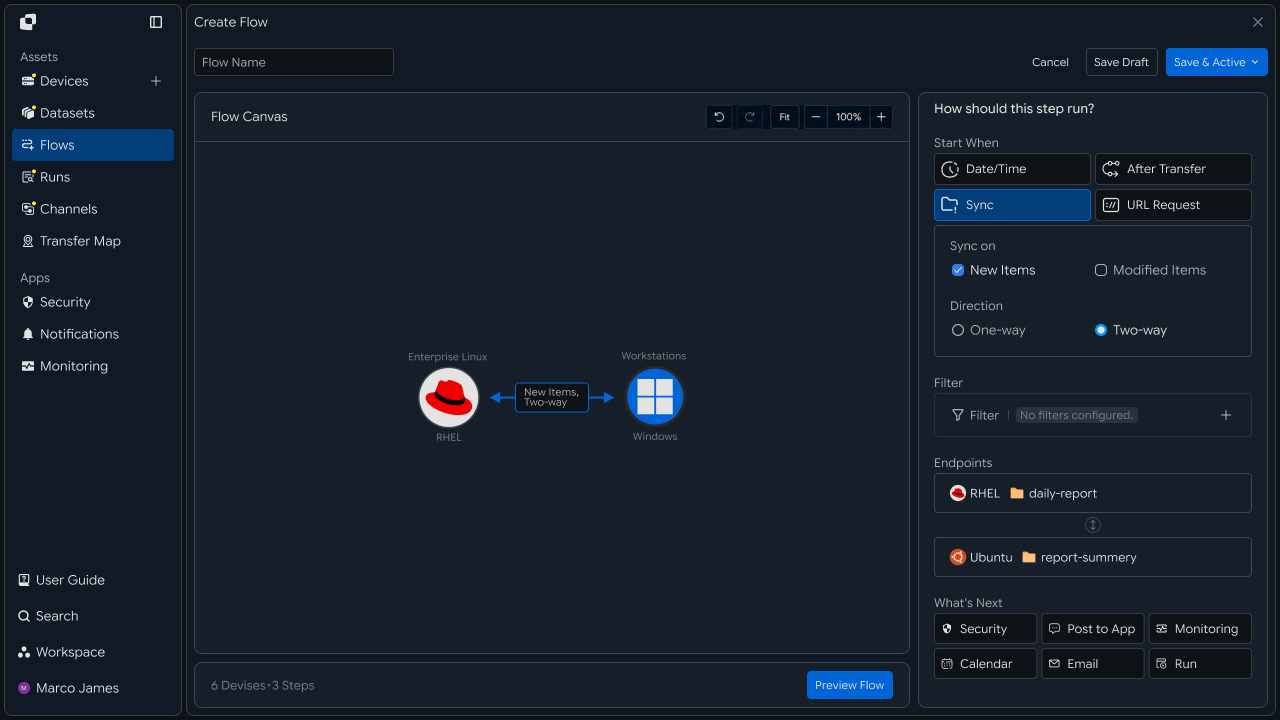
By configuring the files and paths for each partner, you can manage bidirectional file flows for ordering, design, settlement, inspection, and other workflows.
Exchange Flow
Send files, receive results, and continue to the next task
Business files created internally are sent to the partner, and result files processed by the partner are received back and used in the next step.
Prepare Business Files
      │
      ▼
Send to Partner
      │
      ▼
Partner Processing
      │
      ▼
Receive Result Files
      │
      ▼
Internal Follow-up Work
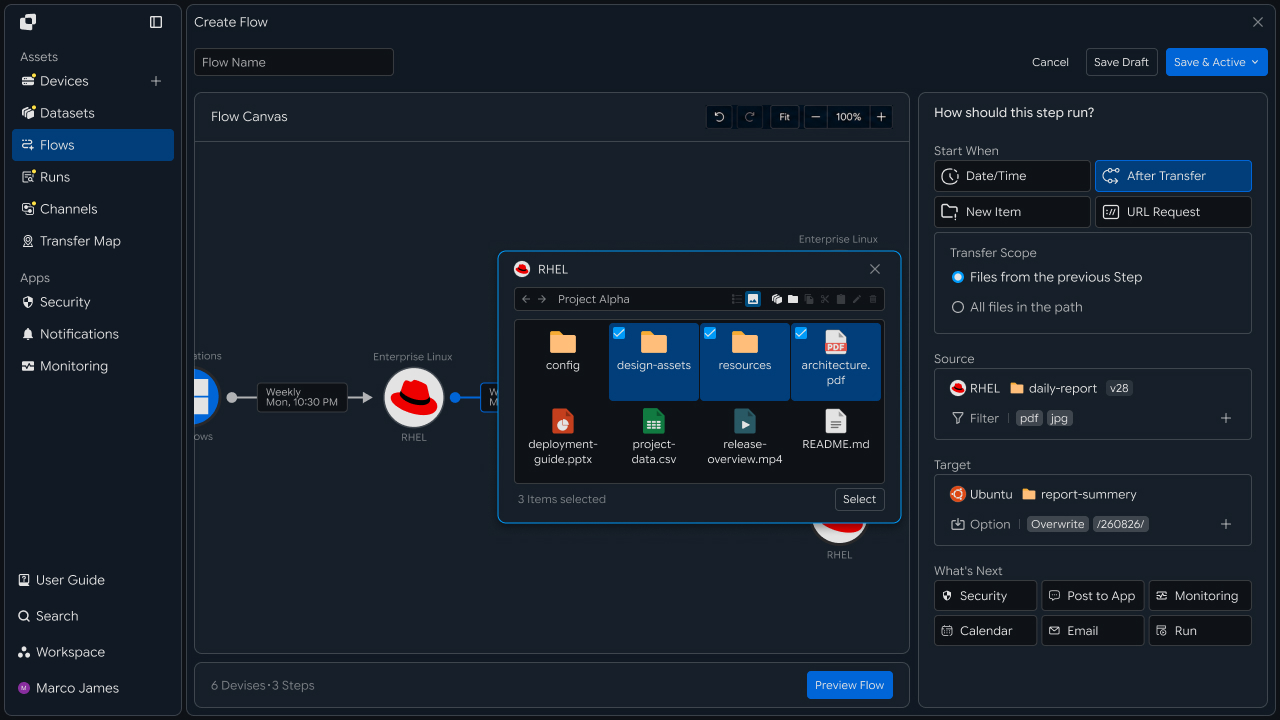
Connecting outbound and inbound transfers in a single workflow lets you manage how files move between partner systems and internal operations.
Business Benefits
Manage partner-specific file exchange through defined workflows
Even when each partner requires different files and processes, you can separate the files and exchange paths by partner and build workflows around those requirements.
| Workflow | Sent to Partner | Received from Partner | Used For |
|---|---|---|---|
| Order | Purchase order · ordering data | Order result | Order processing |
| Settlement | Settlement request data | Settlement result | Settlement review |
| Design | Design materials | Revisions · review materials | Design review |
| Inspection | Inspection request data | Inspection result | Quality review |
Business Teams
File Exchange
Select and exchange the files required for each partner workflow
Business teams select the files required for current ordering, settlement, design, inspection, and other work, then run partner-specific file exchange jobs.
Select Files
    │
    ▼
Select Partner
    │
    ▼
Transfer Files
    │
    ▼
Receive Result Files
Received files can be used immediately for the next steps, including review, revision, and approval.
Exchange Status
Review file exchange status and results by partner
When working with multiple partners, you can review the processing status of files sent to and received from each partner.
| Partner | Sent Files | Received Files | Progress |
|---|---|---|---|
| Partner A | Purchase Order | Order Result | Completed |
| Partner B | Design Materials | Revision Materials | In Progress |
| Partner C | Inspection Request | Inspection Result | Completed |
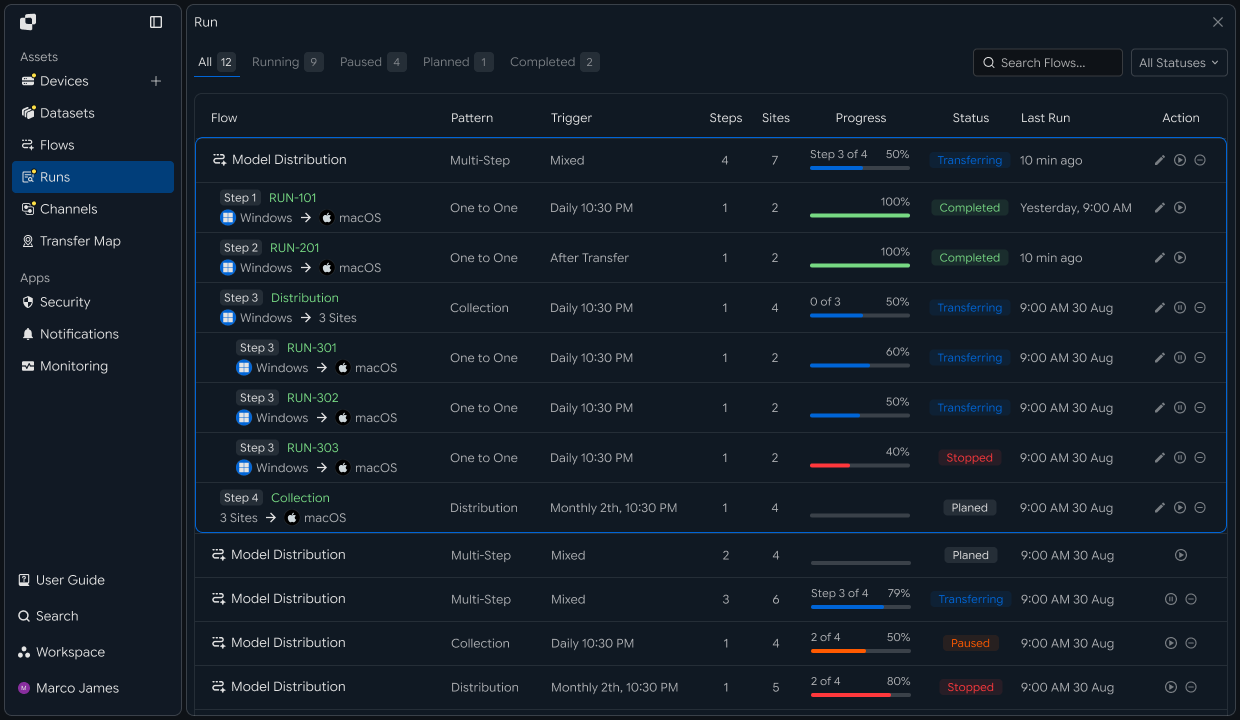
This lets business teams see which partner exchanges are currently in progress and use received results in subsequent work.
IT Engineers
Connect Partners
Connect partner systems to the internal file exchange environment
First, connect the partner systems used for file exchange to the internal transfer environment.
When exchanging files with multiple partners, configure each partner as a separate connection target.
                    File Exchange
                         │
          ┌──────────────┼──────────────┐
          ▼              ▼              ▼
      Partner A      Partner B      Partner C
          ↕              ↕              ↕
       Order Work      Design Work     Settlement Work
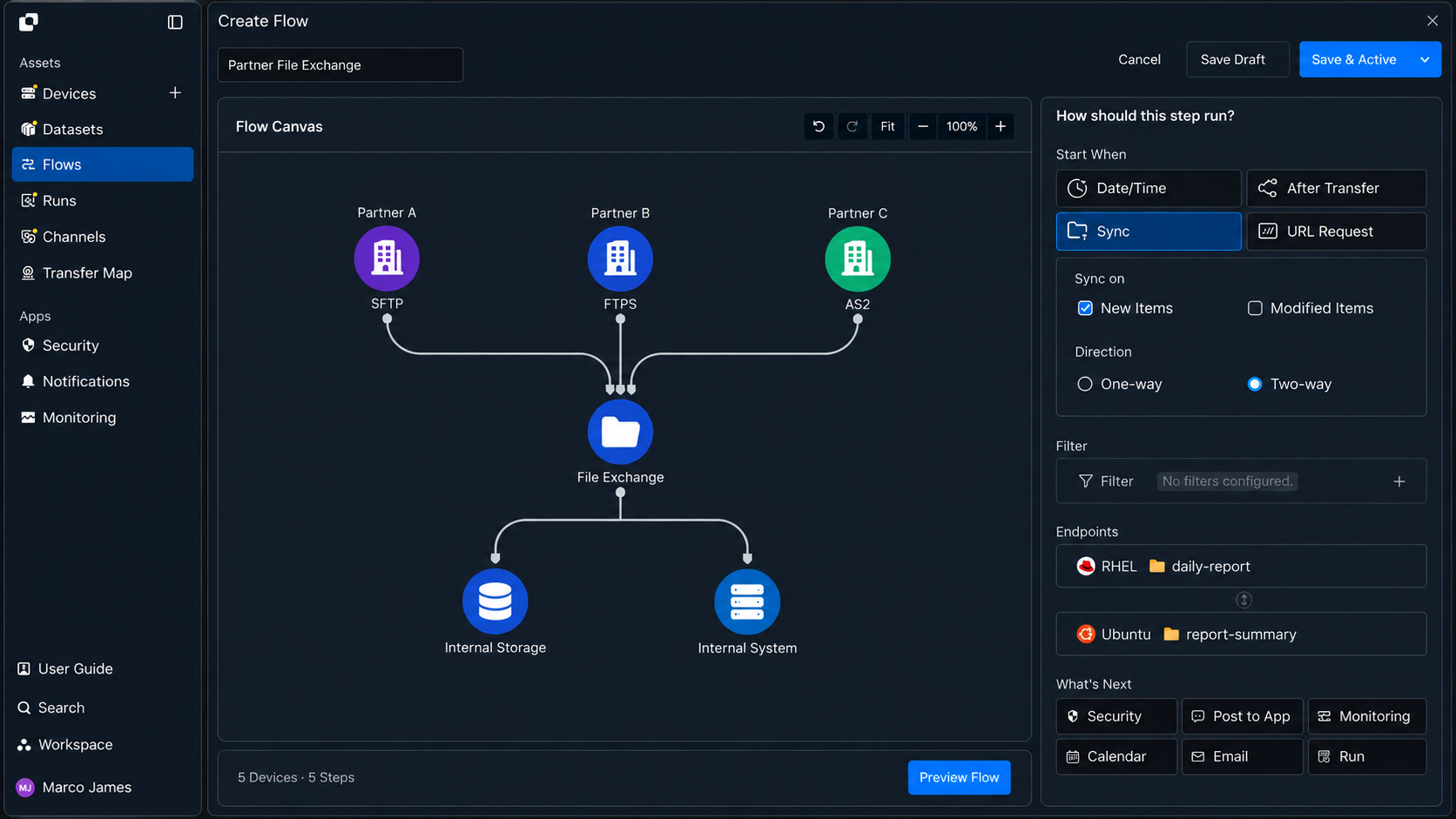
Exchange Setup
Configure send and receive paths and execution criteria in one flow
For each partner, configure the internal path for files to send and the partner path for files to receive.
Define exchange targets by file name, path, and type, and configure jobs to start at scheduled times or when files are prepared or arrive.
Our System                              Partner System

/send/orders  ───────── Send ────────►  /receive/orders


/receive/results ◄──── Receive ───────  /send/results
| Direction | Our System | Partner System | Execution Criteria |
|---|---|---|---|
| Send | /send/orders | /receive/orders | Schedule · file ready |
| Receive | /receive/results | /send/results | Schedule · file arrival |
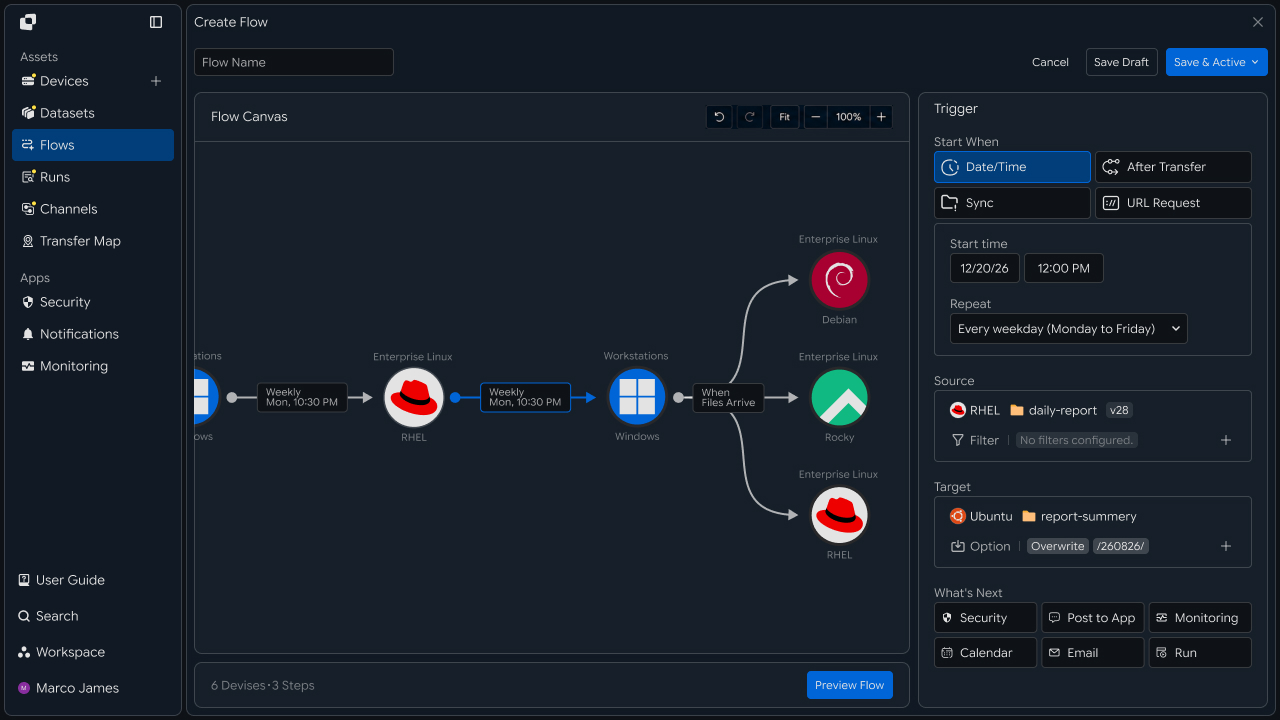
Combining send and receive jobs lets you manage partner file exchange as one bidirectional flow.
Exchange Flow
Connect file exchange jobs across multiple partners by workflow
File exchange with each partner can combine send and receive operations into a single workflow.
                 ┌───────────────┐
                 │ Partner File Flows │
                 └───────┬───────┘
                         │
              ┌──────────┼──────────┐
              ▼          ▼          ▼
          Partner A   Partner B   Partner C
              │          │          │
            Order Exchange Design Exchange Settlement Exchange
              │          │          │
              └──────────┼──────────┘
                         ▼
                    Internal Follow-up Work
Operational Review
Manage send and receive results together by partner
Use Runs and detailed execution information to review each partner's file exchange jobs and processing results.
Reviewing send and receive results by partner lets you manage both active work and completed file exchanges in one place.
Partner A
   ├── Send    → Completed
   └── Receive → Completed

Partner B
   ├── Send    → Completed
   └── Receive → In Progress
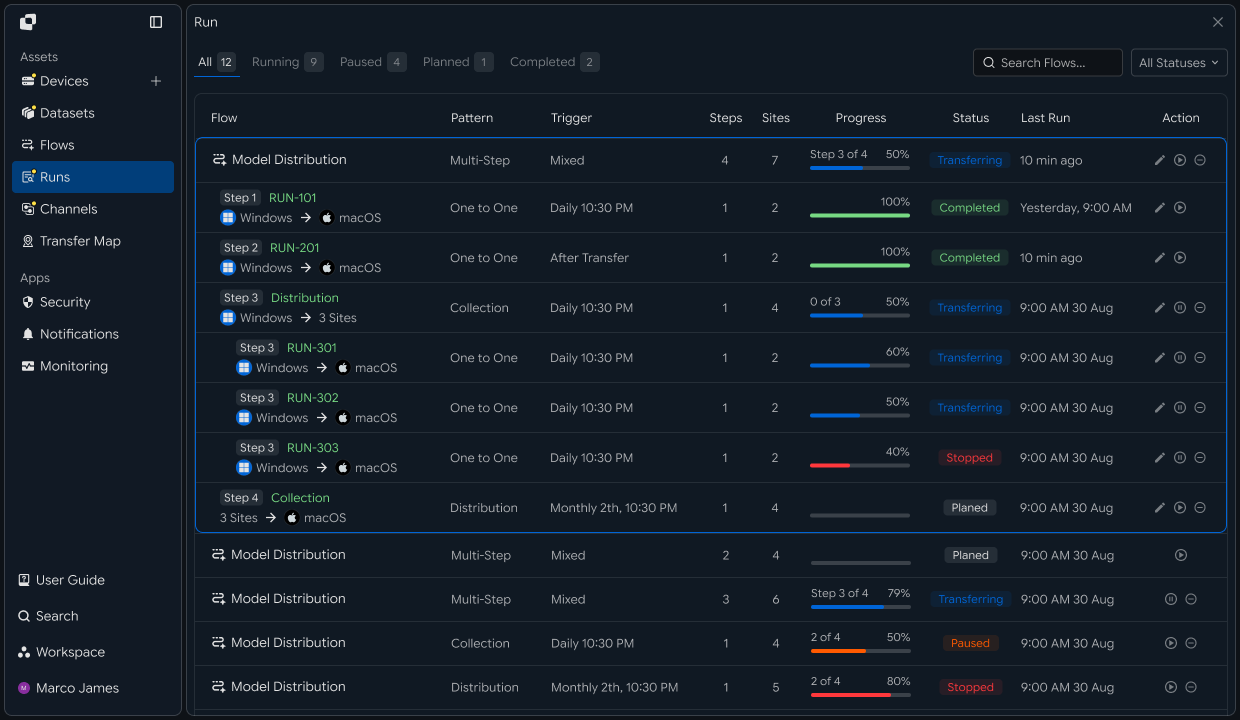
If an exchange needs attention, use execution details and processing history to review connection status, file paths, and results, then rerun the required operation.
Developers
Send files to partner devices and retrieve partner-uploaded files through folder monitoring
Integration Setup
Prepare shared API calls and path encoding
import os
import requests

BASE_URL = os.getenv("INNORIX_BASE_URL", "https://app.innorix.com").rstrip("/")
TOKEN = os.environ["INNORIX_ACCESS_TOKEN"]
WORKSPACE_ID = os.getenv("INNORIX_WORKSPACE_ID")   # optional; falls back to the current workspace

STATUS_COMPLETE = 2
TERMINAL = {2, 4, 5, 9, 99}          # complete / error / cancelled / partial / failed
NOT_SUCCEEDED = {4, 5, 9, 99}


def api(method, path, body=None, params=None):
    headers = {
        "Content-Type": "application/json",
        "Authorization": f"Bearer {TOKEN}",
    }

    if WORKSPACE_ID:
        headers["x-workspace-id"] = WORKSPACE_ID

    response = requests.request(
        method, BASE_URL + path,
        headers=headers, json=body, params=params, timeout=30,
    )

    payload = response.json() if response.content else {}

    if not response.ok:
        raise RuntimeError(payload.get("message") or f"HTTP {response.status_code}")

    return payload.get("data")


def is_terminal(detail):
return detail.get("isTerminal", detail.get("status") in TERMINAL)import base64
import time
def encode_path(device_id, raw_path):
normalized = str(raw_path or "").replace("\\", "/")
token = base64.b64encode(normalized.encode("utf-8")).decode("ascii")
return f"{device_id}_ino_{token}"
def now_iso():
return time.strftime("%Y-%m-%dT%H:%M:%S.000Z", time.gmtime())Use the following values to determine transfer status. There are five terminal states, and Complete (2) is the successful state.
| Status Value | Meaning | Terminal |
|---|---|---|
| 2 | Complete | Yes |
| 4 | Error | Yes |
| 5 | Cancelled | Yes |
| 9 | Partial Complete | Yes |
| 99 | Failed | Yes |
| 1 · 6 · 12 · 13 | Starting · Transferring · Synchronizing · Receiving | No |
Partner Setup
Manage partner-specific devices and paths as data
Each partner may use different paths and workflows. Keeping this configuration in data means you do not need to change the code as partners are added.
PARTNERS = {
    "partner-a": {
        "device": "device-partner-a",
        "send":    {"local": "/send/orders", "remote": "/receive/orders"},
        "receive": {"remote": "/send/results", "local": "/receive/results"},
    },
    "partner-b": {
        "device": "device-partner-b",
        "send":    {"local": "/send/design", "remote": "/receive/design"},
        "receive": {"remote": "/send/review", "local": "/receive/review"},
    },
}

INTERNAL = "device-hq-01"
If workspaces are separated by partner, send the workspace identifier with each request. This prevents one partner's configuration mistake from exposing another partner's files.
Send Files
Send internal files to a partner device
When sending files, specify isDir: false in sourceItem. sourcePaths treats every path as a folder.
import os


def send_to_partner(partner_id, files):
    partner = PARTNERS[partner_id]

    transfer = api("POST", "/api/transfers/manual", {
        "sourceDevice": INTERNAL,
        "targetDevice": partner["device"],
        "targetPath": partner["send"]["remote"],
        "sourceItem": [{"path": p, "isDir": False} for p in files],
        "sendAllFolder": False,
        "transferOptions": {"target-action": "numbering"},
    })

    return transfer["monitorId"]


monitor_id = send_to_partner("partner-a", ["/send/orders/PO-2026-0901.xlsx"])
When sending folders, use sourcePaths with sendAllFolder: True.
Use numbering for files sent to partners so each submission is preserved. If the same purchase order is revised and resent, overwriting the previous version would make it difficult to determine which version was actually processed.
Receive Result Files
Detect and retrieve files uploaded by partners
Because you do not know exactly when a partner will upload a file, configure real-time folder monitoring. Set transferType to sync and include watchFolderType in transferOptions so the file is transferred as soon as it arrives.
def create_receive_watch(partner_id, webhook=None):
    partner = PARTNERS[partner_id]
    remote = partner["receive"]["remote"]
    local = f"{partner['receive']['local']}/{partner_id}"
    name = f"receive {partner_id}"

    body = {
        "name": name,
        "flowName": name,
        "transferType": "sync",
        "timezone": "Asia/Seoul",
        "step": 1,
        "isUpcoming": False,
        "details": [
            {
                "senderId": partner["device"],
                "receiverId": INTERNAL,
                "sourceItem": [
                    {
                        "hash": encode_path(partner["device"], remote),
                        "filePath": remote,
                        "isDir": True,
                    }
                ],
                "targetPath": encode_path(INTERNAL, local),
                "step": 1,
                "transferOptions": {
                    "noSchedule": True,
                    "target-action": "numbering",
                    "send-fileoption": {},
                    "syncType": 1,
                    "watchFolderType": 1,      # 1 = on create, 2 = on modify
                },
            }
        ],
        "schedules": [
            {"type": "none", "startDateType": "now",
             "startDate": now_iso(), "timezone": "Asia/Seoul"}
        ],
    }

    if webhook:
        body["processors"] = [{
            "category": "run",
            "type": "http",
            "config": {"url": webhook, "method": "POST"},
        }]

    return api("POST", "/api/automations", body)["automationId"]


receivers = {p: create_receive_watch(p, RECEIVE_HOOK) for p in PARTNERS}
There are four required considerations when creating the automation request.
| Item | Configuration |
|---|---|
isUpcoming | Must be false. The server default of true ignores the schedule in the request and replaces it with a one-time five-minute schedule. Steps with triggerAutomation are forced to false by the server, so you only need to set it explicitly on the first step when no trigger is present. |
step | Include it at both the top level and in details. It identifies the hop position within the flow. |
sourceItem | Include both hash (path token) and filePath (plain-text path). |
syncType | Include it inside transferOptions. 1 is one-way and 2 is two-way. |
Registration succeeds even if all four fields are omitted, but runtime behavior changes. If a recurring schedule runs only once, check isUpcoming first.
Include the partner identifier in the destination path. Partners may upload files with the same name, such as result.xlsx, so storing them in one path makes it impossible to distinguish the source.
The agent treats the file as fully written once its size stops changing, then emits the event. This prevents a partially uploaded large file from being collected.
Post-Receive Processing
Start internal processing when a result file arrives
The callback arrives after the transfer completes. Process the receiving endpoint as follows.
def on_receive_hook(payload):
    monitor_id = payload.get("monitorId")

    if monitor_id:
        detail = api("GET", f"/api/transfers/{monitor_id}")

        if detail["status"] != STATUS_COMPLETE:
            return notify_partner_failure(payload)

    register_received_files(payload)
The same transfer may generate multiple notifications, so make the receiving side idempotent and process the same event only once.
Review Exchange Status
Review send and receive status by partner
from datetime import datetime, timedelta, timezone


def paginate(path, params=None, limit=200, max_pages=50):
    query = dict(params or {})
    query["limit"] = limit
    cursor = None

    for _ in range(max_pages):
        if cursor:
            query["cursor"] = cursor

        result = api("GET", path, params=query) or {}

        for record in result.get("data") or []:
            yield record

        pagination = result.get("pagination") or {}

        if not pagination.get("hasMore"):
            return

        cursor = pagination.get("nextCursor")

        if not cursor:
            return


def partner_summary(partner_id, days=7):
    partner = PARTNERS[partner_id]
    end = datetime.now(timezone.utc)
    fmt = "%Y-%m-%dT%H:%M:%SZ"

    rows = list(paginate(
        f"/api/devices/{partner['device']}/transfer-history", params={
            "startDate": (end - timedelta(days=days)).strftime(fmt),
            "endDate": end.strftime(fmt),
        }))

    return {
        "sent": len([r for r in rows if r.get("sourceDeviceName") == INTERNAL]),
        "received": len([r for r in rows if r.get("targetDeviceName") == INTERNAL]),
        "failed": len([r for r in rows if r.get("status") in NOT_SUCCEEDED]),
        "rows": rows,
    }


for partner_id in PARTNERS:
    summary = partner_summary(partner_id)
    print(f"{partner_id:14} sent {summary['sent']:>3}"
          f" received {summary['received']:>3} failed {summary['failed']:>3}")
Transfer history is returned in the data.data array, and pagination information is returned in data.pagination.
Exception Handling
Handle transfer failures differently from files that have not yet been received
A failed transfer and a partner that has not uploaded a file yet are different situations and require different responses.
def wait(monitor_id, timeout=3600, interval=3):
    deadline = time.time() + timeout

    while time.time() < deadline:
        detail = api("GET", f"/api/transfers/{monitor_id}")

        if is_terminal(detail):
            return detail

        time.sleep(interval)

    raise TimeoutError(monitor_id)


def failed_files(monitor_id):
    result = api("GET", f"/api/transfers/{monitor_id}/files", params={
        "state": "any", "size": 500,
    }) or {}

    return [r for r in (result.get("children") or [])
            if r.get("status") in NOT_SUCCEEDED]


def retry_failed(monitor_id):
    rows = failed_files(monitor_id)

    if not rows:
        return 0

    api("POST", f"/api/transfers/{monitor_id}/retry", {
        "filesRetry": [
            {"filePath": r["sourceFilePath"], "isDir": bool(r.get("isFolder"))}
            for r in rows
        ]
    })

return len(rows)def check_partner(partner_id, days=1):
partner = PARTNERS[partner_id]
summary = partner_summary(partner_id, days=days)
state = api("GET", f"/api/devices/{partner['device']}/connectivity") or {}
if not state.get("isConnected"):
return f"connection lost ({state.get('stateLabel')}) - recollect after recovery"
if summary["failed"]:
count = 0
for row in summary["rows"]:
if row.get("status") in NOT_SUCCEEDED and row.get("monitorId"):
count += retry_failed(row["monitorId"])
return f"transfer failed - retried {count} files"
if summary["received"] == 0:
return "nothing received - ask the partner"
return "ok"| Category | Symptom | Response |
|---|---|---|
| Transfer Failure | Failed status in transfer history | Retry failed files |
| Not Received | No transfer-history record | Ask the partner to confirm |
| Connection Lost | isConnected is false | Collect pending files after the connection recovers |
| Item | Details |
|---|---|
| Send | Transfers sent internally to the partner |
| Receive | Transfers retrieved through monitoring automation |
| Destination Path | Storage location separated by partner identifier |
| Status | Transfer status and success result |
| Connection | Connection state of the partner device |