
목차 (INDEX)#
- Install Exabyter
- Exabyter upload
- Exabyter download
- Advanced features
- Exabyter UI
- Major options
- Front end methods
- Back end methods
- Front end events
- Back end events
Install Exabyter#
Install the product files#
1. Copy the front end files#
웹 서버를 준비한 다음 프런트 앤드 파일을 웹 서버에 복사합니다.
[/wwwroot/innorix] $ cp -r /download/exabyter/ /wwwroot/innorix/2. Create the upload path and give permission#
업로드 폴더를 생성하고 서버에 업로드된 파일을 저장할 수 있는 쓰기 권한을 부여합니다.
[/wwwroot/innorix/exabyter] $ mkdir data
[/wwwroot/innorix/exabyter] $ chmod 777 data
3. Copy the back end files#
[/wwwroot/innorix] $ cp /download/exbyter/exam/upload.jsp /wwwroot/innorix/exabyter/exam/
[/wwwroot/innorix] $ cp /download/exbyter/exam/download.jsp /wwwroot/innorix/exabyter/exam/
[/wwwroot/innorix] $ cp /download/exabyter/WEB-INF/lib/INNORIX-JAVA.jar /wwwroot/WEB-INF/lib/
4. Enter your license key#
LicenseKey.txt 파일을 열고 코드 생성기에 라이센스 키를 입력하십시오.
var INNORIX_LICENSE   = '956|919|126|80|20201120|……';
var INNORIX_SIGNATURE = 'oZ1oj7Ep0pRag8QrglupVW……';
var INNORIX_KEY       = 'MIIBoDANBgkqhkiG9w0BAQEFAAOC……';
제품 파일의 압축을 풀면 다음 파일을 볼 수 있습니다.
| 구분 | 파일 |
|---|---|
| Front end files | /exabyter/innorix.js/exabyter/config.js/exabyter/innorix.css/exabyter/img//exabyter/exam/upload.html/exabyter/exam/download.html |
| Back end files | /exabyter/exam/upload.jsp/exabyter/exam/download.jsp/exabyter/WEB-INF/lib/INNORIX-JAVA.jar |
Upload & download test#
1. Upload test#
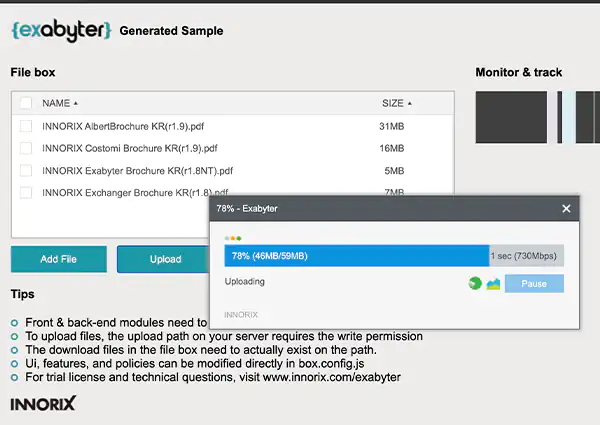
http://your web server address/upload.html 접속
파일을 선택하고 Upload 버튼을 클릭하면 전송 창이 나타납니다.
2. Download test#
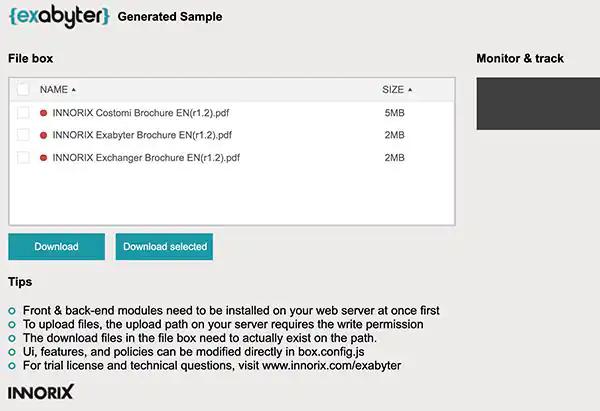
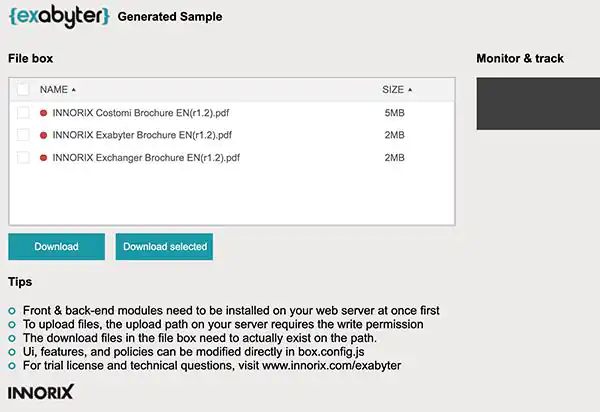
http://your web server address/download.html 접속
Download 버튼을 클릭하면 전송 창이 나타납니다.
Exabyter upload#
STEP1: Front end process#
1. File size and number of files#
최대 파일 크기와 파일 수를 설정합니다. 설정하지 않으면 무제한입니다.
| Name | Type | Default | Description |
|---|---|---|---|
| maxFileCount | Number | unlimited | Set the maximum number of attachable files |
| maxFileSize | Number | unlimited | Set the maximum size of one file (bytes) |
| maxTotalSize | Number | unlimited | Set the total size of attachable files (bytes) |
innorix.config = {
    default: {
        ...
        maxFileCount : 10,
        maxFileSize  : 100,
        maxTotalSize : 1000,
        ...
}};
2. File types#
첨부할 파일 형식을 설정합니다.
| Name | Type | Default | Description |
|---|---|---|---|
| allowType | String Array | Allow to attach only entered file types e.g ["jpg", "gif", "png"]※ limitExtension is higher priority than allowExtension |
innorix.config = {
    default: {
        ...
        allowType : ["jpg", "gif", "png"],
        ...
}};
첨부를 거부할 파일 형식을 설정합니다.
| Name | Type | Default | Description |
|---|---|---|---|
| denyType | String Array | Deny to attach entered file types e.g ["exe", "msi", "cab"]※ When specifying the same extension policy as allowExtension, LimitExtension is applied first |
innorix.config = {
    default: {
        ...
        denyType : ["exe", "msi", "cab"],
        ...
}};
3. Duplicate files#
"true"이면 중복 파일을 첨부할 수 있습니다. (Default=false)
| Name | Type | Default | Description |
|---|---|---|---|
| addDuplicateFile | Boolean | true | Allow to attach duplicate files. |
innorix.config = {
    default: {
        ...
        addDuplicateFile : true,
        ...
}};
4. Get all file information#
목록 컨트롤에 있는 모든 파일의 총 크기를 가져옵니다.
var fileInfo = box.getTotalSize();목록 컨트롤에 있는 모든 파일의 총 수를 가져옵니다.
var fileInfo = box.getFileCount();목록 컨트롤의 모든 파일에 대한 자세한 정보를 가져옵니다.
var fileInfo = box.getAllFiles();| Name | Description |
|---|---|
| basePath | 첨부된 경로 (String) |
| boxId | 목록 제어 ID (String) |
| filePath | 첨부 파일의 전체 경로 (String) |
| fileSize | 파일 크기 (Number) / Byte |
| folderName | 폴더 이름 (String) |
| id | 파일 ID (String) |
| mode | 전송 모드 (String) |
| printFileName | 표시된 파일 이름 (String) |
| rootName | 폴더 이름 (String) |
| rowID | 파일 행 인덱스 ID (String) |
| selected | 선택 여부 (Boolean) |
| transferType | 전송 모드 (String) |
| uniqueFileName | 고유한 파일 이름 (String) |
| uploadUrl | 업로드 URL (String) |
| downloadUrl | 다운로드 URL (String) |
| sliceSize | 파일 조각 크기 (Number) / Byte |
| validate | 파일 유효성 검사 (Boolean) |
5. Get a specific file information#
색인 번호 파일의 자세한 정보를 가져옵니다.
var fileInfo = box.getFileByIndex(0);(반환 필드는 4. Get all file information의 표와 동일합니다.)
6. Set POST Data#
모든 파일 POST 데이터를 동일하게 설정합니다.
var postObj = new Object();
postObj.type = "t31";
postObj.part = "p25";
box.setPostData(postObj);
box.upload();
모든 파일 POST 데이터를 개별적으로 설정합니다.
var fileCnt = box.getFileCount();
for(i=0; i < fileCnt; ++i){
    var postObj = new Object();
    postObj.type = "t31";
    postObj.part = "p25";
    box.setFilePostDataByIndex(i, postObj);
}
STEP2: Back end process#
1. Change the upload path#
서버에 업로드된 파일 이름을 변경하는 코드를 작성합니다.
directory = "./data/";
InnorixUpload uploader = new InnorixUpload(request, response, maxPostSize, directory);
2. Change the file name#
업로드를 시작한 후 모든 파일 정보를 가져옵니다.
uploader.setFileName(rename);3. Get all file information#
Get all file information after starting the upload.
String _action = uploader.getParameter("_action");
if(_action.equals("getFileInfo")){ }| Name | getFileInfo |
| Description | 서버에서 업로드가 시작될 때 |
| Parameter | 설명 |
|---|---|
| _action | // Upload action flag |
| _origin_filename | // Original file name |
| _filesize | // File size |
| _folder | // Folder information |
| _clientpath | // Attached file client path |
| _compressed | // Compressed file |
| _rootPath | // Root path |
| _subdir | // Sub directory path |
| _encrypt | // Encrypt transfer |
| _transferId | // Transfer ID |
| _slice_transfer | // Slice transfer use |
| _duplicationFile | // Duplicate file policy |
| _empty_folder | // Empty folder information |
4. Get transfer status#
업로드하는 동안 각 파일 전송 상태를 가져옵니다.
String _action = uploader.getParameter("_action");
if(_action.equals("attachFile")){ }| Name | attachFile |
| Description | 업로드 중 각 파일 전송 상태 |
| Parameter | 설명 |
|---|---|
| _action | // Upload action flag |
| _origin_filename | // Original file name |
| _new_filename | // Save file name |
| _filesize | // File size |
| _folder | // Folder information |
| _clientpath | // Attached file client path |
| _serverpath | // Attached file save path |
| _compressed | // Compressed file |
| _rootPath | // Root path |
| _subdir | // Sub directory path |
| _encrypt | // Encrypt transfer |
| _transferId | // Transfer ID |
| _slice_transfer | // Slice transfer use |
| _duplicationFile | // Duplicate file policy |
| _empty_folder | // Empty folder information |
| _cookie | // Session cookie information |
| _start_offset | // Slice start point |
| _end_offset | // Slice end point |
| _orig_start_offset | // Resume transfer start point |
5. Save the uploaded information#
업로드된 파일 정보와 양식 값을 데이터베이스에 저장합니다.
String _action = uploader.getParameter("_action");
if(_action.equals("attachFileCompleted")){ }| Name | attachFileComplete |
| Description | 개별 파일 업로드 완료 |
| Parameter | 설명 |
|---|---|
| _action | // Upload action flag |
| _origin_filename | // Original file name |
| _new_filename | // Save file name |
| _filesize | // File size |
| _folder | // Folder information |
| _filepath | // Attached file save path |
| _compressed | // Compressed file |
| _rootPath | // Root path |
| _subdir | // Sub directory path |
| _encrypt | // Encrypt transfer |
| _transferId | // Transfer ID |
| _slice_transfer | // Slice transfer use |
| _duplicationFile | // Duplicate file policy |
| _empty_folder | // Empty folder information |
| _isfolder | // Folder information |
| _check_integrity | // Integrity transfer |
| _integrity_crc32 | // Check crc32 value |
| _integrity_md5 | // Check md5 value |
| _merging | // Merging |
STEP3: Upload complete#
Upload complete event#
모든 파일을 서버에 업로드한 후 프런트 엔드는 서버에서 업로드된 정보를 가져옵니다.
box.on('uploadComplete', function (p) {
    console.log(p);
});| Name | uploadComplete |
| Description | 파일 업로드 완료 시 |
| Parameter | 설명 |
|---|---|
| clientFileName | // Displayed filename (String) |
| clientFilePath | // Attached file full path (String) |
| boxId | // File box ID (String) |
| basePath | // Attached path (String) |
| customeValue | // Customized value (String) |
| fileSize | // File size (Number) / Byte |
| folderName | // Folder name (String) |
| fileState | // Transfer status (String) |
| isFolder | // Folder information (Boolean) |
| rootName | // Folder name (String) |
| rowID | // File row index ID (String) |
| serverFileName | // Save file name (string) |
| serverFilePath | // Save folder path (String) |
| uploadUrl | // Upload URL (String) |
| progress | // Progress (Number) / % |
| retries | // Retry count (Number) |
| speed | // Transfer speed (Number) / Byte/s |
| state | // Status (String) |
| stausMessage | // Status (Object) |
| errorCode | // Error code (Boolean/String) |
| id | // Status title (String) |
| totalSize | // Total size (Number) / Byte |
| transferID | // Transfer ID (String) |
| transferSize | // Transfer size (Number) / Byte |
| type | // Transfer mode (String) |
Exabyter download#
Make the file list#
1. Download file URL#
다운로드 파일 URL은 with http(s):// 로 시작해야 하며 액세스 가능한 주소여야 합니다.
2. Displayed file name#
서버에서 실제 파일 이름이 "a.txt"인 경우에도 목록 컨트롤에서 "The File AAA.txt"를 설정하지 않으면 실제 파일 이름("a.txt")이 표시됩니다.
3. File size (byte)#
더 나은 성능을 위해 파일 크기를 입력하는 것이 좋습니다. 설정하지 않으면 Exabyter가 자동으로 파일 크기를 가져옵니다.
box.presetDownloadFiles(
[{
    downloadUrl: "http://your web server address/a.txt",
    printFileName: "The File AAA.txt",
    fileSize: 1433885
}]);
Direct or stream download#
1. Direct download#
가장 기본적인 방법으로 실제 파일 URL을 직접 설정하기만 하면 됩니다.
box.presetDownloadFiles(
[{
    downloadUrl: "http://your web server address/INNORIX Exabyter Brochure.pdf",
    printFileName: "INNORIX Exabyter Brochure.pdf",
    fileSize: 1433885
}]);
2. Stream download#
스트림 다운로드는 다음과 같은 경우 대부분의 엔터프라이즈 환경에서 사용됩니다:
- 로그인한 사용자만 파일을 다운로드할 수 있습니다.
- 보안상의 이유로 실제 파일 경로는 노출될 수 없습니다.
- 실제 파일은 BLOB로 데이터베이스에 있습니다.
- 웹 브라우저에서 실제 파일 경로에 액세스할 수 없습니다 (예: 실제 파일이
/usr/local/mount에 있음).
Front end example
box.presetDownloadFiles([{
    downloadUrl: "http://your web server address/download.jsp?fileID=1",
    printFileName: "INNORIX Exabyter Brochure.pdf",
    fileSize: 1433885
}]);
Back end example
String fileID = request.getParameter("fileID");
String fileName = request.getParameter("fileName");
String sysFileName = new String();
String orgFileName = new String();

if (fileID != null) {
    if (fileID.equals("1")) {
        sysFileName = "sample-file.pdf";
        orgFileName = "INNORIX WP Brochure.pdf";
    }
}

File file = new File(sysFileName);
Get the download file information#
1. Get all file information#
목록 컨트롤에 있는 모든 파일의 총 크기를 가져옵니다.
var fileInfo = box.getTotalSize();목록 컨트롤에 있는 모든 파일의 총 갯수를 가져옵니다.
var fileInfo = box.getFileCount();목록 컨트롤의 모든 파일에 대한 자세한 정보를 가져옵니다.
var fileInfo = box.getAllFiles();| Name | Description |
|---|---|
| basePath | 첨부된 경로 (String) |
| boxId | 목록 제어 ID (String) |
| filePath | 첨부 파일의 전체 경로 (String) |
| fileSize | 파일 크기 (Number) / Byte |
| folderName | 폴더 이름 (String) |
| Id | 파일 ID (String) |
| Mode | 전송 모드 (String) |
| printFileName | 표시된 파일 이름 (String) |
| rootName | 폴더 이름 (String) |
| rowID | 파일 행 인덱스 ID (String) |
| selected | 선택 여부 (Boolean) |
| transferType | 전송 모드 (String) |
| uniqueFileName | 고유한 파일 이름 (String) |
| uploadUrl | 업로드 URL (String) |
| downloadUrl | 다운로드 URL (String) |
| sliceSize | 파일 조각 크기 (Number) / Byte |
| validate | 파일 유효성 검사 (Boolean) |
2. Get a specific file information#
색인 번호 파일의 자세한 정보를 가져옵니다.
var fileInfo = box.getFileByIndex(0);(반환 필드는 위 1. Get all file information의 표와 동일합니다.)
Advanced features#
Monitor & Track#
업로드 정보는 실시간으로 Monitor & Track으로 전송됩니다.
| Name | Type | Default | Description |
|---|---|---|---|
| monitorURL | String | Set the monitor and track server address (INNORIX Platform server) e.g. "http://test.innorix.com/mt/transfer" |
innorix.config = {
    default: {
        …
        monitorURL: "http://your monitor server address/mt/transfer",
        …
}};
Integrated mode#
동일한 목록 컨트롤에서 업로드 및 다운로드 기능을 모두 사용하도록 설정합니다.
| Name | Type | Default | Description |
|---|---|---|---|
| transferMode | String | both | Set the file box transfer mode.both : Upload and download in the same file boxupload : Only uploaddownload : Only download |
innorix.config = {
    default: {
        …
        transferMode: "both",
        …
}};
HTTPS (SSL) transfer#
HTTPS (SSL) Upload#
"https://"를 사용하여 업로드 서버 주소 설정
innorix.config = {
    default: {
        …
        uploadURL : "https://your web server address/upload.jsp",
        …
}};
HTTPS (SSL) Download#
"https://"를 사용하여 다운로드 파일 URL을 설정합니다.
box.presetDownloadFiles([{
    downloadUrl: "https://your web server address/download.jsp?fileID=1",
    …
}]);
Image upload#
1. Resize and upload#
이미지 업로드 시 지정된 크기의 리사이징된 이미지를 생성하여 함께 업로드합니다. (jpg, png, gif, bmp)
| Name | appendThumbnailProperty() |
| Description | 이미지 업로드 시 지정된 크기의 리사이징된 이미지를 생성하여 함께 업로드합니다. (jpg, png, gif, bmp) |
| Input parameter | # JSON Object Index(String), Width(Number), Height(Number), Baseline(STRING) |
box.appendThumbnailProperty(1, 300, 200, "VERTICAL");
box.appendThumbnailProperty("ALL", 300, 200, "HORIZONTAL");
box.appendThumbnailProperty("ALL", 300, 200, "FIX");box.appendThumbnailProperty("ALL", 300, 200, "HORIZONTAL");
box.upload();2. Add watermark and upload#
이미지 업로드 시 원본 이미지와 리사이징된 이미지에 워터마크를 추가하여 업로드합니다. (jpg, png, gif, bmp)
| Name | appendWatermarkProperty() |
| Description | 이미지 업로드 시 원본 이미지와 리사이징된 이미지에 워터마크를 추가하여 업로드합니다. (jpg, png, gif, bmp) |
| Input parameter | # JSON Object Index(String), imageUrl(String), Image type(String), Position(String) |
box.appendWatermarkProperty("ALL", "./logo.png", "ALL", "LEFT|BOTTOM");
box.appendWatermarkProperty("1", "./logo.png", "ORIGINAL", "RIGHT|TOP");
box.appendWatermarkProperty("1", "./logo.png", "THUMBNAIL", "CENTER|CENTER");box.appendWatermarkProperty("ALL", "./logo.png", "ALL", "LEFT|BOTTOM");
box.upload();Exabyter UI#
File box#
1. Skin of the file box#
파일박스의 스타일을 지정합니다.
| Name | Type | Default | Description |
|---|---|---|---|
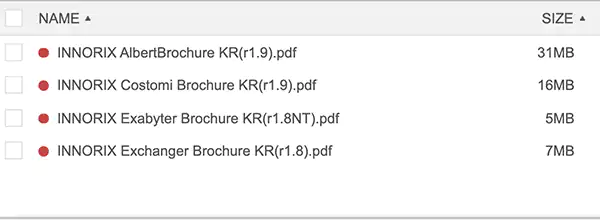
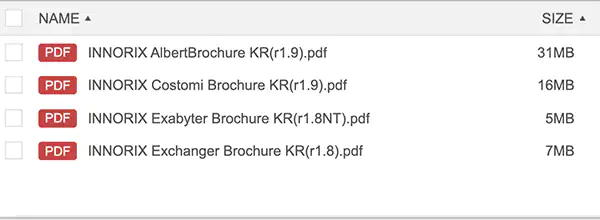
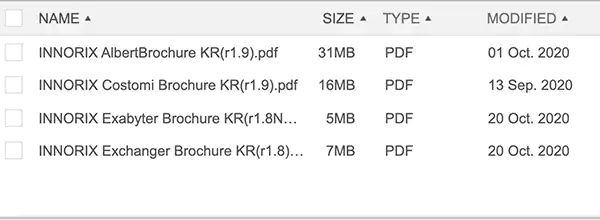
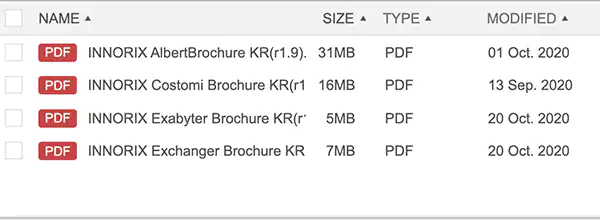
| boxSkin | String | simple1 | Set the file box skin.simple1 : Dot icons is in front of file namessimple2 : File type icon is in front of a file namessimple3 : Display only file namesdetail1 : Add to display file types and modified dates on simple1detail2 : Add to display file types and modified dates on simple2detail3 : Add to display file types and modified dates on simple3 |
innorix.config = {
    default: {
        …
        boxSkin: "simple1",
        …
}};
simple1 (점 아이콘):
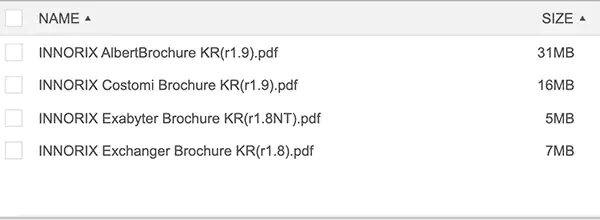
simple2 (파일 형식 아이콘):
simple3 (파일명만 표시):
detail1 / detail2 (파일 형식 및 수정일 컬럼 추가):
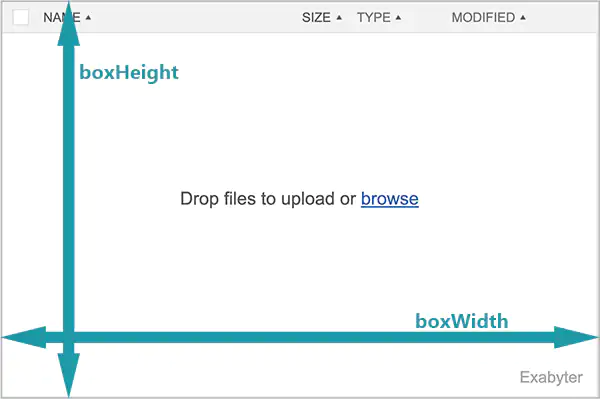
2. Size of the file box#
파일박스의 크기를 지정합니다. (pixel)
| Name | Type | Default | Description |
|---|---|---|---|
| boxHeight | Number | 200 | Set the file box height (pixels) |
| boxWidth | Number | 200 | Set the file box width (pixel) |
innorix.config = {
    default: {
        …
        boxHeight: 200,
        boxWidth: 500,
        …
}};
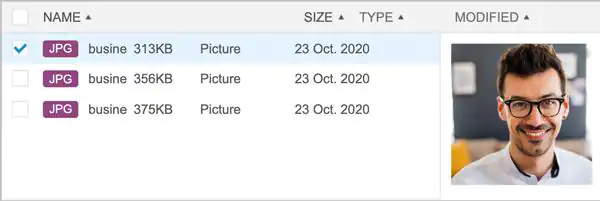
3. Set image preview#
파일박스에서 이미지 미리보기를 지정합니다.
| Name | Type | Default | Description |
|---|---|---|---|
| showPreviewImage | Boolean | false | Preview the selected image file in the file box. |
innorix.config = {
    default: {
        …
        showPreviewImage: true,
        …
}};
4. Click and double click events#
클릭, 더블클릭 시 파일 정보를 가져옵니다.
box.on('onDblClickRows', function (p) {
    console.log(p);
});| Name | onDblClickRows |
| Description | When double click a file in the file box |
| Parameter | 설명 |
|---|---|
| basePath | // Attached path (String) |
| boxId | // File box ID (String) |
| filePath | // Attached file full path (String) |
| fileSize | // File size (Number) / Byte |
| folderName | // Folder name (String) |
| id | // File ID (String) |
| mode | // Transfer mode (String) |
| printFileName | // Displayed filename (String) |
| rootName | // Folder name (String) |
| rowID | // File row index ID (String) |
| selected | // Selected or not (Boolean) |
| transferType | // Transfer mode (String) |
| uniqueFileName | // Unique file name (String) |
| uploadUrl | // Upload URL (String) |
| downloadUrl | // Download URL (String) |
| sliceSize | // Slice size (Number) / Byte |
| validate | // Validate the file (Boolean) |
5. Drag and drop#
드래그 드롭 사용여부를 설정합니다.
| Name | Type | Default | Description |
|---|---|---|---|
| enableDropZone | Boolean | true | Activate the drop zone in the file box. |
innorix.config = {
    default: {
        …
        enableDropZone: true,
        …
}};
6. Context menu#
마우스 우클릭 컨텍스트 메뉴 사용 여부를 설정합니다.
| Name | Type | Default | Description |
|---|---|---|---|
| useContextMenu | Boolean | true | Activate the context menu in the file box. |
innorix.config = {
    default: {
        …
        useContextMenu: true,
        …
}};
Upload buttons#
1. Multi file browse button#
| Name | openFileDialog() |
| Description | 다중 파일 첨부 다이얼로그 |
<input type="button" value="Multi file browse button" onclick="box.openFileDialog();"/>2. Single file browse button#
| Name | openFileDialogSingle() |
| Description | 단일 파일 첨부 다이얼로그 |
<input type="button" value="Single file browse button" onclick="box.openFileDialogSingle();"/>3. Remove the selected files in the file box#
| Name | removeSelectedFiles() |
| Description | 선택파일 삭제 |
<input type="button" value="Remove the selected files" onclick="box.removeSelectedFiles();"/>4. Remove all files in the file box#
| Name | removeAllFiles() |
| Description | 파일박스의 모든 파일 삭제 |
<input type="button" value="Remove all files" onclick="box.removeAllFiles();"/>5. Upload button#
| Name | upload() |
| Description | 파일 박스의 모든 파일 업로드 |
<input type="button" value="Upload" onclick="box.upload();"/>Download buttons#
1. Download all files in the file box#
| Name | download() |
| Description | 파일 박스의 모든 파일 다운로드 |
<input type="button" value="Download all files" onclick="box.download();"/>2. Download the selected files#
| Name | downloadSelectedFiles() |
| Description | 파일 박스의 선택 파일 다운로드 |
<input type="button" value="Download the selected files" onclick="box.downloadSelectedFiles();"/>Transfer window#
1. Display or non-display the transfer window#
전송 창 사용 여부를 설정합니다. "false"이면 전송 중 전송 창이 표시되지 않습니다.
| Name | Type | Default | Description |
|---|---|---|---|
| showTransferWindow | Boolean | true | 전송창 표시 |
innorix.config = {
    default: {
        …
        showTransferWindow: true,
        …
}};
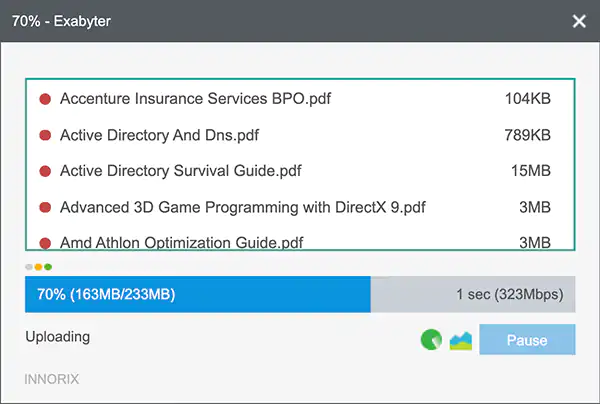
2. Display the file list on the transfer window#
| Name | Type | Default | Description |
|---|---|---|---|
| fileListWindowMode | Boolean | false | 전송창에 전송 파일 목록 표시 |
innorix.config = {
    default: {
        …
        fileListWindowMode : true,
        …
}};
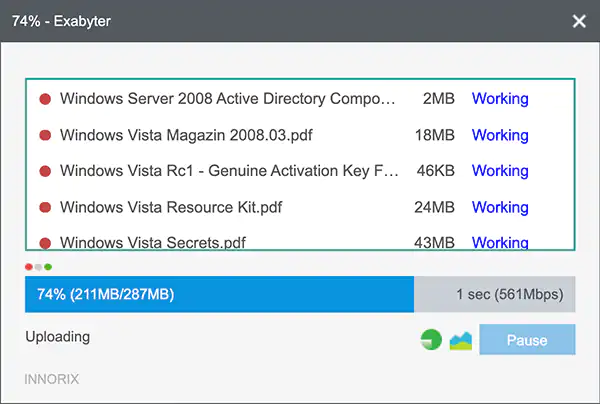
3. Add to display each file transfer status on the transfer window#
| Name | Type | Default | Description |
|---|---|---|---|
| fileListWindowStatus | Boolean | false | 전송창에 전송 파일 목록과 전송상태 표시 |
innorix.config = {
    default: {
        …
        fileListWindowStatus : true,
        …
}};
Auto upload & download#
1. Auto upload when files are attached#
사용자가 업로드 버튼을 클릭하지 않고, 자동으로 업로드할 수 있습니다.
box.on('afterAddFiles', function (p) {
    box.upload();
});
2. Auto download#
사용자가 다운로드 버튼을 클릭하지 않고, 자동으로 다운로드할 수 있습니다.
box.on('afterAddFiles', function (p) {
    box.download();
});
3. Auto transfer start#
사용자가 전송창의 전송 시작 버튼을 클릭하지 않고, 자동으로 전송을 시작할 수 있습니다.
| Name | Type | Default | Description |
|---|---|---|---|
| transferStart | JSON Text | "upload":"auto","download":"manual" |
사용자가 전송창의 전송 시작 버튼을 클릭하지 않고, 자동으로 전송을 시작할 수 있습니다. e.g { "upload":"auto", "download": "manual" }auto: 전송창 출력과 함께 전송을 시작합니다.manual: 사용자가 직접 시작버튼을 클릭하여 전송을 시작합니다. |
innorix.config = {
    default: {
        …
        transferStart: {
            "upload":"auto",
            "download": "manual"
        }
        …
}};
Custom file box#
Create a custom drop zone#
커스텀 드래그 드롭 영역을 구성하여 파일박스와 연동할 수 있습니다.
<html>
    <head>
        <meta http-equiv="Content-Type" content="text/html; charset=utf-8" />
        <link rel="stylesheet" href="../innorix.css">
        <script src="../innorix.js"></script>
        <script>
            var box = new Object();
            var innoJquery = innorix._load("innoJquery");
            window.onload = function() {
                box = innorix.create({
                    el: '#fileBox',
                    config : innorix.config.default
                });
                innoJquery("#dropZone").on({
                    "dragenter": function(innoJqueryevt) {
                        box.setDropZone(innoJqueryevt, this);
                    }
                });
            };
        </script>
    </head>
    <body>
        <table id="dropZone" style="width:555px; height:150px; border: 1px solid green">
            <tr><td align="center">Drop files and folders here</td></tr>
        </table><br /><br />

        <div id="fileBox"></div><br/>
        <input type="button" value="Multi file browse button" onclick="box.openFileDialog();"/>
        <input type="button" value="Upload" onclick="box.upload();"/>
    </body>
</html>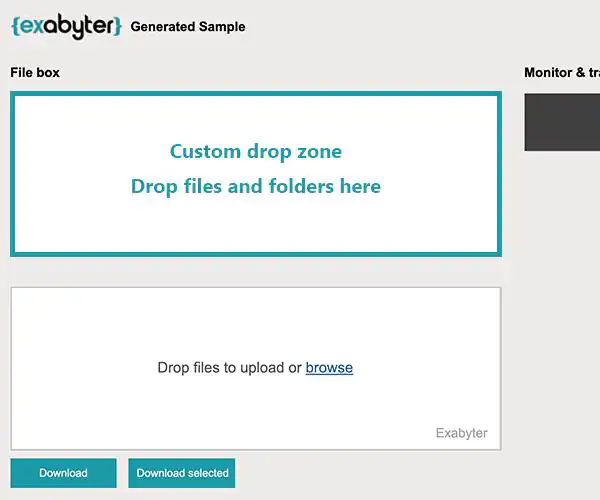
Multiple upload file boxes#
한 웹페이지 내, 여러 개의 업로드 파일박스를 구성할 수 있습니다.
<html>
    <head>
        <meta http-equiv="Content-Type" content="text/html; charset=utf-8" />
        <link rel="stylesheet" href="../innorix.css">
        <script src="../innorix.js"></script>
        <script>
            var box1 = new Object();
            var box2 = new Object();

            window.onload = function() {
                box1 = innorix.create({
                    el: '#fileBox1',
                    config : innorix.config.default1
                });
                box2 = innorix.create({
                    el: '#fileBox2',
                    config : innorix.config.default2
                });

                box1.on('uploadComplete', function (p) {
                });
                box2.on('uploadComplete', function (p) {
                });
            };
        </script>
    </head>
    <body>
        <div id="fileBox1"></div><br />
        <input type="button" value="Multi file browse button" onclick="box1.openFileDialog();"/>
        <input type="button" value="Upload" onclick="box1.upload();" /><br /><br />

        <div id="fileBox2"></div><br />
        <input type="button" value="Multi file browse button" onclick="box2.openFileDialog();"/>
        <input type="button" value="Upload" onclick="box2.upload();" />
    </body>
</html>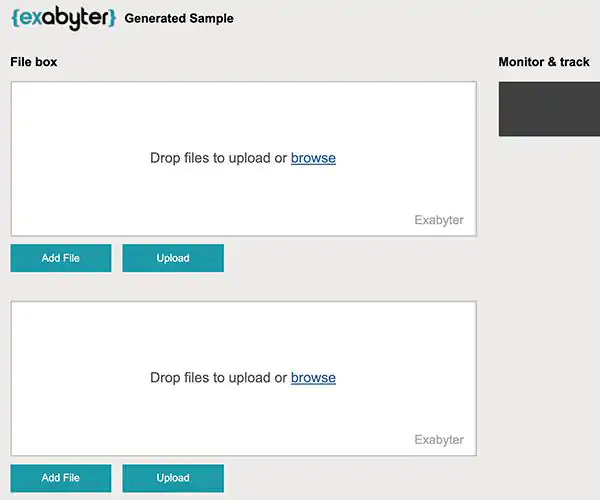
Multiple download file boxes#
한 페이지 내, 여러 개의 다운로드 파일박스를 구성할 수 있습니다.
<html>
    <head>
        <meta http-equiv="Content-Type" content="text/html; charset=utf-8" />
        <link rel="stylesheet" href="../innorix.css">
        <script src="../innorix.js"></script>
        <script>
            var box1 = new Object();
            var box2 = new Object();
            var urlBase = location.href.substring(0, location.href.lastIndexOf("/") + 1);

            window.onload = function() {
                box1 = innorix.create({
                    el: '#fileBox1',
                    config : innorix.config.default1
                });
                box2 = innorix.create({
                    el: '#fileBox2',
                    config : innorix.config.default2
                });

                box1.on('loadComplete', function (p) {
                    box1.presetDownloadFiles([{
                        printFileName: "INNORIX Exabyter Brochure(EN).pdf",
                        fileSize: 1433885,
                        downloadUrl: urlBase + "download.jsp?fileID=1"
                    }]);
                });
                box2.on('loadComplete', function (p) {
                    box2.presetDownloadFiles([{
                        printFileName: "INNORIX Exabyter Brochure(KR).pdf",
                        fileSize: 1433885,
                        downloadUrl: urlBase + "download.jsp?fileID=2"
                    }]);
                });
            };
        </script>
    </head>
    <body>
        <div id="fileBox1"></div><br/>
        <input type="button" value="Download the selected files" onclick="box1.downloadSelectedFiles();"/>
        <input type="button" value="Download all files" onclick="box1.download();"/><br /><br />

        <div id="fileBox2"></div><br/>
        <input type="button" value="Download the selected files" onclick="box2.downloadSelectedFiles();"/>
        <input type="button" value="Download all files" onclick="box2.download();"/>
    </body>
</html>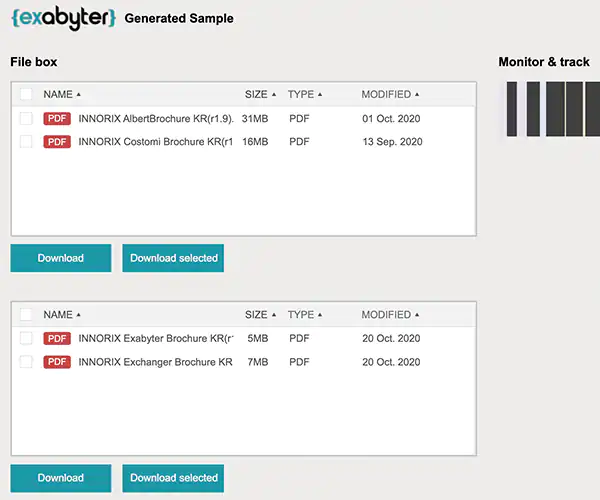
Major options#
File box#
| Name | Type | Default | Description |
|---|---|---|---|
| boxSkin | String | simple1 | 파일박스 스타일 설정simple1 : Dot icons is in front of file namessimple2 : File type icon is in front of a file namessimple3 : Display only file namesdetail1 : Add to display file types and modified dates on simple1detail2 : Add to display file types and modified dates on simple2detail3 : Add to display file types and modified dates on simple3 |
| boxHeight | Number | 200 | 파일박스 높이 지정(pixels) |
| boxWidth | Number | 200 | 파일박스 너비 지정(pixel) |
| useContextMenu | Boolean | true | 마우스 우클릭 컨텍스트 메뉴 활성 |
| enableDropZone | Boolean | true | 드래그 드롭 파일첨부 활성 |
| maxMassFileListCount | Number | 1000 | 대량모드로 전환할 최대 파일 첨부 개수 지정 파일 개수가 초과하면, 대량 첨부 모드로 전환됩니다. |
| showPreviewImage | Boolean | false | 이미지 파일 미리보기 영역 활성 |
Transfer#
| Name | Type | Default | Description |
|---|---|---|---|
| uploadURL | String | 업로드 URL | |
| transferMode | String | both | 파일박스의 전송 모드both : Upload and download in the same file boxupload : Only uploaddownload : Only download |
| transferStart | JSON Text | "upload":"auto","download":"manual" |
사용자가 전송창의 전송 시작 버튼을 클릭하지 않고, 자동으로 전송을 시작할 수 있습니다. e.g { "upload":"auto", "download": "manual" }auto: 전송창 출력과 함께 전송을 시작합니다.manual: 사용자가 직접 시작버튼을 클릭하여 전송을 시작합니다. |
| downloadType | String | stream | 다운로드 타입 지정direct: http://abc.com/file.dat formatstream: http://abc.com/down.jsp?fid=33 format |
Transfer window#
| Name | Type | Default | Description |
|---|---|---|---|
| showTransferWindow | Boolean | true | 전송창 표시 활성 |
| draggableTransferWindow | Boolean | true | 전송창 드래그 기능 활성 |
| transferWindowTitle | String | Exabyter | 전송창 타이틀 지정 |
| cancelConfirmation | Boolean | false | 취소 시, 확인 메시지 출력 |
| showByteSize | Boolean | false | 전송 용량 단위 자동 계산 활성 |
| iframeOutside | Boolean | true | 프레임구조에서 전송창 외부영역에 출력 활성 |
| iframeOutside | String | 외부프레임에서 참조할 innorix.css URL 지정 | |
| iframeOutsideLeft | Number | 외부 프레임 기준, 출력되는 전송창 가로 위치 (pixel) | |
| iframeOutsideTop | Number | 외부 프레임 기준, 출력되는 전송창 세로 위치 (pixel) | |
| iframeOutsideLocation | String | 전송창 출력 프레임 지정top: 최상위 프레임에서 출력parent: 바로 상위 부모프레임에서 출력 |
|
| iframeOutsideMarginLeft | Number | 전송창 출력 시 프레임 기준 가로 마진 설정 (pixel) | |
| iframeOutsideMarginTop | Number | 전송창 출력 시 프레임 기준 세로 마진 설정 (pixel) | |
| fileListWindowMode | Boolean | false | 전송창에 파일목록 출력 기능 활성 |
| fileListWindowStatus | Boolean | false | 전송창에 파일목록 출력 및 파일 전송 상태 표시 활성 |
Attachement#
| Name | Type | Default | Description |
|---|---|---|---|
| allowType | String Array | 특정 확장자 첨부 허용 e.g ["jpg", "gif", "png"]※ denyType is higher priority than allowType |
|
| denyType | String Array | 특정 확장자 첨부 금지 e.g ["exe", "msi", "cab"]※ When specifying the same extension policy as allowType, denyType is applied first |
|
| useSignature | Boolean | false | 파일 첨부 시, 확장자 변조 방지 활성 |
| addDuplicateFile | Boolean | true | 중복 파일명 첨부 허용 |
| maxFileCount | Number | unlimited | 첨부 가능한 최대 파일 개수 지정 |
| maxFileSize | Number | unlimited | 첨부 가능한 단일 파일 사이즈 지정 (bytes) |
| maxTotalSize | Number | unlimited | 첨부 가능한 전체 파일 사이즈 지정 (bytes) |
Monitor & Track#
| Name | Type | Default | Description |
|---|---|---|---|
| monitorURL | String | MRT 주소 (INNORIX Platform server) e.g. "http://test.innorix.com/mt/transfer" |
Front end methods#
Dialog#
| Name | openFileDialog() |
| Description | 멀티 파일 첨부 다이얼로그 |
| Return type | None (void) |
| Input parameter | None |
| Name | openFileDialogSingle() |
| Description | 단일 파일 첨부 다이얼로그 |
| Return type | None (void) |
| Input parameter | None |
File box#
| Name | presetDownloadFiles() |
| Return type | None (void) |
| Description | 파일박스 내 다운로드 파일 목록 구성 |
Input parameter (# JSON Object):
[{
    printFileName: "red.pdf",   // Displayed filename (String)
    fileSize: 1433885,          // File size (Number) / Byte
    downloadUrl: "http://YourServerAddress/download.jsp?fileID=111"   // Download URL (String)
},
{
    printFileName: "blue.pdf",  // Displayed filename (String)
    fileSize: 1433885,          // File size (Number) / Byte
    downloadUrl: "http://YourServerAddress/download.jsp?fileID=222"   // Download URL (String)
}]| Name | addSelectFilesById() |
| Description | 파일 박스에서 파일 ID로 파일 선택 |
| Return type | None (void) |
| Input parameter | (String) |
| Name | removeFileByIndex() |
| Description | 파일 박스에서 index에 해당하는 파일 삭제 |
| Return type | None (void) |
| Input parameter | (Number) |
| Name | removeFileById() |
| Description | 파일 박스에서 파일 ID로 파일 삭제 |
| Return type | None (void) |
| Input parameter | (String) |
| Name | removeSelectedFiles() |
| Description | 파일 박스에서 선택된 파일 삭제 |
| Return type | None (void) |
| Input parameter | None |
| Name | removeAllFiles() |
| Description | 파일박스의 모든 파일 삭제 |
| Return type | None (void) |
| Input parameter | None |
| Name | destory() |
| Description | 파일박스 제거 |
| Return type | None (void) |
| Input parameter | None |
File information#
| Name | getAllFiles() |
| Description | 파일박스의 모든 파일정보 확인 |
| Input parameter | None |
Return type (# JSON Object):
// Upload file value
[{
    "basePath":"D: \test\vol.7",   // Attached path (String)
    "boxId":"fileBox",             // File box ID (String)
    "filePath":"D:\test\vol.7\Data Centre of Future.ppt",   // Full path of the attached file (String)
    "fileSize":2506093,            // File size (Number) / Byte
    "folderName":"",               // Folder name (String)
    "id":"fda07096-917b-4dde-fe23-bb0114fbe8ad",   // File ID (String)
    "mode":"upload",               // Transfer mode (String)
    "printFileName":"Data Centre of Future.ppt",   // Displayed filename (String)
    "rootName":"",                 // Folder name (String)
    "rowID":"fda07096-917b-4dde-fe23-bb0114fbe8ad",   // File row index ID (String)
    "selected":false,              // Selected or not (Boolean)
    "transferType":"upload",       // Transfer mode (String)
    "uniqueFileName":"950491e5……db6d5529e404.dat",   // Unique file name (String)
    "uploadUrl":"http://localhost/webpages/./upload.jsp"   // Upload URL (String)
}]

// Download file value
[{
    "downloadUrl":"http://localhost/download.jsp?fileID=1",   // Download URL (String)
    "fileSize":1433885,            // File size (Number) / Byte
    "id":"8d6f7747-414e-4ad6-bc84-aa4392edf7d6",   // File ID (String)
    "mode":"download",             // Transfer mode (String)
    "printFileName":"INNORIX.pdf", // Displayed filename (String)
    "rowID":"8d6f7747-414e-4ad6-bc84-aa4392edf7d6",   // File row index ID (String)
    "selected":true,               // Selected or not (Boolean)
    "sliceSize":2097152,           // File slice size (Number) / Byte
    "transferType":"download",     // Transfer mode (String)
    "validate":true                // Validate the file (Boolean)
}]| Name | getSelectedFiles() |
| Description | 파일박스에서 선택한 파일 정보 확인 |
| Return type | # JSON Object (Upload / Download file value — getAllFiles()와 동일 구조) |
| Input parameter | None |
| Name | getUploadFiles() |
| Description | 파일박스에서 모든 업로드 파일 정보 확인 |
| Return type | # JSON Object - Upload file value (getAllFiles()의 Upload 구조와 동일) |
| Input parameter | None |
| Name | getDownloadFiles() |
| Description | 파일박스에서 모든 다운로드 파일 정보 확인 |
| Return type | # JSON Object - Download file value (getAllFiles()의 Download 구조와 동일) |
| Input parameter | None |
| Name | getFileCount() |
| Description | 파일박스의 모든 파일의 개수 확인 |
| Return type | (Number) |
| Input parameter | None |
| Name | getSelectedFileCount() |
| Description | 파일박스에서 선택한 파일의 개수 확인 |
| Return type | (Number) |
| Input parameter | None |
| Name | getUploadFileSize() |
| Description | 파일박스에서 업로드 파일의 전체 사이즈 정보 확인 |
| Return type | (Number) |
| Input parameter | None |
| Name | getDownloadFileSize() |
| Description | 파일박스에서 다운로드 파일의 전체 사이즈 정보 확인 |
| Return type | (Number) |
| Input parameter | None |
| Name | getTotalSize() |
| Description | 파일박스에서 모든 파일의 전체 사이즈 정보 확인 |
| Return type | (Number) |
| Input parameter | None |
| Name | getFileByIndex() |
| Description | 파일박스에서 파일 Index로 파일정보 확인 |
| Return type | # JSON Object (Upload / Download file value — getAllFiles()와 동일 구조) |
| Input parameter | (Number) |
| Name | getFileById() |
| Description | 파일박스에서 파일 ID로 파일정보 확인 |
| Return type | # JSON Object (Upload / Download file value — getAllFiles()와 동일 구조) |
| Input parameter | (String) |
Transfer#
| Name | upload() |
| Description | 파일박스의 모든 파일 업로드 |
| Return type | None (void) |
| Input parameter | None |
| Name | uploadCancel() |
| Description | 업로드 취소 |
| Return type | None (void) |
| Input parameter | None |
| Name | download() |
| Description | 파일박스의 모든 파일 다운로드 |
| Return type | None (void) |
| Input parameter | None |
| Name | downloadSelectedFiles() |
| Description | 파일박스에서 선택한 파일 다운로드 |
| Return type | None (void) |
| Input parameter | None |
| Name | setPostData() |
| Description | 커스텀 POST Data를 헤더에 추가 |
| Return type | None (void) |
| Input parameter | # JSON Object { Name : Value, Name : Value } |
| Name | setFilePostDataByIndex() |
| Description | 파일 인덱스별 커스텀 POST Data를 헤더에 추가 |
| Return type | None (void) |
| Input parameter | # JSON Object — Index(Number), { Name : Value, Name : Value } |
| Name | setSize() |
| Description | 파일박스 사이즈 지정 |
| Return type | None (void) |
| Input parameter | Width(Number), Height(Number) |
| Name | setCookie() |
| Description | 브라우저의 세션 정보 지정 |
| Return type | None (void) |
| Input parameter | (String) |
setCookie 예시 — 파일박스 로딩 후 세션 정보 유지:
box.on('loadComplete', function (p) {
    box.setCookie("JSESSIONID=<%=session.getId()%>");
}…| Name | getTransferMode() |
| Description | 현재 파일박스의 전송모드 확인 |
| Return type | (String)upload : Upload modedownload : Download modeboth : Upload and download mode |
| Input parameter | None |
| Name | appendThumbnailProperty() |
| Description | 이미지 업로드 시 지정된 크기의 리사이징된 이미지를 생성하여 함께 업로드합니다. (jpg, png, gif, bmp) |
| Return type | None (void) |
| Input parameter | # JSON Object — Index(String), Width(Number), Height(Number), Baseline(STRING) |
box.appendThumbnailProperty(1, 300, 200, "VERTICAL");
box.appendThumbnailProperty("ALL", 300, 200, "HORIZONTAL");
box.appendThumbnailProperty("ALL", 300, 200, "FIX");| Name | appendWatermarkProperty() |
| Description | 이미지 업로드 시 원본 이미지와 리사이징된 이미지에 워터마크를 추가하여 업로드합니다. (jpg, png, gif, bmp) |
| Return type | None (void) |
| Input parameter | # JSON Object — Index(String), imageUrl(String), Image type(String), Position(String) |
box.appendWatermarkProperty("ALL", "./logo.png", "ALL", "LEFT|BOTTOM");
box.appendWatermarkProperty("1", "./logo.png", "ORIGINAL", "RIGHT|TOP");
box.appendWatermarkProperty("1", "./logo.png", "THUMBNAIL", "CENTER|CENTER");
Transfer window#
| Name | closeTransferWindow() |
| Description | 전송창 닫기 |
| Return type | None (void) |
| Input parameter | None (void) |
Back end methods#
Upload#
| Name | setOverwrite() |
| Description | 동일한 파일명 덮어쓰기 |
| Return type | None (void) |
| Input parameter | (Boolean) – true, false |
| Name | run() |
| Description | 업로드 시작 |
| Return type | None (void) |
| Input parameter | None (void) |
| Name | setFileName() |
| Description | 업로드 저장 파일명 지정 |
| Return type | None (void) |
| Input parameter | String |
| Name | setDirectory() |
| Description | 업로드 저장 파일경로 지정 |
| Return type | None (void) |
| Input parameter | String |
Front end events#
File box#
| Name | loadComplete |
| Description | 파일박스 생성 완료 |
| Parameter | None (void) |
| Name | beforeAddFile |
| Description | 파일박스에 파일 추가 전 |
Parameter (# JSON Object):
{
    "basePath":"C:\\data",           // Attached path (String)
    "boxId":"fileControl",           // File box ID (String)
    "filePath":"C:\\data\\blue.pdf", // Attached file full path (String)
    "fileSize":9437184,              // File size (Number) / Byte
    "mode":"upload",                 // Transfer mode (String)
    "uploadUrl":"http://{Server}/upload.jsp"   // Upload URL (String)
}| Name | afterAddFiles |
| Description | 파일박스에 파일 추가 후 |
Parameter (# JSON Object):
[{
    "basePath":"D:\",              // Attached path (String)
    "boxId":"fileControl",         // File box ID (String)
    "filePath":"D:\Data.ppt",      // Attached file full path (String)
    "fileSize":2506093,            // File size (Number) / Byte
    "folderName":"",               // Folder name (String)
    "id":"fda07096-….114fbe8ad",   // File ID (String)
    "mode":"upload",               // Transfer mode (String)
    "printFileName":"Data.ppt",    // Displayed filename (String)
    "rootName":"",                 // Folder name (String)
    "rowID":"fda070….114fbe8ad",   // File row index ID (String)
    "selected":true,               // Selected or not (Boolean)
    "transferType":"upload",       // Transfer mode (String)
    "uniqueFileName":"950..404.dat",   // Unique file name (String)
    "uploadUrl":"http://{Server}/upload.jsp"   // Upload URL (String)
},{
    "downloadUrl":"http://{Server}/download.jsp?fileID=1",   // Download URL (String)
    "fileSize":1433885,            // File size (Number) / Byte
    "id":"8d6f7747-…92edf7d6",     // File ID (String)
    "mode":"download",             // Transfer mode (String)
    "printFileName":"INNORIX.pdf", // Displayed filename (String)
    "rowID":"8d6f7747-…92edf7d6",  // File row index ID (String)
    "selected":true,               // Selected or not (Boolean)
    "sliceSize":2002,              // Slice size (Number) / Byte
    "transferType":"download",     // Transfer mode (String)
    "validate":true                // Validate the file (Boolean)
}]| Name | beforeRemoveFiles |
| Description | 파일박스에서 파일 삭제 전 |
| Parameter | # JSON Object (afterAddFiles와 동일 구조의 파일 정보 배열) |
| Name | removeFiles |
| Description | 파일박스에서 파일 삭제 후 |
| Parameter | # JSON Object (afterAddFiles와 동일 구조의 파일 정보 배열) |
| Name | addFileError |
| Description | 파일박스에 파일 첨부 에러 시 |
Parameter (# JSON Object):
[{
    "basePath":"D:\",              // Attached path (String)
    "boxId":"fileControl",         // File box ID (String)
    "filePath":"D:\Data.ppt",      // Attached file full path (String)
    "fileSize":2506093,            // File size (Number) / Byte
    "mode":"upload",               // Transfer mode (String)
    "uploadUrl":"http://{Server}/upload.jsp"   // Upload URL (String)
},
    "message":"*.pdf file can not be attached.",   // Error info (String)
    //  "*.ppt file can not be attached."
    //  "The maximum limit of a single file is 1.00 MB."
    //  "The maximum number of files is 1."
    //  "The maximum limit of total files is 1.00 MB"
    //  "The same file is already attached."
    "type":"limitExtension"        // Error type (String)
    //  "allowExtension"
    //  "maxFileSize"
    //  "maxFileCount"
    //  "maxTotalSize"
    //  "addDuplicateFile"
]| Name | onSelectRows |
| Description | 파일박스에서 파일 선택 시 |
| Parameter | # JSON Object (afterAddFiles와 동일 구조의 파일 정보 배열) |
| Name | onUnSelectRows |
| Description | 파일박스에서 파일 선택 해제 시 |
| Parameter | # JSON Object (afterAddFiles와 동일 구조의 파일 정보 배열) |
| Name | onDblClickRows |
| Description | 파일박스에서 파일 더블클릭 시 |
| Parameter | # JSON Object (afterAddFiles와 동일 구조의 파일 정보 배열) |
| Name | dropzoneShow |
| Description | 드래그 드롭 활성화 시 |
| Parameter |
| Name | dropzoneHide |
| Description | 드래그 드롭 비활성화 시 |
| Parameter |
Transfer#
| Name | uploadStart |
| Description | 업로드 시작 |
Parameter (# JSON Object):
{
    "files":[{                     // Upload file info (Array)
        "basePath":"D:\",          // Attached path (String)
        "boxId":"fileControl",     // File box ID (String)
        "filePath":"D:\Data.ppt",  // Attached file full path (String)
        "fileSize":2506093,        // File size (Number) / Byte
        "folderName":"",           // Folder name (String)
        "id":"fda07096-….114fbe8ad",   // File ID (String)
        "mode":"upload",           // Transfer mode (String)
        "printFileName":"Data.ppt",    // Displayed filename (String)
        "rootName":"",             // Folder name (String)
        "rowID":"fda070….114fbe8ad",   // File row index ID (String)
        "selected":false,          // Selected or not (Boolean)
        "transferType":"upload",   // Transfer mode (String)
        "uniqueFileName":"950..404.dat",   // Unique file name (String)
        "uploadUrl":"http://{Server}/upload.jsp"   // Upload URL (String)
    }],
    "progress":0,                  // Progress (Number) / %
    "retries":0,                   // Retry count (Number) / Times
    "speed":0,                     // Transfer speed (Number) / Byte/s
    "state":"Before",              // Status (String)
    "totalSize":2506093,           // Total size (Number) / Byte
    "transferID":"d77-…29d",       // Transfer ID (String)
    "transferSize":0,              // Transfer size (Number) / Byte
    "type":"upload"                // Transfer mode (String)
}| Name | uploadComplete |
| Description | 업로드 완료 |
| Parameter | # JSON Object (uploadStart와 동일 구조) |
| Name | uploadCancel |
| Description | 업로드 취소 |
Parameter (# JSON Object):
{
    "files":[{                     // Upload file info (Array)
        "clientFileName":"Data.ppt",       // Displayed filename (String)
        "clientFilePath":"D:\Data.ppt",    // Attached file full path (String)
        "boxId":"fileControl",             // File box ID (String)
        "basePath":"D:\",                  // Attached path (String)
        "customeValue":"",                 // Customized value (String)
        "fileSize":2506093,                // File size (Number) / Byte
        "folderName":"",                   // Folder name (String)
        "fileState":"wait",                // Transfer status (String)
        "isFolder":false,                  // Folder information (Boolean)
        "rootName":"",                     // Folder name (String)
        "rowID":"fda070….114fbe8ad",       // File row index ID (String)
        "serverFileName":"Data.dat",       // Save file name (string)
        "serverFilePath":"C:/{Server}/Data.dat",   // Save folder path (String)
        "uploadUrl":"http://{Server}/upload.jsp"   // Upload URL (String)
    }],
    "progress":20,                 // Progress (Number) / %
    "retries":0,                   // Retry count (Number)
    "speed":8584793,               // Transfer speed (Number) / Byte/s
    "state":"Cancel",              // Status (String)
    "stausMessage":{               // Status (Object)
        "errorCode":false,         // Error code (Boolean/String)
        "id":"trnasferring"        // Transfer status (String)
    },
    "totalSize":2506093,           // Total size (Number) / Byte
    "transferID":"d77-…29d",       // Transfer ID (String)
    "transferSize":1203022,        // Transfer size (Number) / Byte
    "type":"upload"                // Transfer mode (String)
}| Name | downloadStart |
| Description | 다운로드 시작 |
Parameter (# JSON Object):
{
    "files":[{                     // Download file info (Array)
        "downloadUrl":"http://{Server}/download.jsp?fileID=1",   // Download URL (String)
        "fileSize":1433885,        // File size (Number) / Byte
        "id":"8d6f7747-…92edf7d6", // File ID (String)
        "mode":"download",         // Transfer mode (String)
        "printFileName":"INNORIX.pdf",     // Displayed filename (String)
        "rowID":"8d6f7747-…92edf7d6",      // File row index ID (String)
        "selected":false,          // Selected or not (Boolean)
        "sliceSize":2097152,       // Slice size (Number) / Byte
        "transferType":"download", // Transfer mode (String)
        "validate":true            // Validate the file (Boolean)
    }],
    "progress":0,                  // Progress (Number) / %
    "retries":0,                   // Retry count (Number) / Times
    "speed":0,                     // Transfer speed (Number) / Byte/s
    "state":"Before",              // Status (String)
    "totalSize":1433885,           // Total size (Number) / Byte
    "transferID":"d77-…29d",       // Transfer ID (String)
    "transferSize":0,              // Transfer size (Number) / Byte
    "type":"download"              // Transfer mode (String)
}
Back end events#
Upload#
| Name | getFileInfo |
| Description | 서버에서 업로드 전 파일정보 확인 |
| Parameter | 설명 |
|---|---|
| _action | // Upload action flag |
| _origin_filename | // Original file name |
| _filesize | // File size |
| _folder | // Folder information |
| _clientpath | // Attached file client path |
| _compressed | // Compressed file |
| _rootPath | // Root path |
| _subdir | // Sub directory path |
| _encrypt | // Encrypt transfer |
| _transferId | // Transfer ID |
| _slice_transfer | // Slice transfer use |
| _duplicationFile | // Duplicate file policy |
| _empty_folder | // Empty folder information |
| Name | attachFile |
| Description | 서버에서 개별파일 전송 중 |
| Parameter | 설명 |
|---|---|
| _action | // Upload action flag |
| _origin_filename | // Original file name |
| _new_filename | // Save file name |
| _filesize | // File size |
| _folder | // Folder information |
| _clientpath | // Attached file client path |
| _serverpath | // Attached file save path |
| _compressed | // Compressed file |
| _rootPath | // Root path |
| _subdir | // Sub directory path |
| _encrypt | // Encrypt transfer |
| _transferId | // Transfer ID |
| _slice_transfer | // Slice transfer use |
| _duplicationFile | // Duplicate file policy |
| _empty_folder | // Empty folder information |
| _cookie | // Session cookie information |
| _start_offset | // Slice start point |
| _end_offset | // Slice end point |
| _orig_start_offset | // Resume transfer start point |
| Name | attachFileComplete |
| Description | 서버에서 개별파일 전송 완료 시 |
| Parameter | 설명 |
|---|---|
| _action | // Upload action flag |
| _origin_filename | // Original file name |
| _new_filename | // Save file name |
| _filesize | // File size |
| _folder | // Folder information |
| _filepath | // Attached file save path |
| _compressed | // Compressed file |
| _rootPath | // Root path |
| _subdir | // Sub directory path |
| _encrypt | // Encrypt transfer |
| _transferId | // Transfer ID |
| _slice_transfer | // Slice transfer use |
| _duplicationFile | // Duplicate file policy |
| _empty_folder | // Empty folder information |
| _isfolder | // Folder information |
| _check_integrity | // Integrity transfer |
| _integrity_crc32 | // Check crc32 value |
| _integrity_md5 | // Check md5 value |
| _merging | // Merging |