
Getting Started#
Basic Concept#
Keep file states synchronized with one-way or two-way sync based on your workflow
Synchronization keeps files in multiple folders in the same state, but not every workflow requires the same structure.
One-way synchronization is suitable when a single source folder must distribute files to multiple team PCs and servers.
Two-way synchronization is useful when changes made by different team members or in different work environments must be reflected in both locations.
One-way synchronization

Source Folder
    │
    ├──────────→ Team PC A
    │
    ├──────────→ Team PC B
    │
    └──────────→ Work Server


Two-way synchronization

Team Folder A  ◀──────────▶  Team Folder B
       Reflect file creation, modification, and deletion changes in both directions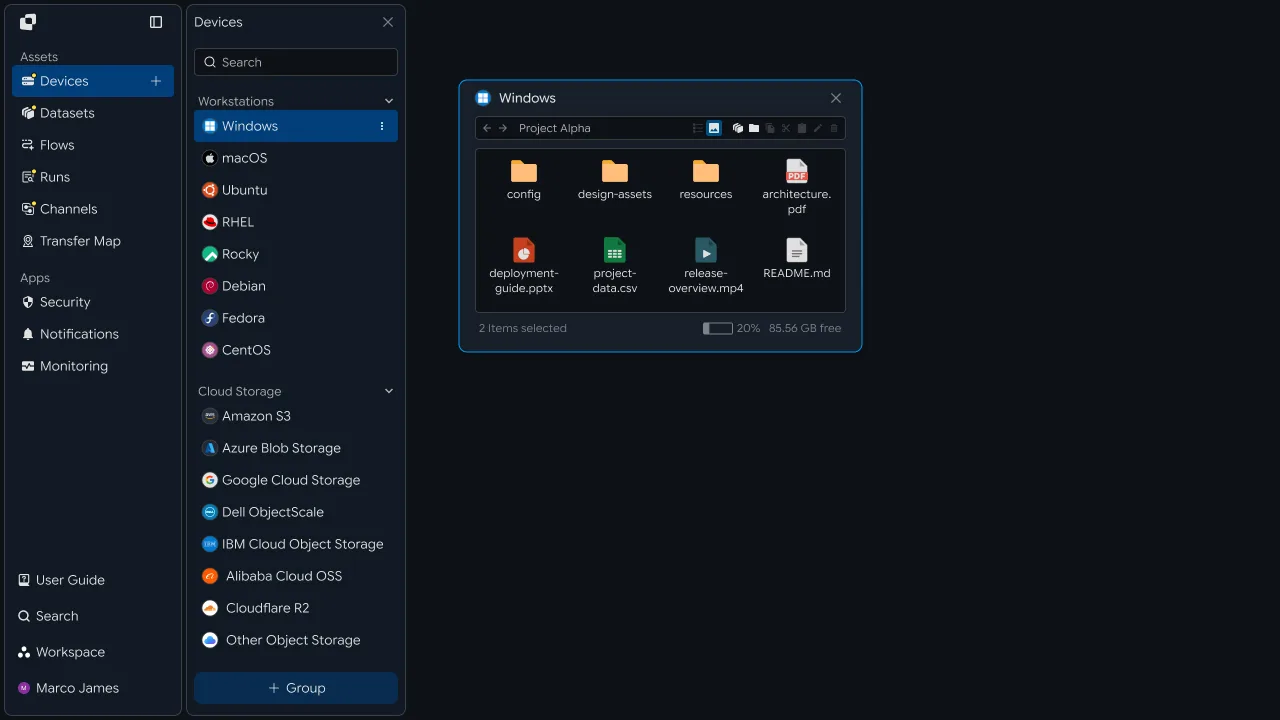
Configure the synchronization method based on whether files should be distributed from one location to multiple locations or changes across multiple environments should be reflected in both directions.
Synchronization Method#
Build different workflows based on the direction of file changes
One-way and two-way synchronization differ in how file changes are processed.
| Category | One-way Synchronization | Two-way Synchronization |
|---|---|---|
| Basis | Single source folder | Changes allowed in both locations |
| File Flow | Source → Target | Folder A ↔ Folder B |
| Primary Purpose | Distribute source files | Manage files jointly across multiple environments |
| Changes Applied | Only changes from the source folder | Changes from both sides reflected in each other |
| Typical Environment | Team PCs, servers, distribution environments | Team work folders, remote work environments |
Before configuring synchronization, first determine which location will serve as the source of truth or whether files can be changed in both locations.
Workflow Changes#
Automatically apply changes instead of manually copying files
Traditionally, each file change may require sending the updated file to team members or saving it again to a shared folder so everyone can retrieve the latest version.
With automatic synchronization, file changes themselves can trigger updates so the latest state is reflected in the required environments.
Before

Edit file
   ↓

Save new file
   ↓

Share with team members
   ↓

Each person checks the file
   ↓

Prepare the latest file


Automatic synchronization

Edit file
   ↓

Detect change
   ↓

Synchronize
   ↓

Apply to target environment
You can then choose a one-way or two-way structure based on the actual work environment.
Business Teams#
One-way Use#
Use the latest files from a source work folder across multiple environments
One-way synchronization manages files around a single work folder and automatically applies changes to team PCs or business servers.
For example, when a project manager updates reports and materials in the source folder, the latest files can also be reflected in the work folders used by team members.
              Project Source Folder
                       │
             Create or modify files
                       │
                       ▼
                  Sync Flow
             ┌─────────┼─────────┐
             ▼         ▼         ▼
          Team PC A   Team PC B   Work Server
This approach lets teams work from the state of the source folder instead of having each member modify and reshare files separately.
For example, it can be used for the following workflows.
| Work Scenario | Synchronization Use |
|---|---|
| Project Material Distribution | Apply the latest materials from the source folder |
| Shared Document Management | Apply changed files to each team member's work folder |
| Server Work Preparation | Apply files prepared on a PC to a server |
| Source Data Management | Maintain the same data across multiple work environments |

Two-way Use#
Reflect files changed in different work environments in both locations
Two-way synchronization reflects file changes between two work environments.
For example, when the same project folder is used on an office PC and a remote work PC, changes made on one side can be reflected on the other.
Office PC                           Remote PC

Project Folder                     Project Folder
      │                                  │
      │                                  │
      └─────────── Sync ─────────────────┘
                  ◀──────▶
When a new file is added on one side, it can be made available on the other. Changes to modified files can also be applied according to the configured rules.
For example, the workflow can operate as follows.
Work on Office PC
        │
Edit file
Edit file
        │
        ▼
Two-way synchronization
        │
        ▼
Apply to Remote PC


Work on Remote PC
        │
Edit file
Edit file
        │
        ▼
Two-way synchronization
        │
        ▼
Apply to Office PC
This allows the same work folder to be used continuously even when the work location or device changes.
Verify Changes#
Review changed files and synchronization status in each work environment
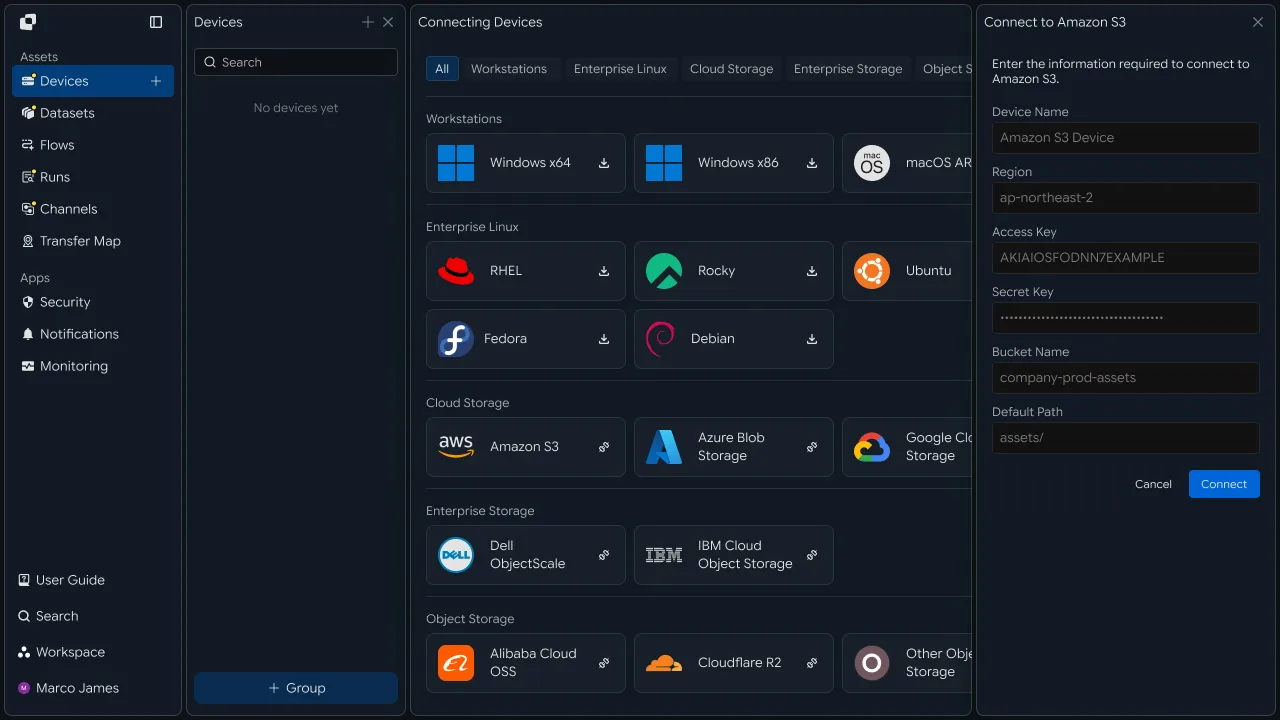
When synchronization runs, you can review changed files and processing status for each target.
With one-way synchronization, verify that changes from the source folder were applied successfully to each target.
With two-way synchronization, you can review where the change originated and whether it was reflected in the folder on the other side.
Change Activity

┌─────────────────────────────────────┐
│ report.xlsx                         │
│                                     │
│ Office PC                           │
│        ↓                            │

│ Remote PC             Completed     │
└─────────────────────────────────────┘
Business teams can continue their work by checking changed files and the latest synchronization status without configuring the synchronization environment themselves.
IT Engineers#
Select a Method#
Configure the synchronization structure based on the direction of changes in work folders
IT engineers first determine the synchronization direction that best fits the work environment.
Use a one-way structure when files from a source folder must be distributed to multiple targets, and a two-way structure when files in two different environments must be managed together.
ONE-WAY

Source
   │
   ├────────→ Target A
   ├────────→ Target B
   └────────→ Target C


TWO-WAY

Source A
    ◀────────▶
        Sync
    ◀────────▶
Source B
Clearly defining the synchronization direction at this stage makes it easier to configure file-change handling and processing rules for the work environment.
One-way Setup#
Automatically apply changes from one Source to multiple Targets
In one-way synchronization, specify the Source folder and the Targets that should receive file changes.
A single Source can be connected to multiple PCs and servers.
Source

D:\Team\Project\
        │
        │ File Changes
        ▼
   ┌─────────────┐
   │ One-way Sync│
   └──────┬──────┘
          │
    ┌─────┼─────┐
    ▼     ▼     ▼
 PC-A    PC-B  Server
During setup, manage the source folder and each target location separately.
| Configuration Item | Settings |
|---|---|
| Source | Folder that manages the source files |
| Target | PC or server that receives changed files |
| Target Path | Actual storage location on each device |
| File Rules | Files to synchronize and files to exclude |
| Sync Trigger | Change detection or schedule-based trigger |
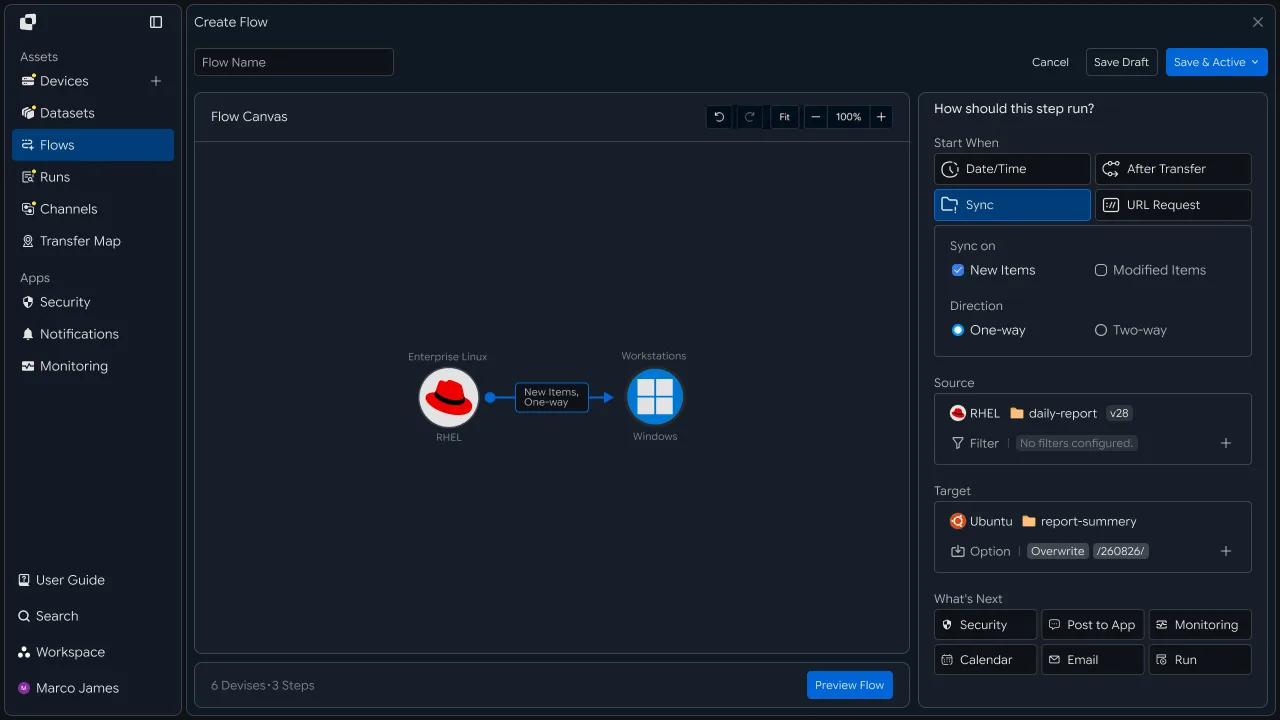
This structure is suitable for maintaining source files while distributing the same file state across multiple work environments.
Two-way Setup#
Review and apply changes between two work folders
In two-way synchronization, connect two devices or file locations as equal synchronization endpoints.
Configure the flow so that when a file is created or modified on one side, the change is applied to the other side.
Windows PC                            Linux Server
D:\Project\                           /data/project/
      │                                      │
      └──────────────┐    ┌──────────────────┘
                     ▼    ▼
                   Two-way
                     Sync
                     ▲    ▲
      ┌──────────────┘    └──────────────────┐
      │                                      │
D:\Project\                           /data/project/
In a two-way setup, consider the following file states.
| File State | Processing Rule |
|---|---|
| New file exists on only one side | Apply the file to the other environment |
| File changed on only one side | Apply the change to the other side |
| Both sides are identical | Keep the current state with no additional processing |
| File changed on both sides | Apply the configured conflict-handling rule |
Two-way synchronization is therefore more than sending files in both directions. It should be configured as a structure that manages changes from both sides under a single synchronization policy.
Conflict Management#
Handle cases where the same file changes in multiple locations
With two-way synchronization, the same file may be changed in both environments.
In this case, you can configure rules for which version takes priority or whether additional review is required.
              report.xlsx
                    │
          ┌─────────┴─────────┐
          ▼                   ▼
      PC Version         Server Version
          │                   │
          └─────────┬─────────┘
                    ▼
             Change Comparison
                    │
          ┌─────────┼─────────┐
          ▼         ▼         ▼
        Apply      Keep      Review
Depending on the operating environment, processing policies can be applied based on file state and modification time.
This keeps synchronization rules clear even when files are changed on both devices at the same time.
Run Management#
Review one-way and two-way synchronization results separately
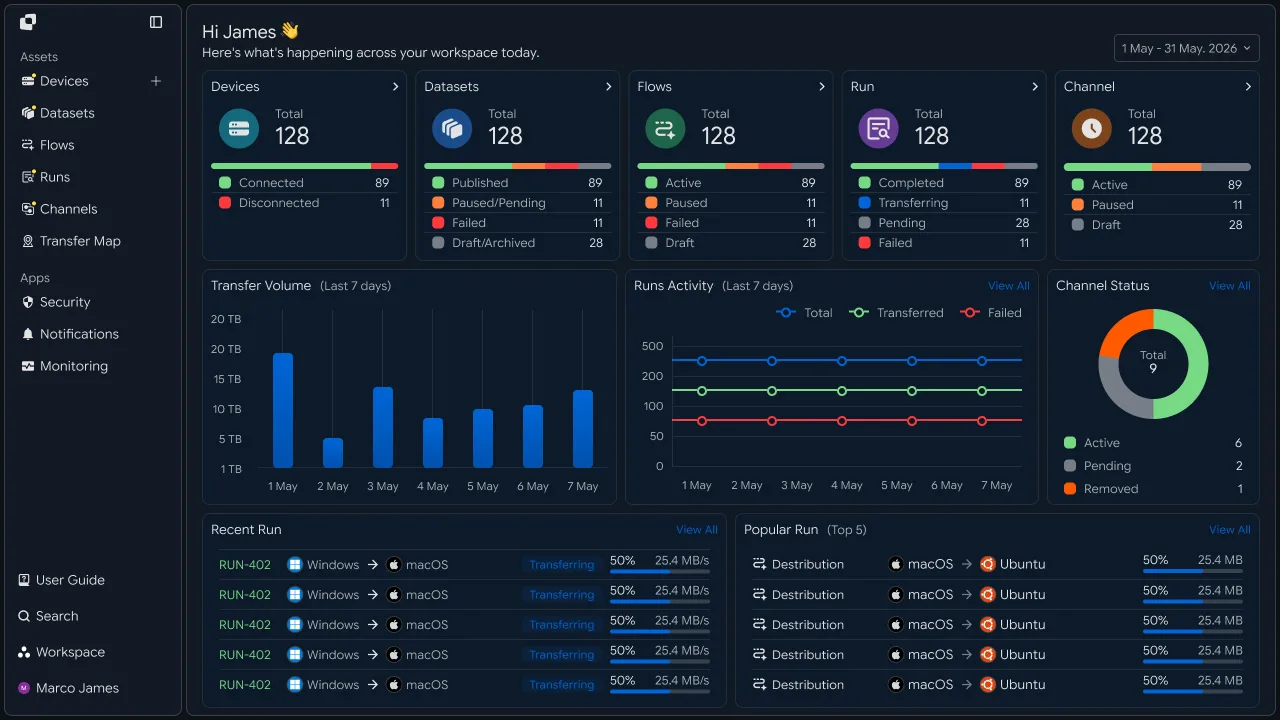
After synchronization runs, review the processing results from change detection through file application in Runs.
For one-way synchronization, verify that Source changes were applied successfully to all Targets.
For two-way synchronization, review which device originated the file change and how it was reflected on the other side.
| Item | One-way | Two-way |
|---|---|---|
| Change Location | Source | Device where the change occurred |
| Application Direction | Source → Target | Changes in both directions |
| Target Status | Result for each Target | Result applied to the folder on the other side |
| File Result | Whether the source file was applied | Changes and processing result |
| Additional Checks | Connection · path · permissions | Conflict · path · permissions |
If a problem occurs, review the Run details to check file paths, device connections, and access status, then rerun the required operation.
With this structure, team folders are not simply copied across devices. You can configure one-way synchronization to maintain a single source folder across multiple environments and two-way synchronization to keep files aligned across different work environments, depending on the workflow.